


 Extension
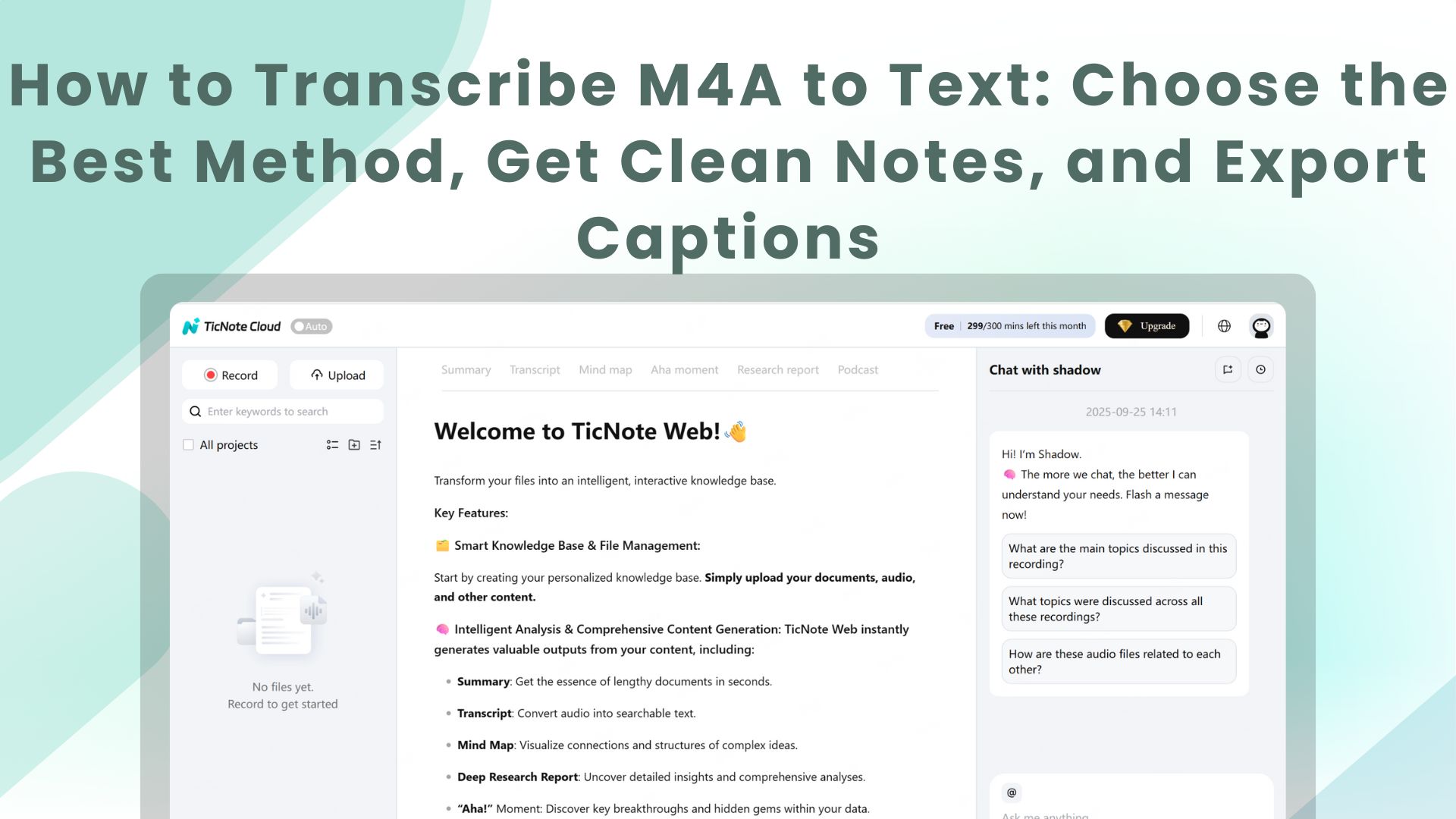
TL;DR: Fast ways to turn an M4A into text (and when to use each)
Try TicNote Cloud for Free if you want the fastest way to transcribe m4a to text, then turn it into notes you can use.
- Fastest: Use a cloud speech tool when you need text now.
- Most private: Use an offline tool when audio must stay on your device.
- Best accuracy: Start with clean audio, use a strong model, then do a quick edit, or pay for human review if the stakes are high.
Aim for one of these outputs: (1) a clean transcript you can search, (2) a short summary with decisions and action items, and (3) captions like SRT when you need timestamps.
You might have a great recording, then lose time fixing names, speaker mixups, and missing action items. That's where a workflow helps, so the text is not just accurate, it's usable. With TicNote Cloud, you can go from upload to transcript, summary, and organized notes in one place.
Next, we'll cover M4A basics, a beginner workflow, a comparison table, an accuracy checklist, and fixes for common failures.
How to transcribe an M4A to text step by step (example workflow)
These steps are demonstrated using TicNote Cloud as an example, but the workflow applies to most tools. You'll go from M4A audio to a clean transcript and shareable outputs in minutes.
Step 1: Import the M4A (prep it for search)
Before uploading, confirm the file plays normally, and the audio is clear. Then rename it so it's easy to find later. A simple format works well, for example: 2026-01-20 Client Interview – Product Feedback.m4a
In the TicNote Cloud Web Studio, upload the M4A into the project where you want it stored. Projects help keep transcripts, summaries, and exports together, especially if you transcribe meetings or interviews regularly.
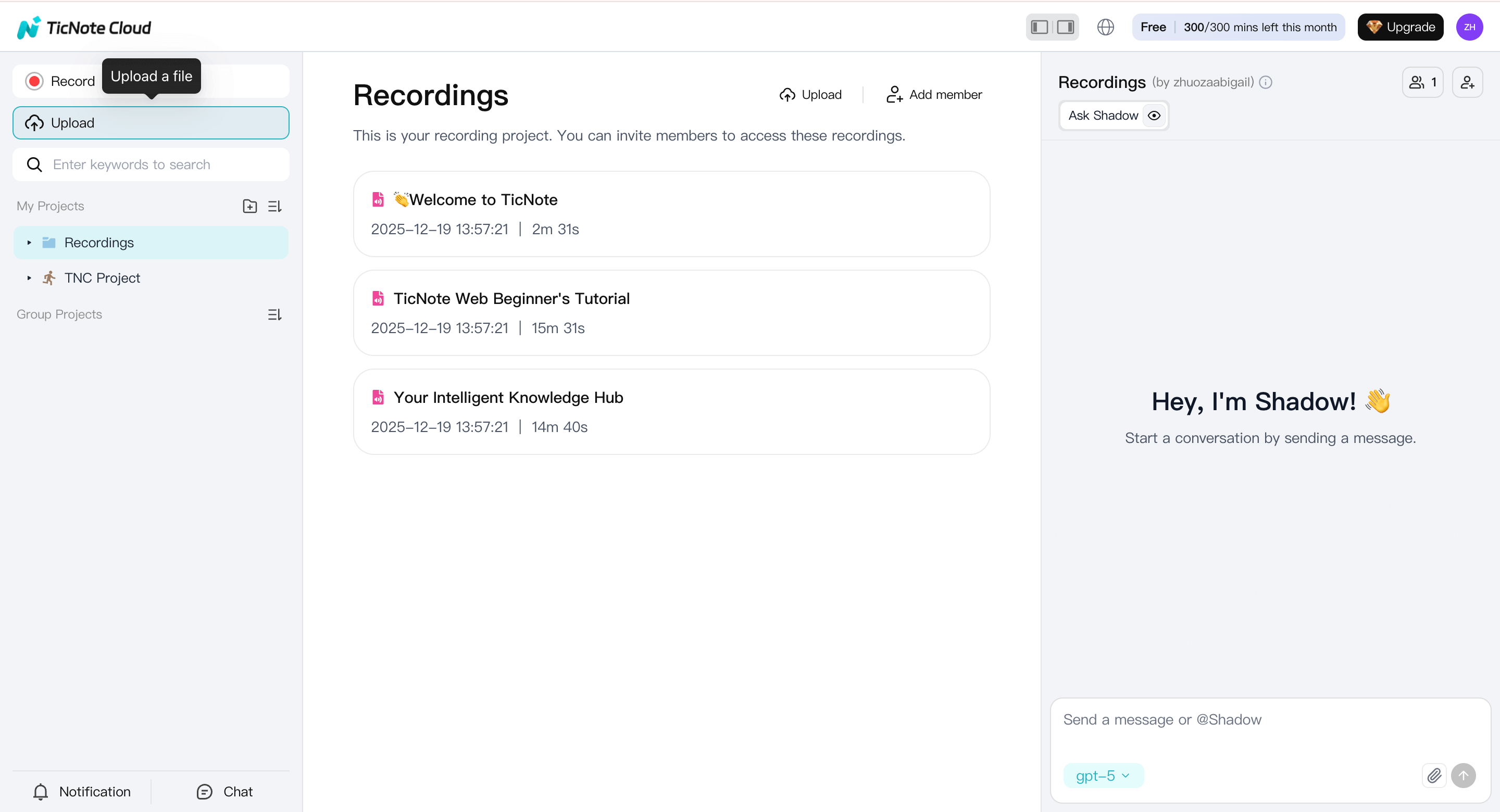
If you want a repeatable setup, keep a general "Meetings" or "Interviews" project so new files stay organized by default.
Step 2: Run transcription and set the language
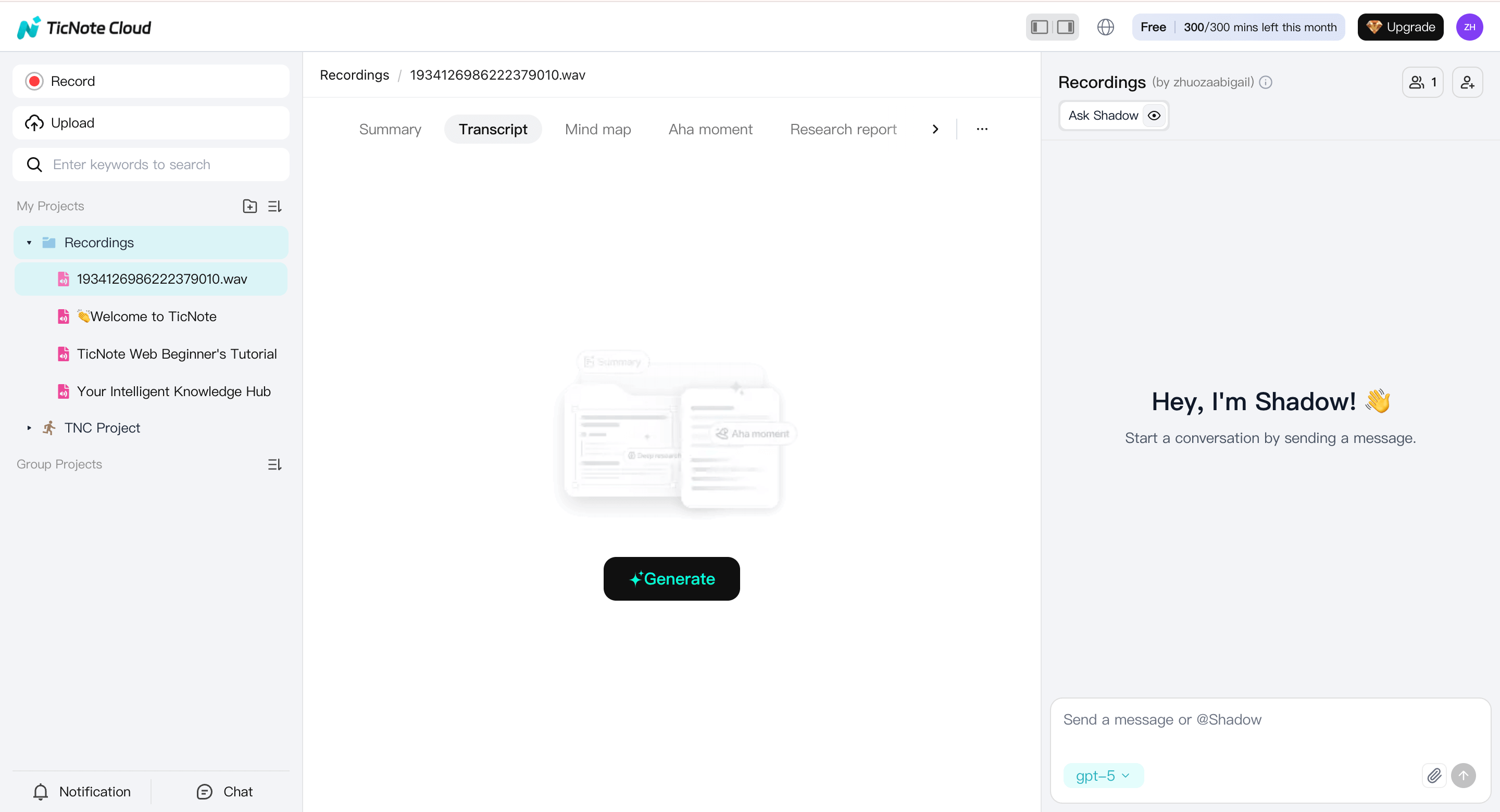
Select the uploaded M4A file from the left panel, switch to the Transcript tab, and click Generate to start transcription.
Before processing begins, choose the spoken language and the AI model that best fits your content, then confirm.
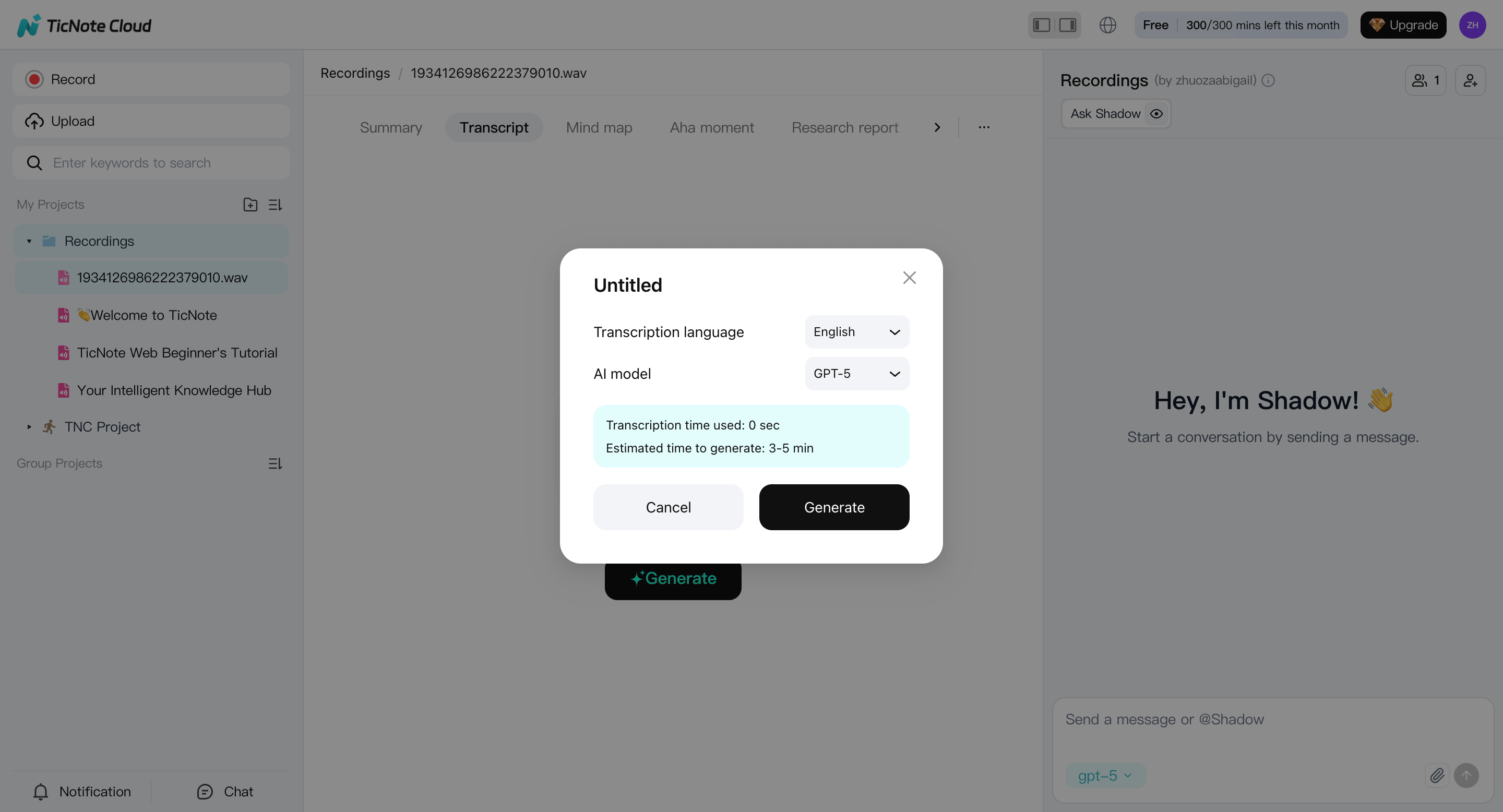
Why this matters: the wrong language setting is one of the most common reasons transcripts look messy, especially for names and technical terms.
If your recording includes mixed languages, pick the main language first. You can always translate or create another version after the draft transcript is ready.
Step 3: Review and clean the transcript (make it usable)
Once transcription finishes, review the text in the web editor and do two fast passes:
- Accuracy pass (2–5 minutes): fix names, acronyms, numbers, and key terms
- Readability pass (optional): improve punctuation and remove obvious filler
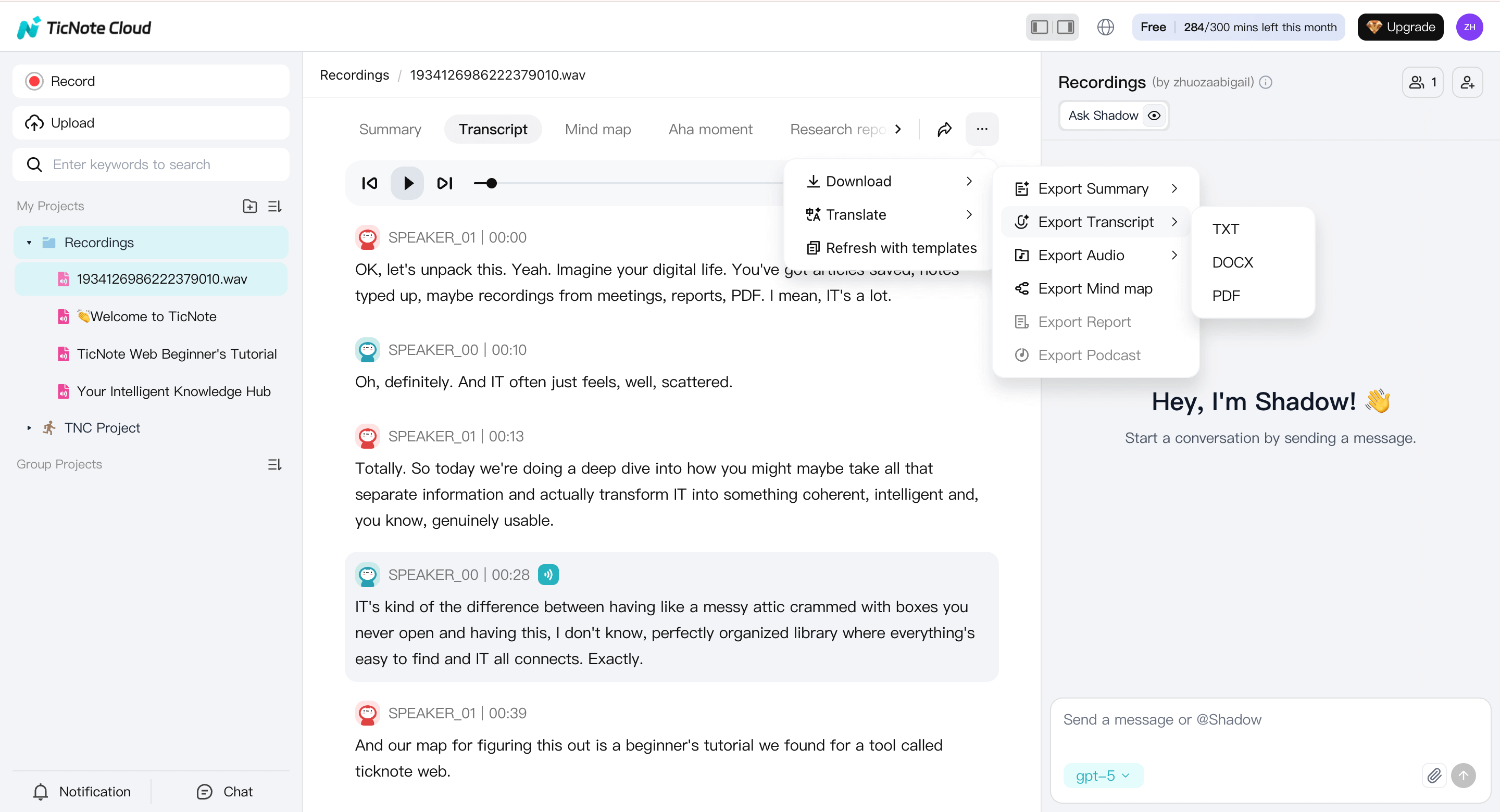
At this stage on the Web, you can also use Shadow AI to rewrite, summarize, or clean up phrasing—but not manual word-by-word editing. Many users generate a clean AI-assisted version here, then export or continue elsewhere.
Choose your output style mentally as you review:
- Verbatim: keeps every filler and false start (useful for research or legal notes)
- Clean reading: tighter grammar, same meaning (better for sharing)
Step 4: Export transcripts and summaries
When the transcript looks right, export based on what you'll do next:
- TXT transcript: best for quick search, copying into other tools, and archiving
- Markdown, DOCX, or PDF: best for summaries, meeting recaps, and research notes
Exports stay linked to the project, so you can always find them later without re-uploading the file.
Optional: edit or trim the M4A in the TicNote App
If you need hands-on edits, switch to the TicNote App.
Upload the same M4A into a project using the app, generate the transcript, then:
- Manually edit the text line by line
- Trim or cut sections of the audio if the recording runs long
- Use Shadow AI in the app for additional cleanup or rewriting
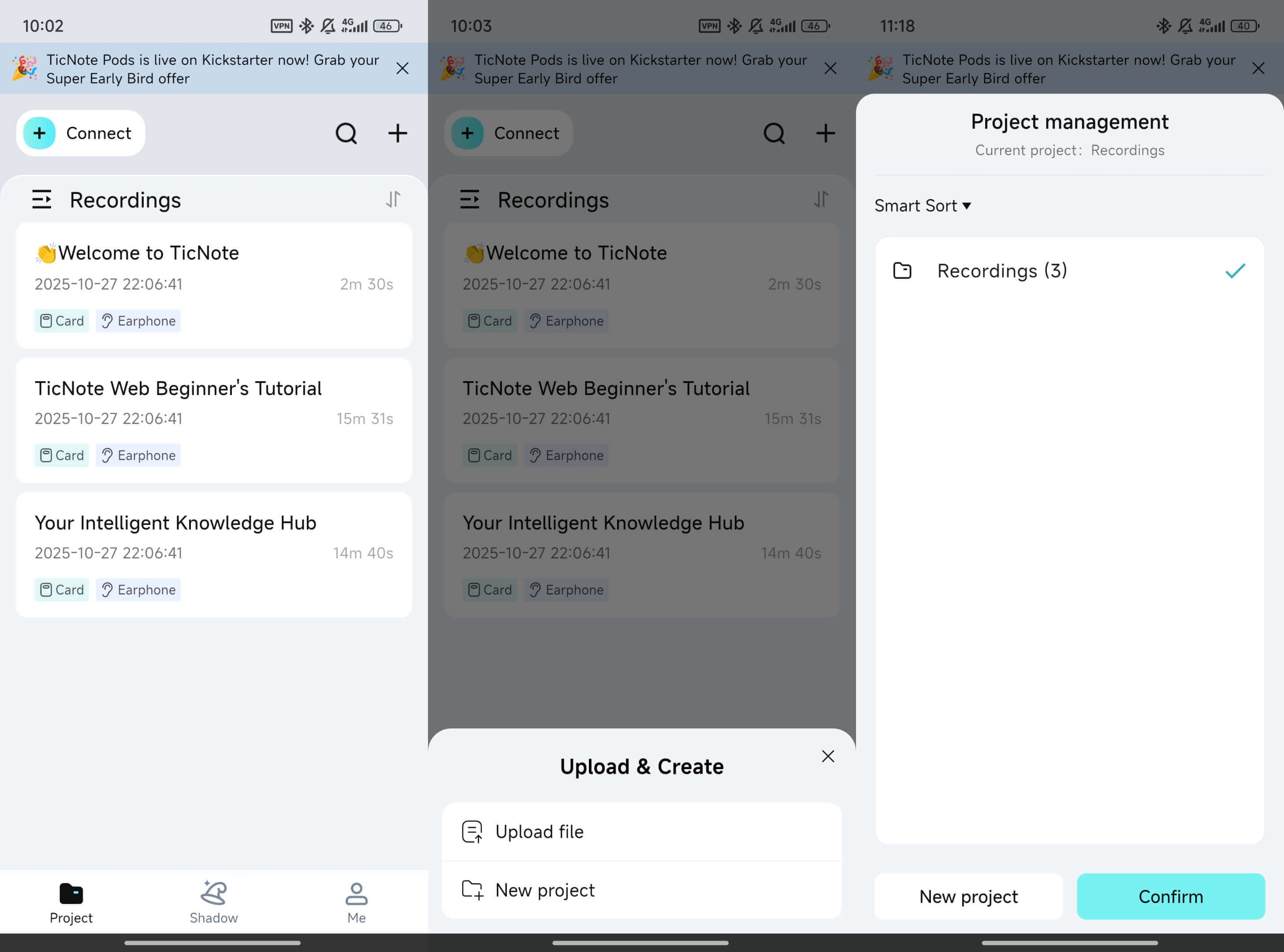
Many users generate transcripts on the web for speed, then move to the app for precise edits or audio trimming.
Planning note: mind the limits, then split long files cleanly
Most tools have two limits that matter: minutes per month and max recording length per file. If your M4A is too long, split it into parts at natural breaks, like agenda items or speaker changes.
To avoid losing context, keep a simple naming chain: Part 1, Part 2, and so on. Also, paste the last 1 to 2 sentences from Part 1 into your notes before you start Part 2. That makes it easier to follow the thread during review.
What is an M4A file, and why can transcription fail sometimes?
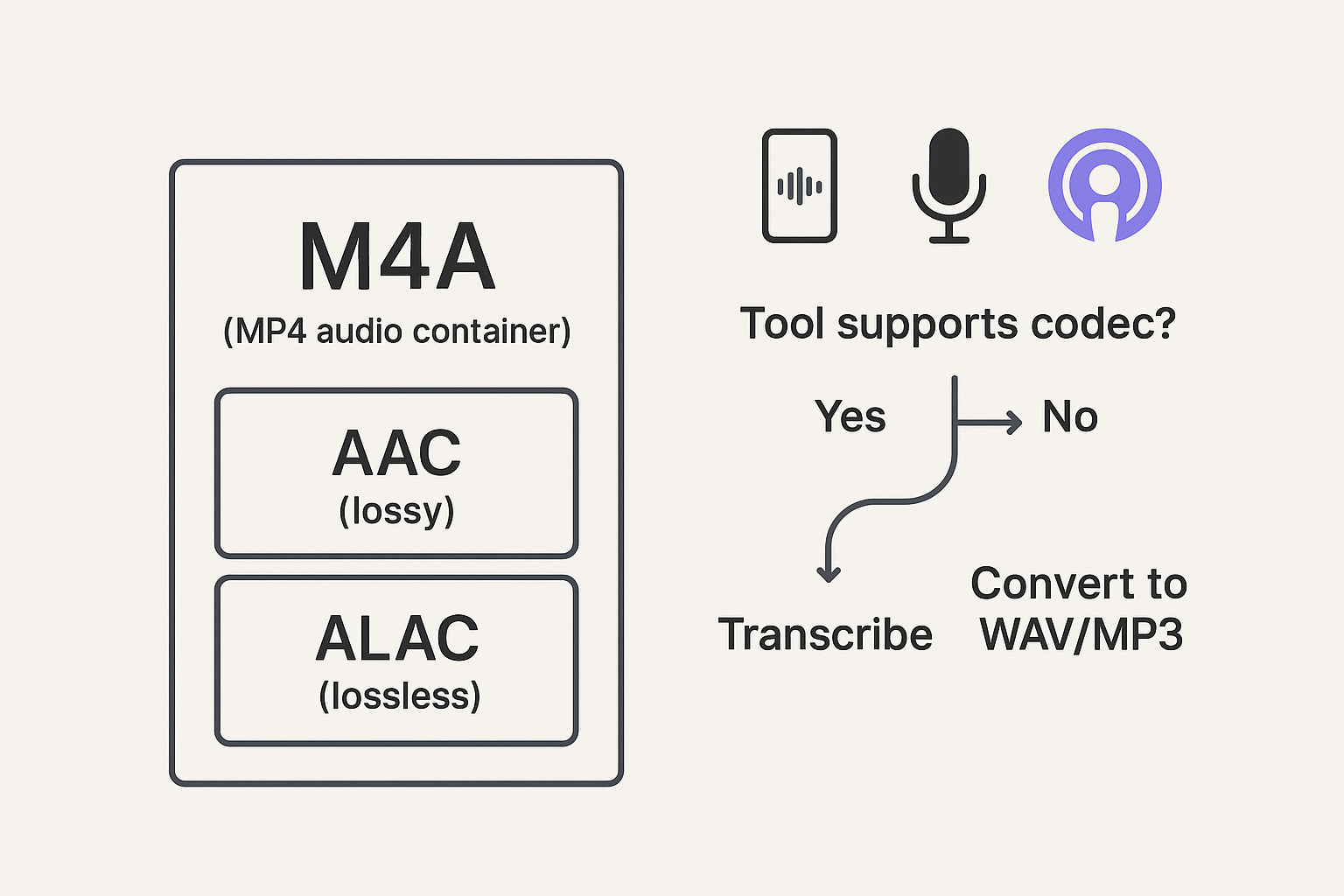
An M4A file is usually an audio file stored in an MP4-style container. That matters because "M4A" is not one single audio type. When you transcribe m4a to text, the tool must support the audio format inside the file.
Know what "M4A" really means
Think of M4A as a box (container) that holds audio. Inside that box, you'll most often find:
- AAC (Advanced Audio Coding): common and smaller, but lossy
- ALAC (Apple Lossless Audio Codec): bigger files, keeps more detail
You'll see M4A from iPhone Voice Memos, podcast downloads, meeting recorders, and exported audio clips from editing tools.
Spot the common reasons transcription fails
Most failures come from file issues, not your speech.
- Unsupported codec inside the M4A container (the tool can't decode it)
- Corrupted header or a bad export (file opens, but data is broken)
- Very low bitrate audio (speech sounds "watery" or muffled)
- Odd channel setup (dual-mono, one channel silent, or phase issues)
- Variable sample rate (some tools misread timing)
- Not really audio, or only partly downloaded (common with interrupted transfers)
Edge cases that can break "audio to text" jobs:
- DRM-protected audio (locked media can't be decoded)
- Clipped audio (peaks are cut off, words smear together)
- Long leading silence (can confuse splitting into segments)
Quick fixes to try before you retry
Before you re-upload or re-run transcription, do this:
- Re-export the recording from the original app (fresh file header)
- Convert to a widely supported format like WAV or MP3
- Trim long silence at the start (and any dead air between sections)
Which method should you use to convert M4A to text? (comparison table)
The "best" way depends on what you need most: speed, cost, privacy, or the least editing. Use the table below to pick a method, then stick to one workflow so your notes and captions stay consistent. If your goal is to transcribe m4a to text for real work output, choose the option that matches your audio quality and time.
Compare the 4 main options
| Method | Accuracy (editing needed) | Speed (first draft) | Cost | Privacy | Effort (setup and formatting) |
| Cloud transcription apps | Usually strong, improves with good audio | Fast | Usually paid, some free limits | Audio goes to cloud | Low, upload and export |
| Built-in OS tools | Ok for clear speech | Fast | Free | Often device-based | Low, but fewer export tools |
| Local models (ex: Whisper) | Can be strong, varies by setup | Medium | Free software, time cost | Local if run offline | High, install, run, clean output |
| Human transcription services | Highest when well-briefed | Slow | Highest | Depends on vendor | Low time, but you must review |
Best-fit picks by scenario
- Meetings: Cloud apps win when you need speed plus clean notes, since they often add summaries and exports.
- Interviews: Pick cloud or human if speaker turns matter, then do a careful review for names and quotes.
- Lectures: Local models can work well for long files, but expect more cleanup for jargon and acronyms.
- Podcasts: Cloud apps help when you need a repeatable captions workflow, consistent formatting, and quick revisions.
Want a deeper look at audio and video workflows? This video transcription methods guide breaks down options and outputs.
Quick decision tree: free, fast, or best accuracy
If "free" is the top goal, start with built-in OS tools, then edit. If "fast" matters most, use a cloud app and export right away. If "best accuracy" is the priority, use a human service for critical content, or run a local model and spend time on cleanup.
How can you improve transcription accuracy from an M4A?
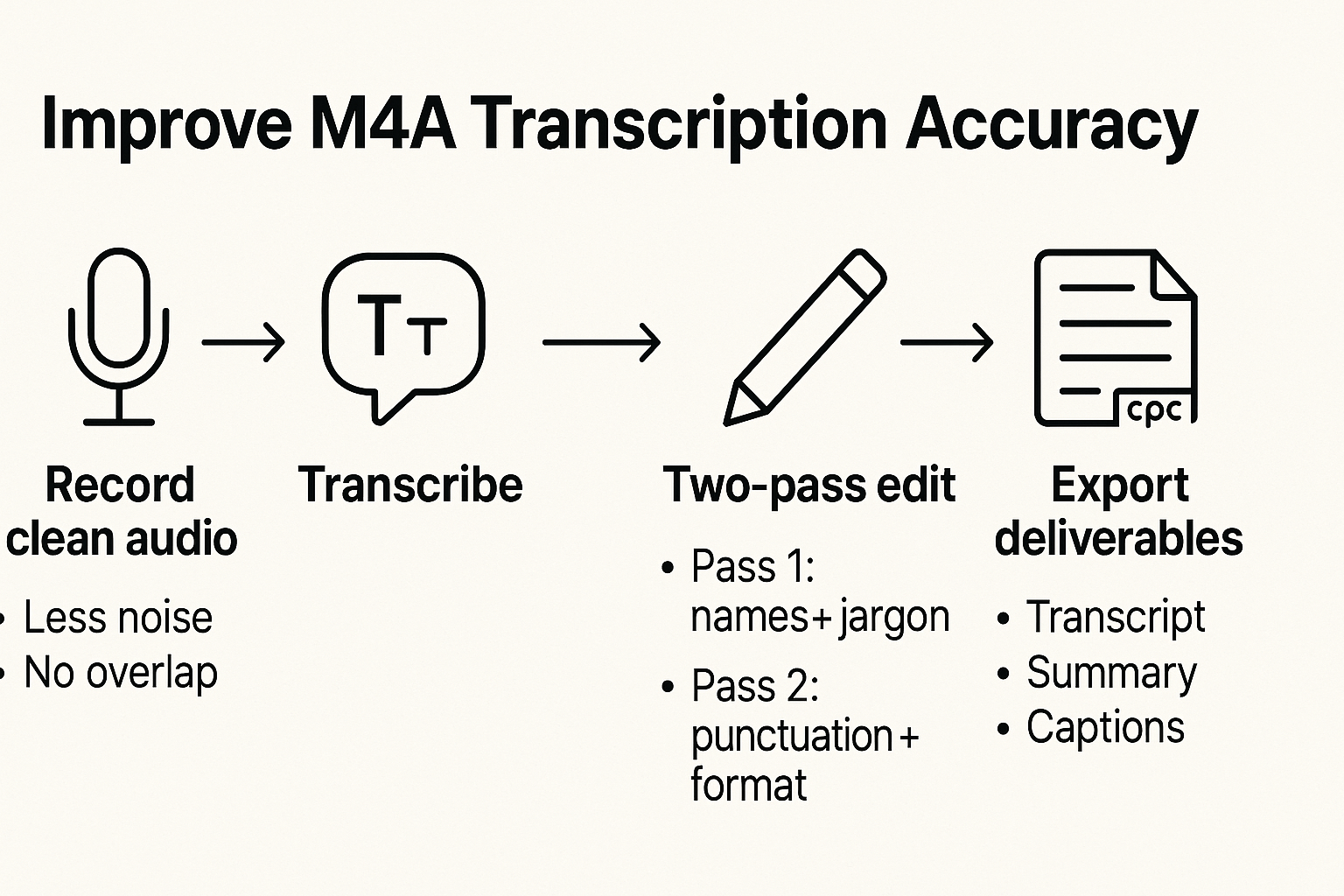
Better audio beats better settings. If you want to transcribe m4a to text with fewer fixes, focus on three moments: how you record, how you speak, and how you clean up the draft.
Before you transcribe: set up for clean audio
Do these quick checks first. Each one cuts edit time.
- Get the mic close: 6 to 12 inches from the mouth.
- Reduce noise: close windows, silence fans, and move away from cafés.
- Avoid overlap: don't talk over each other.
- Keep volume steady: don't drift far from the mic.
- Best case: record each person on their own mic or track.
Expert quote placeholder: "The #1 driver of ASR (automatic speech recognition) accuracy is clean audio, low noise and no speaker overlap." (Audio and transcription practitioner)
During recording: speak for the transcript
Small habits make a big difference.
- Speak in short sentences.
- Say names once at the start: "This is Alex."
- Pause between topics for 1 second.
If you can, aim for one clear speaker at a time. That's often the biggest accuracy win.
After transcription: do a fast two-pass edit
Don't chase perfection on the first read. Do two tight passes.
- Pass 1 (meaning): fix names, acronyms, and jargon. Start a mini glossary you can reuse.
- Pass 2 (readability): clean punctuation, add headings, turn lists into bullets, and mark action items.
Your practical goal is simple: cut edit time by improving the source audio, not by tweaking the tool for hours.
How do you use the transcript after you transcribe?
Once you transcribe m4a to text, don't stop at a raw transcript. Turn it into outputs you can act on today: clean meeting notes, shareable follow ups, or ready to post captions.
Turn a transcript into meeting notes people will read
Skim once, then rewrite into short bullets. Pull out only what changes work.
- Decisions: what you agreed to
- Owners: who does what
- Dates: deadlines and next check in
- Risks: blockers, unknowns, open questions
- Next steps: 3 to 7 tasks, in order
If you need more practice, use this same flow to [transcribe a YouTube video and reuse it cleanly](How to Transcribe a YouTube Video (Fast, Clean, and Easy to Reuse)).
Create captions: SRT vs VTT (and when "m4a to srt" fits)
SRT and VTT are caption files with time stamps. SRT is common for simple captions. VTT works well on the web.
For "m4a to srt", you need stable timecodes, short lines, and clean breaks. Keep each caption to one thought. Add speaker labels only if it helps.
Repurpose the text into new assets
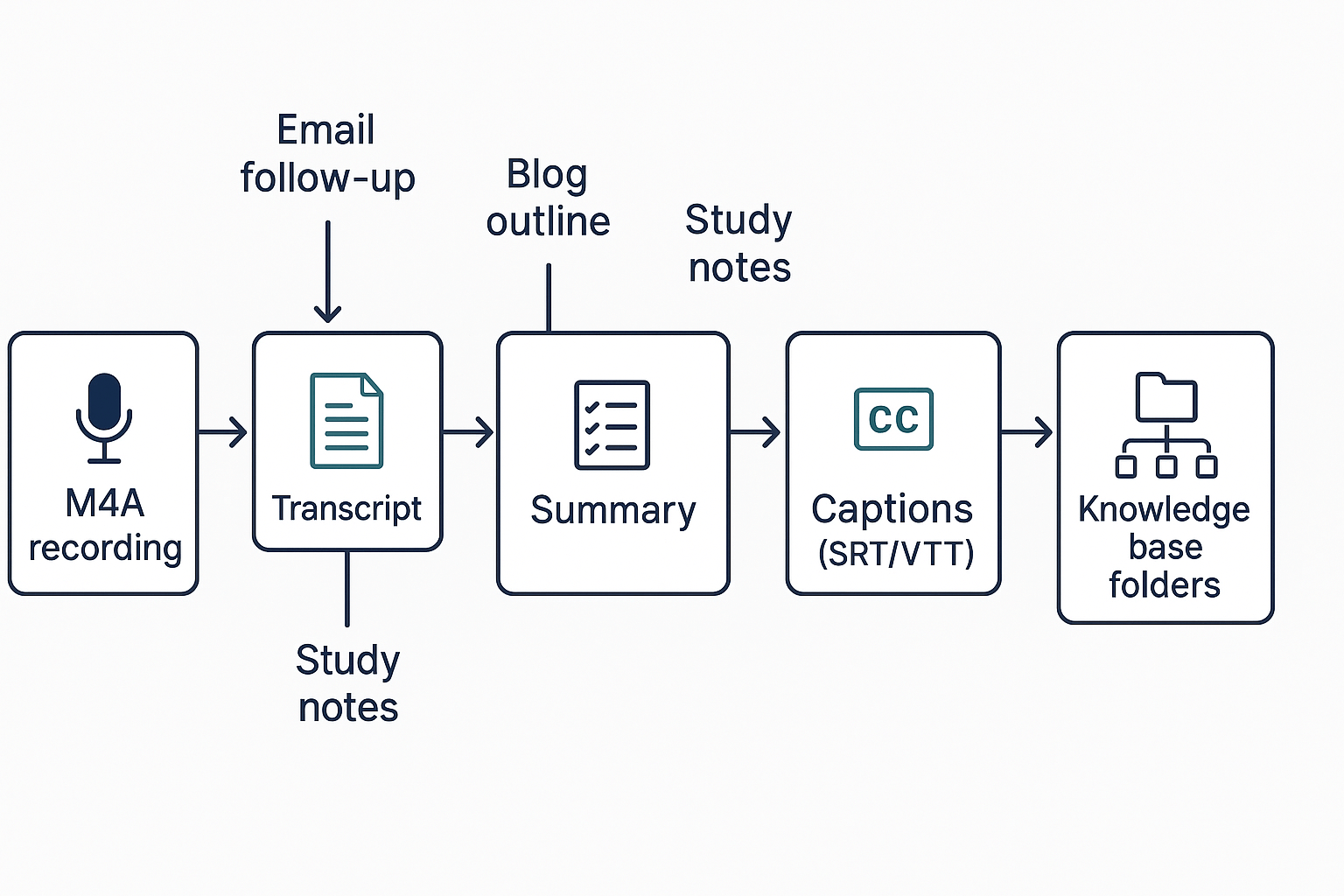
A transcript is a content source. You can turn it into:
- An email recap to your team or client
- A blog post outline with key quotes
- Research highlights and takeaways
- Study notes with terms and quick Q and A
Organize so you can find it later
Use a naming rule like YYYY-MM-DD, team, topic. Store by project, then by meeting type. Over time, searchable text becomes your memory.
Try TicNote Cloud for Free and export clean notes fast.
What are TicNote Cloud's unique "second brain" features after transcription?
Most tools stop after you transcribe M4A to text. TicNote Cloud keeps going, so you do less follow-up work. The flow is simple: Upload, Transcribe, Summarize, Translate, Organize, Export.
Turn transcripts into clean notes you can send
After transcription, you can auto-create a summary that reads like real notes. Pick topic based sections or use a meeting template, so decisions, action items, and risks are easy to spot.
You can share outputs in the format your team needs:
- Export a TXT transcript for a clean text copy
- Share a summary as Markdown, DOCX, or PDF
Ask Shadow questions across many files
Once your transcripts live in one place, you can search them by asking. Shadow Q&A lets you ask a question and get an answer grounded in your saved notes. This helps when you need, "What did we decide last week?" or "Who owns the next step?" without re reading everything.
Translate for global teams, then review faster with a mind map
Need to share notes with a global team? Translate the transcript or summary into another language, then send the same output. For fast review, generate a mind map from the transcript, then use it for a quick stakeholder update.
Keep it organized for later reuse
Store each transcript and summary in projects, so you can find them later by topic, client, or quarter. That's what makes it feel like a second brain, not a pile of files.
Try TicNote Cloud for Free.
For transcription minutes and max recording length by plan, check the pricing and plans page.
What problems come up when you transcribe M4A to text (and how do you fix them)?
Most transcription errors come from the file or the audio, not the tool. Use the matrix below to spot the cause fast, apply the quickest fix, then prevent it next time. If you're trying to transcribe m4a to text for captions or clean notes, these steps save the most time.
Troubleshooting matrix: problem, cause, fix, prevention
| Problem | Likely cause | Fastest fix | Prevention tip |
| Upload or import fails | M4A container vs codec mismatch (the "audio inside" isn't supported), corrupted export, or the file is too large | Re-export the audio from the source app, try a shorter clip, or convert to a more universal audio format (like WAV) | Keep a "clean master" export from the recorder, and avoid repeated re-saves that can corrupt files |
| Transcript is in the wrong language | Auto-detect guessed wrong, or your recording starts with small talk in another language | Re-run with the correct language selected | Start each recording with one clear sentence in the main language |
| Mixed languages get jumbled | Code-switching, bilingual interviews, or copied phrases in another language | Split the audio into language sections and transcribe each with the right language setting | Ask speakers to group languages by section (intro in one, body in another) |
| Two people talk at once | Crosstalk and overlap, plus fast turn-taking | Set expectations: speaker labels may be wrong, then do a quick manual cleanup for overlapped lines | In meetings, use a "one person at a time" rule for key decisions |
| Missing punctuation or run-on text | No pauses, heavy filler words, or low confidence segments | Do a second editing pass: add punctuation, insert headings, and break long paragraphs | Leave short pauses between topics and questions |
| Audio is too quiet or too loud | Mic too far away, background noise, or clipping (distortion from being too loud) | Normalize volume, reduce noise if available, and re-transcribe | Record close to the mic, avoid table bumps, and keep levels below clipping |
When to switch methods (so you don't waste time)
If you've tried the same tool twice and you still see major issues, switch approaches. Move from a web tool to a local model, try a different cloud service, or use human review for the hard parts. A fresh engine can handle accents, noise, and overlap very differently.


