Extension
TL;DR: What this guide covers and the quick win
TL;DR: In minutes, convert lecture audio into study-ready notes using lecture note taking ai. This guide shows a simple, repeatable workflow students and instructors can use.
You’ll get searchable transcripts, crisp summaries, and ready-made study assets like flashcards and a mind map. That means less re-listening and faster review before exams.
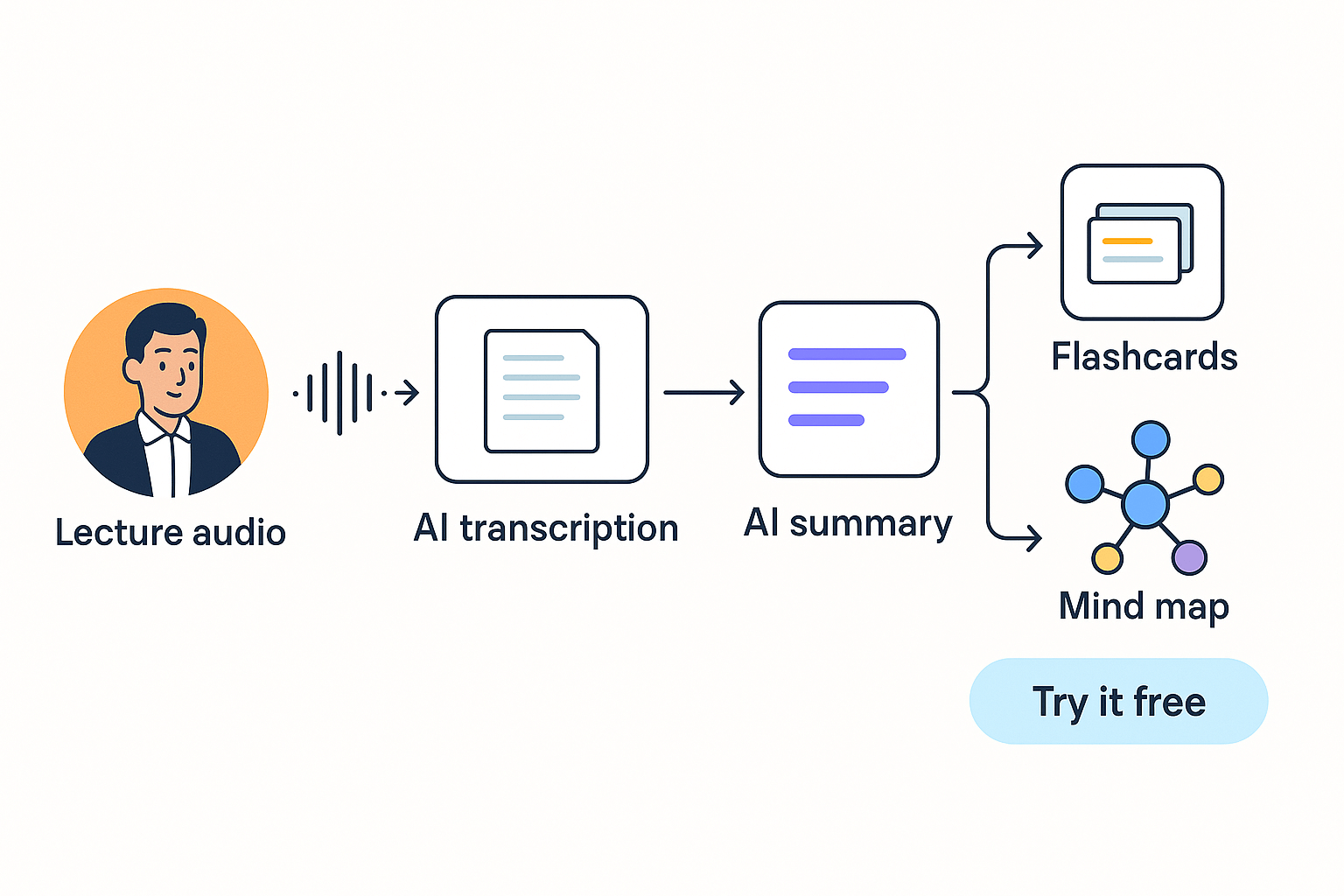
Quick workflow: record or upload your lecture audio, run AI transcription, auto-summarize into concise notes, then export flashcards and a mind map for study.
Why use AI for lecture note taking?
Taking notes by hand or typing during lectures splits your focus. You miss points while you write. Lecture note taking AI captures full audio and frees you to listen, ask questions, and reflect. That means cleaner study materials and less time lost to rewatching recordings.
Common pain points with manual notes
Students and instructors report the same problems: missing details, messy notes, and hours of cleanup. Juggling listening and writing raises cognitive load and reduces recall. Rewinding long recordings or reading disorganized notes wastes study time.
- Missed facts and examples because you were writing.
- Difficulty finding decisions, formulas, or timestamps later.
- Long post-lecture editing sessions to make notes usable.
- Uneven notes across group members, which hurts study group work.
How AI reduces load and improves recall
AI transcription and summarization do the heavy lifting. The transcript captures every spoken detail. AI then extracts topics, highlights key points, and turns long talks into concise summaries. Students get a structured study sheet fast, and instructors can share consistent notes across a class.
- Faster review: skim a one-page summary instead of a one-hour recording.
- Better memory cues: summaries and timestamps boost retrieval.
- More time for active learning: discussion, practice, and problem solving.
Who this workflow helps most
This approach benefits exam-driven students, grad researchers, language learners, and busy instructors. It also helps study groups and accessible learning needs, like captioning for students with hearing differences. If you want accurate, searchable class material and less manual tidy up, AI-based lecture to notes workflows will save time and improve results.
How TicNote Cloud turns lectures into study-ready notes
TicNote Cloud captures audio and transforms it into actionable, study-ready notes. This section explains how the platform supports students from recording to reviewing with AI-powered tools.
Student-centric workflow: From recording to mastering content
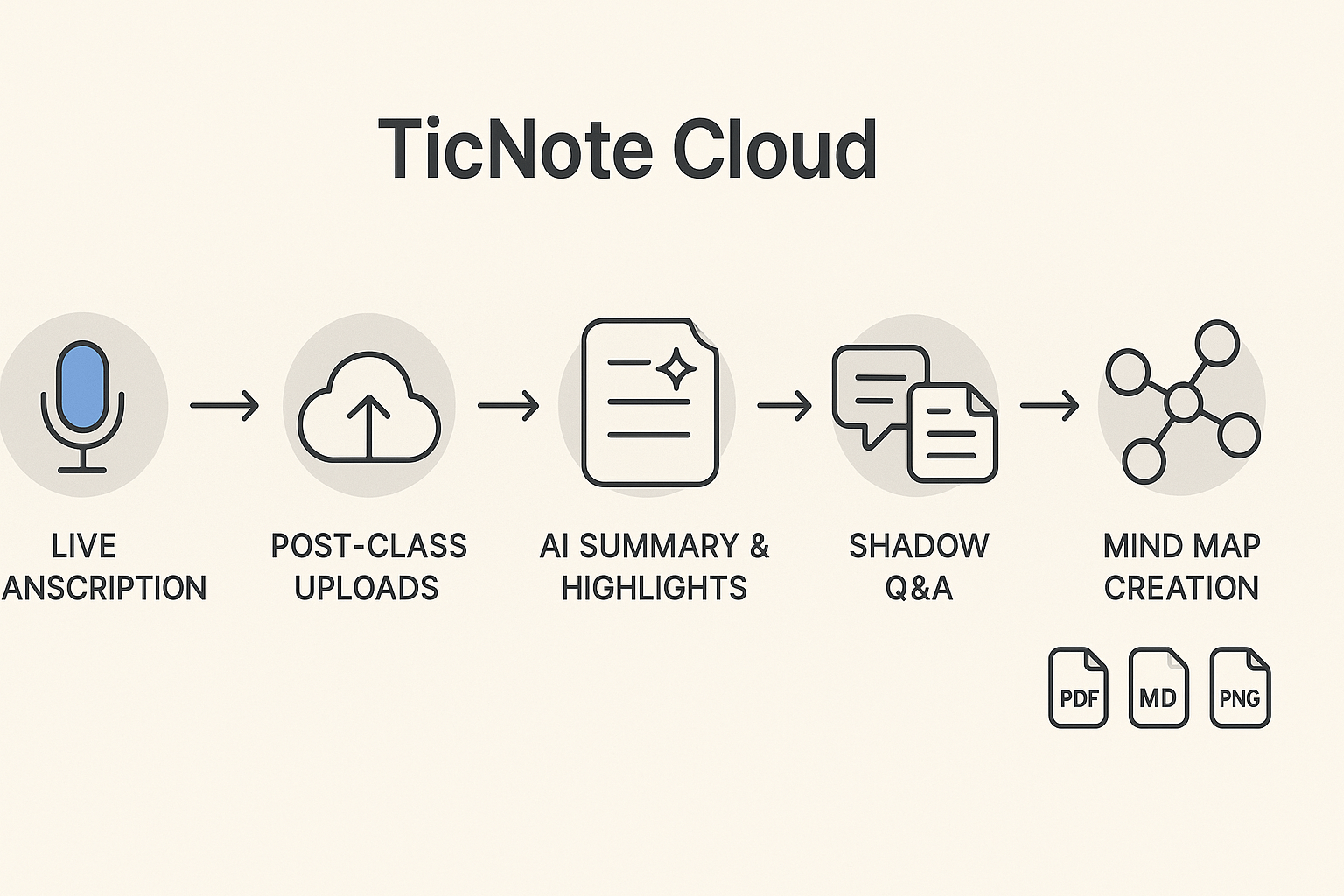
Students follow a clear process:
- Live Transcription – Use your laptop or phone to transcribe lectures in real time. Each line is timestamped, so reviewing later is easy.
- Post-class Uploads – Forgot to turn on live capture? No problem. Upload audio or video files post-lecture for accurate processing.
- AI Summaries & Highlights – Get instant bullet-point summaries, identify key sections by topic, and even extract flashcard candidates.
- Mind Map Creation – Visual learners can generate mind maps with a single click to see connections between ideas.
- Shadow (Cross-file Q&A) – Ask the AI questions across lectures and notes to find where professors discussed concepts or gave examples.
Tools for modern students
- Multilingual Support – Transcribe and translate notes in dozens of languages.
- Flexible Exports – Export to PDF, Markdown, TXT, or PNG for use in study apps, presentations, or revision booklets.
- Study Mode Integration – Mind maps integrate directly into study platforms. Shadow supports spaced repetition Q&A.
Visual aids and interactions in the final article
A looping GIF will demonstrate live transcription capture. Screenshots will show the summarization panel and editable transcript. Along the student journey, images of PDF exports, mind maps, and the cross-note Q&A UI will be included near each description. Call-to-action buttons and links will follow each major tool to guide students toward trials or upgrades.
Start summarizing smarter with TicNote Cloud
Step-by-step: From lecture audio to concise notes (a reproducible workflow)
This step-by-step workflow shows how to record class audio, turn it into a transcript, then create clean, study-ready notes using AI. It focuses on simple, repeatable actions you can use every week. Use this flow to test a lecture note-taking AI setup and get usable study assets in under an hour.
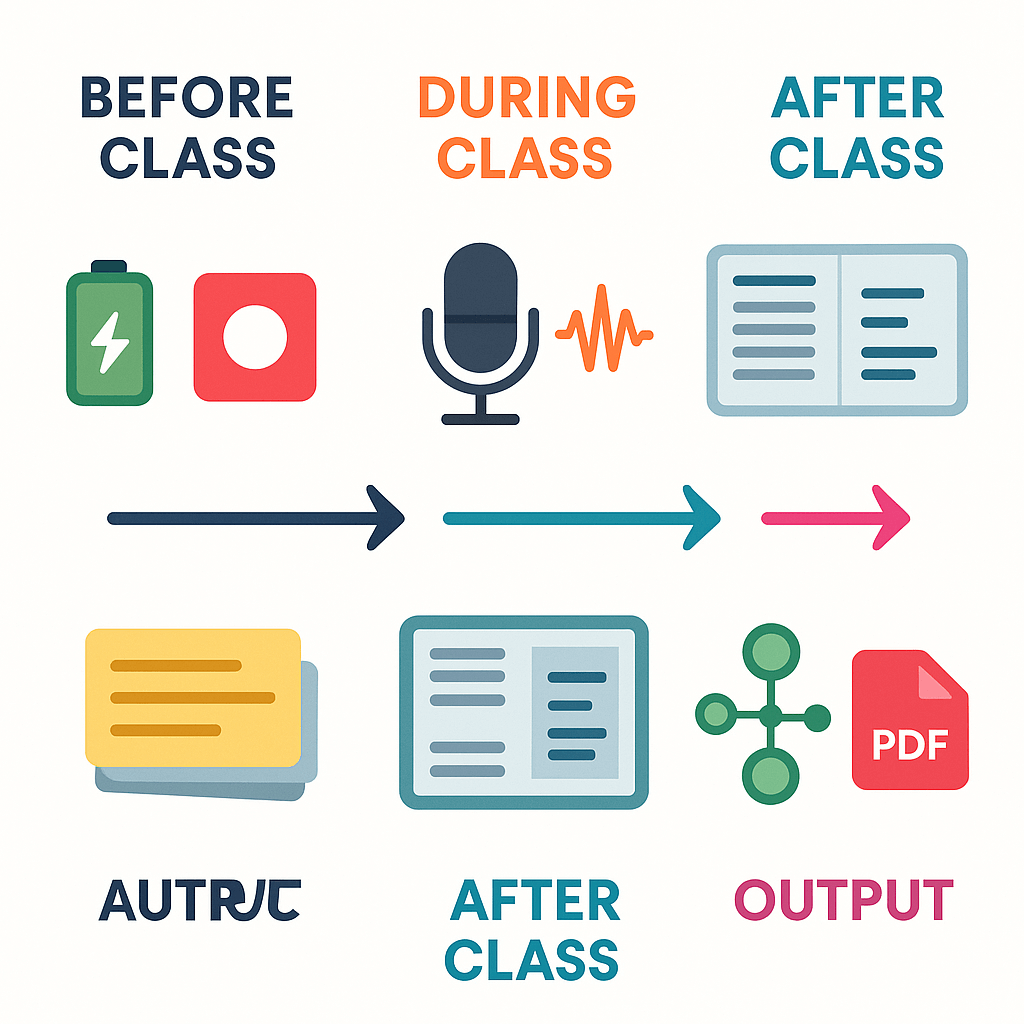
Before class: quick checklist
Prepare once, save time later. Do these four things before the lecture starts:
- Confirm your recording device has enough battery and storage. Plug in if possible.
- Open your chosen transcription service or app and sign in. Select the correct course folder or workspace.
- Set language and speaker detection preferences. Enable live transcription if needed.
- Choose a pre-made note template and toggle on timestamp insertion.
During class: record clean audio
Follow these tips while the class is in session:
- Start recording through your app or extension. If online, use browser tools; if in-person, the native app.
- Position your mic close to the speaker to ensure clarity (built-in laptop mic or external USB mic both work).
- Minimize background noise (mute devices, close doors, reduce chatter).
- Use bookmarking or annotations live to spot critical moments—helps later.
After class: summarize and organize
Time to turn sound into study gold:
- Use built-in AI summarization to output a structured text with headings.
- Clean up minor transcript issues—speaker labels, key terms, filler words.
- Classify or tag content by topic, module, or exam unit.
- Export in formats like PDF, DOCX, TXT, or Markdown for further use.
Build multiple formats from one lecture
Use the same transcript to make:
- Flashcards: Use AI to extract questions/answers and save as CSV for import into study systems.
- Mind Maps: Visualize with nodes from main topics and transitions.
- Reports: Run an analysis function to get citations and deeper summaries.
Repeat this routine each week to stay organized, reduce stress, and master concepts over time.
Practical tips & troubleshooting to improve transcription accuracy and note quality
Good audio and a predictable workflow give you usable notes fast. This short guide focuses on practical fixes and habits for better lecture note taking ai results, from mic placement to long file imports. Read it before your next recording and you’ll save editing time.
Optimize your recording environment
Position the mic 6 to 12 inches from the speaker, slightly to the side. That reduces plosives and boosts clarity. Use a directional mic or headset when possible; it isolates the voice from room noise. Record in a quiet room, close windows, and turn off HVAC if you can.
Tips to reduce background sound:
- Use soft furnishings to cut echo, like curtains or a rug.
- Ask classmates to mute when not speaking on recordings.
- Prefer a wired connection over Bluetooth for stable audio.
Check device, browser, and file format
A quick device check prevents many transcription hiccups. Use the Chrome browser or the TicNote app for web recording when possible; they handle live capture more reliably. Test input levels in advance: if the waveform clips, lower the gain.
When uploading files, prefer WAV over MP3. WAV keeps full audio detail, and that helps transcription accuracy. Split very large files into 30 to 60-minute chunks for smoother uploads.
Improve speaker separation and timestamps
Clear speaker labels and timestamps make notes much easier to use. If possible, ask each speaker to say their name at the start. Use TicNote’s multichannel capture or speaker diarization (speaker separation) when available.
How to get useful timestamps:
- Record short topic markers by saying “Topic: X” aloud.
- Use chapter markers in longer recordings if the recorder supports them.
- Export with timestamps for quick jump-to-audio during review.
Use TicNote templates and custom prompts
Templates turn raw transcripts into study assets fast. Pick a lecture template like Summary, Key Points, or Cornell Notes in TicNote. Then add a custom prompt to tell the AI what you need, for example: “Extract 7 study questions and three key formulas.”
Examples of helpful prompts:
- “Give a 200-word summary with 5 bullet takeaways.”
- “List definitions and page references for follow-up.”
Fix noisy, overlapping, or very long recordings
Bad audio needs staged cleanup, not magic. First, run a noise reduction filter in your editor or TicNote if offered. Then adjust equalization, boosting mid frequencies where speech lives. If voices overlap, mark the timestamp and ask speakers for a short recap in the next meeting.
For very long files:
- Break into logical chapters before uploading.
- Transcribe each chunk and then merge summaries into one study guide.
- Use TicNote’s mind map export to visualize large lectures.
Quick troubleshooting checklist
- No sound captured: confirm mic permissions in browser and OS.
- Garbled transcript: re-record a short test, check levels, switch mics.
- Speaker mix-up: enable speaker diarization or add manual labels.
- Upload failed: split the file, then retry on a wired network.
- Low accuracy on jargon: upload a glossary or add it to the custom prompt.
Follow these steps, and you’ll spend less time fixing notes. Small changes to capture and templates make AI-powered lecture notes far more useful in study sessions.
If you use lecture note taking ai tools for class recordings, privacy matters. TicNote Cloud sets accounts to private by default. Data is stored in the U.S., encrypted in transit and at rest, and the product states that user files are not used to train models.
Privacy and security posture
TicNote says it encrypts data in transit and at rest. Keep in mind, the General Data Protection Regulation (GDPR) has applied since 25 May 2018, according to General Data Protection Regulation (GDPR) | EUR-Lex. The platform also notes that data is private by default and not used to train AI models. For classrooms, that reduces a key risk, but you should still confirm data residency and retention settings with your institution.
Key recommendations for class or institutional policy
- Get informed consent from students before recording. Explain how files are stored and who can access them.
- Restrict sensitive content: avoid uploading health or counseling sessions without clearance.
- Define retention: set clear, delete, or export policies for term-end cleanup.
- Test with non-sensitive recordings first and involve campus IT.
Accessibility and compliance checks
TicNote offers captions, downloadable transcripts, AI translation, and adjustable UI elements to help diverse learners. Transcripts and exports (DOCX, PDF, Markdown) let instructors produce accessible handouts. To evaluate compliance, ask IT for a data protection impact assessment, review the vendor’s encryption and privacy claims, and check relevant laws like FERPA or local privacy rules.
Quick educator checklist
- Verify vendor privacy docs and export controls.
- Confirm campus legal or IT approval.
- Publish consent and retention rules for students.
- Pilot in one course before wide rollout.
Pricing and competitor comparison (Otter, NoteGPT, Sembly), which should students choose?
AI can shrink the time spent on notes. This section compares TicNote plans and rival tools so students pick the right fit. If you search for lecture note-taking ai, this snapshot shows limits, recording length, templates, and collaboration trade-offs.
TicNote plans at a glance
TicNote has four tiers with clear limits and exports. Free gives 300 transcription minutes per month, 30-minute web recordings, basic templates, and 10 AI chats a day. Professional adds 1,500 minutes, three-hour recordings, unlimited AI chat, and advanced templates. Business raises minutes to 6,000 and eight-hour recordings, while Enterprise adds SSO and dedicated support.
Side by side: TicNote, Otter, NoteGPT, Sembly
| Product | Monthly transcription mins | Max recording length | Templates & summaries | Collaboration & exports |
| TicNote Cloud | 300 Free, 1,500 Pro, 6,000 Biz | 30m Free, 3h Pro, 8h Biz | 100+ templates, mind map, deep reports | Notion, Slack, WAV/TXT/MD/DOCX/PNG exports |
| Otter | Varies by plan, commonly 600–6,000 | 40m to 4h depending on the plan | Auto-summary, custom templates limited | Live notes in meetings, team folders, exports |
| NoteGPT | Typically, pay-as-you-go or token limits | Short uploads are common, max depends on the plan | Focused on AI summaries, fewer templates | File-based chat, limited platform connectors |
| Sembly | Minutes vary by plan, team-focused | 60m to multi-hour meetings | Meeting highlights, agenda-based notes | Integrates with calendars and collaboration tools |
Which plan fits which student?
Casual students: Free TicNote or Otter free tier will work. You get basic transcripts and quick summaries. Power users: TicNote Professional fits heavy lecture loads and long recordings. It unlocks advanced templates and more minutes. Research groups or departments: Business or Enterprise for long recordings, SSO, and admin controls.
Hidden limits and integration trade-offs
Watch per-file upload caps and daily or per-recording limits. Some tools limit live recording bots or require browser extensions. Integration chains matter: a tool with strong exports may beat stronger native AI if you use Notion or LMS sync. Also, check privacy defaults and data use policies.
Quick takeaway
Pick Free for trialing features. Upgrade to Professional when you need longer recordings and unlimited AI chat. For campus or lab scale, choose Business or Enterprise for admin features and higher minutes.
Real student & instructor case studies and workflows
This section shows two short, consented examples that use lecture note taking AI in real classes. You’ll see a student workflow that turns recorded lectures into flashcards. You’ll also see a TA and professor workflow that adds summaries to syllabi and shared class recaps.
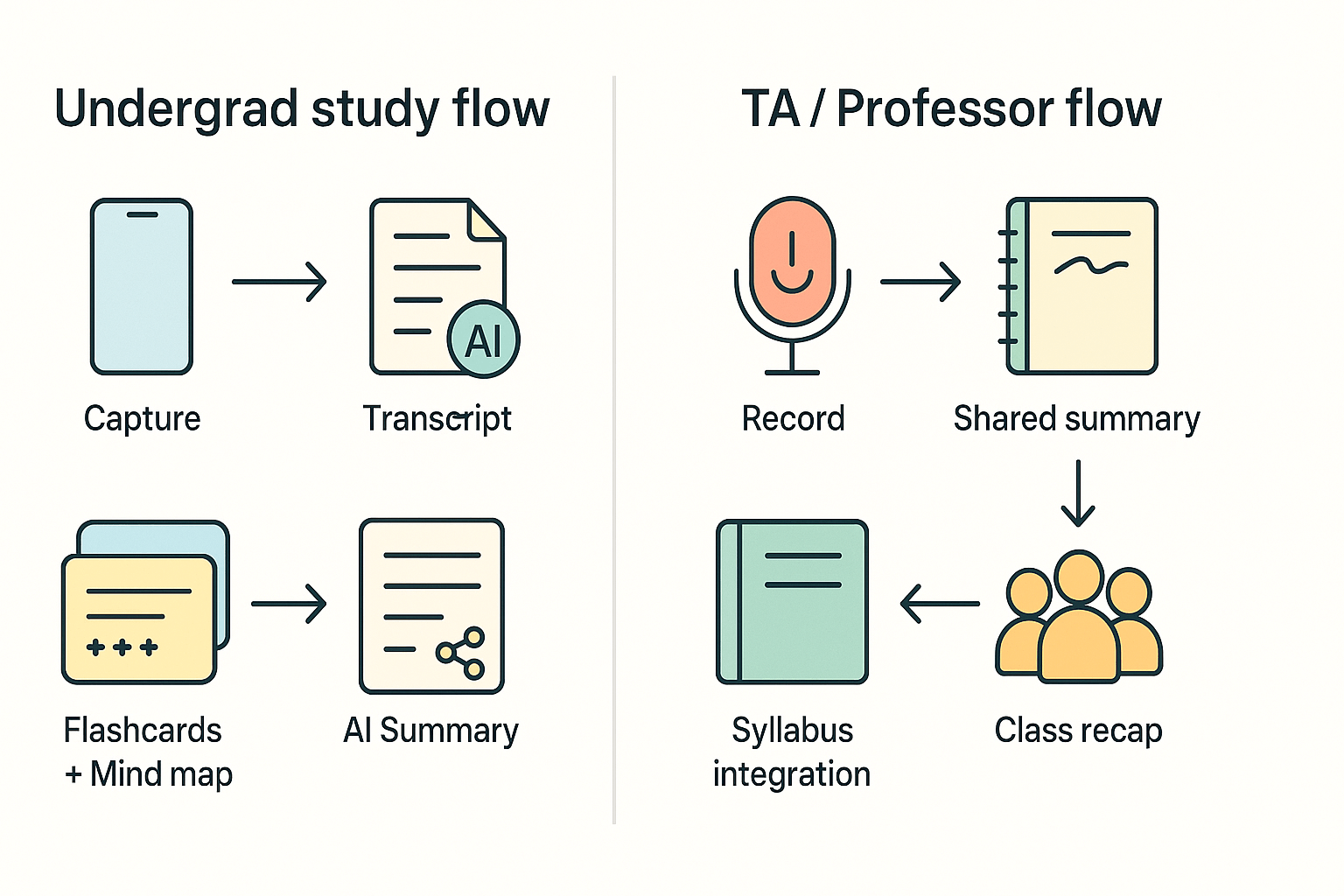
Undergrad: capture to flashcards
Sam records class with a phone or the TicNote web recorder. After upload, TicNote creates a transcript and a concise AI summary. Sam uses the summary to auto-generate flashcards and a mind map for quick review.
Workflow diagram (abstract): Capture (mobile/web) → Transcript → AI summary → Flashcards + Mind map
Steps:
- Record a lecture or upload audio.
- Run AI transcription, then choose the "Study" template.
- Export flashcards or sync to a study app.
Quote from Sam: "I cut review time in half and recall key points faster." Outcome notes: faster spaced repetition, clearer exam focus, and reusable flashcard decks for group study.
TA and professor: record to syllabus notes
A TA records review sessions, and the professor uploads guest lectures. TicNote makes topic summaries and a class recap. The TA copies key summary sections into the course syllabus and a shared recap doc.
Workflow diagram (abstract): Record (lecture/review) → Shared summary → Syllabus integration → Class recap
Steps:
- Transcribe each session, tag by week, and generate a short summary.
- Paste the summary into the syllabus notes and the class recap page.
Quote from Prof. Lee: "Students used the recaps to catch up after missed classes." Outcome notes: better continuity between lectures, faster onboarding for absentees, and a searchable class archive.