


 Extension

TL;DR — What you need to know
Automated meeting notes in Teams capture spoken and recorded conversations, convert them into searchable transcripts, and surface short summaries, decisions, and action items. They help teams that run many meetings, replace manual note-taking, and cut time spent hunting for past decisions.
Key benefits are faster follow-ups, one-click search across meetings, and consistent task capture. Set up is usually quick: enable live transcription or upload recordings, pick a summary template, and share notes with stakeholders. Most teams see immediate wins in the first few meetings.
Concerns around cost, privacy, and accuracy are common; look for clear pricing tiers, private-by-default data handling, and tools that offer templates, exports, and follow-up workflows. Read the deeper sections for a step-by-step setup, pricing guidance, and a comparison of top tools.
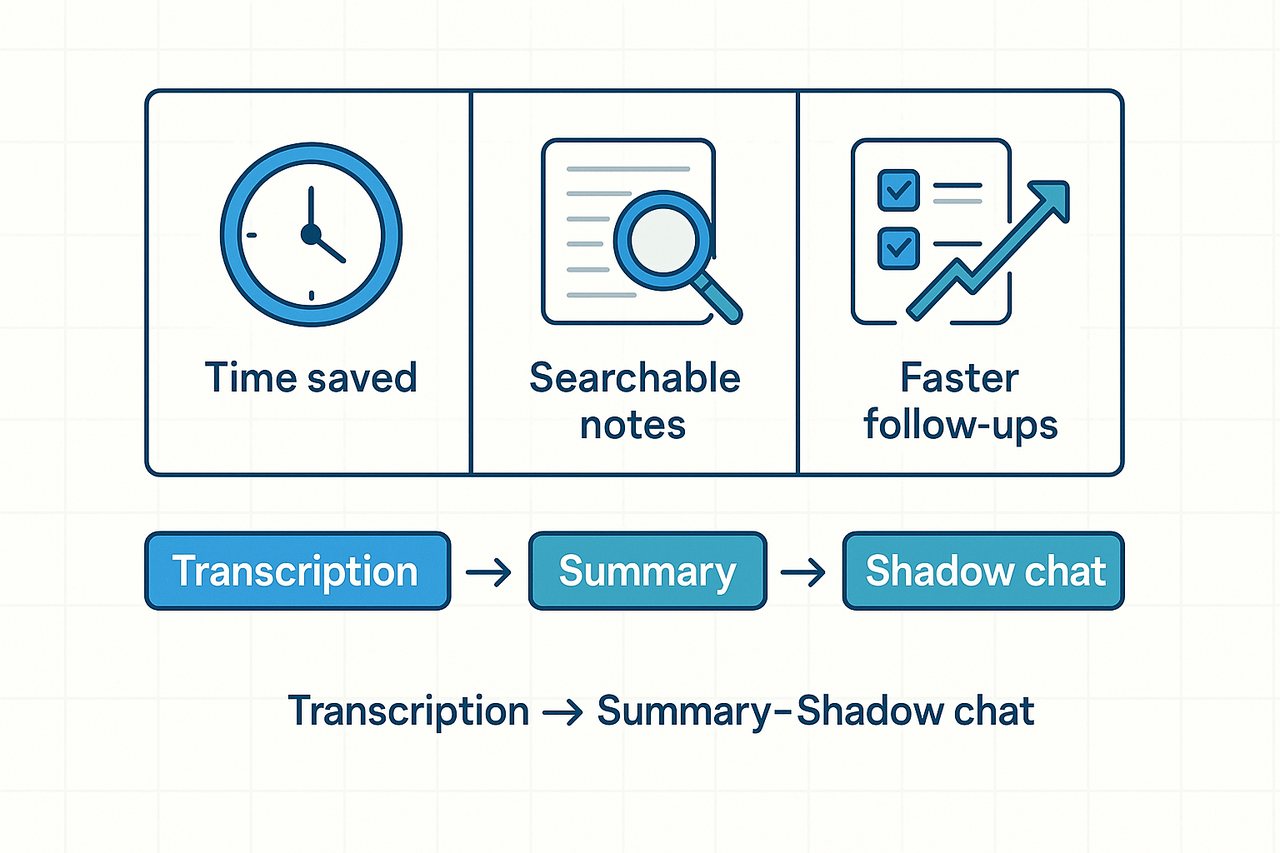
Why automated meeting minutes matter (for teams using Microsoft Teams)
Teams spend hours in meetings and still miss key outcomes. Automated meeting notes in Teams replace manual note-taking with a reliable text record and reduce the burden on meeting owners. Gartner Press Release (2021) notes: By 2024, in-person meetings will drop from 60% of enterprise meetings to 25%, driven by remote work and changing workforce demographics.
Manual notes create three predictable problems: lost time, missed decisions, and fractured follow-up. People spend minutes or hours writing notes instead of working. Decisions are buried in chat or memory, and actions fall through the cracks. Transcript-based automation (a full text record of the meeting) changes the workflow: it captures everything, surfaces topics, and auto-generates summaries and tasks.
Key outcomes teams care about
- Faster prep and post-meeting work: auto summaries cut read time to minutes instead of hours.
- Fewer missed actions: software flags decisions and assigns follow-ups automatically.
- Searchable meeting history: transcripts make past meetings findable by topic, name, or task.
- Better handoffs: clear notes reduce status-check meetings and rework.
- Consistent records for audit and onboarding: every meeting yields the same deliverables.
Adopting transcript-driven minutes turns meetings into reusable knowledge. Teams stop chasing context, start acting on decisions faster, and save time each week.
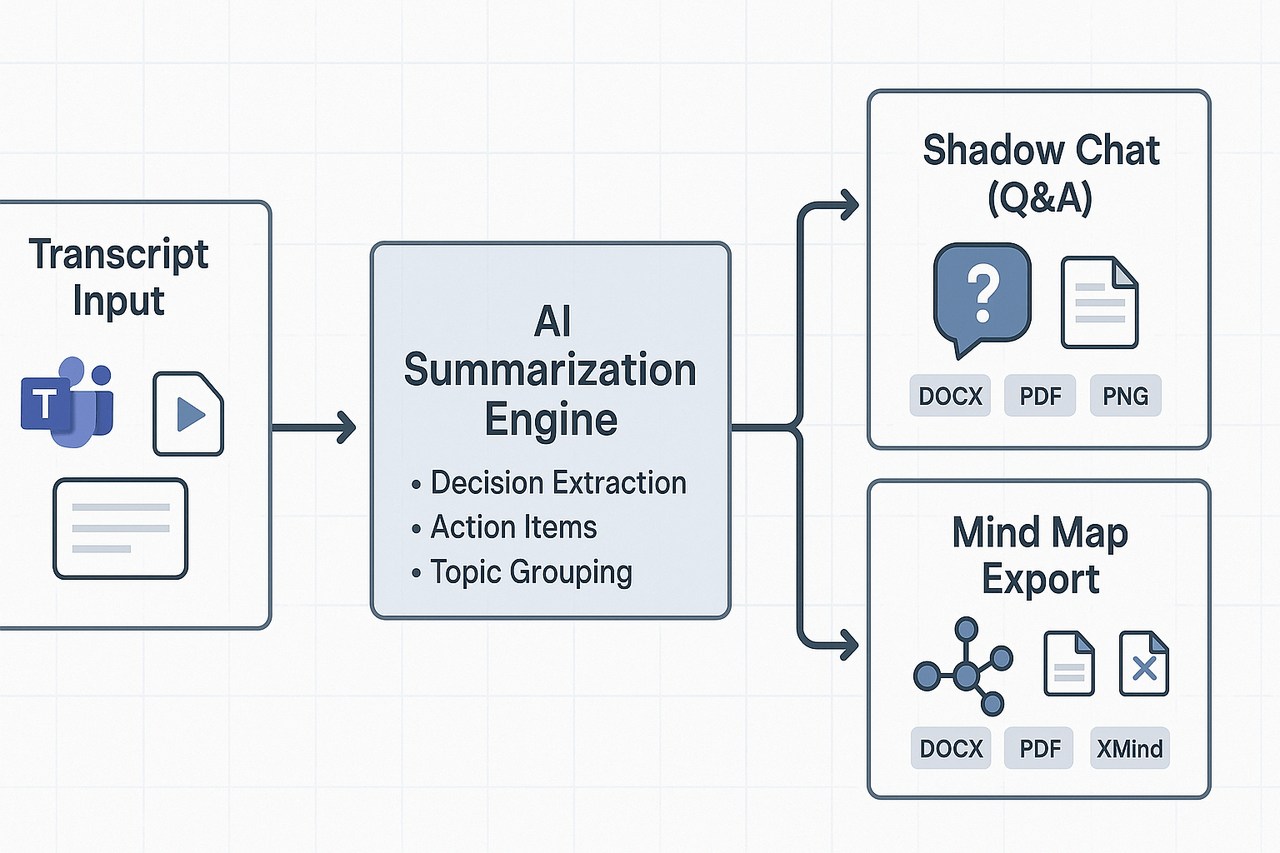
Start with a clean transcript and end with action-ready minutes. The platform ingests live Teams transcription or uploaded audio and turns raw text into a structured summary. It highlights decisions, extracts action items, and formats notes into templates you can export or query.
Live transcription and uploads
Capture the meeting in real time or upload recordings after the call. Live transcription turns speech into searchable text, so you don’t rely on memory. Uploaded audio or video files are processed the same way, so post-meeting work is fast.
AI summarization and templates
The AI groups the transcript by topic, pulls out decisions and next steps, and produces a short executive summary and detailed minutes. Use built-in or custom templates to format outputs for engineering handoffs, sales follow-ups, or sprint notes. That cuts manual editing and keeps notes consistent.
- What the AI gives you: decisions, action items with owners, short summary, a full timestamped transcript, and links to source audio or files.
Shadow chat for cross-meeting Q&A
Want to find where a decision was made across meetings? Ask the workspace chat (Shadow) to locate references, surface past action items, or roll up recurring themes. This replaces folder digging and speeds cross-meeting context for product managers and ops leads.
Mind map exports and sharing
Auto-generate a mind map from the summary to visualize topics, dependencies, and owners. Export as PNG or XMind for slide decks or planning sessions. You can also export minutes as DOCX, PDF, or Markdown for easy distribution.
How this reduces manual work: it removes transcription cleanup, highlights the important bits, keeps formatting consistent, and makes notes searchable across meetings. Teams-heavy workflows get faster follow-ups and fewer missed items.
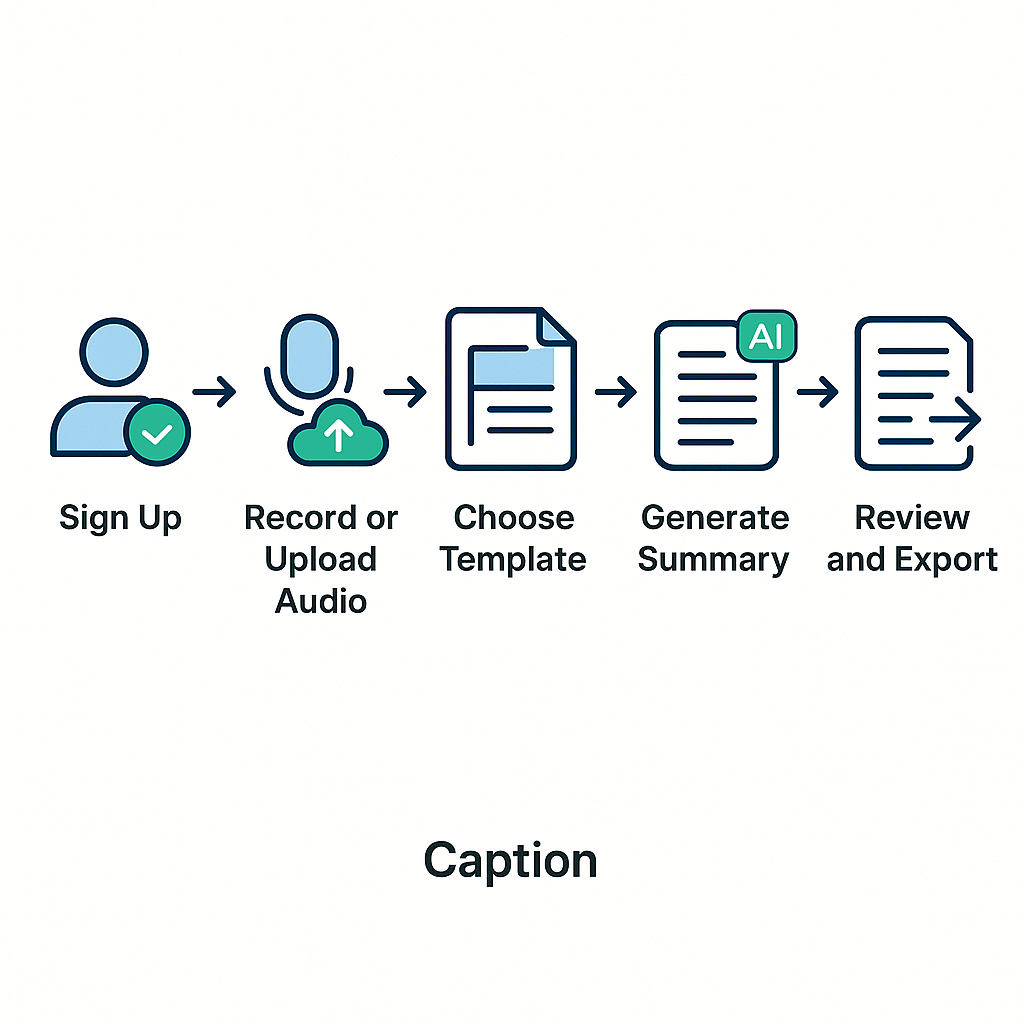
This short walkthrough gets your team from zero to a working automated minutes workflow in under an hour. It shows the simplest path: sign up, capture or upload meeting audio, pick a note template, and generate your first AI summary. Follow the quick checklist for your first seven meetings to validate quality, templates, and export flows.
Quick start steps
- Create an account and confirm your email – Sign up for TicNote Cloud and pick the Free plan to start without a time-limited trial.
- Record or import meetings – Use device audio recording or upload past MP3/WAV files. For live meetings, record locally, then upload the file.
- Pick a template – Choose a meeting template focused on decisions and actions, or create a short custom template for your team.
- Generate the transcript and summary – Run AI transcription, then request the meeting summary or topic-based notes.
- Review, tag, and export – Check the summary for accuracy, tag action items, and export to DOCX, PDF, or Markdown for sharing.
First 7 meetings checklist
Use this checklist to test quality, set expectations, and tune templates fast:
- ✅ Cover three meeting types: status updates, decision meetings, and client calls—to test content and tone.
- ✅ Assign a reviewer to check for missed actions in the first summary.
- ✅ Test two templates: actions-only and full minutes layout.
- ✅ Try both file upload and live recording to confirm audio quality.
- ✅ Validate export formats: DOCX for stakeholders and Markdown for internal wikis.
- ✅ Check language settings and test translations for multilingual teams.
- ✅ Measure time to action — can your team assign and begin follow-ups within 24 hrs?
Pricing & plan guide: which TicNote plan fits your team
TicNote offers tiered plans to match small teams and large organizations that need automated meeting notes in teams. Start on the Free plan to test live transcription, AI summaries, and mind maps. Then scale up as meetings grow in volume or complexity.
Plan quick guide
- Free: Best for solo users and light meeting loads. Includes 300 transcription minutes per month, 30 minutes max per web recording, basic templates, and limited AI chats.
- Professional: Ideal for small teams that meet daily. Adds 1,500 transcription minutes per month, up to 3-hour web recordings, more imports, unlimited AI chat, and advanced templates.
- Business: Designed for larger teams and frequent recorders. Includes 6,000 transcription minutes per month, up to 8-hour recordings, and higher import limits.
- Enterprise: For orgs needing SSO, 24/7 support, custom usage, and admin controls.
When to upgrade
- You hit your monthly transcription limit often. 2. You need longer recordings for all-day workshops. 3. Your IT requires SSO or enterprise SLAs. 4. Teams want unlimited AI chat, bulk imports, or priority support. 5. You need cross-meeting search at scale to power automated meeting minutes and knowledge reuse.
N/A
Privacy, security & compliance: what IT needs to know
TicNote Cloud stores meeting captures privately by default in a U.S.-based cloud. The platform uses industry-standard encryption in transit and at rest, and the company says user data is not used to train AI models. For IT teams evaluating automated meeting notes in teams, that private-by-default stance reduces a common risk vector and makes vendor review faster.
Enterprise controls IT should check
- Single sign-on (SSO) and SCIM provisioning, available on enterprise plans, for central identity control.
- Role-based access and admin controls to limit who can view transcripts and summaries.
- Encryption details: keys management, in-transit and at-rest coverage, and logging of key access.
- Data retention, export, and deletion policies so records can be purged on demand.
- Audit logs, incident response SLA, and 24/7 enterprise support for critical events.
How to validate GDPR and cloud risk quickly
Public sector buyers should require GDPR compliance, as noted in the EDPB report on cloud services in the public sector (2023), during vendor review. Use this short checklist when assessing the tool:
- Request the Data Processing Addendum (DPA) and confirm Standard Contractual Clauses or equivalent protections.
- Ask for a DPIA (data protection impact assessment) or a subprocessors list and data flow diagram.
- Verify encryption proofs and third-party audits (ISO, SOC reports) or compliance summaries.
- Confirm data residency, export controls, and account deletion timelines.
- Test SSO, role restrictions, and admin audit logs in a pilot before roll-out.
This focused checklist helps IT quantify risk fast, and it fits standard procurement and security reviews.
Head-to-head: TicNote vs Teams Intelligent Recap, Otter, Fireflies (comparison)
This side-by-side comparison helps buyers weigh trade-offs in features, integrations, and licensing for automated meeting notes in Teams. It highlights where the product shines, where built-in or bot-based tools win, and which scenarios fit each option. Read the quick matrix, then scan buyer scenarios to match the tool to the need.
Quick comparison at a glance
| Feature | TicNote | Teams Intelligent Recap | Otter | Fireflies |
| Integration model | Web app, device recording, Notion, Slack | Native inside the Teams app | Web + meeting bots | Web + meeting bots |
| Recording model | Device/web recording, no bot required | In-call capture within Teams | Live joiner or upload | Live joiner or upload |
| Cross-meeting search/chat | Yes, Shadow cross-file Q&A | Limited to meeting threads | Basic cross-meeting search | Search across meetings |
| Visuals (mind map) | Auto mind map export | No native mind map | No native mind map | No native mind map |
| Research reports | Built-in deep research reports | Summary-focused | Summary-focused | Summary-focused |
| Privacy model | Private by default, data not used to train AI | Microsoft-managed org policies apply | Varies by plan | Varies by plan |
| Best for | Teams needing cross‑meeting insight and visuals | Organizations wanting native Teams flow | Teams needing simple live transcription | Teams wanting a bot that joins calls |
When to pick TicNote
Choose the platform if your team needs cross-meeting search, chat, and visual summaries. It works well when you want mind maps or research reports from conversation data. It also fits teams that prefer device recording without adding a meeting bot.
When other tools may be better
Pick Teams Intelligent Recap if you need a frictionless, admin‑managed experience inside Microsoft 365. Consider Otter when you only need fast, accurate live transcription and easy speaker labels. Choose Fireflies if you prefer a meeting bot that auto-joins calls and handles capture for you.
Buyers: match needs, not brand. Look at the integration model, compliance needs, and how you plan to search notes across meetings.
Real-world use cases & short case vignette
Teams with heavy meeting loads see the biggest wins from automated meeting notes in teams. Product and project managers, sales and ops leads, and research teams save hours each week when notes are accurate, searchable, and action-focused. TicNote Cloud captured those gains by turning transcripts into task lists and summaries with minimal setup.
Who benefits most
- Product and project managers, for decision logs and action tracking
- Sales and customer success, for call summaries and follow-up tasks
- Operations and program leads, for coordination and compliance notes
- Research teams and consultants, for interview transcripts and synthesis
- Execs and chiefs of staff, for high-level briefings and quick reads
Short anonymized vignette
Setup: a mid-size product team enabled live transcription for weekly sprint meetings and uploaded recorded demos after each session. They added two templates: decisions and action items. Outcome: meetings stayed shorter, follow-ups sped up, and the backlog had clearer owners. After three weeks, the team used the auto mind map to prep for planning sessions.
Result (quote): "We cut note cleanup time in half and never lose a decision."
Metrics to track after rollout
- Time saved per meeting on note-taking and editing
- Percentage of meetings with assigned action items within 24 hours
- Search hits for past decisions or feature requests
- Reduction in follow-up reminder emails
- Adoption rate by teams and active monthly users
Tracking these metrics shows whether automated minutes improve speed, clarity, and accountability.
Best practices to get accurate automated minutes and faster follow-ups
To get accurate automated meeting notes in Teams, start with a clear process that people can follow. Good inputs lead to better transcripts, and better transcripts produce cleaner summaries and action items. Apply these simple habits to cut noise and speed up follow-ups.
Prepare the meeting
- Share a short agenda with timeboxes and desired outcomes. That gives the AI context and helps it group topics.
- Name speakers or roles in invites so participants can introduce themselves on the first turn.
Optimize audio and recording
- Use high-quality mics and encourage one speaker at a time. Cleaner audio reduces transcription errors.
- Record from a single device when possible, or upload local recordings after the call for post-meeting processing.
Pick and tune templates
- Choose a meeting template that highlights decisions, owners, and due dates. Templates guide the summary into usable minutes.
- Keep templates lean. Remove rarely used sections to reduce noise in notes.
Action-item hygiene
- End every meeting with an explicit read-back of tasks: owner, task, due date. That makes automated extraction far more reliable.
Expert tips
- Use Shadow chat (the platform for Q&A) to quickly pull past decisions by searching project names, then copy the confirmed action into the new meeting note.
- Review and prune templates monthly: merge low-value fields and adjust phrasing so AI maps spoken language to the right fields.
These steps cut time spent fixing notes and make follow-ups actionable from the first summary.


