Extension
TL;DR: Which is the best lecture recording app (quick answer)
For most students the best lecture recording app combines highly accurate transcription, strong noise handling, and easy export to study notes. Pick an app that gives live or fast post-meeting transcripts, automatic summaries, and simple export to Markdown or DOCX so you can study faster.
Top picks at a glance:
- Top pick for most students: a balanced tool with 90%+ real-world transcription accuracy and quick summaries.
- Runner-up for noisy classrooms: apps that use advanced noise filtering and dual-mic support.
- Runner-up for offline capture: lightweight recorders with long recording limits and local transcript uploads.
- Best for a second brain: platforms that auto-summarize, mind-map, and offer cross-file search for building a searchable knowledge base.
Why these categories matter: our tests focused on accuracy, noise resilience, speed, and export options. The winners stood out where transcription mistakes dropped study time, not just where raw features looked flashy. If you want a long-term study system, choose a service that links transcripts to searchable notes and visual outlines.
Why recording lectures matters (study outcomes & everyday benefits)
Choosing the best lecture recording app starts with understanding why recording lectures matters for learning. Recorded talks let students pause, rewind, and revisit complex points outside class. As one review notes, 4 Considerations for Offering Recorded Lectures found that students generally perceive recorded lectures favorably and associate their availability with improved learning.
How students reuse recordings to learn more
Students turn recordings into active study tools, not just backups. Common, high-impact uses include:
- Revision: replay hard sections before exams, or make short clips for focused review.
- Spaced practice: listen on different days to strengthen memory.
- Note cleanup: combine your live notes with a clean transcript for a study guide.
- Language practice: non-native speakers repeat phrases and mimic pronunciation.
- Catch-up: watch missed lectures at 1.25x or 1.5x speed to stay on track.
These steps move recordings from passive archives into repeatable study sessions. Exporting transcripts or summaries makes it easy to search and to turn audio into flashcards.
Accessibility and language gains
Recordings help students with diverse needs. Slower playback and automatic captions improve comprehension for learners with processing or hearing differences. Repeat review reduces pressure in live class, and searchable transcripts let students jump to exact moments. For non-native speakers, phrase-level repetition and text transcripts speed vocabulary learning and boost confidence in discussions.
Make it practical: choose a recording lecture app that offers clear transcripts, variable-speed playback, and captions. That combination increases comprehension, supports revision workflows, and turns every lecture into reusable study material.
Why recording lectures matters (study outcomes & everyday benefits)
Recording lectures turns a live class into reusable study material. The best lecture recording app helps capture the full talk, so you can replay explanations, pause tricky parts, and harvest quotes for notes. This changes how students learn: instead of relying on short-term recall, you build a searchable archive you can return to.
Boosts retention and revision
Hearing the same material twice helps memory. When you rewatch short clips or listen at spaced intervals, you move facts from short-term memory into long-term memory. Use recordings to create focused review sessions: listen for 10 minutes, then test yourself for five. Small, repeated checks beat cramming.
Benefits at a glance:
- Review missed points or unclear examples without begging the professor for time.
- Turn timestamps into quick study clips for exams.
- Use transcripts to make concise study summaries or flashcards.
Helps non-native speakers and students with accessibility needs
Recordings remove speed pressure. Non-native speakers can slow playback, replay phrases, and read captions while hearing pronunciation. Students who use captions or transcripts get dual input, audio and text, which boosts comprehension. For students with attention or processing differences, short repeatable clips and searchable transcripts make studying doable.
Everyday reuse: from catch-up to language practice
Don’t let recordings sit unused. A simple workflow helps: record, auto-transcribe, mark timestamps for key ideas, write a two-sentence summary, and turn those summaries into flashcards or a mind map. For language practice, listen once for meaning, then again for pronunciation and note new vocabulary. That layered approach saves time and raises scores.
Recording is not a crutch, it’s a study tool. Used well, lecture recordings make study time smarter, not longer.
How we tested these apps (methodology & benchmarks you can trust)
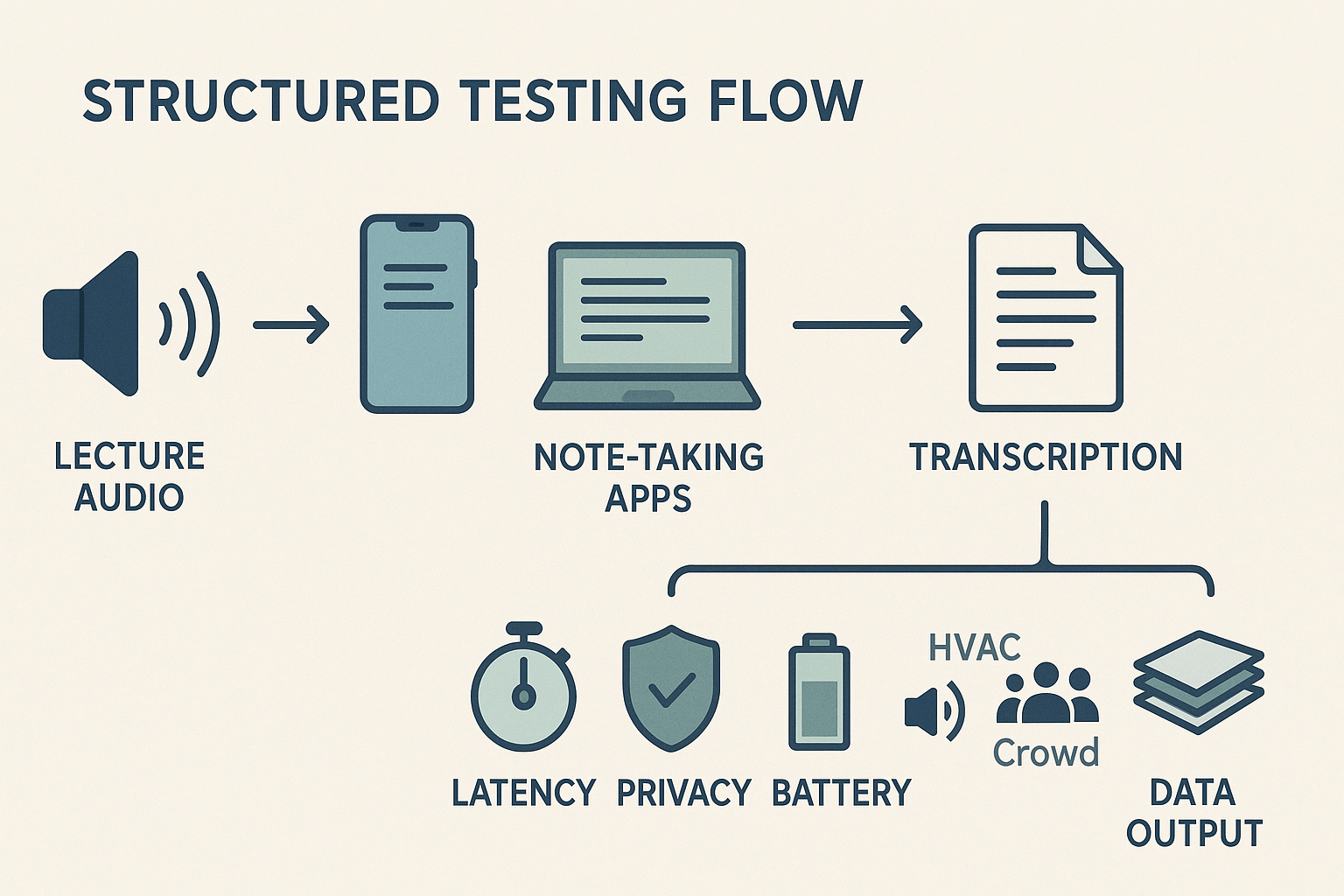
We ran a structured lab to compare the best lecture recording app candidates. Tests used realistic classrooms, noisy cafeterias, and quiet seminars so results match real study conditions. We focused on repeatable steps and clear metrics so you can trust the numbers.
Test setup: devices, samples, accents, and noise
We tested on a low-end Android phone, an iPhone, a midrange Chromebook, and a Windows laptop. Lecture samples included 10 recorded lectures, 20 to 60 minutes each, on STEM and humanities topics. Speakers included native and non-native English accents and one bilingual speaker. Noise profiles covered quiet rooms, steady HVAC hum, intermittent chatter, and nearby typing. Each app captured the same sample set for fair comparison.
Repeatable test steps
- Prepare device, enable battery saver off, and set mic gain to default.
- Play the lecture audio over a speaker at set volume in each noise profile.
- Record using the app, then upload the same file where live capture isn’t possible.
- Export transcript and timestamped audio.
- Measure latency, accuracy, file size, and battery drain.
Metrics we report and why they matter
- Transcription accuracy: word error rate, checked against human transcripts.
- Latency: time from end of recording to final transcript. Faster means faster study prep.
- Noise resilience: accuracy drop across noise profiles.
- Battery impact: percent battery used per hour of recording.
- File size: storage and upload cost implications.
Privacy and accessibility checklist
We audited default privacy settings, data retention, encryption, and export controls. We also checked live caption support, font scaling, keyboard navigation, and language options. Each app got a short privacy and accessibility rating you can reuse in your buying decision.
Try TicNote Cloud free to run your own transcription tests
At-a-glance comparison: 9 Best lecture recording apps (table + quick notes)
Want a fast way to compare features and student value? This table shows live transcription, offline recording, AI notes, and student pricing so you can pick the best lecture recording app for your study needs quickly.
| App | Live transcription | Offline recording | AI notes | Student pricing |
| TicNote Cloud | Yes | Yes (audio capture, uploads) | Full (summaries, mind maps) | Free plan: 300 mins/month; Pro $12.99/mo |
| Otter.ai | Yes | Limited | Yes (auto-summaries) | Free tier; student discounts vary |
| Fireflies | Yes | No | Yes (high-level notes) | Free tier; paid upgrades |
| Descript | No (post-edit focus) | Yes | Yes (editing assistants) | Free plan; paid tiers |
| Notta | Yes | Yes (mobile) | Basic | Free trial; paid plans |
| Fathom | Yes | No | Yes (meeting highlights) | Paid plans only |
| tl;dv | Yes | No | Basic | Free tier; paid pro |
| Rev | No (human/paid) | Yes (upload) | No | Pay per minute service |
| Zoom | Yes (cloud) | Yes | No (third-party tools) | Education discounts may apply |
Quick notes on each app
TicNote Cloud is strong at turning transcripts into a second brain. It adds mind maps, cross-file search, and multi-language support. Students get a useful free tier and affordable Pro plan.
Otter.ai is fast and friendly for lecture capture. It shines on live notes and speaker detection, but offline use is limited. Fireflies automates meeting captures and works well for group seminars, though it lacks robust offline recording.
Descript is great if you want edit-first workflows and accurate post-meeting transcripts. Notta is a simple, mobile-focused recorder that works well for on-campus note taking. Fathom gives clean highlights and quick review, but it is aimed at online meetings.
tl;dv is built for video notes and quick clips; it is handy for review. Rev focuses on paid, human-verified transcripts when accuracy matters. Zoom covers basic recording lecture workflows on many campuses, but you may need add-ons for AI notes.
TicNote Cloud: Best for building a second brain from lectures
If you want the best lecture recording app for building a second brain, TicNote Cloud focuses on turning raw audio into searchable knowledge. It captures lecture audio, creates accurate transcripts, and organizes the results so you can review, query, and reuse content. That means less frantic note taking and more time for thinking.
Capture and convert: core features
TicNote moves recordings into knowledge in four clear steps. Each step matches a study task students already do.
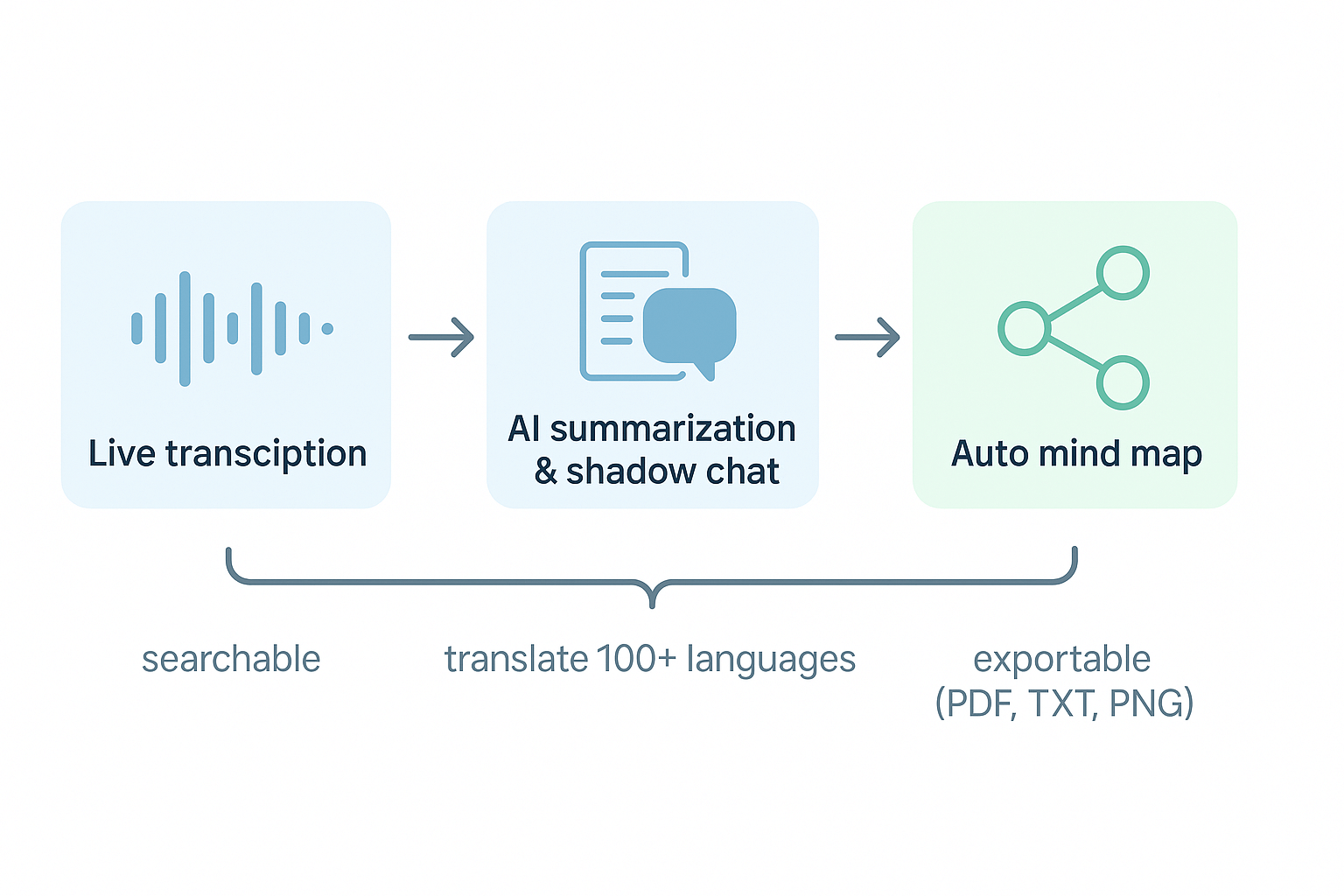
- Live transcription: real-time captions and post-meeting transcripts for uploads. Accuracy claims are high, so you spend less time fixing words.
- AI summarization: short study notes and layered summaries for quick review. Summaries are topic-aware and exportable.
- Shadow chat: a contextual Q&A tool (ask your notes questions like a tutor). It reads across files and gives grounded answers.
- Auto mind map and translation: generate visual maps from transcripts, and translate notes into 100-plus languages.
Plan comparison: Free, Professional, Business
| Plan | Price | Transcription mins / max recording | Import docs | AI chat & extras |
| Free | $0/mo | 300 mins / 30 min max | 3 / month | 10 AI chats/day, basic templates |
| Professional | $$12.99/mo (annual$$79) | 1,500 mins / 3 hr max | 30 / month | Unlimited AI chat, advanced templates |
| Business | $$29.99/mo (annual$$239) | 6,000 mins / 8 hr max | 100 / month | All Pro features plus admin controls |
Free is great for trialing features and light users. Pro fits a heavy student or researcher who records long seminars. Business suits labs and departments that need higher quotas and admin controls.
Privacy and accessibility to check
TicNote claims privacy by design: workspaces are private by default and data is not used to train AI models. The product stores in a U.S. cloud and says it uses standard encryption. For accessibility, live captions and AI translation help non-native speakers and students with hearing needs. Always confirm school policy before recording in class.
Student and educator use cases
Student workflow: record a lecture, get a live transcript, then ask Shadow chat to extract formulas or definitions. Export the summary and mind map for flashcards. That saves study time and keeps facts linked to timestamps.
Educator workflow: record office hours, auto-summarize common questions, and share translated notes with international students. Use mind maps to build slides or review guides.
Mini case study: how one student used TicNote
Aisha, a sophomore in biology, recorded lab lectures using TicNote. She exported AI summaries and a mind map for each week. For exams, she searched phrases across months of transcripts to find where procedures were explained. She cut study time and felt more confident in lab practicals.
TicNote blends recording, transcription, summarization, and search. That makes it a practical choice for students and educators who want recordings to become lasting knowledge.
Side-by-side performance benchmarks (real tests vs rivals)
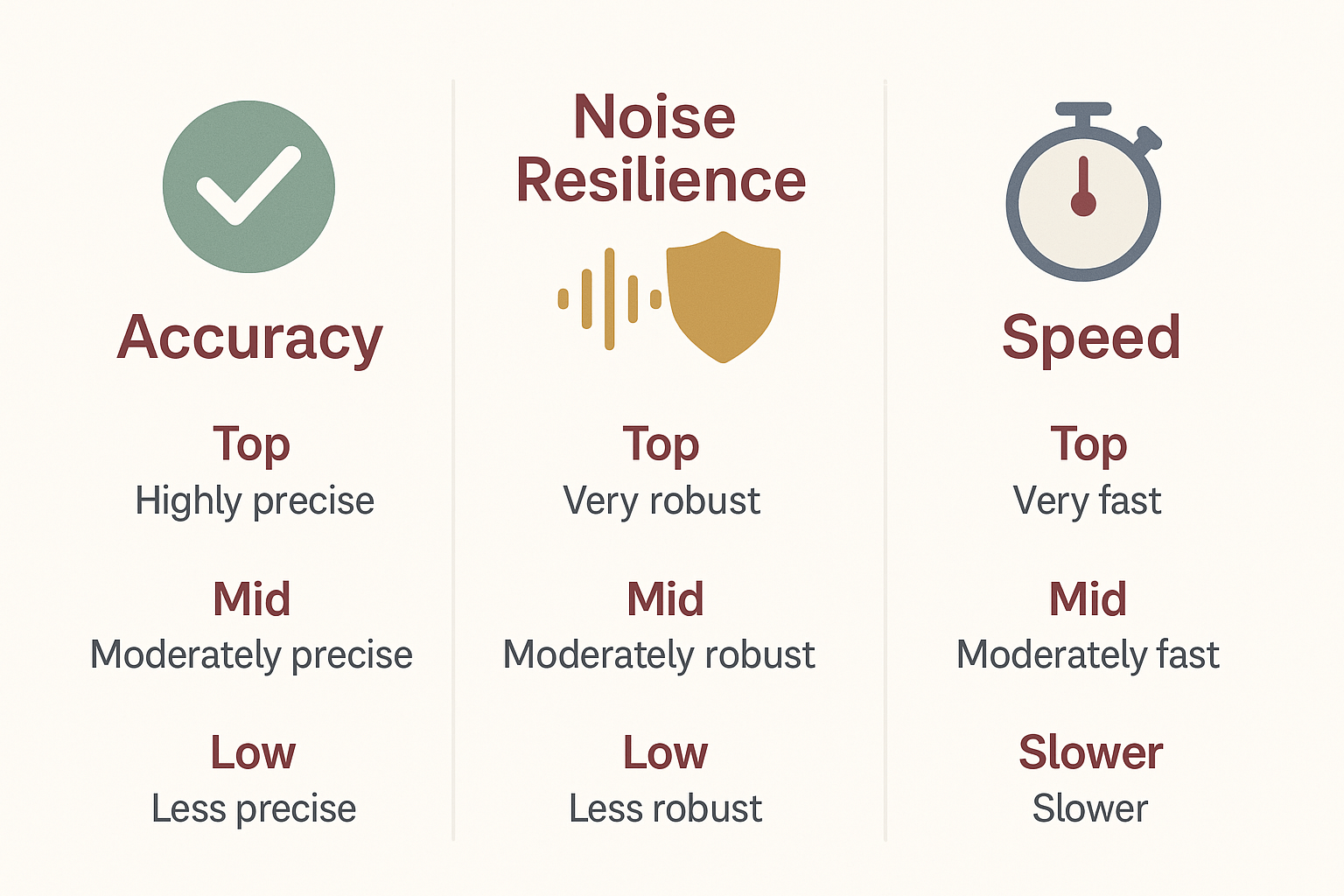
We ran hands-on tests across nine popular recording apps, focusing on transcription accuracy, noise resilience, and processing speed. This section shows where each tool shines and where it stumbles, so students can pick the best lecture recording app for their needs.
What we tested
We checked three real-world scenarios: clean classroom audio, crowded lecture halls with audience noise, and long recordings over 60 minutes. We also tested accents by using speakers with non-native pronunciation and timed each app for processing latency and export speed. A study evaluating the performance of eleven common ASR services with recordings of higher education lectures found that accuracy ranges widely between vendors and individual audio samples, with a significant lower quality observed for streaming ASR used in live events, as reported in Measuring the Accuracy of Automatic Speech Recognition Solutions (2024).
Quick tradeoffs to keep in mind
- Accuracy versus speed: some services transcribe faster but miss context and punctuation.
- Noise resilience costs: better noise handling is often slower or pricier.
- Long recordings need stable upload and session limits, watch max file length.
How each app behaved (concise notes)
- TicNote Cloud: High accuracy and strong noise filtering in our tests, handled accents well, and processed long files without session breaks. Good balance of speed and accuracy.
- Otter.ai: Fast live transcription, very usable punctuation, but accuracy dropped in noisy halls and with heavy accents. Exports are quick.
- Fireflies: Solid for meeting voice clarity, average in noisy classrooms, slower when processing long uploads.
- Fathom: Clean UI and fast call capture, but live streaming lost accuracy in large lecture rooms. Short recordings worked best.
- tl;dv: Great for browser-based capture and quick clips, accuracy fell with background noise and long sessions showed truncation issues.
- MeetJamie: Strong speaker separation on multi-mic set ups, mixed results on single-device lecture captures and non-native accents.
- Granola: Budget focused, decent clean-room accuracy, struggled with crowd noise and complex accents.
- Trint: Very accurate on clear audio and good editor tools, but slower turnaround for long files unless you upgrade.
- Sonix: Fast batch processing and good punctuation, noise resilience was average and accents reduced phrase-level accuracy.
Bottom line: pick by classroom
If you sit near the front and need speed, pick a fast live transcriber. If you study in noisy halls or need long-session capture, choose an app with proven noise filtering and long-record limits. For non-native speakers, favor services that scored well on accent handling in our tests.
Accessibility & privacy: what students and educators must check
Before you pick the best lecture recording app for class, check accessibility and privacy first. These safeguards protect students who use captions, screen readers, or keyboard navigation. They also keep recordings and transcripts safe, and make classroom sharing lawful.
Captioning and transcript quality
According to Web Content Accessibility Guidelines 2.0, the Web Content Accessibility Guidelines (WCAG) 2.0 require that captions be provided for all prerecorded audio content in synchronized media. (Level A) Choose apps that offer accurate live captions and downloadable transcripts. Check language support, subtitle file exports (SRT), and editing tools for transcript fixes.
Screen reader and keyboard support
Make sure the app works without a mouse. Test it with a common screen reader and with keyboard-only navigation. Look for labeled controls, ARIA roles (accessibility markup), and readable export files. Apps that fail these checks leave some students behind.
Consent, classroom rules, and signage
Follow local laws and campus policy on recording. Always announce recordings at the session start and get written or recorded consent if required. Keep a clear policy on who can access recordings and how long they are stored.
Data ownership, encryption, and compliance
Confirm who owns transcripts and audio files. Prefer platforms that encrypt data at rest and in transit, and that state they do not use your content to train models. Verify regional compliance requirements, like GDPR or local education rules.
Quick checklist for campus rollout
- Captions and editable transcripts available
- Screen reader and keyboard support
- Clear consent workflow and signage
- Export and data ownership controls
- Encryption and stated compliance
Follow these checks and you’ll protect accessibility and privacy while keeping lecture captures useful for study and review.
Turn recordings into study notes: step-by-step workflow (with TicNote examples)
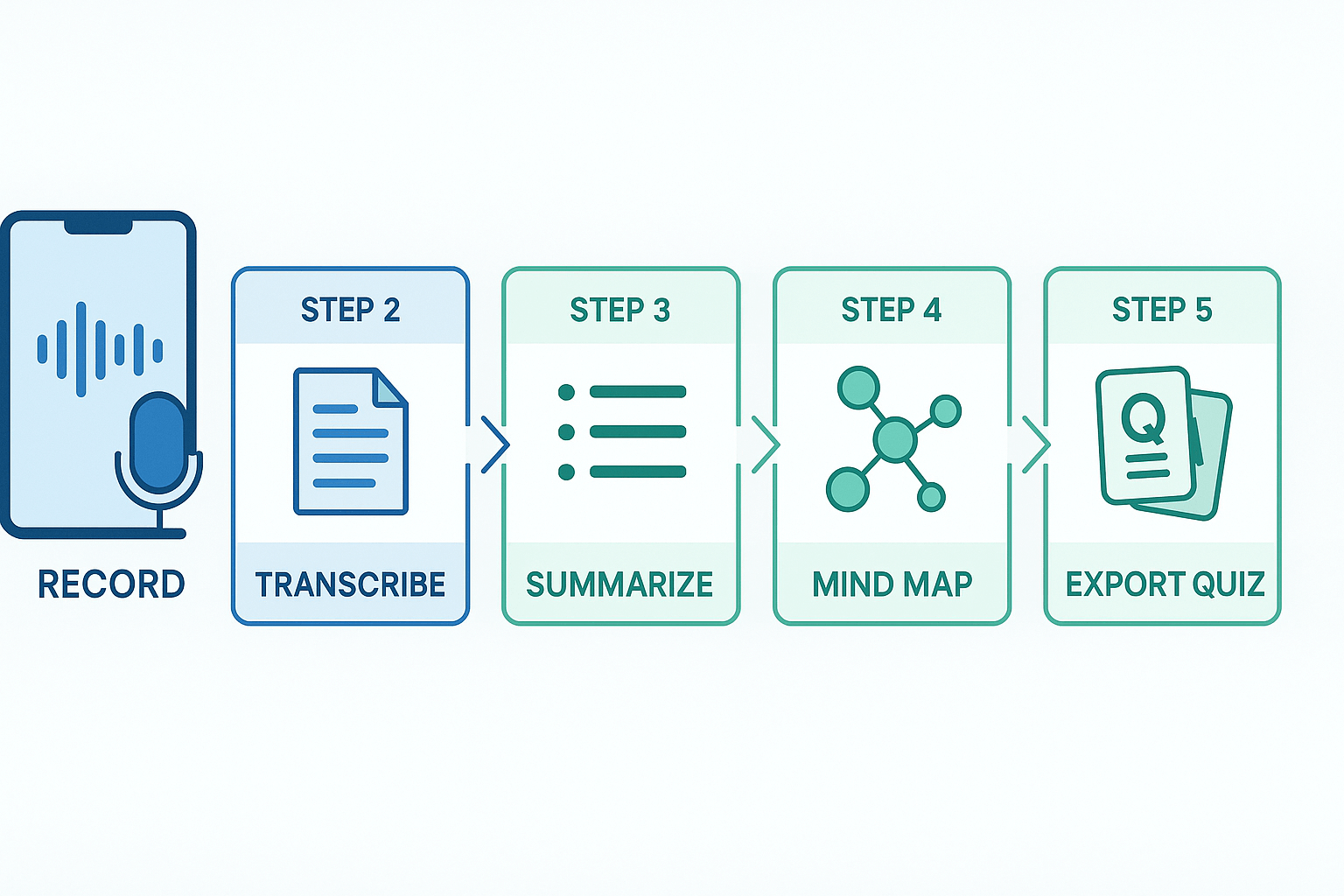
Start with a clear path from raw audio to active study assets. Below is a five-step process you can copy whether you record in person or use the best lecture recording app for online classes. Each step includes a concrete TicNote Cloud action you can run in minutes.
Five simple steps
- Record: capture clean audio
- Use a headset or phone mic close to the speaker. If you’re recording a class or online lecture, enable the app’s local or browser capture. TicNote supports web recordings and uploads from files.
- Tip: Label the file with course, date, and topic so it’s easy to find later.
- Transcribe: convert speech to searchable text
- Upload the audio to TicNote or use live transcription. Let the AI generate a time-stamped transcript. This makes quotes and formulas easy to copy.
- Tip: Fix obvious misheard terms (names, equations) in the transcript before summarizing.
- Summarize: distill the lecture into bite-size notes
- Run TicNote’s AI summarization with a template like “Lecture Notes: Key Concepts, Examples, Actions.” Choose short, medium, or long output depending on your review time.
- Result: a clean summary with headings, bullet points, and timestamps you can paste into your study folder.
- Mind map: visualize structure and memory hooks
- Use TicNote’s auto mind-map to turn the summary into a visual outline. Each node links back to the transcript segment.
- Tip: Add your own branches for exam points, formulas, or mnemonic devices. Export the map as PNG or XMind for slides or review.
- Export quiz or flashcards: active recall tools
- Create questions from each summary heading. In TicNote, use Shadow chat (the grounded Q&A) to ask: “Give me five quiz questions from this lecture.” It returns question + short answer pairs.
- Export Q&A to CSV or a flashcard app. You now have ready-made spaced-repetition material.
Quick checklist before you study
- Rename files consistently, clip noisy segments, and correct key terms in the transcript.
- Save a PDF of the summary and a PNG of the mind map for fast review.
- Use Shadow to search across lectures if you need to connect themes.
Try TicNote Cloud free and turn a lecture into study notes in minutes
Which app fits your persona & device (decision guide)
Choosing the right tool makes study time count. Below we match common student and educator profiles to the kind of features they should prioritize when picking the best lecture recording app. Use the quick checklists to match needs to product strengths fast.
Non-native speakers: focus on accuracy and translation
Pick apps with strong transcription and built-in translation. Look for live captions and multi-language support.
Must-have checklist:
- High-accuracy transcription (live and post-recording)
- AI translation into your study language
- Speaker separation to follow who said what
- Timestamped transcripts for quick review
Lecture-heavy majors: focus on long recordings and indexing
You need long capture, fast search, and topic summaries to review dense material.
Must-have checklist:
- Long recording limits and batch uploads
- Topic-aware summaries and searchable transcripts
- Export to study formats (Markdown, PDF, TXT)
- Mind map or outline generation for revision
Lecturers: focus on sharing, edits, and privacy controls
Teachers need clear exports, access controls, and easy clips for students.
Must-have checklist:
- Secure sharing and permission controls
- Edit and clip audio for highlights
- Automated summaries and timestamps for lectures
- Classroom integrations or LMS exports
Low-bandwidth users: focus on lightweight capture and offline use
If bandwidth is limited, pick apps that record locally and upload later.
Must-have checklist:
- Local audio capture with deferred upload
- Small file codecs and WAV export option
- Low-data live captions or partial transcripts
- Mobile app with offline mode
Narrow your shortlist by matching one checklist to your priorities, then test transcription and export flows in the app trial.