


 Extension
TL;DR: How to transcribe YouTube videos fast (and what "automatic" really means)
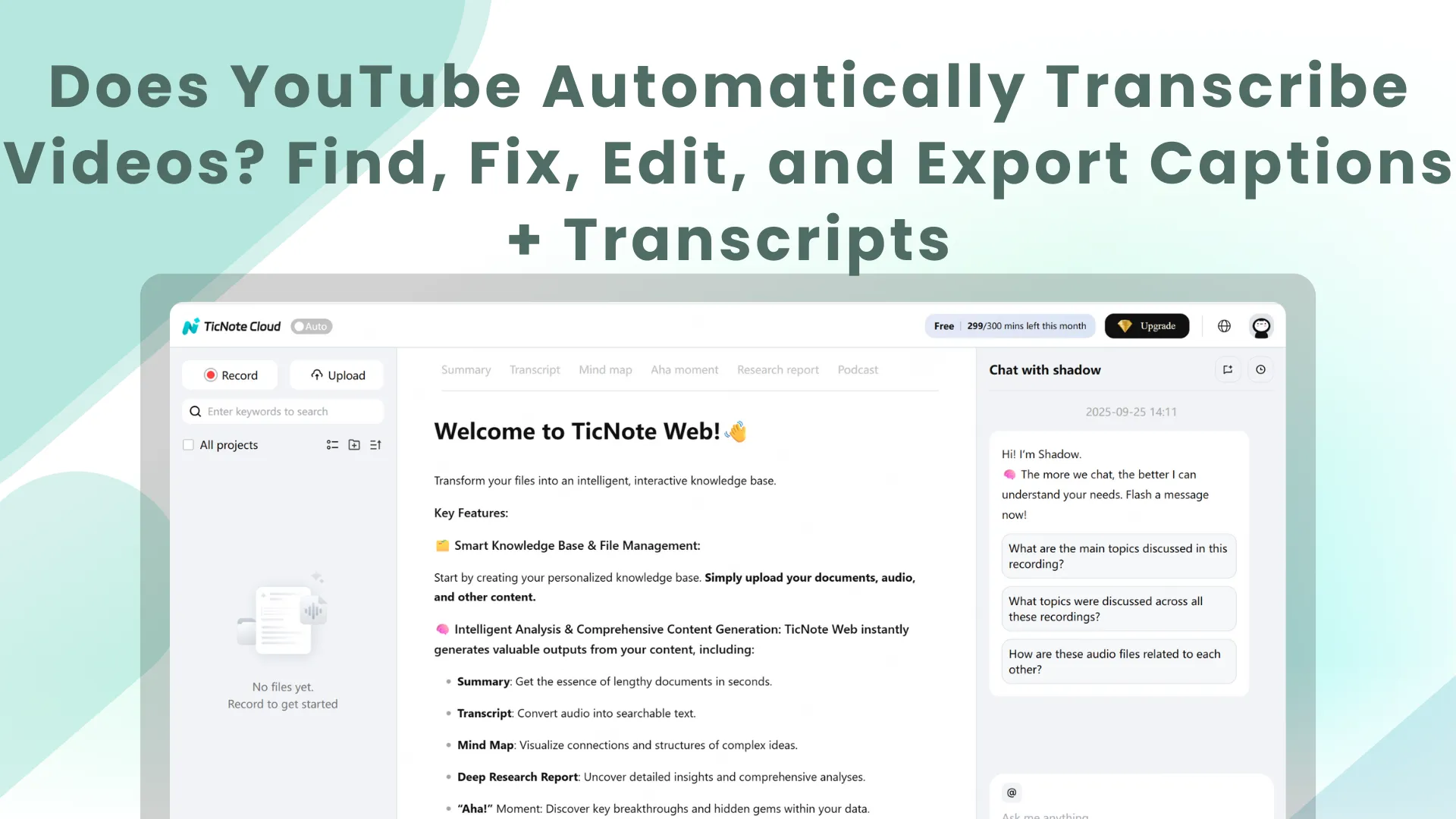
To get text fast, you can try TicNote Cloud for Free and turn the audio into a clean transcript you can search, copy, and summarize. If you're asking does youtube automatically transcribe videos, the reality is: YouTube may auto-generate captions for some uploads, but it's not guaranteed, and the "transcript" viewers see usually comes from that captions track (auto or manual).
If you've ever needed a quote or notes and the captions are wrong or missing, it's frustrating. Worse, you can waste time fixing text that still won't export cleanly. A faster path is to use TicNote Cloud to generate a readable transcript, then polish it into notes or a summary.
- Need to read or search the video? Use Show transcript (viewer menu).
- Need captions for accessibility? Go to YouTube Studio → Subtitles, then edit and publish.
- Need files for another editor or platform? Export SRT or VTT.
- Need clean notes, summaries, or translation? Use a transcript tool workflow (covered later).
30-second check before you trust auto text:
- Captions exist (CC button works or transcript panel shows).
- The language is correct.
- Audio is clear (low noise, little crosstalk).
- Names and terms need a quick review.
- You have rights to reuse the text (especially from other channels).
Does YouTube automatically transcribe videos after upload?
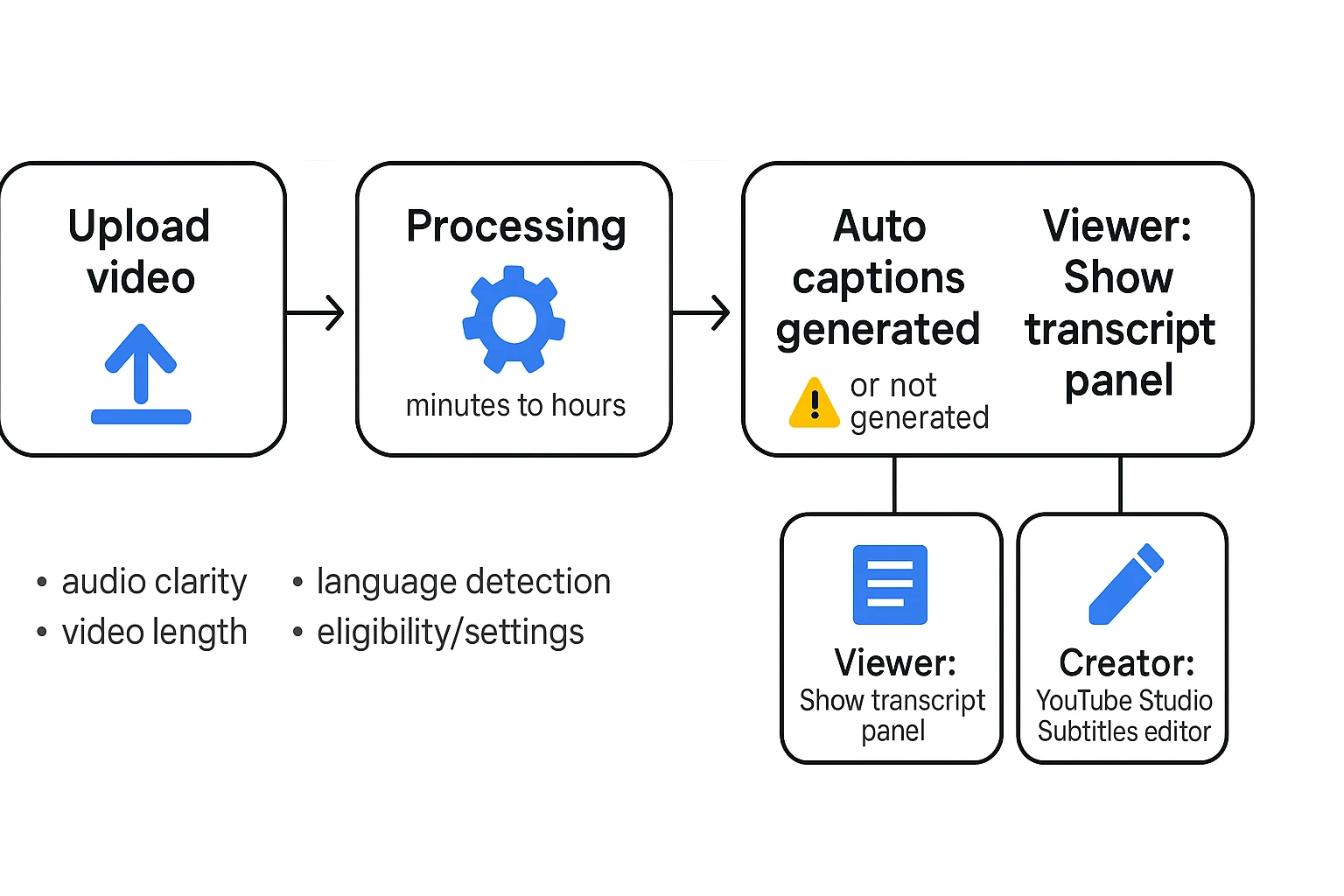
In many cases, yes. When people ask "does youtube automatically transcribe videos," what YouTube usually generates is auto captions (automatic, time synced text made by speech recognition). But it's not guaranteed for every upload.
What YouTube does automatically (and what it doesn't)
Here's the reality check: YouTube can create auto captions, but only when your video is eligible and processing finishes. As YouTube Help — Add subtitles & captions (2025) explains, "Automatic captions are generated automatically for videos where automatic captions are available."
What's "automatic":
- Auto captions: time coded text that tracks the audio.
- A transcript view: a way for viewers to read and copy that caption text.
What's not guaranteed:
- Every video gets auto captions.
- Every video shows "Show transcript" to viewers.
Why it may not show up depends on things like:
- Language detection and supported languages
- Audio quality (noise, overlap, music)
- Creator choices (caption settings, limited availability)
- Processing status and system load
How long does auto caption processing take?
Auto captions can appear minutes to hours after upload. Longer videos often take longer. Edits can also reset the clock, like swapping the file or making major changes.
If you're waiting, check again later. If it still isn't there, jump to the troubleshooting section in this guide.
Live streams, premieres, Shorts, and other edge cases
Some formats behave differently:
- Live streams: live captions may work in some contexts, but a clean transcript later is not a sure thing.
- Premieres: they usually behave like standard uploads. Captions may show up after processing.
- Shorts and very short clips: transcript availability can be inconsistent.
Note: Auto captions are a starting point, not a finished accessibility deliverable. Treat them like a first draft you should review and fix.
Captions vs subtitles vs transcripts: what's the difference on YouTube?
On YouTube, these three terms get mixed up because they overlap. But in the UI, they show up in different places. If you're asking "does youtube automatically transcribe videos", it helps to know that YouTube usually creates time synced captions first, and the transcript view is often pulled from that.
Viewer view: CC button vs "Show transcript" panel
Captions (often labeled CC) are the on screen text that matches the audio timing. They are built for accessibility, so they can include non speech cues like [music] or [applause]. Viewers toggle them with the CC button on the player.
Subtitles are also on screen and time synced, but they usually mean a translation track. Viewers pick them in Settings (the gear icon), then Subtitles and a language.
A transcript is the readable text version you can scroll, search, and copy. On many videos, viewers open it from the "Show transcript" panel near the description or the more options menu. It is often derived from the caption track, so errors in captions can show up in the transcript too.
Creator view: subtitle tracks in YouTube Studio
In YouTube Studio, captions and subtitles are managed as tracks. Each language is its own track under YouTube Studio → Subtitles. A track can be auto generated, uploaded as a file (like SRT or VTT), or typed in.
Publishing matters. If a track is not published, viewers may not see CC options or the transcript panel.
Closed captions: when non speech cues matter
Use cues when they change meaning. Examples: [laughter] after a joke, [door slams] in a tutorial, or [dramatic music] in a scene recap. Auto captions often miss these cues, plus speaker names and clean punctuation, so a quick edit can make the content clearer.
Use the right asset:
- Captions: accessibility and sound off viewing
- Subtitles: translation and localization
- Transcript: quoting, notes, and fast searching
How do viewers get a transcript from a YouTube video?
If you're wondering, "does youtube automatically transcribe videos," the viewer side is simple. When a transcript exists, you can open it on the video page and copy the text. The transcript may come from auto-captions or from captions the creator uploaded.
Desktop: open and copy the transcript
On desktop web, this is usually the fastest way to grab the text.
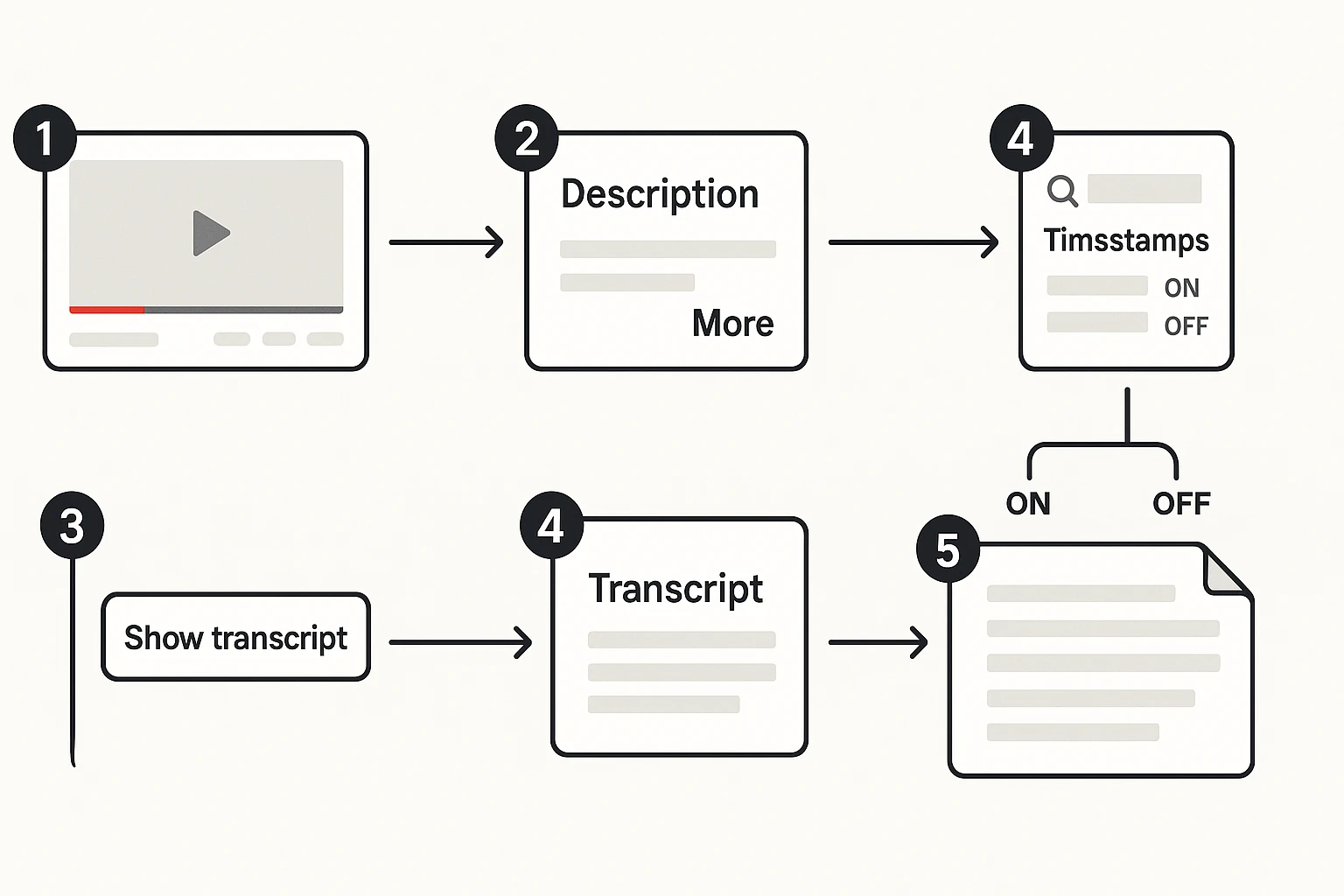
- Open the YouTube video in your desktop browser.
- Click More to expand the description.
- Click Show transcript.
- Click inside the transcript panel.
- Select the lines you need, then copy and paste into your notes.
Note: If the creator uploaded captions, the transcript is often cleaner than auto-generated text.
Toggle timestamps and search for quotes fast
Transcripts are great for finding exact wording.
- Turn timestamps on or off (when the option appears). On is best for quoting. Off is best for a clean paragraph.
- Use search to jump to a phrase.
- Try the transcript panel's menu options if available.
- Or use your browser find (Ctrl+F or Cmd+F) to locate names or key terms.
- To preserve time markers when quoting, copy lines that include timestamps. For a smooth paragraph, paste first, then delete the time codes and add punctuation.
Mobile and app: what to expect
In the YouTube app, transcripts can be harder to reach. Labels and options may change by device, region, and account.
If you need to copy text, a reliable workaround is opening the video in a mobile browser and switching to desktop site mode. Then follow the same desktop steps.
Ethical reuse reminder
Copying a transcript helps with notes, study, and quoting. It doesn't automatically give you rights to republish someone else's text or script.
Why is "Show transcript" missing or captions unavailable? (Troubleshooting)
If "Show transcript" is missing, it usually means YouTube can't find a caption track to display yet. Yes, YouTube can automatically transcribe videos, but "automatic" still depends on processing, settings, and the audio it hears. Use the checks below to find the fastest fix.
1) No captions track exists yet (still processing)
Sometimes the captions exist, but they are not ready.
Checklist:
- Wait a bit, then refresh the page.
- If you uploaded the video, open YouTube Studio and check whether auto captions are still "in progress."
- If the upload is long, come back later and check again.
2) Captions are disabled or limited by the uploader or settings
In many cases, nothing is "broken." The channel settings or the video status blocks captions.
Common causes:
- The creator turned captions off.
- The video is unlisted or private, so some features may not show for viewers.
- There is no published captions track (auto or manual) for the video.
3) Language, audio, or content issues reduce eligibility
Auto captions work best when speech is clear and steady.
Check these inputs:
- Audio is hard to hear, or music is loud.
- Speakers talk over each other.
- The language is unsupported or misdetected.
- The video is very short, highly edited, or has little speech.
What to try next (quick decision tree)
Use this like a flowchart:
- If the CC button exists but "Show transcript" is missing:
- Try desktop web.
- Open the video description, then look again.
- Refresh and retry.
- If there is no CC button:
- Wait, then check again later.
- Test on another device or browser.
- If you can, ask the uploader to enable captions or upload an SRT/VTT.
- If you need the text now:
- Use a separate transcription method and clean it up for reuse. This guide on ways to transcribe a video and clean the transcript can help.
Creator note: turning captions on helps accessibility. It also makes transcripts easier for viewers to read, quote, and search.
How can creators edit YouTube auto-generated captions for accuracy?
Yes, you can edit YouTube's auto-captions. But you usually don't edit the original auto track directly. Instead, you make a copy, edit that version, then publish it. This is the practical answer to "does youtube automatically transcribe videos" for creators: YouTube generates captions, but it's still on you to make them clean.
Use YouTube Studio to duplicate and edit (without losing the auto track)
Start in YouTube Studio and work from the video's subtitle panel:
- Open YouTube Studio → Content.
- Select the video you want to fix.
- Go to Subtitles.
- Find the auto-generated captions track.
- Choose Duplicate and edit (wording may vary) to create an editable copy.
- Save your changes, then publish the updated track.
That "duplicate first" step matters. It keeps the original auto-captions as a fallback.
Fix the errors YouTube misses most often
Auto-captions tend to break in the same places. Run this quick checklist:
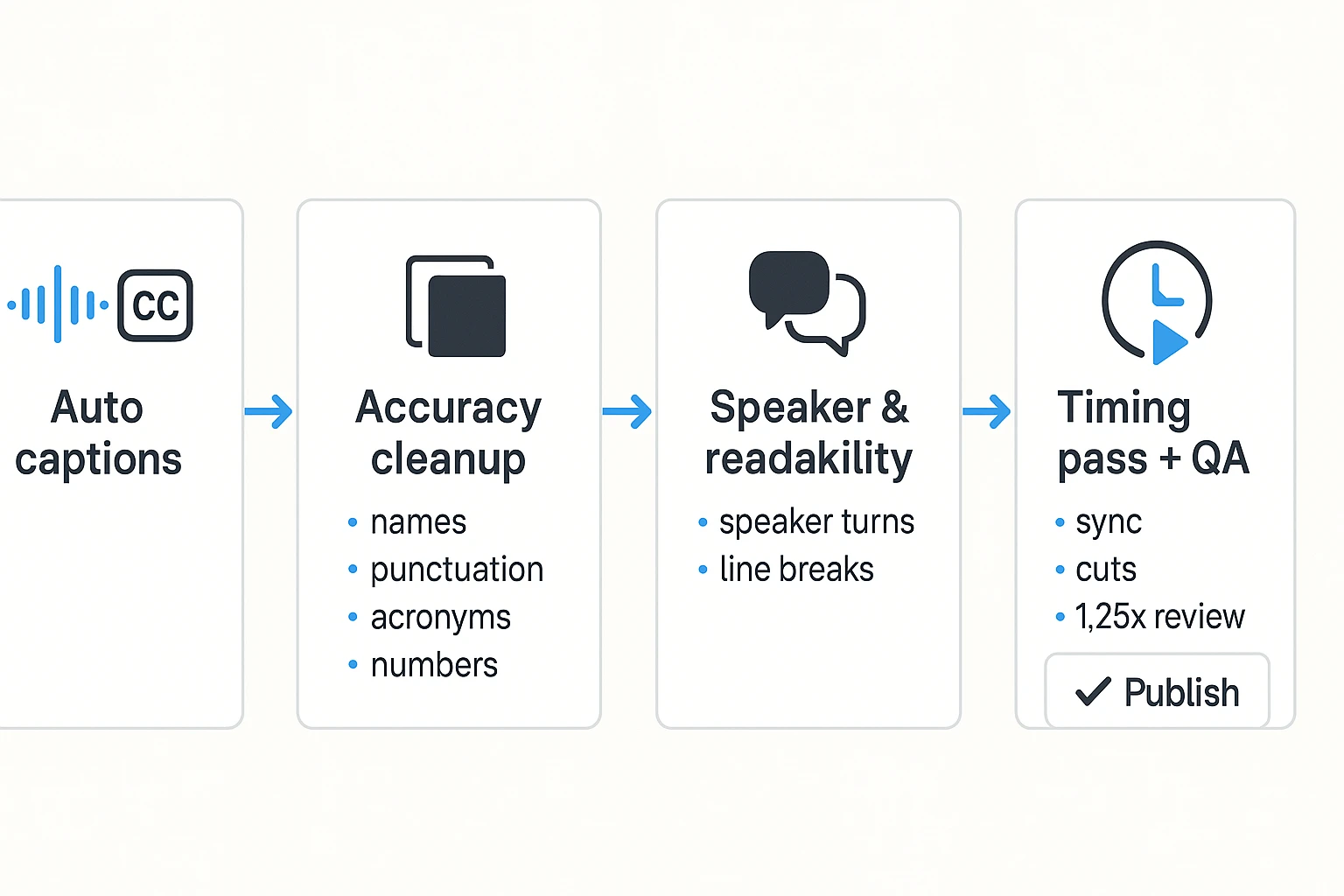
- Proper nouns: Fix names, brands, and places.
- Example: "Sara K" → "Sarah Kay"; "Notion" misheard as "notion".
- Homophones and jargon: Correct words that sound alike.
- Example: "their" vs "there"; "cache" vs "cash".
- Punctuation: Add commas and periods to make meaning clear.
- Example: "Let's eat kids" → "Let's eat, kids."
- Acronyms: Standardize how you want them shown.
- Example: "S E O" → "SEO".
- Numbers: Pick one style and stick to it.
- Example: "twenty twenty four" → "2024" (or keep words if that's your style).
Handle speakers and readability (so people can follow along)
Captions aren't just "correct words". They need to be easy to read.
- Add speaker cues when it helps, especially for interviews.
- Example: "Host:" and "Guest:" at the start of a new turn.
- Break long lines so viewers don't get a wall of text.
- Trim repeated filler carefully ("um", "you know") if it hurts clarity.
- For accessibility, don't remove words that change the meaning or tone.
Do a timing pass (line length + sync)
After text edits, check timing. Small shifts can happen, especially near cuts.
- Keep caption lines short and easy to scan.
- Make sure captions appear when the words are spoken.
- Watch timing around jump cuts and B-roll.
- Do a mini QA run: play the video at 1.25× with captions on. You'll spot drift, missing words, and awkward line breaks fast.
How do you upload or export caption files (SRT/VTT) in YouTube Studio?
YouTube can auto-caption, but you still may need to upload or export caption files for accuracy, compliance, or reuse. In YouTube Studio, you manage this in the Subtitles area for each video. That's where you can add a file (like SRT or VTT), edit a track, publish it, or download what you already have.
Choose the right method: upload vs type vs auto-sync
Use the option that matches what you already have:
- Upload a file: Best when you already have timed captions from another tool. (You did the timing work elsewhere.)
- Type manually: Best for short clips or small fixes. You control every line.
- Auto-sync: Best when you have a clean transcript text, but you need YouTube to align it to the audio.
Tip: If your file is plain text only, it can't act like real captions. Captions need timing.
File formats: SRT vs VTT vs SBV (and why TXT isn't captions)
Here's the quick difference between common caption and transcript formats:
| Format | What it's best for | Notes |
| SRT | Most common timed captions | Widely supported across editors and platforms |
| VTT | Web video captions | Allows more metadata and styling than SRT |
| SBV | Older YouTube-style captions | Legacy format you may still see in older workflows |
| TXT | Notes, scripts, and raw transcripts | Not timed, so it won't behave like captions |
If you want captions that viewers can turn on and off, use SRT/VTT/SBV, not TXT.
Publish, replace, and keep clean versions
A few operational rules help you avoid caption chaos:
- Publish, then confirm it's live: After you add or edit a track, publish it. Then test playback to confirm captions appear.
- Replace vs add a language:
- Replace when you're updating the same language track.
- Add when you're creating a new language (like Spanish).
- Version your work: Keep a backup track name idea in your own workflow, like "English (edited)", so you can roll back if needed.
- Export (download) captions when available: YouTube Studio often lets you download caption files from the video's Subtitles area. If you don't see download options, it may be a track type or permission issue. In that case, keep your original SRT/VTT file stored outside YouTube.
Last step: always test captions on desktop and mobile after publishing. Small timing or line-break issues show up differently by device.
How can you improve YouTube's auto-transcribe quality before you hit upload?
YouTube can auto-caption your upload, but accuracy starts with your raw audio. If you want better results before you publish, focus on three levers: cleaner recording, clearer speaking, and the right language settings.
Capture cleaner audio (this moves accuracy the most)
Auto-transcribe systems struggle with echo and noise. Fix those first.
- Get the mic closer. A simple lav or USB mic helps. Keep it 6 to 12 inches away.
- Cut room echo. Record in a small, soft room. Close curtains and add rugs.
- Control background noise. Turn off fans. Avoid traffic-facing windows.
- Keep levels steady. Aim for clear volume without peaks. If it distorts, captions will too.
Speak for transcription (pace beats polish)
You don't need a "radio voice." You need clean words.
- Slow down on names and numbers. Say them once, then repeat if vital.
- Avoid overlap. Don't talk over guests. Leave a short pause for speaker changes.
- Handle jargon on purpose. Spell key acronyms once on camera if they matter.
Plan for multilingual viewers (build one strong source first)
Set the video's spoken language correctly so YouTube picks the right model. Then create and edit one solid source caption track before you translate. If you use auto-translate, spot-check brand names, product terms, and safety or legal lines.
"Edited captions aren't just about accuracy. They reduce effort for viewers and make content usable for more people." (Accessibility/localization specialist, quote to be sourced)
What's a good alternative to YouTube auto transcripts for notes and reuse? (Tool-assisted workflow)
If you want cleaner notes than YouTube auto-captions can give you, you can Try TicNote Cloud for Free and use it as a transcript workspace for cleanup, summaries, translation, and exports. The steps below use TicNote Cloud as the example, but the same workflow applies to any tool that lets you upload audio or video, transcribe it, and turn it into reusable docs. This is a complement to YouTube Studio, not a replacement, especially when you need more than SRT or VTT.
When a tool-assisted workflow helps most
YouTube is great at making on-platform captions fast. But it's not built for turning a long video into a reusable knowledge asset.
A dedicated transcript workspace helps when:
- You're working with long videos, webinars, interviews, or training.
- Captions are missing, messy, or hard to copy cleanly.
- You need summaries, highlights, and fast search across content.
- You need translation and outputs you can paste into docs or wikis.
- You're doing research and want headings, quotes, and key takeaways.
If your goal is "make captions show on YouTube," stay in YouTube Studio. If your goal is "turn this video into notes I can reuse," an off-platform workflow usually wins.
Quick, neutral comparison: YouTube vs a transcript workspace
YouTube auto captions are best for quick, on-platform accessibility and basic viewing support.
A tool-assisted transcript workspace is best for:
- Cleanup (punctuation, names, sections)
- Search and reuse (quotes, highlights, internal docs)
- Summarizing for blog drafts and show notes
- Translation workflows for global teams
Web Studio workflow in TicNote Cloud (upload, transcribe, summarize, translate, export)
Below is a simple flow that mirrors how most teams actually work: bring in the file, generate a transcript, polish it, then export what you need.
- Upload a file or record audio
Start in the TicNote web studio by creating a project. Then click Upload to add your video or audio file.
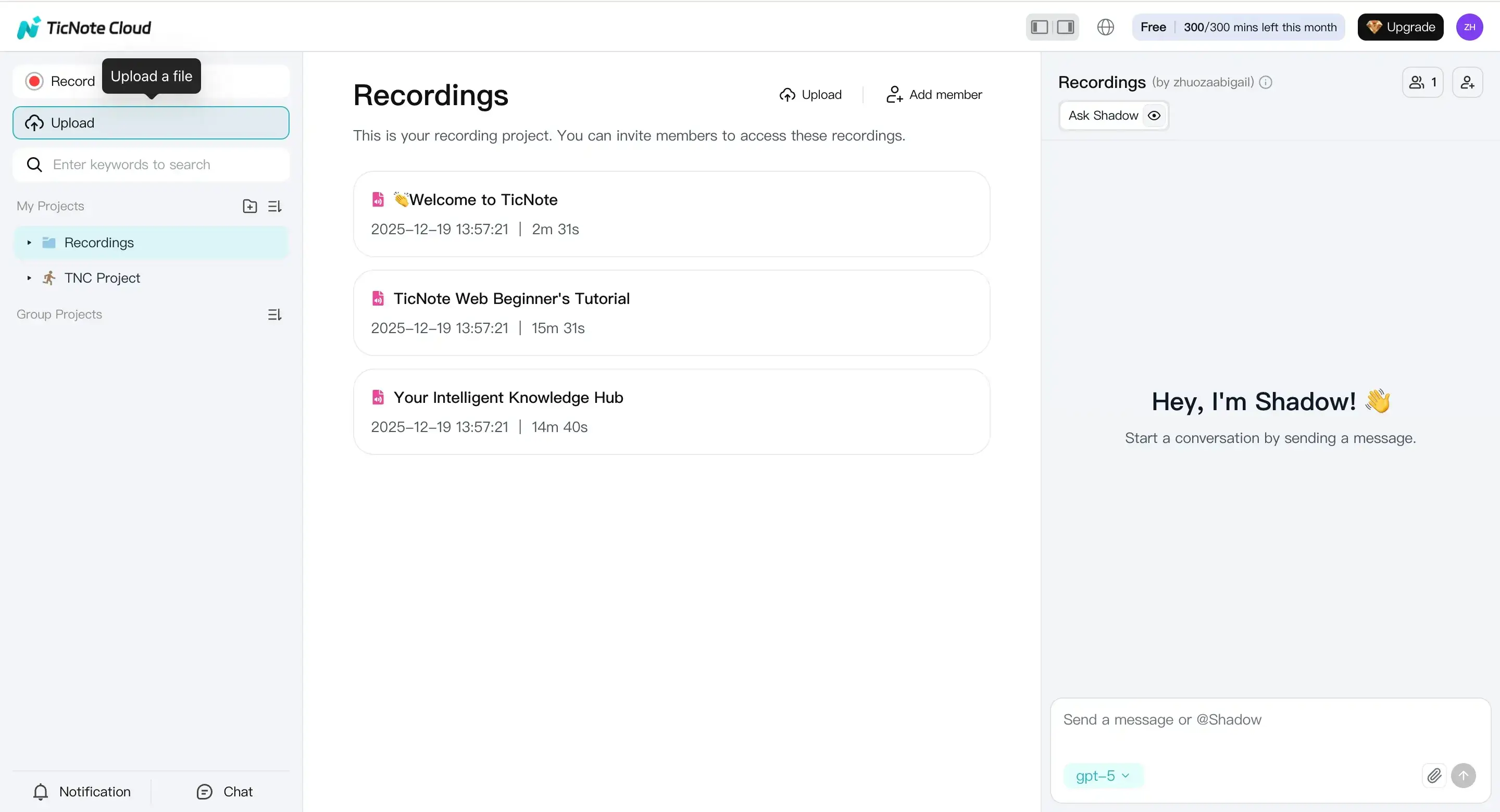
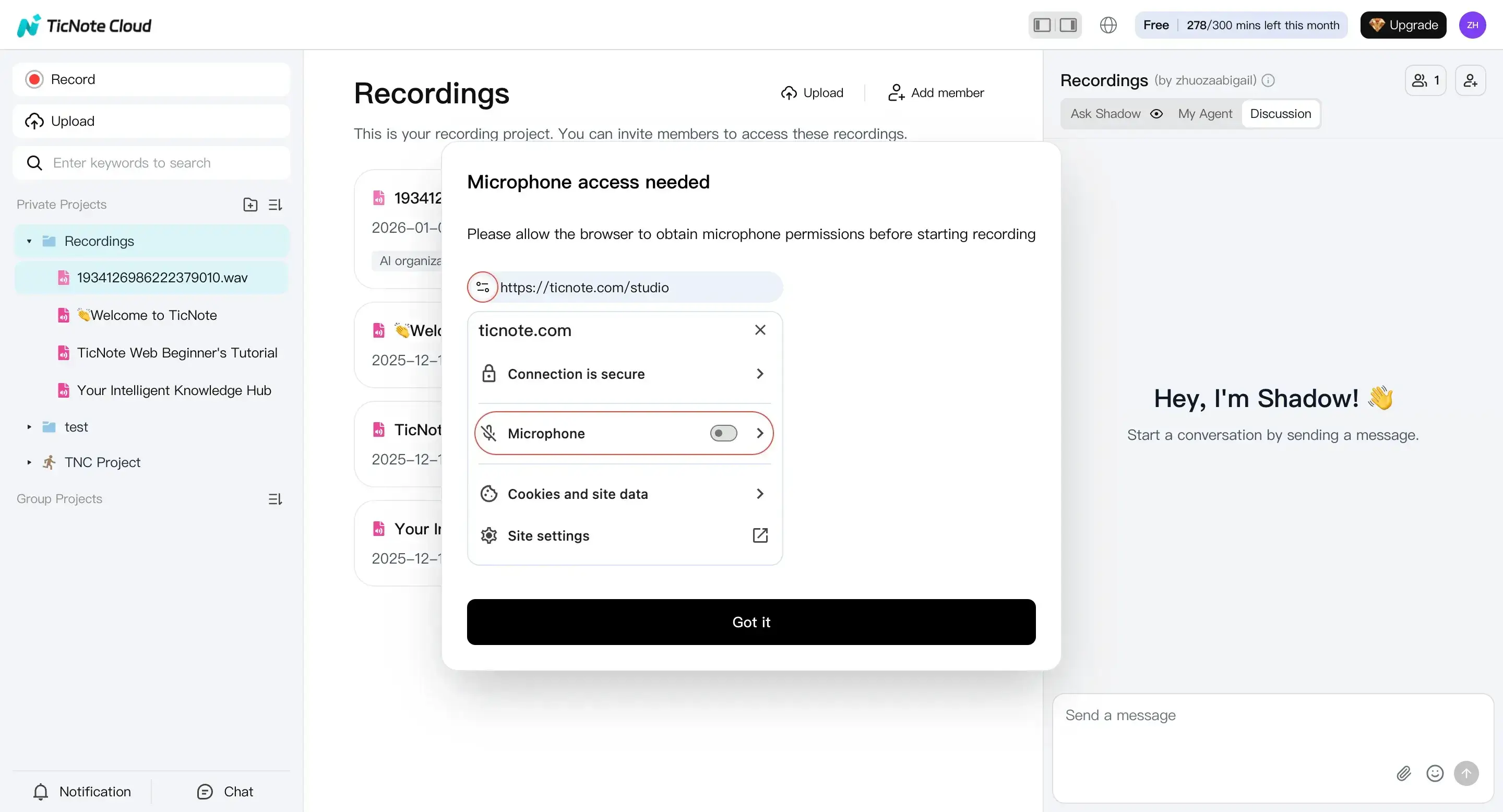
If you don't have a file yet, you can click Record instead. Enable mic access, record, and save it. The recording lands in the default Recordings project so you can transcribe it.
- Generate the transcript (set language and model)
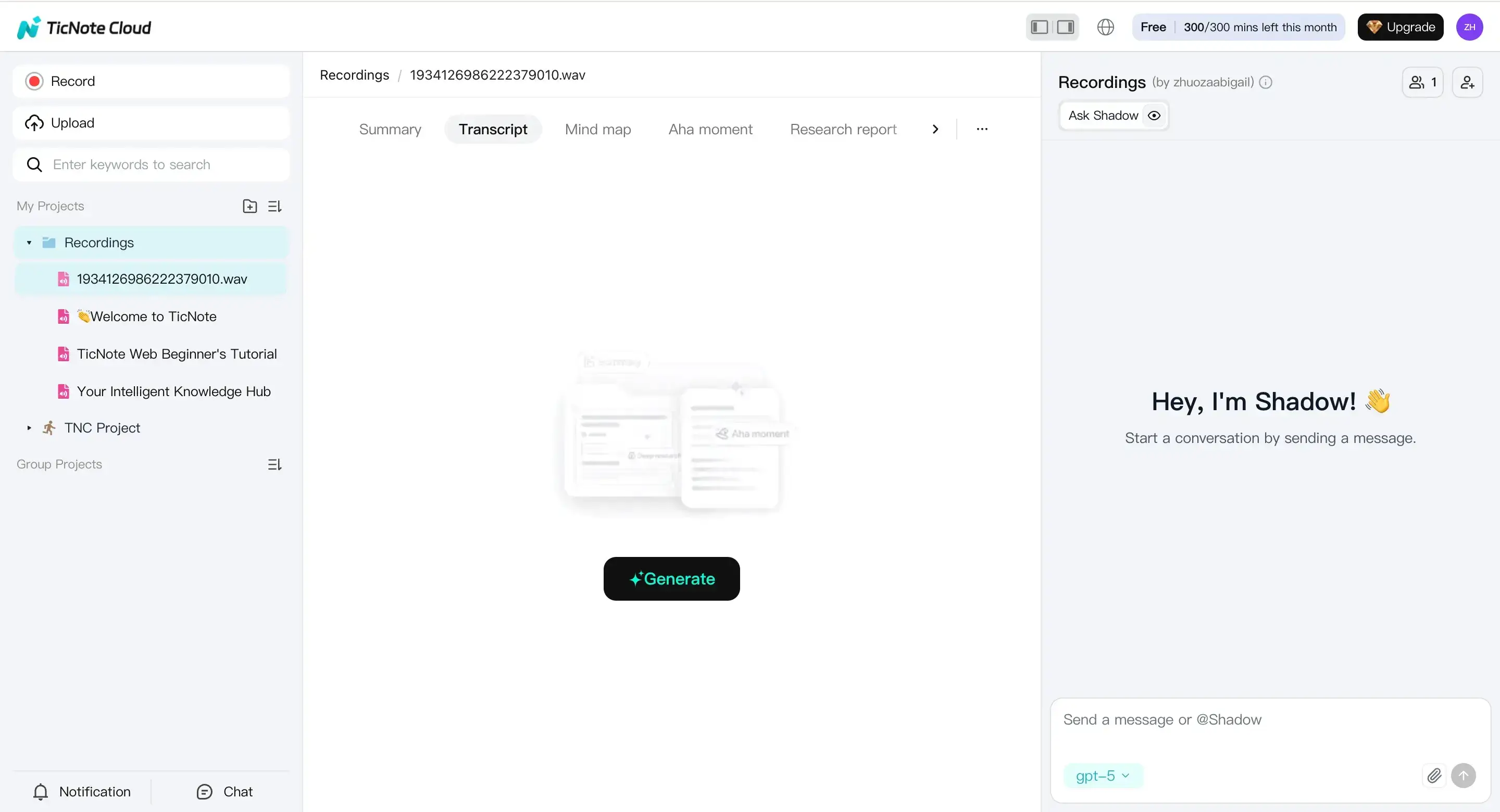
Open the file from the left panel. Go to the Transcript tab and click Generate.
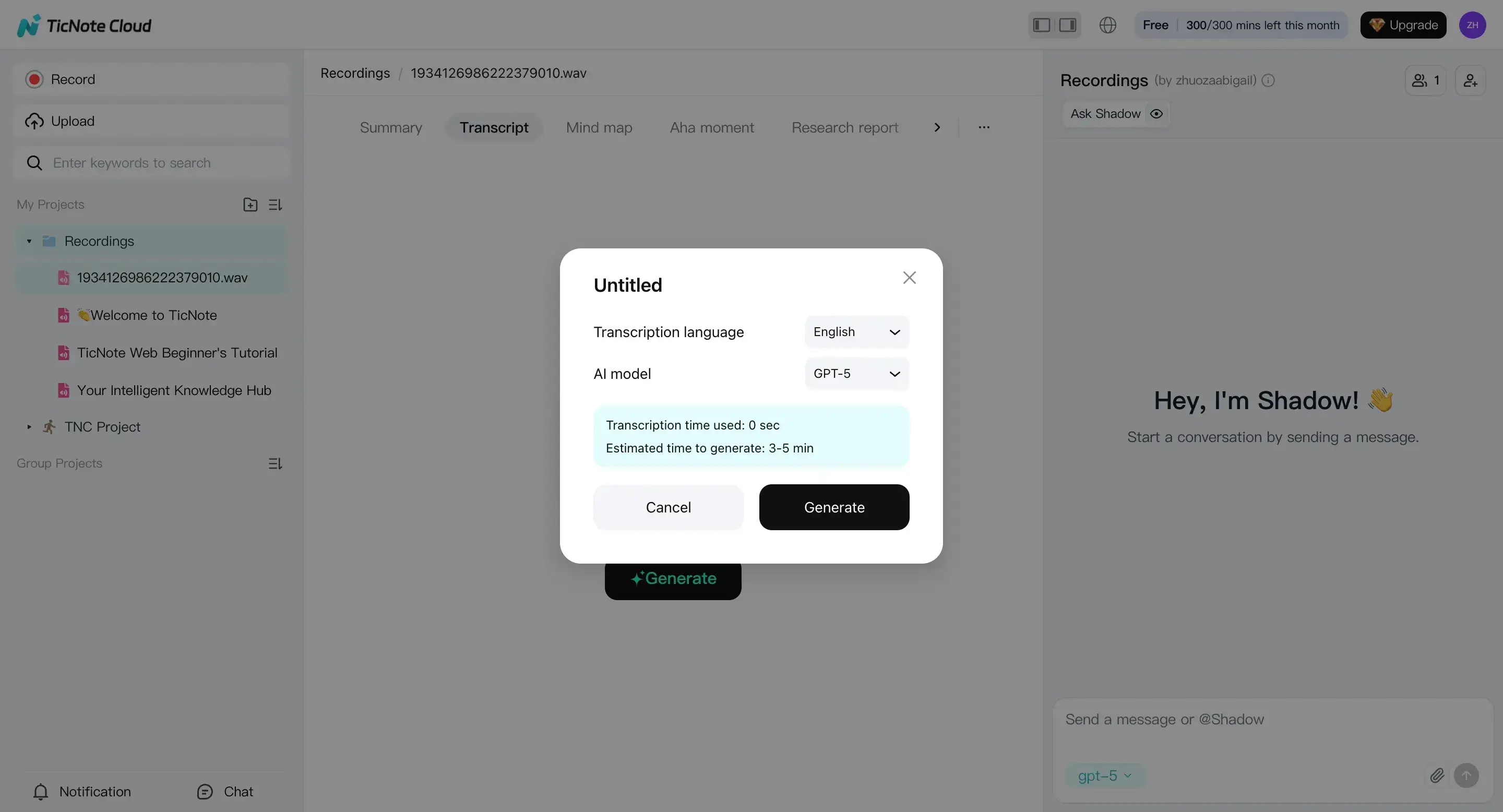
In the next window, set the spoken language and pick the model options. Then confirm to start transcription.
- Review and clean up: transcript, summary, and mind map
Once it's ready, read through the transcript in the editor. This is where a tool can save you time versus fixing captions line by line.
A practical cleanup pass usually looks like this:
- Fix punctuation so sentences read clean.
- Standardize names, brands, and product terms.
- Add simple headings so you can skim later.
- Break up long blocks into short paragraphs.
You can edit the text yourself, or ask the built-in assistant (Shadow) to help with cleanup tasks like punctuation, names, and headings.
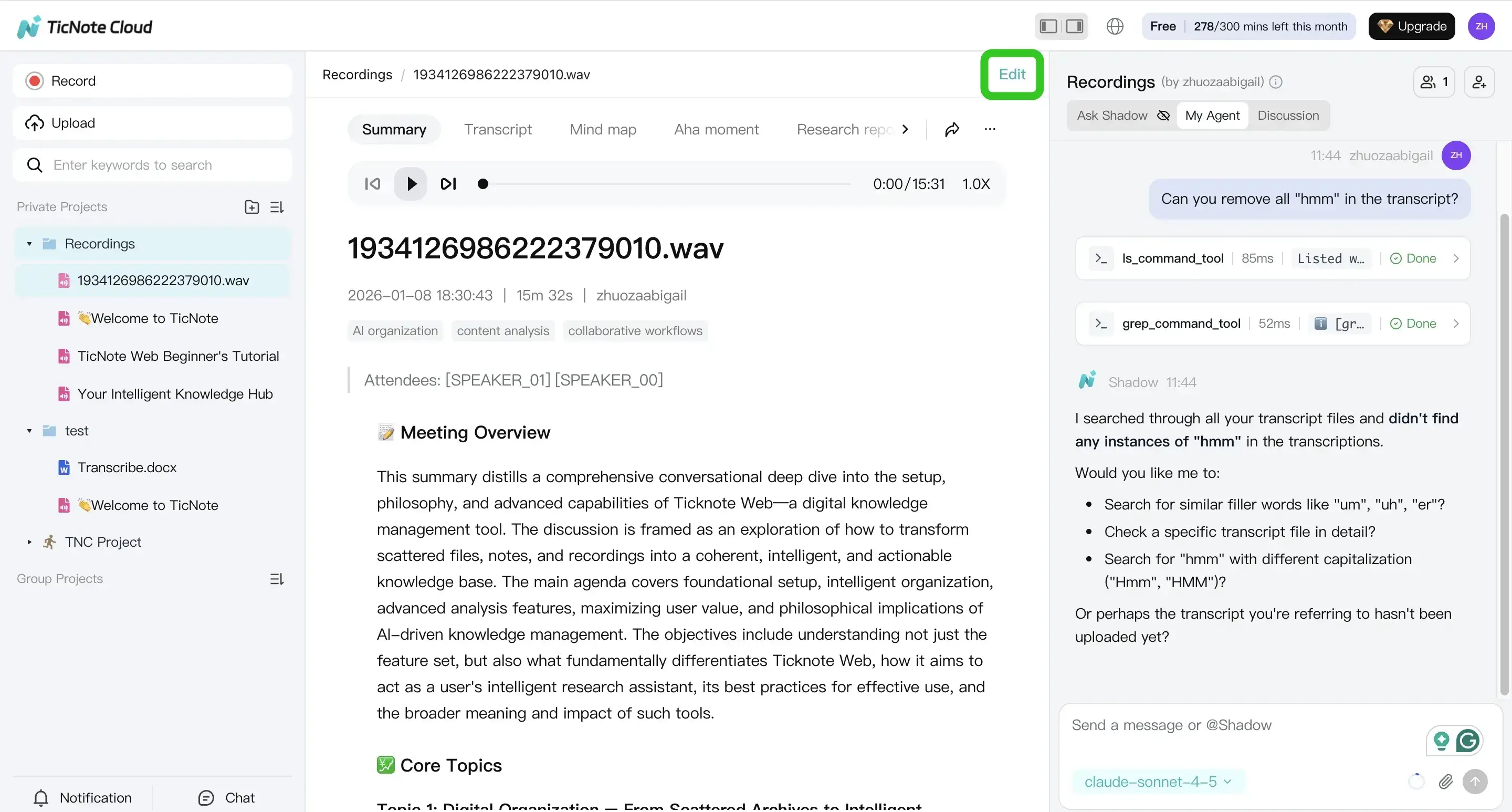
Tip: If you're here because you're asking "does youtube automatically transcribe videos," this is the reality check. YouTube can auto-generate captions for many uploads, but it won't reliably give you a polished transcript you can reuse in a doc without extra work.
- Export reusable outputs (no deep formatting needed)
When the transcript and notes look right, export what you need. In TicNote web studio, click the three dots button > Download > Export Transcript.
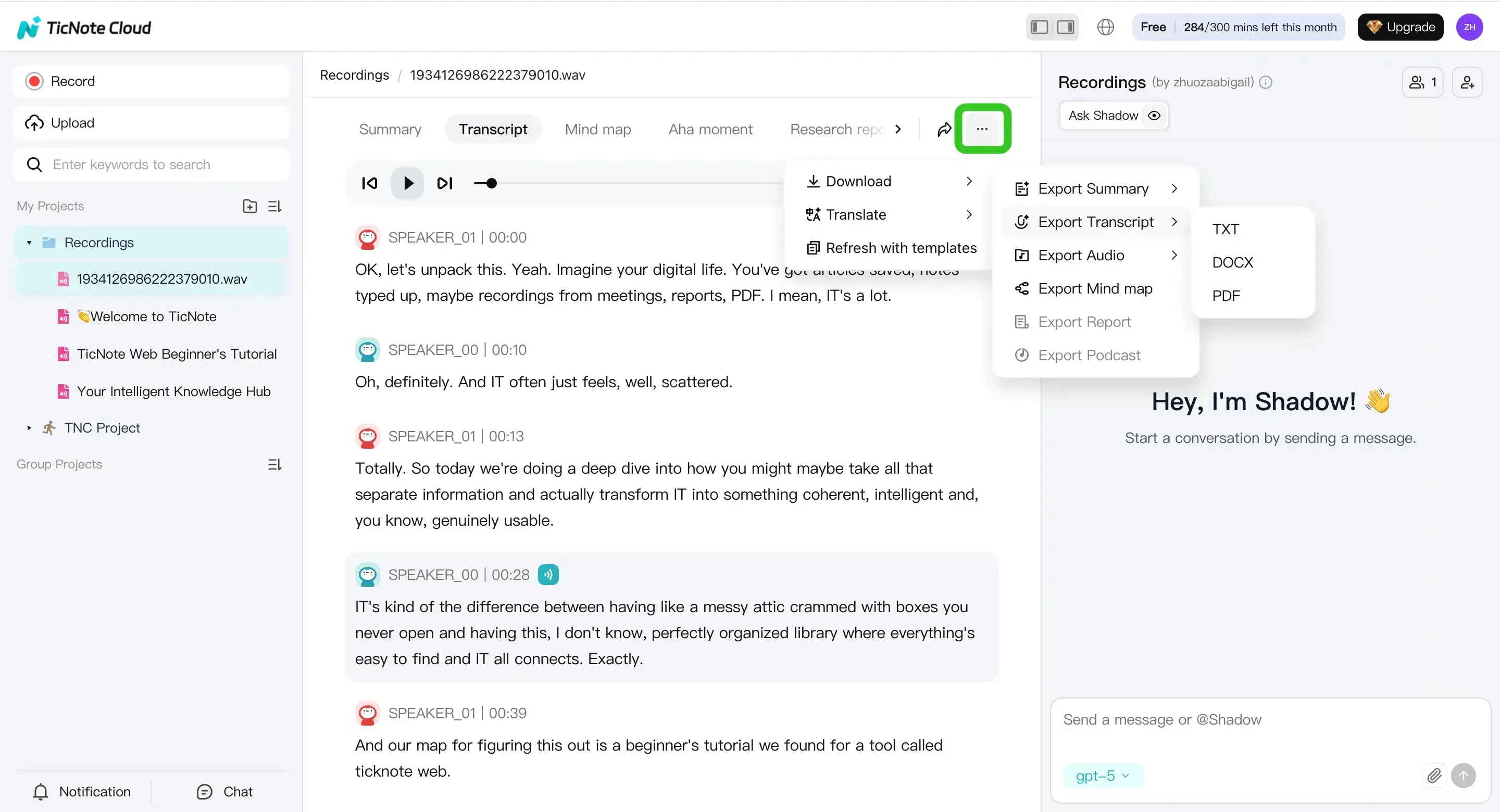
For reuse, the key exports are:
- Transcript as TXT for quoting and quick search
- Summaries as Markdown, DOCX, or PDF for sharing
- A mind map (if you want a visual outline)
If you want more ideas for turning recordings into usable text, this guide on transcribing audio for meetings, podcasts, and research goes deeper on workflows.
App workflow (when you're away from your desk)
If you're mobile, the app flow is similar. Upload or record, generate the transcript, review edits, then export.
For example, in the TicNote app you can upload a file to a project with the add button.
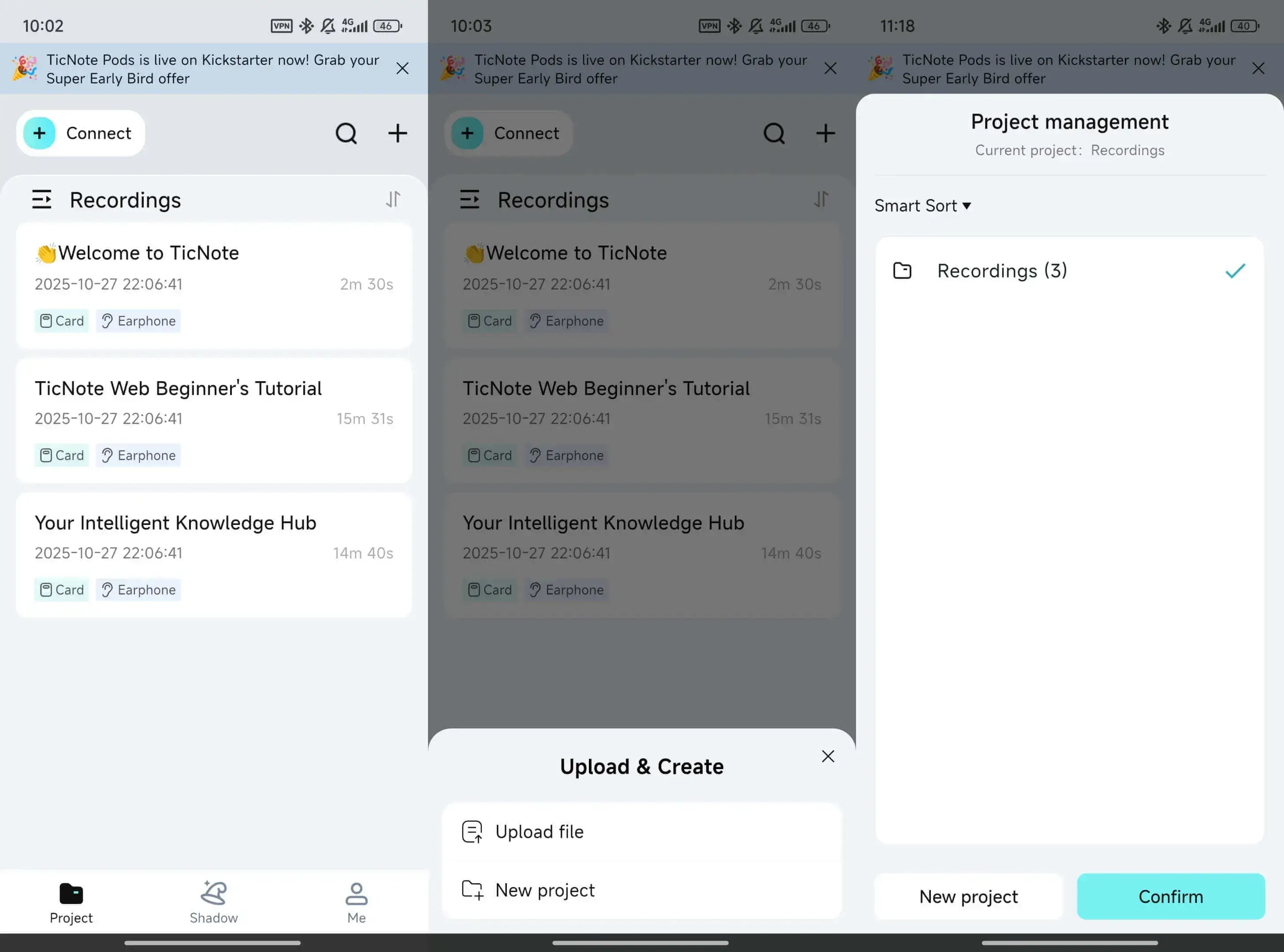
That's handy when you want to capture a quick recording, clean it later, and still walk away with a shareable transcript and summary.
Map exports to real jobs (so the transcript actually gets used)
A transcript is only useful if it turns into output. Here are common "end states" that work well with TXT and summary exports:
- Quoting: pull exact lines for articles, newsletters, and decks.
- Blog prep: turn the summary into an outline and draft faster.
- Show notes: extract timestamps, sections, and key links.
- Internal knowledge base: save Markdown or DOCX notes by topic.
- Multilingual reuse: translate the cleaned transcript, then summarize.
Used this way, YouTube Studio stays the place for captions on the video. Your transcript workspace becomes the place for notes, search, and reuse.



