Extension
TL;DR: Quick answer and the best pick
Short answer: turn on live captions for instant, rough notes, or record the meeting and transcribe afterward for the cleanest transcript. If you need a quick how-to transcribe Google Meet answer, live is fastest, and post-call is most accurate.
Options at a glance: native captions are free but basic; free third-party tools add exports and simple editing; cloud transcription tools add summaries, translations, searchable archives, and team sharing. Pick by volume and workflow: one-off calls use native captions, occasional recordings use free tools, and meeting-heavy teams use an all-in-one cloud workspace.
The best pick for most teams is a cloud note workspace that records, transcribes, summarizes, and stores searchable notes so you can find decisions and actions later. It saves time, reduces missed tasks, and scales as meeting volume grows.
How Google Meet transcription works (native features & limits)
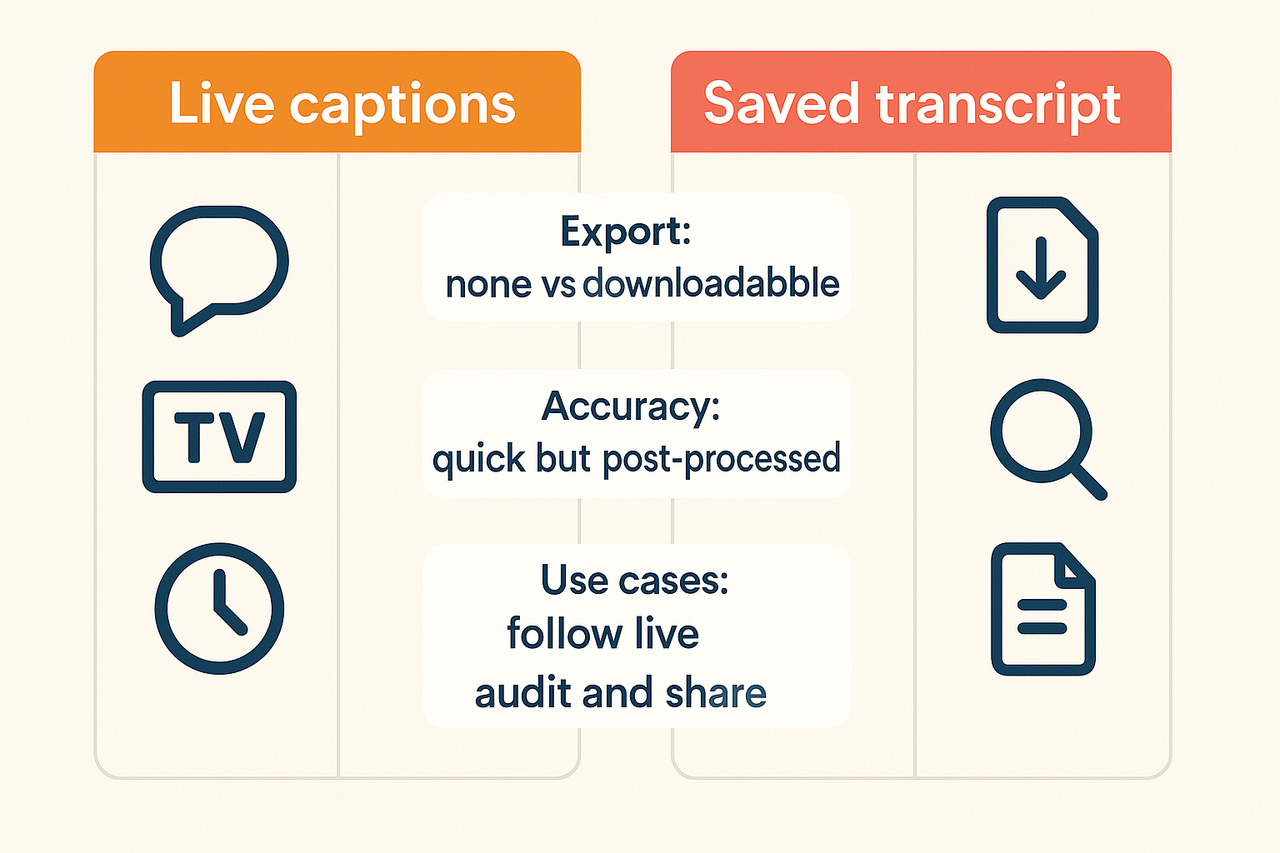
Google Meet offers two related but different features: live captions and saved transcripts. If you want to know how to transcribe Google Meet, start by spotting that captions are ephemeral, they show on screen, and they do not always produce a downloadable file. Saved transcripts are a post-meeting record that you can review and share, but they depend on account settings and meeting permissions.
Live captions vs saved transcripts
- Live captions: Shown in real time for participants, they help follow the discussion. They vanish when the meeting ends and cannot be exported from the meeting view.
- Saved transcripts: Created when a meeting host enables transcription or recording, they produce a text record you can open later. Transcripts often include speaker markers and a list of attendees, which helps with attendance and records (Turn meeting transcription on or off).
- Practical gap: Captions help comprehension on the fly, transcripts help audit, search, and handoff.
Account requirements and platform limits
Admins, host controls, or specific Workspace editions may be required to enable saved transcription. Accuracy varies with audio quality, accents, and background noise. Also expect limited export formatting, basic speaker separation, and language coverage compared to specialized tools. That is why many teams use third-party services for cleaner exports, multi-language support, summaries, and tighter privacy controls.
How to transcribe Google Meet live (step-by-step)
Brief: This section shows how to enable Google Meet live captions and run a live transcription. It gives a clear, numbered workflow and practical tips to improve accuracy. It finishes with a short setup for live transcription using TicNote Cloud and the main benefits.
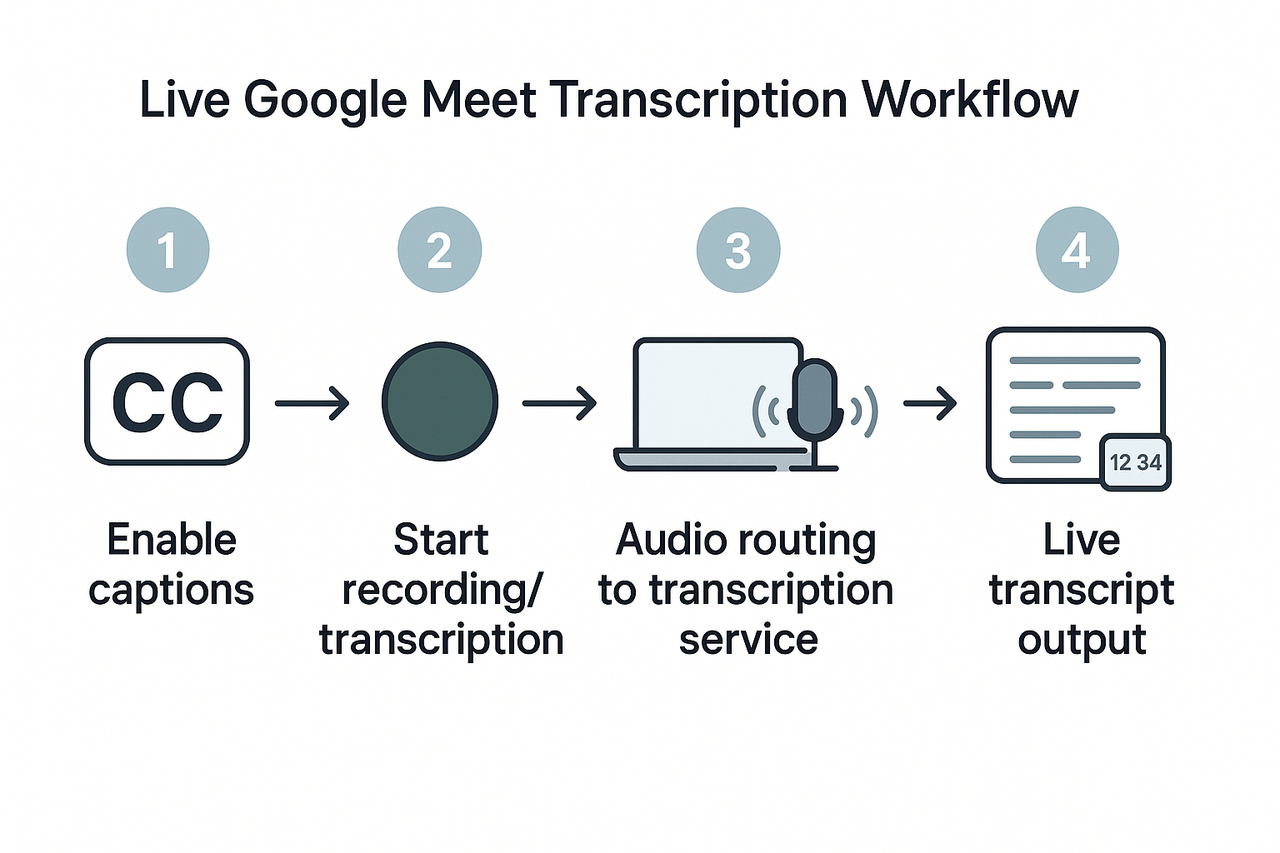
Step-by-step live transcription
- Open Google Meet and join the call.
- Turn on closed captions: click the three dots, choose "Captions", then select your language. This shows on-screen captions but does not save a transcript.
- Start recording if you need a saved meeting file: click the three dots, choose "Record meeting", then confirm. Recording saves to the organizer's Google Drive.
- For life-saving and searchable text, route audio to a transcription tool: either connect a browser extension, use a dedicated app, or join a second device running the transcriber and place it near the speaker.
- Check audio input settings: ensure the microphone is selected and levels are good. Poor input kills accuracy.
- Monitor the live transcript window and note any speaker names or timestamps manually if needed.
- Stop recording and export the transcript or recording for post-meeting cleanup.
Best practices to improve live accuracy
- Use a good microphone or headset, and test levels before the call.
- Ask speakers to mute when not talking and to speak clearly, one person at a time.
- Reduce background noise and avoid music or overlapping audio.
- Prefer wired Ethernet and a stable connection to cut dropouts.
- For multilingual calls, set the closest language in the transcriber and use separate channels for heavy accents.
Run live transcription with TicNote Cloud
Set up: start the platform's live capture, select your Meet audio source, and choose a language. The tool produces real-time transcripts, searchable notes, summaries, and exportable files. TicNote supports multilingual live transcripts and turns the text into topic notes and a searchable workspace, saving time on follow-ups.
How to transcribe a Google Meet recording (downloads, uploads, and free options)
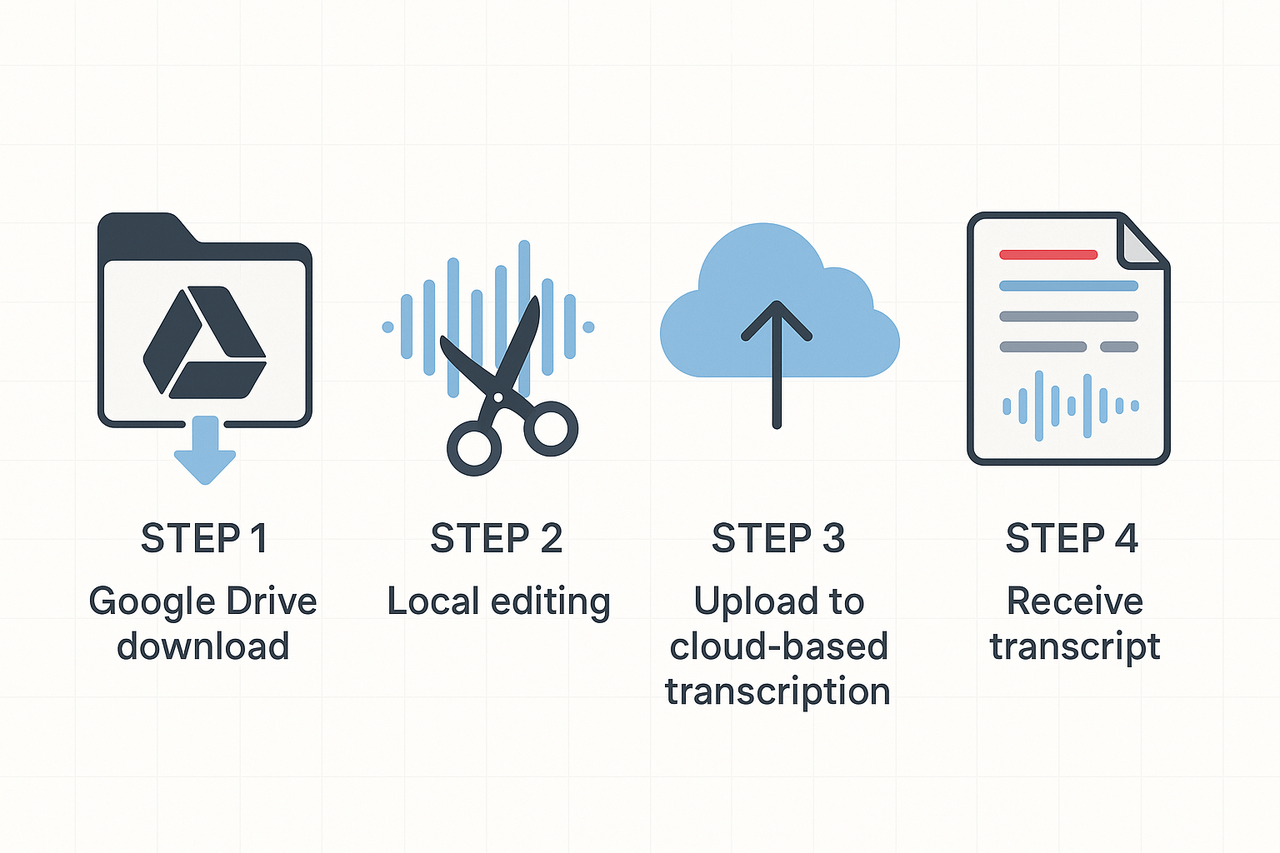
Want to know how to transcribe Google Meet recordings fast? Start by downloading the Meet file from Google Drive, cleaning it up locally, then uploading it to a transcription service. This workflow works well for long meetings, poor audio, or when you need a shareable transcript.
Step 1: Download the Meet recording from Google Drive
Open Google Drive, find the Meet folder or the host's recording link. Right-click the file and choose Download. Keep track of the filename and where it lands on your computer.
Step 2: Prep the file: check, trim, convert
Do these quick checks before uploading:
- Play the file once to check audio quality and speaker overlap.
- Trim silences or irrelevant segments using a free editor like Audacity (save as WAV or MP3).
- Convert long files above 60 minutes into smaller chunks if your tool limits upload length.
Step 3: Upload and transcribe with the Free plan
Sign in to the transcription tool of your choice and pick Upload file. For an all-in-one note and transcript workflow, TicNote Cloud's Free plan lets you upload short files, get a transcript, and generate a quick summary. The typical steps are: upload, choose language, start transcription, then review and export the text.
Quick upload tips
- Use WAV for best accuracy when possible.
- Label chunks with timestamps if you split long recordings.
- Review and correct speaker names after transcription.
Try TicNote Cloud free today to transcribe and summarize your meeting in minutes.
Compare methods + Decision guide: native vs. free third‑party vs. TicNote
If you're wondering how to transcribe Google Meet conversations, there are three main options: native Google Meet features, free third‑party transcription tools, and platforms like TicNote Cloud. Each option has trade-offs in accuracy, privacy, and cost. This guide compares them to help you decide quickly.
Quick Comparison Table
The global demand for speech and voice recognition is growing, with the MarketsandMarkets Speech and Voice Recognition Market Report (2022) projecting growth from USD 21.70 billion in 2025 to USD 73.49 billion by 2030 at a CAGR of 27.6%.
| Attribute | Native Google Meet | Free Third‑Party Tools | TicNote Cloud |
| Accuracy | Moderate | Varies; often lower | High-tuned for meetings |
| Cost | Free with Workspace | Free tiers; limits apply | Free & paid plans; predictable |
| Privacy | Google account storage | Depends on the vendor | Private by default |
| Language Support | Limited live languages | Some support multiple | 100+ supported |
| Workflow | Live captions only | Live or upload-based | Real-time + post-meeting uploads |
Pros and Cons
Native Google Meet
- ✅ No setup; live captions included.
- ❌ Limited export, no search or post-meeting features.
Free Third‑Party Tools
- ✅ Low or no cost; some provide exports.
- ❌ Quality varies dramatically; privacy unclear.
TicNote Cloud
- ✅ High accuracy; live + upload support; searchable transcripts; secure.
- ❌ Advanced tools require upgrading to paid tiers.
Decision Matrix
Use Case Examples:
- Daily Team Stand-up: Use native captions for speed; upgrade to TicNote if you need searchable records.
- Client Meetings: If the budget is tight, use a trusted free tool; for better accuracy and security, use TicNote.
- Recorded Interviews: Free tools may work for short files, but TicNote is better for longer sessions and clear summaries.
- Compliance Needs: Go with platforms like TicNote that emphasize default privacy and data protection.
Experiment with one or more tools to determine what fits best for your needs in accuracy, cost, language support, and workflow flexibility.
Privacy, security & compliance: what to check before you transcribe
Brief: This section lists the privacy checkpoints teams must review before they transcribe meetings. It covers where data lives, retention and deletion rules, vendor model training policies, GDPR and HIPAA basics, and an enterprise checklist.
When you decide how to transcribe Google Meet, treat data handling as a project requirement. Ask where audio and transcripts are stored, who can access them, and how long they remain. Also, check whether the vendor uses customer data to train AI models, and how access is logged.
Compliance notes for GDPR and HIPAA
GDPR needs a lawful basis for processing personal data, clear retention limits, and data subject rights like access and deletion. For health data, remember that Cloud Computing Guidance (2024) states: The HIPAA Security Rule at 45 CFR § 164.308(a)(6)(ii) requires business associates to identify and respond to security incidents, mitigate harmful effects, and document incidents and their outcomes. That means stricter contracts and breach plans when PHI is involved.
Quick enterprise checklist
- Where is data stored, and which region hosts it?
- Retention period, export, and delete policies.
- Is customer data used to train models, and can you opt out?
- Encryption in transit and at rest, audit logs, and SSO support.
- Contract terms, SOC or ISO reports, and breach notification SLAs.
TicNote Cloud is private by default and does not use customer data to train AI models. For deeper security questions, review the vendor site at https://ticnote.com or contact the platform’s support and security pages.
Troubleshooting & setup tips (common problems solved)
Brief: Quick fixes for the most common transcription issues, from no captions to poor accuracy and missing speaker labels. Start with simple checks, then try recording workarounds, and finally escalate to manual transcription when needed.
Start with these quick hardware and permission checks
- Confirm how to transcribe Google Meet is enabled: test live captions and recording in a short call.
- Check microphones: pick a dedicated mic or headset, raise the input level, and disable noise suppression if it mangles speech.
- Verify participant permissions: only hosts or permitted users can record. Ask attendees to allow recording if needed.
Fix poor accuracy and noisy audio
- Move speakers closer to the mic and mute background apps.
- Use a separate device to record locally (phone or digital recorder) for cleaner audio.
- If many accents or languages are present, upload the clear audio file to a transcription service that supports multilingual models.
Solve missing speaker labels and overlap
- Speaker attribution (who said what) needs good channel separation. Record each person on a separate track if possible.
- If labels are wrong, do a quick manual pass to tag speakers before sharing.
When to use human transcription
If accuracy must be verbatim, the audio is very noisy, or you have legal needs, use a professional transcriber. Human work is faster than endless editing.
Fast quality checks after export
- Listen to three random one-minute clips and compare them to the text.
- Scan for proper nouns, timestamps, and action items.
- Correct speaker names and export a cleaned TXT or DOCX.
One integrated option can record, transcribe, and export cleaned notes from the same workspace, which saves editing time.
Real‑world use cases, demo assets, and integrations
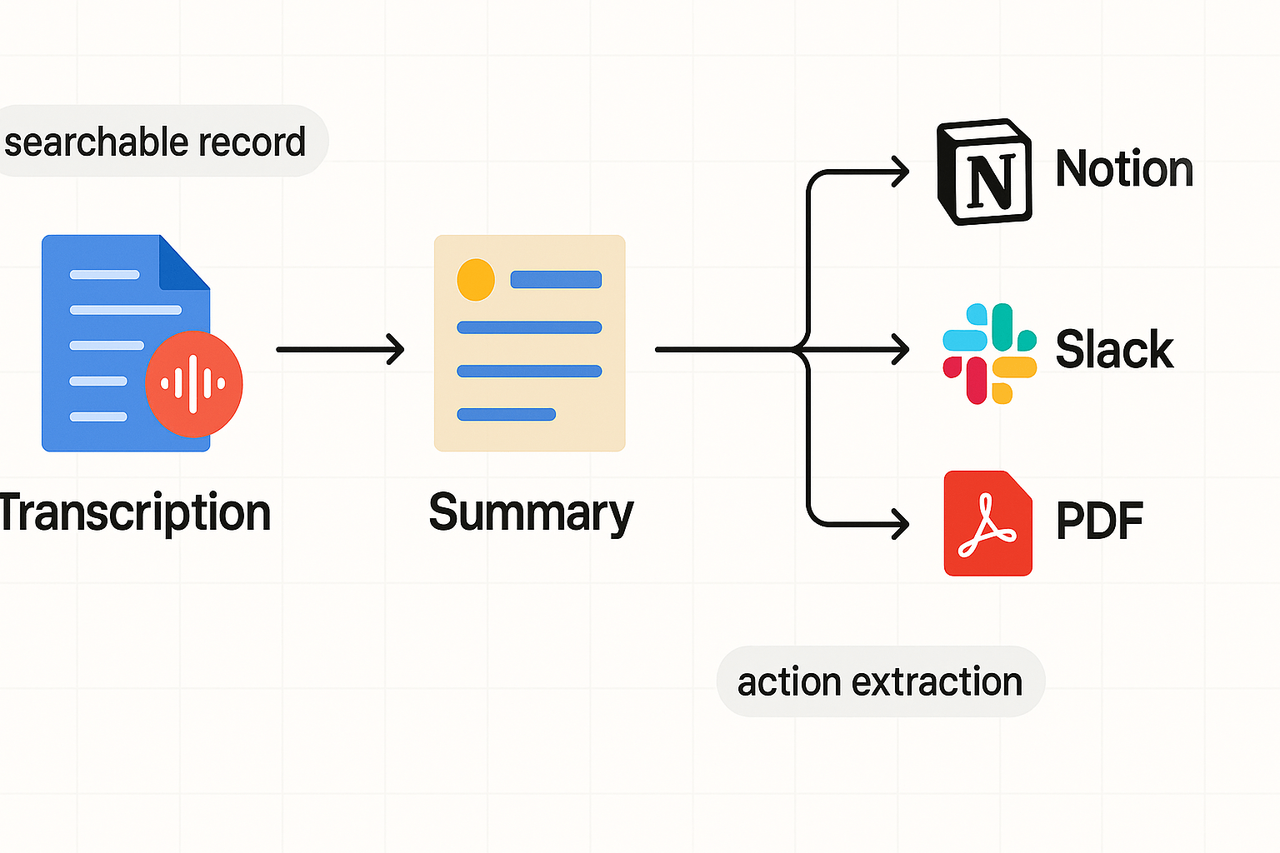
TicNote Cloud helps teams turn meeting audio into searchable records and clear action items. This section showcases practical applications for product managers, educators, legal professionals, and sales teams. It also outlines how to transcribe Google Meet calls into reusable notes with valuable insights. You’ll discover demo assets and export options to common platforms like Notion, Slack, PDF, DOCX, and TXT.
Use Cases and Outcomes
Real-world workflows get faster and more effective with TicNote. Here’s how different roles benefit:
- Product Managers: Automatically extract backlog decisions and action items with timestamps and tags—reducing follow-up time by 40%.
- Educators: Generate transcripts and visual summaries to help students review or catch up on missed classes.
- Legal and Compliance Teams: Maintain audit-ready transcripts, apply redactions as needed, and export secure formats.
- Sales Reps: Summarize calls straight into CRM-ready notes, highlight key objections, and enrich sales playbooks.
Demo Assets on the Page
Explore three hands-on samples provided:
- Transcript Sample: A timestamped TXT file with speaker labels for easy keyword or quote lookup.
- AI Summary: A structured Markdown memo showing decisions, owners, and next steps.
- Mind‑Map Export: A PNG diagram illustrating discussion flow and topics—ideal for project briefings.
Integrations and Exports
TicNote supports seamless output to familiar tools. Instantly send summaries to:
- Notion: Create a searchable meeting library.
- Slack: Push outcomes to relevant channels.
- PDF, DOCX, TXT: For archival or handouts.
Suggested Workflow: Meeting → Knowledge
- Record or upload your meeting audio or video.
- Use AI to generate structured summaries and extract action items.
- Export to Notion for centralized documentation.
- Share highlights via Slack or PDF.
- Search by topic, owner, or keyword later.
Try it free — No credit card required.