Extension
![[Generate Meeting Minutes Free] How to Write Meeting Minutes Faster: Step-by-Step Templates & AI Workflows](https://cdn-digitalhuman-pb.weta365.com/voice-recorder-prd/static/backend/2025/10/24/1981639164945338369.JPEG)
TL;DR: What good meeting minutes do and how to write them fast
If you need a fast answer on how to write meeting minutes, focus on three things: clear decisions, assigned actions, and enough context to follow up. Good minutes cut meeting replay time, prevent duplicate work, and create a record for accountability.
- Prepare: Attach the agenda to a simple template. Note attendees, roles, and the meeting goals before you start.
- Capture: During the meeting, record attendance, decisions, action items, owners, and deadlines. Use short phrases, timestamps for key decisions, and flag open questions.
- Finalize: Edit for clarity within 24 hours, confirm action owners, and send a searchable file to stakeholders. Store it where the team already looks.
If you don't have time to write meeting minutes by yourself, you can use TicNote Cloud and generate meeting minutes for free. You can use various templates on TicNote Cloud to generate meeting minutes with different requirements, or you can create your own templates. TicNote Cloud provides 300 minutes of free automatic transcription every month.
Read the full guide for ready-to-use templates, demos, and AI workflows that speed each step.
Why accurate meeting minutes matter (decisions, liability, continuity)
Accurate meeting minutes turn noisy conversations into a single source of truth. They capture decisions, assign accountability, and make follow-up predictable. If you want to know how to write meeting minutes that cut rework and confusion, start with clarity of purpose.
Unclear or missing minutes have real costs. According to McKinsey Quarterly (2019), unproductive meetings can cost a typical Fortune 500 company about 530,000 days of managers’ time each year, equivalent to $250 million in annual wages. Good minutes shrink that waste by turning talk into action.
Record decisions and assign owners
Minutes should state what was decided, not just discussed. Note the decision, who owns it, and the deadline. A short list helps readers find key outcomes fast:
- Decision summary in one sentence
- Owner or team responsible
- Clear due date or milestone
- Any required follow-up materials
Reduce legal and operational risk
Well‑written minutes show intent and steps taken. They protect the organization if questions arise later, and they make audits easier. That lowers both legal exposure and internal disputes.
Preserve continuity and speed handoffs
Minutes keep knowledge when people leave or change roles. They cut onboarding time and stop teams from repeating work. In short, better minutes mean fewer missed actions, clearer follow-up, and measurable time savings.
Before the meeting: preparation checklist and agenda alignment
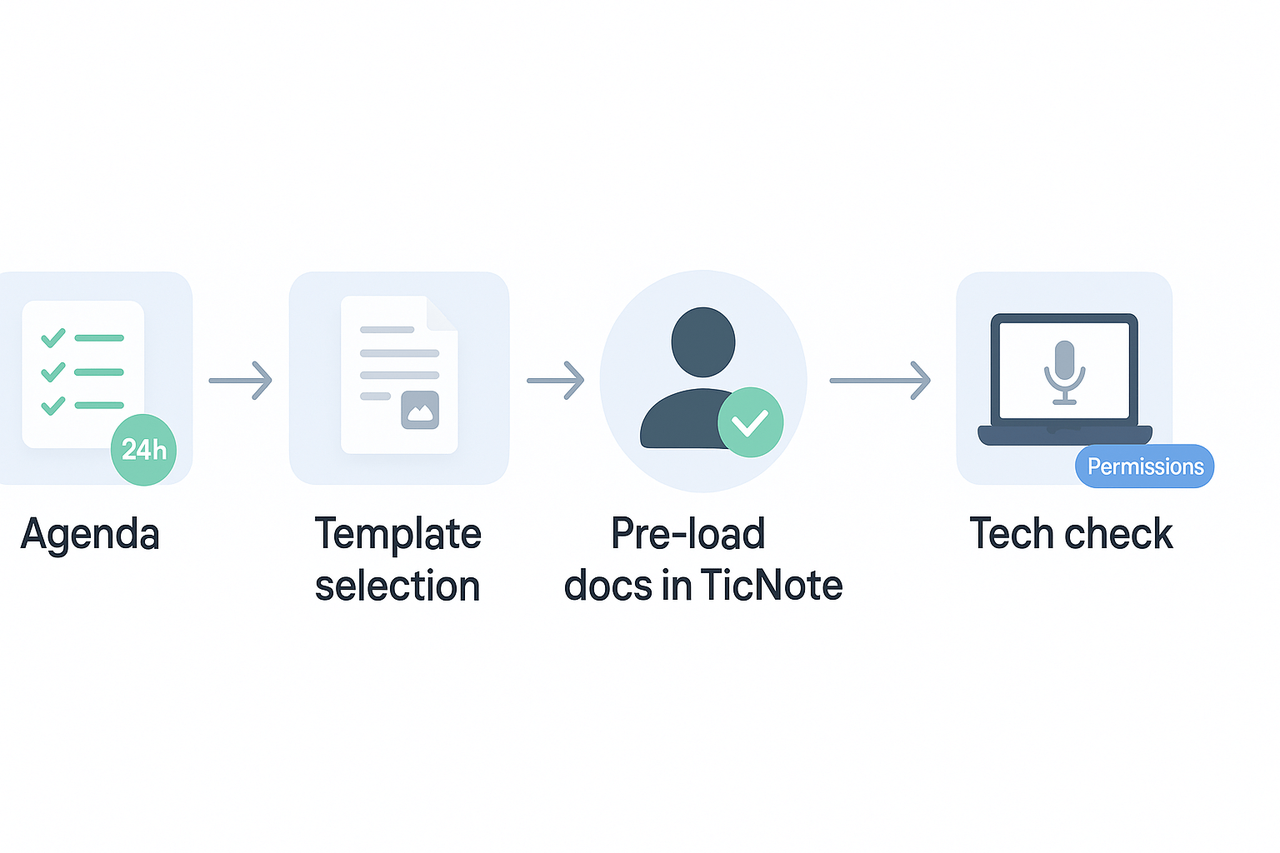
If you’re learning how to write meeting minutes, this pre-meeting routine will save time and cut follow-up work. Start by confirming the meeting purpose and the decisions or outputs you expect. Assign one clear minute-taker, and give them the agenda and any key documents ahead of time.
Confirm purpose and expected outcomes
A meeting without a clear outcome creates fuzzy minutes. Ask the organizer to state the goal in one sentence. List the expected decisions, decisions pending, and any deliverables. This makes it easy to capture what matters during the meeting.
Preload documents and set a template
Give the minute-taker a clean structure to work from. Have one shared agenda file with item times, presenters, and links to background documents. The minute-taker should open a meeting template in advance so headings and fields are ready. Use the platform to pre-load documents, set a custom template, and attach the agenda so the note taker starts with a clean structure.
Assign roles and run a tech check
Confirm who will take minutes, who will lead, and who will monitor time. If anyone will present, ask them to share the slides in the folder ahead of time. Do a quick tech check five to ten minutes before start: audio, screen sharing, and recording permissions.
Follow this quick pre-meeting checklist:
- State the meeting purpose and two or three expected outcomes.
- Assign a minute-taker and a timekeeper.
- Share agenda and background docs at least 24 hours early.
- Load a meeting template and headings in your notes tool.
- Confirm recording or transcription permissions with participants.
- Run an audio and screen-share test.
- Note any confidentiality or access rules for the minutes.
Treat the agenda as your roadmap. Clear item titles and time allocations help the minute-taker mark decisions and action items as they happen. If you follow these steps, you’ll spend less time editing after the meeting, and the minutes will be ready for quick distribution.
During the meeting: step-by-step minute-taking guide (live)
Good live minutes keep the meeting moving while locking in decisions and actions. This short playbook shows what to capture, when to write terse nonverbatim notes, and quick language you can copy. It also covers speaker attribution and fast accuracy checks, so you spend less time fixing notes afterward.
What to capture, fast
Capture these items every time. They are the things people look for later:
- Decisions and motions, with final wording.
- Votes and outcomes: who voted yes, no, or abstained.
- Action items, owner, and deadline.
- Key facts or numbers that affect the decision.
- Documents referenced and where they live.
Keep entries short. Use fragments not full sentences. The goal is clarity, not verbatim transcription.
Live-taking steps to follow
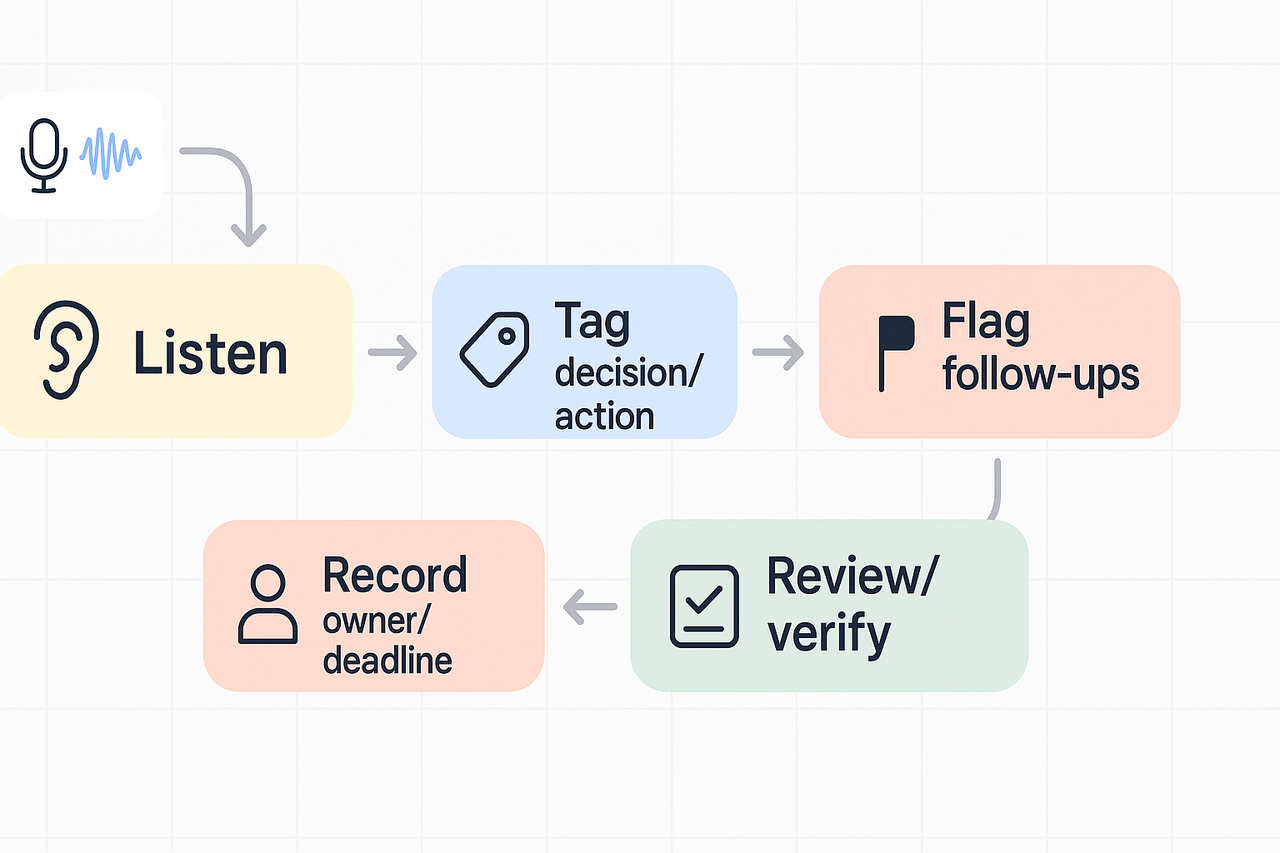
- Listen, tag, and record the headline. When a decision or action arises, write a one-line headline. Example: “Decision: Approve 2025 outreach budget.”
- Add the owner and deadline on one line. Example: “Action: Maria to send final budget, due 2025-05-05.”
- Note vote or motion details if required. Example: “Motion by Lee; seconded by Priya; passed 6–1.”
- Flag follow-ups and doc links. Use a short tag like [FOLLOW-UP] or [DOC: Budget_v1].
- Triage uncertain items. If you’re missing a fact, flag it as [VERIFY] and note who will confirm it.
Use a simple, repeatable format: Type: brief description; Owner; Due date; Context tag.
Short language samples to copy
- Decision: Approve vendor contract with standard SOW.
- Motion: Motion to adopt minutes from 2025-03-10, moved by Ana, seconded by Tom.
- Vote: Passed 5–0 with 2 absences.
- Action: Malik to update project timeline and share by next Tuesday.
- Note: [VERIFY] Final cost to be confirmed by finance.
These templates fit a line or two. That keeps you readable and searchable.
Speaker attribution and quick accuracy checks
Attribute by speaker name or role, whichever is clearer. For short meetings, use initials. For formal boards, use full names and titles. Check accuracy without pausing the group: repeat a one-line summary aloud after a decision, for example: “So the motion is to approve X, Maria will send the final by Friday. Is that right?” If someone corrects it, update your line.
If you can’t interrupt, add a quick check during breaks or after the meeting. Mark any unconfirmed item with [PENDING] and follow up.
Use live transcription and topic grouping in parallel
Run a live transcript in the background to catch exact phrases. Use the transcript to fill gaps after the meeting, and keep your live notes action-focused. The platform can group topics automatically so you see all items about budgets, policy, or staff in one place. That means you don’t have to capture every detail live; you just tag the moment and rely on the transcript for quotes or numbers.
Try running a live transcript in parallel and taking short, tagged notes yourself. The transcript becomes the backup; your live notes become the actionable summary.
After the meeting: editing, approvals, distribution, and storage
Right after the meeting, tidy raw notes while memory is fresh. If you want to learn how to write meeting minutes faster, start by cleaning and tagging what matters. That simple step speeds up and cuts confusion.
Step-by-step post-meeting checklist
- Quick clean. Remove filler words and verbatim chat logs unless relevant. Mark speaker names and clarify any shorthand.
- Highlight outcomes. Pull decisions, owners, deadlines, and open questions into a short action table. Use bold or a separate section so readers can scan fast.
- Standardize format. Apply your template headings: attendees, apologies, decisions, actions, next steps. Consistent layout makes minutes easier to reuse.
- Verify facts. Check key numbers, dates, and attachments against source documents or slides. Flag anything unclear for follow-up.
- Request approvals. Send the draft to the meeting chair or secretary for sign-off within 48 hours.
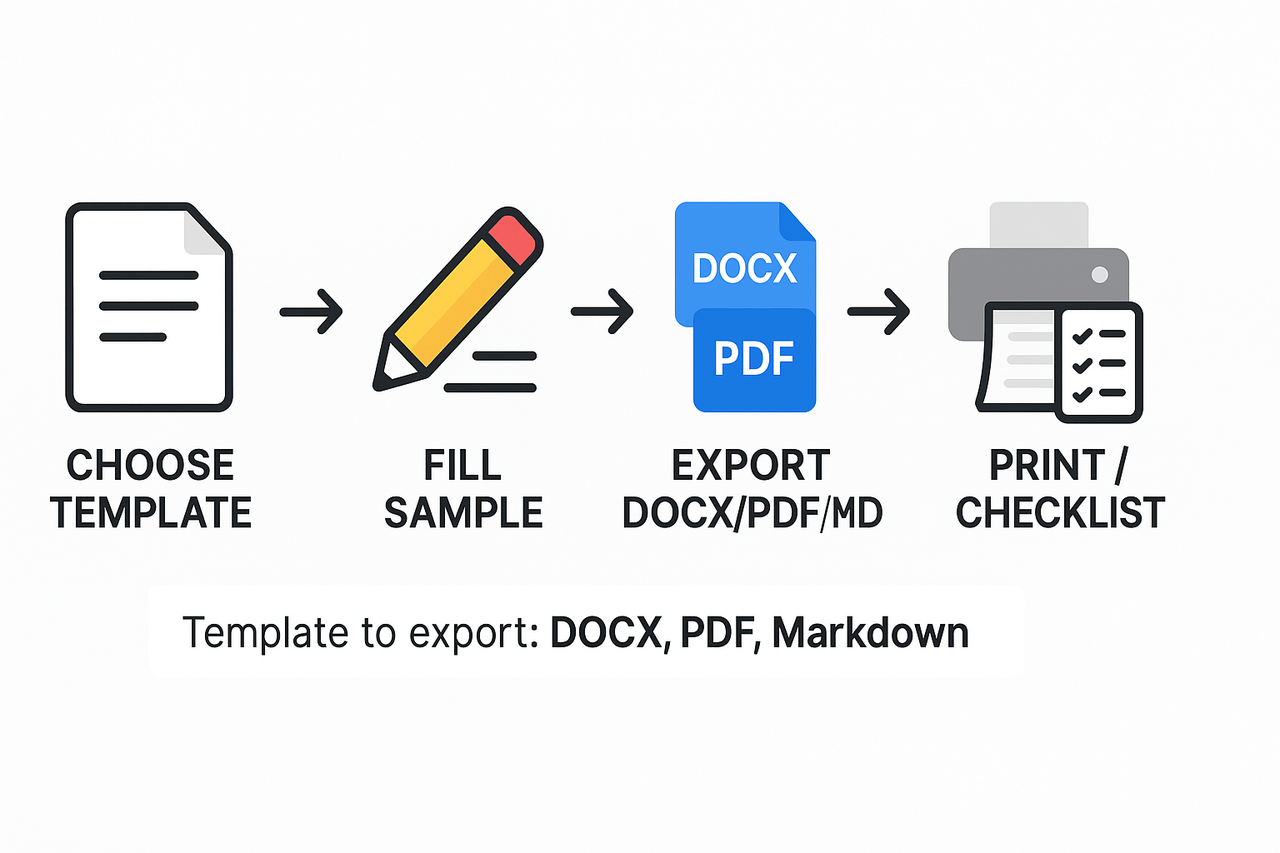
- Finalize and export. Save the approved copy as PDF and DOCX for record keeping.
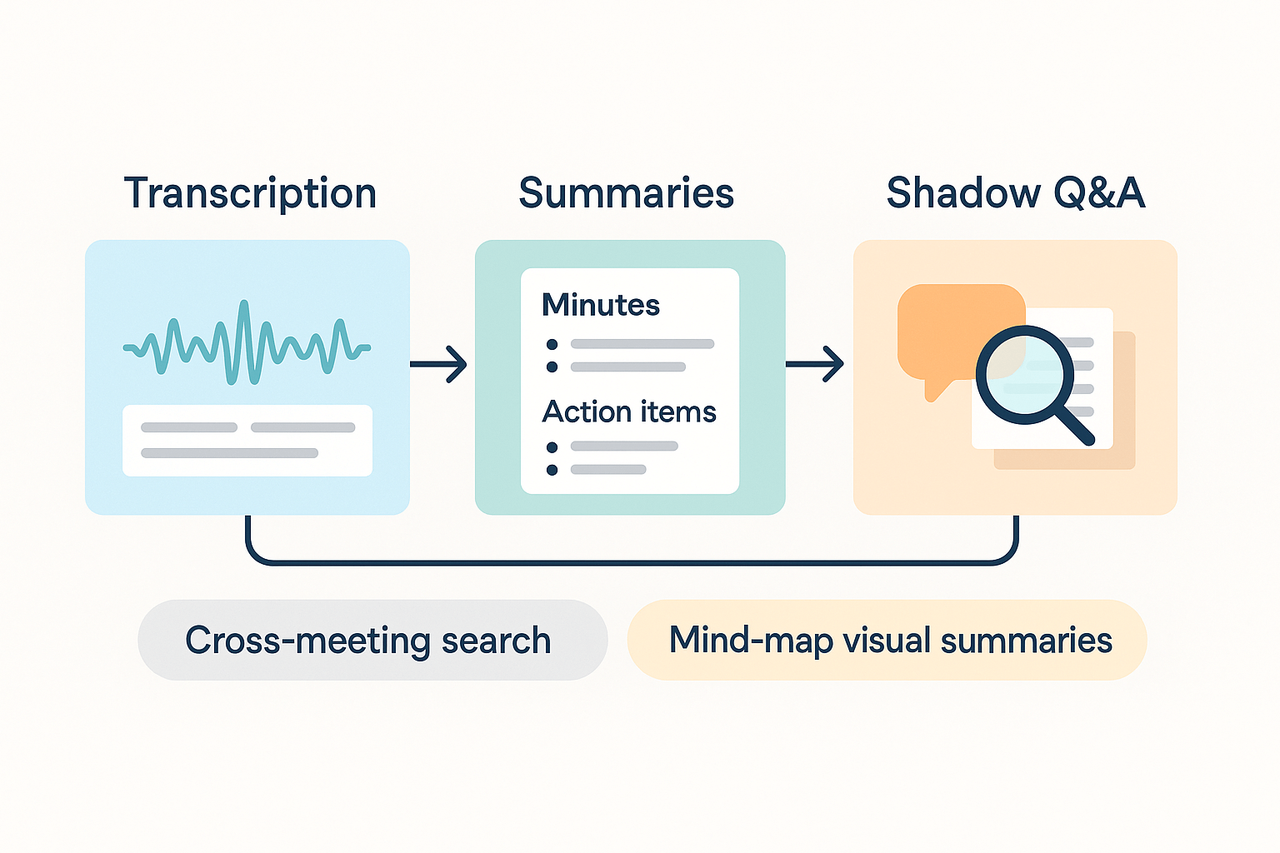
TicNote Cloud can speed steps 2 through 6 with AI summaries and export options. The platform’s Shadow search helps you find related decisions across past meetings. Once approved, push the final file into shared workspaces like Notion or post a short summary to Slack for quick visibility.
Approvals, distribution, and templates
Use short, time-bound emails when you send drafts. Subject lines that work: "Draft minutes, [Meeting name], [Date]" or "Minutes for approval: [Meeting name]". In the body, list the decisions and actions first. Include a clear deadline for approval, and attach the draft as a PDF.
Versioning and archiving best practices
- Use a clear file name convention: YYYY-MM-DD_MeetingType_Approved or Draft.
- Keep an audit trail: store older drafts in an archive folder and note who approved each version.
- Export searchable formats: save transcripts or summaries as TXT or Markdown for easy search.
Follow these steps to keep minutes accurate, findable, and trusted for audits. Clean drafts quickly, get timely approvals, and centralize storage so nothing falls through the cracks.
Printable one-page checklist
Stick this checklist on a clipboard or pin it near your meeting room.
- Prepare: confirm agenda and attendee list.
- Start: record date, start time, and attendees.
- Capture: note decisions, motions, and exact action owners.
- Assign: attach deadlines and the responsible person to each action.
- Summarize: write a 2-3 line executive summary.
- Clean: edit for clarity, remove verbatim debate, keep rationale.
- Approve: circulate draft for corrections within 48 hours.
- Store: export final minutes to PDF and archive in your team drive.
Printable versions of these templates and the checklist are included in the download package so you can hand out one-pagers at meetings.
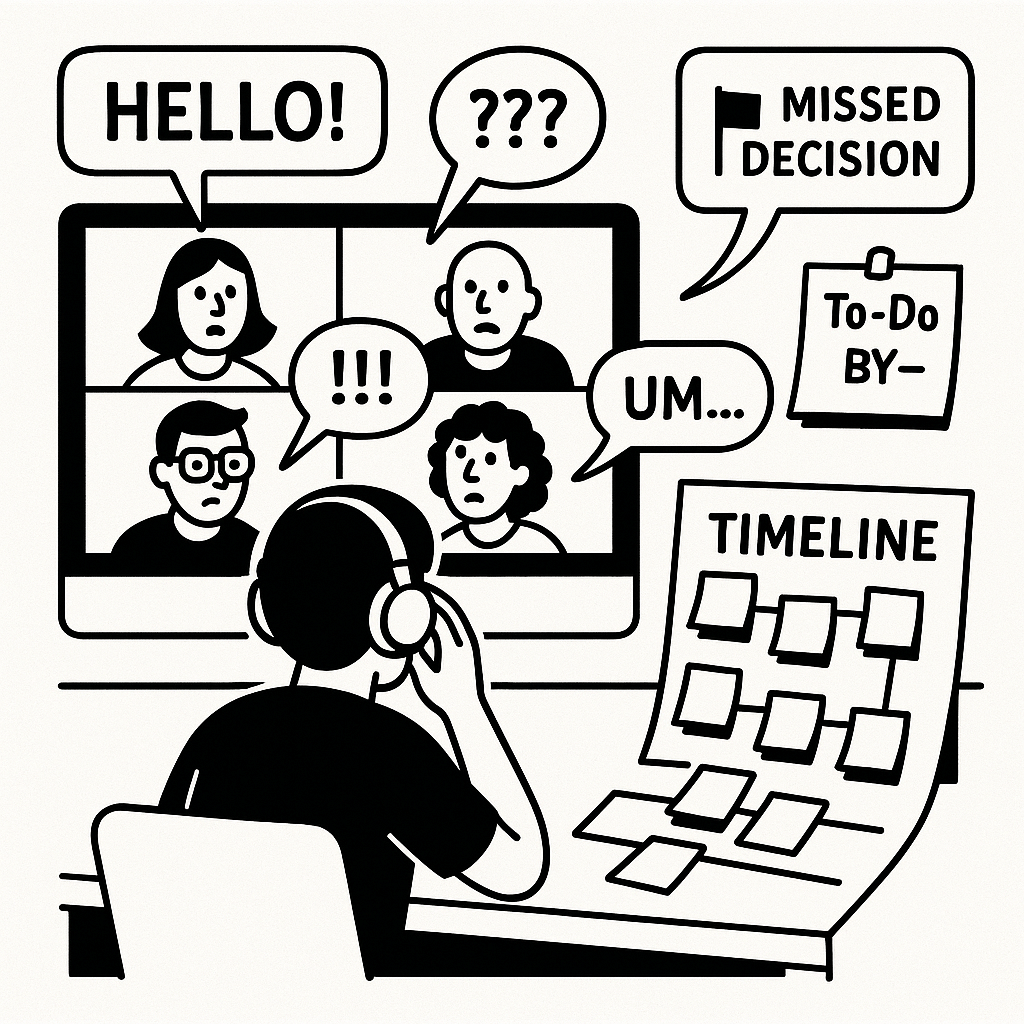
Troubleshooting & tricky scenarios (heated debates, missing info, remote/hybrid issues)
Effective meeting minutes aren't just about transcription—they're about clarity during uncertainty. This section tackles how to handle high-pressure moments and information gaps.
Heated debates: Pause and clarify
During debates, pause to restate what's being discussed. Politely ask for a one-sentence summary from each speaker. This reduces confusion and helps you accurately capture opposing views.
Speedy decisions: Nail the essentials
When decisions come quickly:
- Confirm and repeat what was decided.
- Capture the exact phrasing of motions or resolutions.
- Note who agreed, who dissented, and who is responsible.
- Flag anything you're unsure about for post-meeting confirmation.
Missing info? Reconstruct smartly
If something is unclear:
- Check recordings or other attendees’ notes.
- Build a timeline summarizing key points.
- Send it to participants to verify before publishing.
Hybrid & remote meetings: Special tips
- Ask speakers to identify themselves.
- Test audio before the meeting starts.
- Keep the agenda tight and timebox discussions.
- Avoid using the chat for formal decisions.
TicNote Tip: Cross-meeting search
Use TicNote Cloud to search past meetings for related decisions, notes, or documents. This is especially useful when critical context is missing.
Meeting chaos is common—but with the right strategies, your minutes can still deliver lasting value.
Legal, privacy, and accessibility considerations
Good meeting minutes are a formal record, so understanding basic legal and privacy duties helps you stay safe and useful. If you’re learning how to write meeting minutes, record what was decided, who acted, and any confidential items. Treat minutes as working legal records used for accountability, audits, and future continuity.
Recordkeeping, retention, and access
Nonprofits and small offices often face simple but strict rules: keep accurate minutes, follow your bylaws for retention, and limit access to sensitive files. Classify records by sensitivity and set a clear retention schedule. Use role-based access, version history, and controlled exports so only authorized people can download or change minutes.
Redaction and confidential meetings
When a meeting covers personnel, legal, or donor privacy topics, redact names or details before wider distribution. Keep an unredacted master under strict access for legal needs. For hybrid or online meetings, save both the written minutes and the raw transcript in a secure folder for compliance and proof.
Accessibility and formats
Make minutes available in accessible formats: searchable transcripts, tagged headings, and alt text for images. Per the Department of Justice web rule, state and local governments must meet WCAG 2.1 Level AA as of April 24, 2024, so accessibility is non negotiable for public bodies (Fact Sheet: New Rule on the Accessibility of Web Content and Mobile Apps Provided by State and Local Governments). Provide plain text, PDF, and HTML options and offer translation when needed.
Practical checklist for privacy and compliance
- Use minimal disclosure, redact sensitive lines before distribution.
- Keep an access log and require approvals for public release.
- Keep an unredacted archival copy under restricted control.
- Export controls: prefer platforms that let you export transcripts, summaries, and audit logs.
TicNote Cloud claims privacy by default and supports controlled exports and transcript management, which helps compliance conversations. Follow local laws like GDPR or donor rules, and document your policy in your minutes process.
How TicNote Cloud streamlines meeting minutes (demos, screenshots, integrations)
Good meeting minutes are clear, actionable, and quick to produce. This section shows concrete workflows that teach how to write meeting minutes faster, from live capture to searchable follow-up. You’ll see live transcription, multilingual translation, AI summaries that pull out decisions and tasks, and cross-file Q&A for follow-ups.
Capture live audio and translate in real time
Start with live transcription during the meeting. The platform records audio, creates a timestamped transcript, and offers on-the-fly translation into 100-plus languages. That means multilingual teams can read a single source of truth immediately. Use the transcript to tag speakers, mark decisions, and highlight action items as the meeting runs.
Turn raw text into tidy minutes and actions
After capture, run AI summarization to create meeting minutes drafts. The tool extracts decisions, owners, and due dates into a short action list. You can edit the draft, approve items, and export a clean minutes file. Automated notes save time: a systematic review found that AI scribes can reduce documentation time and improve clinician workflow, though evidence on patient outcomes and systemic efficiency remains limited. The Impact of AI Scribes on Streamlining Clinical Documentation: A Systematic Review (2025).
Visualize ideas with mind maps
Not every team reads blocks of text. Auto‑generated mind maps turn a transcript or summary into a visual overview. Use the mind map to present topics, decisions, and follow-up paths in minutes. Export maps as PNG or Xmind to add to slide decks or project pages.
Cross-file follow-up with Shadow Q&A
Shadow lets you ask questions across meetings and files. Ask who agreed to a task, where the budget note lives, or which meeting first discussed a topic. The tool returns grounded answers and links to the source transcript. This cross‑meeting search reduces duplicated work and speeds audits.
Embeds, exports, and integrations
Embed demo videos and a screenshot carousel on your intranet to show reviewers how minutes were made. Export minutes and summaries to Notion or Slack for immediate distribution. Typical export paths:
- Transcript (TXT) and audio (WAV)
- Summary (Markdown, DOCX, PDF)
- Mind map (PNG, Xmind)
Quick demo options and enterprise support
Include short demo clips showing live transcription, a before-and-after minutes draft, and a mind map snapshot in your documentation. For teams that need SSO and dedicated support, book an enterprise demo to see advanced templates and the AI meeting agent in action.