


 Extension
TL;DR — Quick takeaways for busy scribes
Top meeting scribe tips and tricks: capture decisions, assign owners, and make notes reusable.
- Prep: use a focused agenda and a template that highlights decisions and actions.
- Capture: note decisions in real time, tag owners, and mark follow-up dates.
- Close fast: turn the transcript into a one-paragraph summary and a short task list within one business day.
Best next step: try a free meeting note tool with live transcription and ready templates to see these tactics in action.
Why great meeting notes matter (and the cost of bad notes)
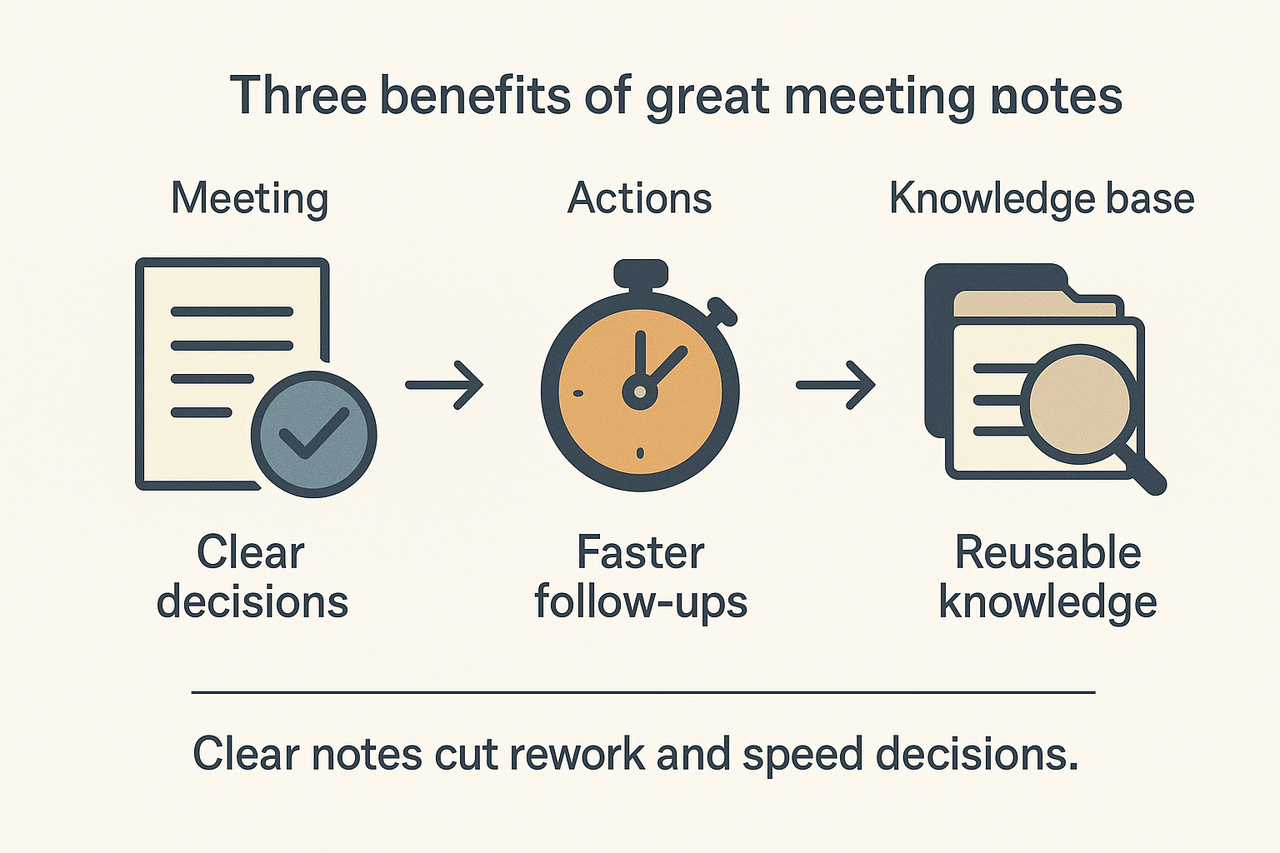
Good meeting notes change what teams can do after the meeting. Use meeting scribe tips and tricks to capture decisions, owners, and next steps so work moves forward instead of stalling. Accurate notes stop the follow-up mess: fewer clarification emails, faster decisions, and less duplicated work.
The real costs of fuzzy notes
Vague or missing notes hide decisions and create hidden work. Teams re-run discussions, chase context, and rebuild lost information. That wastes time and slows product cycles. Executives now spend an average of nearly 23 hours a week in meetings, up from less than 10 hours in the 1960s, according to Stop the Meeting Madness. When meetings take that much time, the quality of what you capture matters.
What gets lost when notes fail:
- Missed decisions: no record of who decided what, so decisions are reversed or re-discussed.
- Lost context: links, references, and rationale vanish into chat threads.
- Unclear owners: action items lack an owner or a due date, so nothing happens.
- Fragmented knowledge: notes live in many places and can’t be searched later.
A short case study: clearer notes, less rework
A mid-size product team moved from scattered meeting summaries to a single structured note per meeting. They captured the decision, the rationale, and the assigned owner during the call. Instead of three follow-up emails per item, clarifying questions were dropped, and work started faster. The result was fewer status meetings and quicker feature completion, because decisions were documented and easy to find.
Why this works: good notes turn ephemeral talk into reusable knowledge. They make meetings auditable, reduce repeated work, and cut the time between decision and action.
Tools can help make that change permanent. TicNote Cloud and similar platforms add searchable transcripts, topic summaries, and template-driven action lists so teams find decisions and owners in seconds. When notes are searchable and linked to audio or files, teams stop guessing and start doing.
Before the meeting: prep checklist for the scribe
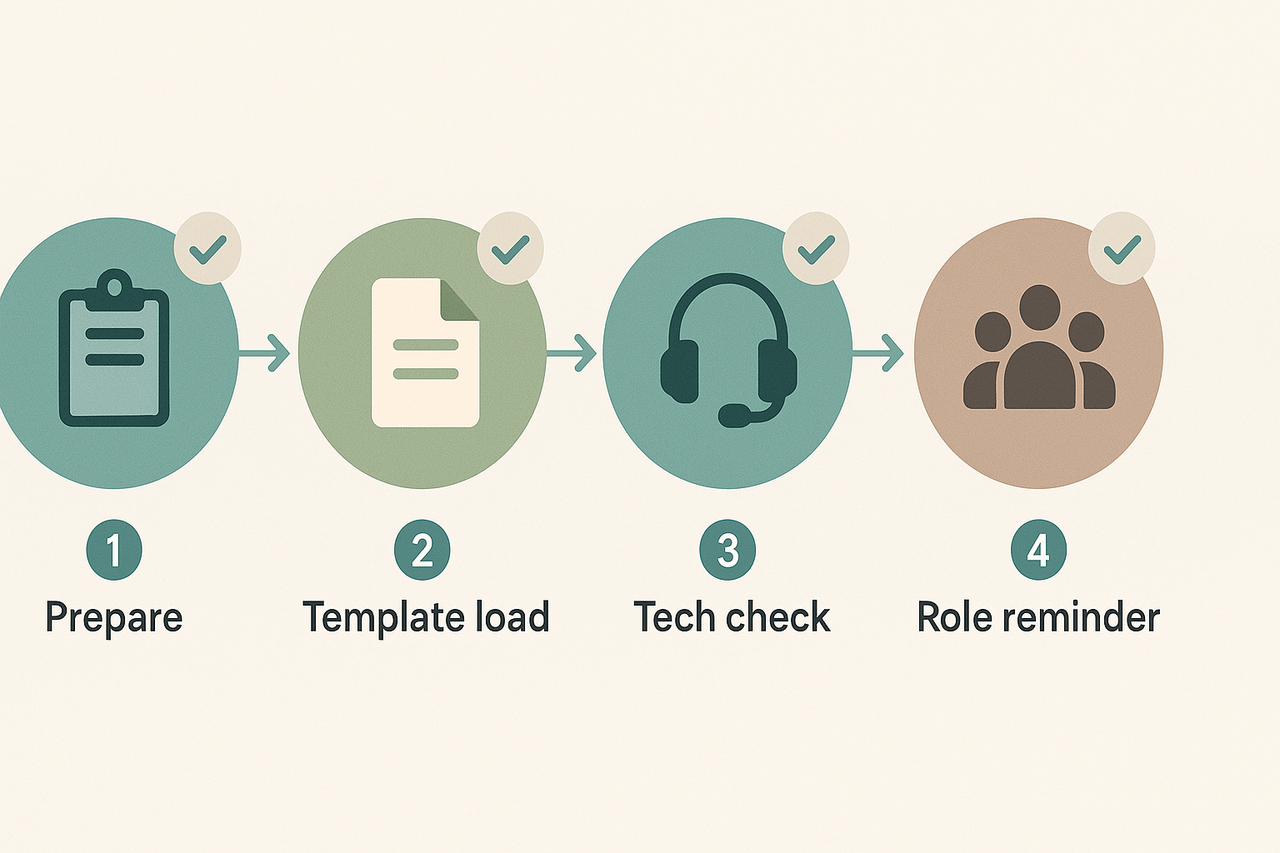
Good prep makes notes useful, not just complete. Use these meeting scribe tips and tricks to set intent, lock a structure, and remove tech friction before anyone joins. A quick prep routine saves 20 to 40 minutes of follow-up work per meeting and helps decisions surface faster.
1) Set objectives first
Decide what success looks like for this meeting. Write one to three outcomes, for example: decide vendor, assign owners, or agree on milestones. Put those outcomes at the top of your note so the team stays focused. When you track outcomes, action items are easier to find later.
2) Pick or customize a template
Open a meeting template before the call. A simple structure cuts note noise. Use these head sections: Objective, Agenda, Attendees, Decisions, Action Items, Notes, References. Customize fields for your team, like decision owner or priority.
Downloadable templates available in: Google Doc, DOCX, Markdown, and PDF. Save a master in the TicNote Cloud or your team drive so everyone uses the same layout.
3) Run a quick tech check
Test recording and microphone two minutes before the meeting. Open your note file and start a scratch recording. Confirm your laptop audio is on and notifications are muted. If your meeting platform blocks bots, record locally and upload the audio later for transcription.
4) Confirm roles and ground rules
Confirm who leads, who scribes, and who approves notes after the meeting. Announce whether you will capture live transcription or post-meeting summaries. Note any sensitivity rules, like client confidentiality, no recording, or redaction needs.
5) Prep context and assets
Collect the agenda, slides, and key documents in one folder. Paste links or attach files at the top of your note. Flag any background items the scribe should watch for, such as budget numbers or deadline dates.
Quick pre-meeting checklist (print and use)
- Write 1–3 meeting outcomes.
- Load the chosen template.
- Open the transcript or recorder and test.
- Confirm scribe and approver.
- Attach agenda and files.
- Mute notifications and start on time.
Preloading the note structure reduces decision friction. You’ll spend less time formatting and more time capturing the real choices people make. That makes follow-up faster and keeps projects moving.
During the meeting: scribe tips and tricks (real-time tactics)
Good live notes make meetings useful, not just noisy. Use scribe-first tactics to capture decisions, actions, owners, and due dates in the moment. These meeting scribe tips and tricks focus on fast capture, clear tags, and ways to reduce follow-up work while the conversation is still fresh.
Prioritize decisions and actions, not every word
Your job is to record outcomes, not verbatim prose. Focus first on decisions, next on action items, then on owners and due dates. Use this quick ordering when you’re unsure what to write:
- Decision: a one-line summary of what was decided.
- Action: an assigned task tied to a decision.
- Owner: person or role who will do it.
- Due date: exact day or sprint number.
Keep each item to one short sentence. That makes scanning fast and follow-up automatic.
Use shorthand frameworks and visual cues
Pick 2 to 4 shorthand tags and stick to them. Examples work well:
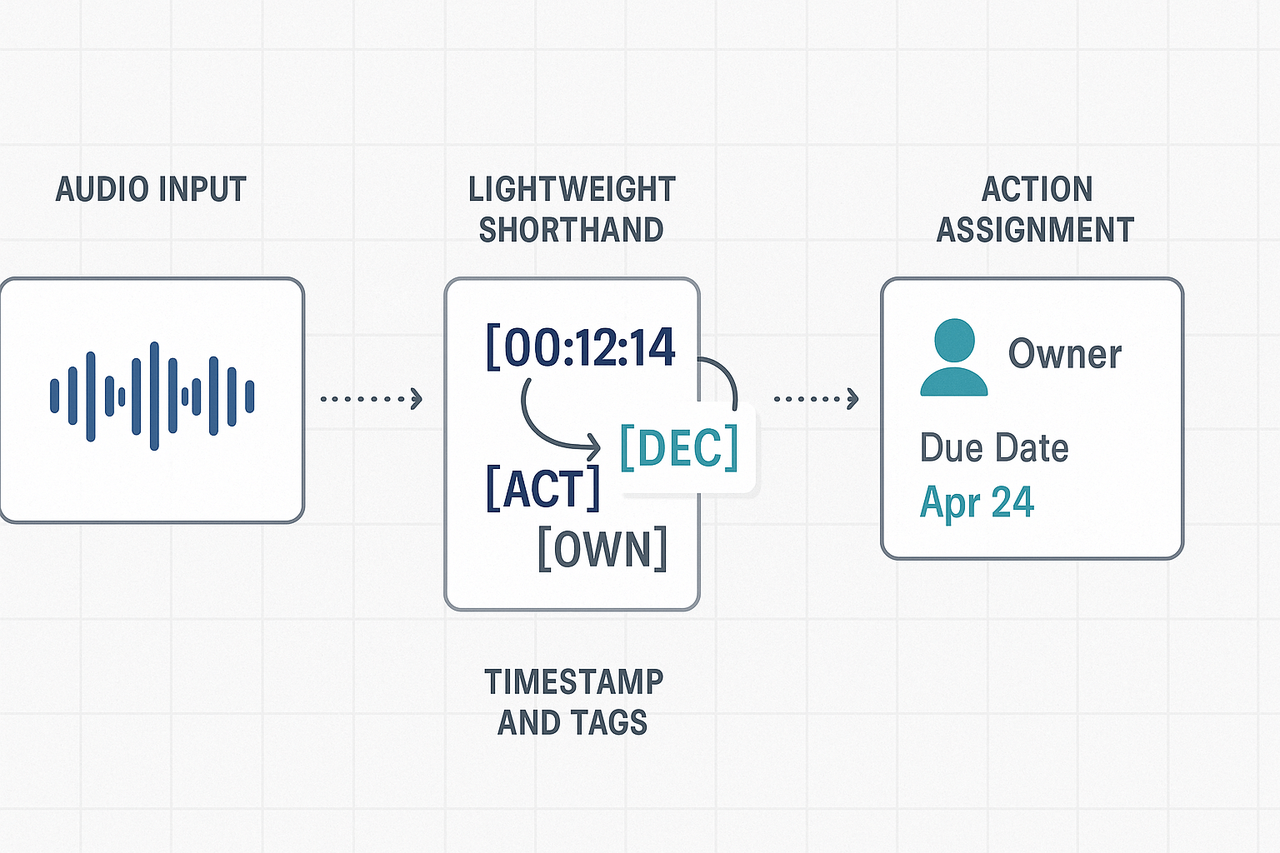
- [DEC] Decision; [ACT] Action; [OWN] Owner; [DUE] Due date
- Symbols: ★ priority,! blocker,? follow-up question
- Short frameworks: RACI for ownership, KPT for quick retro notes
Add a timestamp beside heavy items, for example [00:12:34] [ACT]. Timestamps link notes to audio and cut search time.
When to rely on live transcription versus manual capture
Live transcription is great for coverage and quotes; manual capture is better for outcomes. Use both together:
- Turn on live transcription to get a full, searchable transcript.
- Manually mark decisions and actions in your notes as they happen.
- If a meeting is fast or emotional, trust manual capture for decisions, and use the transcript later to fill in quotes.
If you use TicNote Cloud, enable live transcription and tag timestamps so you can jump from an action item to the exact audio clip. That saves guessing and reduces re-listens.
Handling interruptions and clarifying questions
Interruptions are normal. Stay calm and make a micro-plan:
- Flag the moment with a short note: [INTERRUPT] then one sentence of context.
- Ask one clarifying question and capture the short answer, then return to the flow.
- If a side conversation forms, log it as a separate thread or appendix with a timestamp.
This keeps the main notes clean and preserves the extra detail without slowing the group.
Quick formatting that speeds post-meeting action
Format to make follow-up a checklist: bold the action line, add an owner tag, and a due date. Example:
- [ACT] Draft PRD — OWN: Maya; DUE: 2025-09-15; [00:33:10]
Use an ordered action table when many tasks appear. A single scan should show who owes what. Exporting notes as Markdown or DOCX keeps formatting when you share.
Fast verification and handoff
Before the meeting ends, read back the top 3 actions. Confirm owners and due dates aloud, then lock them in the notes. That one-minute habit halves missed work.
Tools and quick checks
Keep your capture tool ready, mic gain set, and shortcuts mapped for tag insertion. If your platform supports audio-backed timestamps, use them. If not, keep a simple timestamp format and add audio references after the call.
Short, clear live notes win. Prioritize outcomes, use repeatable tags, and lean on transcription for coverage, not judgment. These real-time tactics cut follow-up time and make meetings actually actionable.
After the meeting: turn notes into outcomes
A short tidy-up turns raw notes into work that gets done. Use a five-minute polish to clarify decisions, assign owners, and remove noise. This is one of the most effective meeting scribe tips and tricks for turning conversations into action.
Five-minute polish checklist
Finish fast. Open your draft and run this checklist in order. Keep each edit to a sentence or two.
- Clean the headline: include project, date, and meeting type. Use a predictable filename.
- Pull out decisions: bold each decision and add a one-line rationale. Decisions should be immediately scannable.
- Capture action items: use an ordered list with owners and due dates. Be specific.
- Trim noise: remove filler chatter, duplicate points, and long verbatim sections unless needed.
- Add a one-line summary: two to three sentences that explain the outcome and next step.
Action tracker template (copy and paste)
Use this mini-template to move actions from notes into work. Paste into your tracker, ticket system, or shared doc.
- Action ID: (e.g., A-2025-01)
- Action: short task description (verb first)
- Owner: name or role
- Due: YYYY-MM-DD
- Status: Not started / In progress / Done
- Context link: link to full meeting notes or resource
- Follow-up: next check-in date or dependency
Copy the list into a spreadsheet or your ticketing tool. That keeps owners accountable and traceable.
Distribution rules: who gets what, and when
Decide distribution before you hit send. Use these simple rules to avoid email overload. Stick to timing and slices.
- Within 30 minutes: send the one-line summary plus decisions and action list to attendees and direct owners. Keep it short.
- Within 24 hours: publish full notes for wider stakeholders, with a clear subject line and tags. Attach any resources.
- CC only if involvement is required. For information-only recipients, add a link to the notes instead of attaching a document.
Label the message with a priority tag, such as [ACTION], [DECISION], or [INFORMATION]. That helps readers act quickly.
Archive, tag, and link notes into your team's knowledge base
Make notes findable so context is not lost. Use consistent naming, at least three tags, and links to related documents. Link notes to the project page and to the previous meeting note.
Set an archive rule: move older notes to a project folder after 90 days, unless they contain active actions. Tag by project, person, and topic. Use cross-linking so searches surface decisions and tasks across meetings.
A few tools can speed this step. For example, TicNote Cloud can auto-transcribe, apply tags, and export summaries into DOCX or Markdown for your knowledge base. After that, use the platform search or your KB to link related notes and surface past decisions.
Follow this routine after every meeting, and you’ll cut follow-up time and reduce repeated context work. Good notes turn meetings into predictable outcomes, not loose threads.
Examples & tool comparison
This section gives a short annotated meeting note that shows before, during, and after entries, and a clear side-by-side tool comparison. If you run many meetings, these assets save time and make actions visible. The examples also map to common scribe workflows and help you pick the right tool for your team.
Annotated sample meeting note: before, during, after
Below is a compressed, annotated example you can copy into any template. It shows the scribe workflow from prep to follow-up.
Before the meeting
- Title: Q3 Roadmap Sync
- Date/time: 2025-09-10 10:00
- Attendees: PM lead, Eng lead, QA, Marketing
- Goal: Finalize milestone dates and owners
- Prep: Read "Q3 draft roadmap" doc, bring metrics
During the meeting (live capture)
- 00:03 Decision: Move feature B to Sprint 5. Owner: Eng lead.
- 00:14 Risk: Integration work needs a backend ticket.
- 00:21 Action: QA to create regression checklist, due 2025-09-17.
- Parking lot: Ask infra about API limits.
- Quote: "Target is 80 percent test coverage," Eng lead.
After the meeting (turn notes into outcomes)
- Summary (1-2 lines): Feature B deferred to Sprint 5 for stability.
- Actions posted to the tracker and Slack channels.
- Attach transcript and annotated mind map.
- Archive note to project folder and tag with meeting ID.
Side-by-side comparison: pick a tool that fits your workflow
| Feature | TicNote Cloud | Otter | Fireflies | Google Docs |
| Live transcription | Yes | Yes | Yes | No |
| AI meeting summary | Yes | Basic | Basic | No |
| Multi-language translation | Yes | Limited | Limited | No |
| Custom templates | Yes | Limited | No | Template files only |
| Searchable cross-meeting knowledge | Yes | Limited | No | No |
| Exports (DOCX, MD, WAV) | Yes | TXT/transcript | TXT/transcript | DOCX/ODT |
| Pricing entry-level | Free tier | Paid plans | Paid plans | Free |
| Privacy and controls | Private by default | Varies | Varies | Depends on org |
| Best for | Meeting-first knowledge and reuse | Quick meeting notes | Meeting capture and CRM sync | Collaborative editing and drafting |
Use the table to weigh features against budgets and policy needs. For teams that need searchable meeting knowledge and automated summaries, choose the tool that builds a reusable workspace. For simple note capture, a lighter tool may be enough.
If you want ready copies of the templates and the annotated example in all three formats, download and add them to your meeting starter kit.
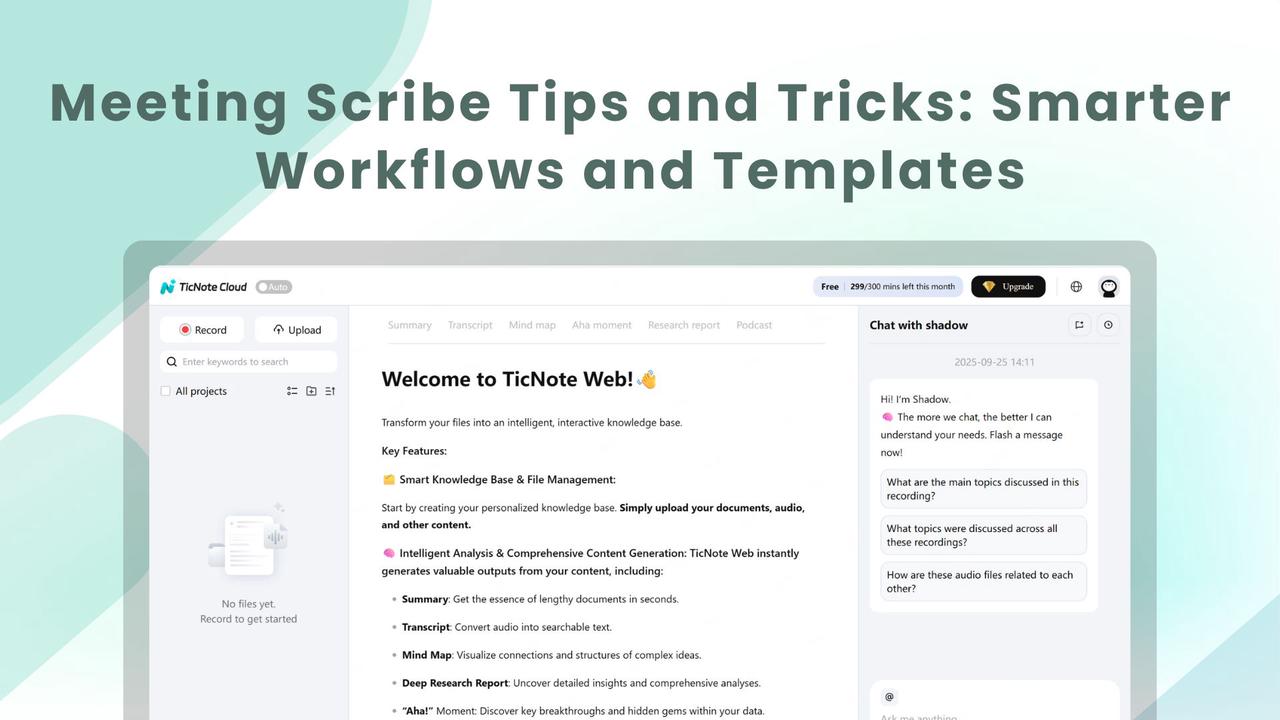
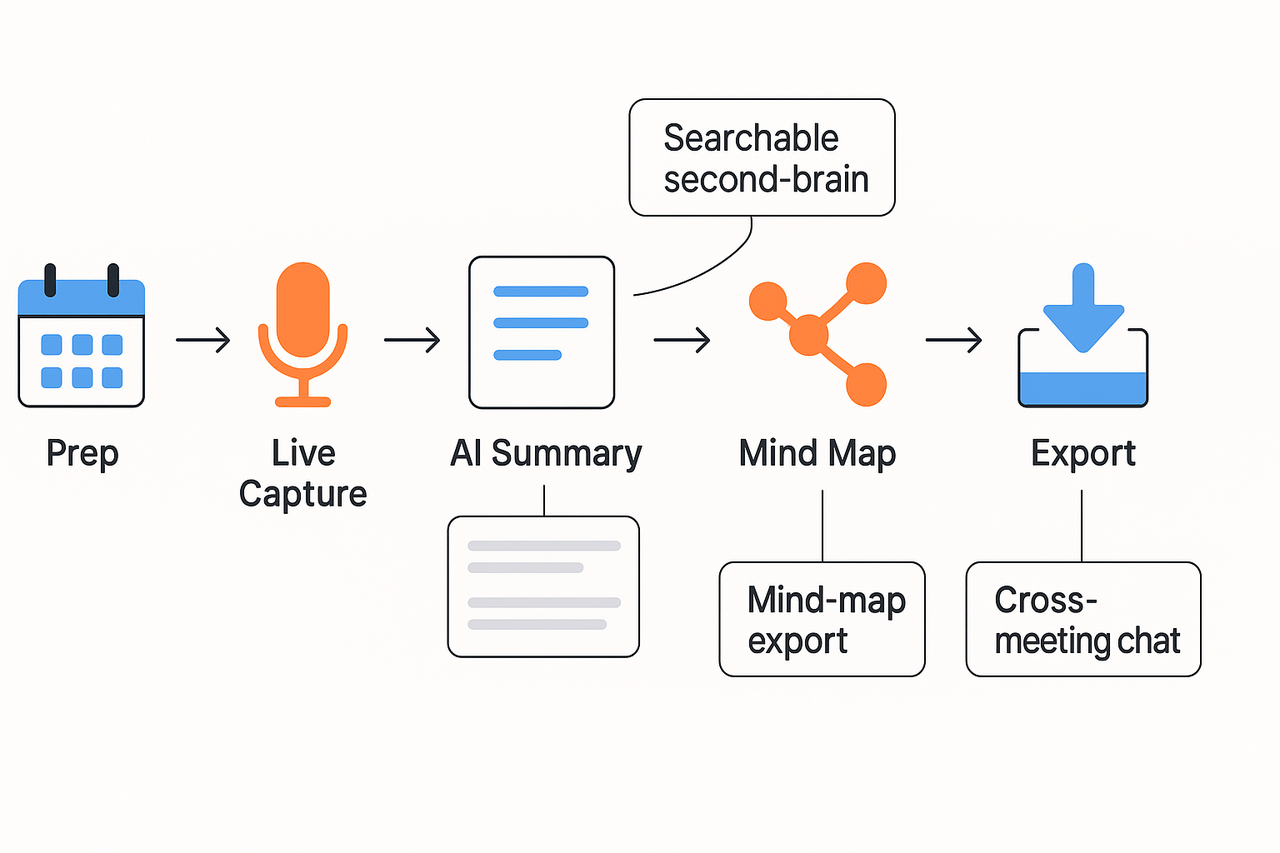
This walkthrough maps practical, scribe-first workflows to TicNote Cloud features. If you want clear meeting scribe tips and tricks, this section shows how to go from prep templates to searchable notes and shareable exports. Read through the step-by-step demo notes, screenshot ideas, and a short audio transcription sample to see the flow in action.
Step 1: Prep with templates and agendas
Start every meeting with a role-specific template. Use an agenda template that has fields for objectives, attendees, timebox, and desired decisions. The platform supports templates in Google Doc, DOCX, and Markdown formats, so you can import or export the template you need. Add pre-read links and assign the scribe role in the template to avoid role confusion at the start.
Suggested screenshot: Template library view showing "Product Planning" and "Decision Log" templates with a one-click import button.
Step 2: Live capture and fast transcription
During the meeting, record locally or in the app and turn on live transcription. The live transcript creates a searchable text record while you type quick highlights. Note that speaker separation is not available, so use brief speaker markers when needed. Use short, consistent labels for speakers to keep the transcript readable.
Audio sample transcription (30 seconds): "00:00 Speaker A: We need the Q3 launch date confirmed. 00:06 Speaker B: Engineering asks for two weeks. 00:12 Speaker A: Decision, push launch to October 10 and update the roadmap."
Suggested screenshot: Live transcription with highlight on an action item, and a small record control in the corner.
Step 3: Turn captures into AI summaries and mind maps
After the call, run the AI summarizer to pull decisions, action items, and key notes into a one-page summary. Use the AI mind-map generator to visualize topics and dependencies for a quick review. The mind-map exports to PNG and Xmind formats, which is useful for slide decks or quick stakeholder briefs.
Suggested screenshot: One-click "Generate Summary" button and the mind-map preview beside the summary.
Step 4: Ask across meetings with Shadow chat
If you need context from past meetings, use the cross-meeting chat (Shadow). Ask it where a decision was recorded or which tickets depend on a prior decision. Shadow surfaces grounded answers from your workspace, making follow-up faster and reducing duplicate asks across teams.
Step 5: Export, share, and automate recurring workflows
Export final notes and artifacts to DOCX, PDF, Markdown, WAV, or TXT. Connect exports to Notion or Slack to push summaries to a team page or a channel. For recurring meetings, create an automation that: 1) applies the template, 2) starts recording at the scheduled time, and 3) posts the AI summary to a Slack channel when ready.
Integration notes:
- Notion: push summaries to a project page.
- Slack: post summary and assign tasks to users.
- DOCX/PDF: download polished minutes for stakeholders.
Key platform differentiators for scribes:
- Searchable second brain: every transcript and summary is queryable across meetings.
- Cross-meeting chat: ask Shadow questions that span files and sessions.
- Mind-map export: turn long transcripts into visual overviews in one click.
Screenshot checklist and demo assets to include in the article:
- Template library and one-click import.
- Live transcription with highlighted action items.
- AI summary beside a generated mind map.
- Shadow chat answer showing cross-meeting context.
Want to try this flow yourself or see a walkthrough? Try TicNote Cloud for Free
Security, accessibility & cross-cultural considerations
Good meeting notes must be secure, usable, and clear across cultures. Use these meeting scribe tips and tricks to handle confidential content, make notes accessible, and support multilingual teams. The result is safer records and more inclusive decisions.
Protect confidential notes
Treat sensitive notes like guarded documents. Limit access by role and set folder-level permissions. Use explicit redaction for names or numbers before sharing. Keep a short checklist:
- Apply role-based access controls and single sign-on where available.
- Mark pages as confidential and restrict exports (PDF, DOCX, TXT).
- Maintain a retention policy and archive old notes.
- Use audit logs and version history to track changes and access.
These steps reduce accidental leaks and help with compliance reviews.
Make notes accessible for everyone
Write notes so any team member can read them quickly. Add captions and transcripts for recorded audio. Success Criterion 1.2.2 of the Web Content Accessibility Guidelines (WCAG) 2.1 states: "Captions are provided for all prerecorded audio content in synchronized media, except when the media is a media alternative for text and is clearly labeled as such." Follow simple formatting:
- Use short headings and bullet lists.
- Provide a plain-language summary at the top.
- Include captions, alt text, and a downloadable transcript.
These small steps help readers with cognitive and hearing differences.
Work across languages and time zones
Use automatic translation and time-stamped transcripts for global teams. The platform (for example, TicNote Cloud) offers AI translation into 100-plus languages and time-shifted summaries to bridge zones. Best practices:
- Translate key decisions and action items automatically.
- Localize dates, times, and numeric formats.
- Clarify idioms and jargon with brief notes.
- Add culture notes for etiquette when needed.
When security, accessibility, and cultural context are built into note workflows, teams stay compliant and make meetings useful for everyone.


