


 Extension
TL;DR: Key takeaways
This guide gives five practical meeting transcription tips and tricks to boost transcript accuracy and reduce missed actions. It’s for meeting-heavy roles: product managers, executive assistants, consultants, and ops teams who archive or reuse meeting notes.
Five quick actions:
- Optimize audio: choose good mics, quiet rooms, and check levels before you start.
- Pick the right method: AI, human, or hybrid based on speed, cost, and sensitivity.
- Prep speakers: share the agenda, use short speaker names, and signal topic changes.
- Handle language: enable multilingual models, add glossaries, and flag heavy accents.
- Secure and review: get consent, encrypt files, and run a short human edit pass.
Fastest next steps: record a short meeting, generate a transcript, run a brief accuracy check with the checklist, and export the summary for reuse.
Why transcription accuracy matters (and real risks of bad transcripts)
Accurate meeting records let teams move faster and avoid repeat work. When transcripts are full of errors, search fails, and decisions vanish. That wastes time and weakens accountability, so poor notes are more than an annoyance.
Operational cost: wasted time and missed actions
Bad transcripts force people to re-listen, re-ask, or re-run meetings. That adds hours to every project and slows product cycles. Teams miss follow-ups when action items are buried in bad text.
Money and productivity at stake
According to Squash Meeting Fatigue With Three Simple Actions (2020), a 2019 survey estimates that the cost of ineffective meetings is a staggering $$399 billion in the U.S. and $58 billion in the U.K. Poor transcripts amplify that waste by hiding decisions and doubling the time to find answers.
Legal, compliance, and audit exposure
In regulated teams, an inaccurate transcript can create audit gaps or privacy risk. Contracts, approvals, and sensitive statements must be reliable. Bad notes raise the chance of disputes, failed audits, and regulatory fines.
Short takeaway: aim for high transcription accuracy. It saves time, protects decisions, and cuts legal risk.
Quick checklist: 5 proven tips to improve transcription accuracy
This checklist gives five field-tested meeting transcription tips and tricks you can use today. Each tip has a short action line, a pragmatic example, and maps to a TicNote Cloud module so you can try a focused workflow fast.
Tip 1: Optimize audio capture
Action: Use a dedicated microphone, mute unused mics, and pick a quiet room. Record close to the speaker and avoid phone speakers. Example: plug a USB cardioid mic into your laptop and ask remote attendees to use headsets. Maps to: Recording, Live transcription.
Tip 2: Choose the right transcription method: AI, human, or hybrid
Action: Match method to risk and speed. Use AI for quick, searchable transcripts. Use human reviewers for legal or regulated content. Example: run AI first, then assign a short human edit for compliance meetings. Maps to: AI transcription, transcript editor (post-edit workflow).
Tip 3: Handle accents and multilingual speakers proactively
Action: Collect language hints, ask speakers to name themselves, and enable multilingual mode when available. Example: start the meeting with a one-line language cue and a quick speaker roll call. Maps to: Live multilingual transcription, AI translation.
Tip 4: Structure meetings to reduce ambiguity
Action: Use a clear agenda, name speakers before long comments, and call out decisions and action items verbally. Example: say "Decision," then state the decision. Templates help standardize notes across meetings. Maps to: AI notes and summaries, custom templates, and mind maps.
Tip 5: Do a fast post-meeting QA pass
Action: Triage the transcript for key items: decisions, owners, and deadlines. Use quick edits, AI summaries, and a cross-file search to verify facts. Example: spend 5 minutes tagging actions, then export the cleaned notes to your task tool. Maps to: Transcript editor, AI summarization, Shadow Q&A, and exports.
Use this checklist as a quick routine before, during, and after high-volume meetings. Try one tip this week and measure how many errors you stop seeing in follow-ups.
Tip deep dive: Optimize audio capture (hardware & setup)
Brief: Capture clear source audio so transcripts, summaries, and translations are accurate. This short guide gives device picks, mic placement, and room tips for remote and hybrid meetings to improve meeting transcription tips and tricks in practice.
Choose the right mic
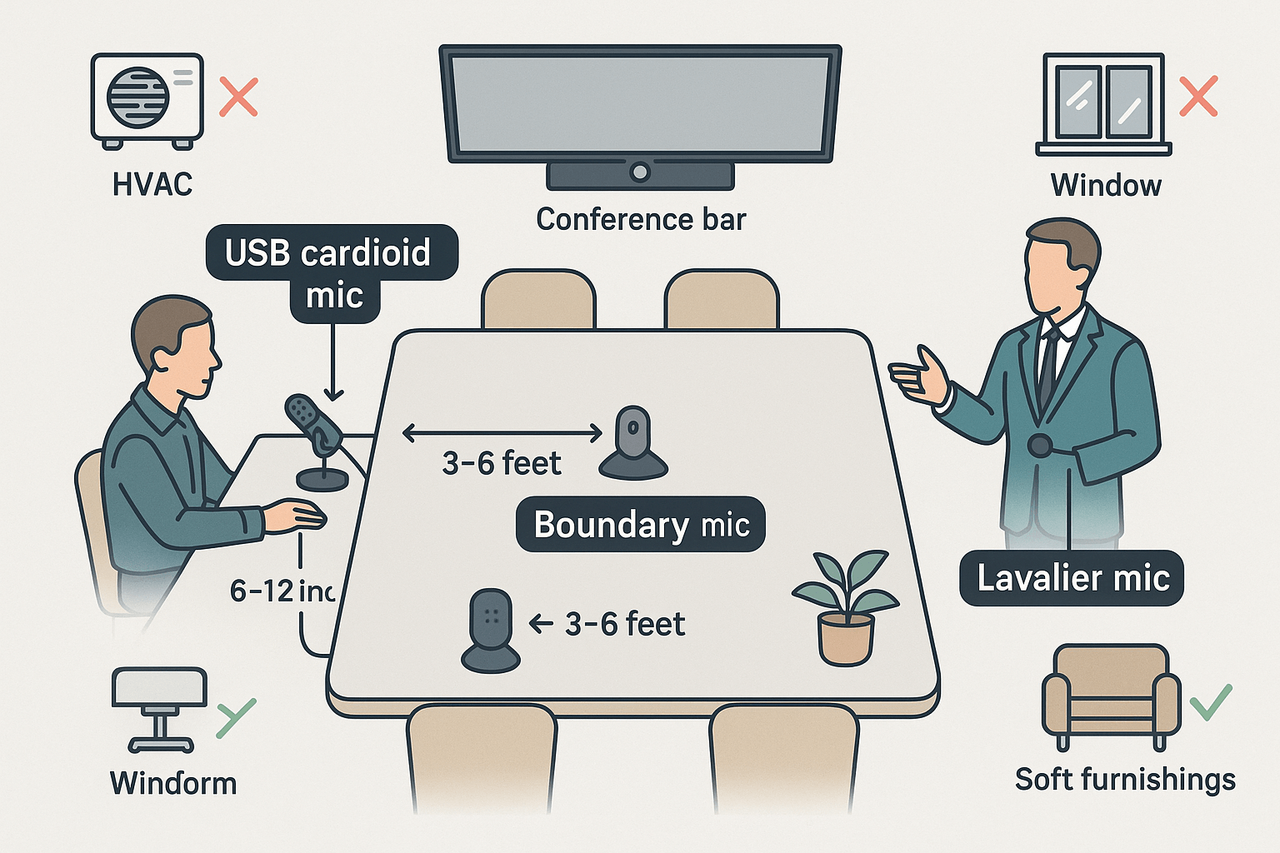
Pick a directional USB or XLR mic for single speakers and a boundary or omnidirectional mic for tables. Recommended devices:
- USB cardioid desktop mic for single presenters (plug and play).
- USB conference bars or boundary mics for small rooms.
- Portable shotgun or lavalier mics for hybrid presenters who move.
Placement and room setup
Place mics 6 to 12 inches from a speaker for clear voice capture. For conference tables, put a boundary mic at the table center and aim to keep each speaker within 3 to 6 feet of a mic. Close windows, turn off HVAC or noisy devices, and use soft surfaces to reduce echoes.
Remote and hybrid setups
For fully remote participants, ask them to use headset mics or laptop mics with pop filters. In hybrid meetings, route room audio through a single USB interface and record a local participant track when possible. Record a separate audio file for each source if your platform allows.
Recording mode and settings
Record in WAV or high-bitrate MP3 for best speech clarity. Enable mono mixdown if you have one clean source per channel. Use a 44.1 or 48 kHz sample rate and avoid low-bitrate compressed formats.
Practical checklist:
- Test levels before the meeting.
- Mute unused devices.
- Ask remote attendees to use headsets.
Tip deep dive — Choosing the right transcription method: AI vs Human vs Hybrid
Pick the right method for the meeting and the outcome you need. This section walks through accuracy, cost, and speed for AI-only, human-only, and hybrid options. Follow the decision framework to match risk, budget, and sensitivity.
Quick accuracy, cost, and turnaround comparison
A landmark comparison of automated and human transcription found that Comparison of Voice-Automated Transcription and Human Transcription in Generating Pathology Reports (2003) reported human transcriptionists achieved a mean accuracy rate of 99.6%, while computer software achieved 93.6%.
| Method | Typical accuracy | Typical cost | Typical turnaround | Best when |
| AI-only | 85% to 95% | $$0 to$$0.50/min | Instant to minutes | Fast notes, low-risk meetings |
| Human-only | 98%+ | $$1.00 to$$3.00/min | Hours to days | Legal, medical, published records |
| Hybrid (AI + human QA) | 95% to 99% | $$0.5 to$$2.00/min | Minutes to a day | Client deliverables, noisy audio |
Decision framework: risk, budget, sensitivity
- Low risk, high volume: Use AI-only. When meetings are routine and mistakes cost little, AI saves time and money. 2. High sensitivity or legal risk: Use human-only. If accuracy matters for compliance or contracts, prioritize human review. 3. Moderate risk, limited budget: Use a hybrid. Run AI first, then add human edits only for sections marked as critical.
When should you add human edits or QA?
- Add human edits when the transcript will be shared externally, used in legal contexts, or archived for compliance.
- Add a quick human QA pass when audio is noisy, many speakers overlap, or speakers have strong accents.
- Use selective editing: only review segments flagged by the tool as low-confidence.
TicNote Cloud can fit here by giving clean AI transcripts plus editor tools for spot checks. Use the platform to run AI first and route low-confidence segments to human reviewers.
Short cost-range note for budgeting
Budget roughly $$0.00 to $0.50 per minute for basic AI. Expect $$1.00 to$$3.00 per minute for full human transcription. Hybrid workflows usually fall between those ranges, depending on how much human time you add.
Tip deep dive — Handling accents, multilingual speakers, and noisy environments
Accents, many languages, and background noise are the top causes of bad transcripts. Use these meeting transcription tips and tricks to cut errors before and after the call. The goal is clear audio, correct language context, and a short post-edit step.
Set simple meeting rules and optimize capture
Keep turn-taking clear and ask participants to use headsets when possible. Tell people to mute when not speaking and use short speaker names or role tags. If you can, record a local device copy for cleaner audio.
- Ask speakers to say their name before long comments
- Use a single high-quality mic for small rooms
- Prefer wired connections or good Wi-Fi for remote speakers
Add language settings, custom vocab, and speaker hints
Upload a short glossary of product names, acronyms, and names before the meeting. Enable live language detection when you expect multilingual speakers. Add speaker hints or short role tags so the tool can label turns more accurately.
Live translation plus a quick post-edit pass
Use live translation to follow the meeting in a second language and flag confusing segments. After the call, do a 10–15 minute pass to fix proper nouns and unclear lines. This post-edit step prevents costly misunderstandings in global teams.
Quick checklist
- Glossary uploaded before the meeting
- Headset or room mic tested
- Turn-taking rules shared
- Live language detection enabled
- Short human post-edit
For example, platforms like TicNote Cloud offer live translation and fast post-edit workflows to minimize errors and speed review.
Tip deep dive: Legal, privacy, and compliance checklist for meeting transcripts
Good compliance starts before you hit record. These meeting transcription tips and tricks focus on consent, notice, retention, encryption, and safe exports so transcripts stay lawful and useful. Follow these steps to reduce risk and keep sensitive talk under control.
Consent steps
Get explicit consent for recording and transcript use. For GDPR, follow the legal test: GDPR Consent Requirements states the GDPR defines consent as 'any freely given, specific, informed and unambiguous indication of the data subject’s wishes.' Record verbal consent at the meeting start and save a written log (who, when, purpose).
- Tell participants what you’ll record, why, and how long you’ll keep it.
- Offer opt-out or dial-in alternatives when possible.
- Log consent and link it to the file metadata.
Notice, retention, and secure exports
Keep retention short and definite. Map retention rules to purpose: operational notes 30–90 days, legal records longer. Export only encrypted files and use audited exports (WAV, TXT, DOCX) with user access logs.
No-bot rooms and minimization
Respect no-bot policies: don’t join rooms that forbid recording. Use data minimization: record only required sections, redact PHI (protected health information) for HIPAA, and avoid storing extra copies.
Quick policy checks
- Is consent logged? Yes/No.
- Is retention set and enforced? Yes/No.
- Are exports encrypted and logged? Yes/No.
Use the platform’s privacy settings to automate retention and encrypted exports; document choices in your privacy policy and security review.
How TicNote Cloud closes the accuracy gaps (features, workflow, & mini case study)
This section maps common transcript accuracy gaps to practical features you can use right away. It shows how the tool reduces errors in capture, context, speaker clarity, and follow-up using live transcription, AI cleanup, translation, and interactive review. You'll see a short mini case study of a product team that sped reviews and found missed actions faster.
Map gaps to features and why they help
Poor capture quality, bad vocabulary, and unclear follow-up are the usual culprits. Match each gap to a concrete fix:
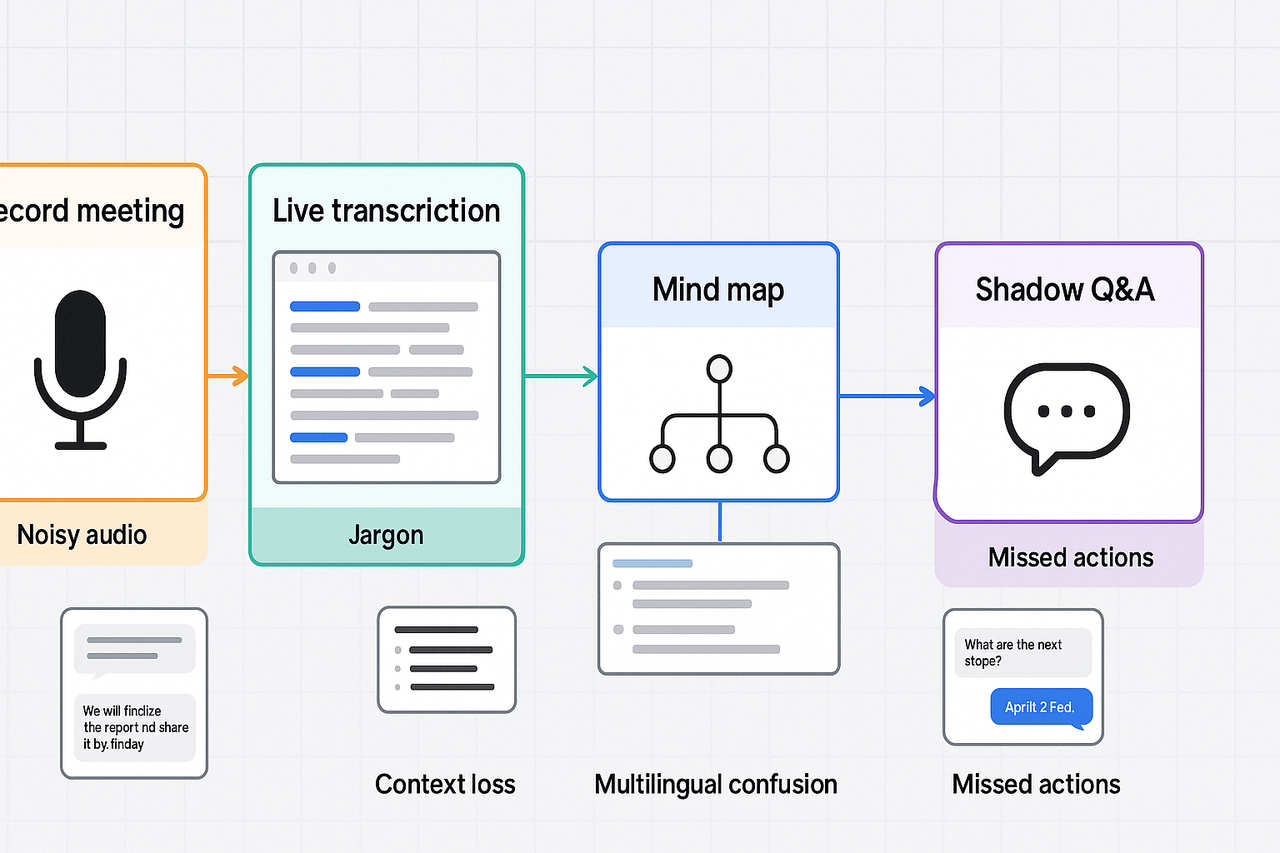
- Live transcription for noisy capture: capture words in real time, so less is lost from memory and manual notes. The platform records clear audio files you can reprocess after the meeting.
- Custom vocab and templates for domain terms: add product names, acronyms, or legal phrases to reduce mis-transcription of key terms.
- AI summarization for clean context: condensation turns messy transcripts into topic‑organized notes and action lists.
- Shadow Q&A (file-aware chat) for verification: ask questions about the transcript to surface decisions and check for missed items quickly.
- Translation and multilingual support for accents: translate or normalize speech into a single language to reduce misunderstandings across teams.
- Mind map export for fast review: visual maps highlight topics and decisions so reviewers skip to what matters.
Mini case study: product management team
A five‑person product team ran five weekly syncs and spent hours cleaning notes after each meeting. They switched to the workflow above: live transcribe, auto‑summarize by topic, run Shadow Q&A to pull actions, and export a mind map for the roadmap meeting. Review time dropped by more than half, and missed actions dropped because the team could search decisions across meetings. The reviewers said it felt like a single source of truth.
Step-by-step: Get high-accuracy transcripts using TicNote (setup & best practices)
Brief: A concise, ordered how-to for capturing accurate meeting transcripts. Cover recording or importing files, applying templates and custom vocabulary, AI summarization and translation, editing and exporting, and connecting exports to Notion or Slack.
Quick steps to follow
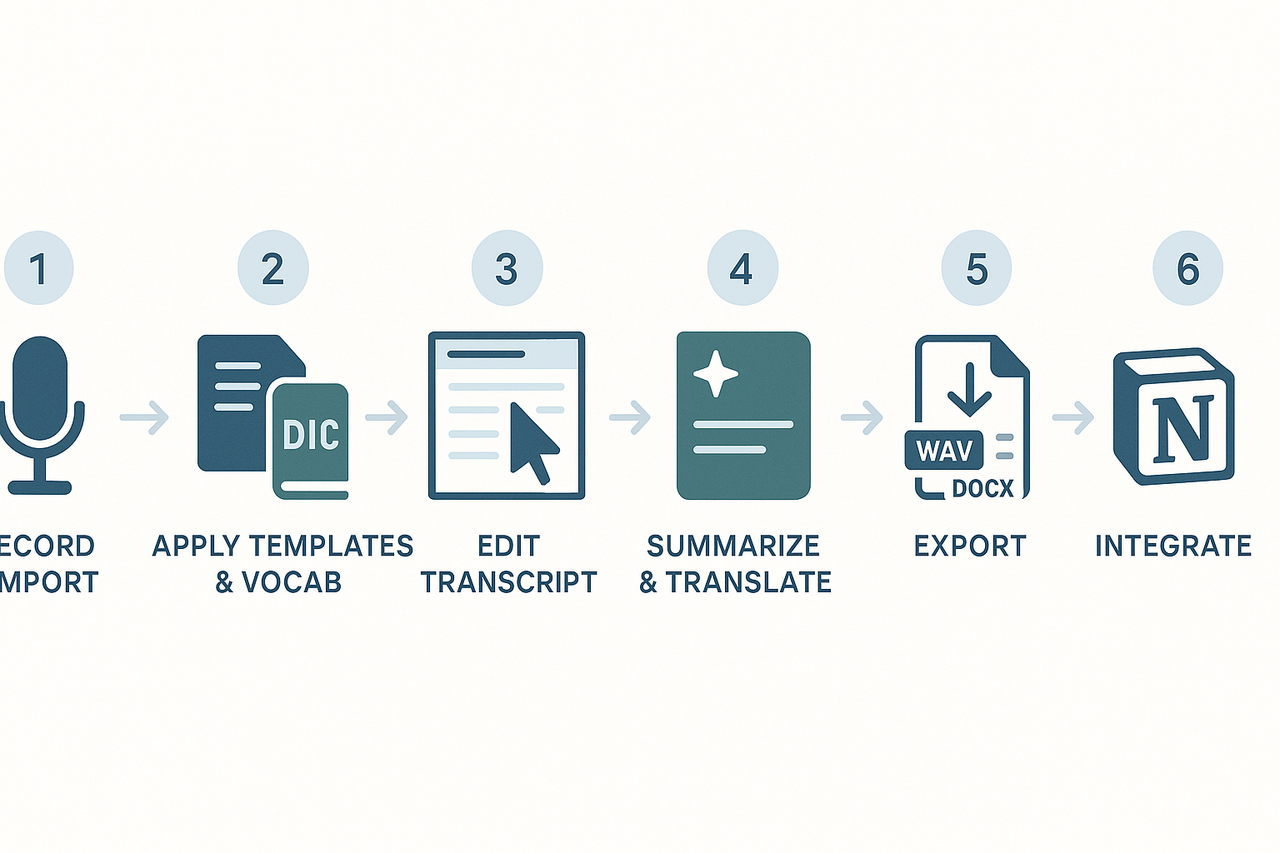
- Record or import: Start a live web recording or upload WAV/MP3 files. Use a quiet room and a good mic for clear audio.
- Apply templates and custom vocab: Choose a meeting template (decisions, actions, or project notes) and add industry terms or names to custom vocabulary for better recognition.
- Run AI summarization and translation: Generate a topic-aware summary and, if needed, translate transcripts into your target language for global teams.
- Edit in the transcript editor: Fix misheard words, add speaker notes, and mark action items. Use timestamps and search to jump to key moments.
- Export and integrate: Export audio (WAV), transcript (TXT), or summaries (Markdown, DOCX, PDF). Export mind maps as PNG or Xmind files.
- Connect to tools: Push summaries or files to Notion or Slack for efficient team sharing and follow-up.
Quick edit and plan tips
Use short edit passes: fix names first, then identify actionable items. Choose the Professional plan for longer uploads and more monthly minutes, or Business for frequent, multi-hour recordings with larger content loads.
 unning



