


 Extension
TL;DR — What this post gives you
This guide teaches practical personal knowledge management for anyone who needs faster prep and fewer missed actions. You’ll learn how to capture meetings, documents, and research into one searchable second brain.
It covers common PKM problems and quick fixes, how to pick the right system, and a step-by-step build using an AI note workspace. Downloadable templates for students, product managers, and researchers are included to shorten setup time.
Expected outcomes: quicker meeting prep, clear action tracking, and reusable notes you can query across meetings and files. The guide also includes demos, exportable templates, and short case studies so you can build a working PKM in under an hour.
What is Personal Knowledge Management (PKM): a quick primer and why it matters
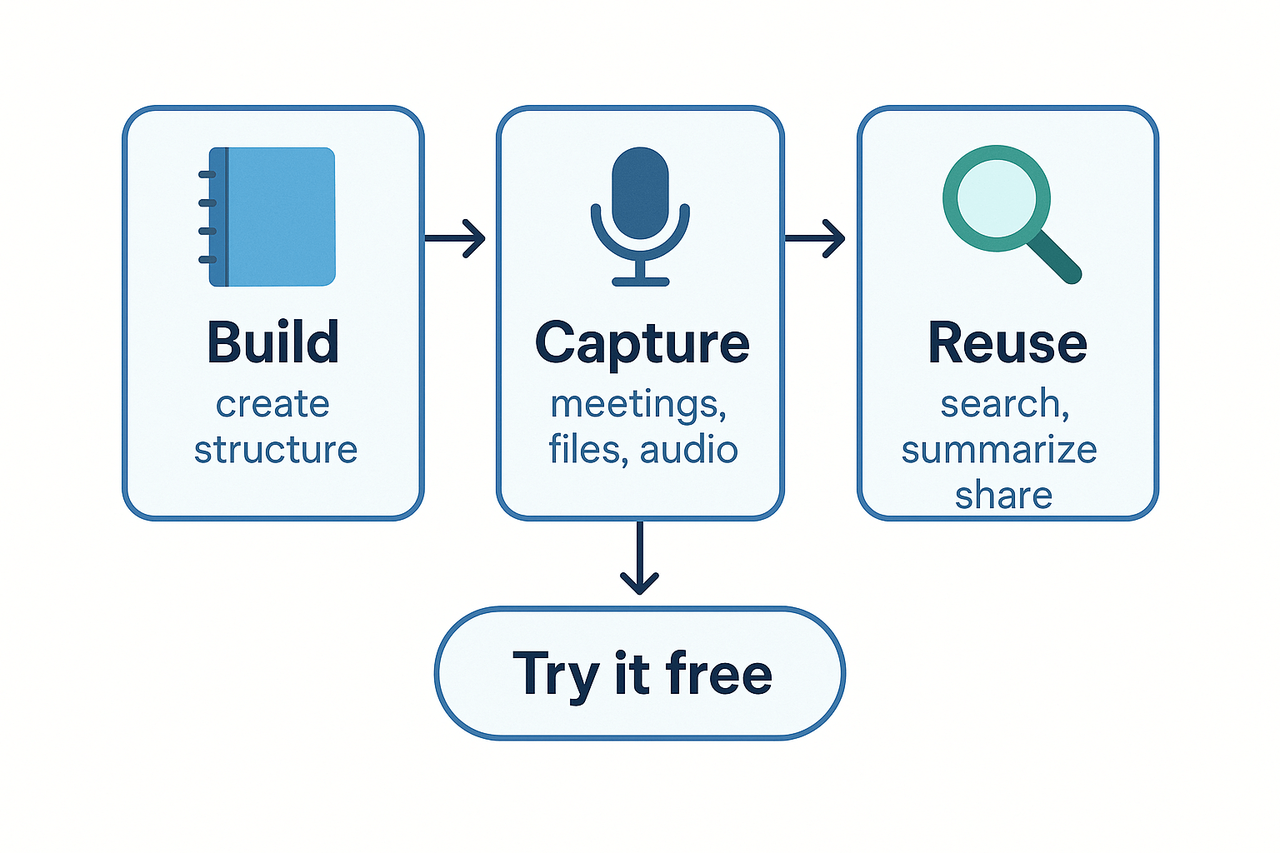
Personal knowledge management is the set of habits and tools people use to collect, shape, and reuse what they learn. Good PKM turns scattered notes, meeting transcripts, and readings into a reliable, searchable system you can trust. This section explains the core PKM actions and why they speed up work and learning.
Core PKM activities
- Collect: capture inputs like meeting notes, articles, audio, and bookmarks. Capture fast so ideas do not vanish.
- Process: turn raw captures into tidy notes, summaries, or tagged highlights. Processing reduces friction when you return later.
- Store: place processed notes in a predictable place with clear names and tags. Storage is about organization and discoverability.
- Retrieve: find what you need quickly, using search, tags, or a Q&A tool. Retrieval is retrieving is recalling or pulling up information when you need it.
- Share: push knowledge to teammates, publish summaries, or export reports. Sharing helps reuse and prevents repetition of work.
Each activity maps to simple habits: collect first, then process within 24–48 hours, store with a stable label, verify retrieval paths, and share when the insight matters.
Why clear PKM systems speed work and boost learning
A clear PKM system saves time. You stop hunting for decisions and action items across apps. You prepare faster for meetings because notes are searchable. You reuse previous work instead of recreating it.
PKM also improves memory and learning. The spacing effect is the finding that information that is presented repeatedly over spaced intervals is learned much better than information that is repeated without intervals (i.e., massed presentation), as explained by Bjork Learning and Forgetting Lab. Designing your notes to prompt short reviews helps concrete that learning.
Use cases that show the payoff:
- Students: save lecture highlights, tag by course and exam topic, and review summaries before tests to cut study time.
- Product managers: link meeting decisions to tickets and roadmaps so follow ups do not fall through the cracks.
- Researchers: collect papers, annotate key methods, and build a living literature review that grows with each read.
A simple PKM system makes knowledge actionable. It reduces rework, raises retention, and turns scattered inputs into a living second brain you can rely on.
Common PKM problems and practical fixes
Most people get stuck not because they lack tools, but because their process leaks. This section shows four common pain points in personal knowledge management and gives repeatable fixes you can use today. Follow the triage rules, a meeting capture ritual, lightweight tags, and short review windows to turn messy notes into actions.
Problem: Information overload
Too many notes, links, and transcripts make search useless. The fix is not to save less, it is to sort faster. Start with a 3-bin triage: Inbox, Active, Archive.
- Inbox rules, applied in 60 seconds: give each new item one of three homes. If you need to act in 48 hours, move to Active. If it’s reference, Archive. If unsure, add a 3-word capture title and leave in Inbox for end-of-day triage.
- End-of-day triage, five minutes: clear Inbox by acting, scheduling, or archiving. Use quick templates: Meeting Note, Research Snippet, Task. These enforce structure and make later search reliable.
Problem: Fragmented content across apps
Notes spread across chat, drives, and recordings break context. Fix it with a single content funnel and standard import rules.
- Pick a primary capture place and use connectors or a simple import ritual. Name files with date, project tag, and short title.
- When you paste from other apps, add a one-line source note and tag it before leaving the capture page.
Practical steps:
- Save all meeting audio/transcripts to one folder. 2. Add project tag and short summary within 10 minutes. 3. Link related docs inside the note.
Problem: Lost decisions and action items
Decisions vanish when buried in long transcripts. Convert notes to actions with a simple extract step.
- After every meeting, spend three minutes to extract decisions and tasks. Use two lists in the note: Decisions and Next Steps.
- Assign owner and due date inline or create a calendar task. That converts passive notes into work that gets done.
Problem: Habit gaps and inconsistent reviews
A tool won’t help without a cadence. Add short, regular review windows.
Weekly 15-minute review:
- Open Active items. 2. Close completed tasks. 3. Move stale items to Archive with a one-line reason. 4. Add one follow-up item to next week.
Tagging that scales:
- Use three lightweight tags: #project, #status (todo, waiting, done), #source (meeting, doc, audio). Keep tags readable and reuse them.
Put these steps in a small checklist you run after each meeting. Do this for two weeks and the leaks seal up fast.
How to choose a PKM system: decision criteria and checklist
Personal knowledge management is only useful if the tool matches your work and habits. This section gives a short, practical checklist you can use to evaluate systems fast. Read it as a buyer’s cheat sheet that maps needs to features, privacy checks, integrations, and long term costs.
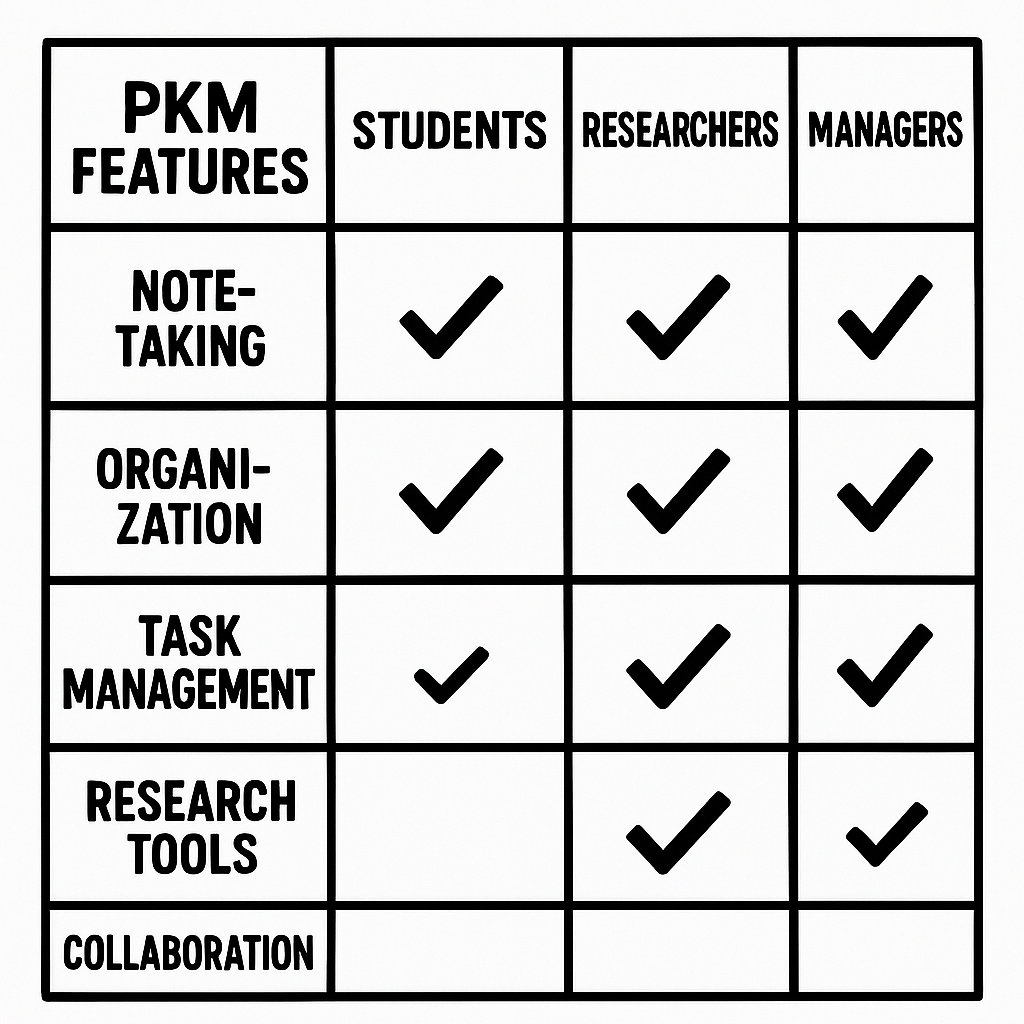
Match needs to features by persona
Students
- Must haves: fast clip/save, tagging, flashcard export, robust search, PDF annotation. Keep mobile sync and offline access. Templates for lecture notes speed setup.
Product managers and meeting-heavy roles
- Must haves: live transcription or easy upload, action item capture, meeting summaries, cross-meeting search, task links, calendar integration. Prioritize meeting-to-action workflows.
Researchers and academics
- Must haves: reference imports (BibTeX), versioned notes, document import limits, export to Markdown/DOCX, long-form writing support, folder-level search.
Small teams and knowledge managers
- Must haves: workspace-level search, permission controls, shared templates, audit logs, SSO for business needs, and a way to surface cross-file answers.
Privacy and data ownership checks
Ask these direct questions during evaluation:
- Who owns my data, and can I export it in open formats?
- Is data private by default, and is it excluded from model training?
- What encryption standard and hosting region are used?
Follow proven guidance. The NIST Privacy Framework provides a tool for improving privacy through enterprise risk management. Check vendor policies against these points, and ask for contractual language if you need firm guarantees.
Integrations, automation, and export
Good PKM tools play well with others. Look for:
- Connectors: calendar, Slack, Notion, storage drives.
- Automation: webhooks, API access, and bulk import tools.
- Export: transcripts, Markdown, PDF, and mind-map formats so you can leave if needed.
Proof of flow matters more than feature lists. Test a real workflow: record a meeting, transcribe, tag, and search that decision.
Cost, support, and long-term viability
Don’t pick a tool only on price. Check roadmap, active development, and support options. Ask about rate limits, transcript minutes, and import caps. For teams, factor SSO and admin controls into total cost.
Quick decision checklist (use this in a trial)
- Can I import my top 5 file types and export them cleanly?
- Can I find a key decision from a meeting within 30 seconds?
- Are privacy answers acceptable, and is export guaranteed?
- Does the tool automate common tasks I do daily?
- Is the total monthly cost sustainable for a year or more?
Run these checks in a real trial with your data. A quick hands-on test beats spec sheets.
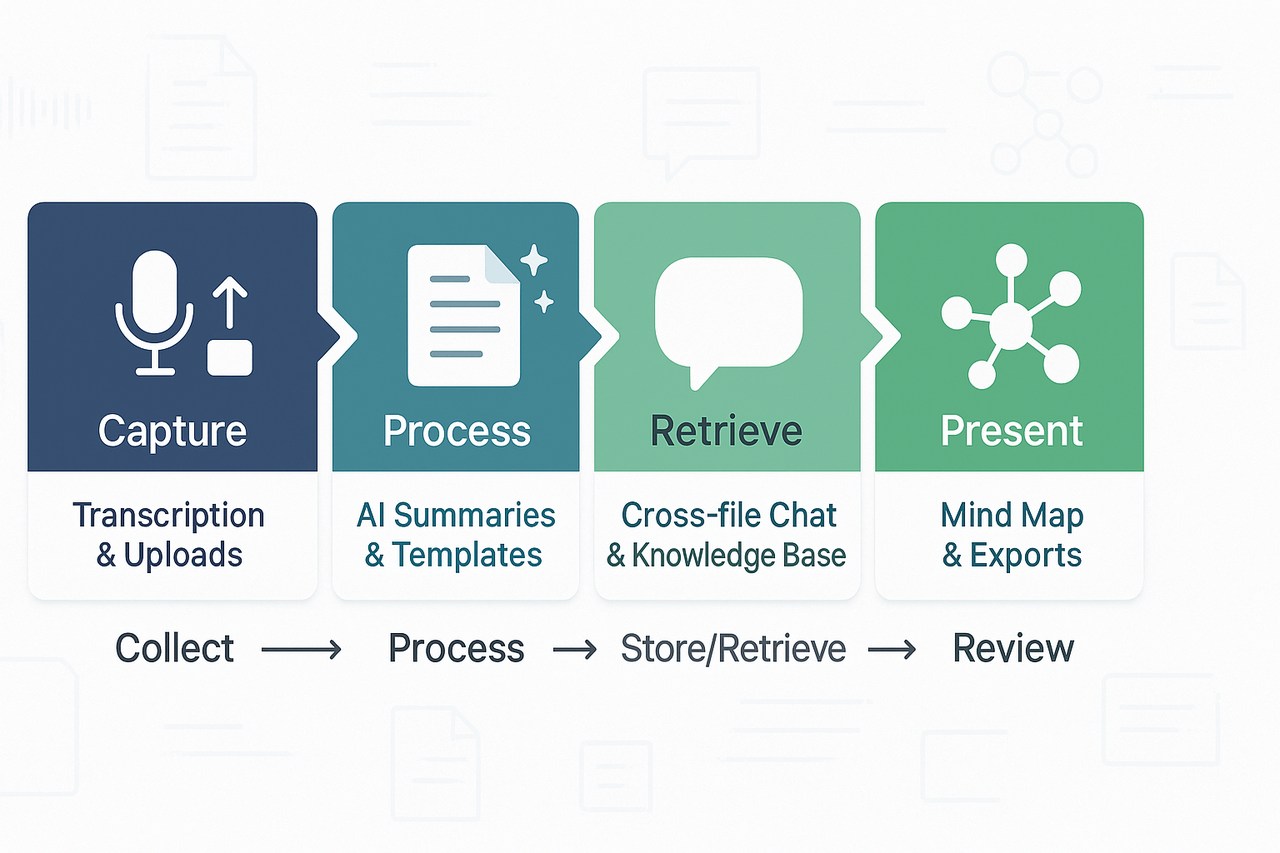
Personal knowledge management works when capture, processing, storage, and retrieval form a tight loop. This section shows how the platform’s modules map to those stages, so you can build a searchable second brain from meeting transcripts, documents, and uploads. Expect clear notes, cross-file answers, and visuals ready to share.
Capture: live and post-meeting transcription
Start by collecting raw material. Use live transcription for meetings or upload audio and video afterward. The tool records microphone audio and creates transcripts automatically, so you don’t lose decisions or action items. You can also import files from other tools to centralize sources.
Key capture benefits:
- fast, verbatim transcripts to reduce recall errors
- audio and video ingest for multimodal notes
- continuous capture across meetings and uploads
Privacy note: data is private by default and not used to train public AI models. That keeps your captured content out of general training pools.
Process: AI summarization, templates, and structured notes
Raw transcripts need structure. Use AI summarization to surface meeting highlights, decisions, and action items. Apply topic-aware templates to convert messy notes into consistent records. Templates let you tag sections like objectives, blockers, owners, and next steps.
Practical wins:
- one-click summaries that cut prep and follow‑up time
- templated notes for repeatable meeting types
- Deep Research mode for turning a workspace into a structured report
These steps move content from capture to an organized, searchable format that’s ready for storage.
Store and retrieve: cross-file chat and a chat-ready knowledge base
Storage is more than filing. The platform creates a workspace you can query. Shadow chat (the cross-file Q&A) answers grounded questions across transcripts and documents. That means you can ask where a decision was made, or who owns a task, without opening ten files.
How retrieval helps PKM:
- ask context-driven questions across meetings and files
- surface action items, references, and past answers quickly
- build a chat-ready knowledge base for team onboarding and handoffs
Export options add flexibility. Download transcripts, summaries, and audio in standard formats so you can archive, share, or import into other PKM tools.
Review and present: mind maps, exports, and repurposing
Reviewing is easier with a visual. Auto-generated mind maps turn long transcripts or summaries into diagrams for quick scanning and presentations. You can export mind maps as PNG or Xmind and summaries as Markdown, DOCX, or PDF.
Use cases for review:
- run a pre-meeting refresher from a one-page mind map
- repurpose a recorded session into a short briefing or podcast
- hand off cleaned summaries to stakeholders or a CMS
Module-to-PKM map (quick reference)
- Collect: live transcription, audio and video uploads
- Process: AI summarization, templates, Deep Research
- Store: workspace, file imports, searchable notes
- Retrieve: Shadow cross-file chat and knowledge base
- Present: AI mind map, exports to PNG/Xmind and Markdown/DOCX/PDF
Practical export and privacy checklist
- Exportable formats include WAV for audio, TXT for transcripts, and Markdown/DOCX/PDF for summaries. Mind maps export as PNG and Xmind.
- Default privacy settings keep data private, and AI models are not trained on your workspace.
- Use exports to build a backup or to migrate notes into other PKM systems.
Together these modules create a clear PKM flow: record conversations, compress them into usable notes, store them in a searchable workspace, and retrieve answers when you need them. The result is a working second brain that grows from your meetings, files, and research.
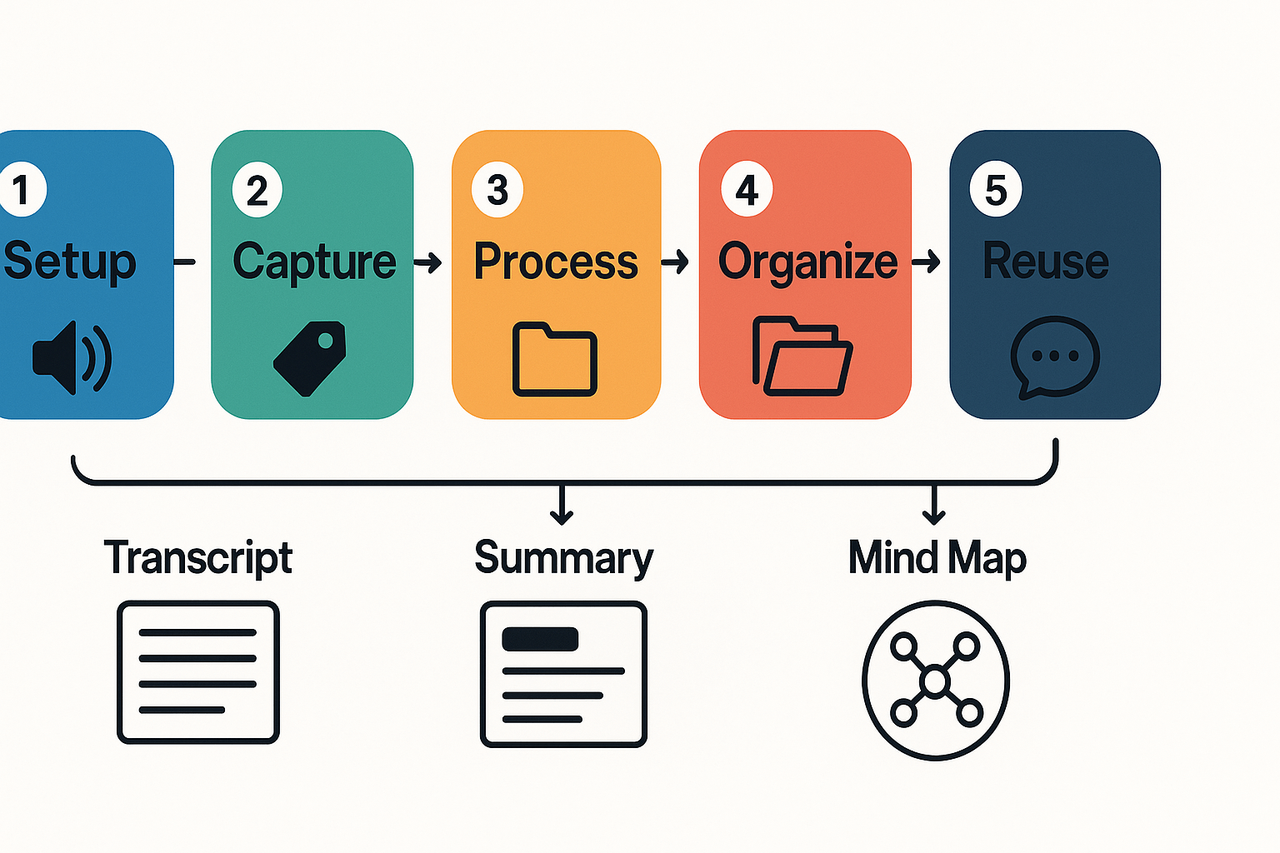
Step-by-step: Build a working PKM (second brain) using TicNote
This guide walks you through a compact, actionable build so you can capture meeting audio, turn it into searchable notes, and reuse insights across projects. It shows how to set up a workspace and templates, capture meetings and uploads, process with auto summaries and tags, organize with folders and mind maps, and ask cross-file questions to surface decisions. You’ll finish with templates for students, product managers, and researchers.
1) Setup: make a workspace that scales
Create one workspace per role or major project. Name folders for team, research, courses, or product areas. Set a simple template set up front: meeting notes, decision log, and research brief. Keep two global tags: Action and Insight. That small taxonomy keeps search fast and avoids tag sprawl.
Steps:
- Create workspace and three top folders: Meetings, Projects, Research.
- Add templates: Meeting note, Decision log, Research brief.
- Add tags: Action, Insight, Question, Reference.
2) Capture: record and ingest everything
Capture meetings live or upload files after a call. Record audio on your device, drop in recorded files, or paste key documents. The goal is to get raw text and audio into the same place so you can run the same processing on all inputs.
Quick rules:
- Always attach calendar metadata or project name to each capture.
- Drop slides or PDFs in the same item as the transcript.
- Add a short one-line goal before recording: this improves later summaries.
3) Process: auto summaries, highlights, and tags
Process each capture immediately after the meeting. Run an auto summary to extract topics, decisions, and action items. Scan the summary and add or correct tags. Turn any long discussion into a short research brief for later reading.
Action list:
- Run auto summary and pick the decision lines.
- Tag decisions with Action and assign owners in one line.
- Convert long sections into a short research item, and flag with Insight.
4) Organize: folders, relationships, and mind maps
Move processed notes into the right folder and link related items. Use the mind map feature to convert a summary into a visual outline. Mind maps make it easy to brief others or prep a follow-up meeting.
Organizing checklist:
- Move final note to Project or Research folder.
- Link supporting docs and slides to the note.
- Generate a mind map from the summary for quick review.
5) Reuse: ask across files and build answers
Once notes are in place, use cross-file Q and A to find past decisions and references. Ask the tool where a decision was made, who owned the task, or which meeting covered a topic. This turns stored transcripts into an active knowledge base for prep and discovery.
How to reuse effectively:
- Run a topic query before a meeting to prep faster.
- Pull past action items into a new meeting agenda.
- Use the conversation history to build a short research report.
Templates: quick examples you can copy
Student template
- Class, date, reading links, 3 key takeaways, 2 review questions, follow-up actions.
Product Manager template
- Meeting goal, three decisions, owners, deadlines, related tickets, follow-up checklist.
Researcher template
- Hypothesis, data sources, notes summary, open questions, next steps.
Downloadable templates and demo packs are available inside the workspace templates menu for quick import. Use them to skip setup and keep consistency across projects.
Build tip: Run one weekly sweep. Convert all raw captures with the same three-step process: summarize, tag, file. That habit keeps your second brain usable.
Real-world workflows & short case studies
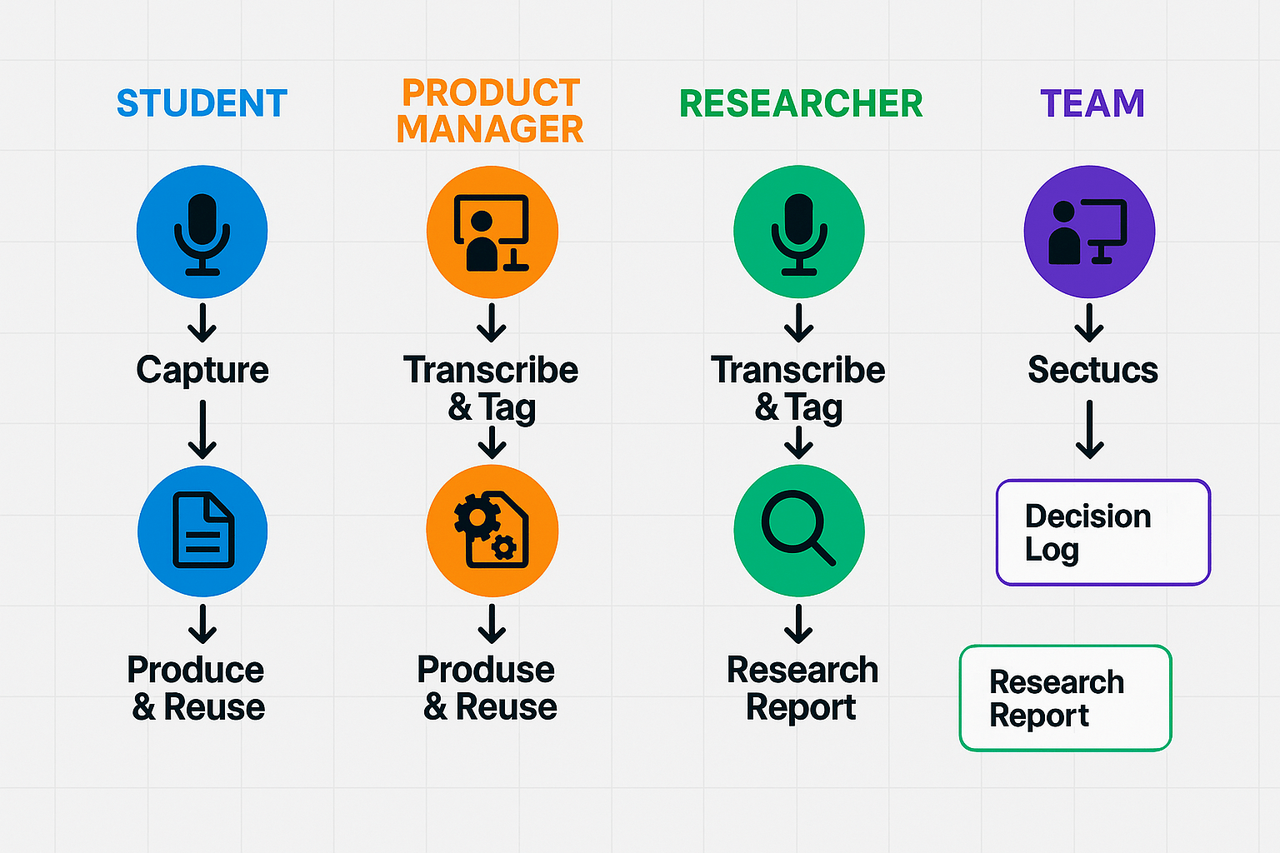
Personal knowledge management matters when you need fast recall and usable notes. These short cases show four real workflows that go from meeting or lecture to a searchable, reusable deliverable. Each example lists the steps, the concrete outcome, and the TicNote Cloud features that speed the work.
Student: lecture capture to study notes
Workflow: Record lecture → Auto-transcribe → Highlight key concepts → Build a study outline. Students save time and create review-ready notes.
Steps:
- Record audio during class or upload the lecture file.
- Use live or post-meeting transcription to generate the raw text.
- Run an AI summary and export an outline or flashcards.
Outcomes: Clear study outline, searchable quotes, fast revision materials.
Speedups from the platform:
- Instant transcription removes manual typing.
- AI summaries pull main ideas into a study outline.
- Export to Markdown or DOCX for quick printing or flashcard import.
Product manager: tracking decisions and actions
Workflow: Capture sprint planning → Tag decisions → Extract action items → Link to tickets. A consistent decision log reduces missed tasks and speeds context switching.
Steps:
- Record planning or retro sessions.
- Create topic-aware notes that surface decisions and owners.
- Push key action items into a tracker or export for teammates.
Outcomes: Single timeline of decisions, fewer follow-up questions, faster onboarding.
Speedups from the platform:
- Topic segmentation makes decisions easy to find.
- Cross-file Q&A helps find past decisions across meetings.
- Integrations and exports let you move tasks to your PM tool.
Researcher: interviews to structured reports
Workflow: Capture interviews → Transcribe → Tag themes → Generate report. A simple research pipeline for qualitative projects.
Steps:
- Upload audio or video interviews to the workspace.
- Use speaker timestamps and searchable transcripts to code responses.
- Run the deep research function to create a structured report.
Outcomes: Evidence-backed reports, quick literature-style summaries, reproducible notes.
Speedups from the platform:
- Bulk transcription handles many interviews quickly.
- Deep research turns notes into a report skeleton you can edit.
- Exportable mind maps visualize themes and links for presentations.
Team: reusing cross-meeting knowledge
Workflow: Pull decisions from multiple meetings → Build shared knowledge base. Reduce redundancy and boost team learning.
Steps:
- Ingest meeting transcripts, docs, and recordings into one workspace.
- Use cross-file Q&A to extract themes and outstanding tasks.
- Curate those answers into a central knowledge base for the team.
Outcomes: Less repeated work, faster ramp for new hires, searchable institutional memory.
Speedups from the platform:
- Shadow chat lets teams ask questions across all files.
- Mind-map export gives a visual onboarding aid.
- Private-by-default settings keep sensitive notes secure.
Each of these workflows converts raw conversations into actionable knowledge you can search, share, and reuse. The steps are simple, and the outcomes are measurable: fewer missed actions, faster prep, and clearer handoffs.
Compare: TicNote vs top PKM & meeting tools (privacy, features, best use cases)
Choosing a personal knowledge management tool is about outcomes, not features. This section compares cost, privacy, integrations, and AI abilities. It gives quick, persona-focused summaries so you can pick the tool that helps you capture meetings, find decisions, and reuse knowledge every day.
What to compare first
Focus on four decision criteria: cost and limits, privacy and data control, integrations and export, and AI features for summarization and search. Privacy is now central for PKM workflows, and according to Gartner (2020), By 2023, 65% of the world’s population will have its personal data covered under modern privacy regulations, up from 10% in 2020. That trend affects whether a tool can hold meeting audio, transcripts, or sensitive notes.
Consider your daily needs: do you need fast meeting capture, long-term knowledge search, cross-file Q&A, or team policy controls? Rank criteria by the outcome you want, then match tools to that rank.
Side-by-side snapshot
| Tool | Cost notes | Privacy & control | Key integrations | Best for day-to-day outcomes |
| TicNote Cloud | Free to Business tiers | Private by default, US cloud, not used to train models | Notion, Slack, exports (WAV, TXT, MD, DOCX, PDF, Xmind) | Capture meetings, auto-summarize, build chat-ready knowledge |
| Otter | Freemium, paid plans | Good controls, vendor model varies | Zoom, Google Meet | Live captions, quick meeting notes for individuals |
| Notion | Freemium, team plans | Good team controls, data residency varies | Many via API | Long-form knowledge bases and structured docs |
| Mem | Freemium | Strong local-first claims for personal notes | Slack, calendar | Rapid capture and smart memory for individuals |
| Fireflies | Freemium | Varies by plan | Zoom, Teams | Meeting transcription and CRM handoffs |
Where TicNote stands out
TicNote Cloud maps recording, AI transcription, and research to a second brain workflow. The platform excels when you need a single place that turns meeting audio and uploads into searchable notes, mind maps, and chat-ready knowledge. If your day includes many meetings, you want summaries instantly, and you need cross-file questions, TicNote speeds discovery and follow-up.
It also helps teams capture decisions across meetings and repurpose audio into shareable formats. The built-in AI mind map and cross-file Q&A save time when you must brief others or prepare reports.
Quick persona guide
- Product managers and PM-heavy teams: TicNote or Notion combo for meeting capture and structured specs.
- Researchers and students: TicNote for transcripts and research reports, Notion for polished writeups.
- Sales and customer success: Fireflies or TicNote for action items and repurposed calls.
Pick the tool that matches the result you want: better meeting outcomes, faster research, or a single searchable second brain. If meeting capture, AI summaries, and cross-file chat matter, a platform that joins audio, transcripts, and knowledge like TicNote is a strong fit.
Pricing, privacy, migration & maintenance checklist
Start with the essentials: choose a plan that matches how many minutes you’ll transcribe, how many documents you import, and whether you need SSO or dedicated support. This section helps you map common needs to TicNote plan levels and covers privacy basics, export options, migration tips, and a short maintenance checklist for long term scaling. If you run a personal knowledge management project, pick a plan that lets you capture meeting audio, search transcripts, and reuse notes without hitting limits.
Which plan fits you
TicNote offers four tiers: Free, Professional, Business, and Enterprise. Free is great for students and solo learners who need basic transcription and templates. Professional fits power users and individual contributors who want more transcription minutes and unlimited AI chat. Business is aimed at teams that need larger monthly quotas and longer recording windows. Enterprise is for orgs that require SSO, customized usage, and dedicated support.
Quick recommendations:
- Students and solo learners: Free. It includes 300 minutes of transcription and basic templates.
- Meeting-heavy PMs and sales reps: Professional, for higher minutes and unlimited AI chat.
- Ops, research teams, and agencies: Business, for bulk imports and extended recording lengths.
- Regulated orgs and large teams: Enterprise, discuss security and SSO with sales.
Privacy basics and compliance
Data is stored in a U.S. cloud, private by default, and the vendor states data is not used to train AI models. For regulated data, follow established guidance such as NIST Special Publication 800-171 Revision 3 (2024) when protecting Controlled Unclassified Information. Also confirm encryption at rest and in transit, retention controls, and any regional hosting options during procurement. If you need GDPR assurances, request the vendor’s data processing addendum and evidence of alignment.
Export, migration and practical tips
Supported exports: WAV for audio, TXT for transcripts, Markdown/DOCX/PDF for summaries, and PNG/Xmind for mind maps. Use these exports to seed a separate knowledge store or enterprise archive. Migration tips:
- Export a month of records first to test format fidelity.
- Use scheduled exports for backups.
- Map fields (speaker, timestamp, tags) before bulk imports into your target system.
- For large migrations, request Enterprise support or API guidance.
Maintenance checklist for scaling
- Set quotas and alerts for transcription minutes.
- Enforce naming conventions and templates for consistent notes.
- Run quarterly exports and verify backups.
- Audit access logs and update permissions after role changes.
- Train teammates on search, Shadow chat, and mind-map features to boost reuse.
For enterprise or compliance questions, talk to sales to review SSO and custom policies.



