


 Extension
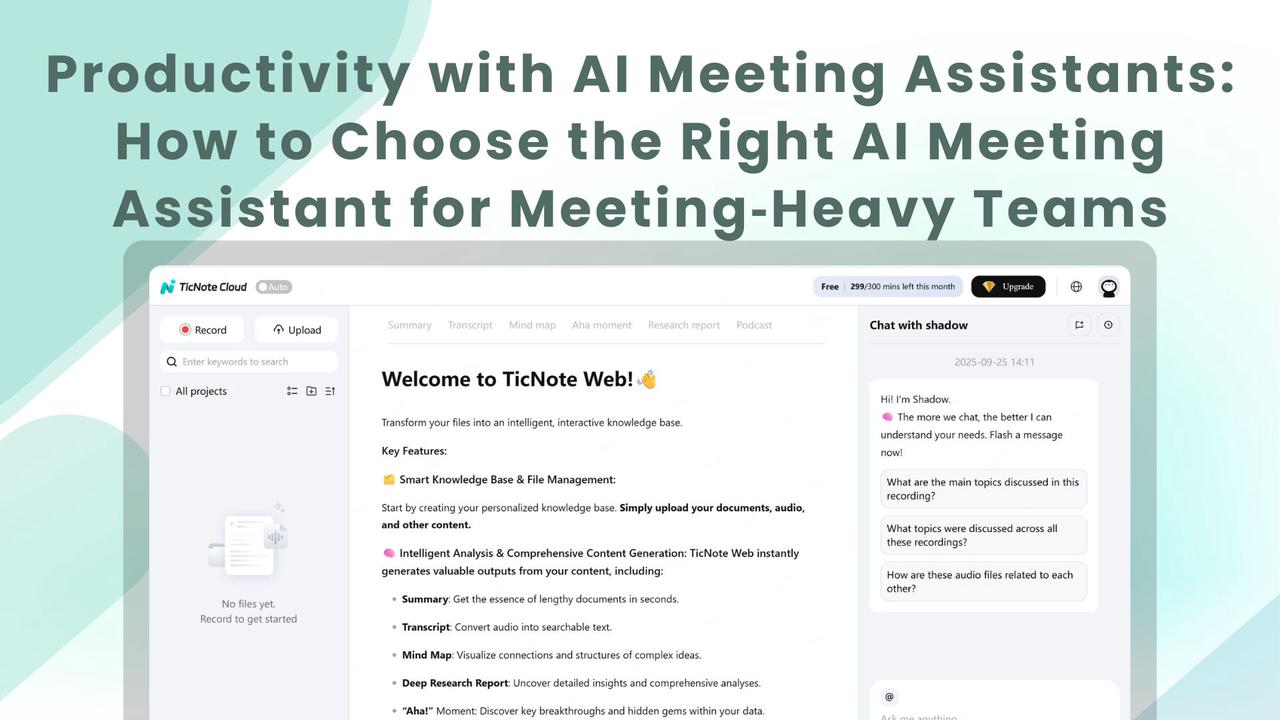
TL;DR: Key takeaways and recommended next steps
Productivity with AI Meeting Assistants delivers fast wins for meeting-heavy teams: less prep time, clearer action items, and a searchable meeting knowledge base you can query. Use this guide if you lead PM, sales, ops, legal, or research teams and you run many recurring meetings each week.
Key takeaways:
- Live transcription saves time and keeps notes accurate.
- AI summaries and mind maps turn long meetings into reusable artifacts.
- Cross-meeting search and chat (a second brain) surface past decisions and context.
- Pick tools with easy integrations, strong privacy controls, and post-meeting automation.
Recommended next steps:
- Start with a free plan or short demo to test live transcription and summaries with real meetings.
- Run a two-week pilot with 3–5 frequent meeting owners. Track time saved and follow-up completion.
- Ask IT about data residency, encryption, and SSO before scaling.
Quick verdict: Shortlist platforms that pair accurate transcription with cross-meeting search and chat-ready notes, then pilot one solution to prove value before broader rollout.
Why AI meeting assistants matter for productivity
Most teams waste time because meetings don’t produce clear outputs: decisions get lost, action items are vague, and notes live in scattered places. Productivity with AI Meeting Assistants can fix that by capturing conversations accurately and turning them into searchable, actionable records. Estimates show, per Wasted Time and Money in Meetings: Increasing Return on Investment, that most organizations devote between 7% and 15% of their personnel budgets to meetings.
The real costs: time, attention, and rework
Meetings cost more than calendar hours. They interrupt deep work, force duplicated follow-ups, and create slow handoffs. That costs money and morale. Common consequences include:
- More prep and follow-up time, because participants re-run discussions to confirm decisions.
- Lost knowledge, since insights hide in chat threads, recordings, or private notes.
- Rework and missed deadlines from unclear ownership of tasks.
Each of these adds hidden labor: people hunt for context, rewrite notes, or repeat discussions. For leaders, that means lower output per head and higher project friction.
How AI shifts effort from capture to action
AI meeting assistants automate routine work so teams focus on decisions. Key shifts include:
- Live transcription and post-meeting transcripts, reducing manual note-taking.
- Concise AI summaries that highlight decisions, tasks, and deadlines.
- Extracted action items routed to task trackers and calendars.
- Cross-meeting search and chat-ready notes that stop context hunting.
- Fast generation of AImeeting minutes for stakeholders who miss the meeting.
These changes shrink the time between conversation and action. Teams move from chasing context to executing work.
Decision-makers can justify investment by estimating hours reclaimed per person each week, then comparing that to subscription costs. Small per-person gains compound across a team, turning a recurring expense into measurable productivity.
How TicNote Cloud works — core workflow and modules
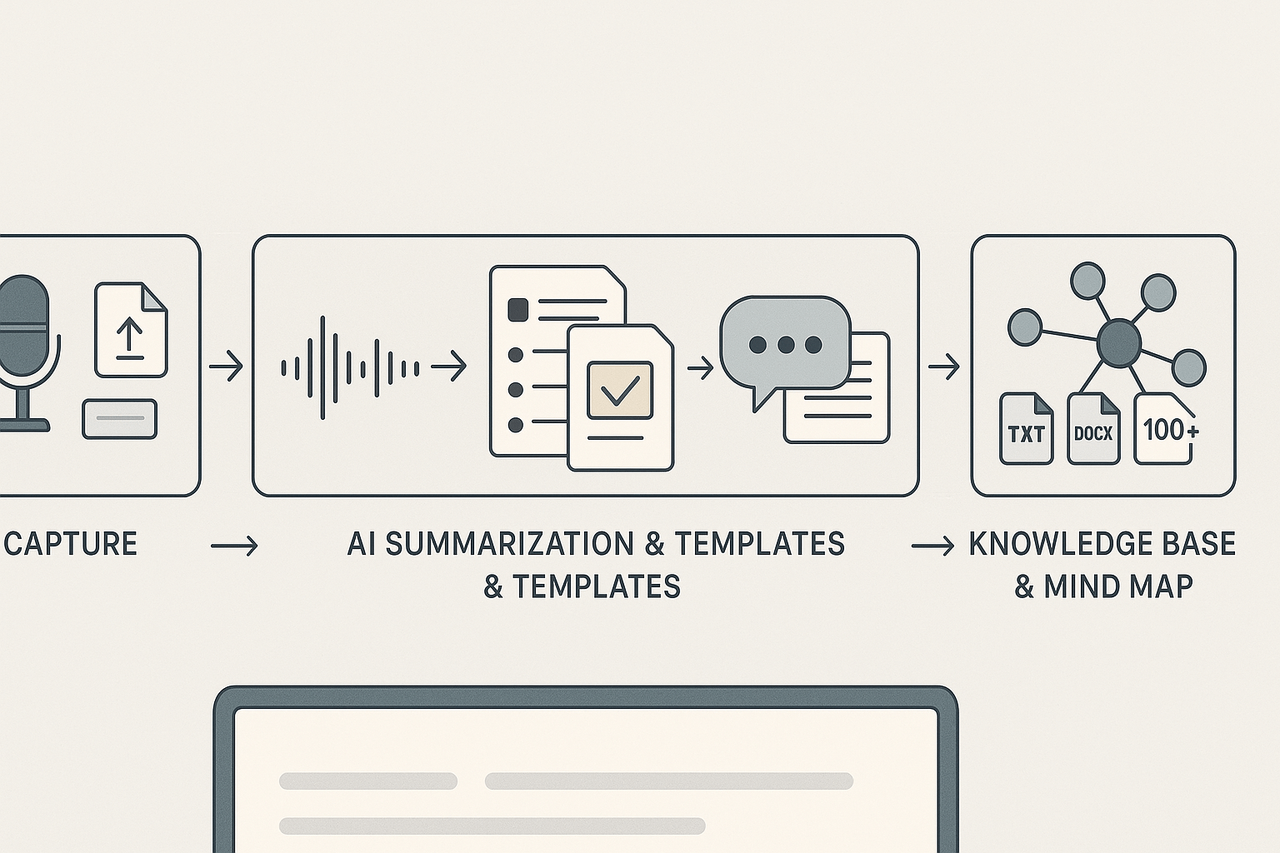
TicNote Cloud maps a simple, repeatable flow from capture to searchable knowledge. This flow supports Productivity with AI Meeting Assistants by turning conversations into chat-ready knowledge. The result is fast prep, clearer follow-ups, and fewer lost decisions for meeting-heavy teams.
Capture: record or upload every meeting
Start by recording on device or uploading audio, video, or files. The platform handles live microphone recordings and file imports, so you don’t need a meeting bot. It also stores raw audio and transcripts for later review, which helps teams that rely on accurate AI meeting minutes.
Process: automatic transcription, translation, and templates
Audio goes through automatic speech recognition (ASR) to produce a time-stamped transcript. You can translate that transcript into 100+ languages for global teams. Next, AI templates digest the transcript into structured notes, action items, and decision logs. Templates are editable, so notes match your team’s format.
- Capture: record or upload audio, video, or text.
- Transcribe: ASR creates a searchable, time-stamped transcript.
- Summarize: AI applies templates to make notes and tasks.
- Surface: Shadow Chat and cross-file queries add context.
- Reuse: Export, share, or add to your knowledge base.
Surface: Shadow Chat and mind maps
Shadow Chat lets users ask natural questions about a meeting, a folder, or the whole workspace. It returns grounded answers and points to transcript clips or documents. Mind maps auto-generate from summaries to give visual overviews for presentations or quick reviews. Both features create a true second brain for decisions and context.
Reuse: outputs, search, and prep
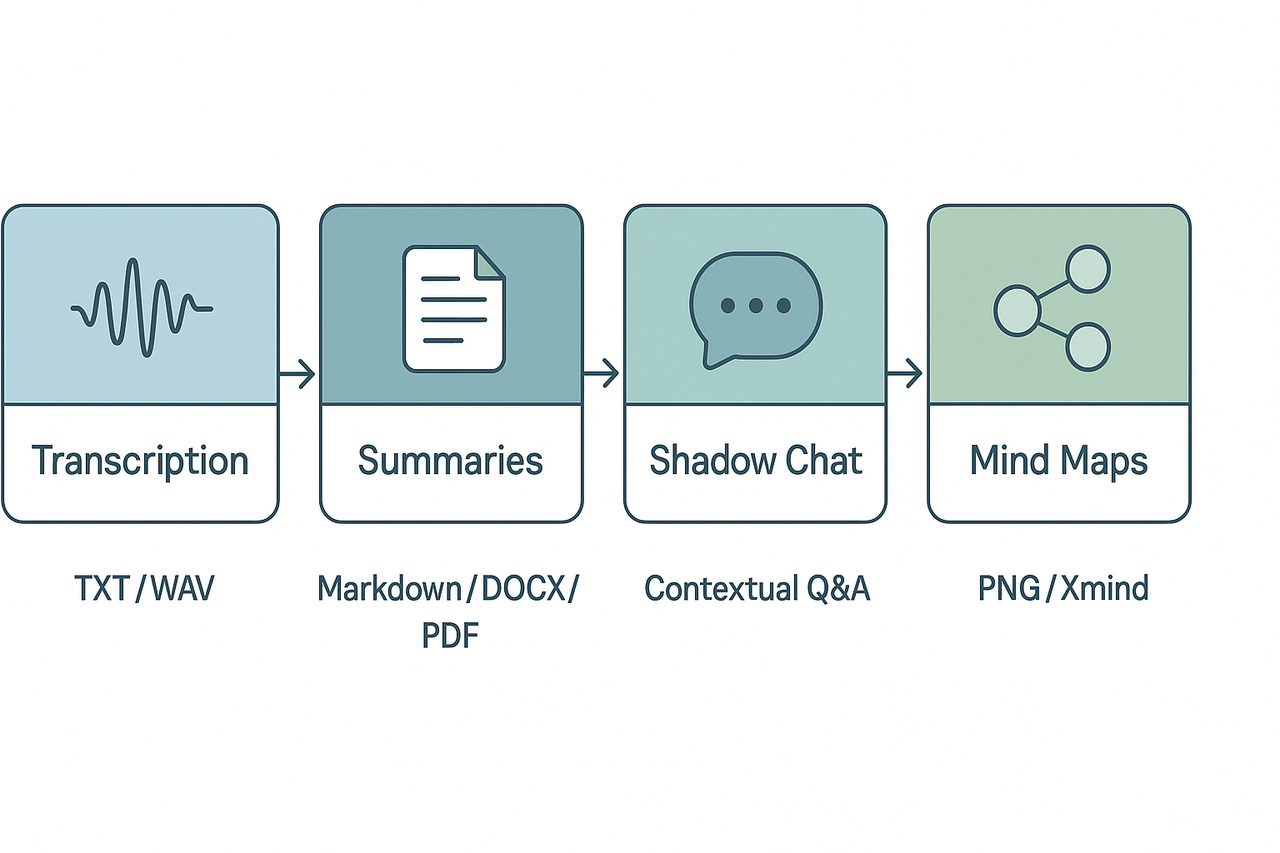
Every transcript and summary is searchable and exportable as TXT, Markdown, DOCX, or PDF. You can pull clips for prep, hand off tasks, or seed project documentation. That reuse saves hours in follow-ups and keeps work from getting siloed.
Why the second-brain flow matters
Teams run fewer meetings and move faster when notes are actionable and findable. Cross-meeting Q&A surfaces past decisions and prevents repeated work. In short, this workflow turns meeting noise into lasting knowledge.
Feature deep-dive: Transcription, Summaries, Shadow Chat, and Mind Maps
Productivity with AI Meeting Assistants depends on predictable accuracy and clear output formats. This section explains what to expect for transcription accuracy, supported languages, and feature limits so you can design a focused proof of concept (POC). Read the quick test checklist and concrete use cases to map features to real workflows.
Transcription: accuracy, languages, and what to test
Expect good verbatim text in quiet conditions, lower accuracy in noisy rooms, and variability with accents or overlapping speech. For realistic expectations, consult benchmarks like NIST Open Speech Analytic Technologies Evaluations which assess speech systems under tough acoustic conditions. The platform supports live multilingual transcription and AI translation into 100+ languages, but automatic speaker diarization (automatic speaker labeling) is not supported, so test how well speaker turns align with your recordings.
What to include in a transcription POC:
- Short, medium, and long calls with 2–6 participants.
- Noisy background and clear audio samples to compare accuracy.
- Non-native accents and domain terms (product names, legal terms).
- Export checks: WAV for audio, TXT for raw transcripts.
Summaries and templates: control and outputs
Summaries turn raw transcripts into brief notes, decisions, and action items. Test custom templates that rearrange notes into your meeting formats, like sales call recap or legal issue log. Output options include Markdown, DOCX, and PDF, so validate formatting and downstream import into your document workflows.
POC checklist for summaries:
- Create one template per meeting type: sales demo, sprint planning, contract review.
- Validate that action items are extracted and tagged with owners.
- Export to Markdown and open in your wiki to confirm clean formatting.
Shadow Chat: grounded Q&A across meetings
Shadow Chat lets teams ask context-aware questions against files and meeting histories. In a POC, test the scope of grounding: ask about a single meeting, a folder, and cross-meeting queries. Validate how recent context affects answers and whether the tool surfaces the source transcript or timestamp for verification.
Mind Maps: visual review and repurposing
Mind maps automatically visualize topics from a transcript or summary. Use them to run quick reviews, create slide outlines, or confirm that the tool grouped ideas correctly. Export formats like PNG and Xmind help reuse visuals in presentations.
Quick use cases: sales, legal, and research
- Sales: Live transcript for call coaching, summary template with next steps, Shadow Chat for cross-call objection trends. Expect to repurpose snippets as sales playbook entries.
- Legal: Record client calls for note capture, use templates for risk flags, export DOCX for file attachments. Confirm the POC includes privileged data handling and manual speaker notes where diarization is missing.
- Research: Upload interviews and papers, run cross-file Q&A for themes, and generate mind maps for synthesis. Test deep research report outputs for citation-ready structure.
Side-by-side comparison: TicNote vs Otter, Fireflies, Mem, and others
Productivity with AI meeting assistants starts with picking the right fit for your workflow. TicNote Cloud appears in the field as a second‑brain focused tool that links transcripts, summaries, and cross‑meeting search. Below is a neutral view across core axes to help meeting-heavy teams compare trade-offs and shortlist vendors.
Quick comparison at a glance
| Feature axis | TicNote Cloud | Otter | Fireflies | Mem | Typical smaller tools |
| Transcription quality | Very good, multi-source uploads | Very good, strong live notes | Good, call recording focus | Good for short notes | Varies widely |
| Summary quality | Strong AI summaries and templates | Good auto-summaries | Basic summaries | AI highlights, personal memos | Inconsistent |
| Cross-meeting search/chat | Advanced, workspace-wide Q&A | Limited cross-file search | Limited | Strong personal knowledge graph | Often single-file only |
| Knowledge-base features | Built-in chat-ready KB and research | Exportable notes, no KB | Exports to drives | Personal knowledge base focus | Rarely included |
| Mind-mapping | Auto mind maps from transcripts | Not native | Not native | Not native | Rare |
| Integrations | Notion, Slack; multi-format export | Zoom, Google Meet, Teams | Calendar + conferencing | Apps for personal workflow | Varies |
| Enterprise controls | SSO, admin controls in higher tiers | Enterprise plans available | Enterprise options | Focus on individual/productivity | Mixed |
Pricing & value: which TicNote plan fits your team
Choosing a plan depends on meeting volume, transcription needs, and how much time you save after meetings. TicNote Cloud offers Free, Professional, Business, and Enterprise tiers, with limits set around transcription minutes (audio minutes processed) and upload size. This section shows simple cost-per-use math and quick ROI examples to help teams pick a plan that pays for itself.
Free: good for individuals and light meeting loads
The Free plan includes 300 transcription minutes per month, short web recordings, and basic templates. If one teammate attends 10 short meetings a week, each 20 minutes, the 300 minutes cover most needs. Use it to test live transcription, AI summaries, and mind maps before upgrading.
Professional: When your team crosses 1,000 monthly minutes
Professional costs $$12.99 per user per month $$79 billed annually) and raises the cap to 1,500 transcription minutes. Example: a three-person team running five one-hour meetings weekly uses about 600 minutes a month. If the tool saves each person 15 minutes of prep or follow-up per meeting, at a notional hourly cost of $$60, that’s about$$15 saved per meeting. The subscription quickly offsets itself when minutes and time savings grow.
Business: for centralized note archives and heavier capture
Business is $$29.99 per user per month $$239 billed annually) and includes 6,000 transcription minutes. Pick this when multiple teams centralize meeting notes and run long sessions or workshops. Larger transcription allowance lets you ingest recorded sessions, podcasts, and research audio without hitting limits.
Enterprise: custom scale and controls
Enterprise offers customized usage, SSO, 24/7 support, and an AI meeting agent. Choose this when you need higher governance, custom quotas, or policy-driven features for regulated work.
When to upgrade: quick checklist
- Stick with Free if one or two people run under 300 minutes monthly.
- Move to Professional when regular team meetings push past 1,000 monthly minutes.
- Choose Business when you centralize notes across teams and need bulk ingestion.
- Talk to sales for Enterprise when you need SSO, custom SLAs, or large-scale deployment.
Each plan’s break-even depends on meeting volume and how much time the platform saves. Run a 30-day pilot on Free, measure minutes used and follow-up time saved, then pick the plan that matches your usage.
Integrations, Setup, Troubleshooting, and Implementation Playbook
Deploy AI Meeting Assistants without disrupting team workflows. This guide gives step-by-step implementation tips, supported integration options, troubleshooting suggestions, and a 30/60/90-day playbook to get quick wins and build habits across teams.
✅ Quick Setup Checklist
- Assign admins for key teams.
- Configure SSO and security (if needed).
- Connect core apps: calendar, chat, storage.
- Upload a test recording to validate transcription.
- Import or design a meeting notes template.
- Run a 30-minute internal demo and gather feedback.
🔗 Supported Connectors & Export Options
Calendars:
- Google Calendar
- Microsoft Outlook
Communications:
- Slack
Docs & Notes:
- Notion
- Markdown / DOCX / PDF export
Audio/Media Uploads:
- WAV
- MP3
- Video formats
Export Formats:
- Transcript: .txt
- Summary notes: .md, .docx, .pdf
- Audio: .wav
- Mind maps: .png, .xmind
Create a centralized, searchable archive by syncing key folders and meeting data.
🛠 Common Issues & Fixes
- Slow or failed uploads: Check file size and internet. Convert long videos, reconnect via Ethernet.
- Poor transcription accuracy: Use clearer audio, reduce background noise, try with headphones.
- Speaker labels missing: Manual tagging may be needed if speaker diarization is off.
- Missed calendar meetings: Re-authorize the app, re-sync calendars, check token validity.
- Search doesn’t work well: Make sure docs/files live in the same workspace. Re-index if needed.
Still stuck? Contact your team’s admin or support with screenshots and a sample file.
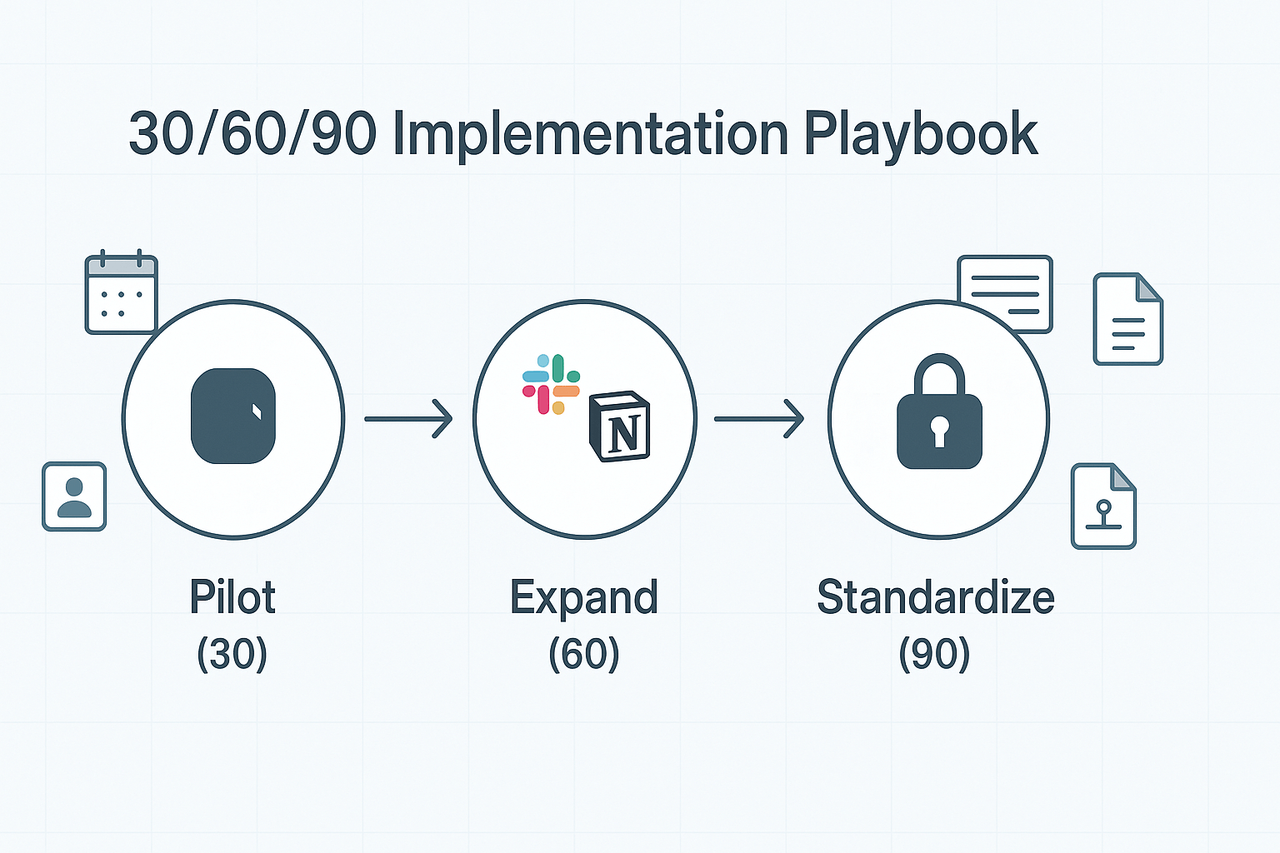
📅 30/60/90-Day Pilot Plan
Days 1–30: Pilot
- Select 2–3 teams to test
- Capture meetings & validate transcripts
- Build 1 reusable meeting template
- Metrics: time saved, clarity of follow-ups
Days 31–60: Expand
- Add integrations: Slack, Notion
- Train team champions
- Test cross-meeting Q&A workflows
Days 61–90: Standardize
- Lock down templates and conventions
- Automate exports into CRMs, task tools
- Finalize compliance and policy settings
Run short feedback surveys after each phase.
📈 Adoption Tips
- Appoint a team champion to lead setup and share lessons.
- Use one-click invites and demo videos to ease onboarding.
- Highlight quick wins – saved prep time, clear task follow-ups.
- Celebrate early adopters to build momentum.
Templates to Reuse
Meeting Invite Template
"Let’s sync for 30 minutes. I’ll record and send you a summary and transcript after."
Follow-Up Note
"Thanks all – here’s the summary and action list: [link]. Please confirm your items."
Assigned Task (in comment format)
Owner: @name | Task: Deliverable | Due: YYYY-MM-DD | Reference: [Transcript link]Mention TicNote Cloud during demos of searchable transcripts and mind map exports.
Start Your TicNote Cloud Trial
Privacy and security are top buying criteria when evaluating productivity with AI meeting assistants. Start with a simple fact: user data is private by default, and the vendor does not use customer content to train public models. The platform stores meeting audio, transcripts, and notes in a U.S. cloud, and it applies industry standard encryption and admin controls to limit access.
Data handling and encryption
The service encrypts data in transit and at rest, and uses strong key management to protect recordings and transcripts. GDPR calls out pseudonymisation and encryption as appropriate technical measures, as stated in Article 32 GDPR – Security of processing. That means you should expect TLS for transport, AES‑256 or equivalent for storage, and clear policies for cryptographic keys and backups. Look for retention controls, export and deletion APIs, and logging for all access events.
Enterprise controls and compliance options
Enterprises need single sign-on (SSO) and enterprise policy controls. The platform supports SSO and role based access, admin dashboards for user provisioning, SCIM where needed, and options to disable any auto‑sharing or bot recording in policy‑sensitive environments. It also offers configurable retention, audit logs, exportable archives, and contractual commitments on data use. For regulated buyers ask about third-party attestations and whether the vendor will sign a data processing agreement that reflects your needs.
Exact security review questions to ask procurement and legal
- Do you use customer content to train AI models, ever? If yes, under what terms?
- Where is customer data stored and can we choose a region?
- What encryption is used in transit and at rest? Who controls keys?
- Do you support SSO, SCIM, and role-based access controls?
- Can we export or fully delete our audio, transcripts, and notes on demand?
- What logging and audit trails do you provide and for how long?
- What retention defaults and custom retention policies exist?
- Do you offer on‑premises, private cloud, or isolated tenancy options?
- What third-party audits or certifications do you hold?
- What is your incident response plan and breach notification timeline?
- Will you sign our security addendum and data processing agreement?
- How do you handle recordings in no‑bot or client‑restricted meetings?
These questions let legal and procurement validate claims against standards and policies.
Real user cases + quick wins
These three short case studies show how Productivity with AI Meeting Assistants drives measurable results for meeting-heavy teams. Teams captured meetings with TicNote Cloud and turned conversations into searchable, chat-ready knowledge. Each case lists outcomes, a direct quote, and a quick-win playbook you can copy. Embedded demo audio, video, and transcript samples are noted for verification.
Product manager: faster decisions and follow-ups
The PM team cut follow-up time by about 40 percent. They used live transcription to flag decisions during meetings and auto-generate action lists. "We shipped faster because nothing fell through the cracks," said the lead PM. Quick-win playbook:
- Record planning and sprint meetings.
- Use topic-aware summaries to extract decisions.
- Send the AI summary as the task list within 24 hours. See the embedded demo audio and transcript samples for proof.
Sales lead: fewer missed actions, faster pipeline updates
Sales reps reduced missed follow-ups by nearly half. The reps clipped call highlights and shared AI summaries with account notes. "Pipeline hygiene improved overnight," the sales lead reported. Quick-win playbook:
- Record discovery calls and tag potential actions.
- Push AI-generated bullets to CRM notes.
- Run a weekly Shadow chat to surface stalled deals. Embedded call recordings and transcripts back these results.
Research team: easier cross-team research and reuse
Researchers trimmed prep time for briefings by 30 percent. They built a searchable workspace and used cross-file Q&A to pull past findings. "We stopped repeating the same experiments," said the research manager. Quick-win playbook:
- Upload past interviews and papers.
- Use cross-meeting search to collect references.
- Generate a short research brief from combined notes. See the demo videos and transcript samples for verification.


