Extension
TL;DR, What this guide covers and the quick answer to 'remote meeting meaning'
A remote meeting is any team discussion where participants join from different locations over the internet. For managers, remote meeting meaning is simple: coordinate people, decisions, and actions remotely.
Five quick actions for effective remote meetings:
- Set a clear goal and share an agenda in advance.
- Limit attendees to decision makers and essential contributors.
- Timebox each item and state expected outcomes.
- Assign roles: facilitator, timekeeper, note taker, action owner.
- Capture decisions and send a concise summary with next steps.
An AI note tool can auto-transcribe conversations, surface decisions, and generate follow-up summaries you can share instantly.
Remote meeting meaning is simple: it’s any meeting where one or more participants join from a different place than others. That place could be another office, another city, or another time zone. Remote meetings replace in-person gatherings with online tools, recorded updates, or mixed formats so teams can coordinate without being co-located.
Synchronous meetings: live, real-time collaboration
Synchronous meetings happen with everyone present at the same time. They suit quick decisions, brainstorming, and complex conversations that need real-time back and forth. Common formats:
- Video standups or sprint planning on Zoom or Teams
- Live demos and sales calls with screen share
- All-hands town halls with Q&A
Synchronous pros: faster alignment and richer conversation. Cons: scheduling across time zones and Zoom fatigue.
Asynchronous meetings: work that does not happen live
Asynchronous means participants contribute on their own schedule, not live. Use this when you need thoughtful input, recordings, or threaded updates. Examples:
- Recorded walkthroughs with transcript and comments
- Shared agenda documents with threaded replies
- Voice notes or Loom-style demos plus a written summary
Asynchronous pros: flexible timing, fewer interruptions. Cons: slower feedback loop and harder to read tone.
Hybrid meetings: blend live and async to fit the team
Hybrid meetings mix live attendees with remote contributors, or pair a short live session with follow-up async work. Try hybrid when some topics need debate and others only need updates. Examples:
- A 30-minute live sync, then async task updates in a project space
- Live panel plus recorded Q&A and a searchable transcript
- Office-based workshop with remote participants joining via collaborative docs
Pick the format that matches your goal: decide faster with synchronous, gather deliberate input with asynchronous, or combine both for complex projects. Use meeting type plus clear rules to reduce confusion and boost results.
Why remote meetings matter, benefits and common pitfalls
Remote meetings matter because they let teams work together across distance and time. If you’re searching for remote meeting meaning, think of meetings where people connect without sharing the same room. They cut travel, widen hiring pools, and let teams sync more often. But they also change how managers design agendas and run follow ups.
Key benefits
- Wider reach and inclusion. Remote meetings let people join from anywhere, so you can hire globally and include subject matter experts without travel.
- Lower cost and faster scheduling. No commuting or rooms to book, so meetings can start sooner and cost less.
- Better use of async work. When paired with recorded notes or transcripts, some updates move off meetings and into brief async posts.
- Easier documentation. Recording and AI notes make it simple to capture decisions and action items for future reference.
Common pitfalls and how to avoid them
Remote meetings can undermine productivity if you don’t design them. According to Harvard Business School study (2020), the average workday increased by 8.2 percent, or 48.5 minutes, during the early weeks of the COVID-19 pandemic, with employees also participating in more meetings. That shows how easy it is to overload calendars.
- Engagement loss: People multitask or zone out. Fix it with short agendas, directed prompts, and roles like timekeeper and note taker.
- Technical friction: Bad audio or lag kills flow. Test setups, share backup dial-in options, and post recordings for anyone who missed audio.
- Time zone stress: Meetings at odd hours burn goodwill. Rotate meeting times and favor asynchronous updates when decisions don’t need real time.
- Poor follow up: Actions vanish after the call. Capture tasks in shared notes and assign owners with due dates.
Weigh these trade offs when you decide to meet live. Good design keeps the gains while cutting the costs and annoyance.
Decide by outcome, not habit. Start by asking if your meeting needs live interaction, hands-on collaboration, or only information transfer. That is the core of the remote meeting meaning: whether people must be present at the same time to move work forward.
Quick rules of thumb
Use synchronous meetings when you need real-time discussion, rapid alignment, or emotional nuance. Use asynchronous formats for status updates, recorded briefings, or when people are across time zones. Pick hybrid when some decisions require live input, but many participants can watch or contribute later.
Decision matrix: match goal to format
| Meeting goal | Best format | Why | Fast rule of thumb |
| Time-sensitive decision or crisis | Synchronous | Real-time back-and-forth is vital | Book a short live call, limit to decision makers |
| Deep design or whiteboard work | Synchronous or hybrid | Live collaboration speeds iteration | Use shared visual tools, keep sessions focused |
| Routine status updates | Asynchronous | Saves time, keeps records | Share a short recorded update or written thread |
| Knowledge handoff or training | Asynchronous with Q&A | People can replay and learn at their pace | Add captions, a short quiz, and a follow-up thread |
| Cross-timezone project kickoff | Hybrid | Mix live overlap with async prep | Record the kickoff and collect async feedback |
| Sensitive conversations | Synchronous | Tone and trust matter in real time | Prefer video with clear privacy rules |
Use this matrix as a repeatable rulebook. Label meeting invites with the format and the expected response, for example "Async: read + comment by Friday." That makes choices consistent across teams.
Tools matter. For async updates, capture audio or transcript so people can scan later. Tools like TicNote Cloud help with live transcription, AI summaries, and searchable notes, making async work as clear as live talk.
Remote meeting tips and best practices (actionable checklist)
Start with one clear goal, then design the meeting to meet it. In this playbook we unpack the remote meeting meaning and give short, actionable steps to take before, during, and after any virtual session. Use these steps to cut wasted time, surface decisions, and ship outcomes instead of meeting notes that linger.
Before: set the stage and protect time
Good preparation lets you run a focused meeting. Share a one‑sentence objective and a timed agenda at least 24 hours ahead. Assign roles: owner, facilitator, timekeeper, and note taker. Attach prework and a clear decision rule, for example majority or triage. Do a short tech check with presenters and confirm recordings or transcription will run.
- Publish objective and agenda 24+ hours before.
- Assign roles and decision rule.
- Share prework and required assets.
- Run a 5‑minute host tech check for audio, video, and screen share.
- Note accessibility needs up front (captions, language, breaks).
During: facilitate for clarity and outcomes
Run the meeting to produce decisions and tasks, not just talk. Start on time and read the objective aloud. Keep each agenda item time boxed and call for a single decision or next step at the end of the item. Use a visible task tracker or shared doc so everyone sees actions and owners. If note taking distracts the leader, have the note taker use live transcription or a tool that captures outcomes.
- Start with a quick roll call and accessibility check.
- Use a timer and call on people by name for input.
- Capture decisions and actions verbatim, with owner and due date.
- Pause for synthesis: confirm the next steps and who owns them.
- If side issues appear, add them to a backlog or schedule a follow up.
After: close the loop fast
Follow up within 24 hours so momentum stays alive. Send a short summary with decisions, action items, and links to the recording or transcript. Convert actions into calendar tasks and assign owners in your task tool. Ask for a quick meeting rating, one to three stars, to improve next time.
- Publish a 3‑bullet summary and action list within 24 hours.
- Attach transcript or recording and highlight timestamps for key decisions.
- Convert actions into tasks and confirm assignees.
- Request a one‑question meeting scorecard reply.
Accessibility and inclusion checklist
Make meetings usable for everyone by default. Offer live captions or a transcript, share slides ahead, and allow multiple ways to speak. Use plain language, avoid jargon, and give extra time for nonnative speakers. If you record, note any privacy limits and respect opt outs.
Quick tip: tools like TicNote Cloud can auto‑transcribe and generate short summaries to speed post‑meeting follow up. Use that to keep outcomes clear and searchable.

Tools, setup & accessibility: what to include in your stack (includes TicNote Cloud)
Start with needs, then pick tools that solve them. Understanding remote meeting meaning helps you decide what to buy and configure. This section lists hardware, network checks, and software, and shows where TicNote Cloud fits. Aim for reliability, accessibility, and searchable outputs.
Hardware and network basics
Choose a clear mic and a webcam that handles low light. Use a wired Ethernet connection when possible. Run a simple speed and packet-loss check before big meetings. Keep a backup device and a pair of headphones nearby.
Core software categories and why each matters
- Video platform: for face time and screen sharing. Pick one with stable recording.
- Chat and collaboration: for quick links and live chat threads.
- Transcription and notes: to capture decisions and action items.
- Accessibility tools: captions, keyboard navigation, and transcripts for users who need them.
Map needs to tools (quick reference)
- Capture full audio: use a reliable recording or device capture tool.
- Live captions and transcripts: use a live transcription service or platform plugin.
- Searchable meeting knowledge: use a notes workspace that indexes transcripts.
- Multilingual teams: add AI translation for transcripts and summaries.
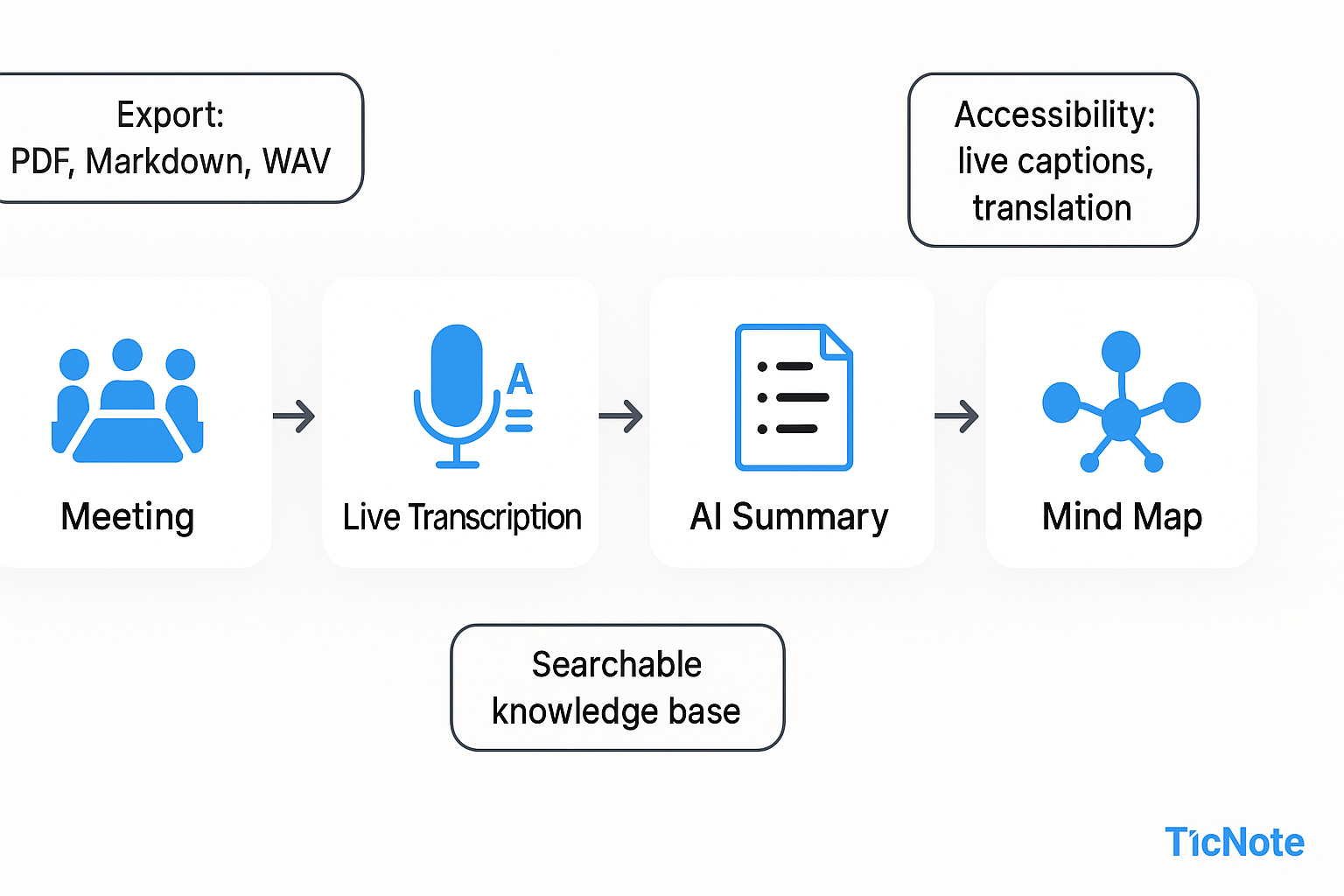
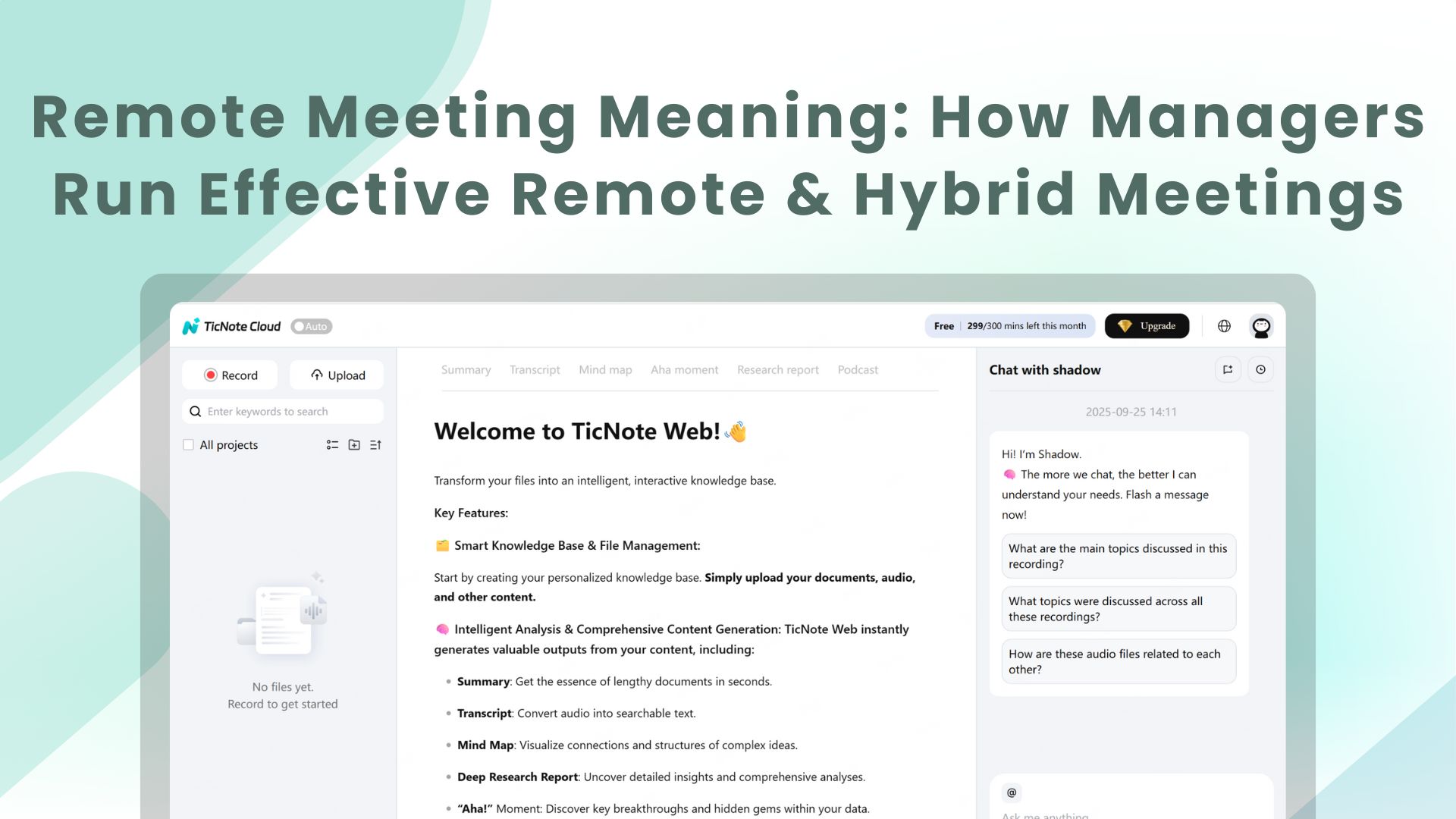
TicNote Cloud fits in transcription, summarization, and knowledge. Use it for live transcription, AI summaries, and AI translation. Export mind maps and summaries to reduce manual note work. TicNote’s searchable notes turn recordings into a reusable second brain.
Accessibility checklist
Provide captions for live audio content in synchronized media, as described by Web Content Accessibility Guidelines (WCAG) 2.1. Offer downloadable transcripts after each meeting. Ensure meeting platforms support keyboard navigation and screen readers. Label shared documents clearly and use descriptive link text.
Setup and routine checks before every meeting
Run a 2-minute audio check and confirm captions are active. Share an agenda and templates in advance, and state expected outcomes. Assign a note taker or enable an AI note tool to capture actions. Test recording and export settings at least weekly.
Practical stack example: a paid video platform, Slack or Teams for chat, TicNote Cloud for transcription and AI summaries, and a cloud drive for recorded files. This combo reduces rework, makes notes searchable, and improves inclusion.
Advanced troubleshooting & contingency plans for live meetings
When tech fails during a remote meeting, understanding the remote meeting meaning helps frame the fix: it's any session where participants join from different locations. Managers need a short, action-first moderator playbook so meetings keep moving when audio drops, video lags, or people drop off.
Quick checks to run in the first 60 seconds
- Ask everyone to mute except the speaker, then unmute the speaker only. This often fixes audio noise.
- Confirm the speaker can hear and be heard: ask for a one-word response.
- Switch to audio-only if video stutters, then test a quick screen share.
- If multiple people report problems, switch platforms or use a dial-in number.
Role-based contingency steps (who does what)
- Moderator: Pause the agenda, call the fallback, and assign a backup speaker.
- Tech lead: Try a restart, move the meeting to phone dial-in, or enable cloud recording.
- Note taker: Start local recording or take live notes in a shared doc.
- Timekeeper: Adjust the schedule and log any agenda items that need a separate follow-up.
Fallback tech and communication options
- Dial-in numbers or PSTN access, saved in the calendar invite.
- Persistent chat channel (Slack or Teams) for links, short updates, and quick polls.
- Automatic recording to the cloud and automatic upload, so nothing is lost if someone reconnects late.
- Local audio recording as a last resort, to be uploaded after the call.
If the presenter or host drops
- Move the next agenda item forward.
- Promote a backup presenter or have the note taker read key slides.
- If content requires the original presenter, pause and set a 10-minute reconvene window.
Post-meeting recovery and accountability
- Confirm the recording and transcript are available, then share a one-paragraph summary and action list.
- Mark decisions and owners in the shared notes and assign follow-ups with due dates.
- Use AI tools to generate a quick summary and a mind map from the recording to close information gaps; this speeds recovery and reduces rework.
Practical backups keep momentum and trust high when things go wrong. Train your team on the playbook, rehearse the fallbacks, and document who owns each step so meetings stay productive under stress.
Understanding meeting health links your meeting work to team outcomes. When managers track outcomes, they stop guessing which meetings matter. This section shows clear KPIs, a reusable scorecard, and a follow-up email template you can copy.
According to Microsoft Community Hub (2023), research shows that 70% of meetings conducted in the workplace can keep employees from doing productive work. That cost is real, and metrics help you find waste and improve return on time invested.
KPIs to track and how to measure them
- Attendance rate: attendees present divided by invited, per meeting. Aim for 85% or higher for core team meetings.
- Decision rate: number of concrete decisions made per meeting. Track decisions as countable, logged entries in your notes or TicNote Cloud.
- Action item completion: percent of assigned tasks closed within agreed time. Use a task tracker or TicNote Cloud’s AI summaries to tag action items.
- Time to decision: average days from discussion to final decision. Shorter is better; flag items over your SLA (example 7 days).
- Meeting length variance: compare scheduled time to actual time. High variance signals poor scope or agenda issues.
- Preparation score: share a 1 to 5 pre-meeting readiness poll, average it, and track trends.
Sample meeting scorecard (one-line snapshot)
- Meeting name: Weekly Product Sync
- Date range: Last 30 days
- Meetings held: 4
- Average attendance: 88%
- Decision rate: 6 decisions / 4 meetings = 1.5 per meeting
- Action completion: 82% closed within SLA
- Avg time to decision: 3.5 days
- Prep score: 4.2/5
Use this scorecard monthly. Store results in a shared folder or in TicNote Cloud so you can trend across projects and spot repeat issues.
Follow-up email template you can reuse
Hi [Team],
Thanks for joining [Meeting Name] on [Date]. Key decisions and next steps are below.
Decisions:
- [Decision 1]
- [Decision 2]
Action items:
- [Owner] will [task] — due [date]
- [Owner] will [task] — due [date]
If anything is missing, reply here within 24 hours. I’ll update the notes and move open items to our tracker.
Best, [Your name]
Run a short monthly review: compare scorecards, highlight one fixable pattern, assign an owner, and measure impact next month. Small, consistent improvements raise meeting ROI and free time for focused work.
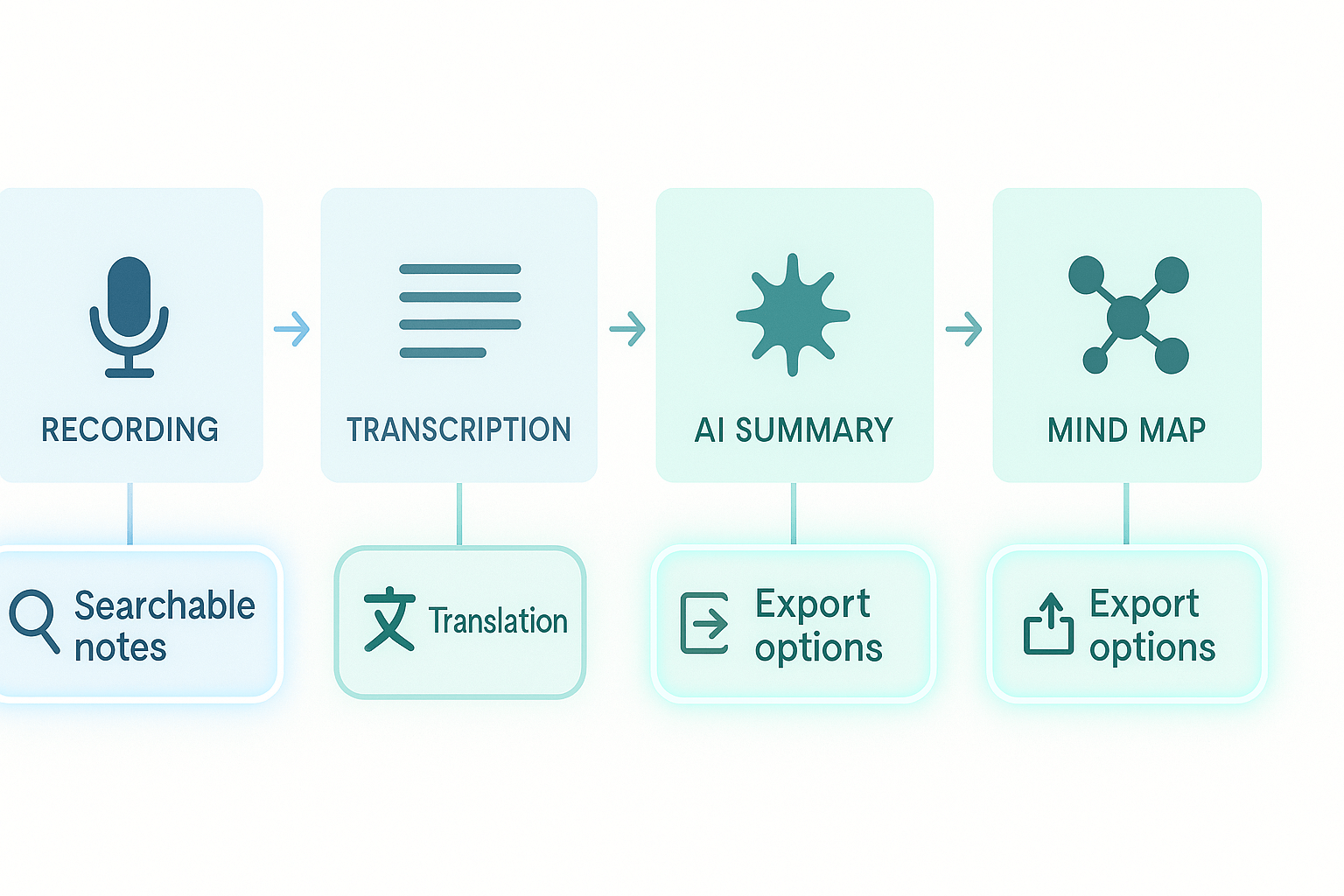
Start with a clear flow and you’ll see how TicNote Cloud fits into the remote meeting meaning managers care about: it captures, structures, and turns meeting talk into reusable work. This short walkthrough shows a before, during, and after meeting flow, with templates, live transcription, AI summaries, and exports you can embed in your team process.
Before: prep faster with agenda templates
- Create a focused agenda using a TicNote template. Keep goals, timeboxes, and expected decisions at the top.
- Attach pre-reads to the meeting note (documents, links, or a short transcript). This helps busy stakeholders prepare.
- Add a role list: owner, note taker, timekeeper, and decision owner. Assign action-item tags ahead of time.
Benefits: clearer expectations, fewer side conversations, faster decision-making.
During: capture conversation, not just words
- Enable live transcription and topic-aware notes in TicNote Cloud. The transcript runs in real time and highlights speakers and timestamps.
- Use the AI note structure to auto-classify decisions, risks, and action items. That keeps notes scannable.
- If someone can’t join, enable live translation or post the transcript for asynchronous review.
Quick tip: ask the team to call out decisions aloud. The AI tags them reliably when you use short, explicit language.
After: summarise, visualise, and assign
- Run an AI summary to produce a one-paragraph outcome and a bullet action list.
- Auto-generate a mind map to show problem areas and next steps visually.
- Export the summary to PDF or Markdown and push action items to your task tool or Slack.
Lists to share: meeting summary, action owners with due dates, and the mind map image.
Case study: a meeting-heavy PM team
A product team used TicNote Cloud to replace manual notes. They used a standard agenda template, turned on live transcription, and ran AI summaries after each planning sprint. The result: less time spent writing notes, faster handoffs, and a searchable project space that held decisions and research. One lead said, “We stopped losing actions in threads.”
Try TicNote Cloud for Free to generate your first AI summary in minutes.