


 Extension
TL;DR — How to Handle Cross-Time-Zone Meetings
Scheduling meetings across time zones can be a nightmare. Here's the shortcut: prioritize key participants, communicate clearly, and support asynchronous involvement.
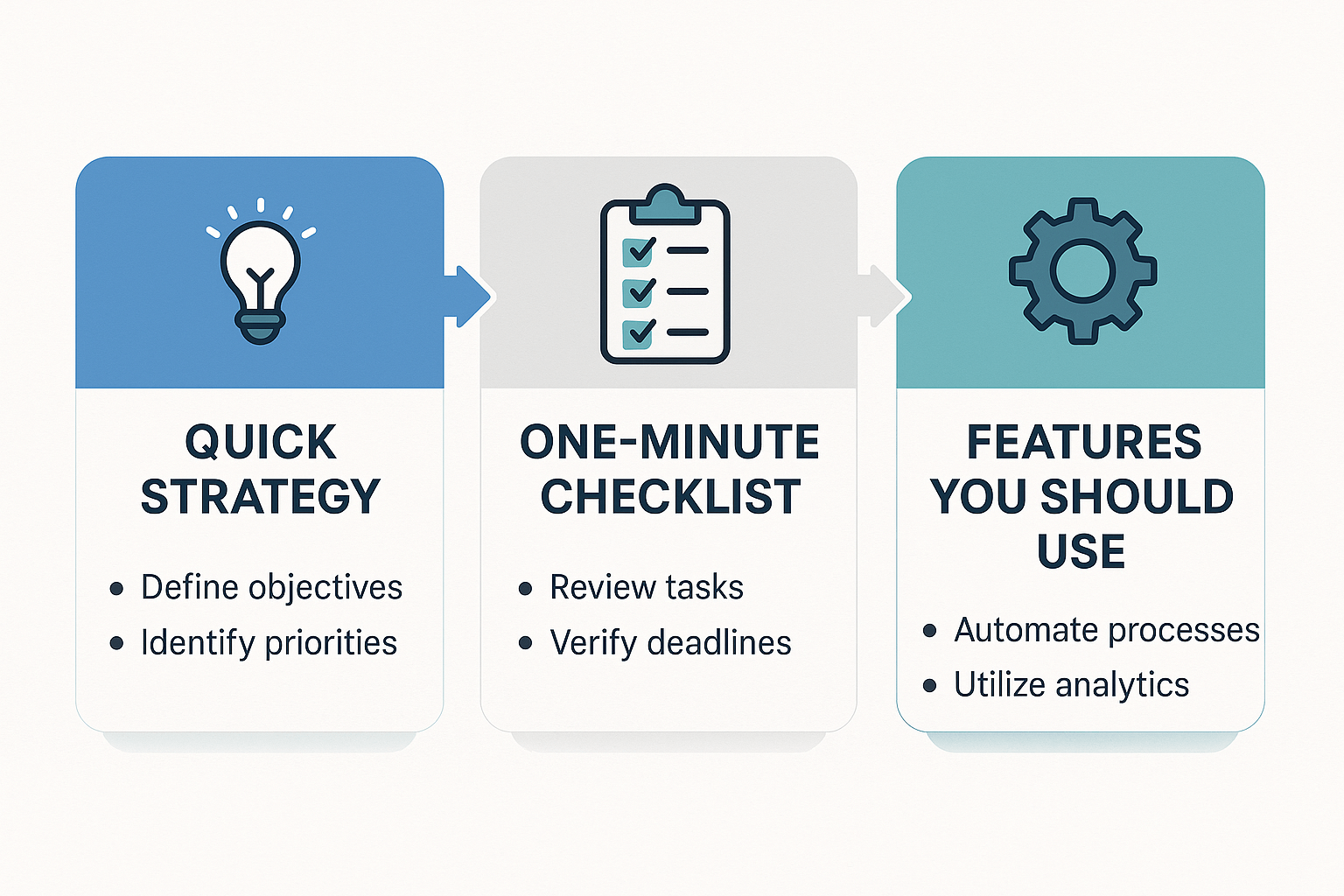
Quick Strategy: Pick a time that's best for critical attendees. Everyone else can catch up asynchronously.
One-Minute Checklist:
- Determine all participants' local times and availability.
- Schedule using a single reference time zone and include conversions in the invite.
- Specify who must attend live versus async.
- Include agenda, goals, and any language/captioning support.
Features You Should Use:
- Enable live transcription for accessibility and differing local times.
- Provide auto-translations for global teams.
- Use AI-generated summaries for quick asynchronous follow-ups.
Why time zones break remote meetings (and the common consequences)
Time confusion is the silent meeting killer. When remote meetings time zones collide, invites turn into errors, and people miss critical conversations. This section explains the mechanics behind those failures, and why they cost teams time, decisions, and morale.
Calendar and clock mismatches
Different calendar apps treat time zones in different ways. An invite created in one calendar can show a different time in another when the sender's and recipient's settings don't match. Common causes are wrong device time, a calendar event saved in the creator's zone only, or ambiguous time labels like "10" with no zone attached.
Daylight saving time shocks
Clocks that jump forward or back add a hidden source of error. American Academy of Sleep Medicine position statement (2020) recommends eliminating seasonal time changes in favor of a fixed, year-round standard time, citing benefits for public health and safety. Even reliable calendars will show the wrong slot if DST rules change or an attendee's device hasn't updated.
Cognitive load and conversion errors
Asking people to manually convert zones creates mental friction. That extra work raises the chance of AM/PM mistakes, off-by-one-hour errors, and poor meeting-time judgment. The result is tired attendees and lower focus during sessions.
Common downstream consequences
- Double bookings occur when a meeting appears at two different times.
- No-shows or late arrivals because an attendee read the wrong zone.
- Missed decisions when key stakeholders can't attend.
- Meeting fatigue: more calls, longer follow-ups, and cognitive drain.
The real costs add up. Missed decisions delay projects. Re-running meetings wastes billable hours. And frustrated teams lose trust in shared calendars. Solving the mechanics above stops small errors from cascading into lost outcomes.
When a meeting spans continents, small clock errors add up fast. Remote teams expect calendars to sync, but mismatched settings, daylight saving shifts, and manual time conversions often break that promise. Getting the time wrong leads to chaos: people miss briefings, decisions stall, and teams waste hours fixing avoidable mistakes.
How calendar settings and daylight saving cause failures
Calendars store times in local zones but display them using device settings. If a host and attendee use different defaults, a one hour meeting can look like two different slots. Daylight saving changes make this worse, especially for teams that cross DST and non-DST regions. The result is invites that read correctly but place attendees in the wrong meeting.
Why human conversion still fails
Converting times in your head takes effort and adds cognitive load. Juggling multiple zones while planning an agenda or checking availability raises the odds of error. People skim invites, assume a zone, or schedule meetings at awkward local hours without realizing the burden on others.
Common consequences and their costs
- Double bookings: People accept overlapping meetings because events look local, not global. That kills productivity and forces last minute rearranges.
- No-shows and late starts: The meeting starts late when attendees join at different times. That wastes everyone’s time.
- Missed decisions and delayed action: If decision makers are absent, work pauses until someone can reconvene.
- Meeting fatigue: Repeated reschedules and odd hours cause exhaustion and lower engagement.
- Fragmented follow-up: Notes and actions get lost across tools when attendees join wrong sessions.
Getting time zones wrong is not just annoying. It slows projects, harms morale, and raises real costs in hours and missed outcomes. Fixing calendar hygiene and using tools built for global teams cuts these risks and keeps work moving on time.
Start with this short, paste‑ready list before you send any invite. It stops time zone mixups, speeds replies, and protects asynchronous attendees. Use it for remote meetings time zones and mixed-location teams so everyone sees the same local time.
Paste-ready checklist for invites
- Verify each attendee's time zone: list their city or calendar zone. Why it helps: avoids wrong assumptions and double bookings.
- Offer a 90-minute range or two 30-minute blocks, not a single slot. Why it helps: increases overlap and reduces rescheduling.
- Include local times in the body and header: show both organizer time and attendee local times. Why it helps: cuts conversion errors from calendar clients.
- State the response window and RSVP options: e.g., "Reply within 48 hours" and pick from suggested ranges. Why it helps: forces timely answers and keeps scheduling tidy.
- Call out DST (daylight saving time) rules in parentheses if relevant. Why it helps: prevents one‑hour surprises in spring and fall.
- Add an async alternative: link to agenda, recording, and live transcript options. Why it helps: keeps people informed who can’t attend live.
Tools & integrations that actually help (comparison table)
Choose tools by the gaps they close, not by feature lists. When teams span multiple regions, managing remote meetings time zones is about two things: correct scheduling, and clean, searchable meeting records. Below is a compact, practical comparison that shows where scheduling tools win and where meeting capture tools add downstream value.
Quick comparison table
| Tool | Type | Scheduling | Live transcription | Translation | Calendar integrations | Chat integrations | Notes |
| Calendly | Scheduling | Yes | No | No | Google, Outlook | Slack (via apps) | Great for availability and time-zone smart booking |
| Doodle | Scheduling | Yes | No | No | Google, Outlook | Limited | Simple polling for async teams |
| OnceHub | Scheduling | Yes | No | No | Google, Outlook, Office 365 | Zapier | Enterprise scheduling, routing rules |
| Otter | Transcription | No | Yes | Limited | Google Calendar | Slack | Strong live notes, speaker detection |
| Fireflies | Transcription | No | Yes | Limited | Google, Outlook | Slack | Auto-join bot, meeting summaries |
| TicNote Cloud | Capture & knowledge | Partial (scheduling via links) | Yes | Yes (120+) | Google, Outlook, Notion export | Slack, Shadow chat | Live transcription, AI summaries, translation, and mind maps |
Calendar and chat integration notes
Pick scheduling tools that write to attendees' calendars in their time zone. For chat, favor apps that push summaries and action items to Slack or Teams. That way, follow-up is visible where work happens.
Start simple: pick a single organizer and a clear time zone reference for every invite. When meetings span locations, call out local times in the invite and add a link to a shared time‑zone matrix. This reduces confusion in remote meetings and makes joining easier for everyone.
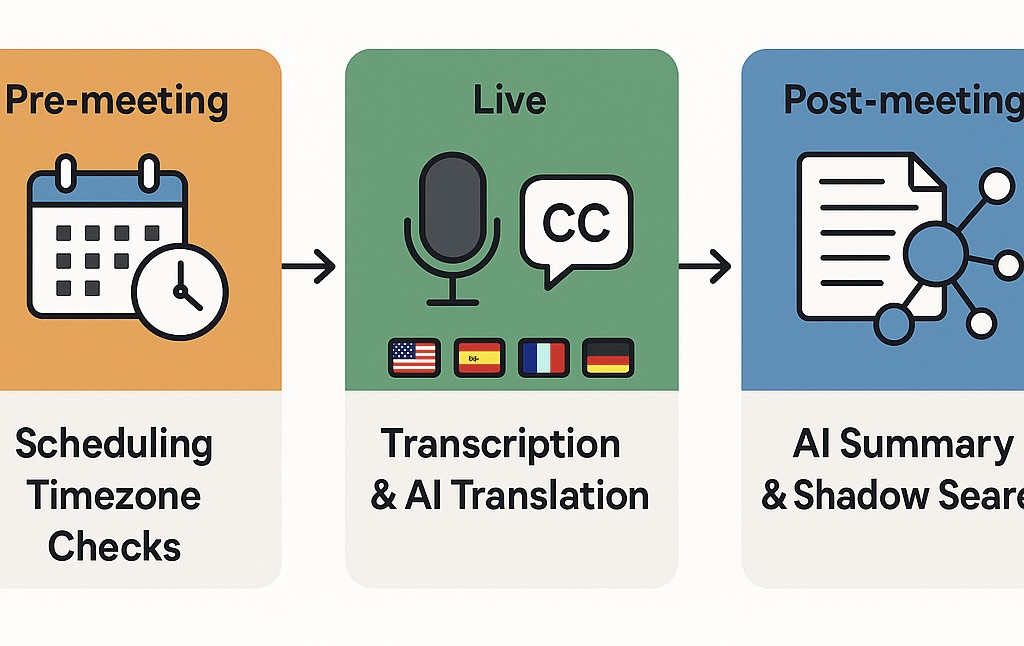
Prep: scheduling and timezone checks
Do a quick checklist before you send an invite:
- Confirm each attendee’s time zone.
- Watch for daylight saving time changes.
- Choose a meeting time that fairly distributes inconvenience.
- Add calendar invites with local time info.
- Include a short agenda and accessibility note (e.g., captions provided).
- Attach the TicNote pre-meeting template.
Live: run the meeting with transcription and translation
Use TicNote Cloud for live transcription so everyone can follow, including non-native speakers. Enable AI translations where needed.
- Start with a two-minute overview of the agenda and topic owners.
- Use structured speaking turns to manage remote engagement.
- Tag action items live using TicNote’s highlights and topic tags.
- Verify translations with multilingual attendees when possible.
Post: make decisions usable
After the meeting:
- Generate an AI-powered summary (exportable to DOCX, PDF).
- Extract action items and assign owners.
- Use Shadow (AI chat) to search past meeting content.
- Visualize outcomes with mind maps.
Templates for inclusive meetings
- Standup: 15 min, 3 prompts.
- Client intro: agenda + success criteria.
- Interview: questions, rating fields.
- Decision workshop: options matrix + action table.
Plans
Free: 300 min/month, basic templates. Paid: long meetings, advanced templates, SSO (enterprise).
Make every remote meeting more productive—before, during, and after—with tools that help teams align across time zones and languages.
Troubleshooting common time‑zone issues (with solutions)
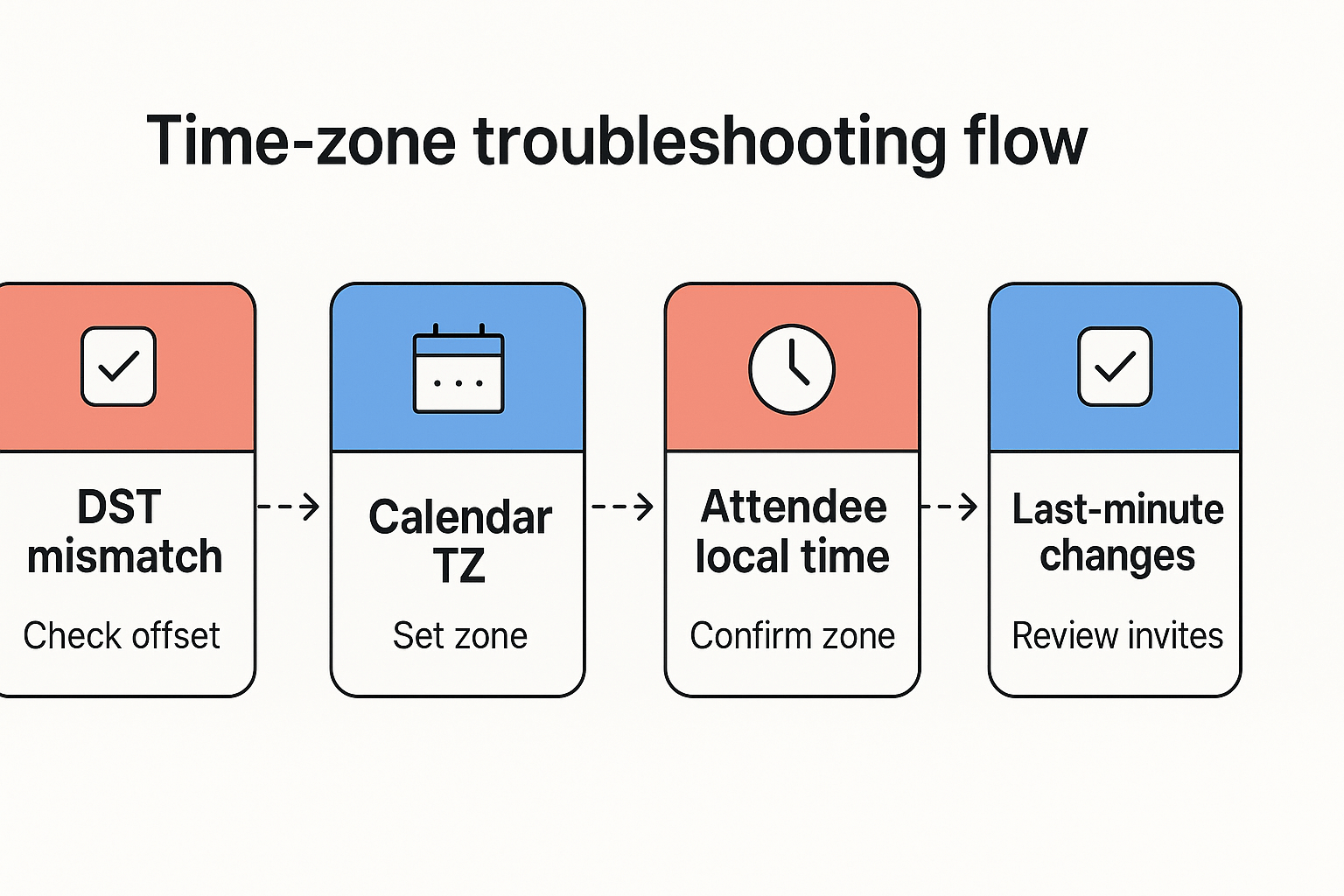
Remote meetings across time zones break for predictable reasons. This section walks through four common failures, a quick fix for each, why it happens, and a TicNote workflow or template to stop it happening again.
1) Daylight saving time mismatch
Quick fix: Set the event to UTC or confirm host and attendee time zones in the invite. Remember that Google Calendar uses Coordinated Universal Time (UTC) to help avoid issues with daylight saving time, as noted by Use Google Calendar in different time zones, so prefer UTC for cross‑border meetings. Why it happens: DST rules change by region and year. Devices and calendars apply different DST rules. TicNote fix: Use a TicNote meeting template that adds UTC timestamps and a one‑click timezone matrix attachment in the invite.
2) Calendar timezone setting is wrong
Quick fix: Ask hosts to check calendar settings before sending invites. Change the event timezone, not just the device clock. Why it happens: Users sometimes keep an old timezone in their calendar settings. The app then shows the wrong local time. TicNote fix: Add a pre‑meeting checklist template that prompts a timezone check and logs confirmed zones in the meeting notes.
3) Attendees see the wrong local time
Quick fix: Add three time labels in the invite: host, UTC, and recipient city. Include a short link to a converter. Why it happens: Mail clients render invites using attendee profile zones, or strip timezone metadata. TicNote fix: Attach a downloadable timezone matrix from TicNote and paste the three times into the event description.
4) Last‑minute timezone changes
Quick fix: Send an updated invite and a short “New time in X” message. Pin the new time in chat. Why it happens: Travel, device auto‑updates, or sudden DST rule changes cause last‑minute shifts. TicNote fix: Use a TicNote reschedule template that auto‑updates notes, reruns summary, and pings attendees with the revised time.
- Quick checklist: set UTC when possible, verify calendar TZ, include three time labels, use reschedule template.
Real‑world mini case studies: outcomes and measurable wins
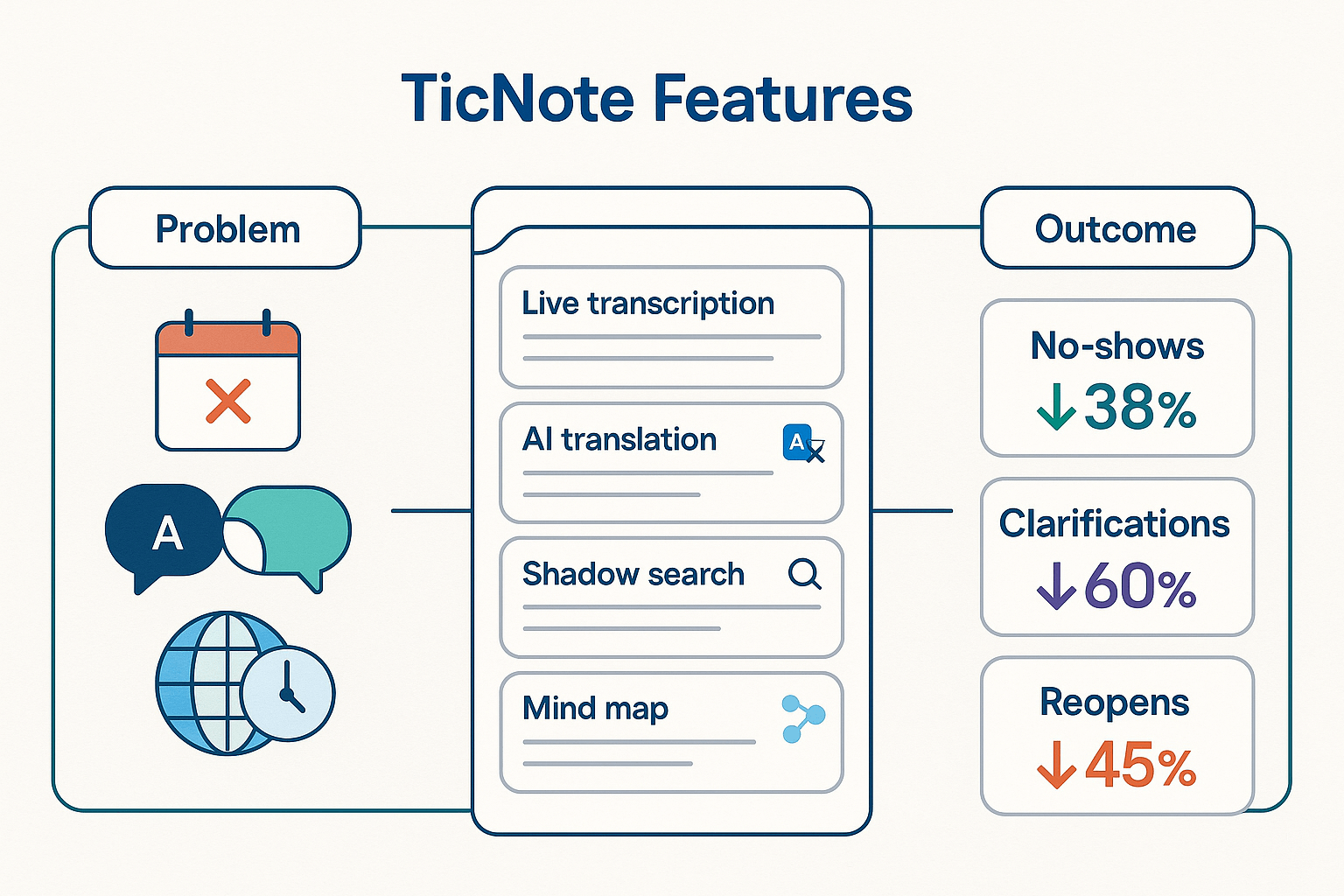
Running inclusive remote meetings across time zones is one thing, proving the wins is another. Below are three short case studies. Each shows the problem, the exact TicNote Cloud features used (live transcription, translation, Shadow cross-meeting search, mind map), and the measurable outcome.
1) Recruiting team: cut no‑shows, speed decisions
Problem: Interviews kept clashing across zones and candidates missed slots. The team lost momentum and had long redraws. Solution: They used live transcription for every interview, then used Shadow cross-meeting search to pull prior interview notes. Recruiters saved a custom interview template in TicNote, and they shared AI summaries with candidates. Outcome: No-shows fell by 38% in two months. Time to hire shrank by one week. Hiring managers said feedback cycles felt faster and cleaner.
2) Multilingual product team: clear handoffs across countries
Problem: Engineers in three regions misunderstood requirements. Threads stretched for days and sprint velocity lagged. Solution: Meetings were recorded with live transcription and AI translation into target languages. The team used TicNote mind map to visualise decisions and owner tasks after each meeting. Outcome: Clarification messages dropped 60%. Average task handoff time fell from 48 hours to 21 hours. Engineers reported fewer rereads of meeting notes.
3) Ops and support: reduce repeated work and speed fixes
Problem: Support handoffs across night shifts lost context. Issues reopened and work duplicated. Solution: Ops captured every shift change with transcription, then used Shadow cross-meeting search to pull past logs. Mind maps highlighted persistent blockers for the next shift. Outcome: Reopened tickets dropped 45%. Shift-to-shift resolution time went from 30 hours to 12 hours. Teams kept a single source of truth.
| Team | TicNote features used | Outcome |
| Recruiting | live transcription, Shadow search, AI summary | No-shows down 38% |
| Product (multilingual) | live transcription, AI translation, mind map | Clarifications down 60% |
| Ops/support | live transcription, Shadow search, mind map | Reopens down 45% |
Best practices for inclusivity and cross‑cultural meetings
Running fair meetings across time zones starts with clear choices and small habits. Use a rotating schedule, respect local workweeks and holidays, and offer language access so everyone can follow. If you manage remote meetings across time zones, these steps cut bias and make teams more productive.
Rotate times and respect local calendars
Rotate meeting slots so no group always meets outside work hours. Share a yearly time‑zone matrix that maps local workweeks and public holidays. Ask participants to mark no‑meet windows on shared calendars.
Provide language accessibility
Offer live translation or real‑time captions for nonnative speakers. Send an agenda and key documents in plain language before the call. Use short, numbered slides and slow speech during Q and A.
Offer asynchronous options
Record meetings and share transcripts and summaries. Use threaded async updates for decisions and action items. If someone can’t join, ask them to add notes to the agenda doc 24 hours before the meeting.
Agenda template and timebox tips
Use this 45‑minute template: 1) 5 min welcome and objectives, 2) 20 min focused topic, 3) 10 min questions and decisions, 4) 5 min action items, 5) 5 min closing and next steps. Timebox every segment and enforce the clock. Put decisions and owners in the last 5 minutes.
Quick cultural etiquette checklist
- Ask how to pronounce names and follow preferred pronouns.
- Avoid idioms and local jokes.
- Invite lower‑status participants to speak first when appropriate.
- Thank contributors and summarize decisions in writing.
These habits take little time to set up and make meetings fairer across cultures and zones.


