Extension
TL;DR: The fastest ways to get a TikTok transcript (and what to use it for)
Try TicNote Cloud for Free if you want to transcribe TikTok video audio fast and reuse it. Fastest options: use in-app auto captions if you own the post, upload a video or audio file for the cleanest text and exports, or paste a TikTok link for speed, but results depend on the tool.
Quick picks by goal:
- On-screen captions: use TikTok auto captions, then fix typos.
- Blog post or script: upload the file for clean paragraphs.
- Research or quoting: use a link tool, then add timestamps.
If your notes keep splitting across apps, you lose quotes and context fast. Put the transcript, summary, and translations in one place, then search it later with less effort by starting in TicNote Cloud.
Always proofread names, slang, and music-heavy clips.
How do you transcribe TikTok video content (link, upload, or in-app)?
To transcribe TikTok video content fast, start with your goal. If you only need on-screen captions, stay in TikTok. If you need clean text for reuse or research, use an upload or a link tool.
Choose your path by use case
Pick the option that matches what you'll do next:
- Captions for viewers (accessibility and watch time): Option A
- Reuse for scripts, blogs, notes, and search: Option B
- Quick pull from a public TikTok URL (no editing timeline work): Option C
Option A: Use TikTok Auto Captions (best for on-screen captions)
Use this when you're posting the video, or you can open it in the editor. TikTok can generate timed captions that sit on the video.
What you typically get:
- On-screen captions with timing tied to the video
- Editable caption text inside TikTok
Where it breaks:
- Exports are limited: captions look great in-app, but you usually can't export a clean TXT, SRT, or VTT file.
- Audio problems: heavy music, background noise, and overlapping speakers reduce accuracy.
- Duets and stitches: two audio sources can confuse timing and speaker changes.
Option B: Upload the video to a speech-to-text tool (best for clean exports)
If you need a copyable transcript, upload the TikTok video file to a transcription tool. This path is best when your next step is editing, quoting, translating, or building a searchable archive.
What you typically get:
- Readable transcript you can copy and clean up
- Often: timestamps, speaker labels, and exports like TXT, SRT, VTT
Where it breaks:
- You need the video file (or an audio extract). If you can't access the file, use Option C.
- Music and sound effects can still lower accuracy.
If you want a broader view of formats and cleanup steps, this clean transcript workflow for any video helps you pick the right method.
Option C: Transcribe a TikTok link (best when you only have a URL)
This is the fastest route when someone sends you a TikTok link and you need the words. Link-based tools pull audio from the public page and convert speech to text.
What you typically get:
- Copyable text transcript (sometimes with timestamps)
- Sometimes: quick summaries or translations, depending on the tool
Where it breaks:
- Private videos or friends-only posts usually won't work.
- Region limits or blocked embeds can prevent fetching.
- Some tools struggle with duets, multiple speakers, and loud background tracks.
What you can and can't export (quick reality check)
Here's the simple rule: TikTok is strong for captions that viewers see, but weak for true transcript exports.
- TikTok: great for on-screen captions and basic edits
- Third-party tools: better for TXT transcripts and caption files like SRT/VTT you can reuse elsewhere
Try TicNote Cloud for Free and turn TikTok audio into clean text you can reuse.
What can TikTok do natively for transcripts and captions?
TikTok can add auto captions to your video, but it can't give you a clean, reusable transcript file. Native captions are great for accessibility and quick fixes, but they're not the same as a full text export you can search, paste, or turn into SRT.
Know the terms: captions vs subtitles vs transcript
- Captions: On-screen text that includes spoken words and key sounds (like "music" or "laughs").
- Subtitles: On-screen text for spoken words, often for translation.
- Transcript: The full spoken content as plain text, usually for notes, blogs, scripts, or search.
Turn on auto captions (iPhone)
- Tap + to create a post.
- Record or upload your clip, then tap Next.
- On the edit screen, turn on Captions (sometimes under the text or accessibility options).
- Let TikTok generate captions, then tap Edit.
- Fix names, slang, and missing words, then preview the video.
Sanity check: play it once with sound on, and watch for late lines. If text lags, shorten the caption lines and re-check.
Turn on auto captions (Android)
- Tap +, then record or upload.
- Tap Next to reach the edit screen.
- Tap Captions to generate them.
- Tap Edit to correct words and timing.
Sanity check: scrub the timeline and make sure captions start when speech starts. Also check loud music spots, they often cause dropped words.
A realistic workaround for your own posts (and its limits)
If you need to transcribe TikTok video content you posted, you can copy some text from:
- Your caption (the post description), which is manual and often shortened.
- On-screen text you typed, which may not match what you said.
But auto captions are not a clean transcript. They're split into short chunks, may skip filler words, and don't keep speaker labels. You also won't get tidy formatting like paragraphs, timestamps, or a downloadable TXT or SRT from TikTok.
How to transcribe a TikTok video step by step (example workflow + exports)
These steps use TicNote Cloud as the example, but the same upload-based workflow applies to most TikTok transcript tools. The main flow below is web-first, with the app as a follow-up option when you need hands-on edits or trimming.
The goal is simple: get clean input, generate a usable transcript fast, then export formats you can actually reuse.
Step 1: Confirm you have the rights to transcribe and reuse
Before you start, check permission. This matters even if the video is public.
Use this quick checklist:
- You created the video, or you have written permission.
- You're using it for allowed purposes, like captions, study notes, or internal research.
- You won't repost the full transcript publicly if you don't own it.
If you're unsure, keep the transcript private and don't publish it.
Step 2: Get the cleanest input you can
Transcription quality starts with audio quality. If you can choose, use the cleanest source available.
Best to worst inputs:
- Original TikTok video file you own (cleanest)
- Audio-only file you created from your own recording
- Screen recording with system audio (often compressed)
If the video has loud background music, try a version with lower music volume if possible.
Step 3: Upload the TikTok video in TicNote Cloud (Web)
In TicNote Cloud Web Studio, create or open a project, then upload the TikTok video file. Projects help you keep related clips, transcripts, and exports together, especially if you analyze or repurpose content regularly.
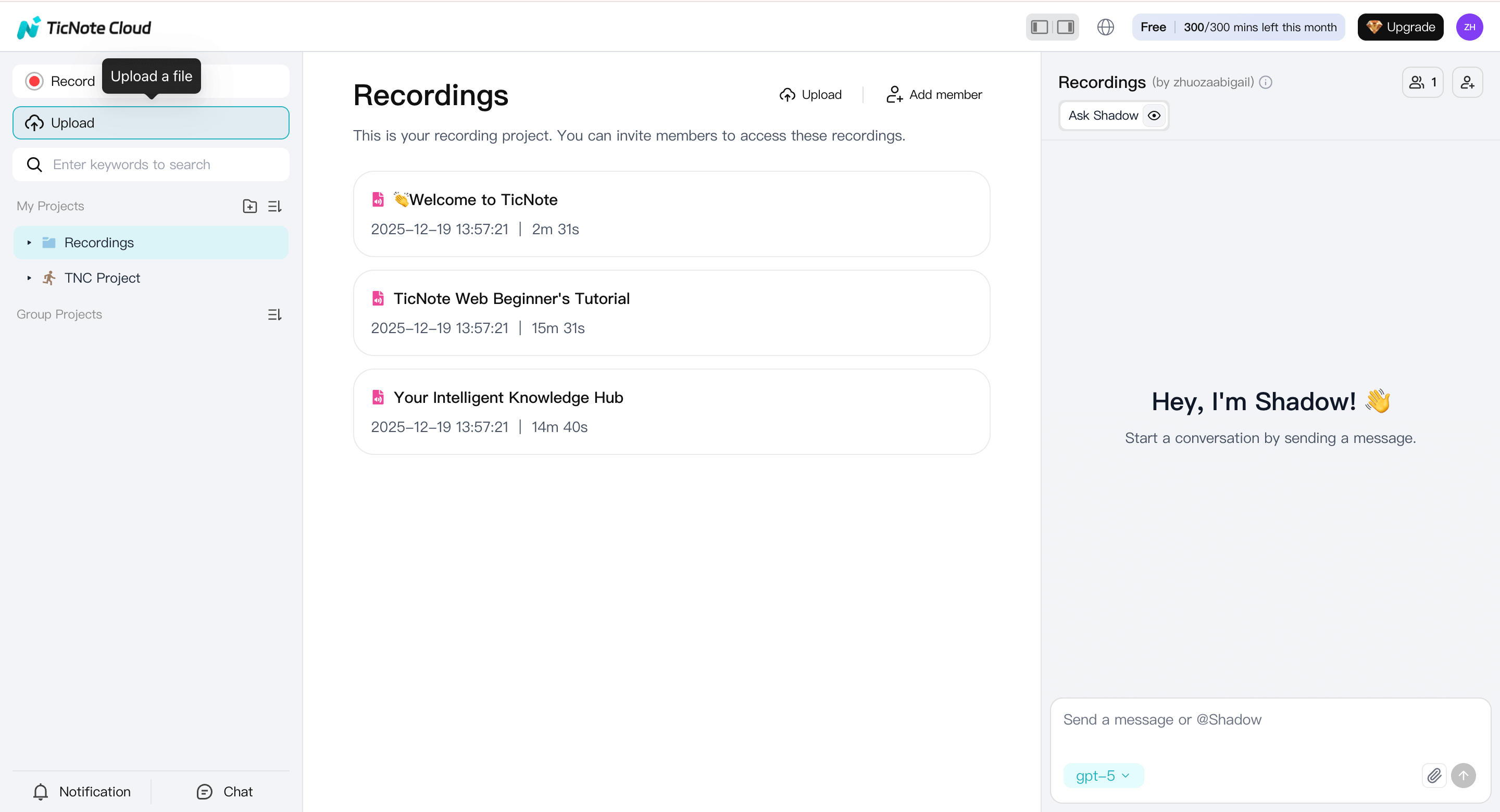
Use clear filenames like "TikTok_Hook_Test_March" so you can find the transcript later without guessing.
Step 4: Generate the transcript and set the language
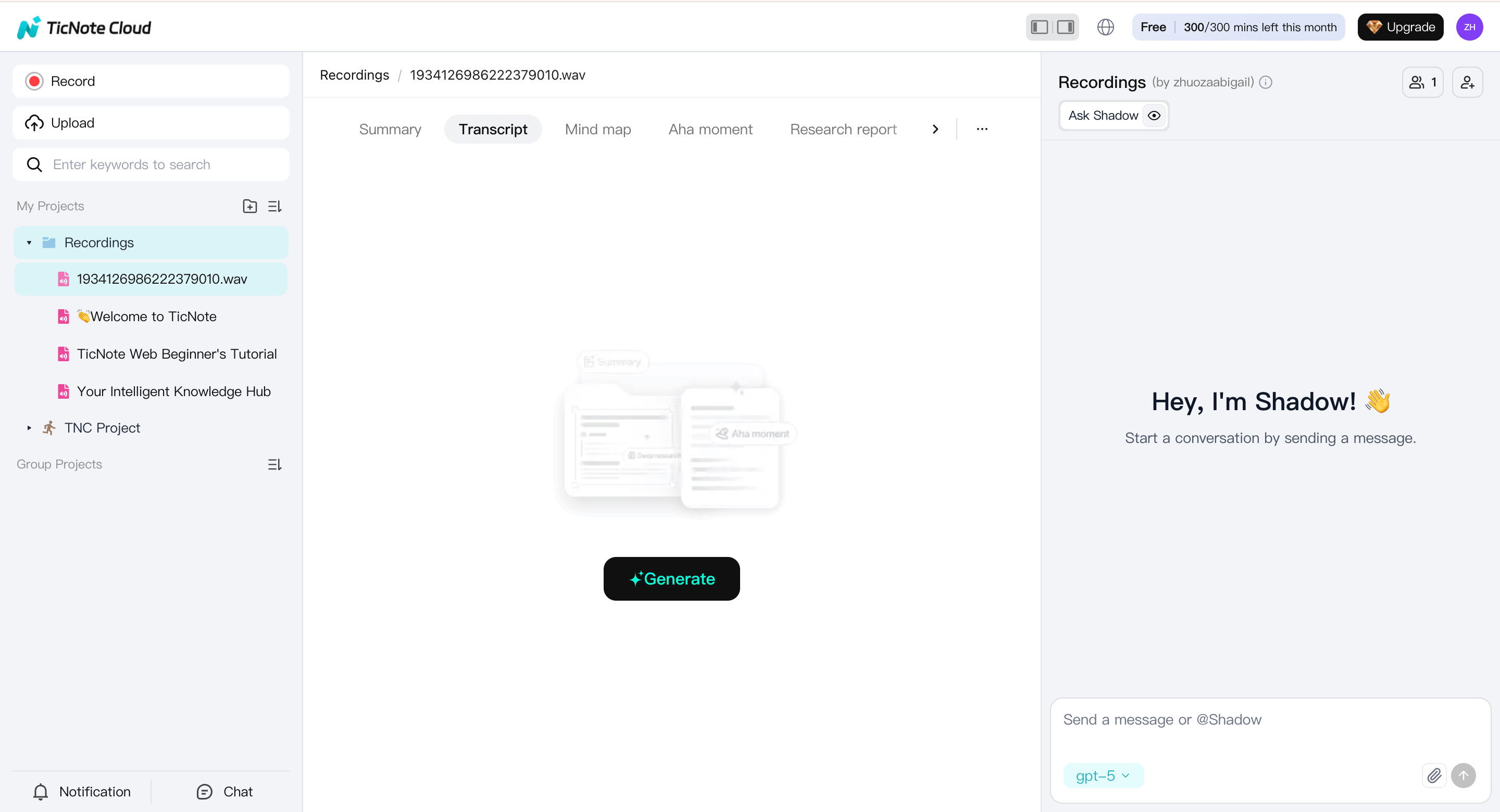
Select the uploaded video from the left panel, switch to the Transcript tab, and click Generate.
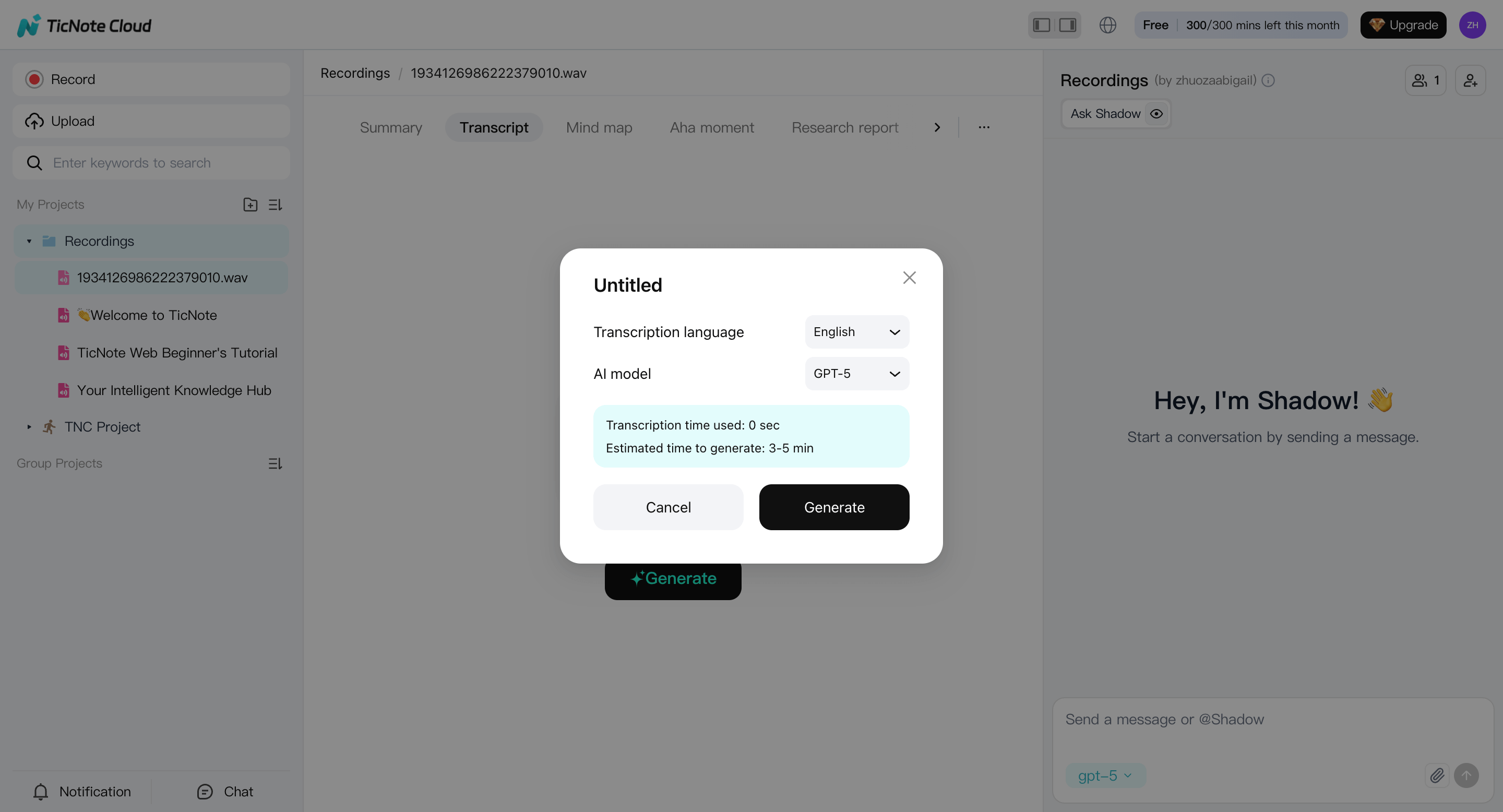
When prompted, choose the spoken language and AI model, then confirm to start transcription.
If the video switches languages or uses heavy slang, note that in the file title, so you remember during review.
Step 5: Spot-check the hard parts (web + Shadow AI)
Once the transcript is ready, review it in the web editor and focus on high-error areas first:
- Proper names (creators, brands, places)
- Slang and abbreviations
- Fast speech and interruptions
- On-screen text that changes meaning
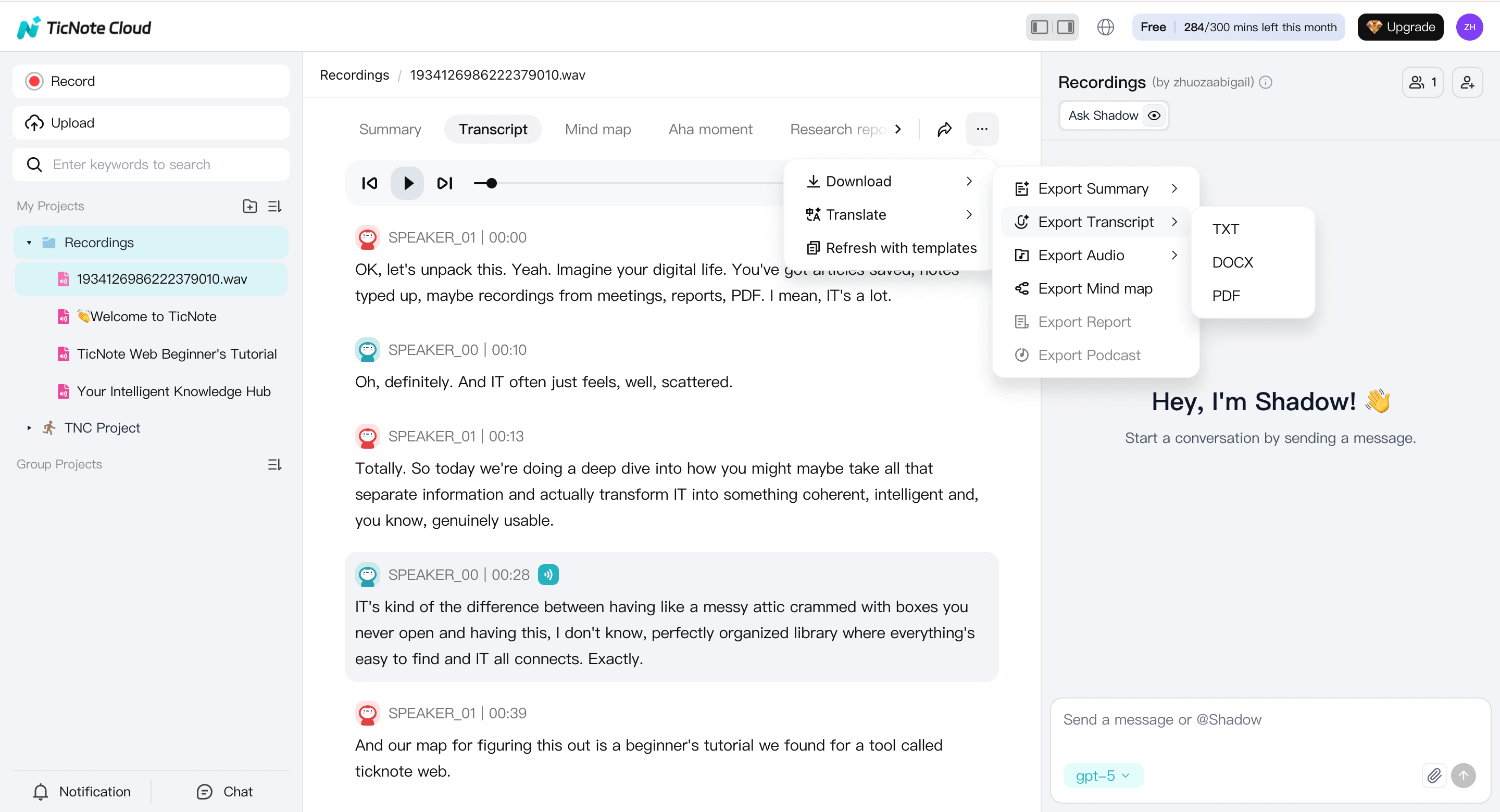
On the web, you can use Shadow AI to rewrite, clean up phrasing, or generate a clearer version of the text. Manual word-by-word editing is not available on web, so many users rely on Shadow AI here for cleanup.
Step 6: Edit for readability (App, optional but powerful)
If you want precise control, switch to the TicNote App after generating the transcript.
Upload the same video file in the app, generate the transcript, then:
- Manually edit text line by line
- Add punctuation and paragraph breaks
- Normalize numbers, dates, and product names
- Trim or cut sections of the video if it runs long or repeats itself
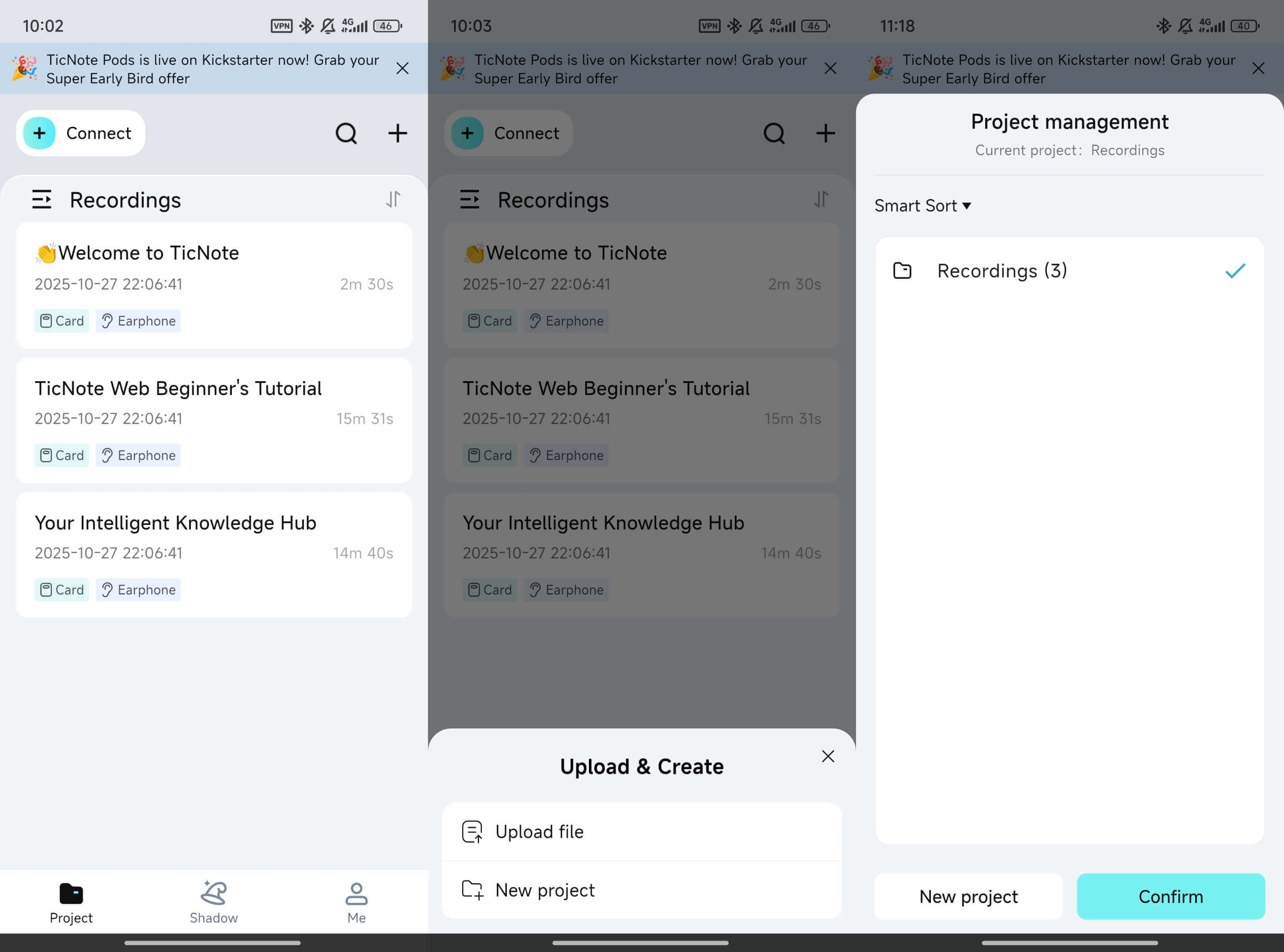
This is especially useful for TikTok content with fast pacing, jokes, or repeated takes.
Step 7: Export clean files you can actually reuse
When the transcript looks good, export based on what you'll do next:
- TXT transcript: best for search, copy, and reuse
- Markdown summary: great for docs, wikis, and content briefs
- DOCX or PDF summary: best for sharing with clients or teams
If you need hands-on edits before export, do them in the app first. It saves time later.
Mini reuse workflow: turn one transcript into a searchable project
Once you have the text, package it so you can find it later.
Do this in one minute:
- Add topic tags (example: "growth tips", "UGC script", "hook ideas")
- Save the source link in the notes field
- Write a 2 to 3 sentence summary of the main point
Then, optionally translate the transcript for global reuse. Keep the transcript, summary, and translations in the same project so you can search them later and run cross-file Q and A across related clips.
How to reuse a TikTok transcript for content repurposing
Getting the transcript is step one — the real value is what you do with it. Here are the highest-ROI reuse workflows:
1. Turn it into a blog post or article A 60-second TikTok contains 120–180 words of spoken content. Clean up the filler words, add an intro and conclusion, and you have a 400-word blog post draft. This is especially effective for tutorial or "how-to" TikToks.
2. Create quote graphics for Instagram or LinkedIn Pull the 2–3 most quotable lines from your transcript. These make high-performing static posts with minimal design work.
3. Build YouTube video descriptions Paste the cleaned transcript into your YouTube description (first 200 characters matter most for search). YouTube also uses it to improve your auto-captions.
4. Generate subtitles for cross-posting Export the transcript as SRT from your transcription tool, then upload to YouTube, Instagram Reels, or LinkedIn video. Native subtitles consistently outperform burned-in captions for accessibility and engagement.
5. Feed it to an AI for thread or newsletter drafts Paste the transcript into ChatGPT or Claude with the prompt: "Turn this into a 5-tweet thread" or "Summarize this as a 3-sentence newsletter blurb." The output is rough but fast.
For a more detailed walkthrough of transcribing video content across platforms, see how to transcribe video.
How can you improve TikTok transcript accuracy (music, duets, noise, accents)?
To improve accuracy when you transcribe tiktok video audio, fix the sound first, then do a fast edit pass. Most transcript errors come from three things: loud background music, clipped audio, and two people talking at once. Clean inputs give you cleaner outputs, which saves you time.
Fix the audio before you transcribe
Start by getting the cleanest source you can. If you posted with a music track, try to pull the version that uses original voice audio, or re-export with the background track lower.
- Use original audio when possible, not a re-recorded screen capture.
- Lower the music track until speech is always louder.
- Avoid clipping, keep volume below the red.
- Keep the phone mic close to the speaker's mouth.
- If there's wind or noise, re-record inside if you can.
Handle duets, stitches, and interviews (two speakers)
Overlapping speech is the #1 way to tank accuracy. If it's a duet or interview, try to make each speaker clean and separate.
- If you can, split the video into two clips, one per speaker.
- If you can't split it, add quick speaker tags while editing: "Creator:" and "Guest:".
- For stitches, mark the switch point so the transcript stays readable.
- If one speaker is much louder, reduce that side slightly and re-export.
Quick edit pass: what to fix first
Don't try to perfect every line. Fix the stuff that breaks meaning or search.
Checklist:
- Proper nouns: names, places, product names, usernames.
- Numbers: dates, prices, quantities, "one" vs "won".
- Brand terms and jargon: acronyms, tools, niche phrases.
- Quoted claims: anything you plan to reuse as a quote.
- Timestamps: keep them only when you need review or compliance.
Before and after edit example (what "clean" looks like)
Before: "yo i got like 2 tips for capcut ok first u gotta do the key frames an then add the beat thing also shoutout to niki she told me"
After: "I've got two tips for CapCut. First, use keyframes. Then match cuts to the beat. Shout-out to Nikki for the idea."
Notice what changed: slang kept where it helps voice, names fixed, "2" became "two", and punctuation made it skimmable. If you're making subtitles, you might also add timestamps every 5 to 10 seconds.
Rule of thumb: if the audio is truly messy, re-record or find a cleaner source. Otherwise, do one focused proofread and keep it clean enough for your goal.
How do you turn a TikTok transcript into captions or subtitles people can read?
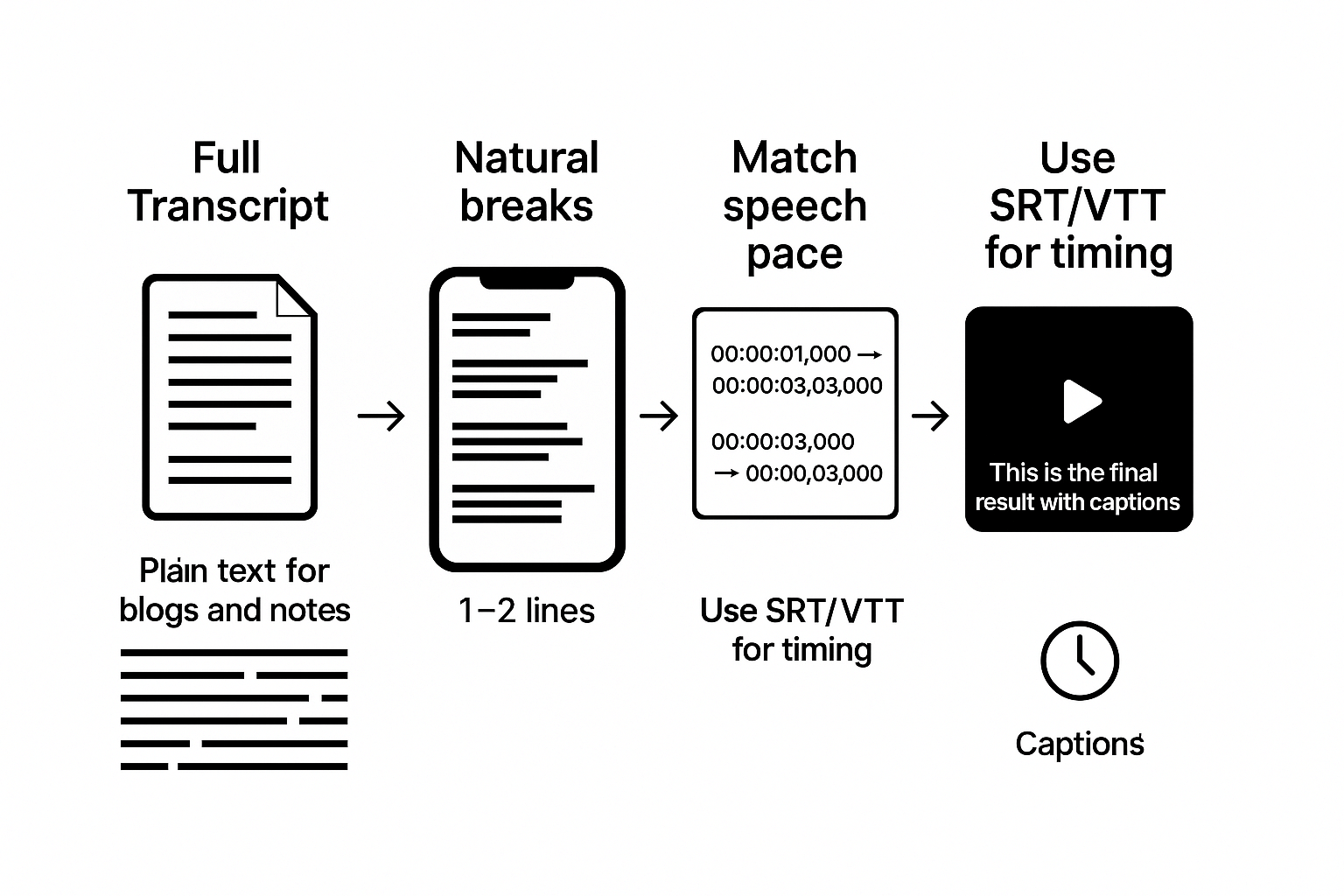
To transcribe TikTok video content is only step one. Step two is turning that text into captions people can read fast. Good captions are short, timed to speech, and split on natural pauses, not on random word counts.
Choose your output first: plain text vs timed subtitles
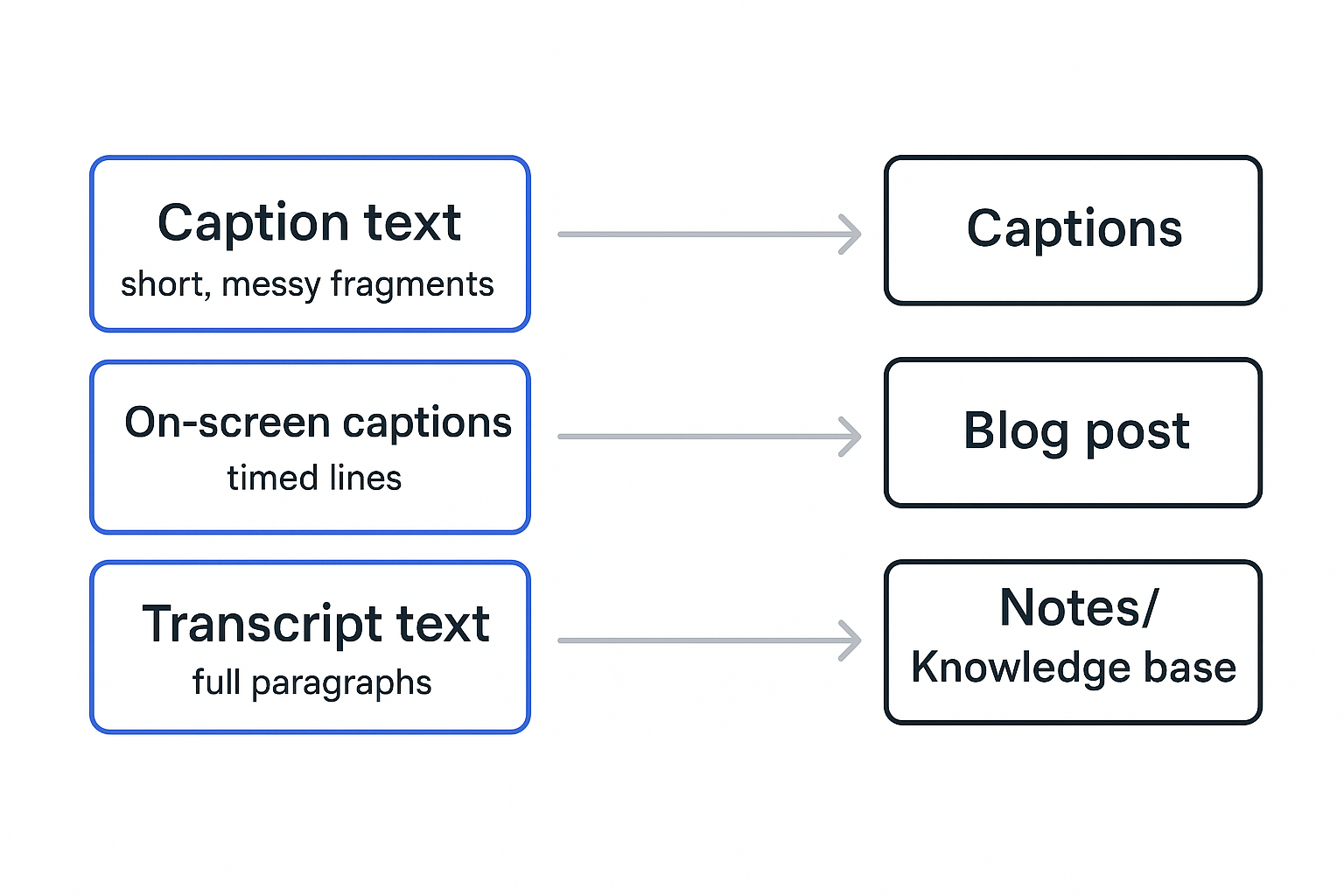
Use plain text when you need words for reuse. Think: blog posts, scripts, show notes, quote pulls, research notes, or a searchable doc. Use timed subtitles when you need text to appear in sync on video, like for TikTok on screen captions, Reels, Shorts, or a full YouTube upload.
Here's the simple rule:
- Plain text (TXT, DOC, Notes): best for editing and repurposing.
- Timed subtitles (SRT or VTT): best for proper, synced captions.
Also, captions are an accessibility requirement for prerecorded content in many contexts. Web Content Accessibility Guidelines (WCAG) 2.2 (W3C Recommendation, 2023) states: "Captions are provided for all prerecorded audio content in synchronized media, except when the media is a media alternative for text and is clearly labeled as such."
Format captions for TikTok readability (not full transcript)
Don't dump the whole transcript on screen. TikTok viewers skim. Long blocks cover the video and raise drop-off.
Instead, edit the transcript into caption lines:
- Cut filler words that add no meaning (like "um", "you know").
- Break lines by meaning, not grammar rules.
- Keep each caption to 1 to 2 short lines.
- Match pacing to speech, avoid flashing too fast.
- Add speaker labels only when needed (duets, interviews).
Pick tools based on export types
Not all TikTok transcription tools output the same files. Some tools give clean raw text only. Others can generate SRT or VTT with timestamps.
Use this quick filter:
- If you need synced captions: choose a tool that exports SRT or VTT.
- If you need the cleanest text for writing: upload-first tools often produce better paragraphs, but you may need a second step to create SRT.
- If you only need TikTok in-app captions: prioritize fast review and easy line breaks.
Also note TikTok has post caption text limits, but that's separate from on-screen captions. Post captions help search and context. On-screen captions help watch time and comprehension.
Image idea: Step-by-step schematic: transcript text block, then split caption lines with max 2 lines, then SRT/VTT timeline with timestamps, then final on-screen caption frame. Add callouts for line length, reading speed, and where speaker labels go.
Which TikTok transcription tools should you consider (and how do they compare)?
Picking a tool to transcribe tiktok video content is easier when you use one simple rubric. Don't start with brand names. Start with what you need to do next: captions, quotes, research notes, or a clean archive.
Use this 6-point rubric to judge any tool
Check each option against the same six items:
- Accuracy: Does it handle fast speech, slang, names, and crosstalk? Can you edit the text easily?
- Free limits and pricing: Is it truly free, a trial, or free with caps (minutes, exports, or watermarks)?
- Languages: Does it support your audio language, and does it offer translation?
- Exports: Can you get TXT for notes, and SRT/VTT for captions? Do you need DOCX/PDF for sharing?
- Privacy: Who can see the audio, how long is it stored, can you delete it, and is it used to train models?
- Input method: Can you paste a TikTok URL, or do you need to upload a file you control?
Tip: if a tool is vague on exports or privacy, treat that as a "no."
Compare tool types (without the hype)
| Tool type | Best for | Input method | Typical exports | Watch-outs |
| TikTok in-app captions | Accessibility on your own posts | In-app | Usually on-screen captions | Hard to reuse outside TikTok, limited export control |
| URL paste link tools | Fast gist, quick notes | URL | TXT or copy/paste | Can break if the link changes, export formats vary |
| Upload-first transcription tools | Clean files, repeatable workflows | File upload | TXT, often SRT/VTT, sometimes DOCX/PDF | Takes an extra step to download or save the video/audio |
| API or automation workflows | Scale for teams and pipelines | API + storage | Whatever you build | Setup time, permissions, ongoing cost |
Best-fit notes by use case
- Creators and editors: If you only need captions on your own post, native captions are fine. If you need SRT/VTT for editing apps, choose a tool that exports those files.
- Marketers: Pick export-first tools so you can reuse clips into blogs, ads, and landing pages. Consistent formatting matters more than "one-click."
- Students and bloggers: Link tools are quick for quotes, but upload-first is safer for long-term notes. You'll want clean paragraphs and timestamps.
- Small teams: Privacy and deletion controls matter. So do shared folders, naming, and stable exports.
Here's the simple decision reminder: for dependable exports and a clean archive, upload-first is usually safer. For speed and quick notes, link tools can work. For basic accessibility captions on your own post, TikTok native often does the job.
Use the rubric above to pick your method before you commit to a tool.
What are the privacy, legal, and ethical rules for transcribing TikTok videos?
If you transcribe TikTok video content you made, you're usually in the clear. The risk rises when the video belongs to someone else, or includes other people's voices, names, or private details. "Public" just means you can watch it, not that you can copy, repost, or republish the words.
Know what you're allowed to do
A transcript is a copy of someone's spoken content. Making it for personal study or internal notes is often the lowest-risk use. But publishing the transcript, using it in ads, training a model, or reposting it can trigger copyright rules, privacy laws, and platform terms.
Also watch for extra-sensitive content:
- Kids, patients, students, employees, or customers
- Addresses, phone numbers, emails, account numbers
- Health, legal, or HR topics
Use a rights-first checklist before you reuse anything
Before you share or repurpose a transcript, run this quick check:
- Do I own this video, or do I have clear permission?
- Am I changing the meaning, or quoting out of context?
- Will I credit the creator and link back in my notes?
- Did everyone in the audio consent to being recorded and uploaded?
- Am I removing private details (names, locations, IDs) if needed?
Vet transcription tools like a data-handling checklist
Uploading audio to a tool is a data decision. Before you paste a link or upload a file, ask:
- How long is my data kept (retention)?
- Is my content used to train models by default?
- Can I delete files and transcripts, and is deletion permanent?
- Where is data stored, and who can access it?
When in doubt, check TikTok's official Terms and privacy policies, plus local rules on consent and recording. This isn't legal advice, but a good habit is simple: get permission, minimize sensitive data, and don't publish what you can't defend.
What does a "second brain" workflow add after TikTok transcription?
A transcript is only useful if you can find it fast and reuse it. That's the "after" problem most creators hit after they transcribe TikTok video clips. Files pile up, names get messy, and your best lines disappear.
A second brain workflow fixes that. It turns one transcript into a system you can search, remix, and build on.
Turn one clip into reusable assets
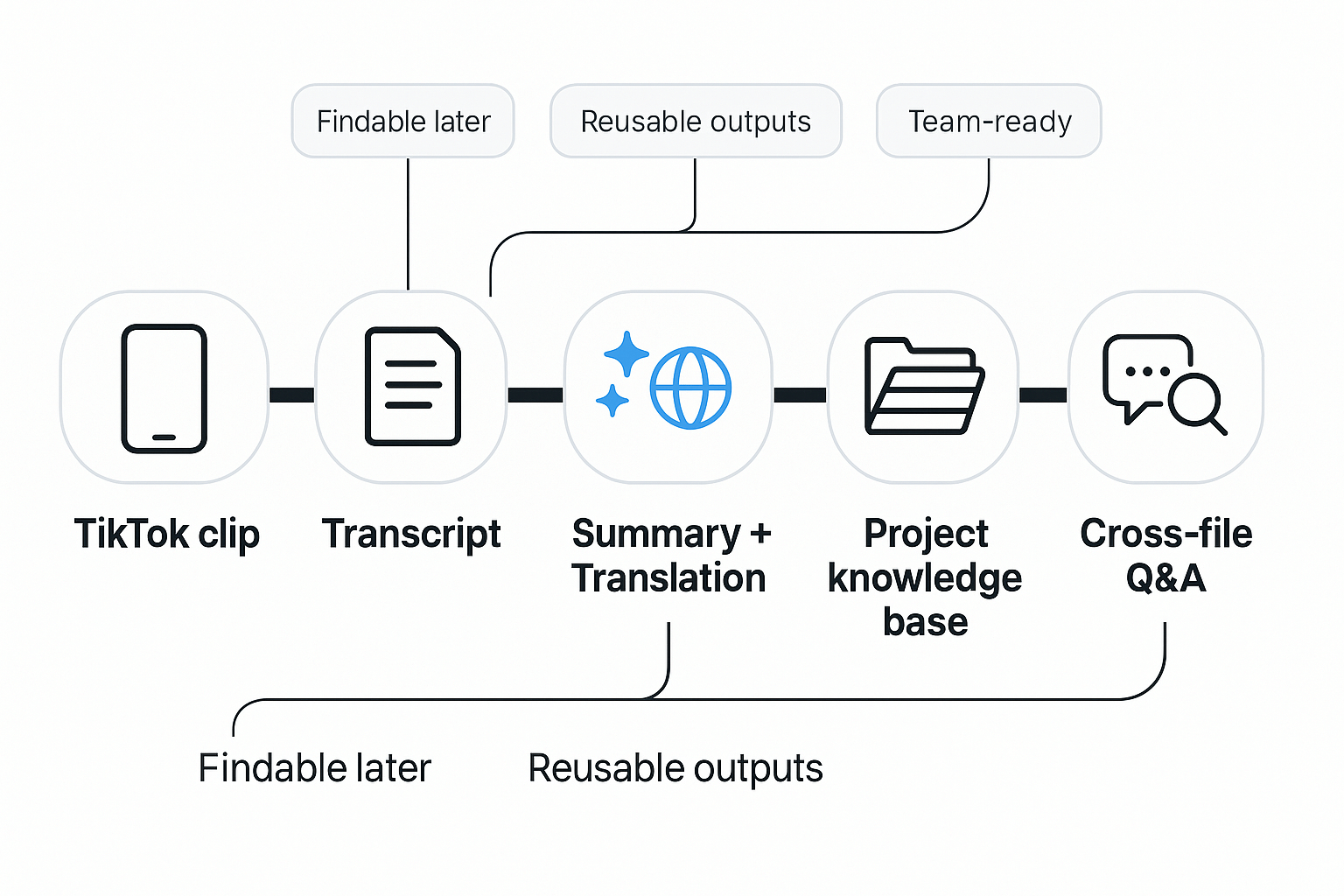
Use this simple pipeline:
- TikTok clip (the source)
- Transcript (clean text)
- Summary and key quotes (the takeaway)
- Translation (if you post in more than one language)
- Project knowledge base (so it stays findable)
Now each clip becomes more than words on a page. It becomes:
- A short brief you can paste into a script
- Pull quotes for hooks and captions
- A translated version for a second channel
- Notes you can reuse across a campaign or class
Organize by project, not by file names
Create one project per topic, campaign, client, or course. Inside it, store the transcript plus the source context, like:
- Clip title and TikTok link (for reference)
- Speaker names (or "Creator" if unknown)
- Date, theme, and target audience
- A "best lines" section you update over time
Then keep a running set of templates. For example: "Hooks that worked", "Claims and proof", "Counterpoints", and "Next content ideas". This is how you stop rewriting from scratch.
What TicNote Cloud adds at this stage
TicNote Cloud is built for the part after transcription: organizing and reusing. You can group related transcripts in project spaces, search across your workspace, and keep summaries next to the raw text.
When you have many clips, cross-file Q&A with Shadow helps you pull answers from the whole set, like "Find every quote about pricing" or "What did creators say causes drop-off?" You can also generate a mind map to scan themes fast, or create a deep research report when you want a structured write-up from scattered clips.
Do it now: create a project, upload one TikTok clip file, and generate your first transcript plus summary. Once you see how easy it is to search and reuse, the workflow sticks.
Try TicNote Cloud for free and turn transcripts into a searchable knowledge base.