Extension
TL;DR — Quick takeaways for productive virtual meetings
Use these virtual meeting tips to run shorter, clearer, and more action-oriented remote meetings. Focus on purpose, roles, and one deliverable per meeting to cut wasted time and confusion.
- Quick action 1: Share a 3-point agenda and a 5-minute pre-read so everyone arrives prepared.
- Quick action 2: Assign roles: facilitator, timekeeper, and note-taker (or use automated transcription).
- Quick action 3: End with three concrete action items, each with an owner and a deadline.
Do this and you’ll get fewer follow-ups, clearer decisions, and searchable outcomes to reuse across projects. Apply these three steps today and you’ll notice faster meetings and fewer missed tasks.
Bad virtual meetings waste time and erode trust, so these virtual meeting tips focus on three fixes that stop most failures. According to Stop the Meeting Madness (2017), executives spend an average of nearly 23 hours a week in meetings, up from less than 10 hours in the 1960s. Small changes to agenda clarity, attendee selection, and follow-up ownership cut that waste and lift morale.
Make the agenda clear and outcome-focused
Send a short agenda at least 24 hours before the meeting. List the goal, the time for each item, and the desired decision or outcome. Add a quick prep note so attendees arrive ready. When people know the end result, meetings stay on task.
Invite the right people, not everyone
Limit invites to those who make decisions or provide needed input. Use a short attendee note: need-to-attend, optional, or pre-read only. Observers can follow up via shared notes or a recording. Fewer voices means faster decisions and less frustration.
Assign follow-up owners and due dates
Close every meeting with clear action items, one owner per task, and a due date. Put assignments into a shared tracker so nothing slips. When ownership is clear, teams see progress and morale improves.
List of quick checks before you start:
- Is there a one-sentence meeting goal?
- Does the agenda show times and desired outcomes?
- Are roles and owners assigned?
Fix these three areas first. They’re low effort and high impact, and they stop most meeting problems before they start.
10 Best Practices for Productive Virtual Team Meetings
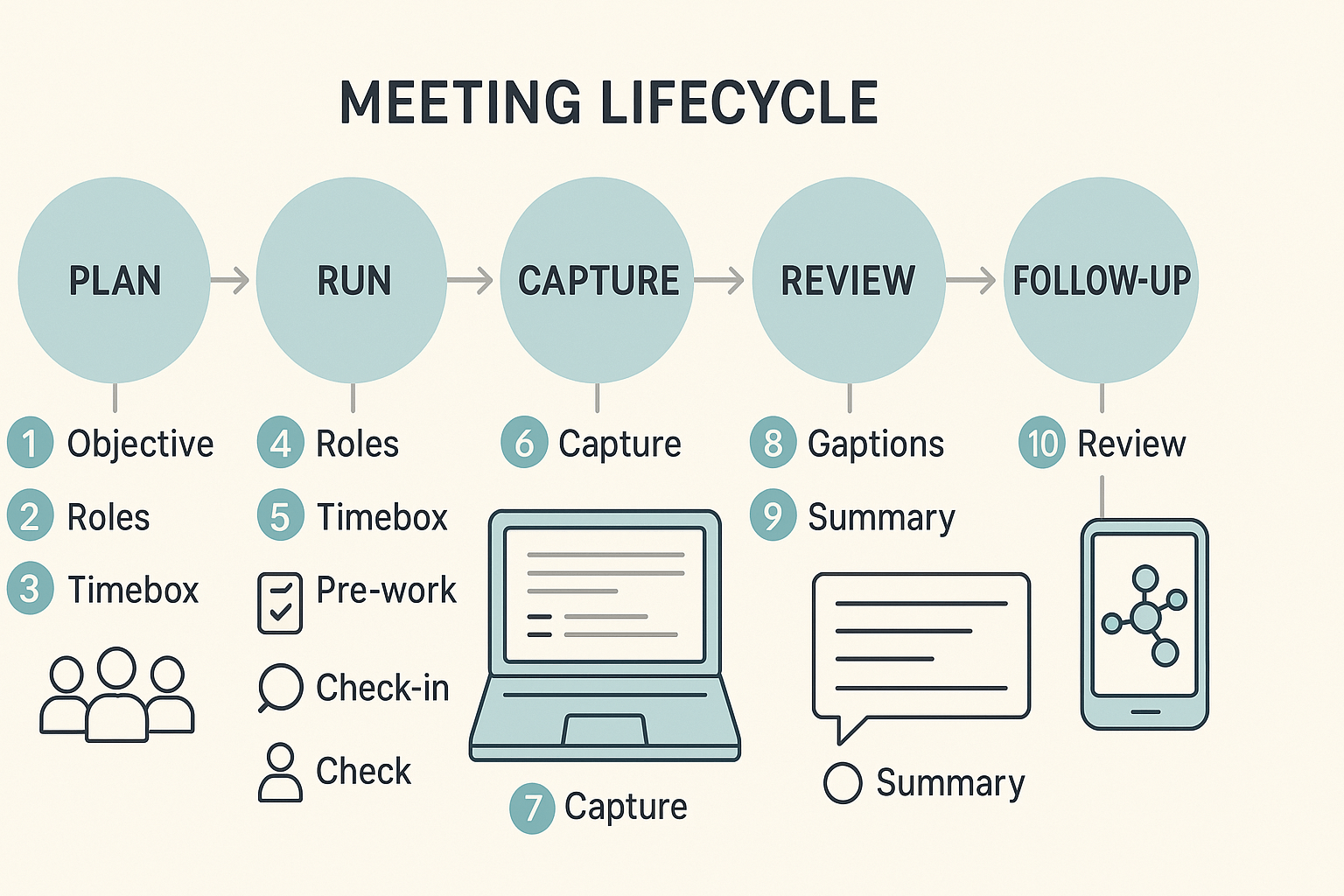
Good meetings start with clear purpose and end with clear outcomes. Use these virtual meeting tips to make planning, running, and follow-up faster and less painful. Each practice is short, actionable, and paired with a simple TicNote Cloud action you can try today.
The ten practices
- Set a single clear objective: why this meeting matters. Why: People focus when there is one clear goal. How: Put the objective in the calendar invite and repeat it at the start. Keep the agenda limited to items that map to that goal. TicNote action: Attach a TicNote agenda template to the invite so everyone sees the objective up front.
- Define roles: host, timekeeper, scribe, and decision owner. Why: Roles prevent task drift and make outcomes obvious. How: Name roles in the invite and call them out at the meeting start. Rotate roles across meetings to build skill. TicNote action: Use a role-based agenda template that lists names and responsibilities.
- Timebox every agenda item and stick to it. Why: Time limits keep discussions tight and focused. How: Block minutes per topic and use a visible timer or the timekeeper to steer the flow. End with a quick decision or next step. TicNote action: Choose a timeboxed agenda template and export a printable timer-friendly view.
- Share pre-work and expected outputs. Why: Pre-reading reduces on-call presentation time. How: Attach short docs or a 3-bullet brief to the invite. Ask attendees to flag questions before the call. TicNote action: Upload prep docs to a TicNote meeting space and let participants skim the auto summary.
- Start with a quick check-in and purpose reminder. Why: A 60-second check-in aligns context and attention. How: Ask a single focused question, like progress or blockers. Keep it short and move to the agenda. TicNote action: Record the check-in with live transcription for context in the notes.
- Capture decisions and action items live. Why: Immediate capture prevents forgotten tasks. How: Call out each decision, assign an owner, and set a due date aloud. Confirm ownership before moving on. TicNote action: Use TicNote’s action-item template to tag owners and due dates in real time.
- Keep meetings interactive with polls and quick breakout prompts. Why: Interaction raises energy and surfaces diverse views. How: Use a short poll or a 5-minute breakout for difficult topics. Report back with one takeaway per group. TicNote action: Save breakout notes into the meeting folder and auto-generate a summary.
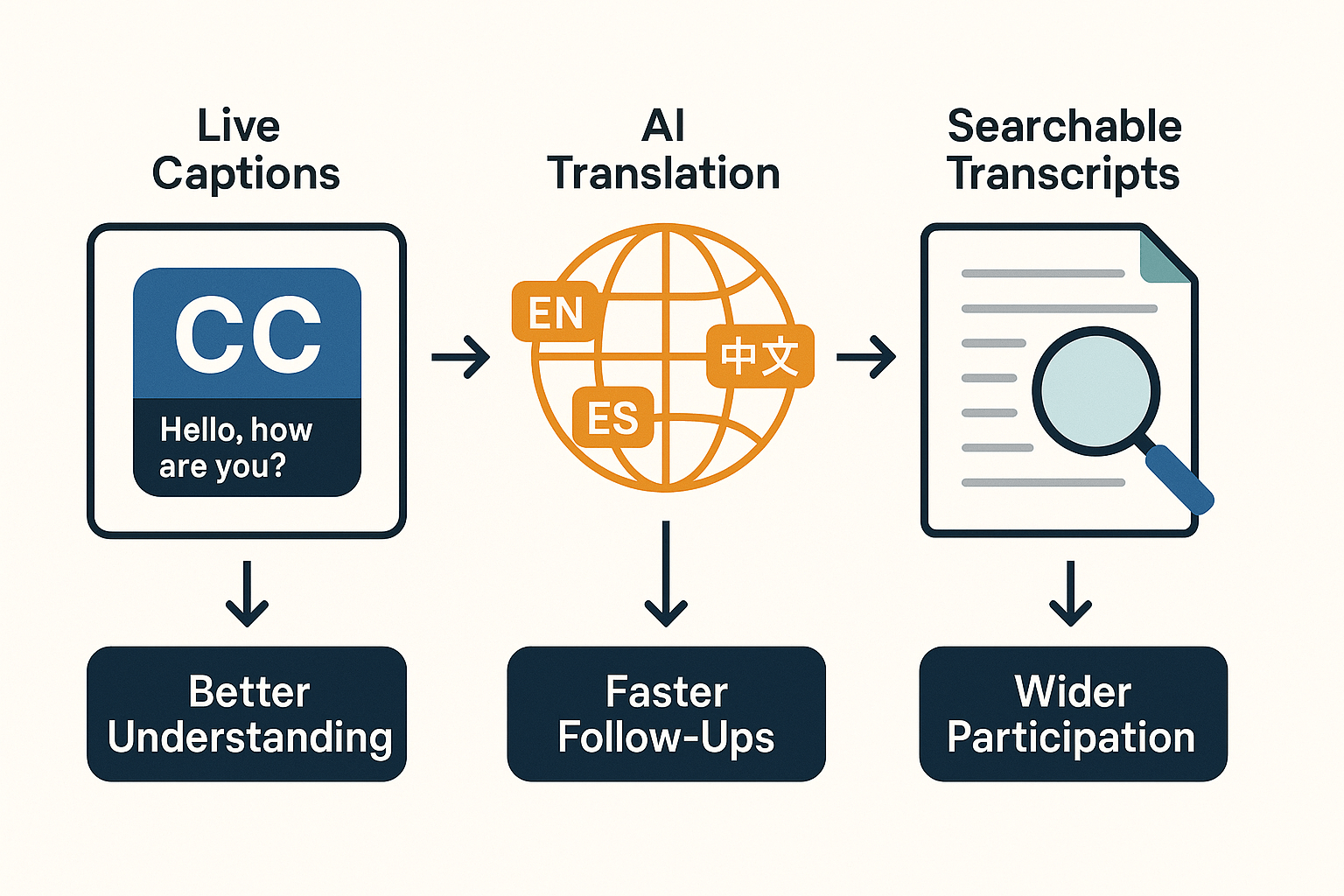
- Use live captions and translation for global teams. Why: Captions improve comprehension and inclusion. How: Enable live captions and offer translated summaries for non-native speakers. Schedule meetings at fair hours across time zones. TicNote action: Turn on live transcription and request an AI translation into the team’s common language.
- End with a 3-line summary and clear next steps. Why: Short summaries lock in decisions and tasks. How: Read aloud the summary and ask for corrections. Confirm owners and deadlines before closing. TicNote action: Generate an AI summary and copy it to the meeting notes and calendar invite.
- Review meeting effectiveness regularly. Why: Small course corrections compound into better meetings. How: Run a monthly pulse: ask if meetings are shorter, clearer, or more useful. Adjust frequency and format based on feedback. TicNote action: Keep a meeting metrics note in TicNote to track trends in decisions, action completion, and meeting length.
Tools & platform comparison: Where TicNote Cloud fits (vs. Zoom, Teams, Webex, others)
Good meetings start with the right tool for the job. This section shows when to use native conferencing like Zoom, Teams, or Webex, and when to layer in a dedicated note taking workspace like TicNote Cloud as part of your virtual meeting tips. You’ll get a quick feature matrix, workflow guidance, and a short pricing cheat sheet to speed buying decisions.
Quick feature comparison
According to Gartner Market Guide for Meeting Solutions (2023), organizations are evaluating generative AI and other AI-based capabilities to improve employee productivity and meeting experiences.
| Feature | Zoom | Microsoft Teams | Cisco Webex | TicNote Cloud |
| Live video & screen share | Yes | Yes | Yes | No (records device audio) |
| Built-in cloud recording | Yes | Yes | Yes | Yes (audio-first uploads) |
| Live transcription (native) | Optional | Built-in | Built-in | Yes, high accuracy |
| AI summarization | Limited | Limited | Limited | Advanced, template-driven |
| Searchable cross-meeting notes | No | Limited | Limited | Yes, second-brain workspace |
| Mind-map & visual export | No | No | No | Yes, auto mind map |
| Multi-language translation | Limited | Limited | Limited | 120+ languages |
| Knowledge base / long memory | No | Limited | No | Yes, chat-ready KB |
| Compliance & SSO options | Varies | Enterprise-ready | Enterprise-ready | Enterprise tier with SSO |
When to use conferencing vs a note workspace
Use Zoom, Teams, or Webex for live interaction, video, and screen sharing. They run the meeting. Use a note workspace to capture, summarize, and reuse meeting content. Conferencing tools do the talk. A second-brain workspace does the remembering.
Use a workspace when you need searchable transcripts, cross-meeting Q&A, or auto mind maps. Use both when you want live captions plus post-meeting summaries and action tracking.
Workflow integration: simple patterns that work
- Pre-meeting: create an agenda in your note workspace and attach it to the meeting invite.
- During the meeting: record in the conferencing app, or capture audio to TicNote Cloud for transcription. (Transcription means converting speech to text.)
- Post-meeting: auto-generate a summary, extract action items, and push the notes into your project space or Slack.
This pattern reduces missed decisions and speeds follow-up.
Pricing quick-guide
- Conferencing platforms: pricing varies by host features and seats.
- TicNote Cloud: Free tier with 300 transcription minutes per month and basic templates. Professional from $12.99/month adds longer recordings and unlimited AI chat. Business tier adds more transcription minutes and enterprise features.
Pick conferencing for live collaboration, pick TicNote Cloud when you need persistent, searchable meeting knowledge and AI-driven summaries.
Accessibility, inclusivity & global teams: captions, translation & time-zone tips
Good virtual meeting tips start with inclusion. Make meetings easier to follow for people with hearing or visual needs, and slow down friction for multilingual and distributed teams.
Make meetings hearing and vision friendly
Keep spoken content readable and visual content describable. Turn on live captions when available, post full transcripts, and add alt text to shared images (alt text explains images for screen readers). Use clear slide layouts and high contrast colors. Label speakers and call out action items verbally.
Practical checklist:
- Enable live captions and record transcripts.
- Share slides and notes before the meeting.
- Add alt text to images and descriptive slide titles.
- Use clear, simple language and pause after questions.
Also, WCAG 2.1 Success Criterion 1.2.4 requires that captions are provided for all live audio content in synchronized media, so provide live captions when possible.
Schedule with respect for time zones and culture
Be mindful of local work hours and cultural norms. Rotate meeting times if the team spans many zones. Offer asynchronous options for those who can’t join.
Easy rules to follow:
- Use a world-clock tool and block core overlap hours.
- Rotate times monthly for fairness.
- Post recordings, timestamps, and action items for async viewers.
Make language a bridge, not a barrier
Use tools that transcribe and translate. TicNote Cloud offers live transcription and AI translation into 120+ languages, searchable transcripts, and AI summaries. That means nonnative speakers can read, search, and review meeting content at their pace. Auto mind maps and short summaries speed review across languages.
Small changes give big gains. Follow these steps and you’ll make meetings more inclusive and more effective for global teams.
Troubleshooting common tech problems + pre-meeting checklist
Tech glitches waste time. This quick troubleshooting guide gives fast fixes for common mic and camera problems, echo and poor audio, screen-share failures, and what to do if a platform crashes. Use these virtual meeting tips at the first sign of trouble to get your call back on track.
Quick fixes for audio and video
- Mic muted or wrong device: check the app mute, system input, and browser permissions. Switch to headset if needed.
- Low or crackly audio: lower speaker volume, use headphones, and test on another app. Try wired Ethernet for stability.
- Echo or feedback: ask one person to mute speakers, use headphones, or reduce mic sensitivity. Move devices apart.
- Camera black or frozen: close other camera apps, check privacy shutter, update drivers, and restart the browser or app.
Fix screen-share errors and crashes
- Screen share blocked: grant screen-record or screen-share permission in OS settings, then restart the browser.
- Share a single window instead of the whole screen if the app lags.
- If the platform crashes: rejoin quickly, post a brief status in chat, and start a backup audio call if needed.
Pre-meeting checklist (copy and paste)
- Test mic and camera 5 minutes before the call.
- Close unused apps and tabs.
- Plug in headphones and Ethernet if possible.
- Load the presentation and test screen share.
- Share meeting agenda and goals in chat.
- Confirm note taker and action-item owner.
- Record locally if policy allows.
- Post backup dial-in or link in chat.
Measure meeting effectiveness & follow-up templates (action items, summaries, & metrics)
Measuring meeting effectiveness proves whether time spent yields results. Use these virtual meeting tips to track a few simple KPIs: time saved, action completion rate, and attendance quality. In the U.S. alone, 55 million meetings happen daily, as noted by How to Improve a Meeting (When You’re Not in Charge) (2024).
Key KPIs to track
- Time saved: measure total meeting hours before and after changes. Target: cut unneeded meeting time by 15 to 30 percent in three months.
- Action completion rate: percent of assigned actions done by the due date. Good target: 80% or higher.
- Attendance quality: percent of attendees on time and actively participating (via chat, screen share, or spoken input). Aim for 90% on-time and clear participation signals.
- Follow-up response time: median hours to confirm or start an action after the meeting. Goal: under 24 hours.
Use a simple weekly dashboard that tallies meeting hours, open actions, and average follow-up time. Keep metrics visible to the team for accountability.
Post-meeting summary template
- Title: [Meeting name]
- Date & time:
- Organizer & note owner:
- Attendees:
- Decisions (one line each):
- Action items: 1) [Task] — Owner — Due date
- Key notes / context: (2–4 sentences)
- Links & resources: (slides, recordings, docs)
- Transcript link: (attach TicNote Cloud transcript)
Short feedback survey (1 minute)
- How useful was this meeting? (1–5)
- Were outcomes clear? (Yes / No)
- Any missing agenda items? (open)
- Time well spent? (1–5)
- One improvement for next time (open)
How TicNote Cloud automates metrics
TicNote Cloud records and transcribes meetings, then auto-extracts decisions and action items. That gives you counts and timestamps without manual notes. Use TicNote to attach the transcript to the summary, export action lists, and run a quick search to check if actions reappear in later meetings. These exports make it easy to build a dashboard for the KPIs above.
TicNote Cloud in action: demo, templates, and a short case study
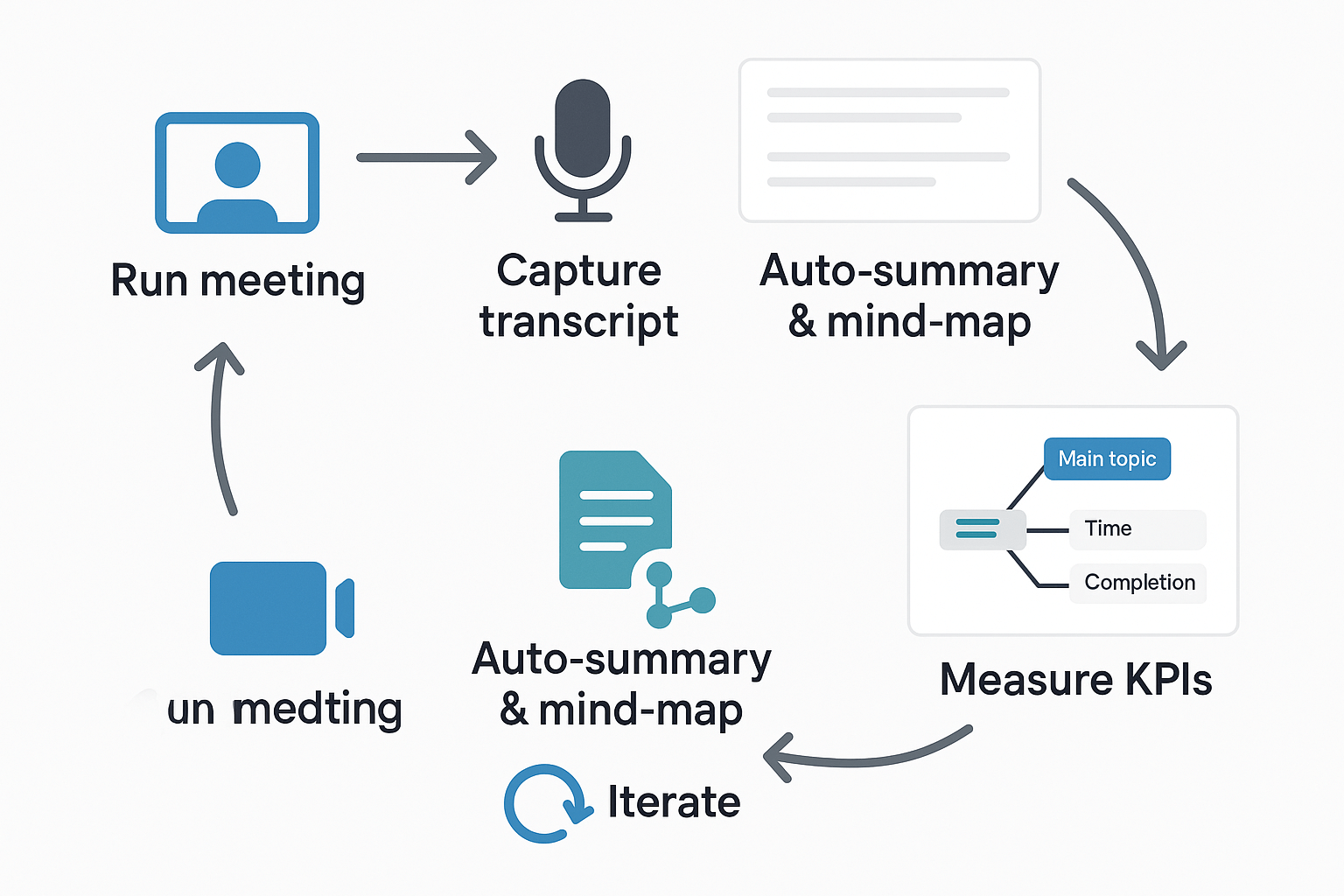
See a quick, hands-on workflow that shows how TicNote turns live meeting audio into searchable notes, summaries, and visuals. This demo walks through recording or live transcription, auto-summary generation, and an auto mind-map. Use these virtual meeting tips to cut prep time and find decisions fast.
Step-by-step demo workflow
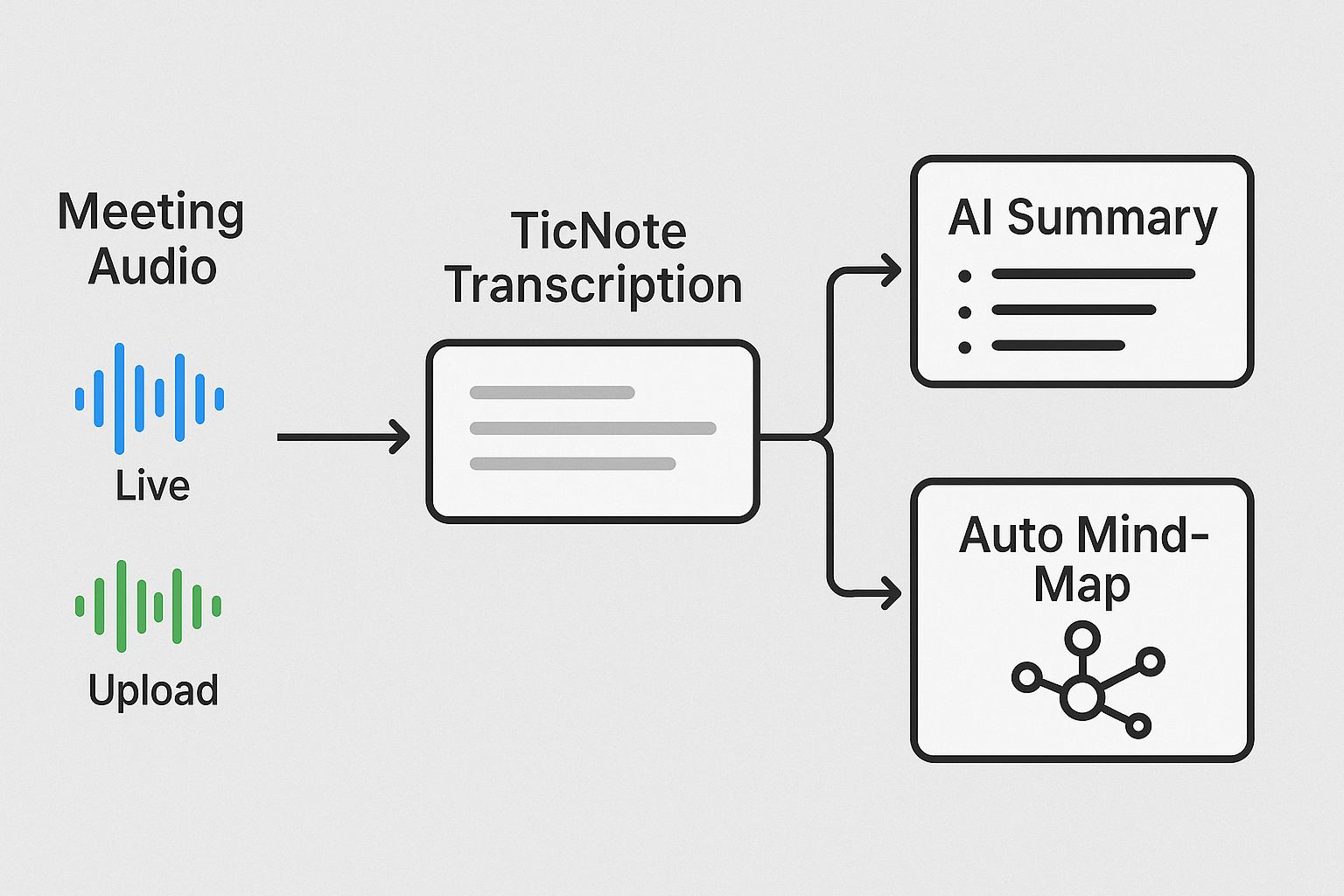
- Record or enable live transcription – Start the TicNote recorder or use the browser extension during a call. The transcript appears in real time.
- Generate an AI summary – One click creates a concise meeting summary including key decisions and suggested next steps.
- Extract action items – TicNote auto-identifies tasks and owners to make sure nothing gets lost.
- Auto mind-map generation – Turn the transcript or summary into a mind-map for faster reviews and visual clarity.
- Export and share – Download or share the transcript, summary, or mind-map. Share directly to Slack or Notion.
Templates and demo assets
TicNote includes ready-to-use templates for various meeting types. Available assets:
- Agenda template: A framework with time-slots and topic owners.
- Action-item template: Tasks with due dates and assigned owners.
- Summary template: Compact views of context, outcomes, and links.
- Mind-map PNG: Visual overviews automatically generated for sharing.
View the embedded product demo or interact with it inside the app.
Compact case study: product operations team
A mid-sized product ops team used TicNote over 90 days:
- Decision turnaround improved by 40%
- Missed action items dropped 70%
- Prep time per meeting decreased 35%
"When notes are searchable and actions are clear, meetings stop repeating the same decisions." – Jamie Liu, Senior Meeting Facilitator
Tips for productive demos
- Run a 20-minute test meeting to explore instant summarization.
- Apply the agenda template to help AI structure content.
- Export mind-maps to slides for stakeholder summaries.