


 Extension
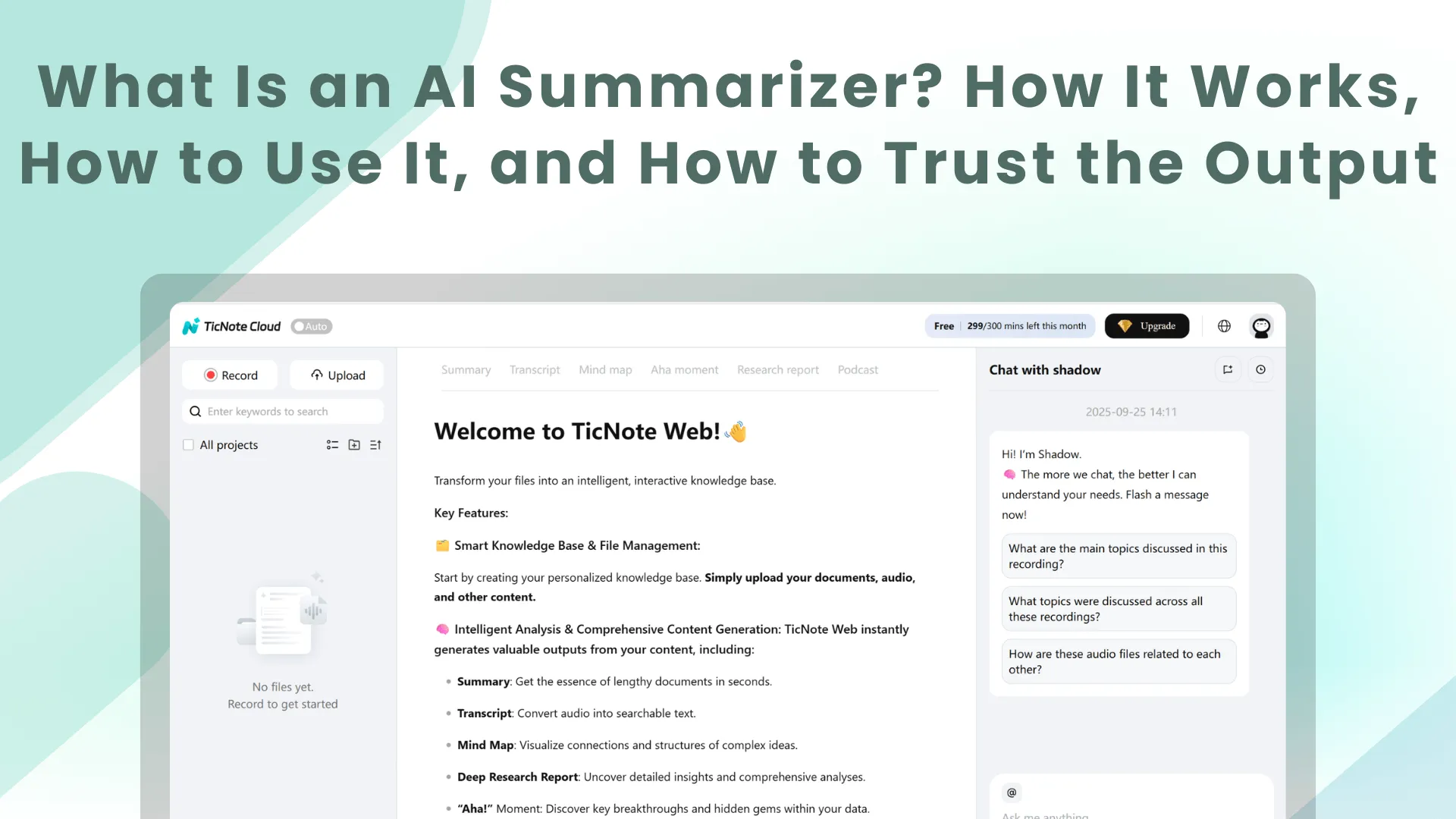
TL;DR: What an AI summarizer does (and how to use one safely)
Try TicNote Cloud for Free when you need a fast first pass on a long doc or meeting notes. An AI summarizer turns long text, PDFs, or transcripts into a shorter version that keeps the main points. Use it for quick review before class, a report, or a follow up.
You know the pain: long notes, tight deadlines, and missed details. That stress gets worse when a summary skips a decision or changes a number. A tool like TicNote Cloud helps you summarize fast, then check the source so you can trust what you send.
Before you trust any summary, run these 3 checks:
- Traceability: can you point to exact quotes or timestamps?
- Critical facts: confirm names, dates, numbers, and decisions.
- Scope: ask what was left out, and if it matters.
What is AI Summarizer (and what isn't it)?
An AI summarizer is a tool or app that uses AI summarization to shorten your content into a clearer, smaller version. AI summarization is the method: it compresses a source while keeping the main ideas, key details, and structure you care about.
Here's the key limit: most summarizers don't "know" facts beyond what you give them. Unless the tool is allowed to browse or pull from trusted sources, it mainly rewrites, selects, and condenses your input. That's why a summary can sound confident but still miss context.
Know the inputs and outputs you'll see most
Common inputs include:
- Pasted text (articles, notes, essays)
- PDFs and Word docs
- Web pages
- Chat and email threads
- Meeting transcripts, including ones created from audio recordings
Typical outputs include:
- Key points or highlights
- An executive brief for busy readers
- Study notes (terms, definitions, flashcard style)
- Open questions and "what to read next"
- Action items with owners and due dates (for meetings)
Also expect constraints. Tools can have length limits, messy PDFs can lose headings or tables, and transcript quality drives summary quality. If names or numbers are wrong in the transcript, they'll likely be wrong in the summary too.
Pick a "mode" based on who will read it
Most tools offer summary modes, meaning the format you want:
- Bullet summary for fast scanning
- Narrative brief for context
- Minutes or table-style recap for meetings
- Action list for execution
One source can produce different summaries for different readers. A student might want definitions and key claims. A team lead might want decisions, risks, and next steps.
Many modern tools use LLM summarization (large language model summarization). It's great at clean rewrite and structure. But it can also invent details or drop important ones, so you still need a quick check against the source.
How does an AI summarizer work in plain language?
An AI summarizer turns a long file into a shorter version by spotting what matters most, then rewriting it in fewer words. It uses NLP (natural language processing), which is just methods that help computers work with language. In most modern tools, an LLM (large language model) reads your text and predicts a shorter output that best matches your instructions.
From text to "meaning" (NLP + LLMs)
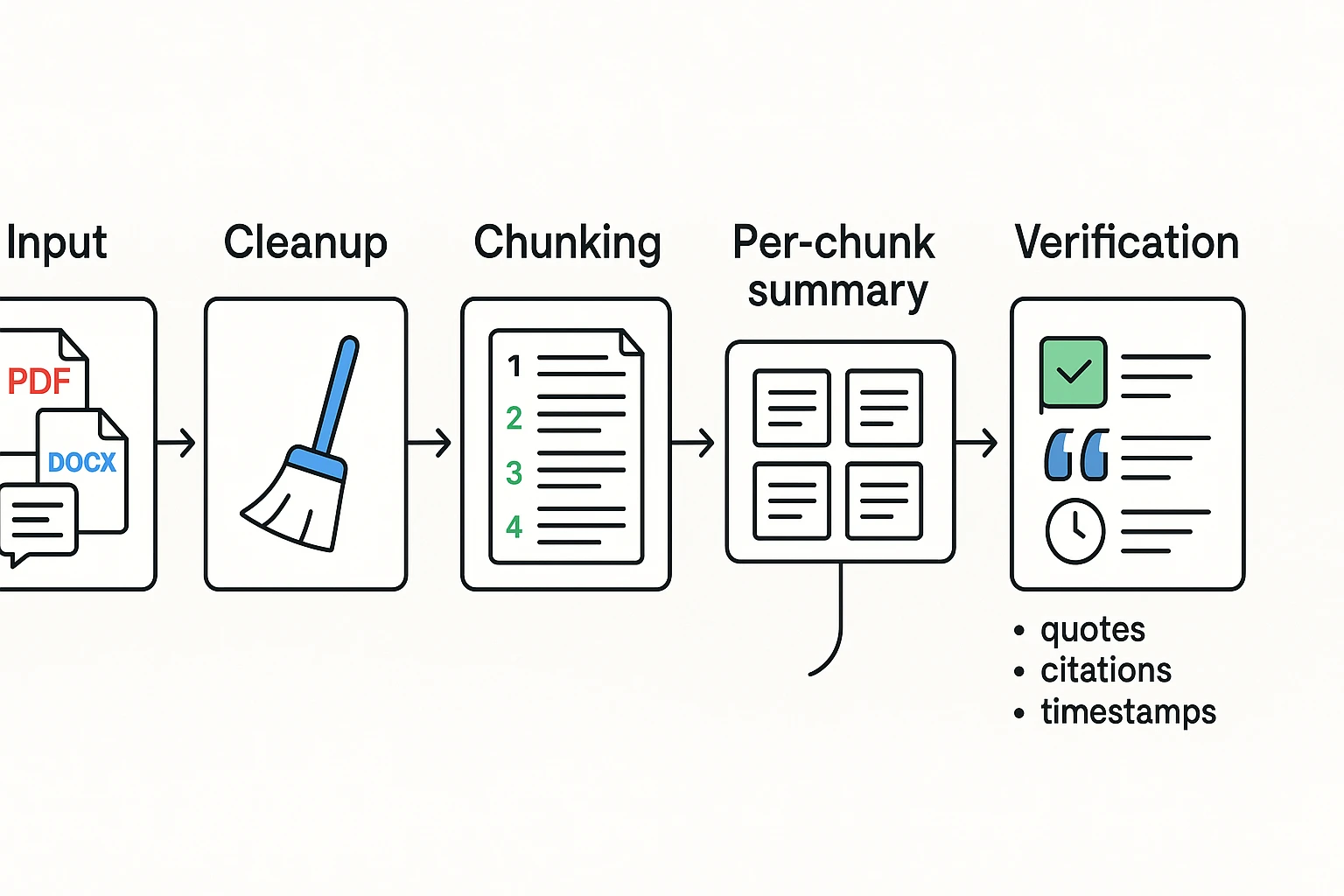
First, the tool cleans up your input. It removes obvious noise like broken lines, repeated headers, or filler words.
Then the model looks for signals that hint at importance, such as:
- Headings and section titles
- Repeated terms and key phrases
- Names of people, products, places, and dates
- Decision language like "we agreed," "next steps," "approved," and "blocked"
Based on those cues, it generates a summary that fits your goal. For example: "bullet points," "action items only," or "one paragraph for executives."
Why long files get chunked (context limits)
A context window is the amount of text a model can consider at once. When a document or transcript is too long, tools usually split it into chunks, summarize each chunk, and then combine the results.
A simple way to think about this is map reduce:
- Map: summarize each chunk
- Reduce: merge those mini summaries into one clean summary
This works well, but there is a catch. Small mistakes can stack up across steps, like missing a detail in one chunk that later affects the final merged summary.
How some tools add traceability (quotes, timestamps, links)
Some summarizers add traceability features, such as inline quotes, citations back to sections, or timestamps for meetings. This matters because it makes review fast. You can jump straight to the source and confirm the summary is faithful.
Later, look for tools that offer citation toggles, click to source, and grounded Q and A that answers using only your files.
Extractive vs. abstractive summarization: which should you use?
Most AI tools can summarize in two ways. Knowing the difference helps you pick the right mode for the job. It also helps you judge output quality when you ask what is AI Summarizer technology doing under the hood.
Choose extractive when wording must stay exact
Extractive summarization pulls key sentences or phrases from the source. Then it stitches them together into a shorter version.
Pros:
- Stays close to the original wording, so it's more "quote-like."
- Easier to attribute and audit later.
- Safer for legal, policy, and technical text.
Cons:
- Can read choppy or repetitive.
- Might miss implied meaning between lines.
- Can over-weight repeated phrases, even if they're not important.
Choose abstractive when you need a clean, readable recap
Abstractive summarization rewrites the main ideas in new words. It aims to be shorter and clearer than the source.
Pros:
- Reads like a human-written brief.
- Better for exec updates, study notes, and fast catch-up.
- Can merge scattered points into one clear idea.
Cons:
- Higher risk of paraphrase mistakes.
- Can drop key qualifiers like "may," "only," or "except."
- Can add details that were never stated.
Quick rule of thumb by document type
- Meetings: use abstractive for the recap, plus extractive for decisions, action items, and direct quotes. Keep timestamps if you can.
- Research: use abstractive for "what it means," and extractive for the methods and results sentences.
- Legal or policy: prefer extractive, then review carefully. Don't compress defined terms without quoting.
- Email threads: use abstractive for the state of play, plus a short extractive list of asks, owners, and deadlines.
Faithfulness check (simple, fast): pick 3 to 5 key claims in the summary and find the exact supporting lines in the source. If you can't locate them quickly, treat them as untrusted until you can.
How to use an AI summarizer step by step (with copy‑paste prompts)
An AI summarizer works best when you treat it like a skilled assistant with a clear task. If you give it a vague request and messy input, you'll get a vague summary back. Use the five steps below to get cleaner, more accurate results from any tool.
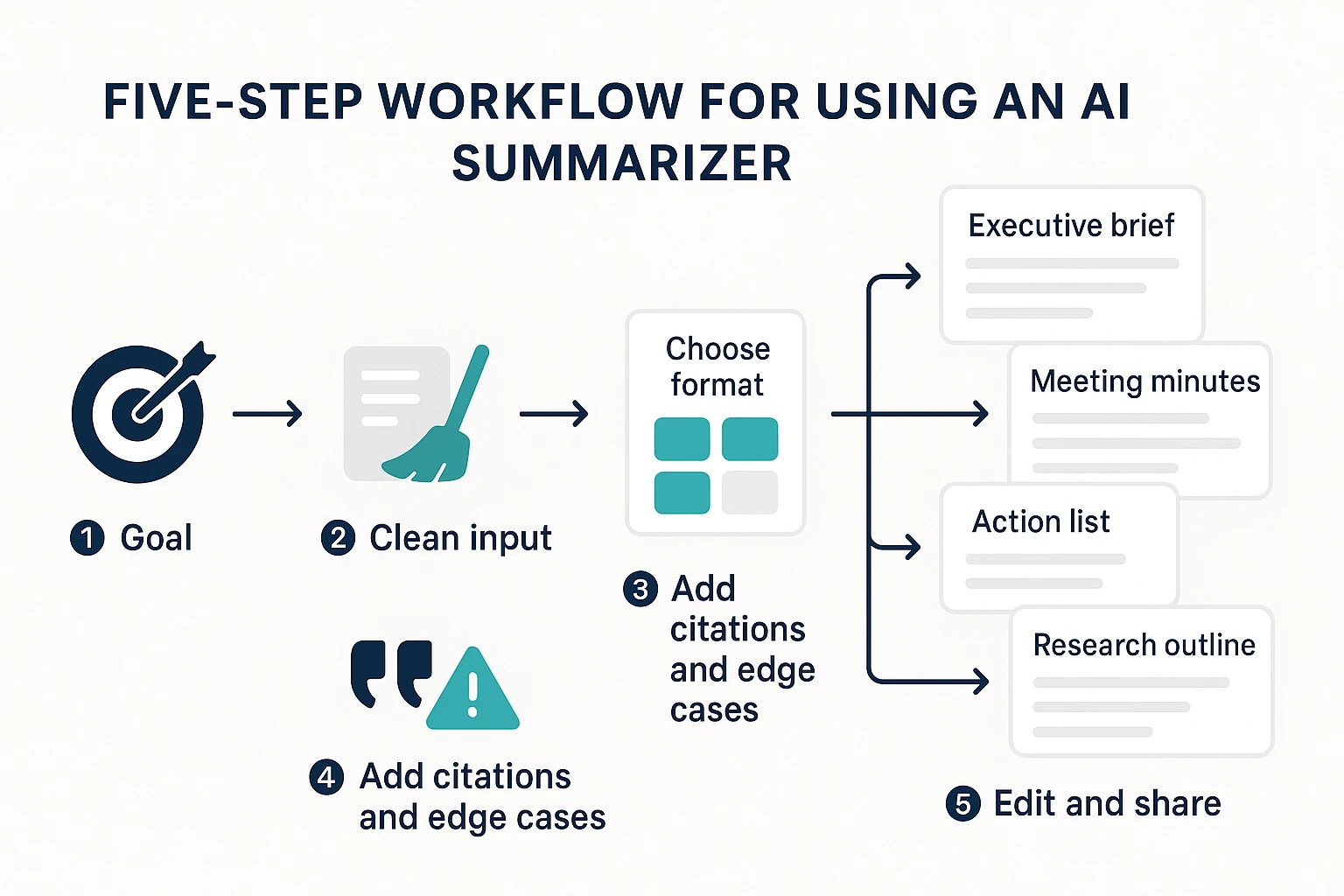
Step 1: Choose the goal (recap, decisions, risks, study notes)
Start with the "why," not the "summarize this." Goal-first prompts cut fluff and reduce made-up details because the model knows what to keep and what to ignore.
Common goals by user type:
- Students: study notes, key terms, practice questions, and what to memorize
- Researchers: literature scan, claims and evidence, limits, and open questions
- Team leads: meeting recap, decisions, action items, owners, and due dates
Copy and paste prompt:
Prompt: Summarize this for my goal: {goal}. Audience: {who will read it}. Keep only what helps the goal. If something is unclear, say "unclear" instead of guessing.
Step 2: Provide clean input (formatting, speaker labels)
Good input saves you from bad output. Spend one minute cleaning the source before you summarize.
For documents:
- Add or keep headings so the tool can follow structure
- Remove repeated footers, legal boilerplate, and nav text
- Turn tables into plain text rows if possible
For meetings:
- Add speaker labels like "Alex:" "Priya:"
- Fix key names, acronyms, and product terms
- Mark poor audio with "(unclear)" so it won't invent words
60-second pre-flight checklist:
- Do headings or speaker names exist? 2) Did you remove repeated junk text? 3) Are names and numbers correct? 4) Did you mark unclear parts? 5) Did you include enough context (title, date, topic)?
Step 3: Pick the output format (bullets, table, minutes)
Format is part of the instruction. If you don't specify it, you'll often get a "blob paragraph" that's hard to use.
Choose one template:
- Executive brief
- 3 bullets: what happened, why it matters, what's next
- Meeting minutes
- Attendees
- Decisions
- Action items (owner, due date)
- Risks and blockers
- Action list only
- Task | Owner | Due | Dependency
- Study guide
- Key ideas
- Definitions
- 5 flashcards
- 5 quiz questions with answers
- Research paper outline
- Research question
- Methods
- Findings
- Limits
- Future work
Copy and paste prompt:
Prompt: Create a {template name}. Use this exact structure: {paste the bullet headings you want} Keep it under {length}.
Step 4: Ask for citations, quotes, and edge cases
Trust improves when the summary shows its work. Ask for quotes, timestamps, or section references. Also ask what might be missing.
Copy and paste prompts:
Prompt A (quotes and traceability): Include 3 to 6 direct quotes that support the key points. After each quote, add (speaker + timestamp) or (section heading). If you can't find support, flag the point as "not supported in the source."
Prompt B (what could be wrong or missing): List possible omissions, shaky claims, or areas where the source is unclear. Do not add new facts. Use only what's in the input.
Prompt C (open questions and risks): Create two lists:
- Open questions we still need to answer
- Risks and assumptions implied by the text
Step 5: Edit for audience and share
Do a fast edit pass before you send it out. You're looking for simple fixes that prevent real-world errors.
Fast edit pass:
- Check names, numbers, dates, and totals
- Add links or pointers back to the source (doc section, page, timestamp)
- Add a short "changes made" note if you rewrote anything important
Sharing patterns that work:
- Team chat: paste the executive brief plus the action list
- Project doc: store minutes and decisions so they're easy to find later
- Ticket or task tool: attach the action list and include owners and due dates
If you want to move faster, generate your first AI summary in minutes using your next meeting transcript or a PDF you already have.
Generate your first AI summary in minutes with TicNote Cloud.
What do "good" and "bad" AI summaries look like? (3 quick examples)
A good summary is accurate, scoped, and easy to act on. You can trace each key point back to the source. A bad AI summary sounds confident, but adds facts, drops constraints, or blurs who owns what. The easiest way to judge any output from an AI summarizer is simple: can you verify it fast?
Example A: Meeting transcript to decisions and action items
Before (transcript snippet)
- 10:12 Alex: "Let's ship v2 to EU first on Feb 20."
- 10:14 Priya: "Legal needs the DPA updated before launch."
- 10:16 Sam: "I'll draft the customer email by Thursday."
After (extractive, quote the decisions)
- "Ship v2 to EU first on Feb 20."
- "Legal needs the DPA updated before launch."
- "Sam will draft the customer email by Thursday."
After (abstractive, clean recap) We agreed to launch v2 in the EU on Feb 20. Legal must update the DPA before release. Sam owns the customer email draft and will send it by Thursday.
Faithfulness check (don't skip this)
- Match each decision to a line and timestamp.
- Confirm each owner name appears in the transcript.
- If the summary adds a date or owner not stated, mark it as "unverified."
Example B: Research paper to a structured, abstract style summary
Before (paper snippet) Title: "X improves Y in remote teams." Abstract: "We tested an intervention across two teams for six weeks. Outcomes were measured weekly using self reports and task completion rates." Methods: "Participants were 38 employees in one company."
After (extractive, key sentences)
- "We tested an intervention across two teams for six weeks."
- "Outcomes were measured weekly using self reports and task completion rates."
- "Participants were 38 employees in one company."
After (abstractive, structured) Background: The study tests whether X can improve Y for remote teams. Method: Two teams used the intervention for six weeks, with weekly outcome checks. Findings: The paper reports changes in self reported outcomes and task completion. Limits: Small sample size of 38 people in one company.
Do not skip: limitations and sample size. These often get lost, and they change how much you can trust the result.
Example C: Email thread to an executive brief and next steps
Before (thread snippet)
- VP: "Need a 1 page rollout plan by Friday."
- Finance: "No new tools this quarter."
- Sales: "Can we promise the feature in March?"
- PM: "Engineering says earliest is April."
After (extractive, key asks and constraints)
- Need a 1 page rollout plan by Friday.
- Constraint: no new tools this quarter.
- Sales asks to commit to March.
- Engineering earliest delivery is April.
After (abstractive, state of play plus recommended next step) Stakeholders want a rollout plan fast, but there are two hard constraints: budget can't add tools, and engineering can't hit March. Next step: share a one page plan by Friday that assumes an April release, plus an alternative that covers what can ship in March without new tooling.
Red flag: watch for tone shifts and implied commitments. If the summary says "we agreed" but the thread shows disagreement, it's not trustworthy.
How do you verify AI summarizer accuracy and avoid risks?
An AI summarizer can save hours. But you still need to verify the output. The main risk is a summary that sounds right, but is wrong.
Know the common failure modes
A hallucination is when the tool states something not in the source. It might add a "fact" that was never said.
Other common issues are quieter but just as risky. It may drop qualifiers ("may" becomes "will"). It can miss dissenting views. It can also swap owners, dates, or next steps. And it often smooths nuance until trade offs disappear.
Red flags to watch for:
- New numbers or percentages that you can't find
- New claims, names, or decisions not in the source
- Overly certain language (always, never, guaranteed)
- Missing risks, assumptions, or alternatives
Use a 7-point quality checklist
Check these items before you share or act on a summary:
- Names and roles: who said what
- Dates and times: deadlines, meeting dates, time zones
- Numbers and metrics: budget, headcount, targets
- Decisions: what was agreed, and what was deferred
- Action items plus owners: who does what by when
- Risks and assumptions: what must be true for the plan
- Quotes or citations: key lines that need exact wording
A repeatable spot check: pick 5 claims in the summary. For each one, trace it back to the exact sentence in the source. If you can't find it fast, mark it as "unverified" and revise.
Also store the source next to the summary. That makes later audits simple.
Know when not to use AI summaries
Don't auto share summaries without review in legal, medical, finance, or high stakes HR. In those cases, use human review and approved tools only. Write an internal policy too: what can be uploaded, how long it's kept, and who can access the outputs.
How do you choose an AI summarization tool? (feature checklist + decision tree)
Choosing a summarizer is mostly about fit. Start with your inputs, the output style you need, and your privacy rules. Then test 2 to 3 tools on the same source and score them with a simple checklist.
Start with must-have features (so the summary is usable)
If a tool can't match your "final format," it won't save time. Look for:
- Length control: a slider or clear short, medium, long options.
- Format templates: meeting minutes, action items, decision log, briefing, or study notes.
- Multilingual support: both for input and output, plus translation if you work cross-border.
- Export formats: at least DOCX or PDF for sharing, and Markdown or TXT for editing.
Then check workflow needs that matter after week one:
- Batch summarization for folders or many files.
- Shared workspaces with roles, so teams can review and reuse summaries.
- Integrations (or clean exports) for tools like docs, chat, and knowledge bases.
If your use case is meeting-heavy, it also helps to understand how an AI meeting assistant works and how to choose one because summaries often depend on transcript quality.
Ask trust and privacy questions (before you upload real work)
Privacy varies a lot by setup. Here's the common trade-off:
| Model | Pros | Cons | Who manages keys | Typical risks |
| SaaS (cloud) | Fast to start; easy updates; collaboration features | You must trust vendor controls | Vendor (sometimes customer-managed options) | Data exposure via misconfig, breaches, access mistakes |
| On-prem | More control; can meet strict policies | Higher setup and maintenance | Your IT/security team | Poor patching, misconfig, limited model updates |
| Local (on-device) | Data stays on device; offline possible | Fewer features; slower on large files | You | Lost device, weak device security, limited auditability |
Use these buyer questions to reduce risk:
- What's the data retention period, and can you delete on demand?
- Is your content used for training models by default?
- What encryption is used in transit and at rest?
- Do you offer access controls (roles, sharing limits) and audit logs?
- Which region stores and processes the data?
Pick the right tool style with a quick decision tree
Use this simple path:
- What do you summarize?
- Mostly PDFs and web pages: you need strong document parsing.
- Mostly audio and meetings: you need reliable transcription first.
- Both: consider a suite, not a single-feature tool.
- Do you need citations or timestamps?
- Yes: pick tools that show quotes, page links, or timecodes.
- No: a clean, well-structured abstract summary may be enough.
- Will you share the output?
- Team use: prioritize shared spaces, comments, and consistent templates.
- Solo use: prioritize speed, exports, and editing.
- Any hard privacy constraints?
- Strict rules: favor on-prem or local options.
- Standard business use: a strong SaaS tool may be fine if controls match your policy.
Once you have a transcript or summary, you can chat with your meeting notes now to pull decisions, tasks, and open questions in seconds.
Step-by-step meeting and document summarization workflow (TicNote Cloud example)
This workflow shows how to summarize meetings and documents in TicNote Cloud, but the same steps work in most tools: upload, summarize, verify, then reuse. The goal is simple: turn long audio, video, PDFs, and docs into clean recaps, decisions, and action items you can trust.
Web Studio: upload, then generate a useful summary
If you want the most control, start in the web studio. It's the easiest place to organize work by project.
- Upload a file to the right project Create a new project, then hit Upload at the top. Add what you have, like audio, video, PDF, Word, or a transcript text file. Before you move on, do a quick check that the file is complete (right meeting, full pages, no missing section).
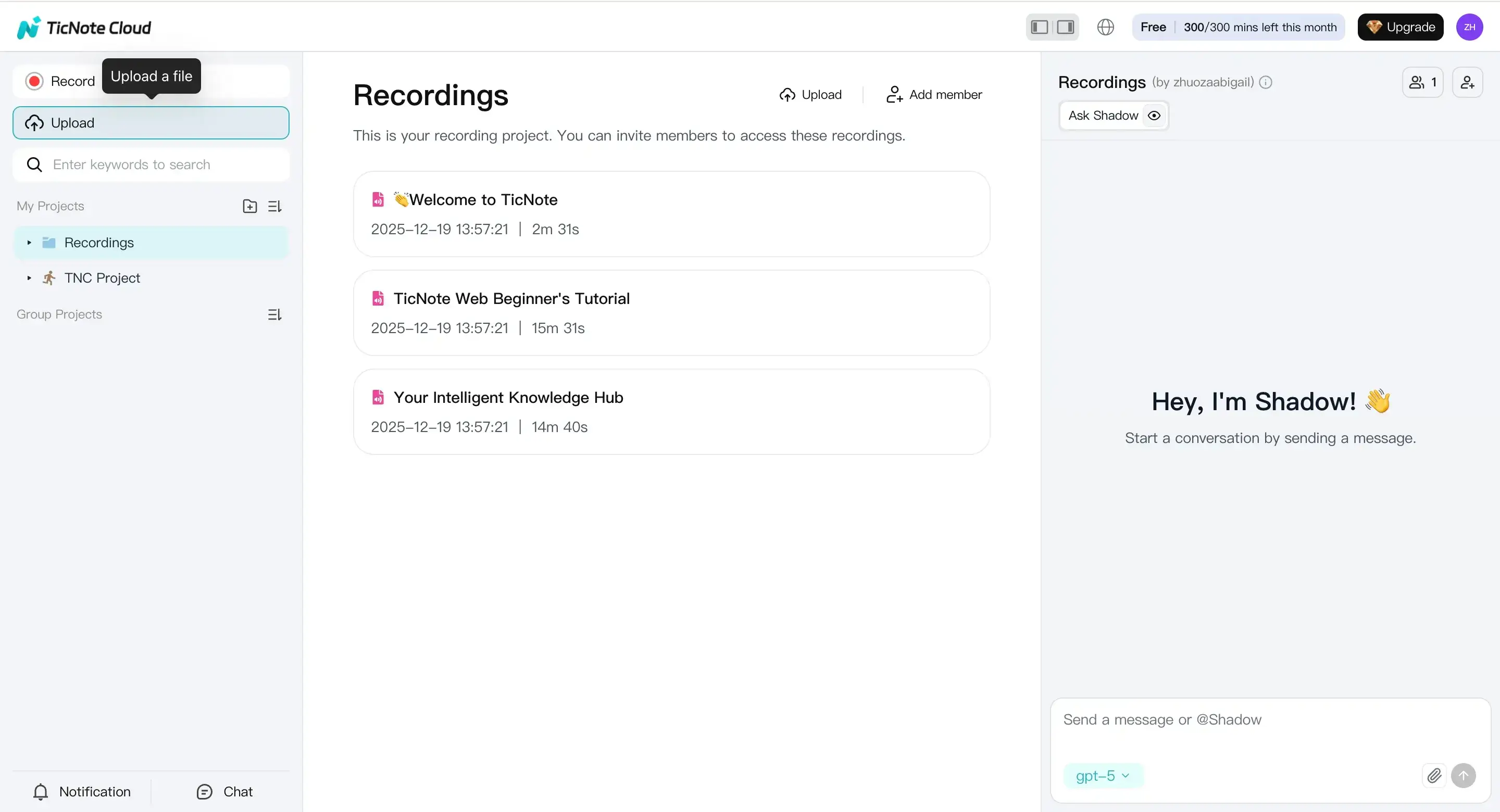
- Generate the summary and pick an output format Open the Summary tab to view the summary. Then choose the format that matches your task:
- Recap for quick catch-up
- Decisions for alignment and sign-off
- Action items for follow-ups and owners
- Study notes for classes, papers, and reading
When it looks right, use the three-dots menu to export or share it.
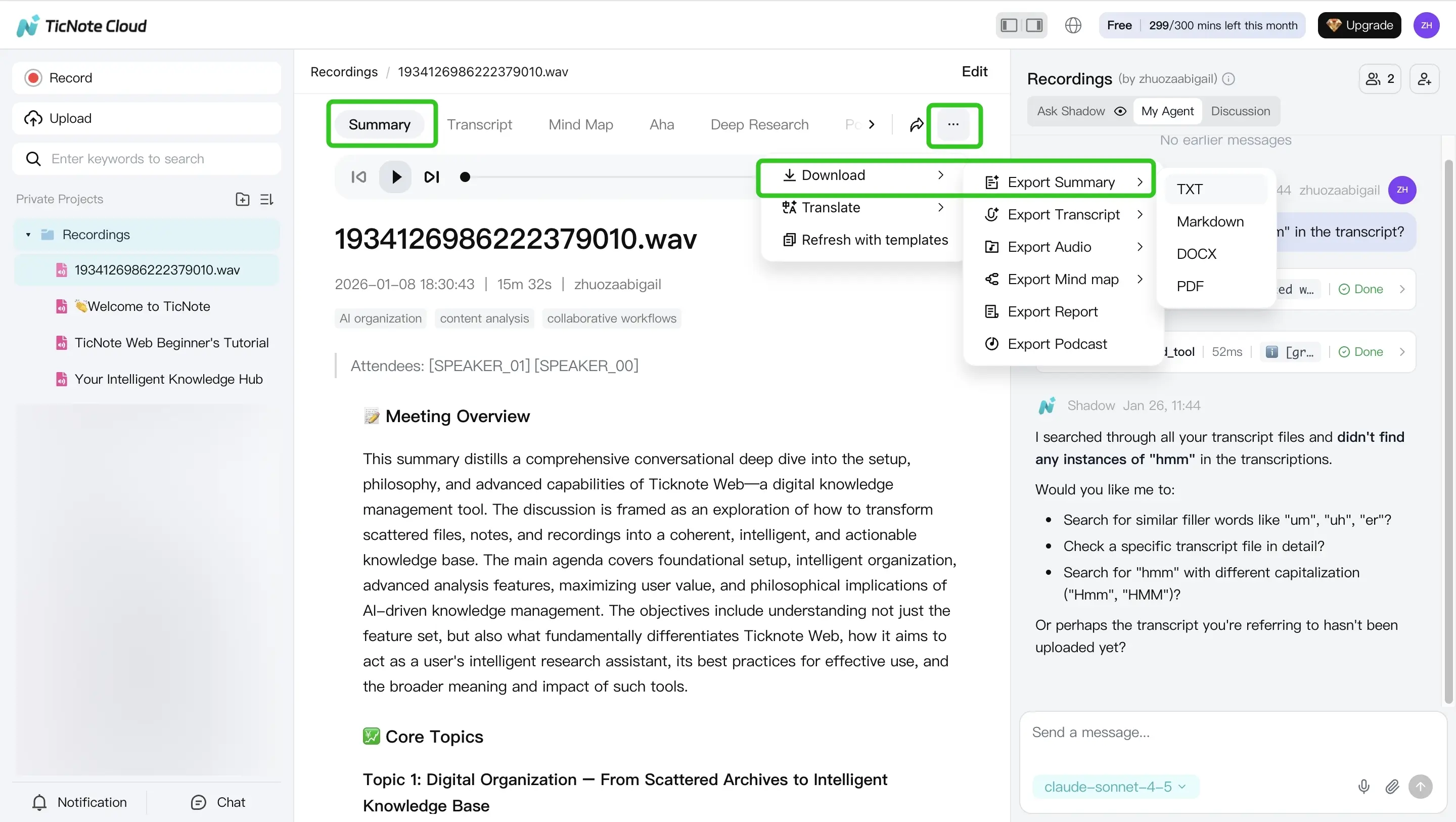
Tip: If you're summarizing a meeting recording, it helps to understand how the transcript gets created first. This quick guide on how meeting transcription works makes the flow clearer.
App: upload, review, and export on the go
Need a summary from your phone between meetings? The app follows the same logic.
- Tap the add button to upload your file into a new or existing project. It supports common document types and text files, and audio or video can also be transcribed.
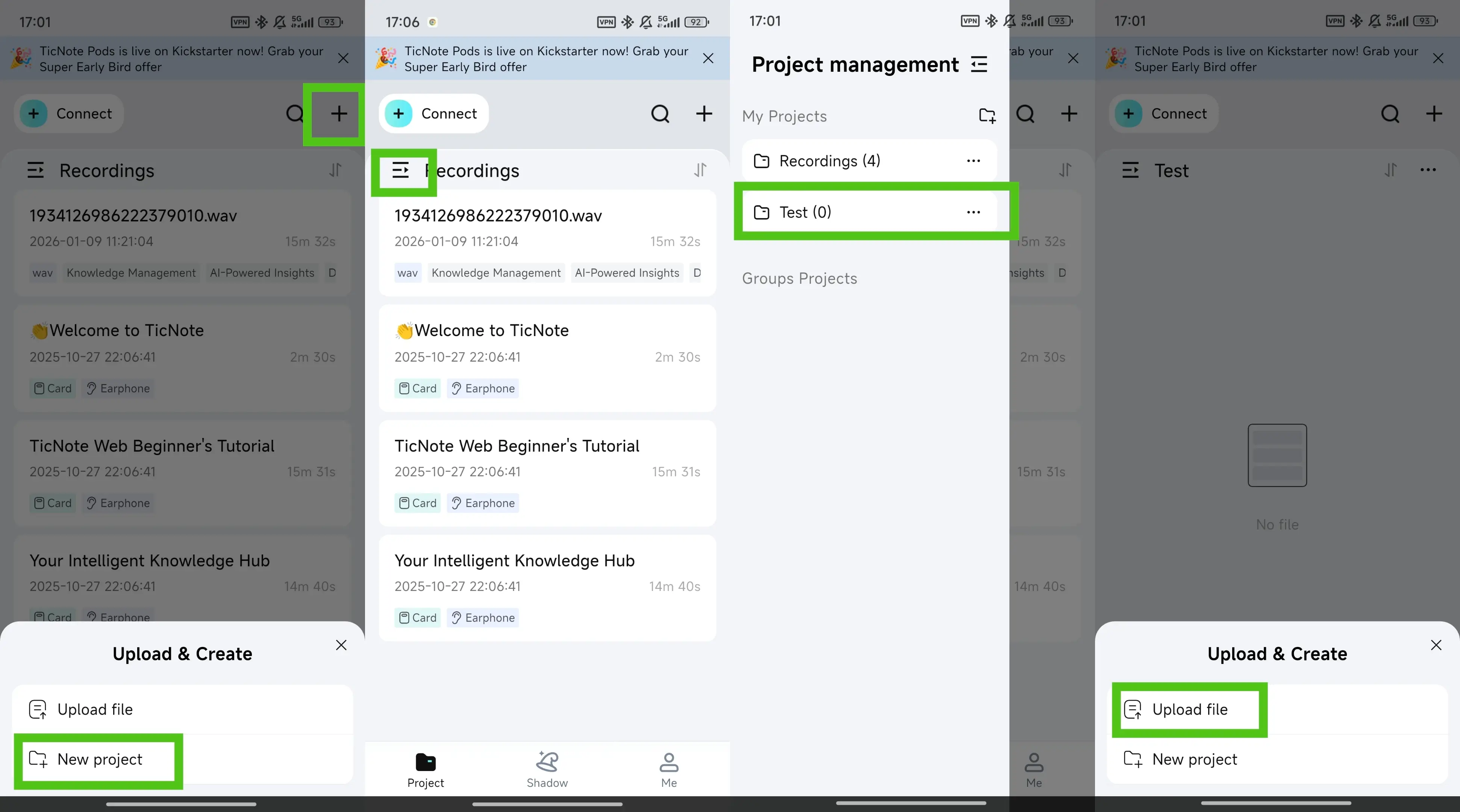
- Open the Summary tab, scan for key facts (names, dates, numbers), then export. The export path is: three-dots button, Export Summary, pick a format, then Export.
Make it meeting-ready: no-bot recording plus reusable knowledge
For teams that can't invite a meeting bot, a "no-bot" workflow keeps things simple. Record audio, generate a transcript, and summarize after the call. Then save the summary inside a project space so it stays searchable later with the source file.
Add grounded Q&A and reuse
After you get a summary, use grounded Q&A (questions answered from your own notes) to confirm details and pull next steps. For example:
- "What decisions did we make about timeline?"
- "List action items and who owns them."
- "What risks were mentioned, and where?"
For review and reuse, you can also generate optional outputs like mind maps, translation, or a deep research-style report.
Try TicNote Cloud for free and generate your first meeting or document summary in minutes.


