Extension
TL;DR: Quick takeaways and 10-step checklist
Zoom fatigue comes from cognitive overload, nonstop eye contact, and poor meeting design, but you can cut exhaustion fast with a few habits. Use this one-minute checklist to get instant relief, then apply the 10-step plan for lasting improvements.
One-minute fixes:
- Turn off your camera for short stretches.
- Close unrelated tabs and mute notifications.
- Stand up and do a 30-second stretch between calls.
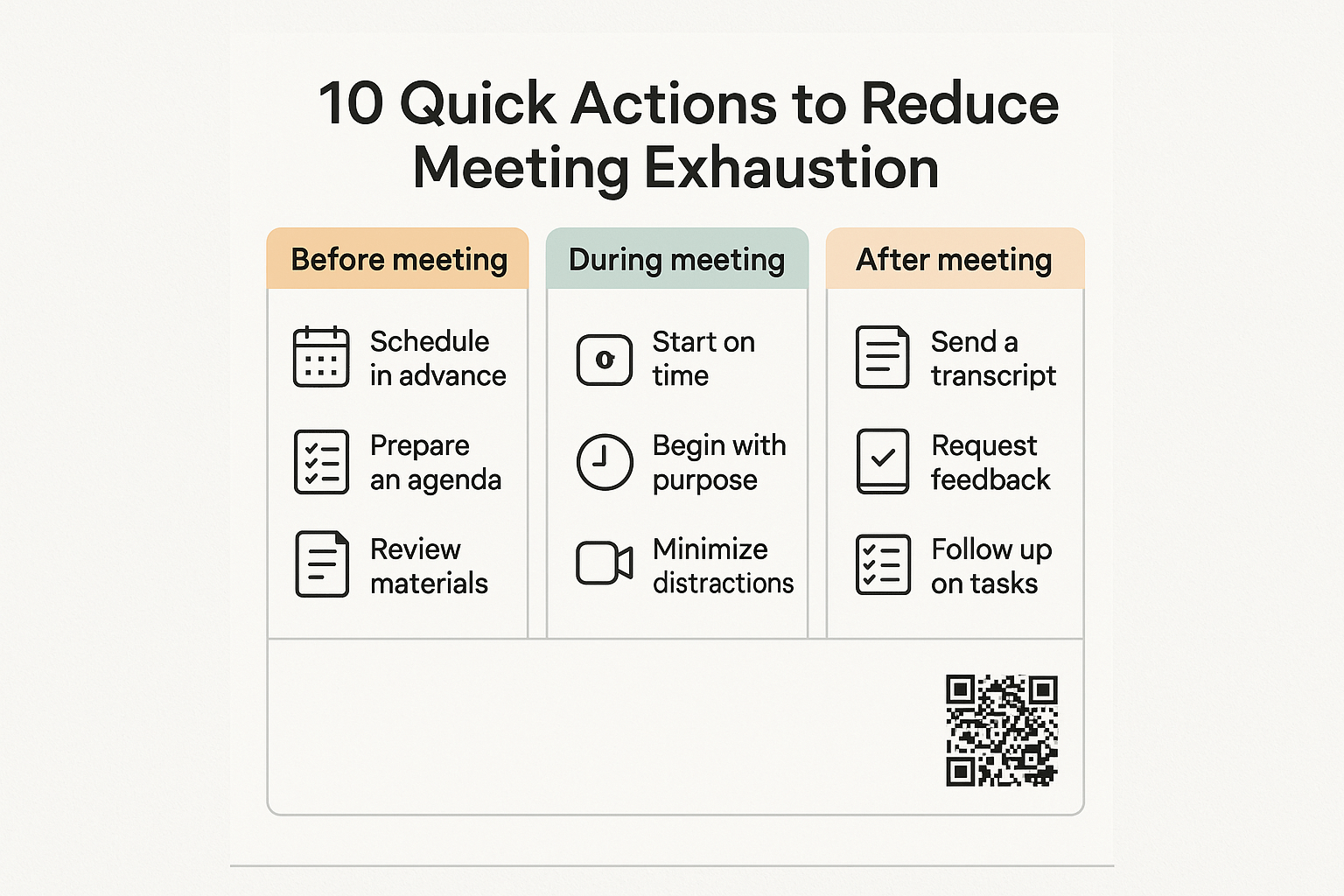
Printable 10-step checklist (Before / During / After):
- Before meeting: set a clear agenda and shared goal.
- Before meeting: pick a time with a buffer, not back-to-back.
- Before meeting: share pre-read materials and desired outcomes.
- During meeting: use an agenda timer and assign a notetaker.
- During meeting: encourage camera optional and brief check-ins.
- During meeting: use captions or live transcription for focus.
- During meeting: pause every 15–20 minutes for a 30-second break.
- After meeting: send a 1-paragraph summary with actions.
- After meeting: file notes in a searchable location.
- After meeting: schedule follow-ups only when necessary.
Zoom fatigue means feeling drained, foggy, or irritable after lots of video calls. It’s the mental and physical tiredness that builds when people meet online instead of in person. The term covers both general virtual meeting strain and the extra pressure of being on camera: camera fatigue, which comes from constant self‑presentation and prolonged close‑up eye contact.
Camera fatigue: the video self-effect
Camera fatigue happens when you have to look at your own or others’ faces on a small screen for long stretches. Researchers point to several clear drivers: increased cognitive load from weaker nonverbal cues, the odd feeling of prolonged eye contact, and the stress of managing your own image. According to Video-conferencing usage dynamics and nonverbal mechanisms exacerbate Zoom Fatigue, particularly for women (2023), women experience more Zoom fatigue than men because they are more attuned to the nonverbal elements of video-conferencing.
Quick research roundup
- Stanford and other labs show video calls need more mental work to read faces and tone, which tires the brain faster.
- Studies link constant self-view to social anxiety and extra self-monitoring.
- Back-to-back virtual meetings give less natural recovery time than in-person talks.
Why this matters: Zoom and camera fatigue reduce focus, slow decision-making, and harm learning. Spotting the signs early helps you take steps to protect energy and keep meetings productive.
Recognizing zoom fatigue symptoms - how to self‑check
Start small: notice patterns, not single bad days. Zoom fatigue makes back-to-back calls feel heavier and lowers focus. Spotting common signs helps you change meeting habits and reclaim energy.
Physical signs to watch for
Physical cues usually show first. They tell you when video calls are taking a toll on your body.
- Headaches or eye strain after long calls
- Tense neck, shoulders, or jaw from holding posture
- Tiredness despite light activity
- Trouble sleeping after heavy meeting days
These are not always serious but they add up. Track when they show up during your week.
Cognitive signs that mean you’re overloaded
Mental fatigue shows as weaker thinking and memory. It makes decisions slower and prep feel harder.
- Short attention span during calls
- Forgetting action items or who said what
- Difficulty following multi-person conversations
If these happen often, your brain is spending too much energy on surface-level coordination.
Emotional and behavioral signs
Mood and behavior change when meetings drain you. They are useful signals to act.
- Irritability or feeling drained after short meetings
- Avoiding optional calls or zoning out on camera
- Lower motivation for deep work after a meeting block
Quick self-check quiz (1 minute)
Rate each statement 0 (never), 1 (sometimes), 2 (often):
- I get headaches or a sore neck after calls.
- I can’t focus on the last 30 minutes of meetings.
- I forget key decisions from meetings.
- I feel drained, even after short calls.
- I avoid joining optional meetings.
- My mood dips after a day of calls.
Score 0–4: Low strain, try small tweaks. 5–8: Moderate, cut meeting time and add breaks. 9–12: High, reduce daily meeting load, and raise the issue with your team or manager.
Why virtual meetings drain energy: 5 research-backed causes
Video calls feel tiring for a few clear reasons. This section names five evidence-based causes of Zoom fatigue and shows what each means in practice. Small changes lower strain, so read the practical implications after each cause.
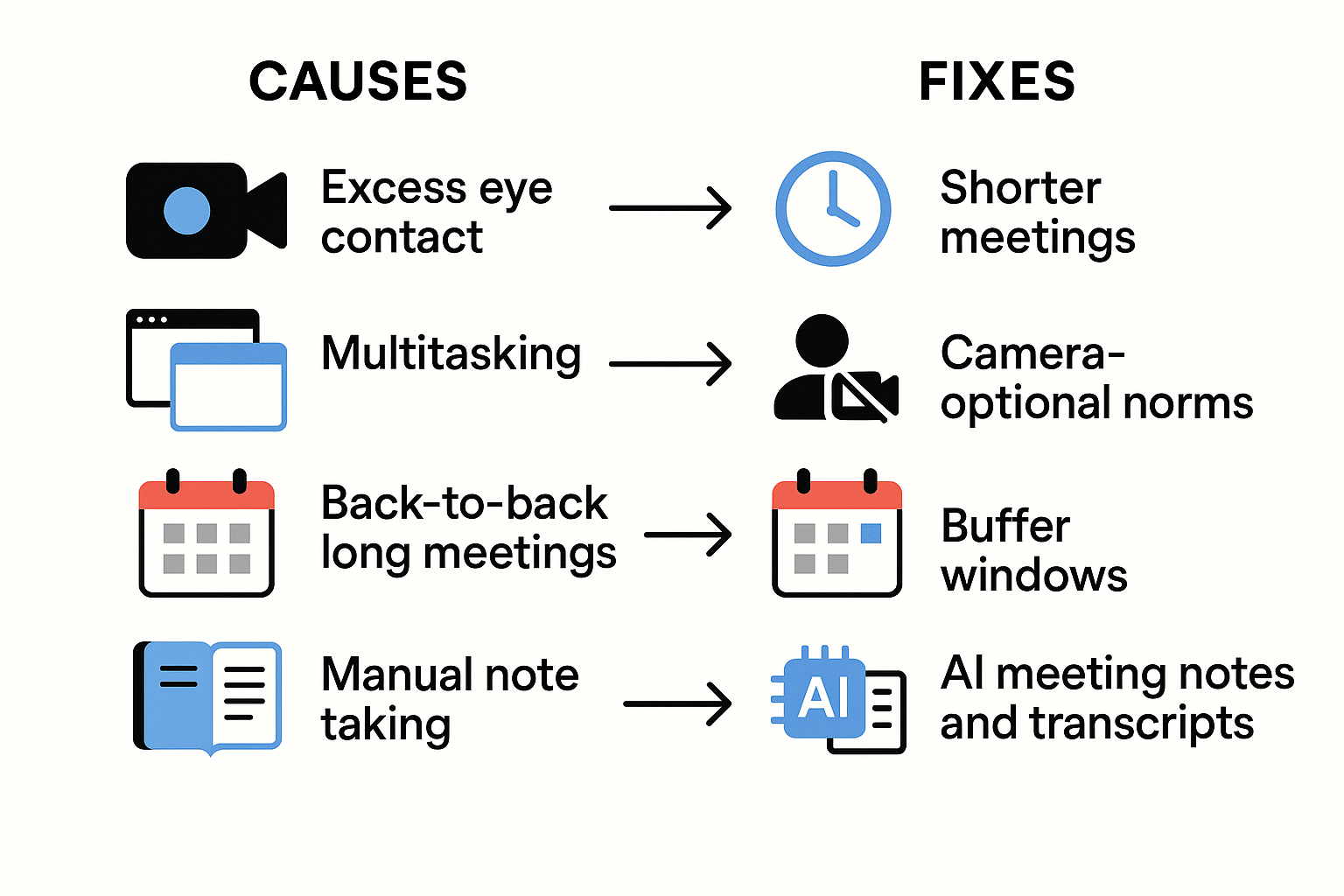
1) Close-up eye contact and nonverbal overload
Video keeps faces large and near, so eye contact feels intense. In person, we look around naturally, but on video we stare at faces that stay the same size. That makes nonverbal signals feel louder and harder to filter. Practical implication: shrink your window, move the camera farther, or zoom out to reduce the intensity of faces.
2) Higher cognitive load from missing cues
Video removes many subtle cues like body posture and peripheral signals. Your brain works harder to fill gaps and guess intent. That extra decoding raises mental effort and fatigue. Practical implication: add explicit agenda items and verbalise key signals, so less guessing is needed.
3) Stress from self-view and social evaluation
Displaying a user's own face during videoconferencing increases self-awareness, which, in turn, increases stress and disrupts automaticity in information processing, causing increased cognitive effort, as shown by On the stress potential of videoconferencing: definition and root causes of Zoom fatigue (2021). Seeing yourself makes you monitor expressions and performance. Practical implication: hide self-view, or use a small thumbnail so you stop self-checking.
4) Multitasking pressures and divided attention
People switch between call content, chat, email, and notes. Each switch is costly for attention and memory. That split focus drains energy fast. Practical implication: set clear roles (note taker, moderator), close unrelated apps, or use a meeting tool to capture notes automatically.
5) Meeting density and poor design
Back-to-back calls leave no recovery time. Long, unfocused meetings amplify all other causes. Practical implication: shorten meetings, add breaks, and use agendas with clear outcomes.
Quick action list
- Hide self-view or minimize it.
- Use a dedicated note tool to avoid task switching.
- Shrink the camera window or step back from the camera.
- Run shorter, agenda-driven meetings.
- Assign roles to reduce multitasking.
Start small and enforce practical boundaries to cut screen strain and save time. These 10 steps help individuals and managers reduce camera fatigue and make virtual sessions feel purposeful. Each tip is actionable and easy to paste into calendar invites or team guidelines.
Quick actions to try today
- Set simple camera rules for meetings. Decide when cameras are required and when they're optional to reduce constant eye contact. Tell attendees why, so people feel respected and clear about norms. Copy for invites: "Cameras optional unless presenting. Please turn on video if you're sharing slides."
- Default to shorter meetings with clear outcomes. Shorter sessions lower cognitive load and force tighter agendas. Try a 25 or 50-minute default instead of 30 or 60, to give natural breaks. Copy for invites: "This is a 25-minute check-in with 3 goals: align, decide, list actions."
- Use speaker view and hide self-view to cut staring fatigue. Seeing yourself all the time increases self-monitoring and stress. Ask people to hide their own preview during longer conversations. Quick tip to paste: "If you feel worn out, hide self-view and use speaker mode."
- Build short buffers between meetings. Back-to-back calls cause attentional carryover and exhaustion. Block 10 minutes after every 45-minute meeting for notes and a reset. Invite copy: "Please leave 10 minutes free after this call for stretch and notes."
- Encourage micro-breaks and movement. Even 60 seconds of standing, deep breaths, or looking away helps reset attention. Add a stretch or breathing prompt to recurring invites. Manager note: "At minute 15, we'll pause for a 60-second stretch."
- Assign simple meeting roles to share the load. Roles like facilitator, timekeeper, and note guardian reduce mental multitasking. If note-taking is hard, rotate the role or use a tool to capture it. Example: "Alex is facilitator; Priya is timekeeper; no live note-taking unless posted."
- Use live transcription during meetings. Live transcripts reduce the need to type notes during discussion. A transcript lets people focus on listening, not capturing every word. Tools like TicNote Cloud transcribe meetings live and create searchable transcripts automatically.
- Auto-generate summaries and action items after each call. Readable summaries lower replay load and speed follow-ups. Ask your meeting tool to surface decisions, owners, and due dates. For example, TicNote Cloud can auto-summarize a meeting and pull out action items for quick distribution.
- Replace long slide decks with quick visual maps. Mind maps and short visuals cut sustained screen staring and speed comprehension. Auto-generated mind maps make reviews faster than rewatching a full recording. Tip: attach a one-slide mind map to the invite and link the transcript for deep review.
- Close with a 60-second recap and next steps. Ending with a concise recap fixes shared memory and limits post-meeting ambiguity. Use a template to capture decisions, owners, and dates so follow-ups are automatic. Invite-ready recap: "Recap: decision, owner, due date. I will share the transcript and action items after the call."
These tactics reduce camera fatigue and speed follow-through. Use simple invite language to set expectations and lower cognitive load. Pair rules with tools that capture meetings automatically, like live transcription and AI summaries, so people can listen more and type less.
Long-term change needs a policy and a plan. Start by treating Zoom fatigue as an operational risk, not a personal failing. Make simple rules teams can follow, and give managers clear playbook steps to cut meeting volume. Include signals that show when adjustments work.
Practical meeting policy template
Create one-page rules everyone can read. Keep it short and specific.
- Core rule: default to async updates unless a live meeting is needed. Define triggers for a meeting, for example decisions, blocker resolution, or onboarding.
- Timing rule: cap recurring meetings at 45 minutes and use a clear end time. Include buffer blocks between back-to-back calls.
- Camera rule: cameras off by default, unless social connection or presentation needs it.
- Breaks and movement: include brief physical activity breaks during long sessions, as recommended by A Guide to Planning Healthy Meetings (2025), to promote health and wellbeing.
Manager playbook to reduce meeting volume
Give managers a short checklist they can use each week.
- Audit the calendar: remove recurring meetings with low attendance or no clear agenda.
- Apply a decision test: if the meeting does not create a clear decision or action, convert it to an async update.
- Bundle one-hour blocks into focused work days for each team.
- The train meeting leads to publishing agendas and expected outcomes 24 hours in advance.
These steps reduce needless meetings and make remaining calls more focused.
Inclusivity and accessibility to prevent fatigue
Design rules that help neurodiverse and cross-cultural teams.
- Provide agenda notes and slides in advance for processing time.
- Offer multiple participation modes: chat, reactions, spoken turn, and file comments.
- Allow camera-off and audio-only options without stigma.
- Use clear timestamps and avoid slang to help non-native speakers.
- Accommodate sensory needs: let people use low-motion backgrounds and optional captions.
Metrics to test impact
Track simple signals weekly and monthly to measure change.
- Meeting hours per person per week.
- Number of recurring meetings canceled or reduced.
- Average meeting length and start-time punctuality.
- Pulse scores for meeting fatigue and well-being.
- Action completion rate after meetings.
Run the metrics for 6 to 12 weeks, then iterate on the policy. Small rules and clear data make it easy to reduce meeting burden and protect team energy.
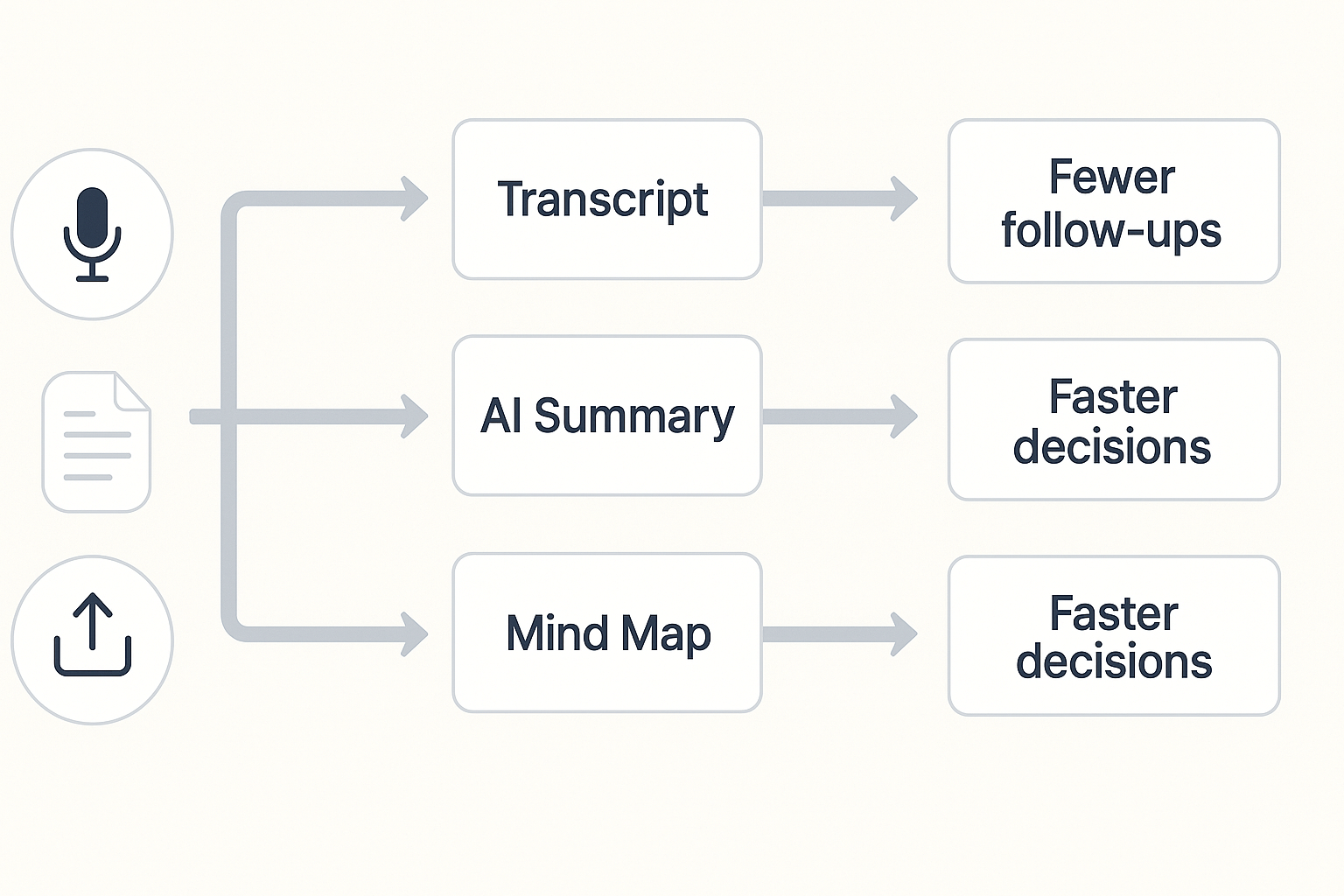
Start here: Many people feel drained after back-to-back video calls. TicNote Cloud maps live transcription, AI summaries, Shadow chat, and mind maps to clear steps that cut camera time and lower meeting load. Use these modules to stop taking live notes, hand off recap work to AI, and shift status updates to async summaries to avoid unnecessary calls.
Map features to fatigue fixes
- Live transcription converts speech to searchable text, so you don’t type while you listen. That reduces split attention and camera strain.
- AI summaries pull key points and decisions, so fewer long follow-ups are needed.
- Shadow chat (contextual AI chat) answers questions about a transcript or file, so teammates skip repeat calls.
- Auto mind maps turn notes into visuals, making decisions and next steps obvious at a glance.
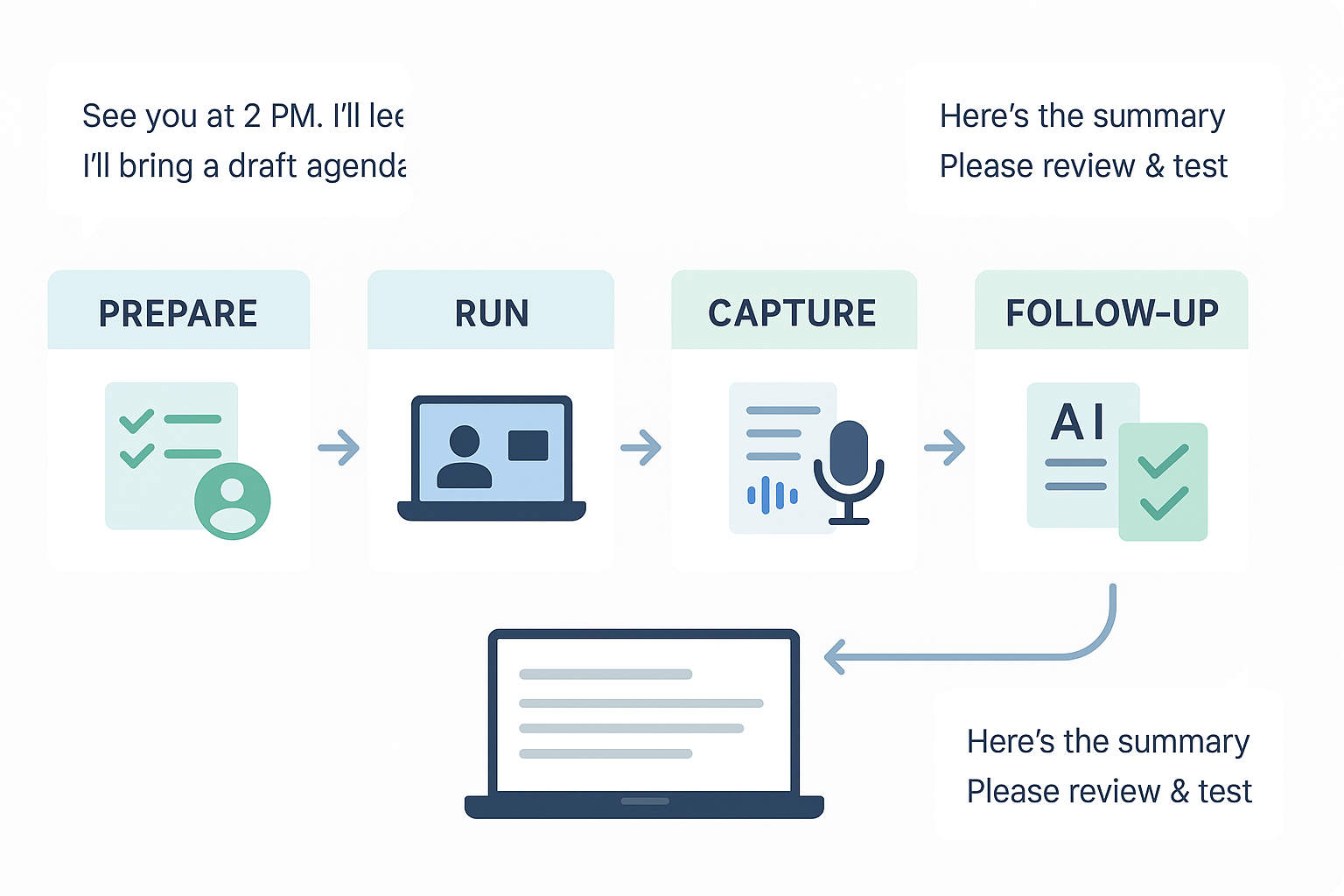
Workflow 1: Replace live note-taking with AI capture
- Before the meeting, enable TicNote live transcription.
- During the call, focus on facilitation and eye contact while TicNote records audio and transcribes.
- Immediately after, open the AI summary template to extract decisions and action items.
- Share the one-page summary and a link to the transcript with attendees.
Workflow 2: Move repeat updates to async summaries
- Record short updates or upload meeting audio to TicNote.
- Run the AI translation if you need cross-language updates.
- Use Shadow chat to ask questions like, "What are outstanding decisions?" and paste answers into a status note.
- Publish the summary and mind map to the project folder for on‑demand review.
Privacy and compliance note
TicNote Cloud keeps data private by default and does not use your recordings to train public models. For sensitive environments, use Enterprise plans with SSO and admin controls.
Try TicNote Cloud for free and generate your first AI summary in minutes.
Real user cases & expert quotes (E‑E‑A‑T)
Real users often show the clearest wins against Zoom fatigue. Below are two short cases, each showing how better meeting notes and AI workflows cut follow-ups and trimmed live lecture time. Read them to see practical outcomes and a quick before-and-after snapshot.
Product manager: cut meeting churn, ship faster
A mid‑size SaaS product manager used live transcription and AI summaries to capture decisions and actions. The team stopped relying on post‑meeting recap emails. They reduced follow-up calls and reclaimed focus time. They also used searchable notes to speed up sprint planning.
Educator: shorter live sessions, same learning
A university lecturer swapped long live talks for 30‑minute check‑ins plus recorded mini‑lectures. Students used transcripts and mind maps to prep. The instructor kept learning outcomes but cut synchronous time. Office hours stayed targeted and more useful.
Expert view: why these changes work
"Reducing repetitive meetings lowers cognitive load and restores attention," says Dr. Amira Collins, workplace wellbeing consultant. "Capture and reuse cut unnecessary repeat explanations, and that reduces fatigue."
| Role | Before (wk meetings × avg min) | After (wk meetings × avg min) | Follow-up calls/wk |
| Product manager | 8 × 60 | 5 × 35 | 1 |
| Educator | 6 × 90 | 2 × 40 | 0 |
These short cases show how meeting capture and AI summaries reduce virtual meeting fatigue and save time. Small shifts add up fast.