


 Extension
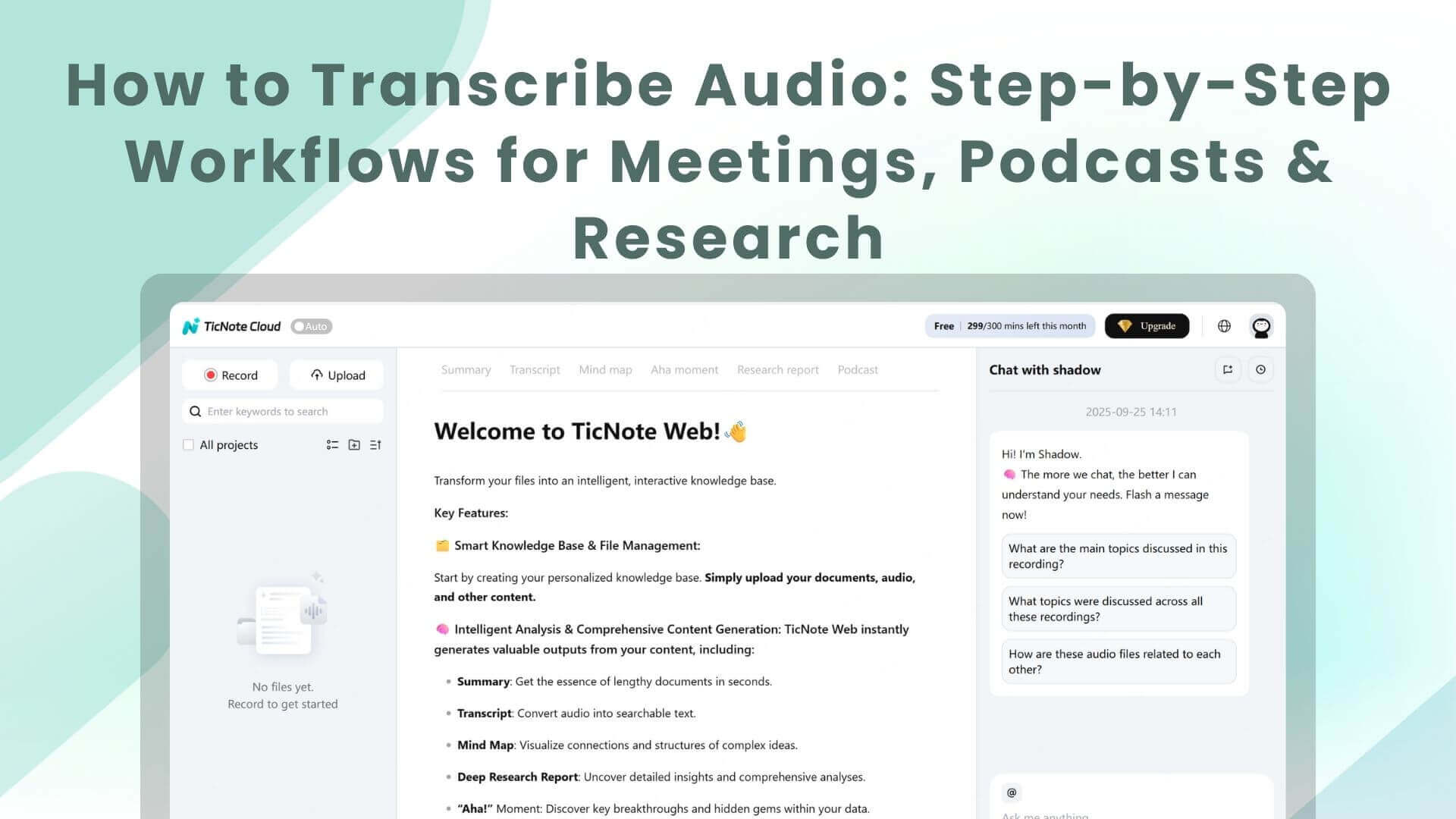
TL;DR — What you'll learn and the fastest way to transcribe audio
The fastest way to transcribe audio is to record or upload your file, let the transcript auto-generate, then do a quick speaker and name pass before you export. This guide shows repeatable workflows for meetings, podcasts, and research, plus when live capture beats post-meeting uploads.
You'll also learn how to prep audio for higher accuracy, fix common issues like accents and crosstalk, and turn transcripts into summaries, action items, and reusable docs in common formats.
It's easy to miss decisions when you're also taking notes. That creates messy follow-ups and loses context. Use TicNote Cloud to capture live or upload audio, then get clean transcripts and summaries in one place.
How to transcribe audio with TicNote Cloud, step-by-step
To transcribe audio in TicNote Cloud, you create a free account, then choose either live capture (for meetings) or upload (for existing files), wait for processing, and open the finished transcript in your workspace to edit, summarize, and export.
Notes get messy fast. You miss names, decisions, and action items. When you need them most, you can't find them. With TicNote Cloud, you can capture or upload audio, then get a clean transcript you can search and reuse.
Steps: Use TicNote Cloud Web Studio to Transcribe Audio to Text
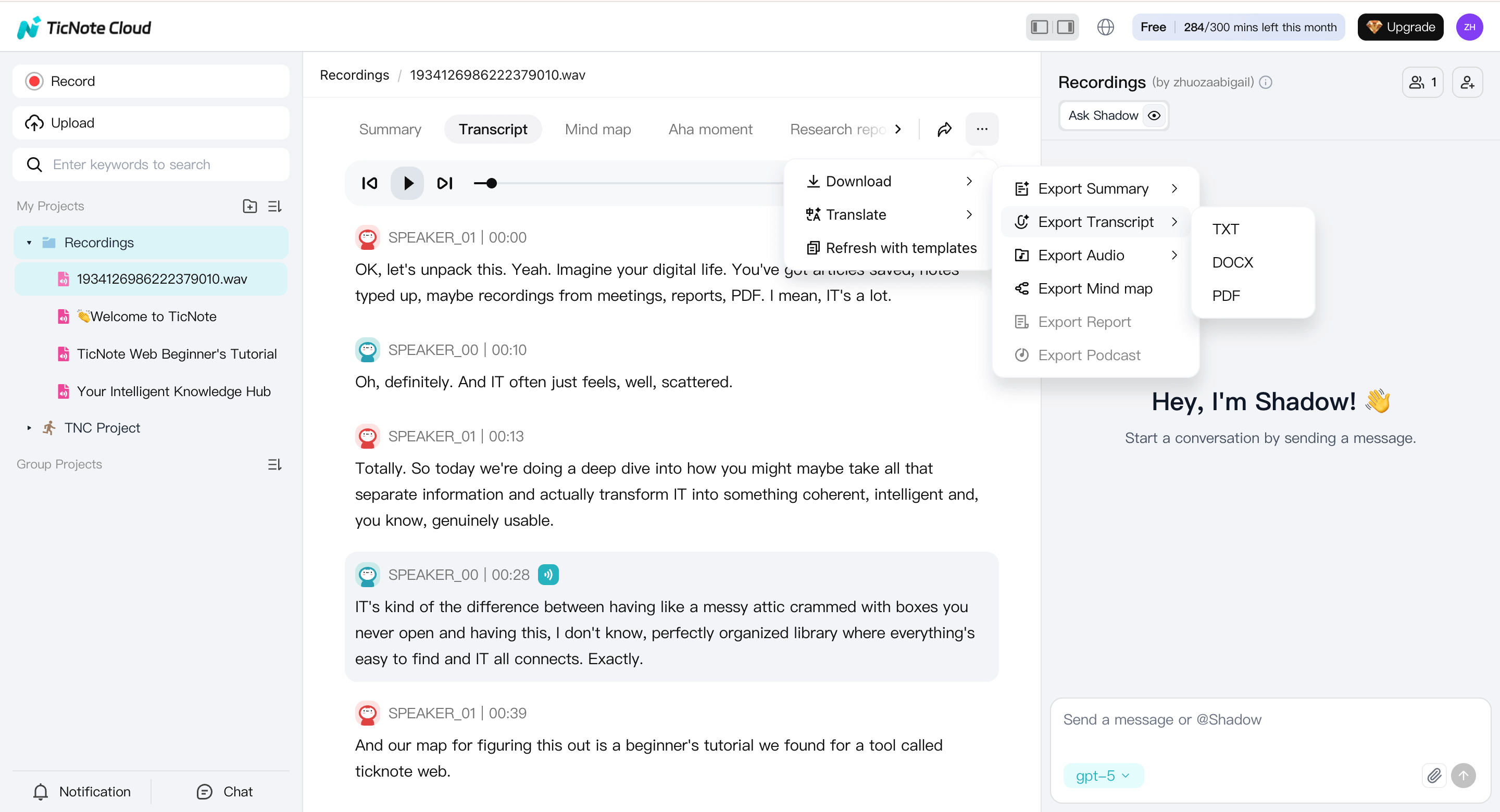
Upload your audio file Open TicNote Cloud Web Studio and use the upload option at the top of the page to add your audio file. Once uploaded, the file will appear in your project list on the left side.
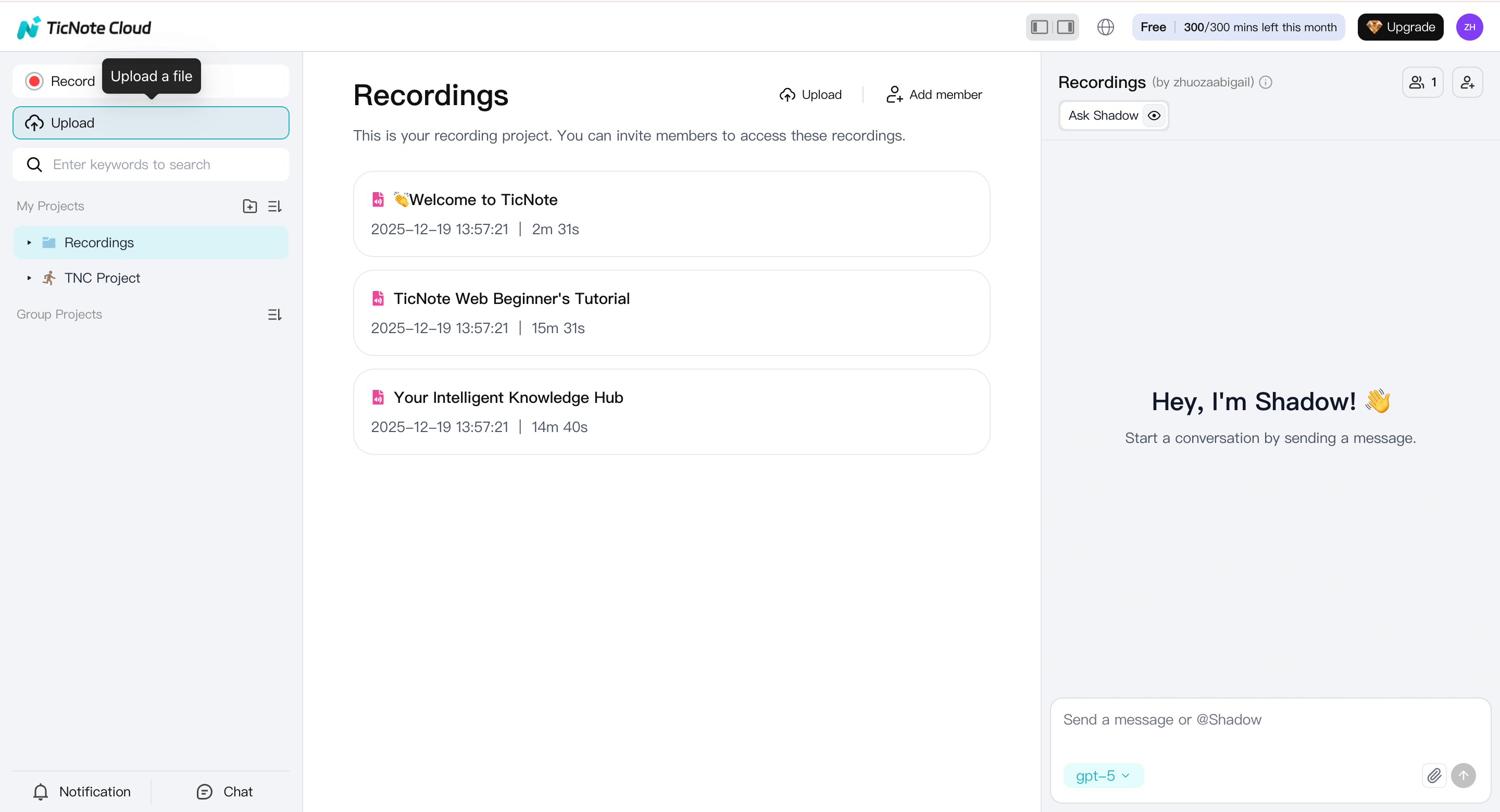
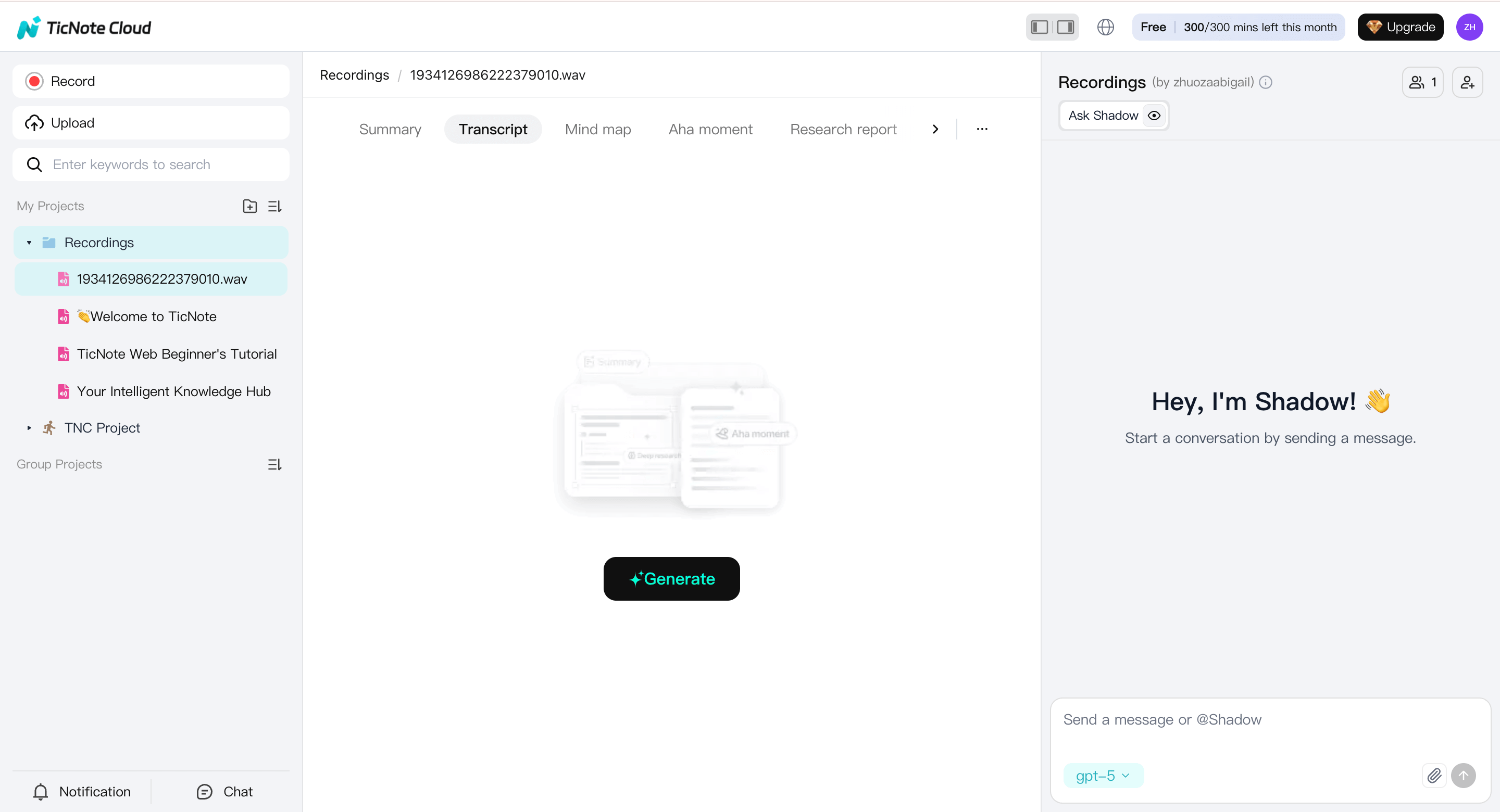
Open the transcription panel Click on the uploaded audio file, then navigate to the Transcript section in the main workspace. This is where you can start generating text from your audio.
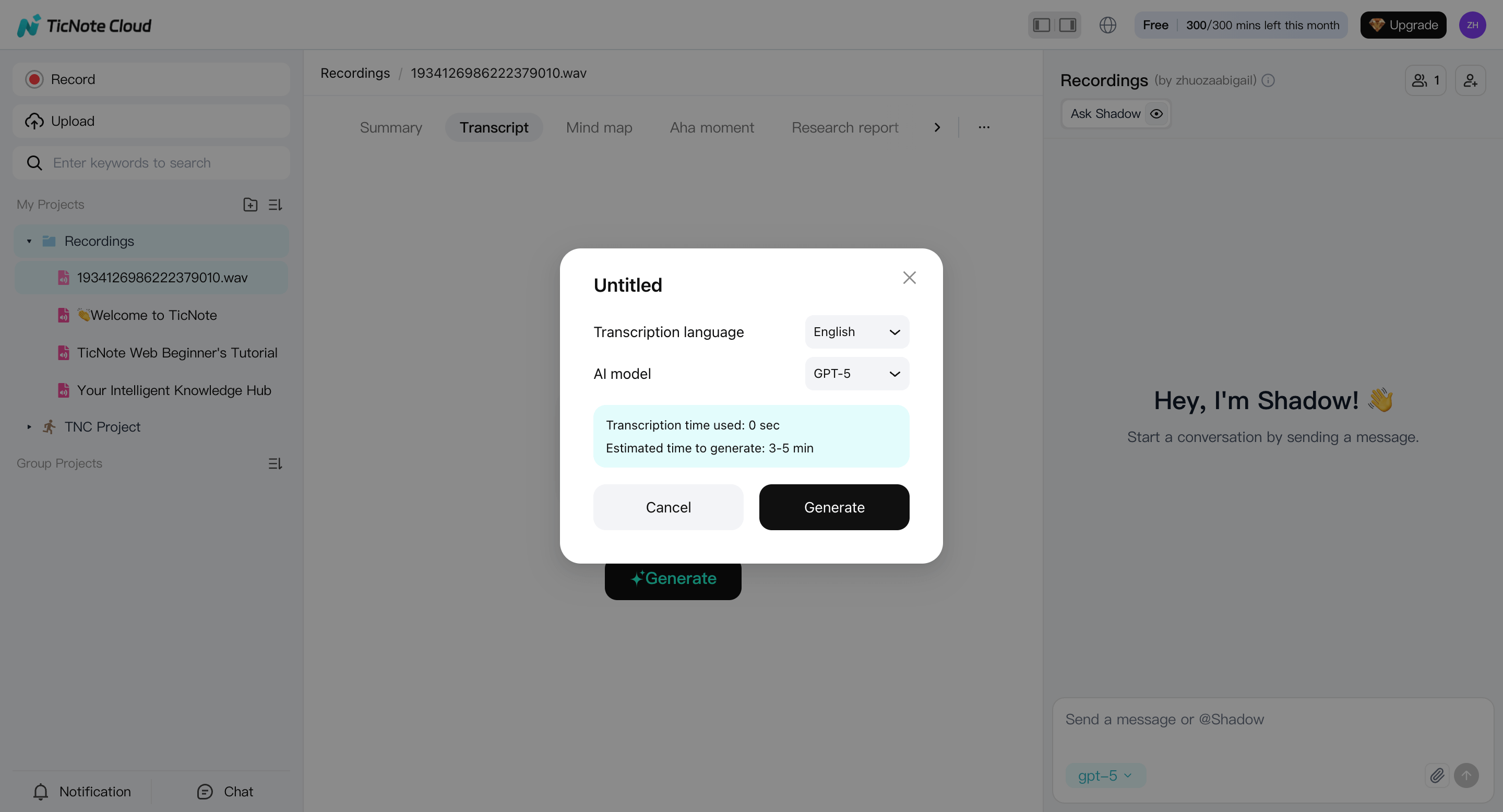
Configure transcription settings When prompted, select the spoken language and choose the AI model that best fits your needs. Confirm your selection to begin the transcription process.
Review and export the transcript After the transcription is complete, review the generated text directly in the editor. When ready, export the transcript in your preferred format for download or sharing.
Steps: Use TicNote App to Transcribe Audio to Text
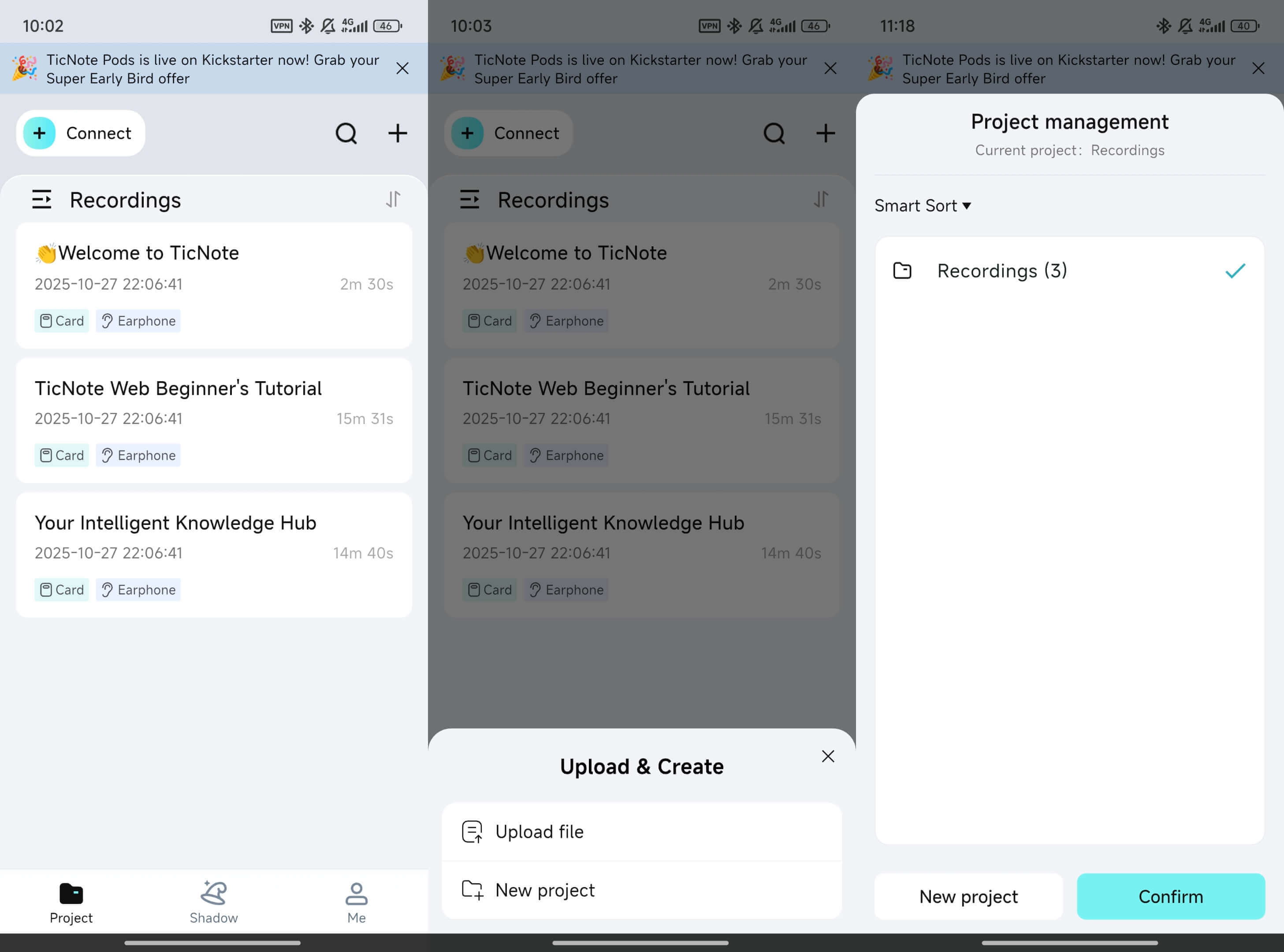
Add an audio file to a project Launch the TicNote app and tap the add button to upload your audio file. You can create a new project or place the file into an existing one.
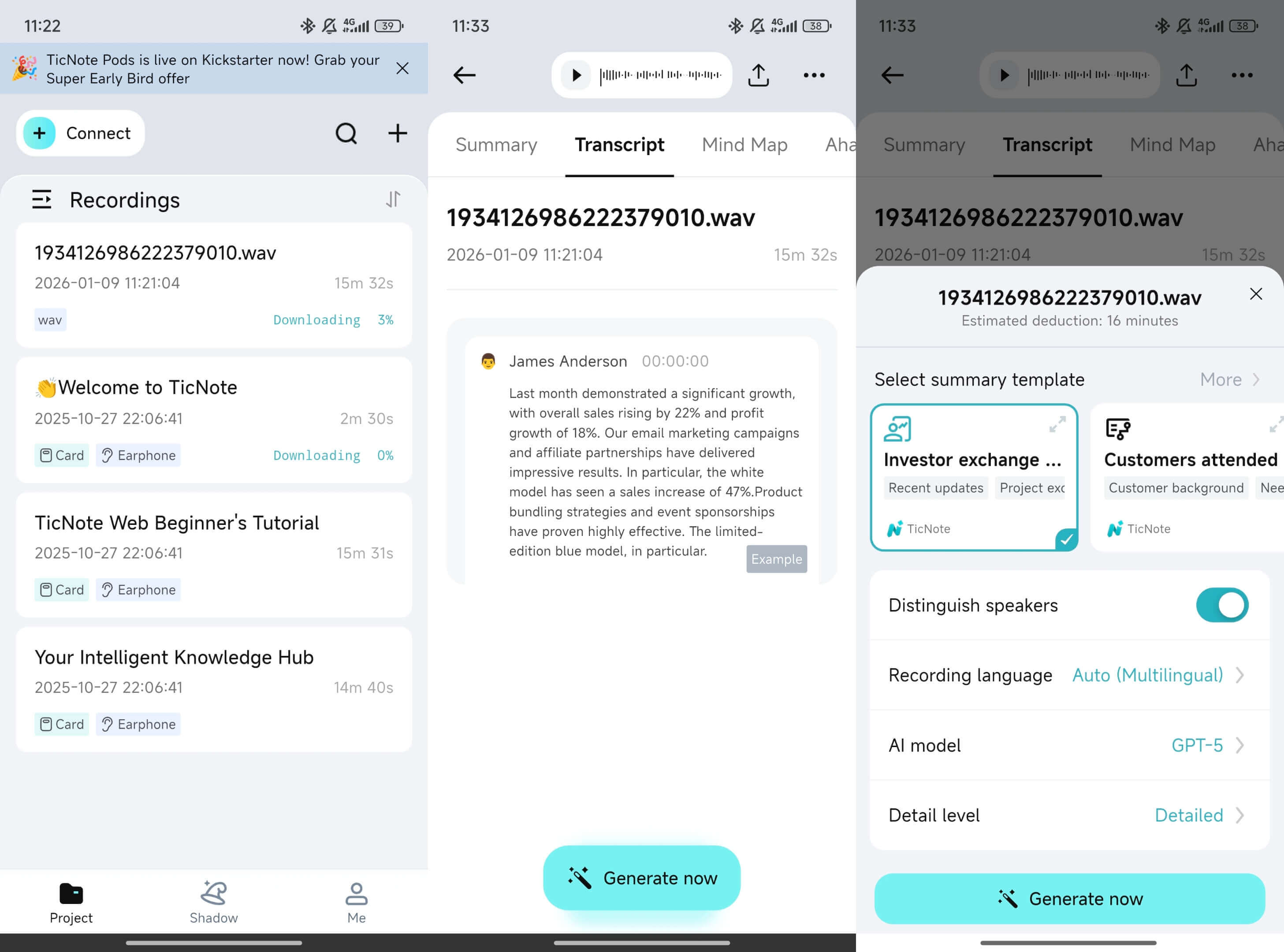
Start the transcription Select the uploaded audio file and choose the transcription option. Before generating the text, you can adjust settings such as language, content detail, and speaker separation.
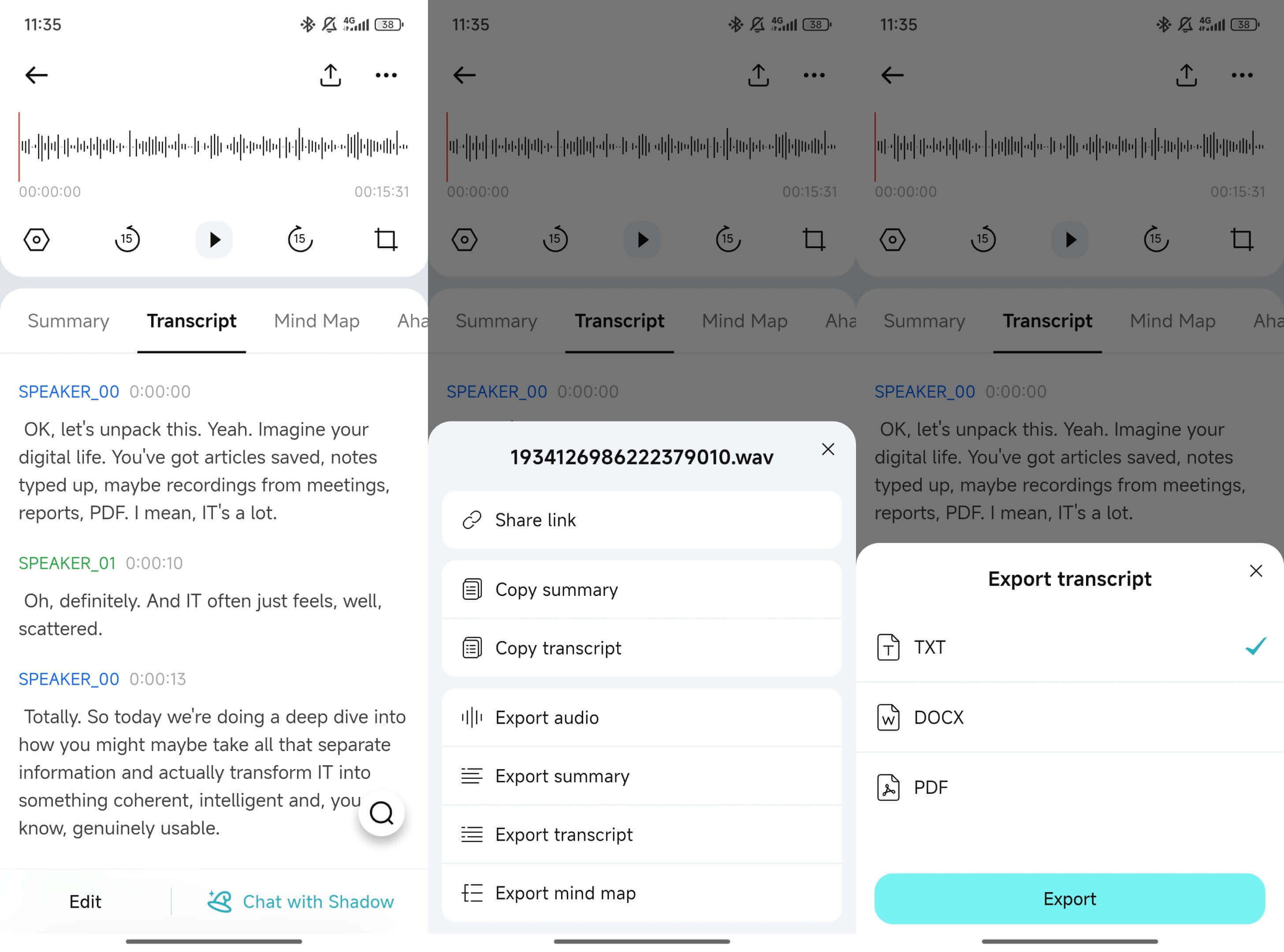
Edit and export the results Once the transcription is generated, you can edit both the audio and the text if needed. To export, open the menu at the top, choose Export transcript, select a format, and complete the export.
Start Live Transcription or Upload a File in TicNote Cloud
Prepare your audio for the best transcription accuracy
To get the best results when you learn how to transcribe audio, start with clean sound. Clear speech, a steady mic, and low room noise can improve speaker detection and cut weird words. Do these quick prep steps before you hit record or upload.
Bad audio creates messy transcripts. Messy transcripts waste time in edits and cause missed action items. With TicNote Cloud, you can record live or upload files, then use summaries and speaker-aware notes to clean up faster.
Record clean audio first
Most accuracy gains happen at recording time. You do not need a studio; just control the basics.
- Use a decent mic: a USB mic or wired headset beats laptop mics.
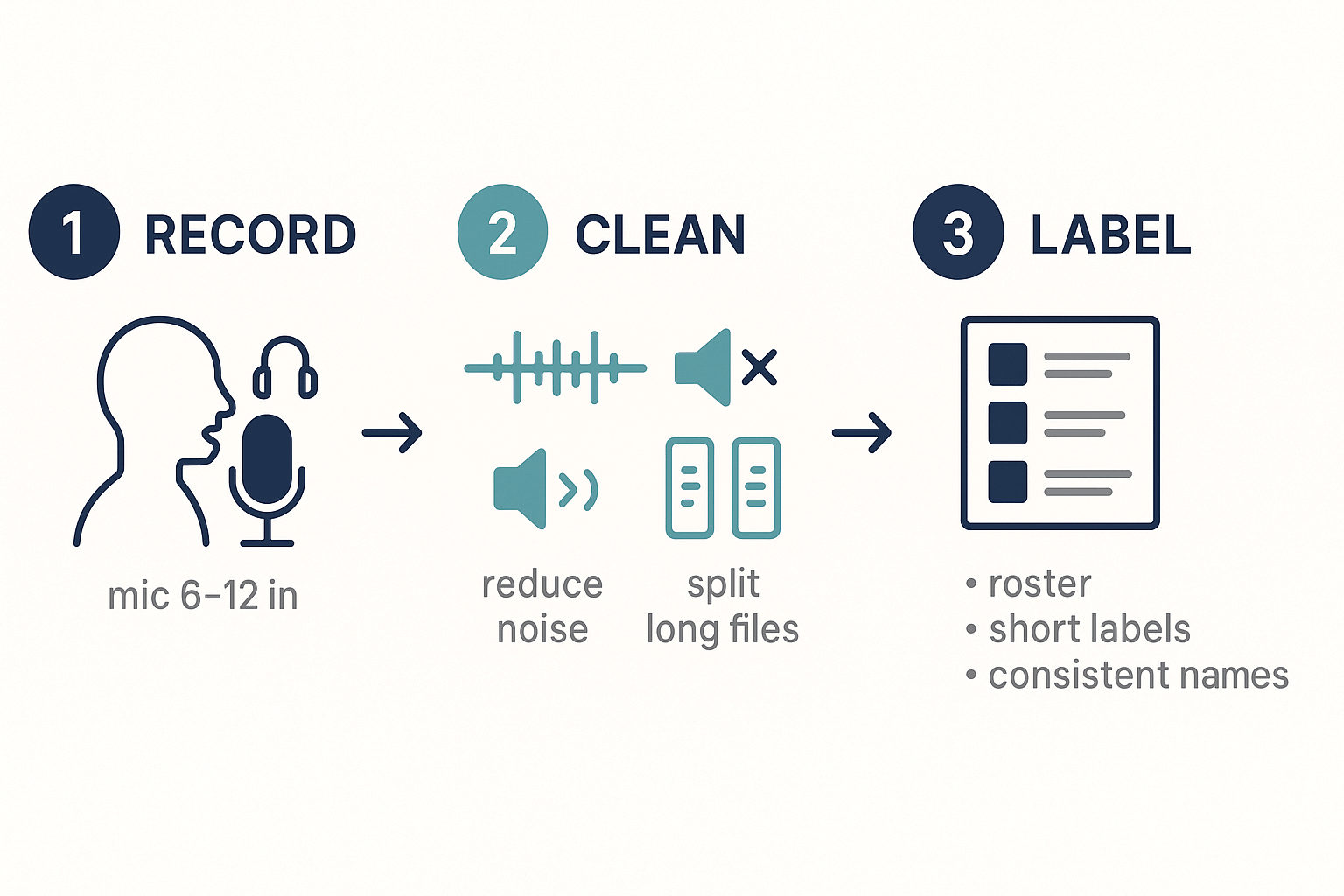
- Place the mic 6 to 12 inches from your mouth.
- Speak a bit slower than normal, and finish sentences.
- Ask everyone to mute when not talking.
- For group rooms, put one mic in the center, not near a keyboard.
Fix the room, then hit record
Small room changes reduce noise that AI often confuses as speech. This also helps with accents and fast speakers. If you're working with phone recordings, this setup also improves results when you transcribe voice memos from an iPhone or Android.
- Pick a quiet room, close doors and windows.
- Turn off fans, AC blasts, and desk alarms.
- Avoid echo: soft items help, like curtains or a rug.
- Do a 10-second test and listen back.
Prep files before you upload
If you upload audio, a little cleanup goes a long way. Aim for a steady volume and fewer dead spots. If your source is a video file instead, this guide on how to transcribe a video walks through the same cleanup and transcription workflow.
- Trim long silences at the start and end.
- Normalize levels (make quiet parts louder evenly).
- Split very long files into 30 to 90 minute chunks.
- If you can, export as WAV for fewer artifacts.
Label speakers so names stay consistent
Speaker labels break when names change across files. Set a simple rule and stick to it.
- Share a roster before the meeting: name, role, and team.
- Use short labels: "Alex", "Priya", "Host", "Guest1".
- Keep labels stable across projects so mapping stays clean.
- If two people share a name, add a tag like "Sam S" and "Sam M".
TicNote Cloud exclusive: meeting to knowledge workflow
Most tools stop at a transcript. TicNote Cloud adds a second step that stays grounded in your files.
- Shadow chat can answer questions across meetings, like "What did we decide about pricing?"
- AI summaries and templates turn raw talk into clean notes by topic.
- Mind maps give a fast visual review for complex calls.
- Translation helps global teams share the same transcript in many languages.
When to use human help or a hybrid workflow
AI struggles with very poor audio, heavy crosstalk, or high-stakes wording. Use a hybrid approach when you need extra certainty.
- Legal: depositions, contract terms, formal records.
- Medical: clinical notes and medication names.
- Research: hard-to-hear interviews or field recordings.
In TicNote Cloud, choose live capture for fast follow-ups and uploads for cleaned files. If the audio is rough, clean and split it first, then upload so the transcript is easier to review.
Live capture vs. post-meeting upload: pros, cons, and workflows
Live capture is best when you need notes right now. Post-meeting upload is best when you need the cleanest audio and time to polish. The same choice applies when you need to transcribe voicemail messages for records, support, or compliance.
Problem: live calls move fast, and details get lost. It gets worse when you must send follow-ups right away. Solution: Try TicNote Cloud for Free and use live transcription plus instant AI summaries, so decisions and action items are ready before you hang up.
Choose live capture when speed matters
Use live capture for recurring standups, sales calls, interviews, and 1:1s.
Pros:
- Near instant transcript, timestamps, and action items
- Easier to track decisions as they happen
- Great for busy calendars and rapid follow-ups
Cons:
- Room noise and cross-talk can reduce accuracy
- If someone has a weak mic, the text may drift
Workflow:
- Start live capture in TicNote Cloud.
- Label speakers if prompted, or correct names after.
- Generate an AI summary right after the meeting.
- Share key points with your team.
Choose uploads when audio quality matters
Uploads fit webinars, podcasts, client recordings, and long files.
Pros:
- Often a cleaner sound from recorded tracks
- Better for long-form editing and repurposing work
Cons:
- You wait until the file is ready
- No live help during the call
Workflow:
- Export your audio, then upload it.
- Let TicNote transcribe, then translate if needed.
Multilingual, hybrid, and multi-source meetings
If your meeting is multilingual, you can transcribe live, then use translation for sharing. If separate speaker tracks are available (like split mic tracks), upload them for clearer speaker turns. For hybrid meetings, record locally for better sound, then upload the file after for a cleaner transcript.
| Scenario | Best method | Why it works |
| Daily standup | Live capture | Fast recap and action items |
| Customer interview | Live capture | Timestamps help with quotes |
| Podcast episode | Upload | Better fidelity for editing |
| Webinar replay | Upload | Long file, fewer interruptions |
| Hybrid room plus remote | Record local then upload | Cleaner room audio |
Start a live capture or upload your audio in TicNote Cloud
Edit, export, and repurpose transcripts with TicNote
To edit, export, and reuse a transcript in TicNote, open the transcript, fix key lines, clean up speakers and timestamps, then export in the format that fits your next task. This turns "how to transcribe audio" into real outputs you can send, search, and publish.
You got a transcript, but it's still messy. If names are wrong or speaker turns are off, your recap and action items will be, too. You can try TicNote Cloud for free to clean the transcript fast, then generate summaries and reuse-ready formats in one place.
Clean up the transcript in minutes
Start with a quick accuracy pass. Focus on what changes meaning, like numbers, dates, and decisions.
- Correct keywords and names first (clients, products, metrics)
- Merge or split speaker turns so each idea stays together
- Add timestamps on decisions and action items for fast playback
- Normalize filler words (remove repeated "uh", "you know")
Tip: keep one speaker per paragraph. It makes the export cleaner.
Create recaps with AI summaries and mind maps
Next, turn raw talk into a readable recap. Use AI summaries to produce meeting notes that match your style (agenda-based, bullets, or Q and A). Then generate a mind map to scan topics fast.
For longer workstreams, build a workspace you can search later. This pairs well with a meeting transcript knowledge base workflow so decisions don't get lost across calls.
TicNote-only workflow: Shadow Q&A across meetings
Shadow lets you ask questions that stay grounded in your files. You can query one transcript, a folder, or a whole project space. Many tools only chat with one meeting at a time.
Use it to:
- Find "What did we decide about pricing?"
- Pull all action items for one owner
- Compare answers across multiple interviews
Choose the right export format, see export formats
Pick exports based on what you'll do next:
- TXT: raw transcript for quick search, coding, or tools
- DOCX: edited minutes you'll share and revise
- PDF: locked version for clients or compliance
- Markdown: blog drafts, docs, and wiki pages
- WAV: audio export for archiving or editing
- PNG, Xmind: mind maps for slides and planning
SEO-friendly export tips:
- Use clear H2 and H3 headings in Markdown
- Keep the top summary under 120 words
- Add keyworded timestamps like "00:12 Budget approval."
Repurpose transcripts into assets
Once it's clean, reuse it with templates and AI deep research:
- Meeting minutes: decisions, risks, next steps, owners
- Blog post: outline, key quotes, and sections from Q and A
- Social clips: pull quotable lines, then match timestamps
- Research report: themes, evidence, and gaps from interviews
Privacy, security, and compliance when transcribing sensitive audio
If you need to know how to transcribe audio safely, focus on three things: who can access the files, how data is protected, and how fast you can delete it. TicNote Cloud is private by default, uses industry-standard encryption, and states that your data is not used to train AI models. That means your meeting audio and transcripts stay in your workspace, not in a public model.
You're not just worried about leaks. You're also worried about the wrong person seeing a sensitive transcript. That risk grows when notes live in scattered tools. You can reduce that risk by keeping capture, transcripts, and summaries in one place, so start with Try TicNote Cloud for Free and set access rules before your next recording.
Lock down access, retention, and deletion
For most teams, solid controls beat vague promises. Set a simple policy that answers: who can open a project, how long you keep files, and how you remove them.
- Limit access by workspace or project, so only the right team sees it.
- Use least privilege (give the smallest access needed).
- Set retention rules, keep only what you must keep.
- Delete source audio when you no longer need it.
- Keep an audit trail of who shared or exported files.
What "GDPR aligned" and "do not train" mean in practice
GDPR (General Data Protection Regulation) focuses on lawful use, data minimization, and user rights. In practice, that means you should collect consent, keep only needed content, and be ready to delete it on request. For privacy programs, standards like ISO/IEC 27701:2025 define requirements and guidance for a Privacy Information Management System (PIMS).
Tips for legal and medical transcription workflows
If you handle regulated audio, treat transcripts as records.
- Get consent at the start of the call, then note it in the summary.
- Redact names or IDs before sharing outside the core team.
- Use human-assisted review for final legal copies and filings.
- Store final versions with case or chart metadata, not in email.
Enterprise fit and regional checks
For enterprise reviews, TicNote offers options like SSO (single sign-on) and support for policy-friendly, no-bot recording. If you have data residency rules, ask about regional storage during procurement. For highly regulated work, validate requirements with your counsel or compliance team before rollout.
Troubleshooting & accuracy tips: accents, crosstalk, noisy rooms, and multiple speakers
To improve accuracy when you transcribe audio, fix the inputs first: reduce noise, limit overlap, and keep clips short. Most "bad transcript" issues come from crowded rooms, weak mics, or long files that strain processing. Start with fast triage, then re-run the transcript in clean segments.
You record a key meeting, then the transcript is messy or incomplete. That wastes time and can hide decisions. Try TicNote Cloud for Free to capture clean audio, then tighten the transcript with speaker-aware notes and quick edits.
Fix upload failures and stalled processing
Most failures are simple format, size, or network issues.
- Re-export audio as WAV or MP3, then re-upload.
- Check your connection, then try again on a stable network.
- If a very long file stalls, split it into 10 to 30 minute parts.
- Remove long silence at the start or end.
- If the app hangs, refresh, then upload again.
If it keeps failing, test with a 2-minute sample. If the sample works, the issue is the file, not your account.
Boost accuracy in noisy rooms and heavy accents
Noise and accents can raise errors, even in good tools. Evaluating Open-Source ASR Systems: Performance Across Diverse Audio Conditions and Error Correction Methods (2025) found that overlapping speakers and noisy environments significantly reduce transcription accuracy.
Use these field-tested fixes:
- Put one mic close to the main speaker.
- Ask people to speak one at a time.
- Record locally per speaker when you can, then merge later.
- Split clips by topic or speaker turns.
- Do one fast edit pass for names, numbers, and key terms.
For domain terms, add them to a meeting template or a short "key terms" note, then follow that spelling during edits.
TicNote-only workflows that make cleanup faster
TicNote Cloud adds steps most tools don't:
- Use Shadow to ask, "What did we decide?" across files, so one bad line won't block you.
- Generate an AI mind map to spot missing sections fast.
- Run AI translation when mixed-language calls cause confusion.
- Create a deep research report from the transcript when you need a clean brief.
When to use human help
If you need near-perfect accuracy for legal, medical, or compliance notes, do a hybrid flow:
- Transcribe, then correct the key parts in TicNote.
- Export the transcript (TXT) and summary (DOCX or PDF).
- Send only the needed sections to a paid human service.
Try TicNote Cloud for Free to capture, clean, and export transcripts in a workflow that still supports a human handoff when it matters.
How TicNote compares to other transcription options (Otter, Fireflies, Descript, human services)
To pick the right way to transcribe audio, start with your goal: fast meeting notes, clean edits for content, or a legal-grade transcript. Otter and Fireflies are best for meeting capture and search. Descript is best when you want to edit audio by editing text. Human services are best when the stakes are high, and you need maximum accuracy.
Taking notes in one tool, tasks in another, and answers in a third is a common mess. It slows follow-ups and hides decisions. You can try TicNote Cloud for free to capture the meeting, summarize it, and ask questions later in one place.
Choose a category first
- Automatic meeting assistants (Otter, Fireflies): Great for live calls, quick summaries, and team search.
- Editing-first tools (Descript): Great for creators who want to cut, move, and polish audio.
- Human transcription services: Great for audits, court work, and high-risk research.
Side-by-side feature comparison
Use this table to match workflows, not brand names.
| Option | Best for | Live capture | Post upload | Editing workflow | Team features | Common exports | Cost style |
| TicNote Cloud | Meetings to knowledge base | Yes | Yes | Transcript plus AI summaries, templates | Project spaces, cross-file Q&A | TXT, DOCX, PDF, Markdown, WAV, PNG, Xmind | Free tier, then per plan |
| Otter | Simple meeting notes | Yes | Yes | Light edits | Team sharing | TXT, SRT, DOCX, PDF (varies) | Subscription |
| Fireflies | Call logging and team search | Yes | Yes | Light edits | Team workspaces, integrations | TXT, SRT, CSV (varies) | Subscription |
| Descript | Podcast and video editing | Limited | Yes | Strong text-based audio edit | Small teams | TXT, SRT, audio and video | Subscription |
| Human services | Highest accuracy needs | No | Yes | Manual review | Varies by vendor | DOCX, PDF, SRT (varies) | Per minute |
For model quality context, AssemblyAI Benchmarks reports its Universal model achieves a word accuracy rate of 93.4% in English.
TicNote Cloud features you will not get elsewhere
These are built for teams who need answers, not just text.
- Shadow cross meeting Q&A: Ask what was decided last week, then get grounded quotes.
- Mind map views: Scan topics fast and present them clearly.
- Deep Research reports: Turn meetings and docs into a structured report.
- Private by default policy: Your data is not used to train AI models.
When another option may be a better fit
- You only need basic notes for one person, and cost is the only factor.
- Your org already pays for a bundled suit, and you must stay inside it.
- You need a certified human transcript for court or strict compliance.
Plans at a glance
- Free: 300 transcription mins per month, live transcription, AI summaries, Shadow chat.
- Professional: 1,500 mins per month, longer recordings, unlimited AI chat.
- Business: 6,000 mins per month, built for heavier team use.
- Enterprise: SSO and support, for policy-heavy teams.


