


 Extension
![How to Transcribe Facebook Videos to Text Quickly & Easily [Free]](https://cdn-digitalhuman-pb.weta365.com/voice-recorder-prd/static/backend/2026/01/15/2011687682210590721.jpg)
TL;DR: Fastest ways to get text from a Facebook video
To transcribe a Facebook video to text fast, pick the path that matches what you have: a video file or just a Facebook link.
Problem: Facebook links often fail to load or won't let you copy text. That wastes time, and you still need editable words. A practical fix is to use an AI transcript workflow that accepts uploads or recordings, then gives you clean text. Try TicNote Cloud for free plan that never expire and start with a new project so everything stays in one place.
- Fastest if you own the file: Upload MP4/MOV to TicNote Cloud, transcribe, then export the transcript as TXT.
- Fastest if you only have a link and it's public: Try a "Facebook video to text online" URL import, then export TXT.
- If the link is private, in a group, region-locked, or won't load: Download (if allowed) or screen-record it, then upload the recording.
Note: Captions aren't the same as a transcript. Captions are timed for playback, while a transcript is plain, editable text you can search and reuse.
How to transcribe Facebook video to text (3 workable methods)
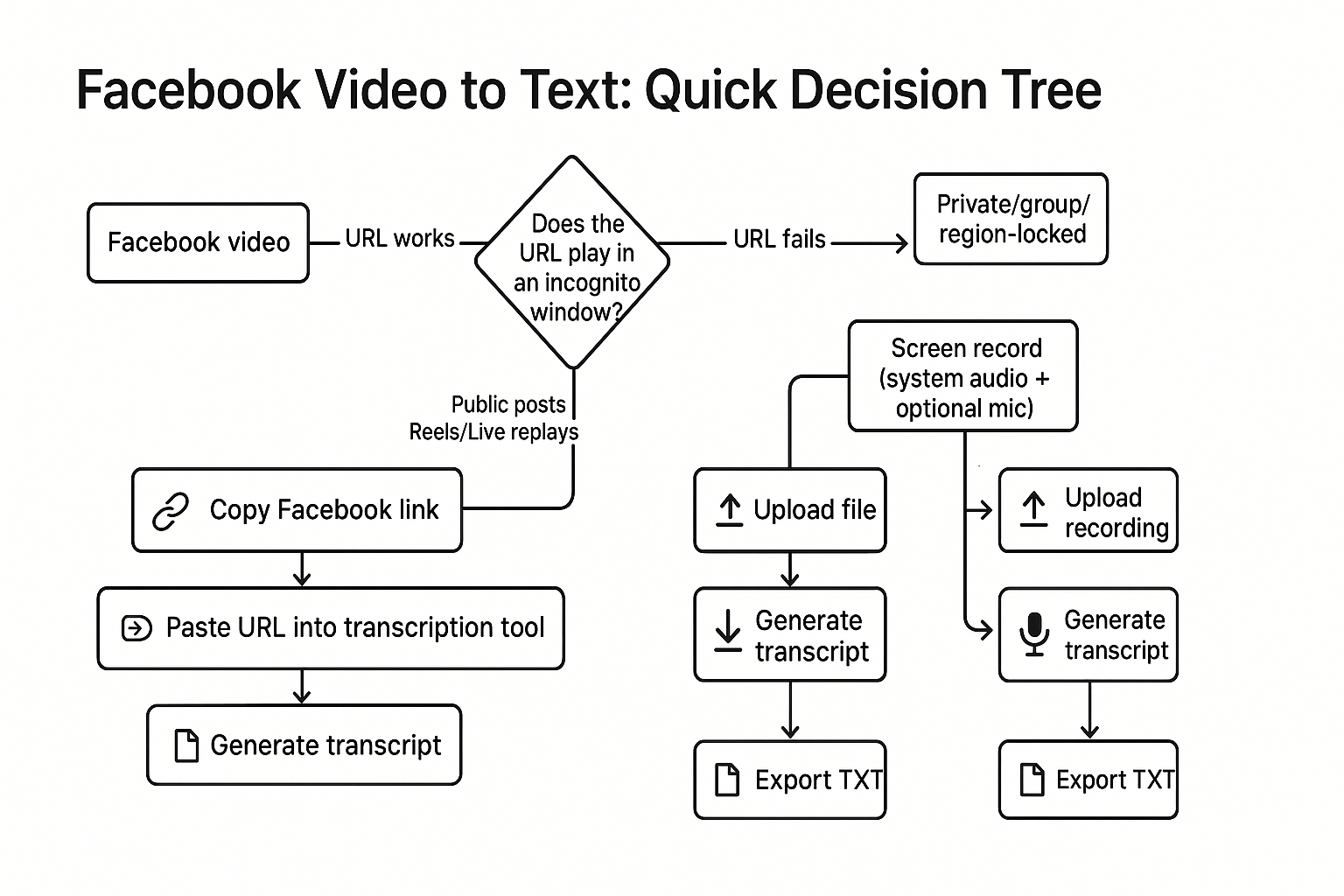
To transcribe a Facebook video to text, start with one question: Does the URL open for anyone who has the link? If yes, use a URL-based transcription workflow. If not, skip the fight and move to file upload or a screen recording.
Here's the simple mindset: URL works vs URL fails. It saves time because Facebook permissions are the real blocker, not the transcription step.
Method 1: Use the Facebook URL (fastest when it works)
Use this when the video is public, or accessible by link, like public posts, Reels, and Live replays.
- Copy the Facebook video link (Share, then Copy link).
- Open an incognito or private window.
- Paste the link. If it plays without logging in, your URL should work.
- Paste the URL into your transcription tool and run the job.
What you'll get: a clean transcript you can edit and search. This is the fastest way to do Facebook video transcription when permissions allow.
Method 2: Download or request the file, then upload (most reliable)
Use this when the video is private, client-owned, in a group, or the URL import keeps failing.
- If you're allowed to download it, save the video file to your device.
- If you can't download it, ask the owner to send the original file (best quality).
- Upload the file to your transcription tool and convert the Facebook video to a transcript.
Time note: uploading takes a bit longer than a URL, but it avoids Facebook link issues.
Method 3: Screen record as a last resort (works even for blocked cases)
Use this for group-only content, region blocks, streams with odd playback issues, or when downloads are not available.
- Start a screen recording.
- Record system audio (and mic only if needed).
- Play the video from the start.
- Upload the recording for transcription.
For a broader breakdown of formats, tools, and accuracy trade-offs, see this complete guide on how to transcribe a video using clean, repeatable workflows.
Before you start: permissions, video types, and what "text" you really need
Before you try to transcribe a Facebook video to text, check two things: access and output. Facebook links don't all work the same way in tools, even when you can watch the video. If you plan this upfront, you'll avoid dead links and wrong formats.
Confirm you have the right permissions
Most tools can only pull audio from a truly public video URL. If the video is in a private Group, a closed Page, a friend-only profile post, or needs a login, the tool usually can't fetch it.
In those cases, you'll need a file instead. Download the video (if you're allowed) or ask the owner for the MP4. Then upload that file for transcription.
Know what type of Facebook video you're dealing with
Different formats affect quality and cleanup time:
- Reels: fast speech, music, and effects can lower accuracy.
- Regular posts: often clearer audio, easier to edit.
- Facebook Live replays: long, may include pauses, Q&A, or background music.
Pick "transcript" vs "captions" before you start
A transcript is plain, editable text for docs, search, notes, and repurposing. Captions are time-synced subtitles for playback, usually SRT or VTT.
Use this quick guide:
| Your goal | Best output | Why |
| Notes, quotes, blog drafts | Transcript (TXT) | Easy to edit and paste anywhere |
| Search inside content | Transcript (TXT) | Best for scanning and highlighting |
| Subtitles on video | Captions (SRT/VTT) | Includes timestamps for playback |
Decide now, because your workflow changes: "export Facebook transcript TXT" for documents, or "export Facebook captions SRT" for subtitles.
Step-by-step in TicNote Cloud: turn a Facebook video into an editable transcript
If you need to transcribe a Facebook video to text fast, the goal is simple: get clean audio into TicNote Cloud, run transcription, then do a quick edit pass. The steps below work for public posts, Reels, and saved Live replays. For private or group videos, you'll usually import a file instead of a link.
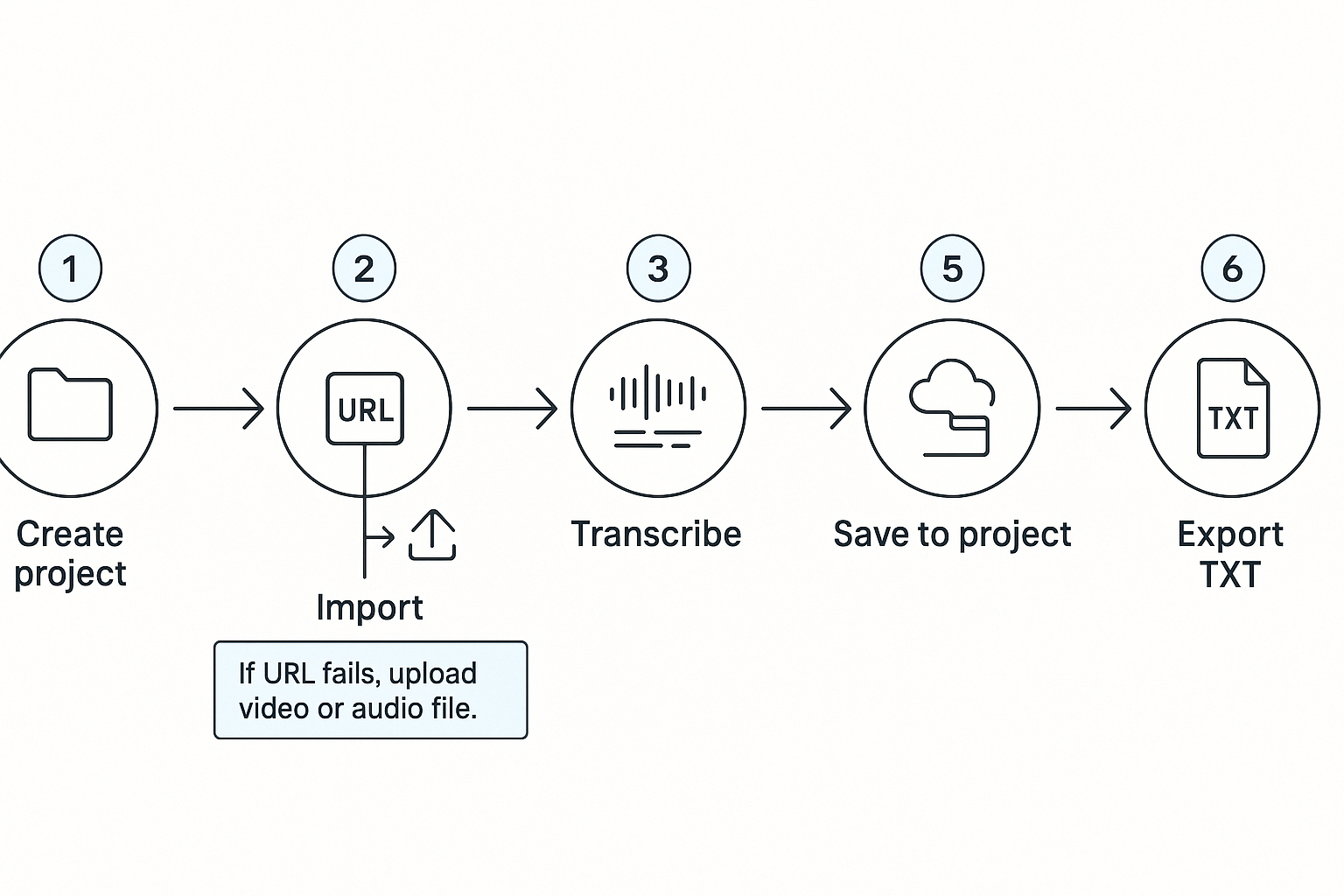
Step 1: Create an account and start a project
First, sign in to TicNote Cloud and create a new Project. Name it by campaign, client, or research topic, like "Q1 Reels" or "Competitor Interviews." This keeps transcripts, notes, and exports in one place.
If you already have a folder system, match it here. It saves time later when you need to find a quote.
Step 2: Upload the Facebook video file to TicNote Cloud (Web)
In most real-world cases—private posts, group videos, region limits—you’ll upload a video or an extracted audio file rather than importing a link.
In the TicNote Cloud Web Studio, click the Upload button at the top of the interface and upload your Facebook video file. Once uploaded, it appears in the project list on the left.

Quick rule: if you can’t reliably open the Facebook video in an incognito window, treat it as a file upload.
Use clear filenames like “FB Live – Product Launch” or “Reel – Customer Q&A” so transcripts stay easy to scan later.
Step 3: Run transcription from the Transcript tab
Select the uploaded video from the left panel, switch to the Transcript tab, and click Generate to start transcription.
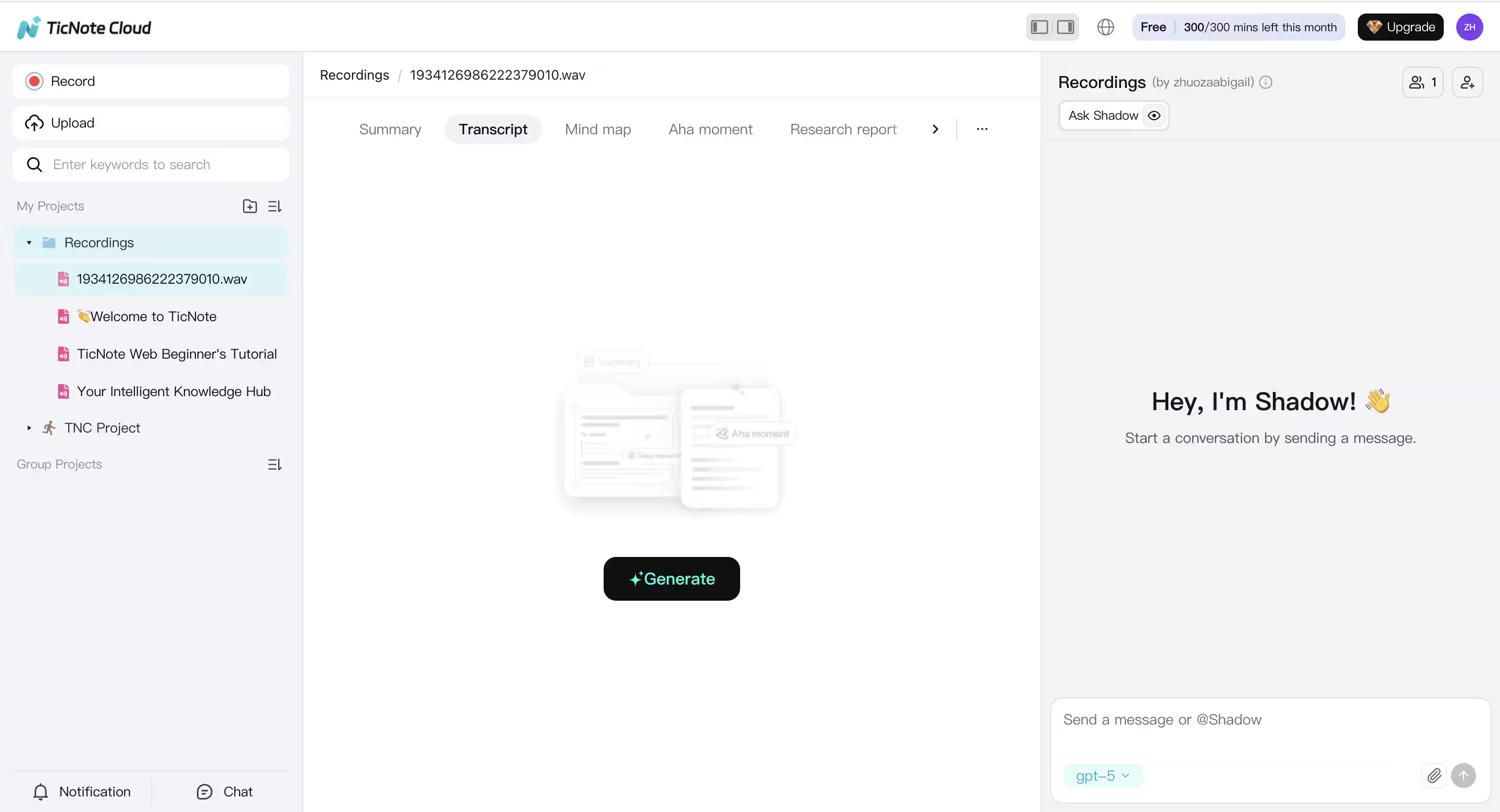
When prompted, choose the spoken language and AI model that best match the video content, then confirm to begin.
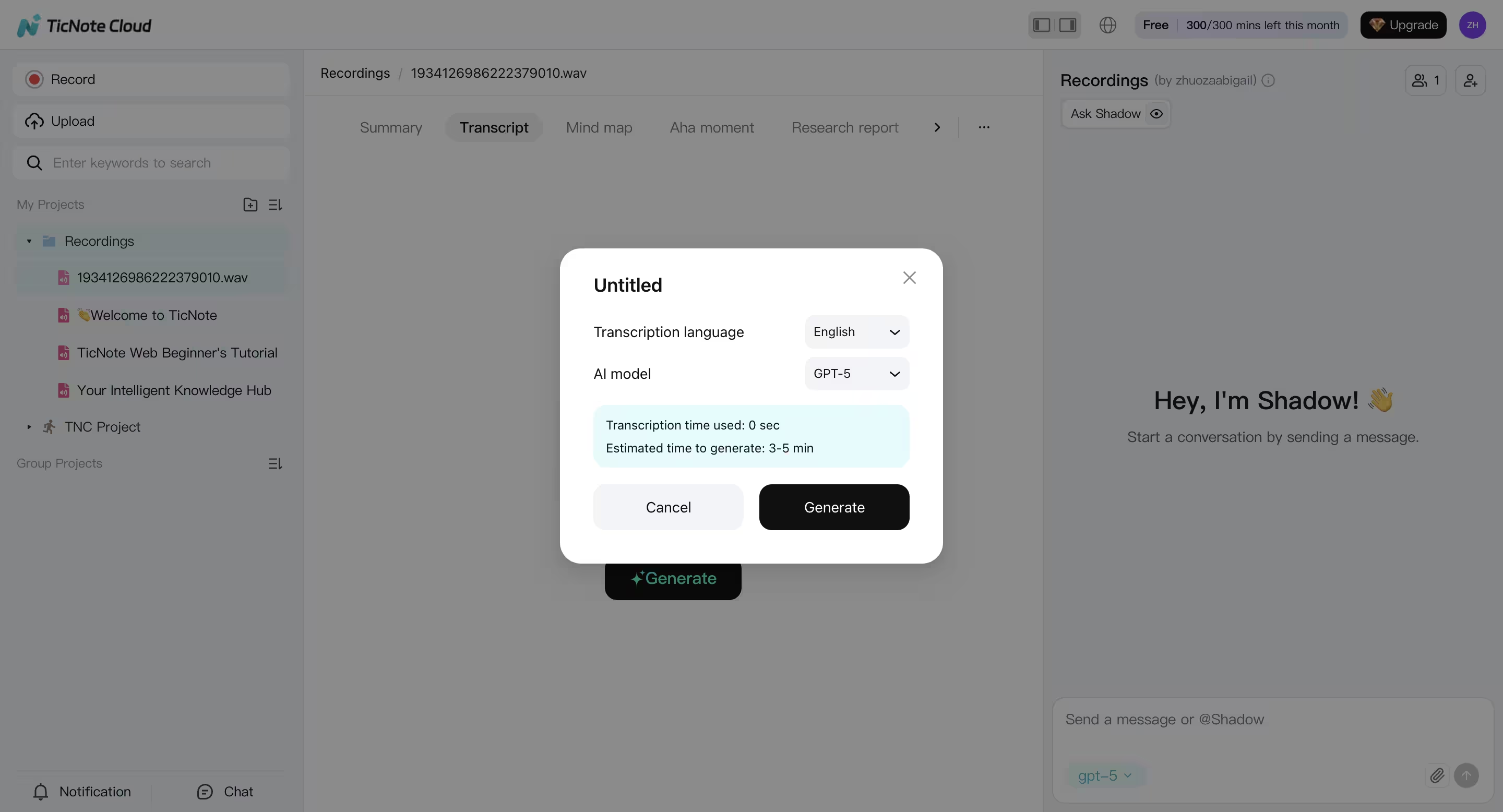
This produces a clean first draft you can quickly refine.
Step 4: Clean up the transcript so it’s editable
After transcription finishes, review the text directly in the editor (app) or ask Shadown AI to do that for you (web and app):
- Add punctuation and paragraph breaks (every 2–4 lines works well)
- Insert simple speaker labels like “Host:” or “Guest:” if needed
- Fix names, brand terms, and repeated mistakes
- Add light timestamps only if your team reviews clips
Keep it practical. The goal is readable, editable text—not formal captions.
Optional add-ons in the same flow:
- Generate a summary for briefs, talking points, or outlines
- Translate the transcript for global teams
Save it to a project, then ask Shadow when you need details
Finally, keep the transcript and summary inside the same project workspace. That’s what turns a voice memo into something reusable.
Later, you can use Shadow chat to ask questions like:
- “What did I decide about the deadline?”
- “List the next steps and owners.”
- “Find the exact quote about pricing.”
That’s the real win: your voice memo becomes a searchable note you can query, reuse, and build on—without re-listening to the audio.
Try TicNote Cloud Free Plan [Never Expire]
Optional: upload and transcribe Facebook videos in the TicNote App
If you're working on your phone, you can upload the Facebook video file directly to the TicNote App.
Tap the add (+) button, upload the file into a project, start transcription, adjust language or detail settings if needed, then generate the transcript. You can review and export results directly from the app, or switch to the web editor later for deeper cleanup.
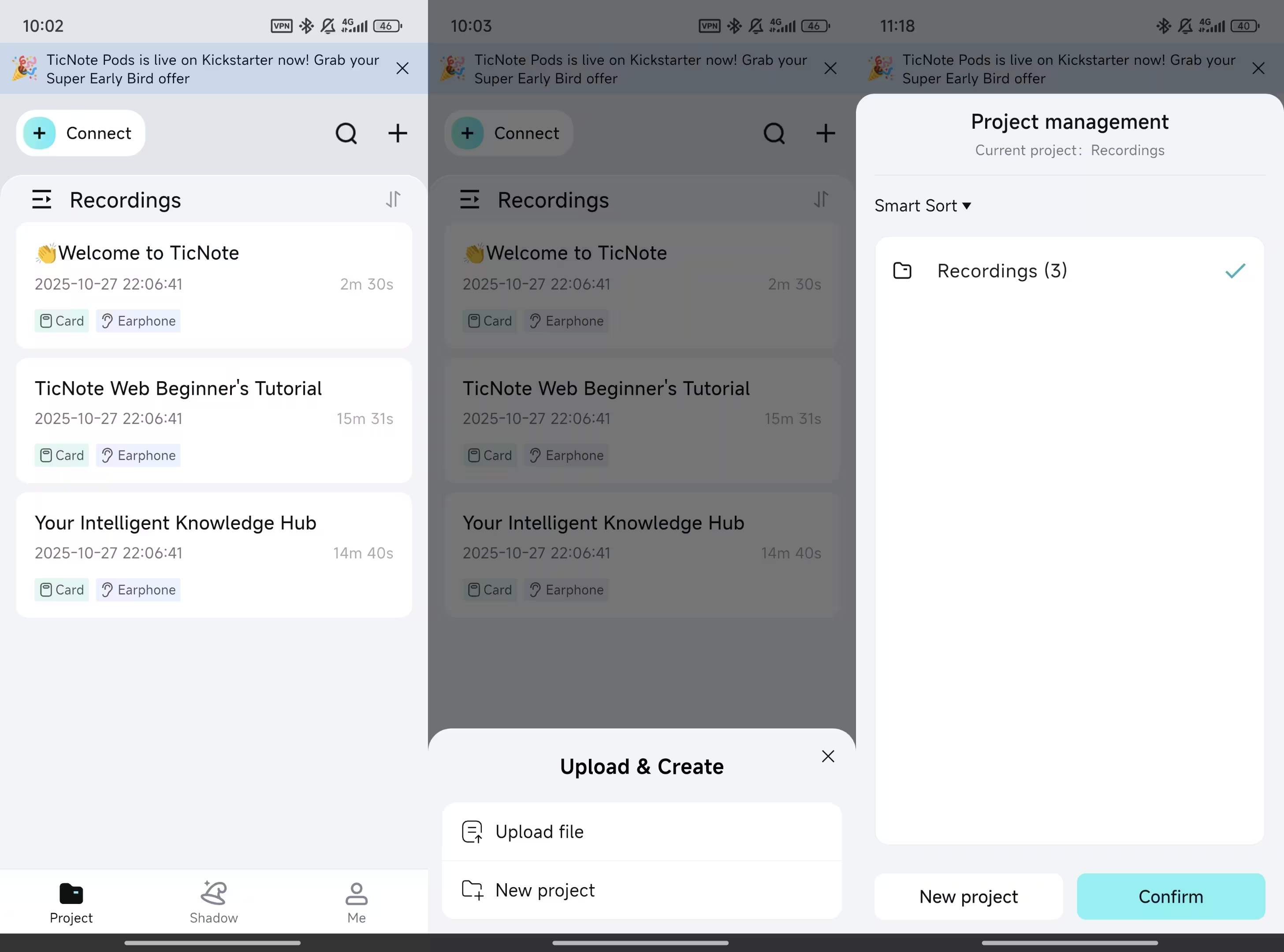
Many users capture or upload on mobile, then finalize transcripts and exports on desktop.
Export and reuse: what you can do with the transcript (and which format to choose)
After you transcribe a Facebook video to text, the next step is picking the right output for your job. If you want something you can edit, search, and paste anywhere, you want a plain transcript. If you want subtitles on video, you need caption files with timing.
Pick the right format fast
| Your goal | Best output | Why it fits |
| Notes, search, blog draft | Transcript (TXT) | Easy to edit, copy, highlight, and index |
| Subtitles or captions on video | SRT or VTT | Includes timestamps (timing) for each line |
| Accessibility for a web page | Transcript + headings | Scannable, readable, and screen-reader friendly |
| Quoting for social posts | Cleaned snippets | Short, clear quotes with speaker names removed if needed |
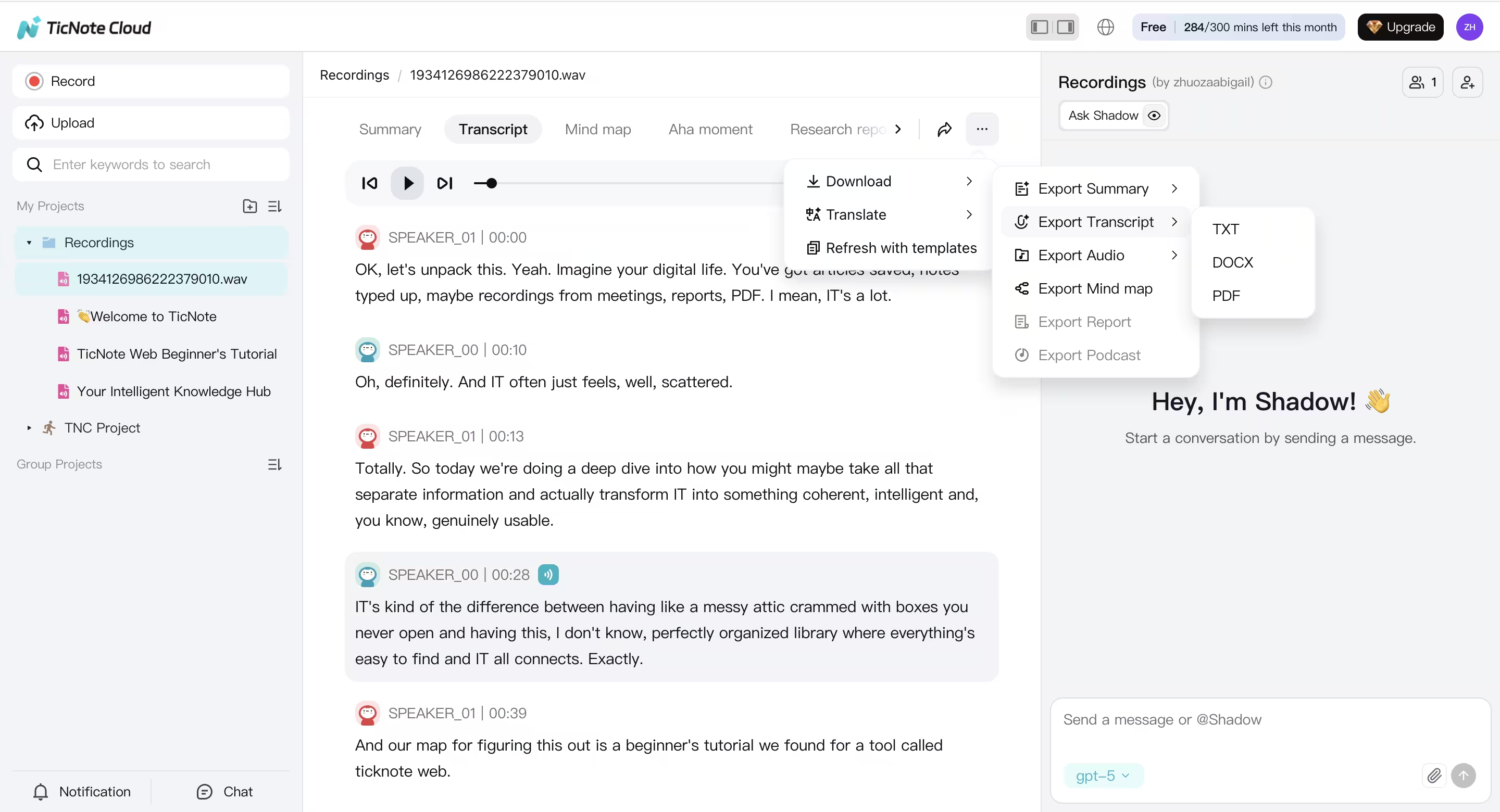
TicNote Cloud exports transcripts as TXT, and exports summaries as Markdown, DOCX, or PDF. If you need captions (SRT/VTT), use a simple workaround: export the TXT transcript, then convert it in any caption editor that can auto-time lines. Or, generate the transcript in TicNote Cloud and use Facebook or another caption tool to add timing.
Repurpose checklist (5 quick wins)
- Pull 5 to 10 strong quotes for posts and thumbnails.
- Turn the transcript into a blog outline, then draft sections.
- Write a tight Reel script from the best 30 to 60 seconds.
- Extract action items, owners, and due dates for ops.
- Save the transcript, summary, and snippets in one project so you can search later—just like you would when you transcribe a YouTube video for reuse across notes, blogs, or research.
Make the transcript more accurate: simple fixes that work
If you want to how to transcribe facebook video to text with fewer errors, fix the audio first. Most "bad transcripts" come from low volume, muted clips, or noisy rooms.
Improve the audio in under 2 minutes
- Check it isn't muted: Some Facebook videos post with no audio track, or play muted by default.
- Raise playback volume: Louder, cleaner audio gives you fewer missing words.
- Use the original upload: Re-uploads often add compression that smears speech.
- Cut background noise: Use headphones, sit in a quiet room, and stay close to the mic.
Clean it up for readability (without rewriting)
- Break text into one idea per paragraph.
- Add speaker labels for interviews (Host, Guest, Caller).
- Remove filler words only when they block meaning (uh, um, like).
- Fix names and brands with a quick find and replace.
Set the right accuracy target
"Good enough" works for content ideas, summaries, and repurposing. For legal notes, research quotes, or client work, aim for near-perfect. Do a fast spot-check at the start, middle, and end before you share.
Troubleshooting Facebook links and uploads
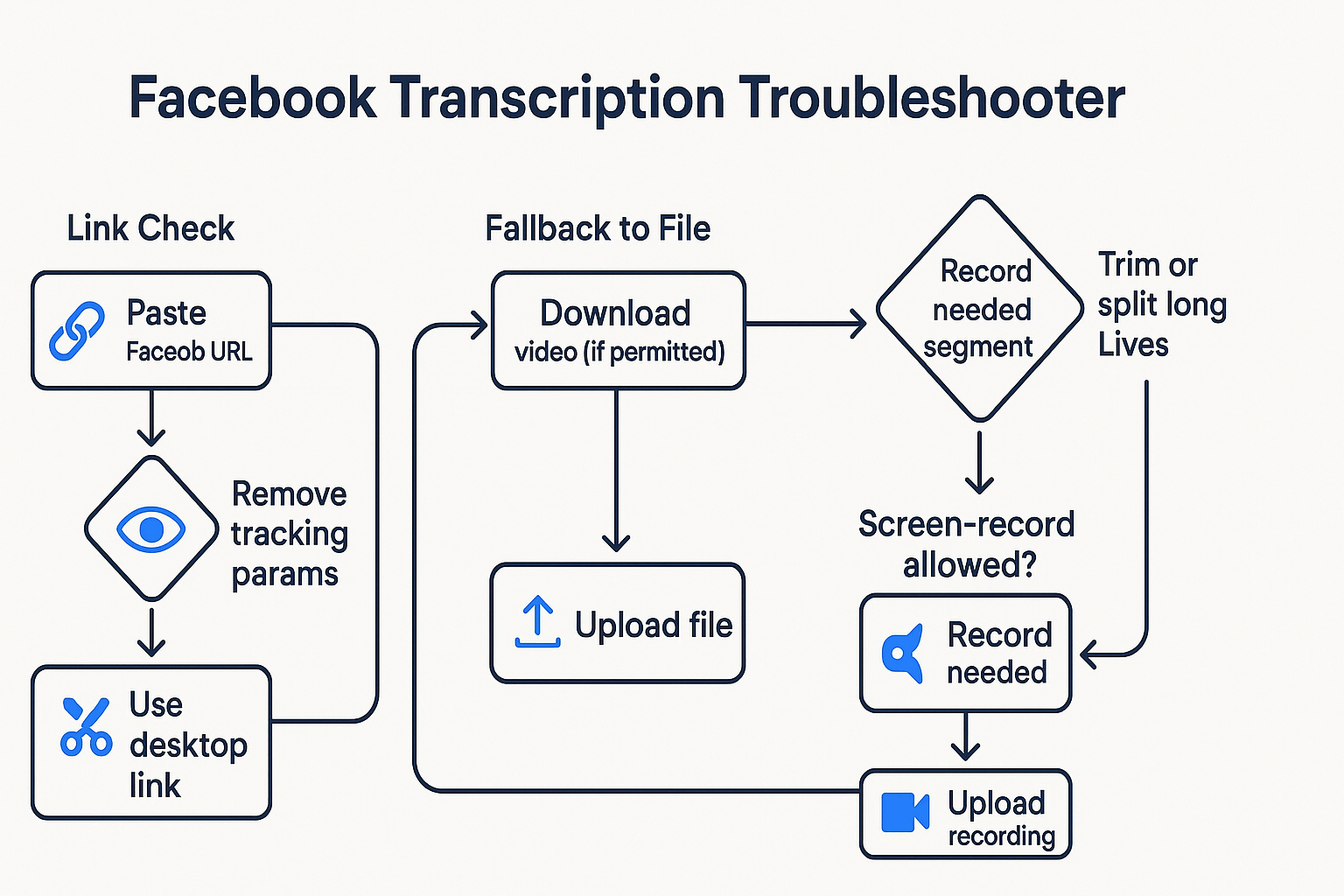
If your link fails or your upload stalls, don't guess. Use this quick matrix to move on fast and still get an editable transcript. It's built for people trying to how to transcribe facebook video to text from public posts, private groups, Reels, and Live replays.
Fix it fast: common Facebook blockers
| Problem | Likely cause | Try this now (if/then) | Next best option |
| URL not recognized | Video is not truly public, login wall, or shortened link redirects | If it opens only when logged in, it's not public. Copy the full desktop URL, not a share short link. | Switch to file upload if you can download it. |
| Stuck loading | Tracking params, redirect loops, or mobile link quirks | If it hangs, remove anything after a "?" in the URL. If it's a mobile link, swap to desktop view. Test in an incognito window. | Download the video and upload the file. |
| Private or group video | Permissions block access | If you don't own it, request the original file from the poster. If allowed, download from Facebook. | If policy allows, screen-record the needed segment. |
| Live replay issues | Long duration, gaps, or overlays | If it's long, trim to the segment you need first. If comments cover audio cues, use a clean replay view. | Split long Lives into parts and upload separately. |
| Region blocked | Geo restriction | If it won't open on another network, it may be blocked. Ask for a direct file share. | Use a permitted copy or transcript from the owner. |
| Muted audio or music sections | Copyright mute or loud background music | If parts are silent, there's nothing to transcribe. Find an unmuted upload or ask for the source file. | Use the best available audio and add manual notes. |
Last check: when a video is private, treat the transcript as private too. Get consent, store it safely, and only share it with approved people.
Privacy, consent, and compliance basics for Facebook transcription
When you transcribe a Facebook video to text, treat it like any other recording: get the right permission first, then control where the text goes. A transcript is easy to copy, search, and share, so a small slip can spread fast.
Use this quick team checklist
- Confirm rights to use the video: Ask the page owner or admin, especially for client work, closed groups, or internal clips.
- Get speaker consent when needed: If real people are identifiable, don't assume it's ok just because it's posted.
- Keep proof: ICO guidance on obtaining, recording, and managing consent notes organizations must have an effective audit trail of how and when consent was given.
- Reduce sensitive data: Trim to the needed segment. Remove names, emails, and IDs before sharing.
- Set a retention plan: Decide who can access the transcript, where it's stored, and when it's deleted.
- Use responsibly: Transcripts help accessibility, but don't republish someone else's words without rights.
- Pick tools with clear data rules: Choose services that explain how data is handled and if it's used to train models.
TicNote Cloud-exclusive: from transcript to a searchable "second brain"
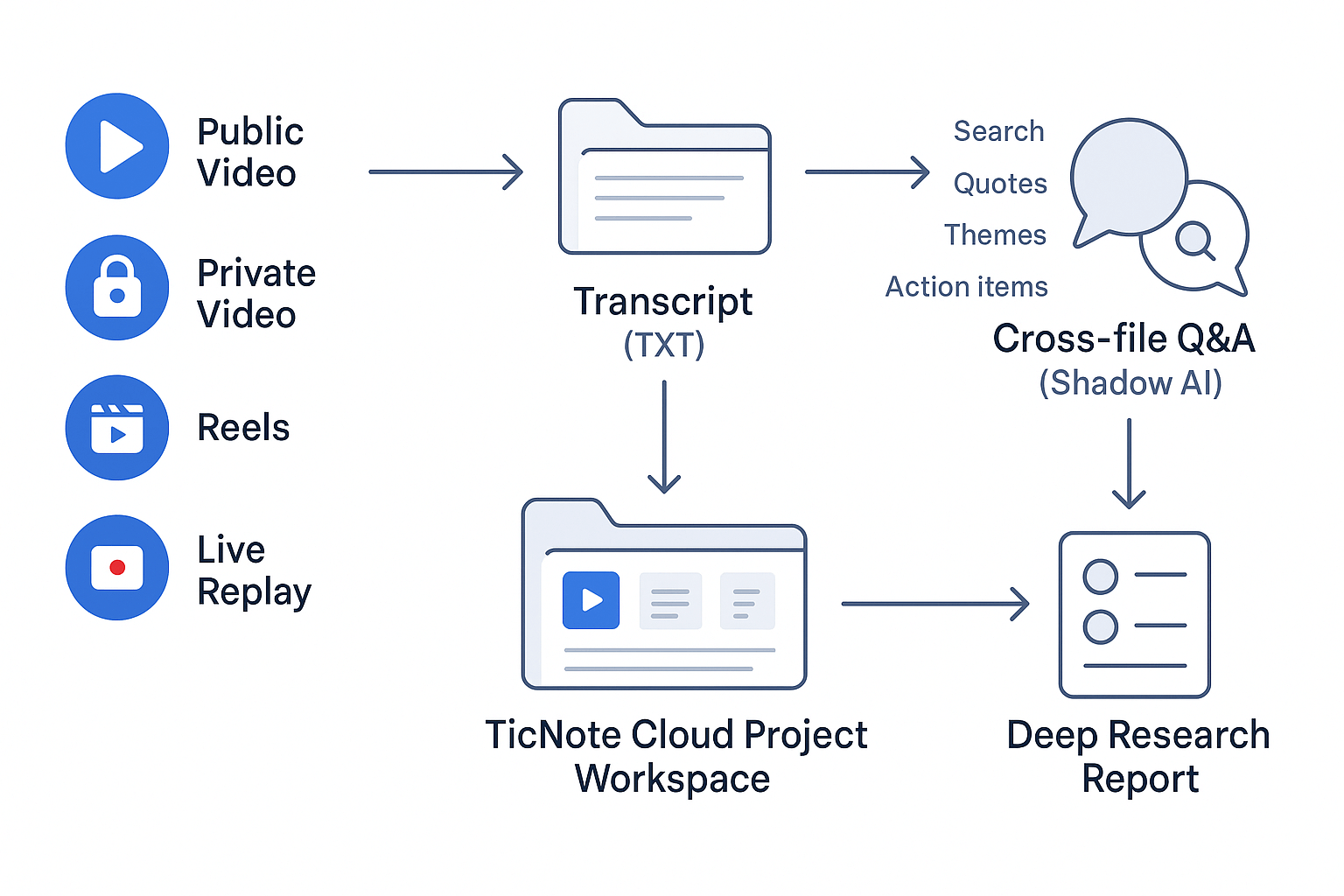
Once you transcribe a Facebook video to text, the real win is what happens next. In TicNote Cloud, the transcript turns into a searchable asset inside a project, not a loose file you forget. That means your Facebook Reels, Lives, and posts can feed a workspace you can search, reuse, and build on.
Organize Facebook work by project, not by tabs
Create one project per goal, then drop everything in:
- Competitor ads: video, transcript (TXT), your notes, and a campaign swipe file
- Customer interviews: key quotes, objections, and feature requests
- Community group research: themes, FAQs, and pain points by topic
Because it's all in one place, you spend less time hunting.
Ask questions across files with Shadow AI chat
Instead of re-watching, ask Shadow (the built-in chat) to pull what you need across many transcripts:
- "Give me 10 strong quotes about pricing."
- "List repeated themes across these 6 Lives."
- "Turn these clips into action items for ops."
This works well even when transcripts are not perfect. Automatic Speech Recognition - an overview notes that for word error rates less than approximately 25%, retrieval performance degrades very little for transcripts with increasing word error rates, and that retrieval is fairly robust to recognition errors.
Two outputs you can actually use
- Mind map: scan the main points fast, then click into details.
- Deep research report: merge multiple Lives and Reels into a clean brief for a campaign plan or process change.
Try TicNote Cloud Free Plan [Never Expire]


