


 Extension
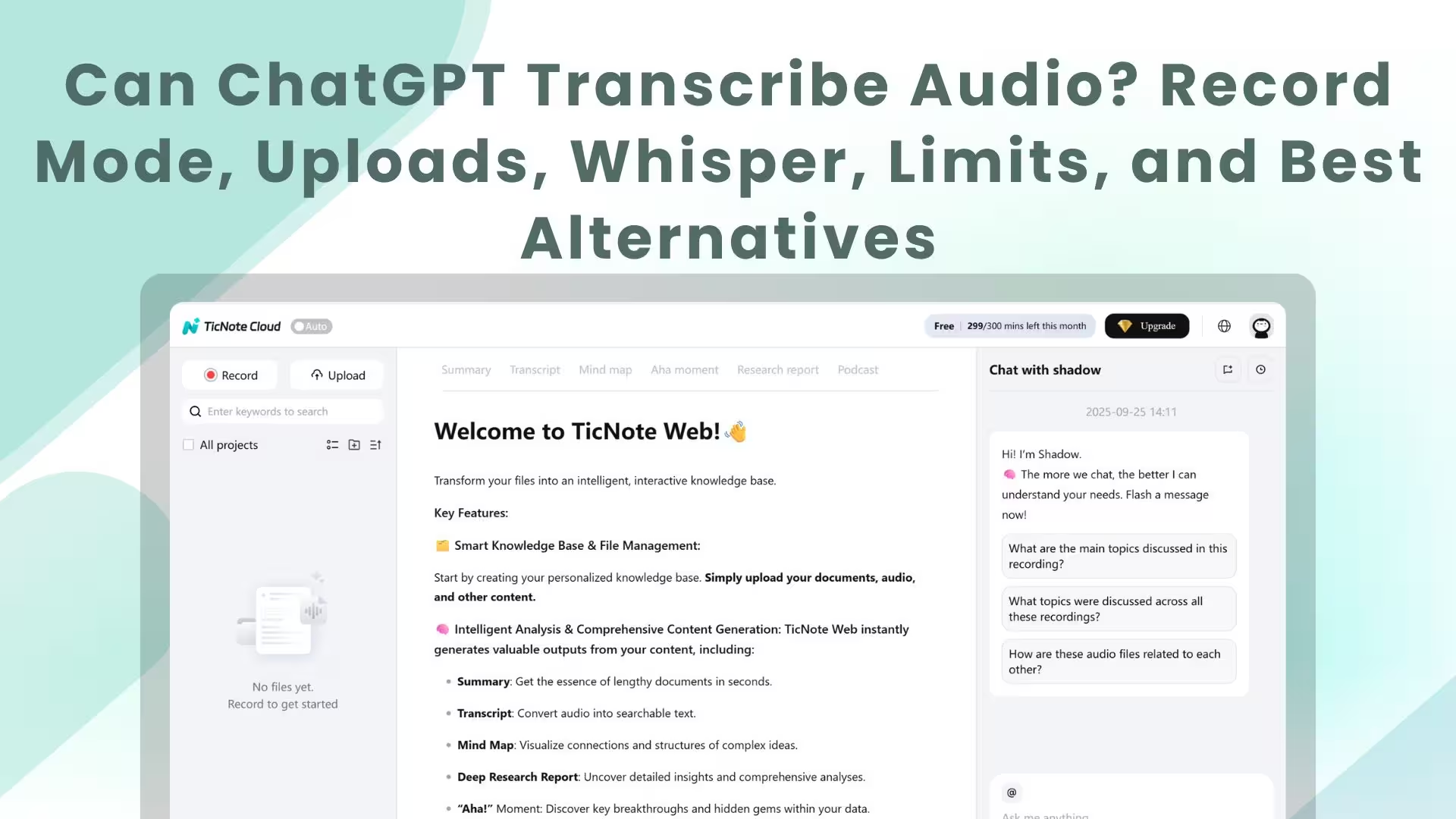
TL;DR: The fastest way to transcribe audio (and when ChatGPT is enough)
If you want the fastest start, Try TicNote Cloud for Free, but yes, ChatGPT can transcribe audio sometimes. It depends on how you use it: record mode, file upload, or Whisper.
- Quick personal voice memo: use Record mode.
- Short clip you need to share: upload the audio file if uploads are available.
- Repeatable or batch work: use Whisper (API or local), then paste text into ChatGPT.
- Team meeting notes you'll reuse: pick a workspace with projects and search.
Bottom line: choose based on length, speaker mix, privacy rules, and how you'll use the text.
When transcripts live in chat, they get lost fast. Then follow-ups take longer, and action items slip. TicNote Cloud keeps recordings, transcripts, and summaries together, so you can turn meetings into searchable notes without extra cleanup.
Can ChatGPT transcribe audio today? (what works, what doesn't)
Audio transcription means turning speech into text (speech to text). If you ask, "Can ChatGPT transcribe audio", the practical answer is: sometimes, but ChatGPT itself is not the speech model. A speech to text system does the listening, often Whisper, then ChatGPT helps you fix, summarize, and format the transcript.
Here are the three paths you will see in real life.
Choose your transcription path
- Record mode: You record inside the app, then it returns text you can edit.
- File upload: You upload an audio file you already have, like an MP3 or a voice memo, then it outputs text.
- Whisper (API or local): You run transcription outside ChatGPT. This gives more control, then you paste the text into ChatGPT for cleanup and analysis.
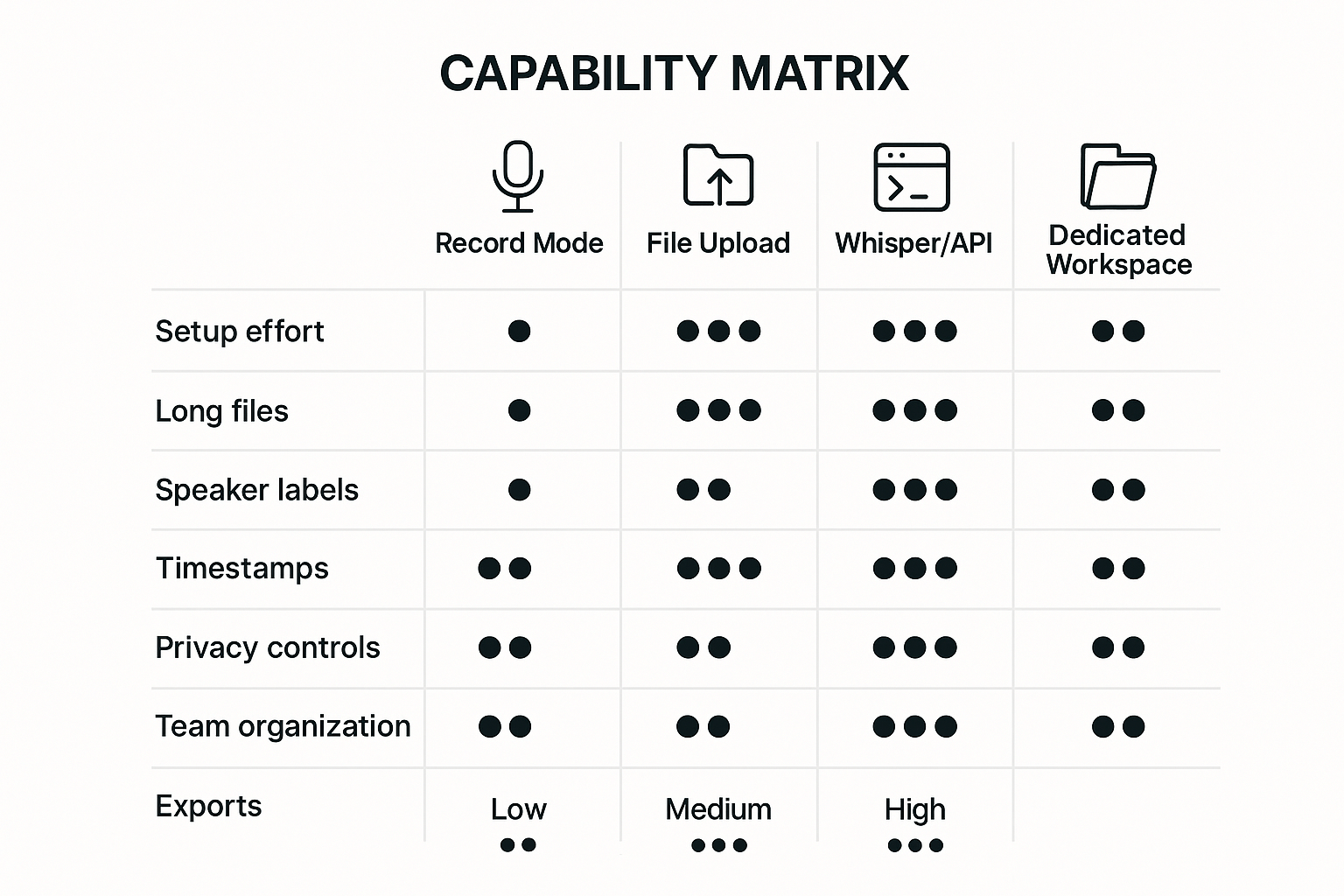
Capability matrix: Record vs Upload vs Whisper vs dedicated workspace
| Option | Setup effort | Long files | Speaker labels | Timestamps | Privacy controls | Team organization | Exports |
| ChatGPT Record mode | Low | Limited by app flow | Basic or inconsistent | Sometimes basic | Account level settings | Not built for projects | Copy and paste mainly |
| ChatGPT file upload | Low to medium | Depends on file size and processing | Usually limited | Sometimes basic | Account level settings | Not built for a shared library | Mostly copy and paste |
| Whisper (API or local) | Medium to high | Good if you batch and split | Possible with extra tooling | Good with the right output | You control storage and pipeline | You build it | Any format you generate |
| TicNote Cloud (dedicated workspace) | Low | Designed for long meeting workflows | Designed for meetings | Useful for review and follow up | Workspace style controls | Project based knowledge base | Transcript, summaries, mind maps |
If you only need a quick draft, Record mode or upload can be enough. If you need repeatable results, better control, or team ready notes, Whisper pipelines or a dedicated workspace tend to fit better.
How do you transcribe with ChatGPT Record mode step by step?
If you can see Record mode in your ChatGPT app, you can capture speech and turn it into a transcript fast. For many teams, it's a solid first draft when you need notes right away. Still, plan to review key details like names, numbers, and decisions.
Step-by-step: Record, talk, send
- Confirm you have Record mode
- Open ChatGPT on your phone or desktop app and look for a mic or Record option.
- If you don't see it, update the app and check your plan settings.
- Get consent before you record
- Say you're recording for notes.
- If it's a work call, follow your company policy and local law.
- Set up for clean audio
- Use a quiet room and get close to the mic.
- If you can, use headphones to reduce echo.
- Record → speak naturally → pause/stop → Send
- Tap Record and start talking at a steady pace.
- Pause when someone else speaks, then resume if needed.
- When you're done, stop and hit Send to generate the transcript and a structured response.
What to expect from the transcript
Record mode usually produces text that's good enough to draft meeting notes, summaries, and next steps. But you should still do a quick check for:
- Proper names and job titles
- Dates, budget numbers, and KPIs
- Decisions, owners, and due dates
If you want a more reliable workflow for meetings, this guide on clean, searchable meeting transcripts helps you standardize the steps.
Multiple speakers: good capture, uneven labels
It may pick up more than one speaker, especially in a clear room. But speaker labels can be inconsistent. Plan a quick pass to:
- Replace "Speaker 1/2" with real names
- Split long blocks into short turns
- Mark unclear lines with "(inaudible)" for follow-up
Mini prompt set: turn raw text into useful outputs
After you get the transcript, paste this right in:
- "Format this as meeting minutes with agenda, decisions, and open questions."
- "Extract action items with owner, due date, and priority."
- "Write a follow-up email with recap, decisions, and next steps."
Try TicNote Cloud for Free to record meetings and instantly generate searchable notes.
Can you upload an audio file to ChatGPT to transcribe it? (MP3, voice memos, and long files)
Yes, sometimes. Upload-based transcription works when your ChatGPT app and plan support file uploads, and the model you're using can read audio. If upload isn't available, or the file type isn't supported, you'll need Record mode or a Whisper workflow.
Prep the file so you get a clean transcript
The better the audio, the fewer weird gaps and wrong words.
- Use common formats: MP3, M4A (voice memos), or WAV.
- Trim long silences and dead air, especially at the start.
- Split long recordings into smaller files: Part 1, Part 2, Part 3.
- Name files for auditability:
2026-01-Meeting-ClientA-Part1.m4a.
Splitting matters for long files. Smaller parts fail less, finish faster, and are easier to review.
If you get a summary instead of a transcript
ChatGPT may default to summarizing. Fix it with a direct prompt, then retry in smaller chunks.
Try pasting this:
- "Transcribe this audio verbatim. Do not summarize."
- "Use speaker turns like: Speaker 1:, Speaker 2: (if unsure, label as Speaker A/B)."
- "Mark uncertain words like this: [unclear] or [word?]."
- "Include timestamps every 30 to 60 seconds."
If it still won't produce a clean transcript, re-upload shorter parts and re-run.
Common use cases: ChatGPT transcribe MP3 and voice memos
For "chatgpt transcribe mp3," export your recording as MP3, then upload it and ask for verbatim output.
For "chatgpt transcribe voice memo," share the file from iPhone Voice Memos (Share, Save to Files) or from Android's recorder app (Share, Drive/Files). If you want a faster path, follow this guide on transcribing voice memos on iPhone and Android and keep your naming consistent across parts.
How can you transcribe audio with Whisper (API or local) and then use ChatGPT?
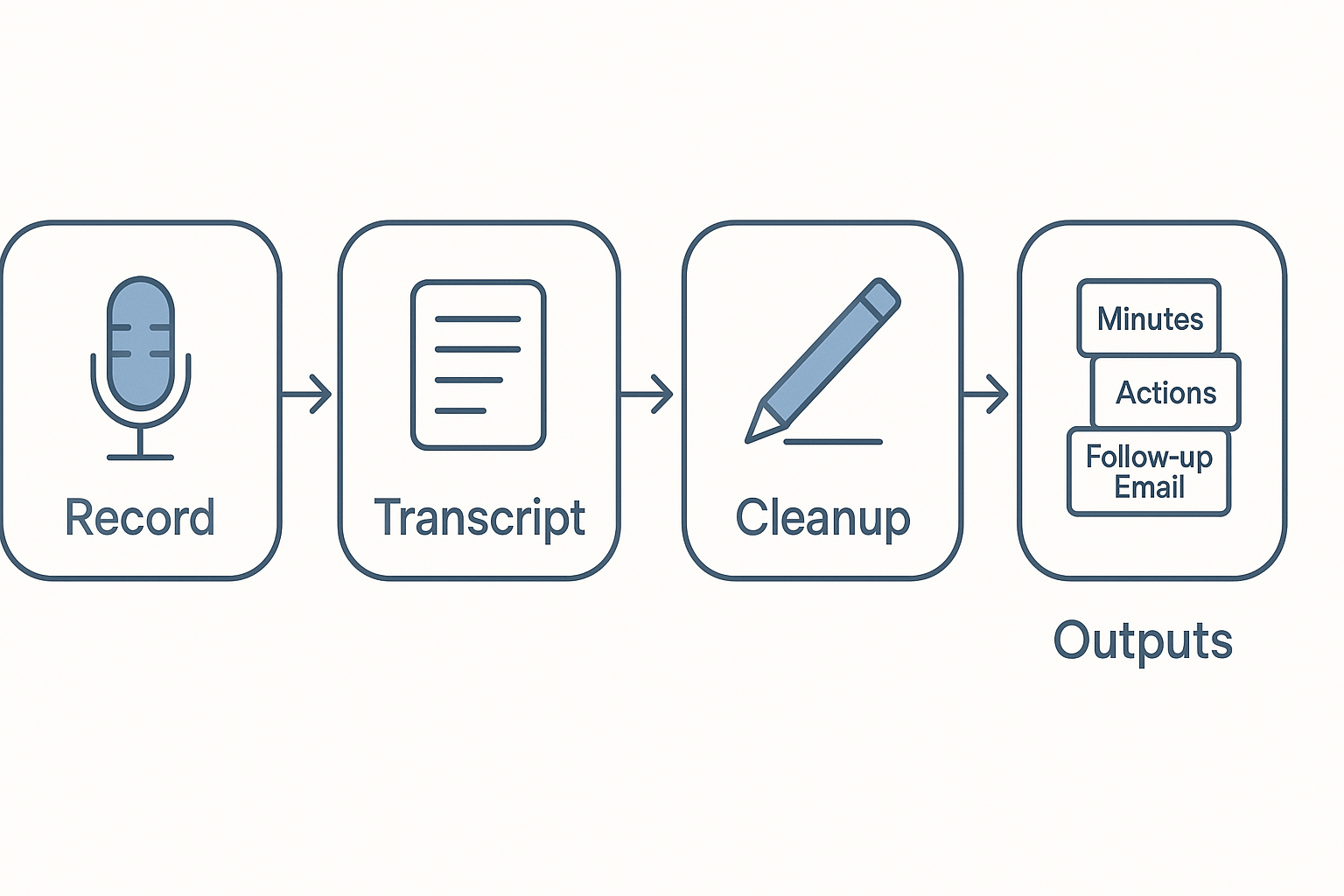
If you want more control than "just paste audio into a chat," use a two-stage workflow: audio to Whisper for speech-to-text, then a quick cleanup pass, then ChatGPT for clean outputs like minutes, action items, Q&A, or a follow-up email. This is often the most reliable path when people ask, "can chatgpt transcribe audio," but they also need repeatable results.
Choose Whisper API vs local Whisper
Whisper API is best when you want a repeatable pipeline. You can automate uploads, set the same language and formatting options each time, and drop transcripts into your tools (Docs, CRM, ticketing). It's also easier to scale across a team because setup is mostly in one place.
Local Whisper is best when data handling is the top concern. Audio can stay on your machine or private server. The tradeoff is more setup and upkeep, plus you may need extra parts for file chunking and formatting.
Plan around real-world limits
A few practical constraints show up fast:
- Long recordings often need chunking (splitting into smaller files) to avoid timeouts and to speed review.
- Timestamps can exist, but they may drift or land mid-sentence, depending on the toolchain.
- Speaker diarization (who spoke when) usually needs extra tooling beyond base transcription, so plan for "Speaker 1 / Speaker 2" labeling or a manual pass.
Estimate cost and effort without guessing
Use this simple method:
- Estimate audio minutes per week (meetings, interviews, voice notes).
- Pick a workflow: manual (run once, copy-paste) or scripted (batch jobs, shared folder).
- Budget review time, because it's the bottleneck. Even a great transcript needs human fixes for names, numbers, and decisions.
Copy-paste prompts to turn raw text into usable work
Paste the cleaned transcript and use one of these:
- "Create meeting minutes with: agenda, key points, decisions, and open questions."
- "Extract action items as a table: owner, task, due date, dependencies."
- "List risks and blockers. For each, suggest a next step."
- "Write a 6-sentence follow-up email to attendees. Keep it factual."
- "Answer questions using only this transcript. If missing, say 'not in transcript.'"
Try TicNote Cloud for free to record, transcribe, and turn transcripts into summaries.
What are the biggest limitations of ChatGPT audio transcription?
ChatGPT audio transcription can be good for a quick draft, but it is not always "record ready." The biggest gaps show up when you need clean structure, high accuracy, and proof you can trust.
Expect missing or messy speaker labels and timestamps
If you need "who said what, when," ChatGPT can be hit or miss. Speaker labels may be missing, swapped, or too generic. Timestamps can be absent or not detailed enough to find moments fast. That makes it harder to quote, review, or audit a meeting.
Accuracy drops fast in real-world audio
Clean studio audio is the easy case. Real audio has accents, overlap, side talk, and room noise. Add domain terms like product names, medical words, or legal phrases, and errors rise. Even a small miss can change the meaning.
Confident mistakes can slip in
Transcripts can include wrong words that look "right." Sometimes you will see fabricated terms, merged sentences, or rewritten phrasing that was not said. So don't treat it as the source of truth for legal, medical, HR, or finance records.
Quick checklist to spot problems in minutes
- Check names, numbers, dates, and money amounts
- Re-listen to any quoted promise or commitment
- Scan for strange phrases that no one would say
- Scrub key sections at 1.5x speed to confirm meaning
- When it matters, compare the audio at decision moments
If you need audit-ready notes, plan for human review or follow a tighter workflow, like this interview transcription process that bakes in verification and cleanup.
How do you improve transcription accuracy and make transcripts usable?
Better transcripts start before you hit record. Most errors come from bad audio, cross-talk, and unclear speaker turns, not the model. Use this playbook whether you use ChatGPT to transcribe audio or any other tool.
Fix the audio first (the fastest accuracy win)
Do these basics every time:
- Put the mic 6 to 12 inches from the main speaker.
- Keep the same distance, don't "wander" while talking.
- Reduce echo: soft room, close doors, avoid bare walls.
- Kill noise: fans, keyboards, coffee machines, hallway chat.
- Ask for no overlap: one person talks at a time.
If you can, record a 10-second test and listen back. If you can't hear it cleanly, the transcriber can't either.
Make speakers easy to identify
Models struggle when voices blend. A little meeting hygiene helps a lot:
- Start with names: "I'm Sam," "I'm Priya."
- Encourage turn-taking, especially in Q&A.
- Repeat names when handing off: "Priya, can you cover risks?"
- Split long recordings into chunks by topic, break, or meeting segment.
If you have separate tracks (one per speaker), transcribe them separately and merge later.
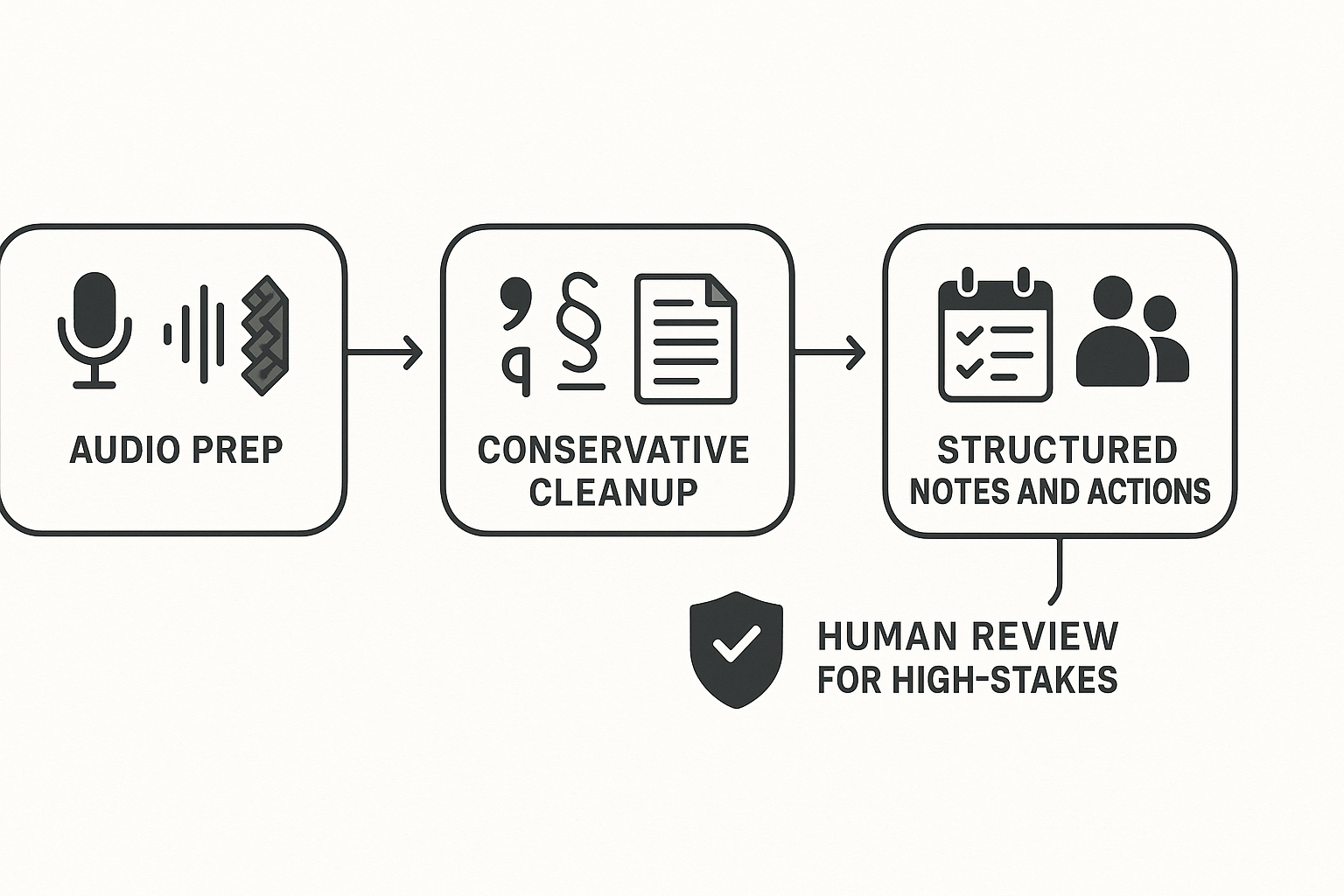
Post-edit in three safe passes with ChatGPT
Don't ask for a rewrite first. Do controlled passes so you don't lose meaning.
- Conservative cleanup (keep words, fix form)
- Add punctuation
- Fix obvious typos
- Add paragraphs
- Structured pass (make it readable)
- Add speaker turns
- Add headings by agenda item
- Keep quotes and numbers unchanged
- Extract outcomes (make it usable)
- Decisions
- Action items with owner and due date
- Open questions and risks
Human review checklist for high-stakes audio
For legal, medical, HR, or client work, do a quick manual check:
- Names, dates, and numbers match the audio
- Negations are correct (not, never, didn't)
- Commitments are accurate (who promised what)
- Sensitive data is removed or redacted
Copy-paste micro-example prompts (messy to minutes)
Paste your raw transcript, then run these:
- Cleanup
"Clean up punctuation and paragraph breaks only. Don't add or remove meaning. Keep uncertain words in [brackets]. Here's the text: …"
- Structure
"Add speaker labels if you can infer them. If not, use Speaker 1, Speaker 2. Split into sections: Context, Decisions, Next steps. Keep wording close to original: …"
- Minutes and tasks
"Create meeting minutes with: Summary (5 bullets), Decisions, Action items (Owner, Task, Due date, Status), and Open questions. If a due date is missing, write 'TBD': …"
What about privacy, retention, and consent when transcribing audio?
Before you decide if can chatgpt transcribe audio safely for work, run a quick privacy check. Audio can capture more than words: names, account numbers, health details, and even background voices. Treat transcription like handling a sensitive document, not a casual chat.
Start with consent and recording rules
Get clear permission before you hit record. Laws vary by place, and your company or client contract may be stricter. When in doubt, do this:
- Tell people it's being recorded and why
- Confirm consent in writing (calendar invite or meeting notes)
- Offer an off-record option for sensitive parts
Classify the content before you upload
Do a simple risk label first. This tells you which transcription path is acceptable.
- Low risk: personal voice notes, public lectures
- Medium risk: internal meetings with names, project details (PII means personal data like phone numbers)
- High risk: client data, credentials, financial info, health, legal, regulated data
High risk content should trigger security or legal review.
Match the transcription path to the risk
Audio, transcripts, and chat logs may be stored differently. Audio files often include raw voices and background talk, while transcripts are easier to search, copy, and leak. Check your workspace settings for what's kept, for how long, and who can access it.
Practical mitigations that help in any tool:
- Redact or beep sensitive segments before upload
- Split long files so only needed parts are shared
- Limit access (least privilege) and avoid shared links
- Set retention rules and delete both audio and text when done
- Store final transcripts in one controlled workspace, not scattered across chats and downloads
If you handle regulated or contractual data, use tools and settings built for policy-friendly retention and access control.
What's a good alternative to ChatGPT for transcribing meetings and building searchable notes? (step-by-step example)
If you only need a quick text from a short clip, ChatGPT can transcribe audio in some cases. But for meetings you'll revisit, it's often better to use a tool built for capture plus recall. The workflow below uses TicNote Cloud as the example, because it combines transcription with a project-based notes workspace.
An alternative beats ChatGPT alone when meetings are long, happen every week, or need clean exports and shared access. It also helps when you work in more than one language, or you want to reuse knowledge across many sessions without hunting through old chats.
Step 1: Create a project space for the meeting
Start by setting up a project for the team, client, or initiative. This is the "home" for every recording, transcript, and summary, so nothing gets lost.
In TicNote Cloud, a project space helps you:
- Keep weekly meetings in one place
- Search across sessions later
- Share access with role-based permissions (Owner, Member, Guest)
Tip: Name projects like "Marketing Weekly" or "Client X Delivery" so search stays easy.
Step 2: Record live or import the meeting audio
Next, capture the meeting in the way that fits your setup:
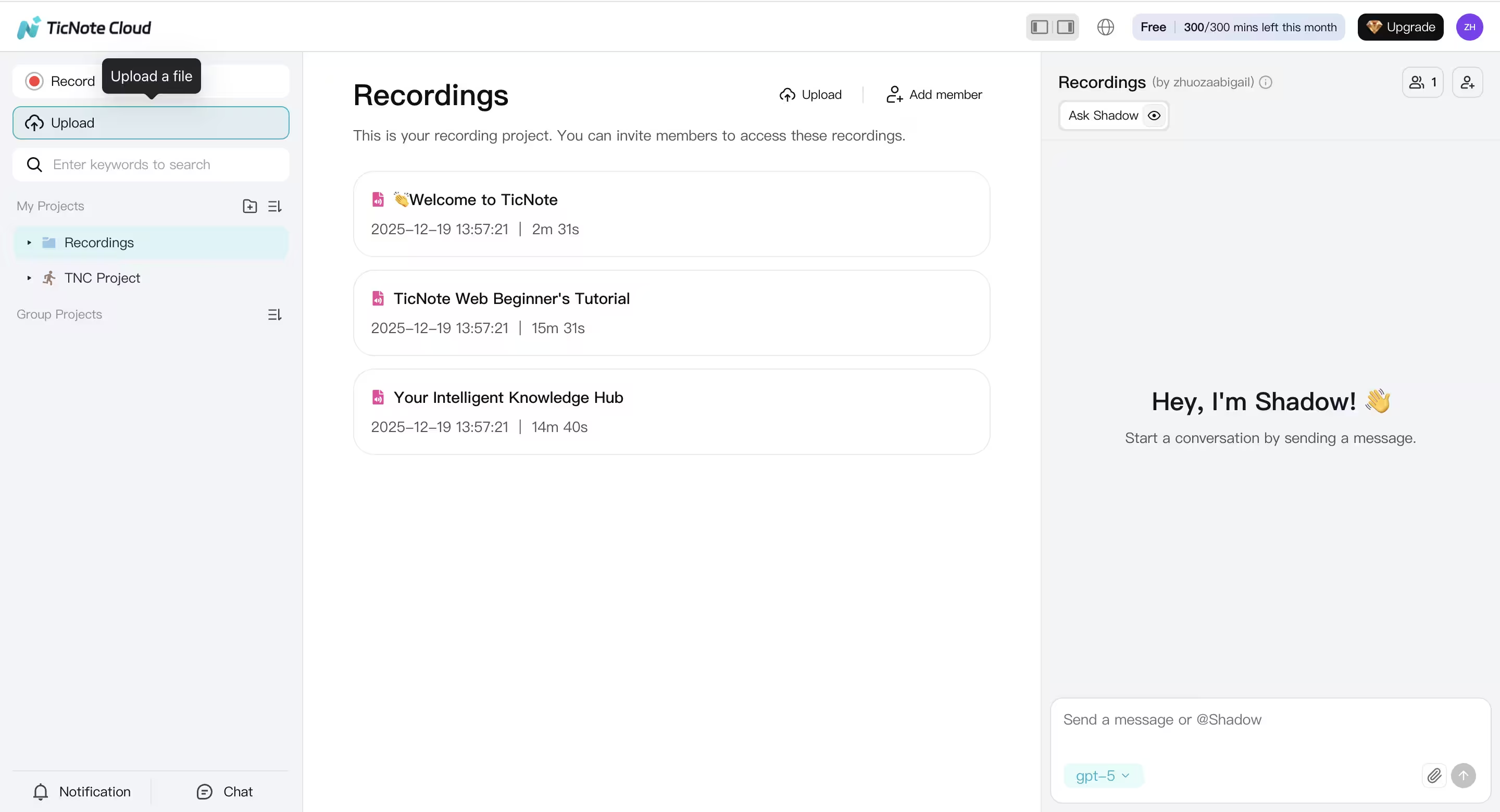
- Record audio-only from your mic for in-room meetings: just click the Record button at the top.
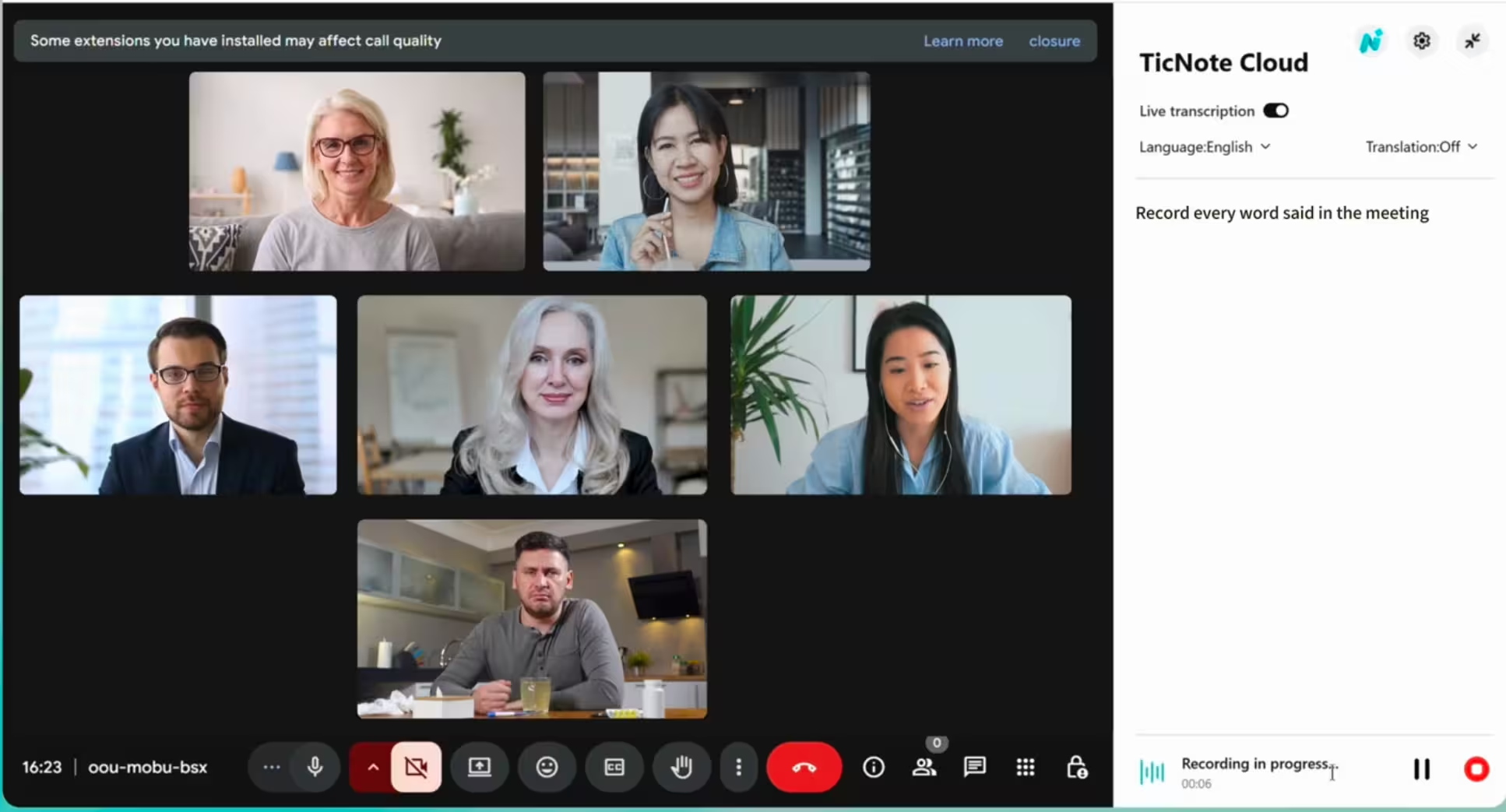
- Record online meetings without inviting a bot (use the extension or app capture).
- Import a file after the call if someone else recorded it.
This is where a meeting-focused tool saves time. You don't have to split files, re-upload parts, or rebuild context for every follow-up.
If you need more options for other sources (podcasts, lectures, interviews), follow this broader guide on audio transcription workflows.
Step 3: Generate the transcript and make it searchable
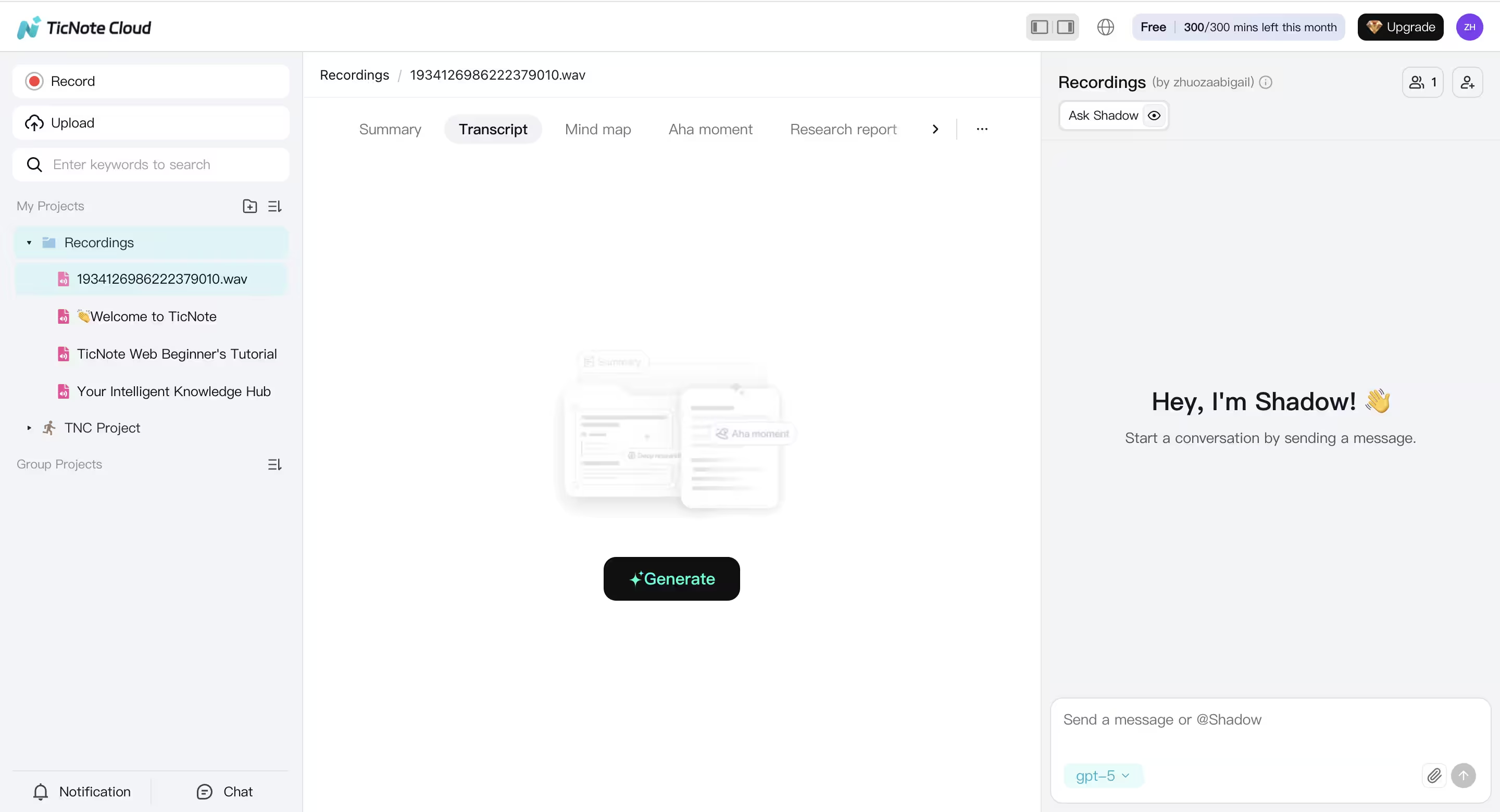
Once the audio is in, click the Transcript tab > Generate button to generate a transcript (live or post-meeting).
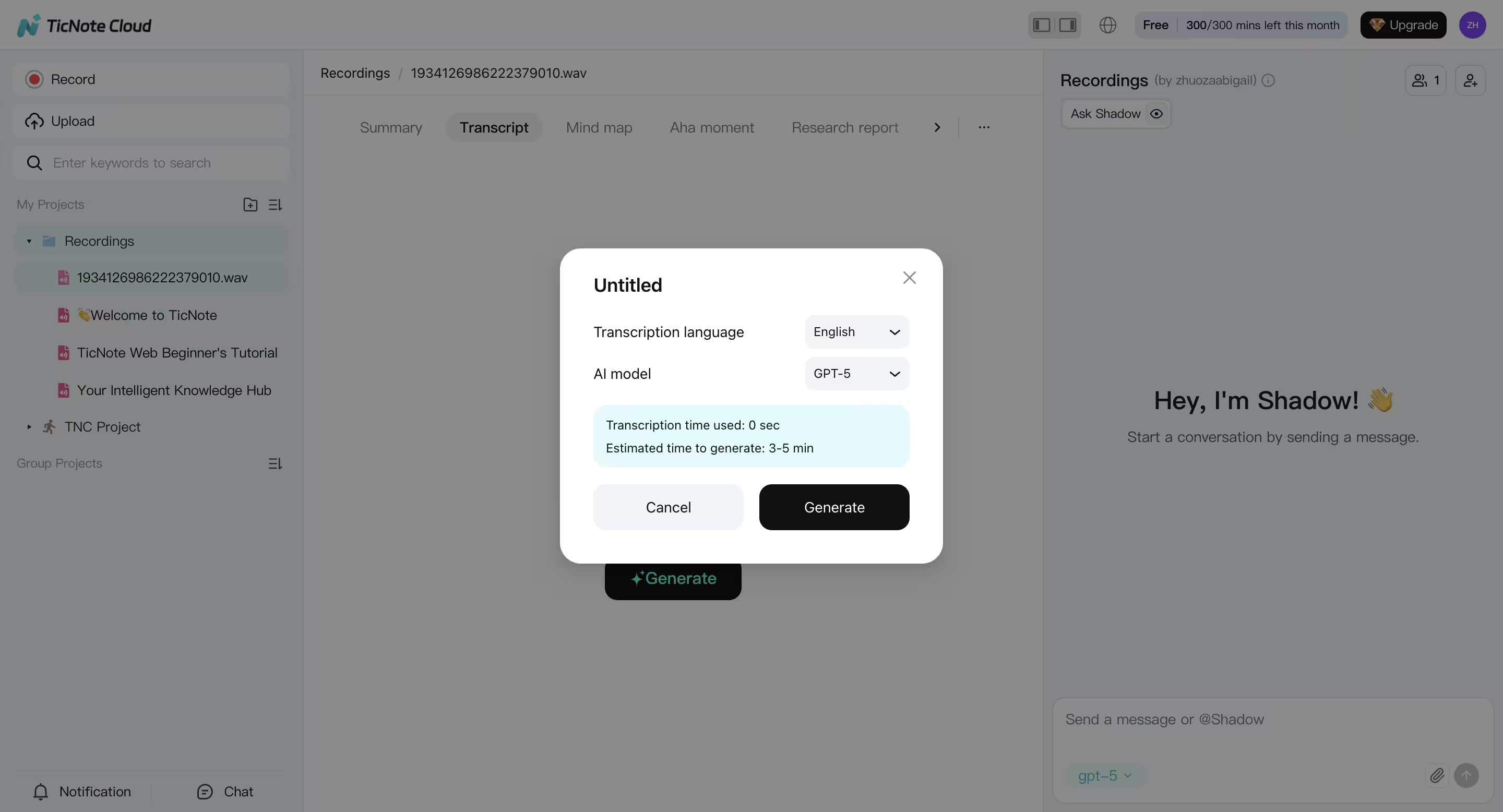
You can choose the language and AI model before transcribing.
After it's done, you can search the transcript like a document. That's the key difference versus pasting chunks into chat.
For teams, "searchable" should mean:
- You can find a quote fast
- You can jump to the right meeting
- You can reuse the same transcript in multiple outputs (notes, tasks, brief)
Step 4: Apply a meeting template, then extract decisions and action items
Now turn raw text into useful notes. Apply a meeting template so the summary is consistent each time.
Here's a simple template structure that works for most teams:
- Agenda
- Key updates
- Decisions
- Action items (owner, due date)
- Risks and open questions
Worked example (30-minute product sync):
- Import the recording.
- Generate the transcript.
- Run a "Weekly Sync" template.
- Pull out a clean list of decisions and tasks.
Copy-paste prompt you can use in your notes tool:
- "List the decisions made. Use one line each."
- "Extract action items with an owner and date. If missing, write 'TBD'."
- "Write a 5-bullet recap for someone who missed the meeting."
Step 5: Export and share the output where work happens
After cleanup, export what your team needs:
- Transcript to TXT
- Summary to Markdown or PDF
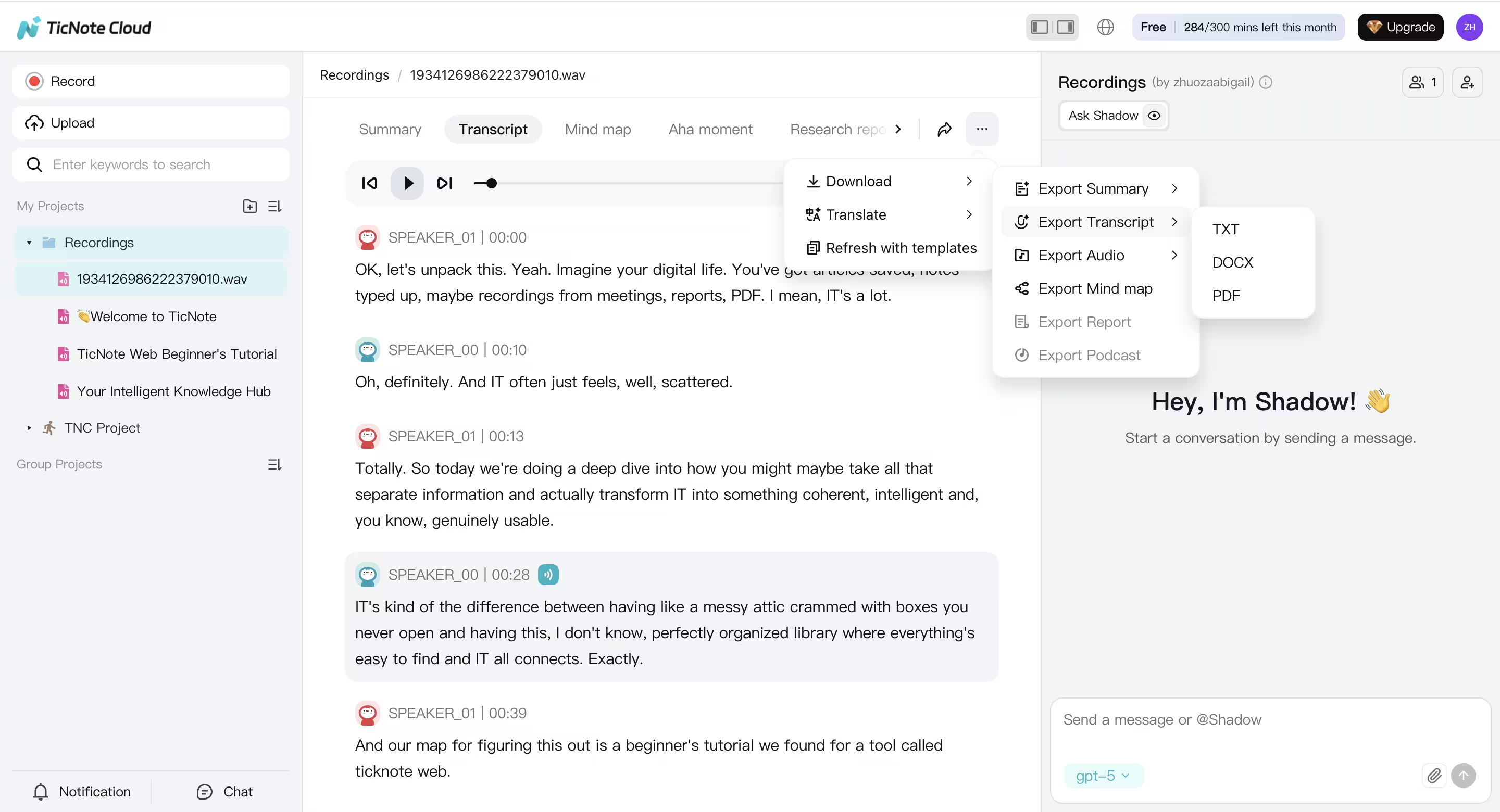
Then connect the output to your workflow. TicNote Cloud supports connectors like Notion and Slack, so notes can land where the team already reads and acts.
Step 6: Ask cross-meeting questions later (the real time saver)
A week later, you shouldn't have to re-open five chats to remember what happened. In a project workspace, you can ask across past meetings.
Examples:
- "What did we decide last week about the launch date?"
- "Which tasks are still open from the last three meetings?"
- "Show every time we discussed Vendor A, with dates."
That's when a dedicated transcription workspace wins: it turns meeting audio into a living, searchable knowledge base, not a one-off transcript.


