


 Extension
TL;DR: The fastest accurate way to transcribe video (and where ChatGPT fits)
If you want speed and accuracy, try TicNote Cloud for Free, then remember this: ChatGPT can polish text, but you still need speech-to-text (ASR, automatic speech recognition) to turn a video's audio into words first.
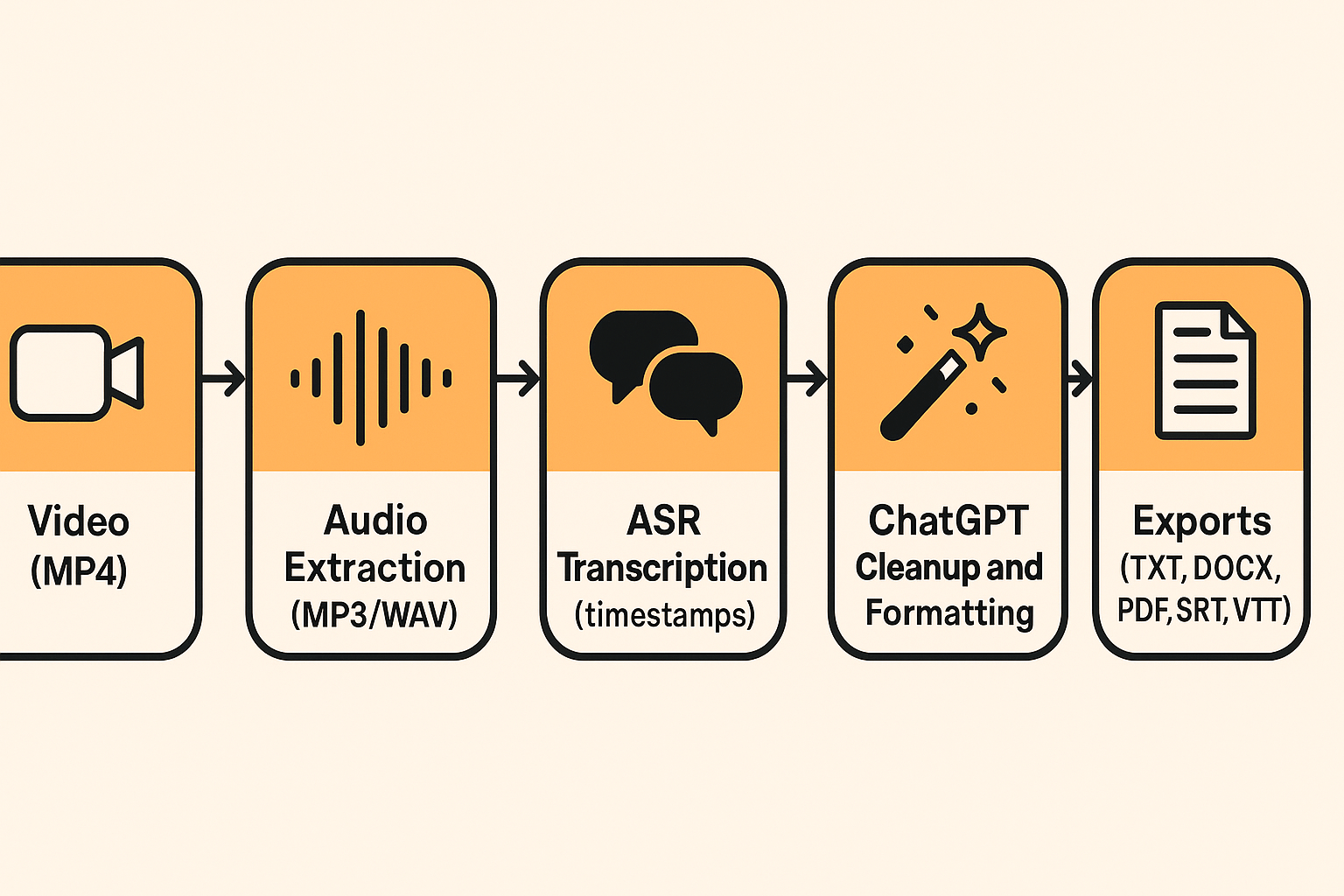
Use this simple pipeline:
- Video file
- Extract audio (MP3 or WAV)
- ASR transcript (with timestamps if you need them)
- ChatGPT cleanup and formatting, then export (TXT, DOCX/PDF summary, or SRT/VTT)
Pick the right output: a clean transcript is best for notes, blogs, search, and summaries. Subtitles (SRT/VTT) are for players and accessibility, so timing and line breaks matter. Expect small errors and plan a quick review, especially for names and numbers.
Messy audio and speaker overlap slow everything down. You end up fixing timestamps, chasing names, and reformatting by hand. If you want one place to upload, transcribe, summarize, and export clean outputs, TicNote Cloud can handle the full flow without stitching tools together.
Can ChatGPT transcribe videos by itself?
Not really. ChatGPT is best at working with text, not decoding speech from a video file. So if you're asking, "can chatgpt transcribe videos" on its own, the reliable answer is no, you still need a speech-to-text tool first.
What "transcription" means (and why ChatGPT isn't the core tool)
Transcription is automatic speech recognition (ASR), it turns audio into words. That step needs a model built for audio, plus clean input audio. Video files also have timing, tracks, and codecs, which is why "just upload a video" is not a repeatable method across setups.
What ChatGPT is great for after ASR gives you text
Once you have a rough transcript, ChatGPT can make it usable fast:
- Fix punctuation and capitalization
- Remove filler words carefully (keep meaning intact)
- Add headings and sections for readability
- Normalize names, jargon, and acronyms
- Create summaries, action items, and key takeaways
What about ChatGPT experiences that accept audio or video?
Some products and modes can take audio or video as input. Even then, an ASR layer is still doing the speech recognition under the hood. The repeatable workflow stays the same: extract or upload audio, run ASR, then use ChatGPT for cleanup and formatting.
What's the most reliable workflow to transcribe a video with ChatGPT?
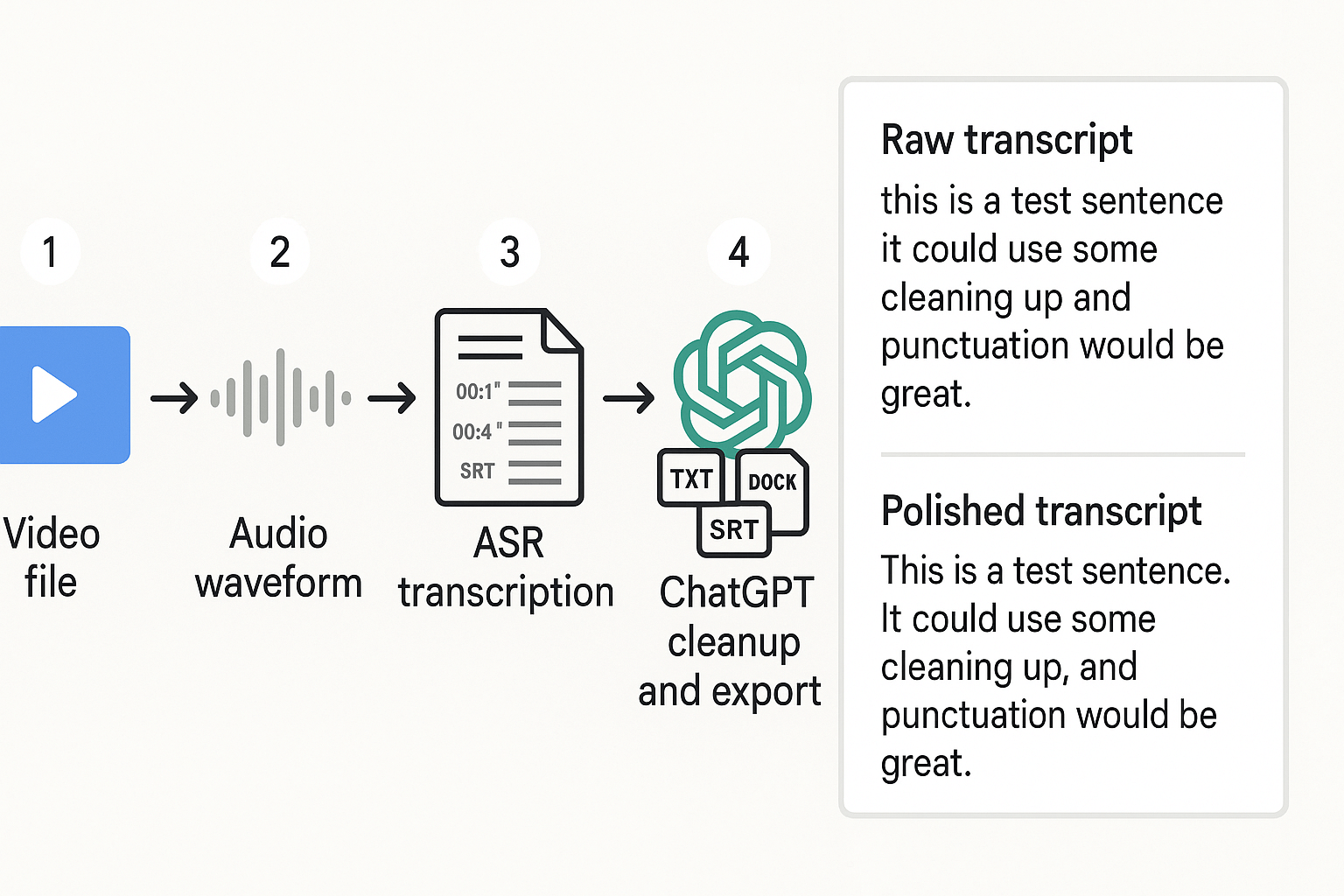
The most reliable method is a two-step pipeline: use a speech-to-text tool to create the raw transcript, then use ChatGPT to clean, label, and format it. That's the key detail many people miss when they ask, "can chatgpt transcribe videos" in a practical way.
Follow this 5-step workflow (do it once, reuse it forever)
- Pick your deliverable first
- Clean transcript: best for blogs, notes, search, and quotes.
- Subtitles (SRT/VTT): best for YouTube, courses, social clips.
- Both: do the transcript first, then generate subtitles.
- Extract or prep the audio Use the cleanest audio you can. If the video has music, remove it if possible. If there are two speakers, keep the audio in stereo if you can. It can help diarization (speaker labels).
- Run speech-to-text (ASR) to get a raw transcript ASR (automatic speech recognition) tools like Whisper or cloud services turn audio into text. For best results, export:
- Raw text plus timestamps (helpful for review)
- Optional diarization (speaker 1, speaker 2)
- Paste into ChatGPT for cleanup, with strict rules ChatGPT is great at punctuation, paragraphs, speaker formatting, and fixing obvious casing. But tell it not to guess.
- Mini example:
- Raw: "so today were gonna talk about paid search um the first thing is keywords and then landing pages"
- Polished: "Today we're going to talk about paid search. We'll start with keywords, then move to landing pages."
- Export to the exact format you need
- Transcript: TXT for simplicity, DOCX/PDF if you need sharing.
- Subtitles: SRT or VTT, keep timestamps intact.
If you want a broader overview of tools and options, this guide on how to transcribe a video using proven methods can help you pick a workflow that fits your setup.
Handle long videos without losing your place
Work in chunks, like 5 to 10 minutes at a time. Always include a header like "Chunk 3, 00:20:00 to 00:30:00" and paste the matching raw segment.
To resume safely, do two things:
- Start the next chunk with the last 1 to 2 lines of the previous chunk.
- Tell ChatGPT: "If text repeats, keep only one copy."
That prevents gaps and reduces "timing drift" when you later build subtitles.
How do you extract audio from a video (quick methods)?
Extract the audio first. It's faster to upload, easier for ASR (speech-to-text), and avoids video format issues when you want to answer "can chatgpt transcribe videos" with a real workflow.
Use what you already have (fastest options)
Try one of these quick methods:
- Your video editor: Export or "Render Audio Only." Most editors can output WAV or MP3.
- Your OS share/export tools: Some systems let you save just the audio track from a video share or export menu.
- Online converter (if allowed): If your org permits it, upload the video and download an audio-only file.
Best audio formats and settings for transcription
- WAV: Best quality, best for tricky voices and noise.
- MP3: Smaller files, good when upload size matters.
- Mono is usually fine: Speech does not need stereo.
- Keep sample rate consistent: 44.1 kHz or 48 kHz, don't mix per chunk.
Handling long videos without losing words
For long recordings, split audio into 10 to 30 minute parts. Name them clearly (for example: Project_Update_Part01). Add a 2 to 3 second overlap between parts so you don't lose words at the cut.
If you want a full pipeline after this step, follow this audio-to-text workflow guide to go from audio files to clean exports.
Quick audio quality checklist (helps accuracy)
- Turn down or remove background music
- Keep volume steady (avoid big jumps)
- Reduce echo (smaller room, closer mic)
Which speech-to-text tool should you use before ChatGPT? (Whisper and other ASR options)
ChatGPT isn't the tool that "hears" your video. The speech-to-text tool, called ASR (automatic speech recognition), is the engine that does can chatgpt transcribe videos work in practice. Then ChatGPT helps you clean, label, and format the text.
Pick your ASR based on the output you need
If you need subtitles, you want timestamps and short segments. If you need meeting notes, you want speaker diarization (who said what) and strong accuracy on messy audio.
| Option | Best for | Accuracy on noisy audio | Speed and setup | Cost model | Limits and features |
| Local Whisper (run on your computer) | Privacy, control, offline work | Often strong, depends on model size | Slower on weak hardware, more setup | Free software, you pay compute | No vendor limits, diarization needs extra tooling |
| Cloud speech-to-text (major APIs and apps) | Fast start, teams, scale | Often strong, plus noise handling | Fast, simple upload or API | Pay per minute or per month | File length caps vary, diarization often included |
Rules of thumb that keep you from redoing work
Creators: For captions and editing, choose an ASR that outputs SRT or VTT with clean timestamps. If you edit in Premiere or CapCut, tight timing matters more than perfect grammar.
Professionals: For meetings, pick diarization and long file support first. If you deal with client data, prefer local transcription when possible, or use a vendor with clear privacy controls. Also check if you can export TXT plus structured notes for follow ups.
Quick decision
- Choose local Whisper when you want privacy, full control, and offline runs.
- Choose cloud ASR when you want fast setup, easy diarization, and consistent results at scale.
What prompts should you use to clean and format transcripts in ChatGPT?
If you already have a raw transcript, ChatGPT is best for cleanup and formatting, not the first pass of speech-to-text. The prompts below help you add punctuation, fix spacing, label speakers, and prep subtitle-friendly text without changing meaning.
Prompt 1: Add punctuation and paragraphs (no new facts)
Copy, paste, and replace the bracketed parts.
Prompt: You are a transcript editor. Fix punctuation, capitalization, and paragraph breaks. Rules:
- Do not add new facts or missing content.
- Do not rewrite for style.
- Keep the same words unless it's clearly a typo.
- If something is unclear, keep it as [inaudible] or [unclear]. Output:
- Return only the cleaned transcript.
Transcript: [PASTE RAW TRANSCRIPT HERE]
Prompt 2: Light speaker labels (Speaker 1/2), keep uncertainty
Use this when your transcript has speaker turns, but names are unknown.
Prompt: Label each turn as Speaker 1, Speaker 2, etc. Rules:
- Don't guess real names.
- If a turn is ambiguous, label it as Speaker ? and keep the text.
- Keep wording as-is, only light punctuation fixes. Output format: Speaker 1: ... Speaker 2: ...
Transcript: [PASTE TRANSCRIPT WITH LINE BREAKS OR TURNS]
Prompt 3: Enforce a glossary for names, brands, and jargon
This prevents "close enough" spellings that break search, credits, and captions.
Prompt: Standardize terms using this glossary. Rules:
- Replace variations with the exact glossary spelling.
- Do not change meaning.
- If you're not sure a word matches the glossary, flag it as [CHECK TERM]. Glossary:
- [Name] = [Exact spelling]
- [Brand] = [Exact spelling]
- [Acronym] = [Expanded form or exact style]
Transcript: [PASTE TRANSCRIPT HERE]
Prompt 4: Resume cleanly from a timestamp or last correct line
This is how you continue in chunks without drifting.
Prompt: Continue cleaning the transcript starting from:
- Timestamp: [00:12:34] OR
- Last correct line: "[PASTE LAST CLEAN LINE]" Rules:
- Keep formatting consistent with prior output.
- Do not re-edit earlier sections.
- Do not add new content. Transcript chunk to process: [PASTE NEXT RAW CHUNK HERE]
Prompt 5: Flag low-confidence words, numbers, and proper nouns
Use this before publishing or making SRT/VTT.
Prompt: Review the transcript and highlight items that may be wrong. Rules:
- Don't fix anything unless it's 100% obvious.
- Create a list of possible issues, with the exact quoted phrase and a short note. Focus on:
- Names and proper nouns
- Numbers, dates, prices, addresses
- Technical terms and acronyms
- Places and product names Output:
- "..." at [timestamp if present]: why it's questionable
- ...
Transcript: [PASTE TRANSCRIPT HERE]
Safe chunking (so you don't lose meaning)
Keep chunks small, about 2 to 5 minutes of audio worth of text. Add 2 to 4 lines of overlap between chunks so the model keeps context. In every prompt, add: "Keep the original meaning. Don't smooth over unclear audio. Mark uncertainty as [unclear]." For more practical rules on clean, repeatable results, follow this guide to proper interview transcription workflows.
How do you turn a transcript into subtitles (SRT/VTT) without breaking timing?
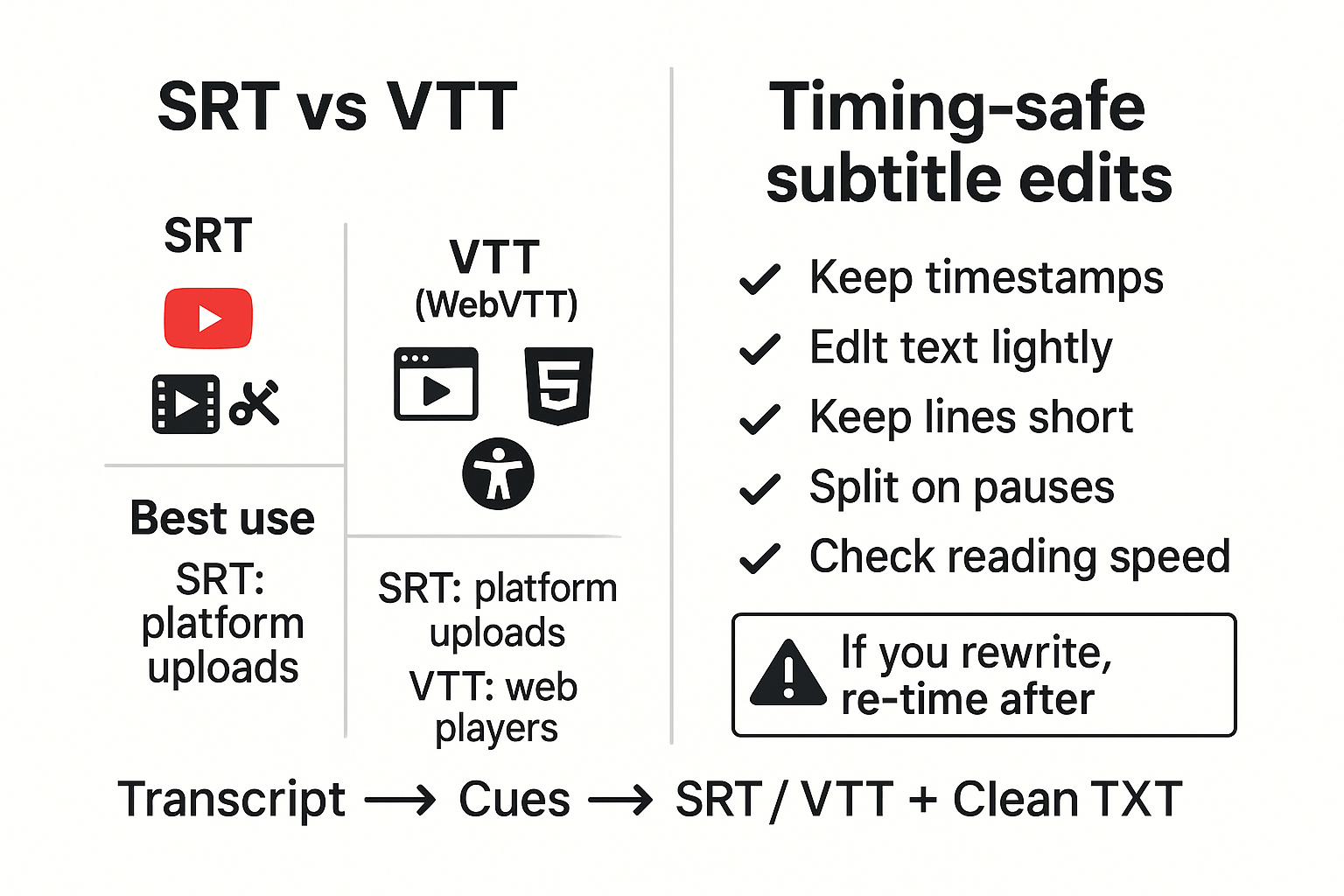
SRT and VTT are subtitle files that match text to time. SRT is common for YouTube uploads and many editors. VTT (WebVTT) is the web standard for HTML5 players and accessibility. If you're asking "can chatgpt transcribe videos," the key is this: subtitles are not just words, they are words plus timing.
Keep timing safe first, then edit
Subtitles break when text edits change how long a line takes to read. That creates timing drift, even if timestamps stay the same.
Use these rules:
- Keep each caption short, usually 1 to 2 lines.
- Split on natural pauses, not random word breaks.
- Avoid big rewrites. Trim and clarify instead.
- Watch reading speed. If it feels fast, split it.
Add timestamps if your ASR didn't include them
If your speech-to-text tool gave you plain text, you need timed "cues" before you can export SRT or VTT. Re-run ASR with timestamps on, or use a subtitle editor that can auto-segment text.
In VTT, each cue has a start and end time like WebVTT: The Web Video Text Tracks Format (W3C Recommendation 2023) specifies: "hh:mm:ss.ttt --> hh:mm:ss.ttt".
Using ChatGPT on subtitle text: do and don't
Do:
- Fix casing, light punctuation, and obvious typos.
- Remove filler words when it doesn't change length much.
- Keep timestamps unchanged.
Don't:
- Paraphrase whole sentences or reorder ideas.
- Merge or split cues without checking timing.
- "Improve clarity" by adding new words.
If you must rewrite heavily, re time the captions after. Finally, export both: an SRT or VTT for publishing, plus a clean TXT transcript for reuse and SEO.
Try TicNote Cloud for Free to turn recordings into transcripts you can export and reuse.
How can you check accuracy and handle real-world audio problems?
Bad audio breaks transcripts fast. If you're testing whether can chatgpt transcribe videos, the real limit is the speech-to-text step. Accents, crosstalk, fast talkers, music, echo, and niche jargon all raise error rates. The fix is simple: clean the audio, pick the right ASR settings, then QA in small chunks.
Fix the biggest accuracy killers (fast)
- Accents and fast speech: re-run ASR with a higher-accuracy model, and turn on language hints if available.
- Crosstalk (people talking over each other): enable speaker diarization (speaker labels). If it's messy, split the file by topic or time.
- Background music: cut intro music, or lower it before ASR.
- Echo and room reverb: reduce echo at the source (closer mic, softer room). If you can, apply light noise reduction.
- Domain jargon and names: give the ASR (or ChatGPT later) a short glossary of product names, people, and acronyms.
Chunk and overlap to prevent "drift"
Long files can drift in both words and timestamps. Break audio into 5 to 15 minute chunks with a 5 to 10 second overlap. Then compare overlaps to catch missing lines.
QA checklist (use this every time)
- Check names (people, brands, places)
- Check numbers and dates (prices, deadlines, metrics)
- Confirm action items (who does what, by when)
- Verify key quotes you plan to publish
- Spot-check by listening to 30 to 60 seconds per chunk
- Confirm speaker turns match the conversation
- For subtitles, watch for timing drift after edits
Word Error Rate (WER) is a simple way to think about accuracy: lower is better. If the transcript will be used for legal, medical, compliance, or public marketing, pay for human review or at least a human QA pass.
Try TicNote Cloud for Free and compare its transcript to your current workflow.
What privacy and compliance steps should you follow before you transcribe?
Before you transcribe, treat the video like personal data. Start with notice and consent, then sort what's sensitive, then pick local or cloud based on risk. This is the step many people skip when they ask, "can chatgpt transcribe videos?"
Get consent and give clear notice
If it's a meeting or interview, tell people it's recorded and transcribed. Say what you'll do with it, who can see it, and how long you'll keep it. Under Regulation (EU) 2016/679 (General Data Protection Regulation) (2016), controllers must provide data subjects with "the recipients or categories of recipients of the personal data, if any" (Article 13(1)(e)).
Flag sensitive content before you upload
Scan for high risk parts like:
- PII (personal info): full names, phone numbers, addresses
- Health details, financial info, passwords, API keys
- Kids, student records, or client confidential data
Choose local vs cloud, then reduce exposure
If policy is strict, keep audio and ASR (speech-to-text) local. If you use cloud tools, reduce what you share:
- Redact or bleep sensitive segments before upload.
- Limit access with role-based sharing, least privilege.
- Set retention rules, delete raw media when done.
- Store transcripts apart from the original video when needed.
Finally, read vendor terms. Check if uploads are used for training by default, and how you can opt out.
What's a good alternative to the ASR + ChatGPT pipeline for transcribing and organizing recordings?
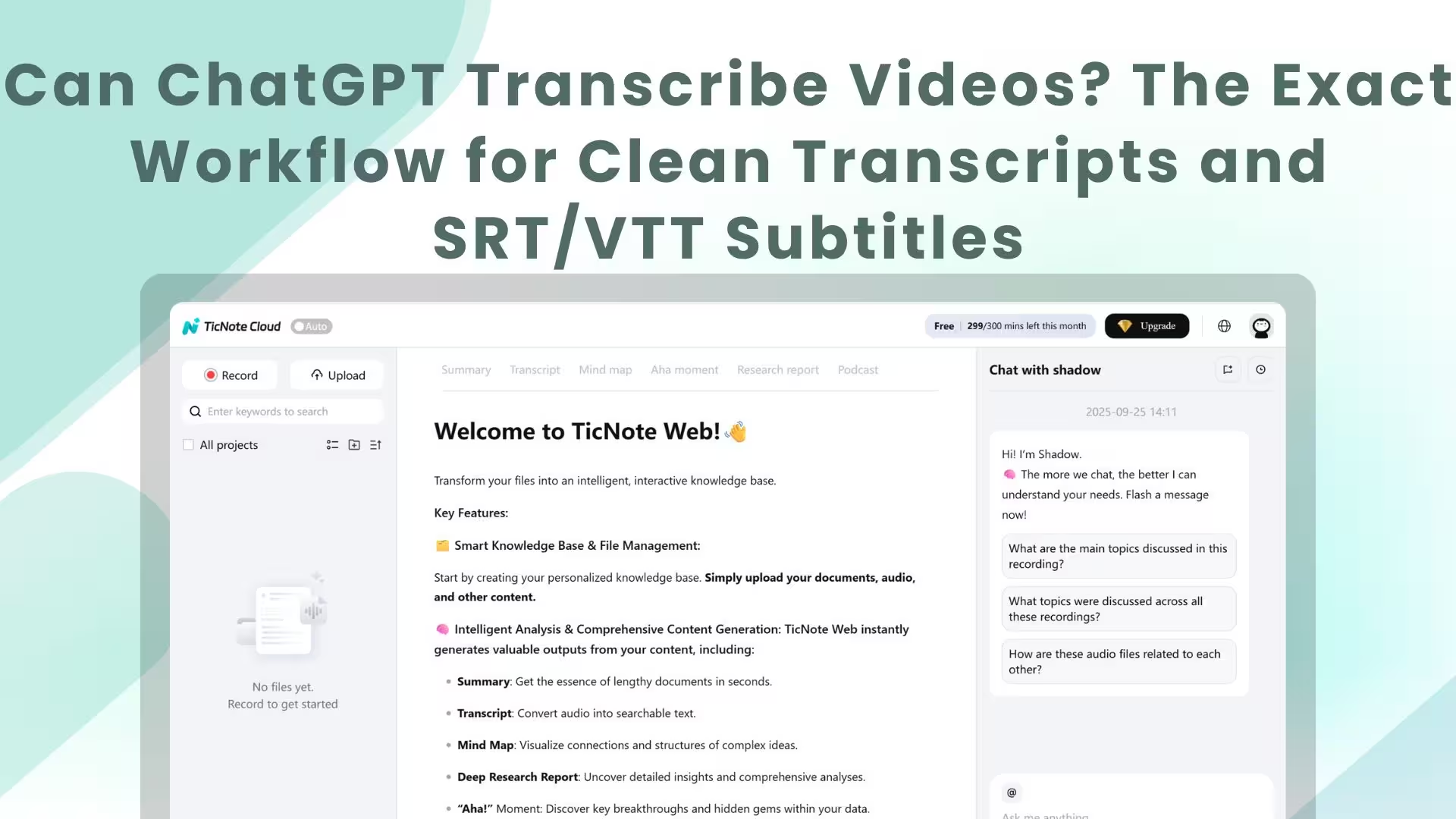
If you're tired of stitching tools together, an all in one workspace can be simpler. In this walkthrough, I'll use TicNote Cloud as the example. It's a better fit when you do lots of meetings, upload files often, work in shared projects, or need search that works across many transcripts.
Here's the key idea: instead of "ASR tool plus ChatGPT," you do everything in one place. You still get the same outputs, just with fewer handoffs.
When an integrated workspace is the better move
A multi tool pipeline works fine for one off videos. But it starts to break down when your work repeats.
Choose an integrated workspace when you need:
- A single place for recordings, transcripts, notes, and exports
- Fast reuse, like weekly meetings, interviews, or course videos
- Team access, shared folders, and consistent templates
- Search and Q&A across many files, not one transcript
- Less copy paste, fewer format bugs, fewer "which version is final?" moments
This also helps answer the common question, "can ChatGPT transcribe videos" in practice. ChatGPT is great at cleaning and formatting text, but most people still need a speech to text step first. An integrated tool bundles that step with the rest of the workflow.
Step by step: transcribe, organize, and export in one sitting
Use this simple flow inside TicNote Cloud.
Step 1. Create a project
- Make a new project for a client, channel, class, or podcast season.
- Add a clear name so your team can find it later.
- Upload a file or record
- Upload your video or audio file.
- Or record audio for an online or in-person meeting. You can record Google Meet, Zoom, or Teams using the TicNote extension.
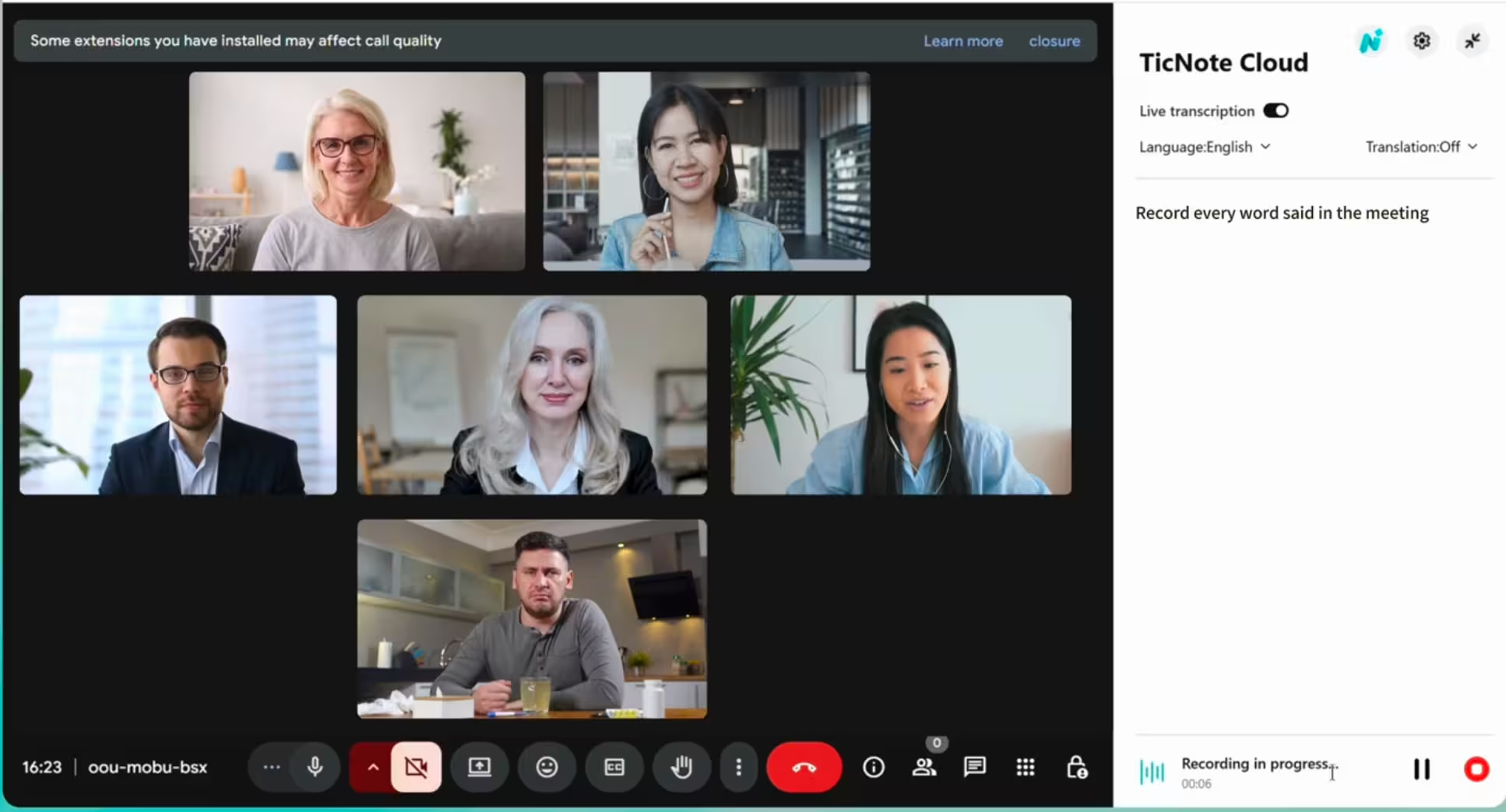
- Quick tip: just click the Record or Upload button on the web interface to quickly start.
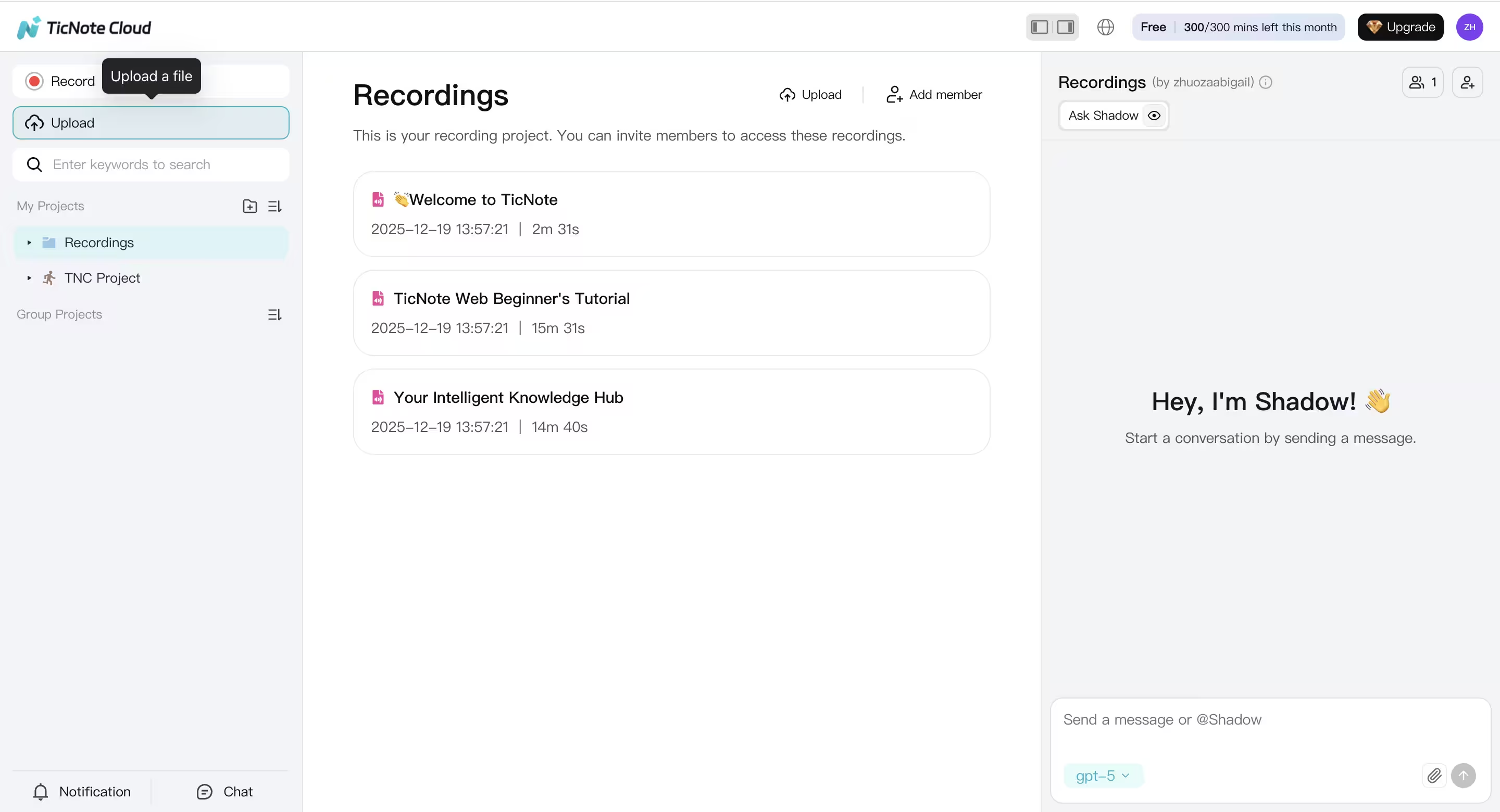
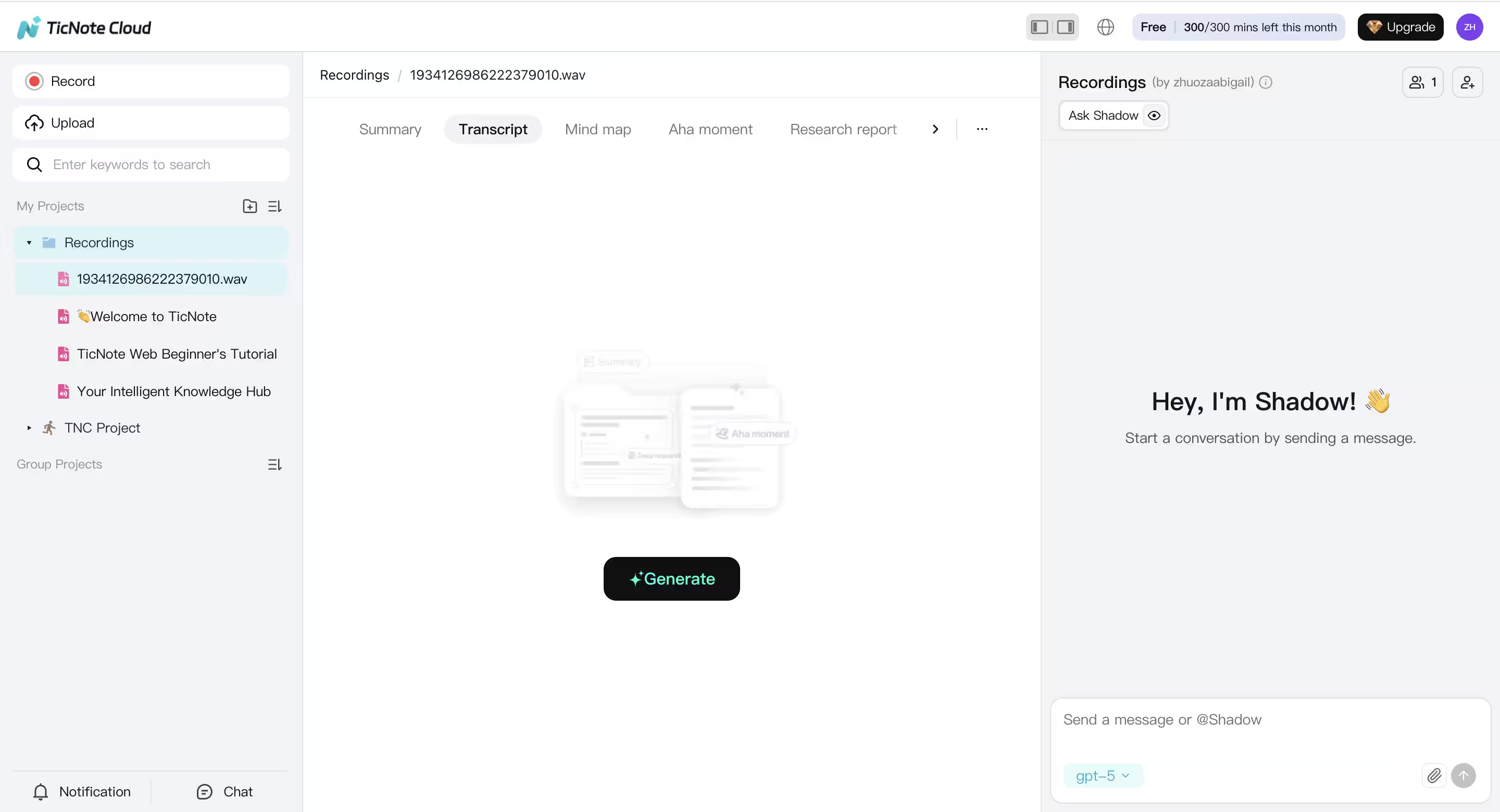
Step 2. Run transcription
- Click the Generate button and wait for the transcript to generate.
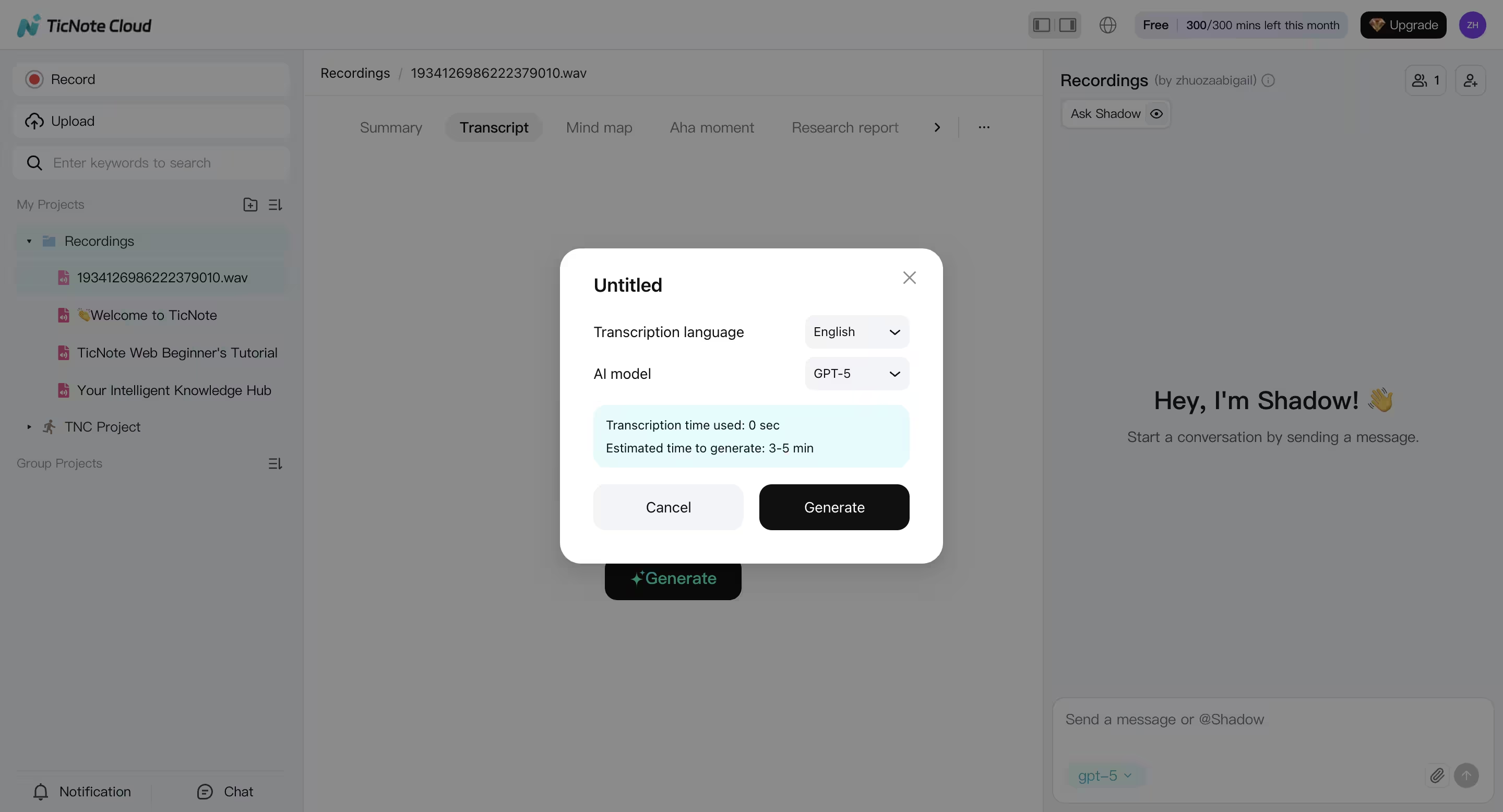
- You can choose the language and AI model to generate the transcription.
Step 3. Generate clean notes and summaries
- Create structured notes using a template, like: agenda, key points, decisions, and action items.
- Generate a short summary for sharing, plus a longer summary for archives.
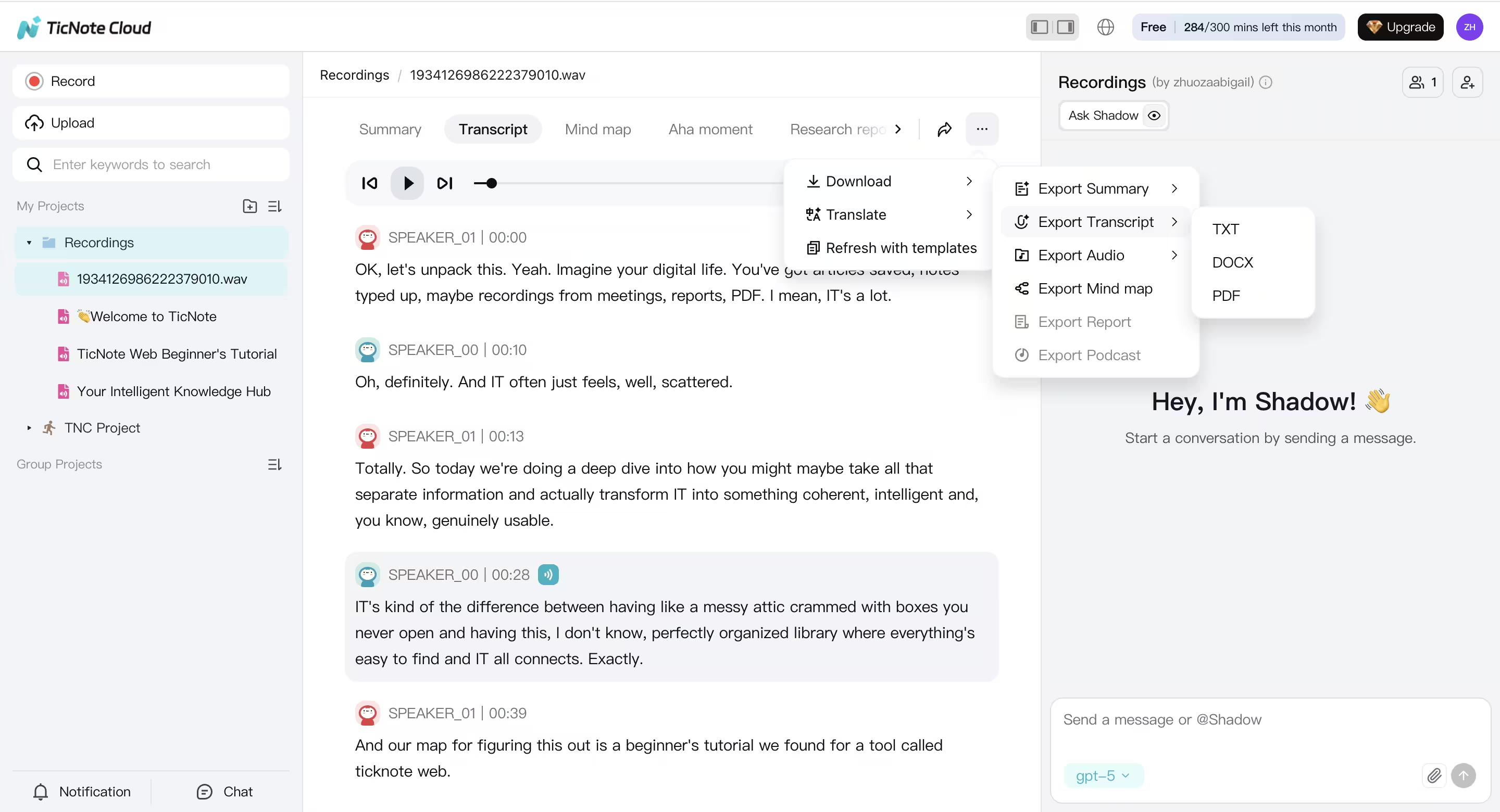
Step 4. Translate & Export
- If your team is multilingual, translate the transcript or summary.
- Keep both versions in the same project, so context stays intact.
- Click the three-dots button to export the Translation or Transcript in different formats.
Step 5. Ask questions across files
- This is where an integrated workspace shines.
- Ask things like "What did we decide about pricing?" or "List all action items from this week."
- Because it's project-based, you can query more than one transcript at once.
If you want a deeper meeting focused guide, this reliable meeting transcription workflow breaks it down step by step.
How this maps to the classic pipeline
You're not changing the logic, you're reducing the tool chain.
- Transcription: built-in transcription handles the first draft
- Cleanup: turn raw text into readable notes and consistent formatting
- Summaries: generate shareable recaps, action lists, and topic notes
- Exports: download files in the formats your team actually uses
What you can export for real deliverables
Export options matter because teams don't all ship the same thing.
Common exports include:
- Transcript: TXT
- Summaries: Markdown, DOCX, PDF
- Audio: WAV
- Visual review: mind map as PNG or Xmind
That gives you a clean handoff to editors, clients, or internal docs, without reformatting in three different tools.


