


 Extension
TL;DR: The best ChatGPT alternatives (and who each one is for)
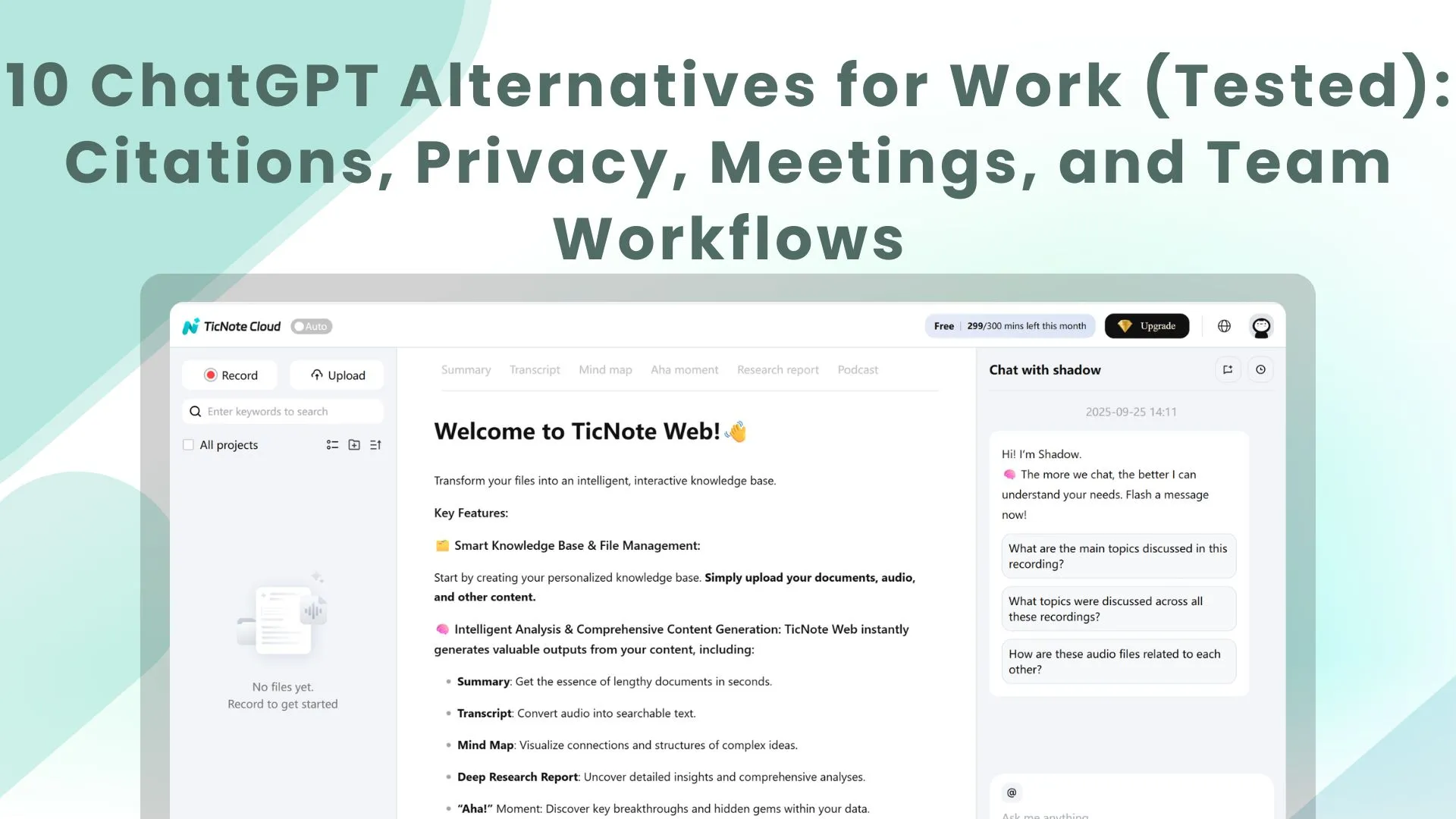
Try TicNote Cloud for Free if you want an assistant that starts from meetings and ends with usable deliverables (notes, action items, reports). Here are 10 quick picks, each with one "best for," plus a simple free-vs-paid rule.
Problem: Chat tools answer questions, but your work lives in calls, docs, and follow-ups. Agitate: That means copy-paste, lost decisions, and messy handoffs. Solution: Use TicNote Cloud to capture a meeting, keep it in a project, and generate shareable outputs from the same source.
- Best for meeting → project → deliverables: TicNote Cloud
- Best for office docs and email work: Microsoft Copilot
- Best for team chat and channels: Claude
- Best for research answers with sources: Perplexity
- Best for writing help across apps: Grammarly
- Best for marketing copy at speed: Jasper
- Best for enterprise search and Q&A: Glean
- Best for calls and summaries: Otter
- Best for sales call workflows: Fireflies
- Best for dev + IDE pairing: GitHub Copilot
Rule of thumb: Free plans are fine for light drafting; pay when you need admin controls, higher limits, and team sharing. Next, jump to the 6-question decision guide.
What should a good ChatGPT alternative do better than ChatGPT?
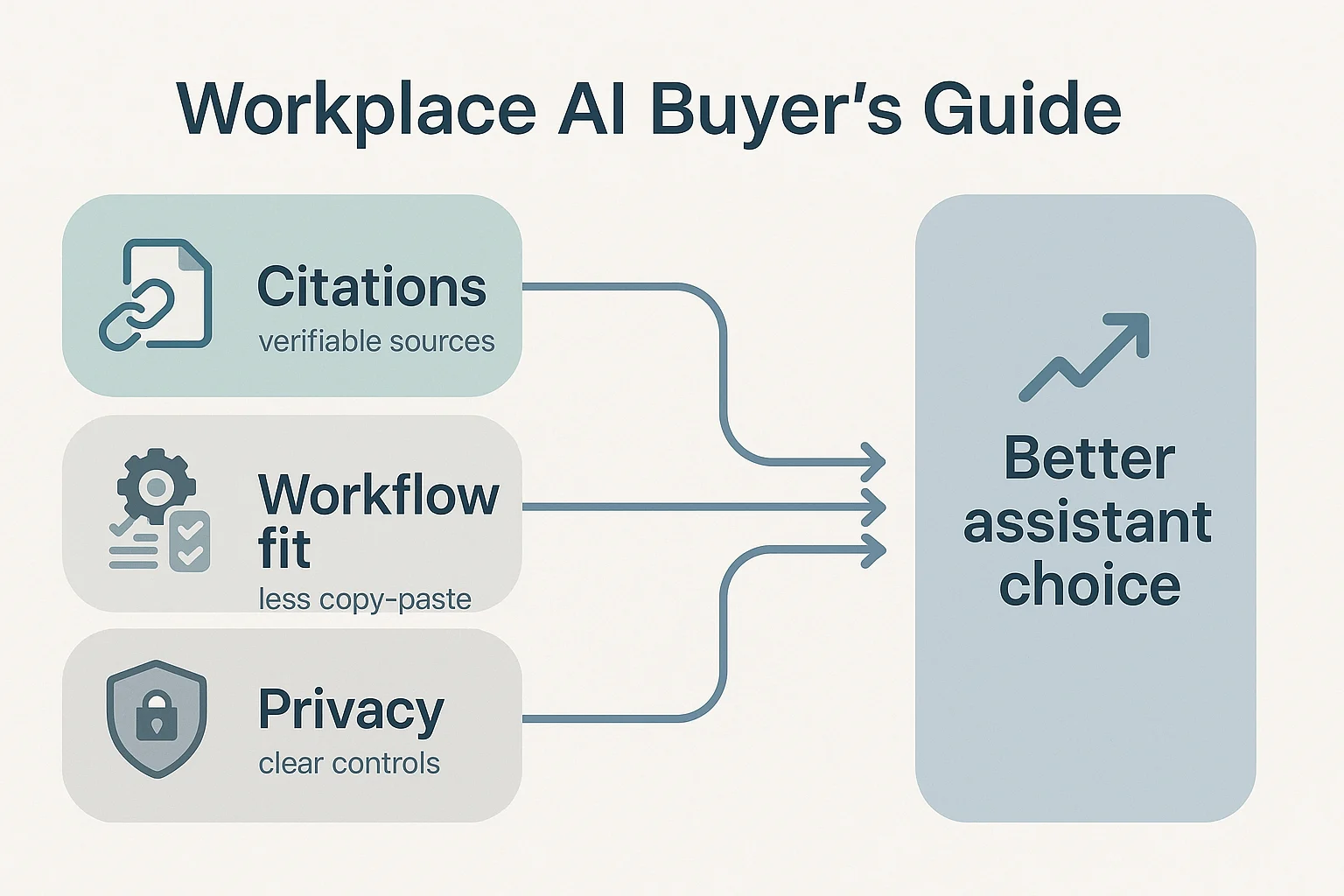
Most people don't switch tools because they're bored. They switch when work breaks: answers sound confident but miss key facts, long files get ignored, and teams lose time moving text between apps. A strong ChatGPT alternative should reduce risk (bad outputs), cut busywork (copy-paste), and fit how teams actually ship work.
Common reasons people switch (quality, context, web, workflows)
Here are the triggers we see most with knowledge workers:
- Fewer hallucinations on multi-step work: You need correct math, consistent logic, and clear assumptions.
- Better long-doc and project context: It should handle long PDFs, research notes, and meeting transcripts without losing the plot.
- Web grounding with citations: For research and client work, "trust me" isn't enough. You want links or quotes you can verify.
- Less copy-paste across tools: The assistant should live where your work lives (docs, tasks, meetings), not in a separate tab.
- Cleaner team handoffs: Shared context, templates, and permissioning matter when more than one person touches the output.
If your main pain is unreliable summaries, it helps to use a tool with clear checks and review steps—this is also where a solid approach to trusting AI summaries pays off.
The 7 criteria we used (and what "good" looks like at work)
We scored every tool on seven practical criteria:
- Accuracy: Gets the right answer on multi-step tasks, and stays consistent when you ask follow-ups.
- Citations / verifiability: Shows sources for claims (not just "I read it somewhere"), and makes it easy to trace quotes back.
- Speed (latency): Produces usable output fast, even on long inputs; slow tools don't get used.
- UX (low friction): Fewer clicks, easy prompt reuse, and clean formatting you can paste into deliverables.
- Integrations: Connects to the tools teams already run—docs, chat, project management, and knowledge bases.
- Price predictability: Clear limits (messages, seats, usage caps) and no surprise "feature gated" essentials.
- Privacy & controls: Clear data retention rules, admin settings, audit trails, and an explicit stance on training with user data.
Red flags to watch for in any roundup
Before you commit, watch for these deal-breakers:
- Unclear plan limits (minutes, tokens, exports, seats) or pricing pages that dodge specifics.
- No sources for research-style answers, especially when it states numbers or laws.
- Vague privacy language like "we may use data to improve services" with no opt-out details.
- Weak team controls: no roles, no sharing boundaries, no audit history.
- Shifting claims: features that appear in marketing but not in-product, or terms that change often.
How did we test and score these tools (so you can repeat it)?
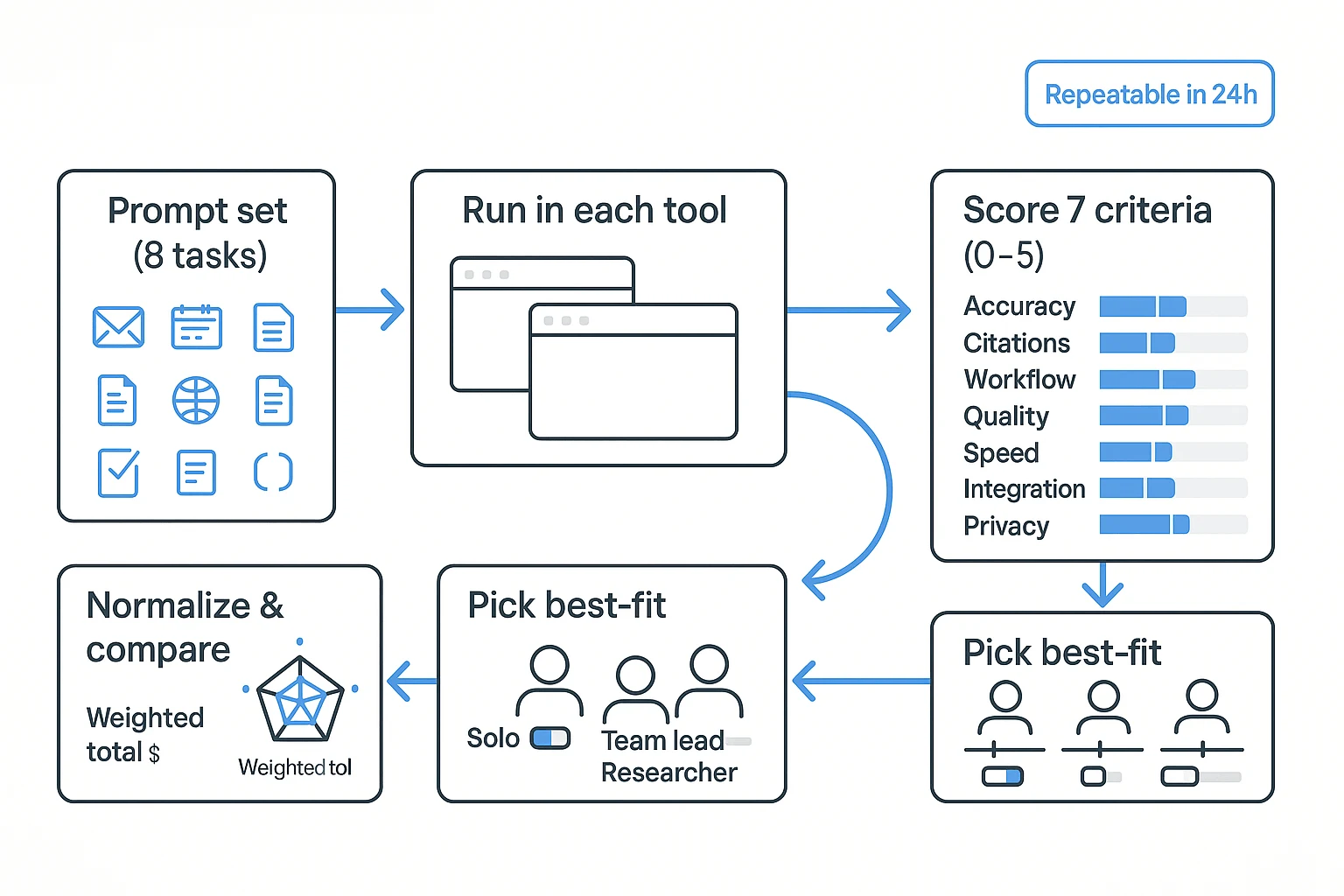
Most "ChatGPT alternative" lists feel random. So we used the same prompt set, on the same day, and scored each tool with the same rubric. The goal was simple: measure work output quality, not vibes.
The prompt set (8 tasks)
We ran 8 repeatable tasks in every tool. Each one maps to a real work moment.
- Short business email rewrite: Rewrite a tense client email in a calm, clear tone. (Checks tone control and brevity.)
- Structured planning: Turn a messy goal into a 30/60/90-day plan with milestones. (Checks structure and practical steps.)
- Coding/debug prompt: Fix a short bug and explain the change in plain English. (Checks correctness and clarity.)
- Web research question: Ask for a current comparison (for example, "top 3 approaches and when to use each"). (Checks browsing, source use, and up-to-date answers.)
- Long-document Q&A: Provide a 6–10 page doc, then ask 5 precise questions. (Checks long context and quote accuracy.)
- Meeting summary: Provide a raw transcript snippet and request a structured recap. (Checks compression, fidelity, and missed details.)
- Action items with owners/dates: Extract tasks, assign owners, set due dates, and flag risks. (Checks whether it can produce ready-to-send follow-ups.)
- Citation check: Ask for sources, then verify the citations match the claims. (Checks hallucination risk and auditability.)
One extra axis mattered for work users: meeting transcription AI / AI meeting notes tool fit. Some tools answer well but don't help you turn calls into a usable project record (transcript, decisions, tasks, and deliverables).
Scoring rubric (0–5) and weighting
Each tool got a 0–5 score per criterion. "3" meant usable with edits; "5" meant ready to ship.
- Accuracy & faithfulness (25%): Doesn't invent facts; matches the input.
- Citations & verifiability (20%): Gives checkable sources; citations map to claims.
- Workflow fit (20%): Supports projects, files, sharing, and repeat work.
- Output quality (15%): Clear structure, tone, and formatting.
- Speed & UX (10%): Time to usable answer; friction to run the task.
- Integrations & export (5%): Can move work into docs, PM tools, or KBs.
- Privacy & controls (5%): Clear data handling, admin controls if needed.
Adjust weights based on your role:
- Solo creator: raise output quality and speed; lower admin controls.
- Team lead / ops: raise workflow fit, citations, and privacy; speed matters less than repeatability.
Test setup and freshness notes (plans, apps, dates)
To keep results comparable, we used the same prompts, same formatting rules, and the same pass/fail checks across tools in a single testing window. When a tool had multiple models or modes, we used the default "best quality" setting if it was clearly labeled, and noted paywalls when a feature required an upgrade.
Models and pricing change fast. Treat any ranking as time-stamped, then rerun the prompts before you commit.
Repeatability checklist (copy/paste):
- Pick 8 prompts and freeze them (no edits mid-test)
- Run all tools within 24 hours
- Use the same input docs and transcript snippet
- Record plan tier, model setting, and whether browsing was on
- Time each run (start → usable output)
- Score 0–5 on the 7 criteria above
- Normalize: convert to percentages and apply weights
- Re-test the top 2 tools with a second prompt set
Comparison table: 10 ChatGPT alternatives side by side
This table normalizes what busy teams actually compare when they're shopping for a ChatGPT alternative: citations, file handling, long-context memory, integrations, admin controls, and the real "starting price." It's not a feature dump. It's the shortest path to "Which tool fits our workflow?"
What this table includes (and how to read it fast)
Here are the fields to skim first:
- Citations: "Yes/No," plus a quality note (inline sources vs vague links).
- File support: what you can upload (PDFs, docs, audio/video) and how well it answers from them.
- Context & memory: whether it can work inside project spaces (shared knowledge over time).
- Integrations: where it lives (Google/Microsoft), and how it connects (Slack/Notion/Zapier).
- Team & admin: roles, SSO, and auditability (who did what, in which workspace).
- Starting price: the lowest commonly listed paid tier. Prices change often, so confirm on vendor sites.
Quick reads: best for research, office suites, and meeting workflows
Use the table like a filter:
- Best for research with citations: tools with strong web browsing plus clear source linking.
- Best inside office suites: assistants that live in Microsoft 365 or Google Workspace.
- Best for meeting → deliverable work: tools that turn transcripts into action items, docs, and shareable outputs.
| Tool | Best for | Web citations | Uploads (docs/audio) | Project memory | Integrations | Team/admin (roles/SSO) | Starting price (USD) |
| TicNote Cloud | Meeting → project → deliverables | Yes (clickable sources) | Yes (docs + audio/video) | Yes (project-scoped) | Slack, Notion | Roles; enterprise SSO | 12.99/mo |
| Claude | Long writing, doc Q&A | Limited (varies) | Yes (docs) | Limited (per chat) | Limited | Team plans available | Varies |
| Perplexity | Web research | Yes (strong) | Limited (depends) | Limited | Browser/workflow-light | Team plans available | Varies |
| Gemini | Google Workspace users | Yes (varies) | Yes (docs) | Workspace-dependent | Google apps | Admin via Google | Varies |
| Microsoft Copilot | Microsoft 365 users | Yes (graph-based) | Yes (M365 files) | Org/context-based | Microsoft apps | Enterprise admin/SSO | Varies |
| Poe | Trying many models fast | Depends on bot | Limited | Limited | Minimal | Minimal | Varies |
| Mistral (Le Chat) | Fast general assistant | Limited | Limited | Limited | Minimal | Team/enterprise varies | Varies |
| Meta AI | Social/consumer help | Limited | Limited | Limited | Meta apps | Minimal | Varies |
| Amazon Q | AWS + dev orgs | Limited | Yes (work content) | Org-based | AWS tools | Enterprise controls | Varies |
| IBM watsonx Assistant | Regulated enterprise workflows | Depends on setup | Yes (enterprise KB) | Yes (knowledge base) | Enterprise connectors | Strong admin/SSO | Varies |
Note: the table is for comparison only. Before you buy, confirm plan limits (uploads, retention, SSO, admin logs, and training-on-your-data defaults) on each vendor's site.
Which ChatGPT alternative fits your workflow? (6-question decision guide)
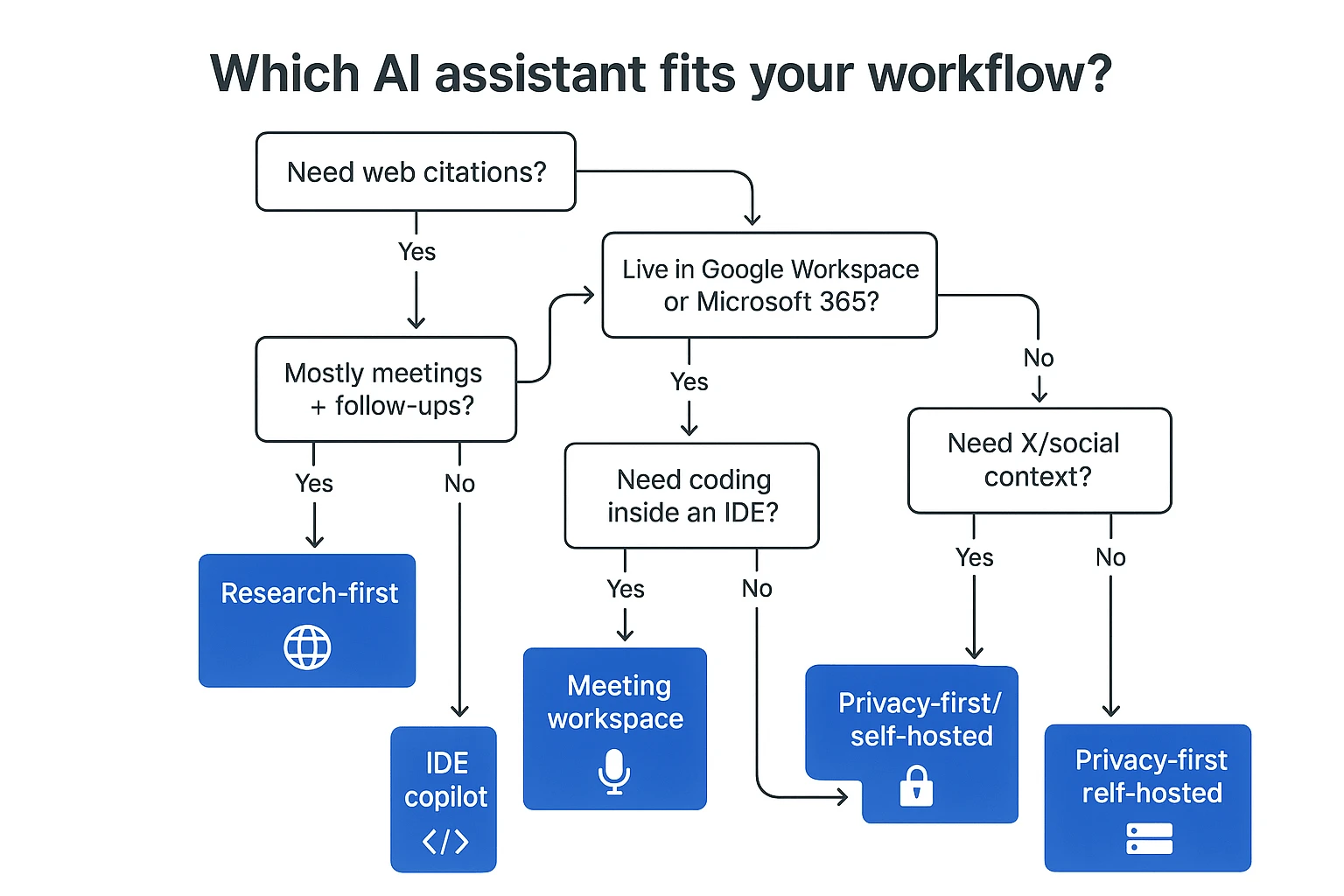
Most "ChatGPT alternative" lists mix very different tools. This guide routes you fast based on what you do all day: web research, office docs, meetings, code, social, or strict privacy.
Answer these 6 questions (and jump to the right tool type)
- Do you need web citations in the answer?
- Yes → Pick a research-first assistant. Choose tools that browse and cite web pages (URLs) in-line.
- No, I need citations to my own files → Pick a workspace that cites across your project docs. Here, "citations" should mean links back to your transcripts, PDFs, and notes—not the open web.
- Do you live inside Google Workspace or Microsoft 365?
- Yes → Pick a suite-native assistant. These reduce friction because they work on your real objects: Docs/Sheets/Slides, Gmail/Outlook, Calendar, Drive/OneDrive, and sometimes Teams/Meet.
- No → Keep reading. You'll likely want an app-agnostic tool with strong imports and exports.
- Are meetings your main input (and follow-ups your main output)?
- Yes → Pick a meeting-to-deliverable tool. Capturing a meeting is not the same as summarizing pasted text. You need speakers, timestamps, decisions, and action items tied to the source. The best tools also keep project-scoped memory so knowledge builds across many calls.
If that's your world, it helps to understand how an AI meeting assistant works end-to-end before you choose.
- Do you need coding help inside an IDE?
- Yes → Pick an IDE-native copilot. Look for controls like org policies, repo permissions, and audit logs. Expect better autocomplete and refactors than general chat.
- Do you need X (Twitter) / social context in real time?
- Yes → Pick a social-native tool. Useful for trend scans and audience notes, but risky for brand or client work. Verify claims and log sources.
- Is privacy-first or self-hosted non-negotiable?
- Yes → Pick privacy-first or self-hosted options. You'll trade off ease and some features. Plan time for setup, access control, and model updates.
Your "fast pick" map
- Web citations → research-first assistants
- Docs/email/calendar → suite-native assistants
- Meetings → projects → deliverables → meeting workspace tools (best when project memory is built-in)
- IDE coding → IDE copilots
- Social context → social-native tools (double-check output)
- Strict privacy → privacy-first or self-hosted
Skip to the 10 tool cards and shortlist 2–3 picks. Then run the same prompts in the testing rubric section so you can compare results on your own work.
The 10 best ChatGPT alternatives (standardized item cards)
Most "ChatGPT alternative" lists are hard to skim because each tool gets a different write-up. Below, every pick uses the same item card so you can compare fast: Best for, what it does better than ChatGPT, trade-offs, privacy/data notes to verify, and one mini demo prompt you can copy/paste.
How to read each item card (and test it yourself)
For each tool, paste the mini prompt and judge three things in under 2 minutes:
- Output quality (is it accurate and useful?)
- Evidence (does it cite sources or point to files?)
- Workflow fit (does it reduce steps for your job?)
Now the 10 cards, in the same order you'll see in the comparison table.
1) TicNote Cloud
Best for: Teams that need meeting → project → deliverables (notes, transcripts, action items, reports, presentations, podcasts, mind maps).
What it does better than ChatGPT: It's project-scoped. Shadow AI searches across your meeting recordings and docs inside a Project, answers with citations to your sources, and can generate polished deliverables without copy-paste.
Trade-offs: It's a workflow tool, not a general "anything" chatbot. You'll get the most value if you store meetings/docs in Projects.
Privacy/data notes to verify: Confirm your plan's "not used for training" setting, retention rules, and who can access Projects (roles/permissions). Also verify how exports work for audits.
Mini demo prompt (paste into Shadow AI): "Using only this Project's files, list the top 7 decisions and 10 action items. For each, cite the exact meeting + timestamp. Then draft a 1-page client update." What to expect: A decision/action list with clickable citations, plus a clean update you can send.
2) Claude
Best for: Long-form thinking, rewriting, and working through large documents.
What it does better than ChatGPT: Strong writing tone control and reliable long-form coherence. Good for drafting briefs, memos, and careful edits.
Trade-offs: Web grounding can vary by plan and region. For "what's happening today" research, you may need another tool.
Privacy/data notes to verify: Check how uploaded files are stored, retention windows, and whether your org can disable training on inputs.
Mini demo prompt: "Rewrite this 900-word draft for a Grade 6 reading level. Keep meaning. Add headings and a 5-bullet summary." What to expect: Clear structure, better flow, and fewer awkward sentences.
3) Google Gemini
Best for: People who live in Google Workspace (Docs, Gmail, Sheets).
What it does better than ChatGPT: Drafting and summarizing where you already work, plus retrieval across Google services when enabled.
Trade-offs: Features differ by plan, admin settings, and region. Output quality can be uneven across tasks.
Privacy/data notes to verify: Confirm Workspace admin controls, data boundaries between consumer vs business accounts, and what's logged.
Mini demo prompt: "Turn these bullet notes into a client-ready email with 3 subject lines and a clear next step." What to expect: A sendable email draft formatted for Gmail-style use.
4) Microsoft Copilot
Best for: Microsoft 365 and Teams-heavy workflows (Word, Excel, Outlook, Teams).
What it does better than ChatGPT: Works inside your documents and meetings, so it can draft, summarize, and analyze without jumping apps.
Trade-offs: Licensing and admin configuration matter. Your experience depends on tenant setup and what data connectors are allowed.
Privacy/data notes to verify: Validate tenant-level controls, audit logs, and how prompts and file access are governed.
Mini demo prompt: "Summarize this meeting thread into: decisions, risks, owners, and dates. Then draft a follow-up message for Teams." What to expect: A structured recap that fits common Teams follow-up habits.
5) Perplexity
Best for: Research with citations and quick source-backed briefs.
What it does better than ChatGPT: Fast answers that point to sources, which speeds up early-stage research and fact checking.
Trade-offs: It can feel less flexible for creative drafting or deep "style" work. Some outputs read like a research memo.
Privacy/data notes to verify: Check what's stored from your queries, whether history can be disabled, and how teams manage access.
Mini demo prompt: "Give me a 10-point brief on {topic}. Include sources per point and flag any disputed claims." What to expect: A scannable brief with citations you can open and verify.
6) Cursor
Best for: Developers who want AI inside an IDE (repo-aware edits).
What it does better than ChatGPT: It can understand a codebase context and apply edits across files, which is better for refactors than a chat window.
Trade-offs: It's developer-centric. If your work is meetings, docs, or research, it's the wrong fit.
Privacy/data notes to verify: Confirm how code is sent to models, whether indexing stays local, and what policies apply for team repos.
Mini demo prompt: "Refactor this module to reduce duplicate logic. Add tests. Don't change external behavior." What to expect: Multi-file edits plus test updates, with a reviewable diff.
7) DeepSeek
Best for: Cost-sensitive reasoning and coding experiments.
What it does better than ChatGPT: Strong value for logic and coding-style tasks when you want to test many prompts cheaply.
Trade-offs: Enterprise features, support, and governance may be lighter than big suite vendors.
Privacy/data notes to verify: Review data handling, retention, and whether you can prevent training on prompts. For regulated teams, confirm enterprise readiness.
Mini demo prompt: "Solve this problem step by step, then provide a short final answer and edge cases: {paste task}." What to expect: A clear reasoning path and a compact final result.
8) Meta AI
Best for: Lightweight help inside Meta apps.
What it does better than ChatGPT: Convenience. It's quick for casual drafting and simple Q&A where you already chat.
Trade-offs: Not designed for work-grade deliverables, team knowledge bases, or audit-friendly workflows.
Privacy/data notes to verify: Confirm what's stored from chats, how it's used, and how to delete history.
Mini demo prompt: "Rewrite this message to be shorter and more polite. Keep the same meaning." What to expect: A clean rewrite with minimal setup.
9) Grok
Best for: X (Twitter) context and trend-adjacent questions.
What it does better than ChatGPT: Useful when you need current chatter, public sentiment, or fast context around what's trending.
Trade-offs: Tone and reputational risk can be higher for client-facing work. You still need to verify facts before using.
Privacy/data notes to verify: Check what's logged from prompts, and whether business accounts can control retention.
Mini demo prompt: "Summarize the main viewpoints on {topic} from the past 7 days. Separate facts from opinions." What to expect: A trend-style summary that needs verification before reuse.
10) Zapier Agents
Best for: Turning prompts into repeatable workflows across many apps.
What it does better than ChatGPT: Automation. It can run multi-step tasks (create tickets, update CRM, send briefs) with less manual effort.
Trade-offs: Setup takes time. You'll need governance (who can run what) and good error handling.
Privacy/data notes to verify: Validate which apps are connected, what data is passed through runs, and how logs are stored.
Mini demo prompt: "When I label an email 'New Lead', extract key fields and create a CRM record. Then draft a 3-step follow-up." What to expect: A workflow you can reuse, not just a one-off answer.
One last note: validate critical outputs, especially research and numbers. If you're unsure, use the decision guide to shortlist 2–3 tools, then run the mini prompts side by side. If you want more options beyond chat tools, see this guide to all-in-one AI workspaces for knowledge work.
Step-by-step: meeting → project → deliverables workflow (example in TicNote Cloud)
If your work starts in meetings, you need an assistant that keeps context attached to the source. Here's a simple meeting → Project → deliverables flow in TicNote Cloud, built for teams who need transcripts, decisions, and polished outputs without copy-paste (a practical ChatGPT alternative for work).
Step 1: Create a Project and add content (so context stays scoped)
Start by making one Project per client, sprint, or research theme. This keeps every file, transcript, and output in one place, so later answers don't mix contexts.
In the web studio, create a new Project (or open one you already use). Then build the Project knowledge base by adding meeting recordings and the docs people reference in calls (PRDs, briefs, proposals, research notes).
You can add files two ways:
- Direct upload: use the upload button in the file area to add audio, video, or documents right into the Project.
- Via the Shadow AI chat: attach a file in the chat panel, then ask Shadow to save it in the right folder.
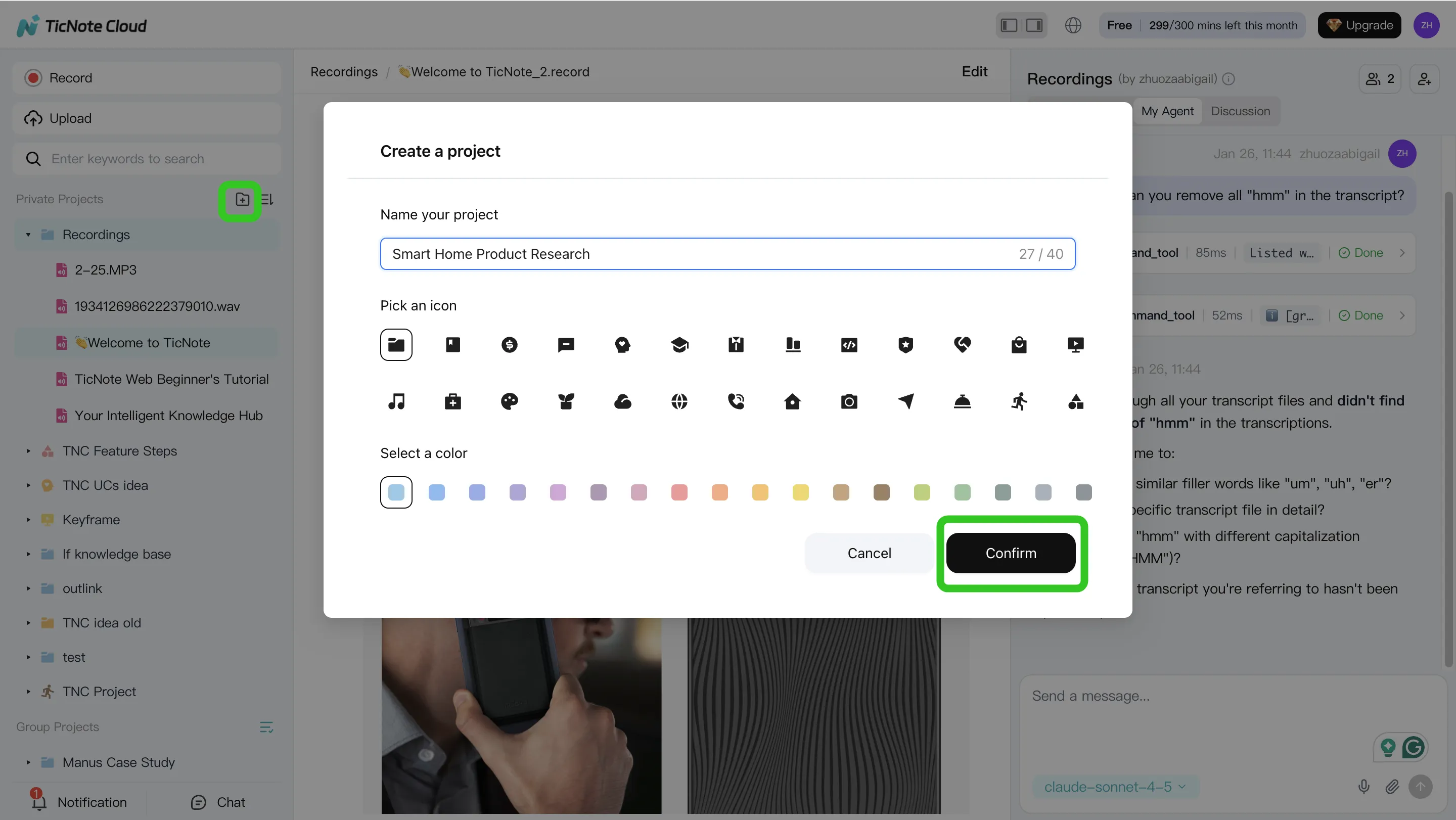
Tip: attach supporting docs early. When you ask questions later, answers can point back to the exact source segment instead of vague summaries.
Step 2: Use Shadow AI to search, analyze, edit, and organize
Once your content is in the Project, keep the "thinking" inside that same boundary. Shadow AI sits on the right side of the screen, so you can ask questions while you read transcripts or review notes.
Use it for:
- Search & analyze across all files: "What decisions did we make across the last 3 meetings?" or "What are the main user pain points?"
- Quote-finding: ask for the exact line and where it came from, so you can verify fast.
- Editing and structure: turn messy notes into a table, a clean action list, or a client-ready outline.
Because transcripts are editable, you can also clean up speaker labels, fix key terms, and standardize names. For small teams, that reduces rework later.
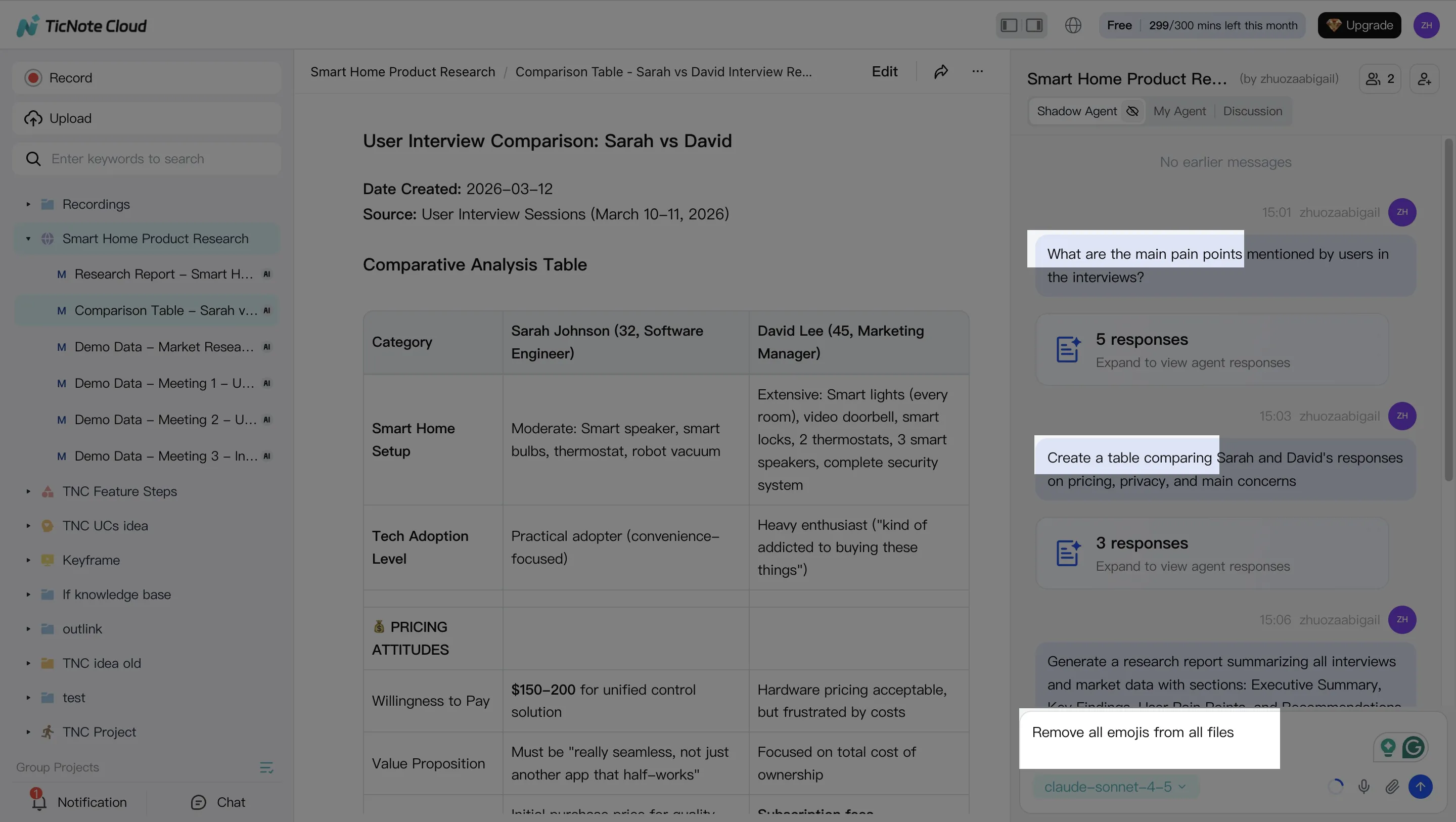
Step 3: Generate deliverables from the same Project
After your Project has a few meetings and docs, generate outputs without rebuilding context. You can ask Shadow directly or use the Generate button.
Common deliverables from the same source set:
- A client-ready report (structured sections, findings, recommendations)
- A web presentation (HTML) for sharing updates without slides
- A podcast-style recap with show notes for async teams
- A mind map for planning, dependencies, and next steps
The key workflow win: each deliverable stays connected to the source material, so reviewers can jump back to the supporting segment when something needs proof.
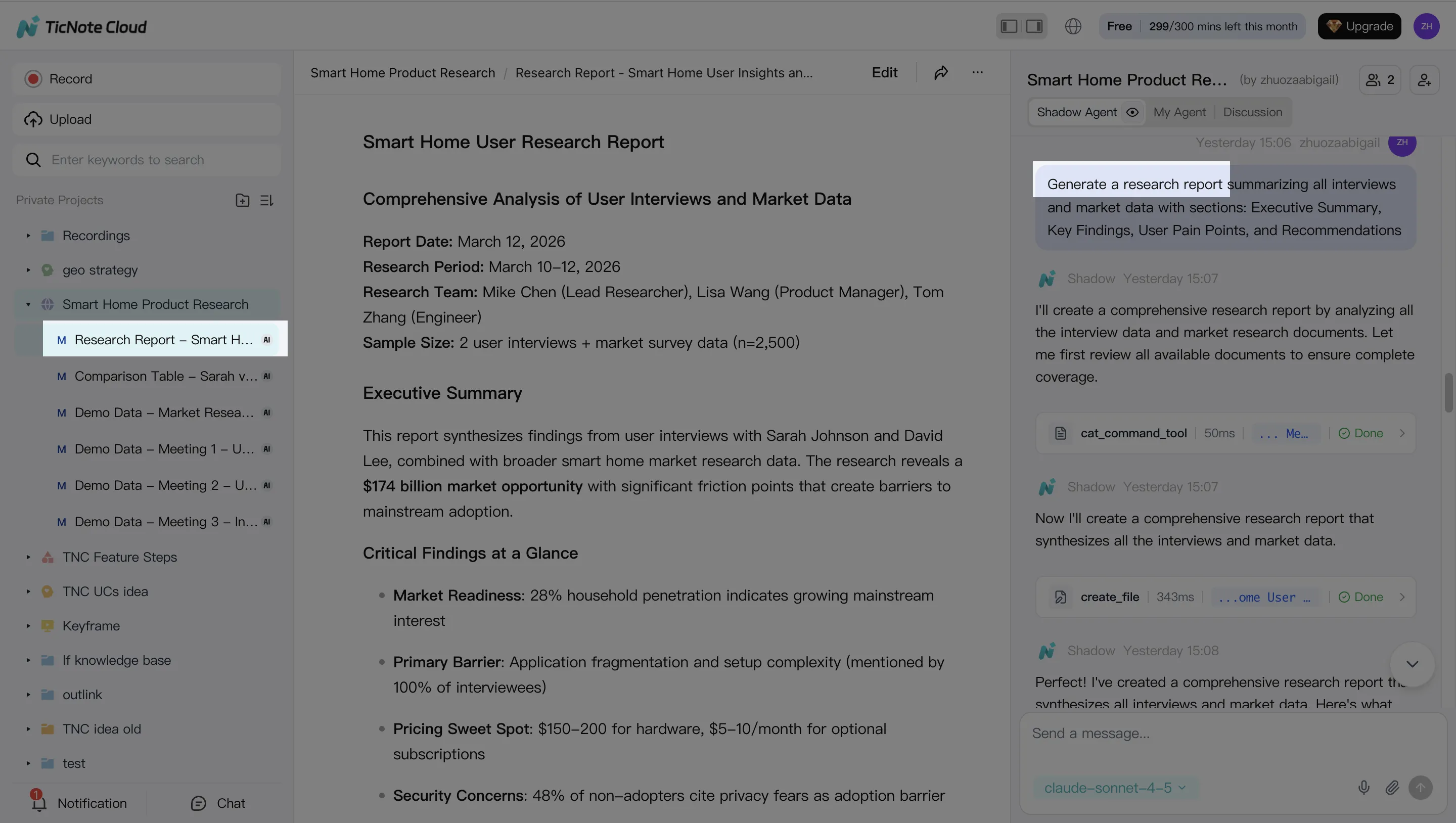
Step 4: Review, refine, and collaborate (without losing traceability)
Treat the first output as a draft, then tighten it with small, clear asks: "Rewrite this section in a formal tone," or "Move risks into a separate table." When a paragraph needs verification, click into the source to confirm.
Then share the Project with the right permission level (Owner/Editor/Viewer). Teammates can comment, run their own questions, and request new deliverables. Shadow's operations are tracked and stay within permissions, which helps teams review what changed and why.
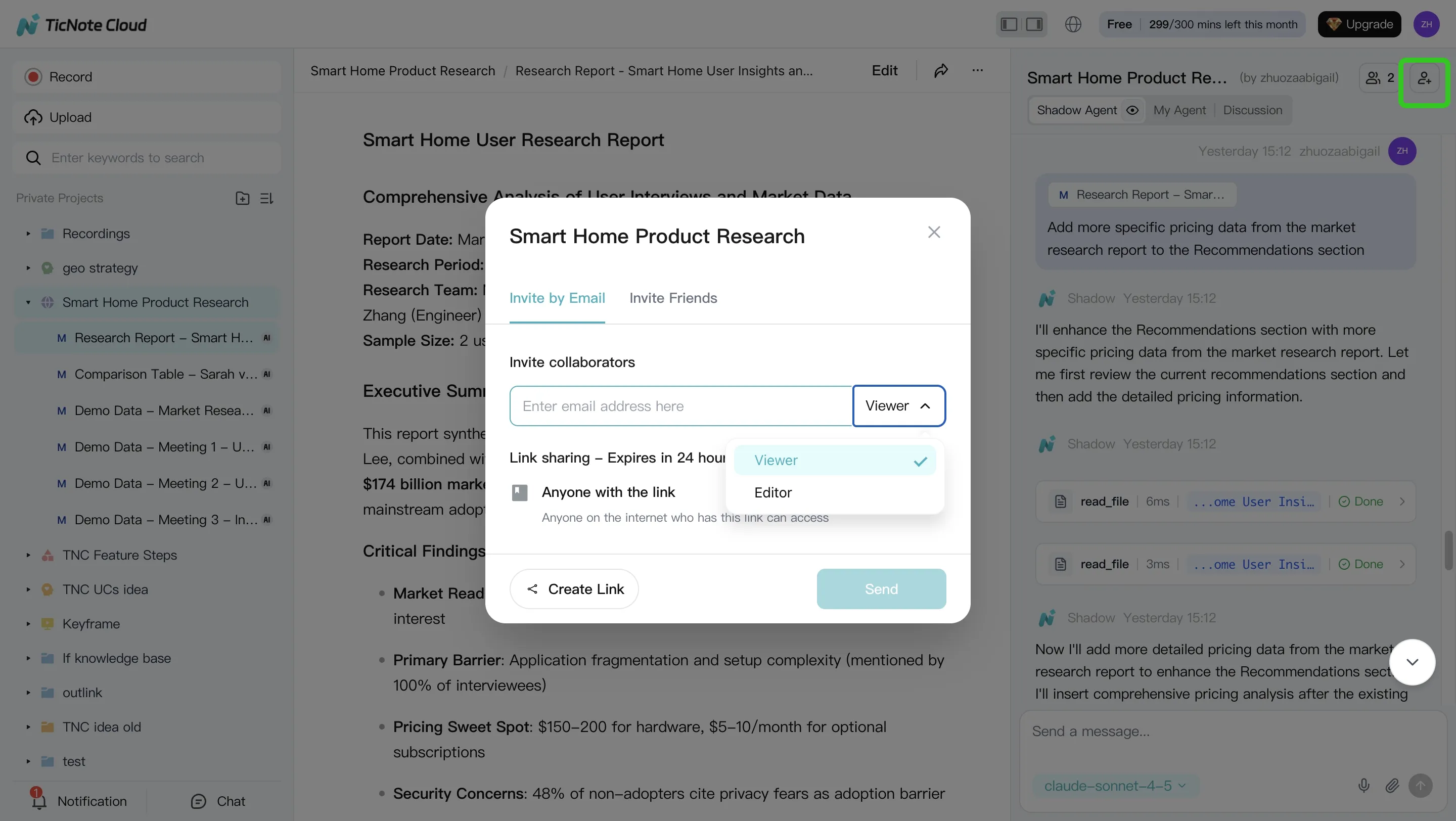
App workflow (same pattern, better for capture)
On mobile, the loop is the same: Project → add content → ask → generate. It's most useful for on-the-go interviews, quick voice notes right after a meeting, and fast review of summaries and action items before you're back at your desk.
Try TicNote Cloud for Free and turn one meeting into a shareable deliverable.
Privacy and data handling: what to check before you switch
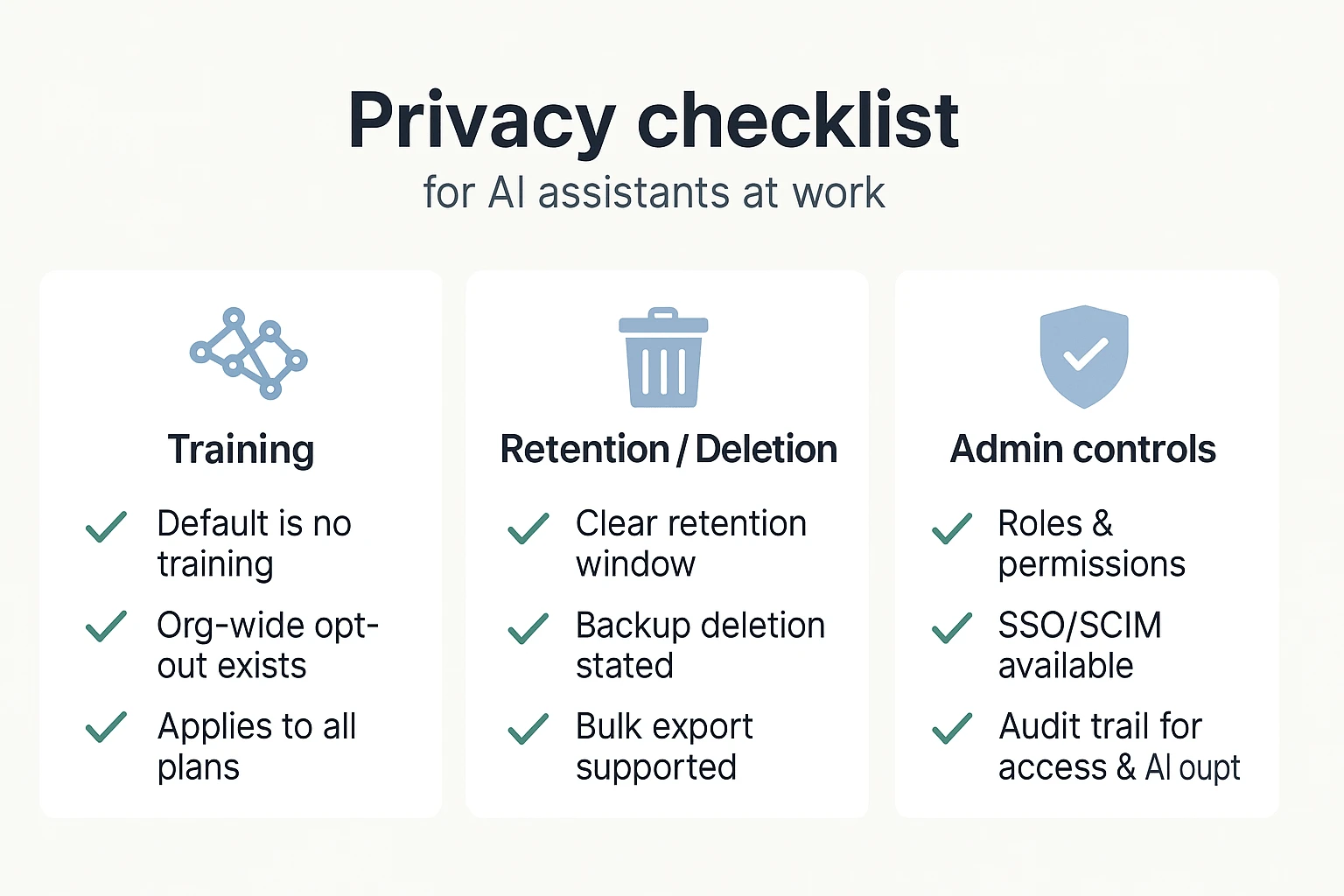
If you're choosing a ChatGPT alternative for work, privacy defaults matter more than features. Most teams don't lose data to "hackers." They lose it to vague terms, long retention, and weak admin controls.
Training on your data vs opt-out
First question: can your chats, uploads, or transcripts be used to train the vendor's models? "Opt-out" means training is on by default, and you must turn it off (sometimes per user, per workspace, or per org). Treat the default as your risk baseline, because people forget toggles and new seats inherit settings.
Ask for a clear answer in writing:
- Training on customer content: yes/no
- If "no," does it apply to all plans?
- If "opt-out," is it org-wide and enforced by admins?
Retention, export, and audit trail basics
Retention is how long the vendor keeps content (and backups). Deletion is whether you can purge it on request, and how fast. Export decides whether you can leave without losing your knowledge base. Audit trails log who accessed what, and what the AI generated—critical for client and regulated work.
Vendor checklist:
- Retention window for chats/files and for backups
- Deletion SLA (how many days to purge)
- Export formats (PDF/DOCX/CSV/JSON) and bulk export
- Audit trail: user actions, sharing, and AI outputs
Team controls: roles, SSO, and permissions
"Team-ready" is more than adding seats. You need role-based access (Owner/Admin/Member/Guest), workspace separation for clients, and permissioned sharing that doesn't leak across projects. If your company uses SSO (single sign-on), require it—plus SCIM if you need automated user provisioning.
How to evaluate risk for client work
Run a simple screen before procurement:
- Data types: client names, contracts, health data, source code?
- Obligations: NDA, SOC 2 vendor requirement, GDPR processor terms?
- Storage: region, subprocessors, encryption, and backups
- Access: who inside the vendor can view content, and how it's logged
- Proof: security docs, DPAs, and a recorded approval decision
Validate claims with security documentation and legal review when needed.
What does it cost, really? A simple ROI model for switching
Switching tools only pays off if it saves you real work time. A simple ROI check keeps it honest.
A quick formula you can reuse
Use this:
ROI per month = (hours saved × fully loaded hourly rate) − tool cost
Track savings in places you can see week to week:
- Minutes saved per meeting on notes, summaries, and action items
- Fewer follow-ups (less "what did we decide?" Slack and email)
- Fewer rework cycles on deliverables (less reformatting and copy-paste)
To get "hours saved," don't guess. Log 10 meetings. Note how long follow-up work took before and after.
Example: a PM or consultant saving follow-up time
Say you run 6 meetings a week. You spend 15 minutes to clean notes, 10 minutes to assign actions, and 20 minutes to draft a client update. That's 45 minutes per meeting.
A meeting-centered workflow can cut that by turning transcripts into a project knowledge base. Then summaries, action items, and first drafts come from the same source. Even saving 20 minutes per meeting is 2 hours a week. Over a month, that's ~8 hours back. Want a deeper way to measure it? Use this meeting ROI and decision-capture framework to track decisions, churned tasks, and rework.
When free plans are enough (and when they fail)
Free tiers work when you:
- Test solo with short meetings
- Don't need shared permissions or audit trails
- Only import a few docs each month
They usually break when you:
- Need team collaboration and consistent workflows
- Record longer sessions or many meetings per week
- Need more uploads, longer context, or admin controls
A simple 7-day evaluation plan: run the same 8 test prompts you used for scoring across your top 2 tools, and time each step (meeting summary, action items, citation check, deliverable draft). Pick the tool that saves the most minutes, not the one with the best demo.


