


 Extension
TL;DR: The fastest accurate way to transcribe a conversation
Try TicNote Cloud for Free and follow this workflow: pick your transcript type first (verbatim or clean), capture the clearest audio you can, run speech-to-text, then do a fast edit plus a short QA pass before you share.
- Decide the style: verbatim for legal or research detail, clean for notes and decisions.
- Record well: quiet room, one mic per room if possible, and ask people to say their names.
- Transcribe, then fix obvious errors, punctuation, and speaker turns.
Three non-negotiables beginners miss:
- Consistent speaker labels plus timestamps.
- Clear tags for uncertainty and overlap, like [inaudible 00:03:12] and (overlap).
- Final check for names, key terms, numbers, and sensitive info.
If you do this often, a project-based workspace keeps transcripts searchable and easy to reuse.
Repeated transcripts get messy fast when files live in random folders. Then you waste time hunting for "the right version" and copying quotes by hand. A tool like TicNote Cloud keeps recordings, transcripts, and summaries together by project, so you can get started free and reuse what you already captured.
How to transcribe a conversation step by step (from recording to final text)
If you want reliable notes, quotes, or a record you can share, you need a simple workflow you can repeat. This process works for meetings and interviews. It also helps you avoid the two big traps: bad audio and messy edits.
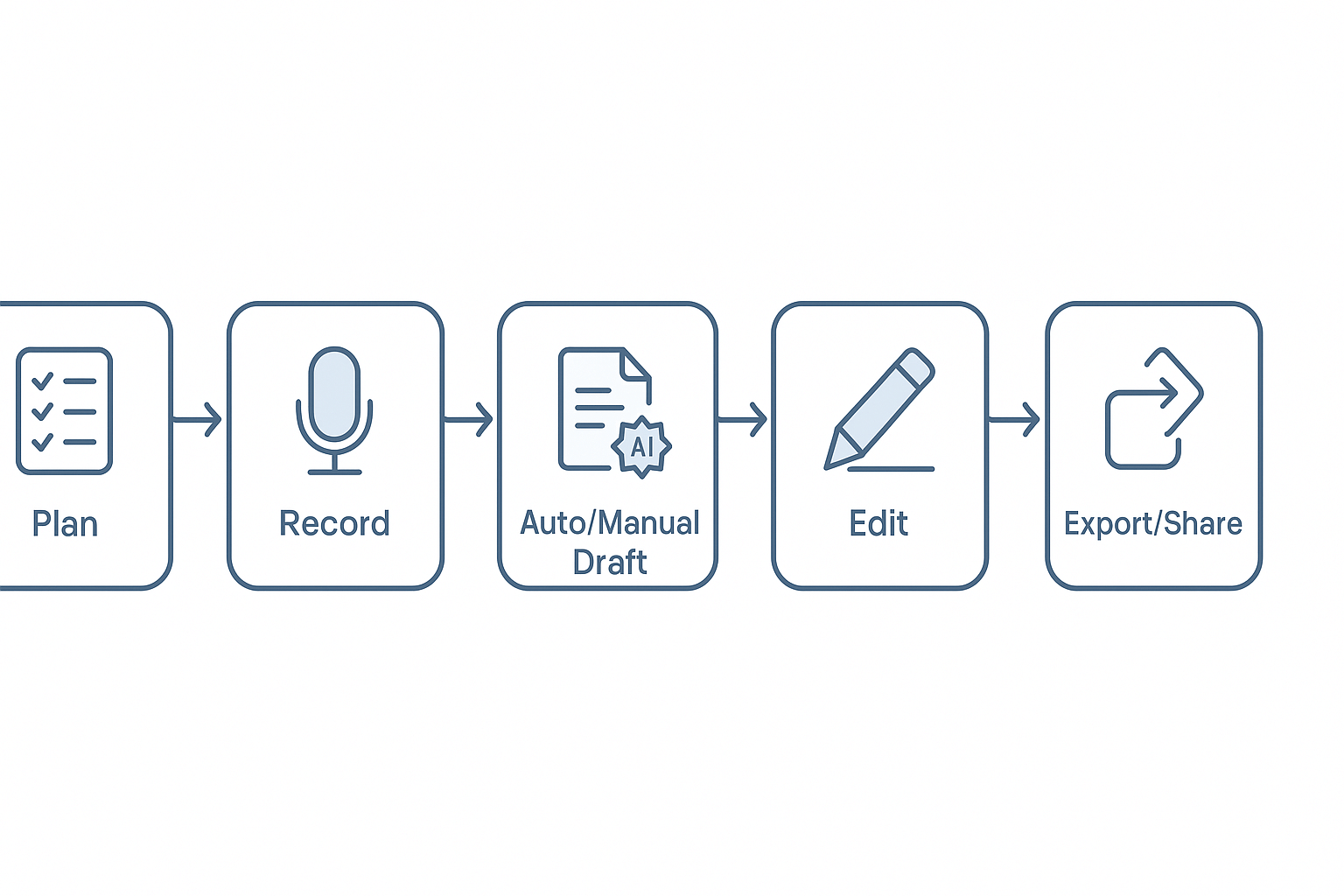
1) Plan the transcript before you hit record
Decide the use case first. Is this for study notes, research quotes, or a compliance record? That choice drives how strict you need to be.
Do these quick setup steps:
- List speakers: names, roles, and any similar voices.
- Pick a transcript style: verbatim, clean, or intelligent verbatim.
- Decide where the final file will live: a project folder, a case file, or a shared workspace.
- Set rules now: speaker labels, timestamp style, and how you'll mark unclear audio.
2) Record for accuracy (most errors start here)
Small recording choices can save hours later. Aim for clear, steady audio.
Use these basics:
- Put the mic close, about a hand's width away.
- Record in a quiet room, soft surfaces help.
- Ask for one speaker at a time, even in meetings.
- Do a 10-second test and listen back.
- Make a backup if it matters: second device, call recorder, or separate track.
3) Draft the first version (manual, automatic, or hybrid)
Pick the fastest path that still fits your goal.
- Manual typing: best for short clips, very sensitive topics, or heavy jargon.
- Automatic transcription: best for long meetings and routine interviews.
- Hybrid: run auto first, then correct while replaying at 1.0x to 1.25x.
If you need a broader walkthrough for different sources, use this guide to transcribe audio for meetings, podcasts, and research as your base process.
4) Edit into a usable deliverable (don't "fix" by guessing)
Treat the draft like raw material. Your job is to make it readable and consistent.
Do one focused editing pass:
- Fix speaker turns: split long blocks, correct who said what.
- Normalize terms: names, product terms, acronyms, and numbers.
- Add timestamps only where needed: key quotes, decisions, or topic changes.
- Mark uncertainty clearly instead of guessing: use tags like [inaudible 00:03:12] or [unclear].
- Keep meaning intact: remove filler only if you chose a clean style.
5) QA and define "done"
A transcript is done when it's easy to read, easy to cite, and safe to share.
Quick final checks:
- Read it once without audio, it should make sense.
- Spot-check hard parts with audio: names, numbers, and decisions.
- Confirm formatting is consistent: labels, punctuation, and timestamp pattern.
- Redact sensitive details if needed: phone numbers, addresses, health info.
- Set permissions before sharing: who can view, edit, or export.
Export in the format your team needs, like TXT for search, DOCX for edits, or PDF for records.
Try TicNote Cloud for free to record, transcribe, and organize conversations in projects.
What transcript style should you use (verbatim, clean, or intelligent verbatim)?
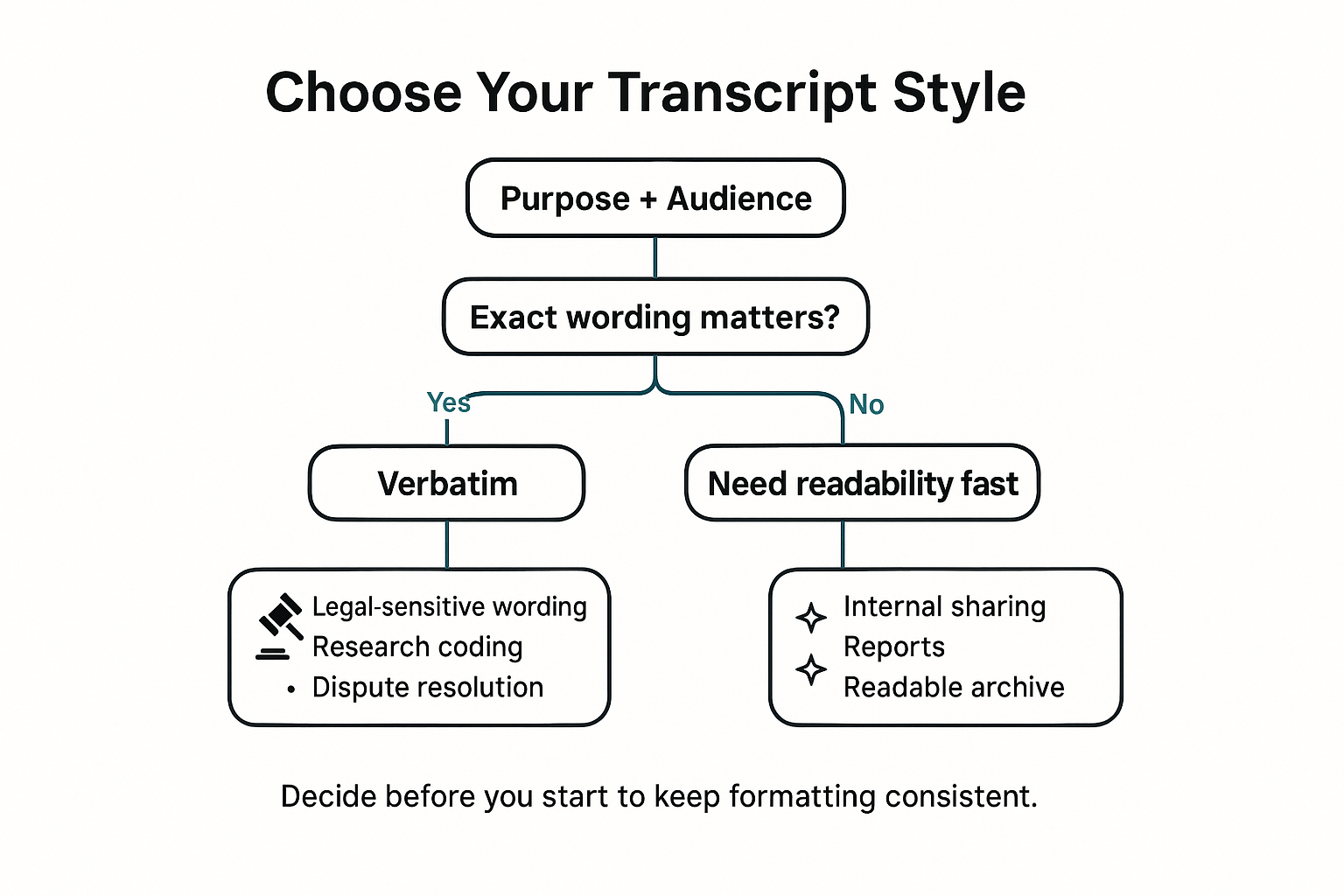
Before you transcribe a conversation, pick the transcript style. This one choice sets your rules for filler words, grammar, and what you "fix" in text. Decide first, then stay consistent so your transcript is easier to read and cite.
Know the 3 common transcript styles
Verbatim transcription: A word-for-word record. You keep false starts, filler words (um, uh), stutters, and nonverbal cues when relevant. Use it when exact wording matters, like legal-sensitive topics, research coding, or conflict resolution.
Clean transcription: You remove filler words, repeated phrases, and obvious verbal clutter. You also fix light grammar, but you do not change meaning. Use it for internal sharing, meeting notes, reports, and a readable archive.
Intelligent verbatim: A middle ground. You keep the speaker's intent and most phrasing, but you cut distracting repeats and tidying is allowed. Use it when you want speed and clarity, but still need a close record.
Quick decision tree (pick one and stick to it)
- Is exact wording critical?
- Yes: Choose verbatim.
- No: Go to step 2.
- Who will read it?
- External, formal, or needs quoting: Choose intelligent verbatim.
- Internal, "just make it readable": Choose clean.
- How much time do you have to edit?
- Plenty of time: Verbatim (most detailed) or clean (most polished).
- Limited time: Intelligent verbatim (fastest to a usable record).
If you also need interview-grade consistency, use this repeatable interview transcription workflow and apply the same style rules across every session.
What formatting rules make a conversation transcript easy to read and cite?
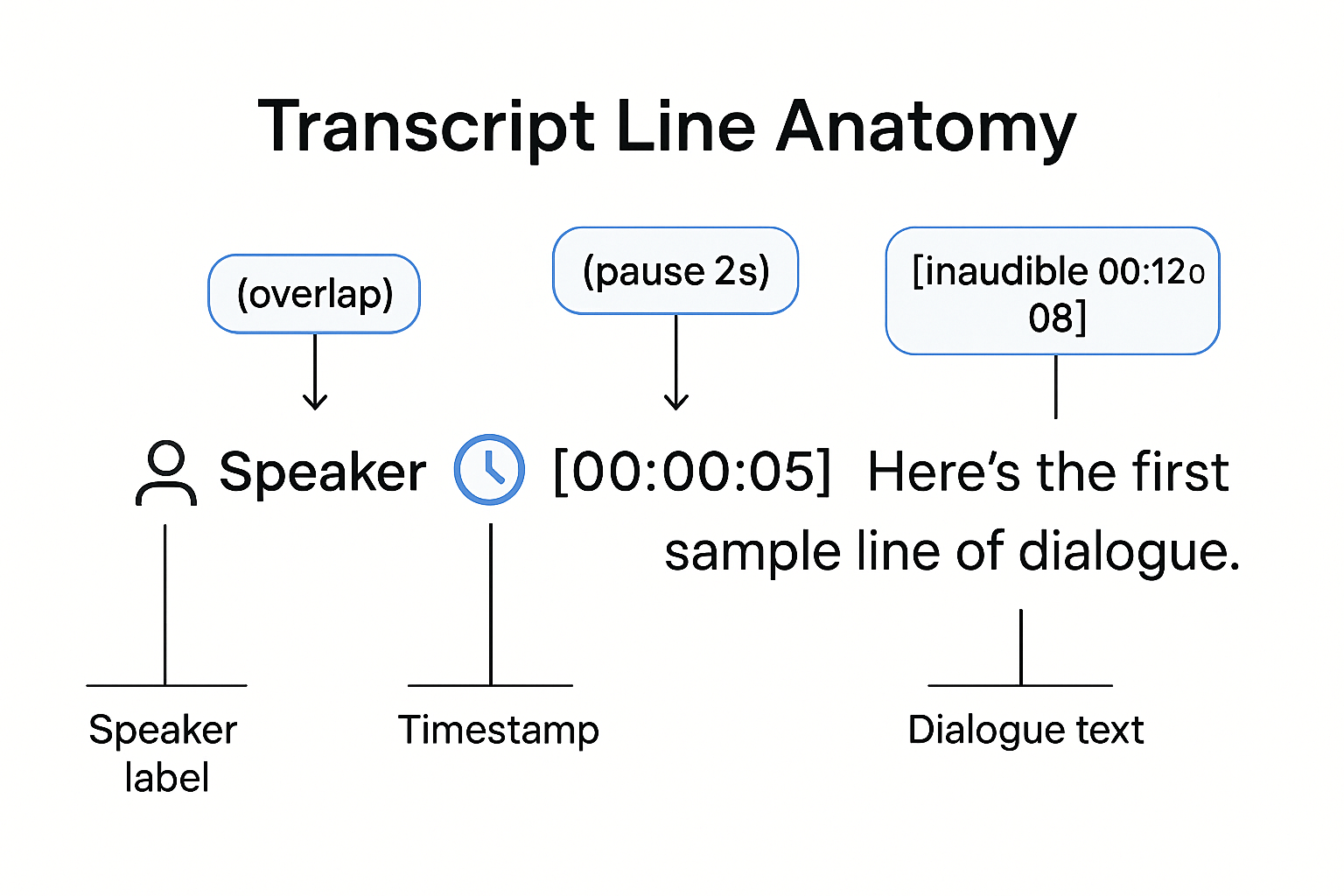
A good transcript is easy to scan and easy to quote. That means three things stay consistent: speaker labels, line breaks, and timestamps. Get those right and your conversation can hold up in reports, research notes, and stakeholder updates.
Use speaker labels you can keep stable
Pick labels that will still make sense later.
- Real names: Best for interviews and internal meetings where names are OK to share.
- Roles: Use role labels when privacy matters or teams change, like "Interviewer" and "Customer," or "PM" and "Engineer."
- Unknown speakers: Start with "Speaker 1," "Speaker 2," and don't renumber later. If you identify someone mid-way, note it once: "Speaker 2 (later identified as Alex)."
- Consistency rule: One person, one label, for the whole file. Don't switch between "Sam," "Samuel," and "Host."
Break lines by turns, not by sentences
Make each speaker turn its own paragraph. This keeps reading fast and makes quoting clean.
Basic line format:
- Speaker label: then a space
- Optional timestamp
- Then the spoken text
If a person talks for a while, split into short paragraphs at natural topic changes. Keep each paragraph 1 idea when you can.
Choose a timestamp strategy that fits the job
Timestamps help people verify quotes and find audio fast.
- High-stakes (research, legal, compliance): timestamp at every speaker change.
- Most meetings: timestamp every 30 to 60 seconds, plus at topic shifts.
- Light notes: timestamp only at key moments, like decisions, numbers, and action items.
Whatever you pick, stick to it. Mixed timestamp rules are hard to cite.
Mark tough audio without changing meaning
Don't "fix" what someone meant. Your job is to show what was said.
Use simple tags that anyone can understand:
- Pauses: (pause 2s)
- Interruptions: (interrupts)
- Overlap/crosstalk: (overlap)
- Unclear audio: [inaudible 00:12:08]
If you're reasonably sure, add a best-guess with a flag: [unclear: "budget cap" 00:12:08]. That's more honest than guessing silently.
One more tip: if you'll need to defend a quote later, pair timestamps with stable speaker IDs. That combination makes quotes traceable and hard to dispute.
Image prompt: Create a clean 4:3 infographic titled "Transcript Line Anatomy". Show a large sample transcript line with three labeled parts: Speaker label (left), timestamp in brackets (middle), and dialogue text (right). Add three callout bubbles pointing to annotations: "(overlap)" for overlapping speech, "(pause 2s)" for pauses, and "[inaudible 00:12:08]" for unclear audio. Use a minimal black and blue color palette, sans-serif typography, plenty of white space, and simple icon accents (clock for timestamp, person icon for speaker). No brand logos.
What does a good transcript look like? (One snippet, three versions)
A good transcript is easy to scan, quote, and trust. The best way to learn how to transcribe a conversation is to see the same moment written three ways. Notice what changes (fillers, repeats) and what must not change (names, decisions, dates, and action items).
Verbatim (every word, including fillers)
- 00:00:03 Sam: Okay, so, um, can we ship the new onboarding email on Friday?
- 00:00:07 Priya: Uh, I think so, but I, I need legal to review the last paragraph.
- 00:00:11 Sam: Right, right, the refund line. (pause 2s) So, Friday 3 p.m.?
- 00:00:16 Priya: (overlap) If legal signs off by noon, yes.
- 00:00:19 Sam: Cool. I'll ping legal today and, uh, ask for a noon deadline.
- 00:00:24 Priya: And I'll update the copy and send you the final doc.
- 00:00:28 Sam: Great, and we'll announce it in Monday's standup.
Clean (readable, light grammar fixes)
- 00:00:03 Sam: Can we ship the new onboarding email on Friday?
- 00:00:07 Priya: I think so, but I need legal to review the last paragraph.
- 00:00:11 Sam: The refund line. Friday at 3 p.m.?
- 00:00:16 Priya: If legal signs off by noon, yes.
- 00:00:19 Sam: I'll message legal today and ask for a noon deadline.
- 00:00:24 Priya: I'll update the copy and send you the final document.
- 00:00:28 Sam: We'll announce it in Monday's standup.
Intelligent verbatim (keeps intent, trims noise)
- 00:00:03 Sam: Can we ship the new onboarding email on Friday?
- 00:00:07 Priya: Yes, if legal reviews the last paragraph.
- 00:00:11 Sam: The refund line. Friday at 3 p.m.?
- 00:00:16 Priya: Yes, if legal signs off by noon.
- 00:00:19 Sam: I'll contact legal today and request a noon deadline.
- 00:00:24 Priya: I'll revise the copy and send the final doc.
- 00:00:28 Sam: We'll announce it in Monday's standup.
Notation legend (copy and reuse)
- (pause 2s): silence
- (overlap): two people speak at once
- [crosstalk]: background voices interfere
- [inaudible 00:03:12]: you can't hear the words at that time
- [redacted]: removed for privacy or policy
Which version should you use?
- Meetings: clean or intelligent verbatim is best for fast follow-ups.
- Interviews: verbatim is safer for quotes, tone, and exact phrasing.
How do you transcribe difficult audio with multiple speakers and crosstalk?
To transcribe a conversation with a group, you need two things: cleaner audio and clear speaker IDs. Group recordings get messy fast because people talk over each other, sit far from the mic, and create echo. Add accents and room noise, and words blur together.
Fix the recording before you fix the text
Small setup changes can save hours later:
- Space seats out a bit, and face speakers toward the mic.
- Use one person per mic when you can, even cheap earbuds.
- Ask people to start key points with their name, like "Maya: quick note."
- Record a backup on a second phone or laptop in the room.
Use diarization, but verify it
Speaker diarization (speaker labeling) is when a tool tries to split audio by voice and assign names. It's a big help with meetings and interviews, but it's not perfect. Always spot-check labels around interruptions, laughter, and quick back-and-forth.
Don't guess, tag it
If you're not sure, mark it. Use tags with timestamps so others can review:
- [inaudible 00:12:08]
- [unclear speaker 00:12:10]
- (overlap)
If this transcript will support decisions, compliance, or quotes, ask the speakers to confirm unclear lines.
Micro-workflow for a messy moment
- Isolate the 5 to 20-second segment.
- Slow playback to 0.75x.
- Compare with the lines before and after.
- Confirm the speaker, or tag it as unclear and move on.
How do you quality-check a transcript so it's trustworthy?
To quality-check a transcript fast, do a two-pass review: first confirm the facts, then fix the format. This takes 5 to 15 minutes and makes your transcript safe to quote, share, and search.
Pass 1: Accuracy check against the audio
Play the audio at 1.0 to 1.25x and scan the text line by line. Focus on what can't be "close enough":
- Names and titles: spellings, roles, company names.
- Numbers: dates, prices, metrics, phone numbers.
- Key claims: decisions, promises, deadlines, and anything that could be cited.
- Unclear spots: replace guesses with tags like [inaudible 00:03:12].
Pass 2: Consistency and readability check
Now read without audio and standardize everything:
- Speaker labels: same format everywhere (e.g., Sam:, Jordan:).
- Timestamps: one style only (e.g., [00:05:10]).
- Repeated terms: pick one spelling (feature names, projects, locations).
- Acronyms: create a mini glossary at the top on first use, like "NPS (Net Promoter Score)."
Confidentiality check and export choice
Before you share, scan for sensitive details and mask them when needed: client names, emails, addresses, and payment info. Use TXT for quick sharing and search, DOCX for comments and tracked edits, and PDF when it's final and read-only.
Ready to send:
- No "Unknown speaker" labels.
- No unlabeled gaps.
- Every [inaudible] has a timestamp.
A tool-agnostic workflow to transcribe and organize conversations end to end
The steps below use TicNote Cloud as the example, but the workflow fits most apps that help you transcribe a conversation. The goal is simple: get accurate text, plus a clean summary, and keep both easy to find later.
1) Create a project first, so nothing gets lost
Before you record, make a project for that meeting or interview. Use a naming rule you will stick with, like:
- Client or class, then topic
- Date in ISO format (YYYY-MM-DD)
- Version when you revise
Example: Acme_Onboarding_2026-01-22_v1
Add tags that match how you search later, like client:acme, team:sales, topic:pricing, or study:psych101.
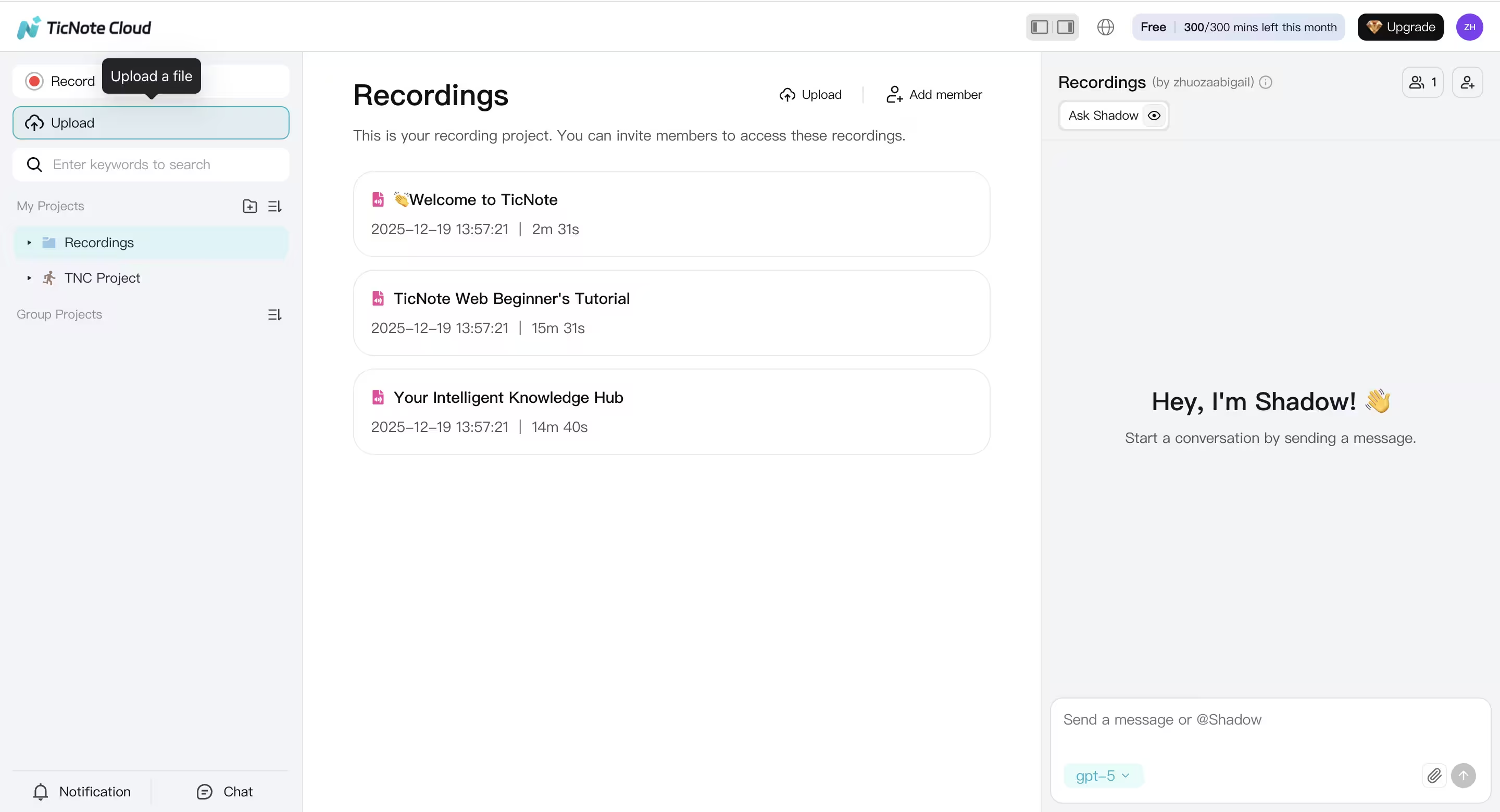
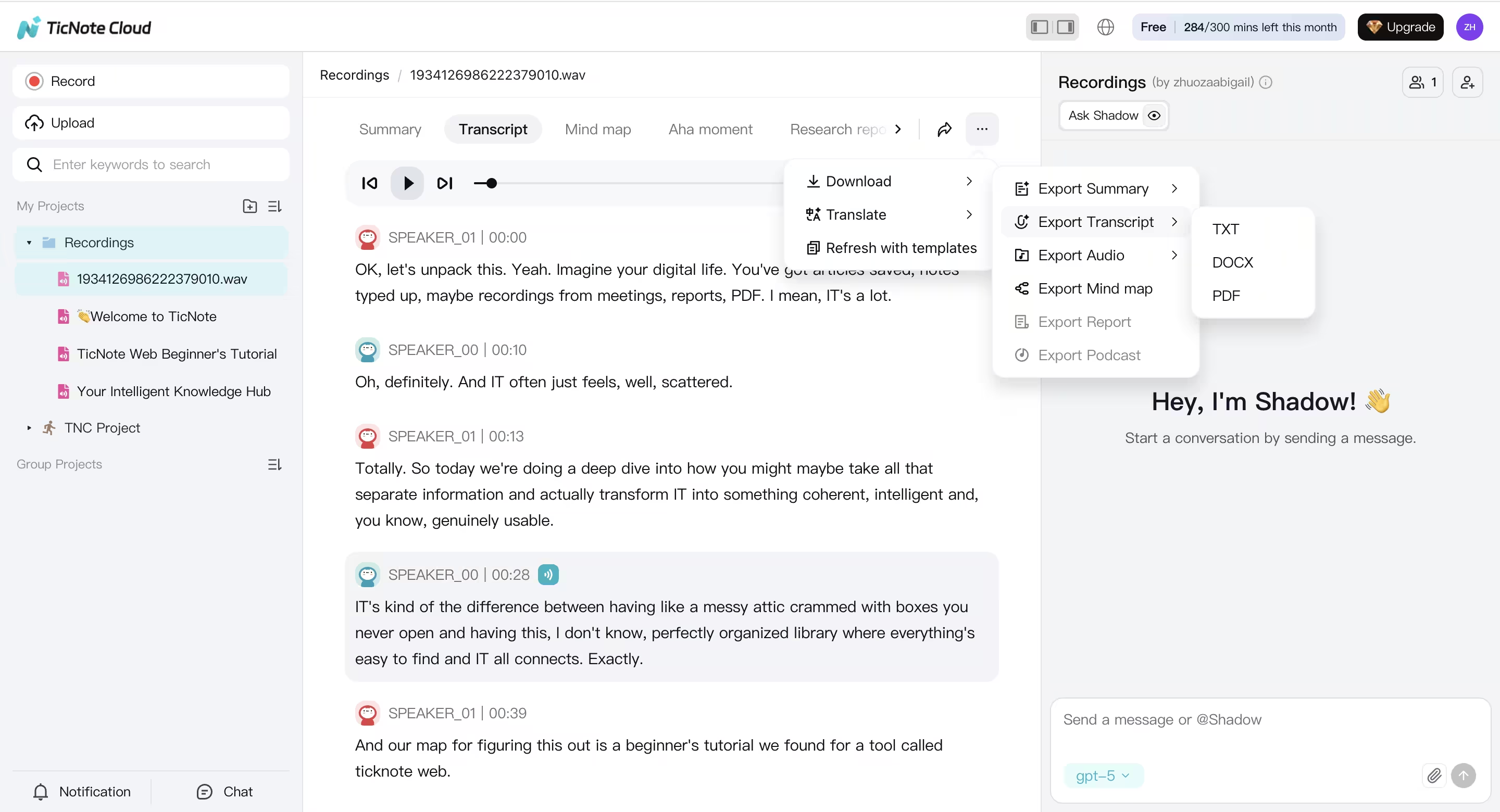
2) Record or upload conversions
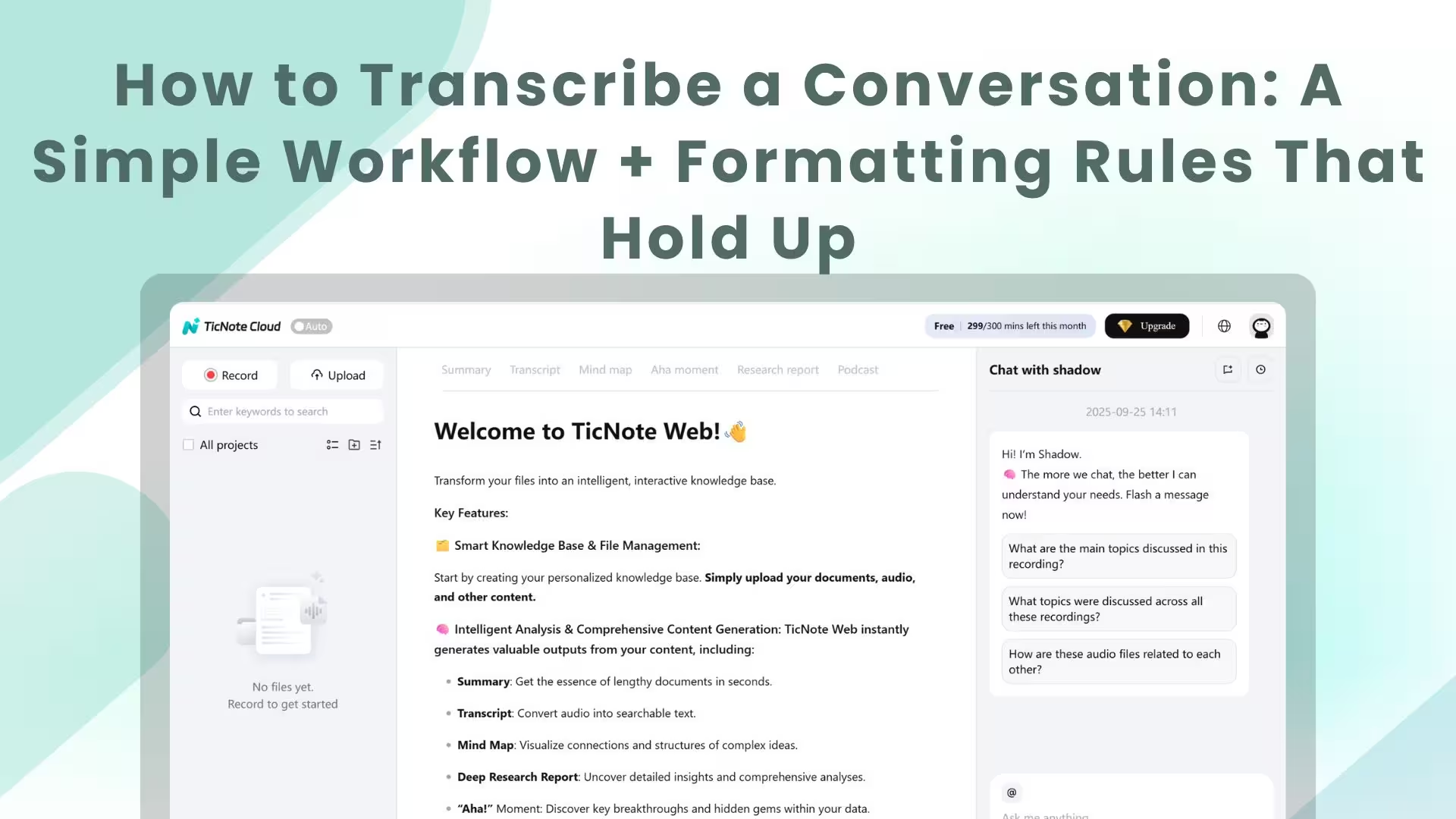
Next, record audio by clicking the Record button at the top, or upload a file you already have.
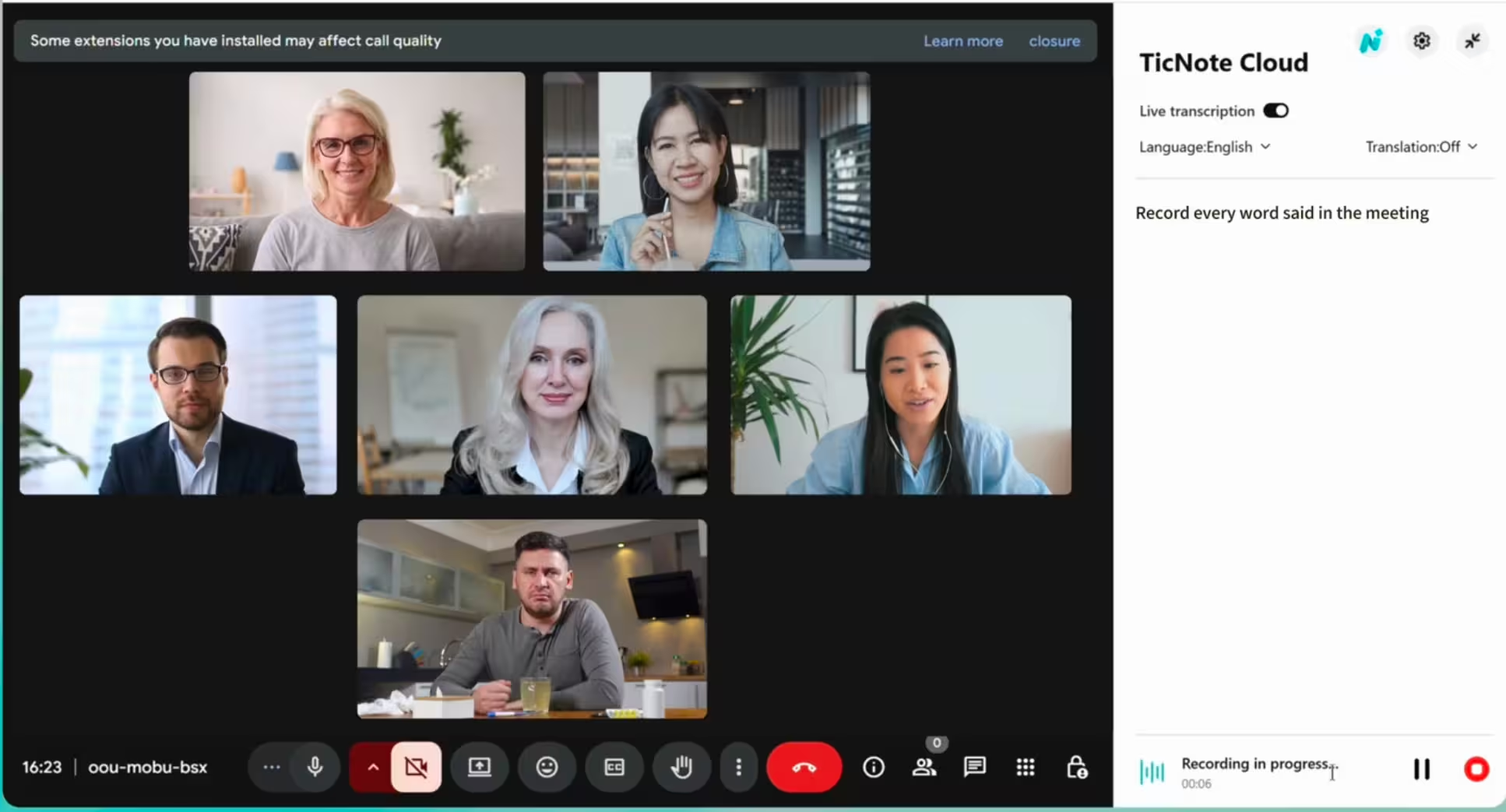
You can also use the TicNote Chrome extension to record online meetings, like Google Meet, Zoom, or Teams.
3) Generate the transcription and summary
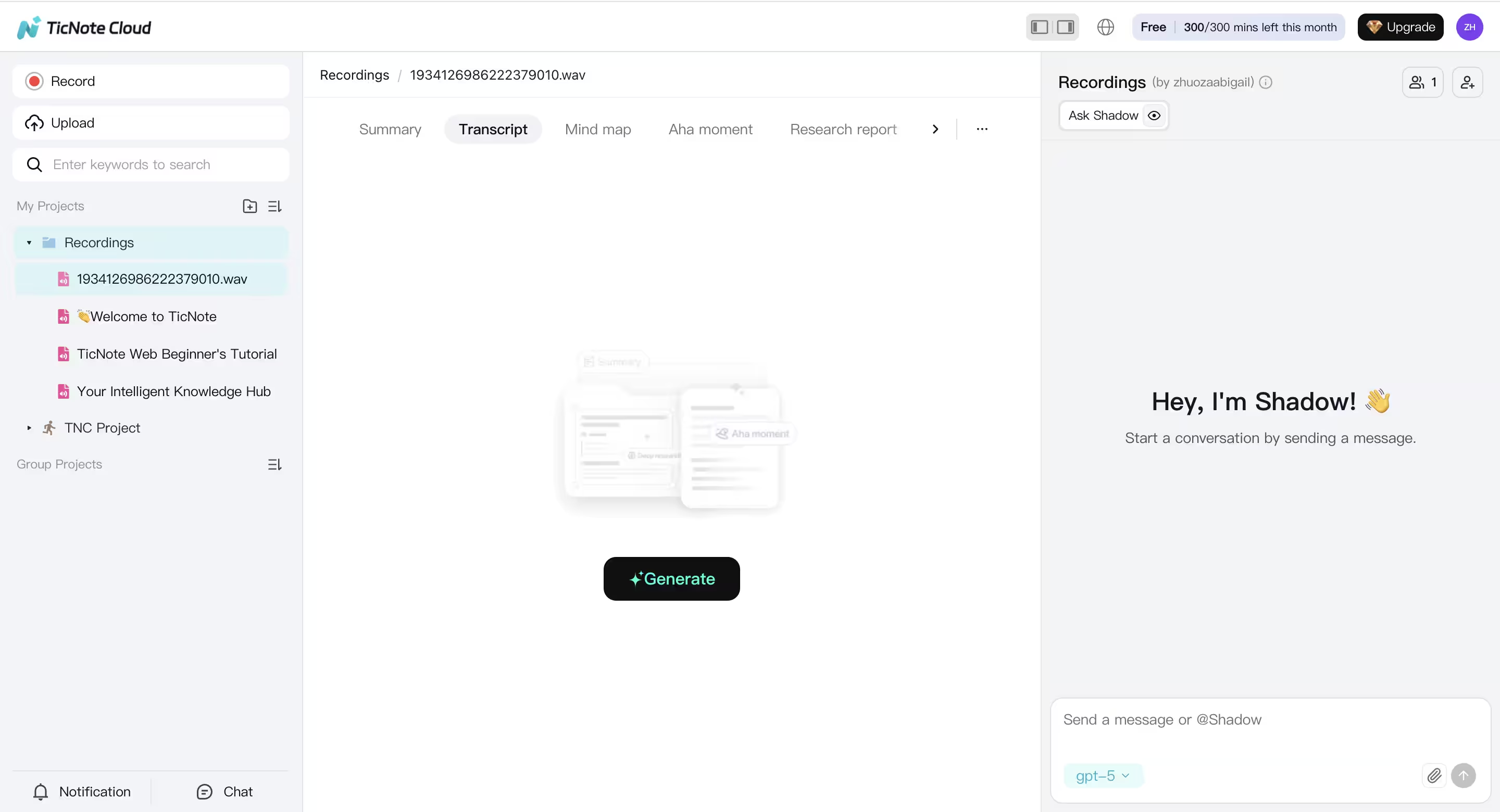
Then, choose the Transcript tab and click Generate.
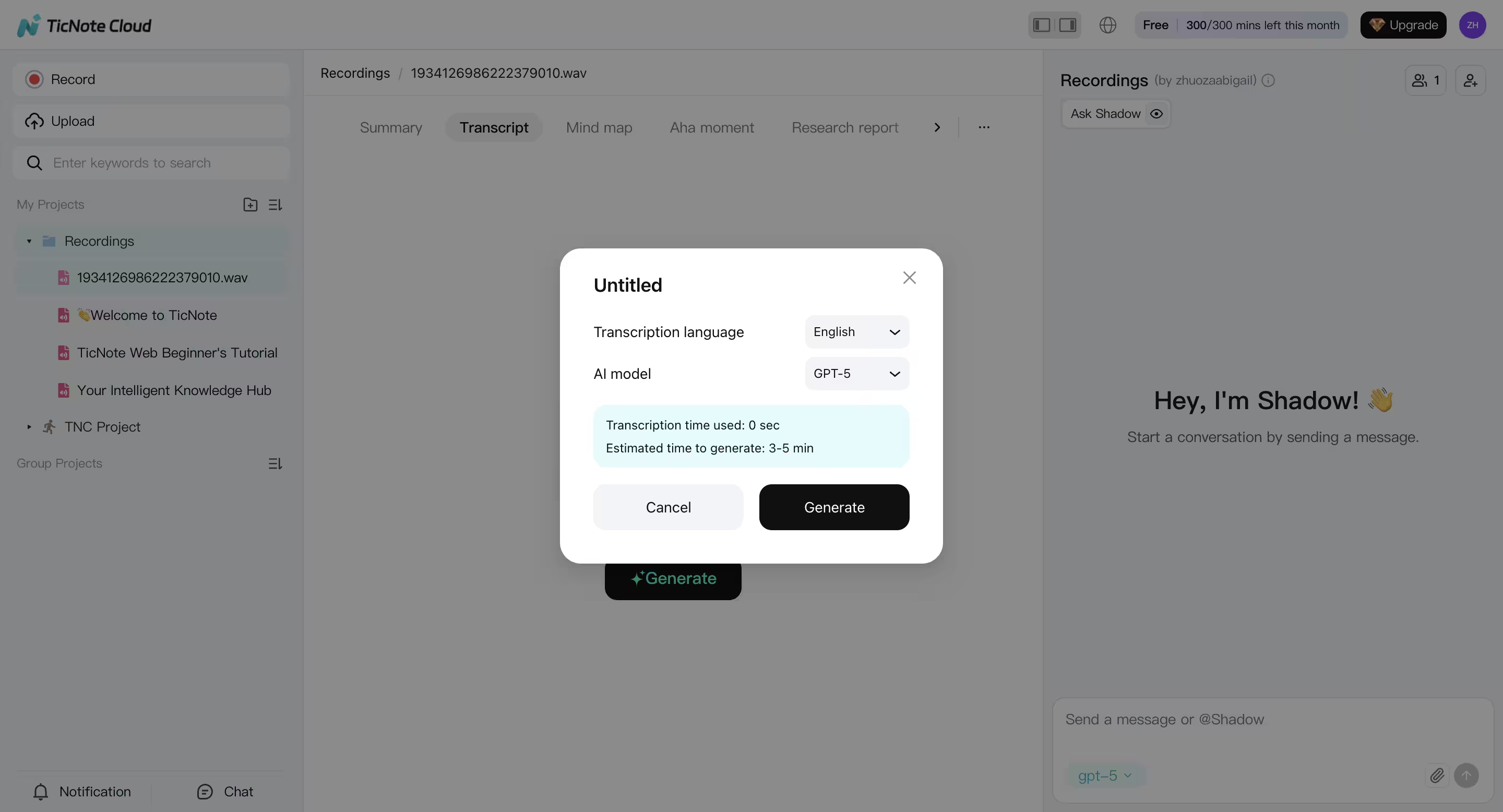
You can choose the language, people, and AI model before transcribing.
4) Translate when your team is multilingual
If people work in different languages, translate the transcript or the summary so everyone can review the same source: just click the three-dots button and get the translation. Keep the original and the translated version in the same project.
5) Export in formats your team already uses
To share or edit outside the tool, export and store files together:
- Source audio: WAV
- Transcript: TXT
- Summary: Markdown, DOCX, or PDF
Habit that holds up: keep the audio, transcript, and summary in one place, under the same project name.
How do you choose a conversation transcription tool without getting locked in?
Pick a tool by testing it on your real audio and by checking what you can export. That is the best way to avoid getting stuck with bad speaker labels or a closed file format. When you compare tools, focus on what breaks your workflow, not extra features.
Run a 10-minute test before you commit
- Pick one 2 to 3 minute clip with 2 speakers.
- Run it through 2 to 3 tools.
- Score three things:
- Speaker attribution: does it keep speakers consistent?
- Names, numbers, and key terms: are they correct?
- Fix and export speed: how fast can you edit and export?
Check security like a buyer
- Where is data stored, and is it encrypted in transit and at rest?
- Who can access it, and do you get role-based controls?
- What is the retention policy, and can you delete content fast?
- Is your data used to train models? Read the vendor policy.
To avoid lock-in, keep your original audio, export plain text often, and use a consistent file naming scheme across tools and projects.


