


 Extension
TL;DR: Which Notion alternative fits your workflow in 2026?
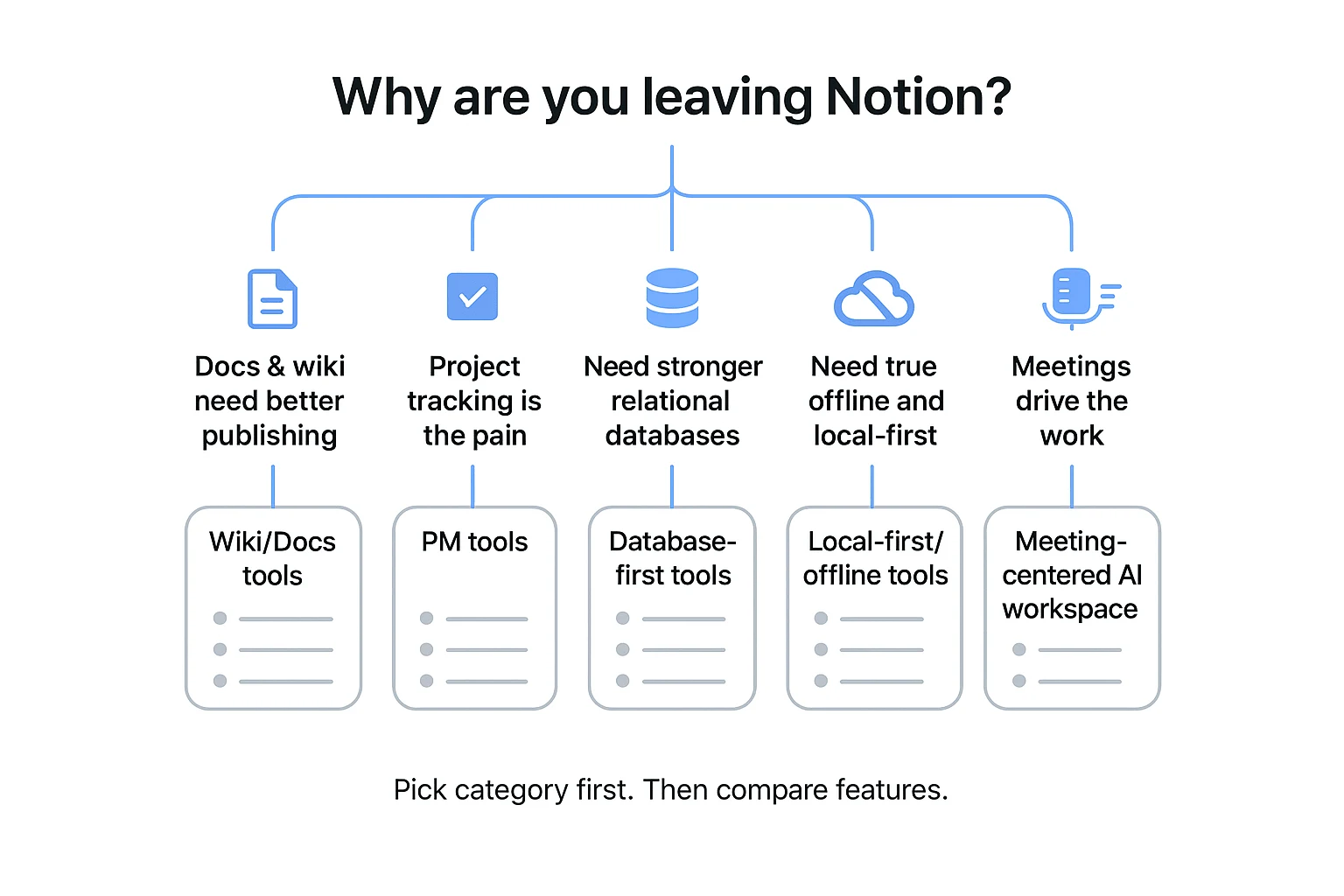
If meetings are your main input and deliverables are your output, use TicNote Cloud to turn calls into searchable project memory and export-ready reports. For personal notes, pick a fast notes app. For a team wiki, pick a docs-first tool. For PM, pick a task-first tool. For databases, pick a spreadsheet-style DB tool. For privacy/offline, go local-first.
Your meetings keep piling up. Decisions get lost. Then you spend hours rewriting notes into docs. TicNote Cloud fixes that by capturing meetings into Projects, letting you search transcripts, and generating usable outputs without copy-paste.
Quick picks by use case:
- Personal notes: choose speed, offline, and instant search.
- Team wiki: choose permissions, publishing, and clean page structure.
- Project management: choose backlog views, dependencies, and automations.
- Databases: choose relational data, formulas, and API/webhooks.
- Privacy/offline: choose local storage, sync control, and encryption.
- Meeting-to-deliverables: choose transcripts, citations, project memory, and export formats.
This guide gives you a repeatable rubric, a normalized ✅/❌/Partial matrix, switching-cost reality (what breaks on export/import), and an enterprise checklist (SSO, roles, auditability). Expect trade-offs, and plan to test: data modeling, permissions, mobile, offline, automation, and how fast your team can ship work after the switch.
What should you compare in a Notion alternative (so you don't switch twice)?
Most teams don't fail because the tool is "bad." They fail because they compare the wrong things. Use a simple rubric, run the same tests in every trial, and normalize pricing. That's how you pick a Notion alternative that still fits after week 6.
Use a 10-point rubric (and don't skip the boring parts)
- Editor (speed + collaboration) If typing lags, people stop using it. Test load time, block or page editing, comments, mentions, and version history.
- Databases + relations (linked records, rollups, formulas) Many tools have "tables," but fewer have true relational databases. Confirm linked records, rollups (aggregate values), and formula support.
- Tasks + project management (PM) Decide if you need assignments, due dates, dependencies, and timelines (Gantt). If your work is sprint-based, this matters more than "pretty docs."
- Search (scope + filters + relevance) Search is your real UI at scale. Check if it searches titles, body text, attachments, and databases, and whether filters narrow results fast.
- AI (Q&A, summaries, citations, admin controls) AI without citations is risky for teams. Look for "answer with sources," workspace-only modes, and admin controls for data and retention.
- Automation + API (webhooks, integrations, limits) A strong API prevents future lock-in. Verify webhooks, rate limits, and whether key actions (create/update records, comments, permissions) are automatable.
- Offline + sync (true offline vs cached) "Offline" often means read-only cache. Test edits on airplane Wi‑Fi, then confirm conflict handling and merge behavior.
- Permissions + admin (roles, guests, page-level controls) Real teams need more than "can edit/can view." Check roles, guest access, page/database controls, and admin visibility.
- Publishing + sharing (public pages, internal wiki) If you publish docs, you need stable URLs, access controls, and clean navigation. If it's internal only, confirm fast, searchable wiki patterns.
- Integrations (Slack, Drive, Jira, calendars, meeting tools) Integrations decide your daily friction. Prioritize the systems you already live in, not the longest marketplace list.
Run the same trial tests in every tool (performance + reliability)
Pick one "standard workspace" and recreate it each time:
- Size: 200 pages, 20 databases, 10,000 rows total
- Attachments: 100 PDFs, 200 images, 20 long docs
- Users: 5 people editing, 10 viewers, 10 guests
Then run and log these tests:
- Time-to-open: cold open a large page (goal: under 3 seconds)
- Time-to-search-result: search a known keyword across everything (goal: under 2 seconds)
- Multi-user edit: 3 people edit the same doc for 10 minutes; note cursor lag and overwrite bugs
- Mobile: open the largest database view and a long doc; note load time and scrolling
- Export/import: export to Markdown/HTML/CSV, re-import, and note what breaks
- Edge cases: guest can/can't see a linked page; confirm page-level permission behavior
- Admin visibility: can admins see sharing, guests, and audit-relevant actions clearly?
Normalize pricing (so you're not surprised at checkout)
Most pricing confusion comes from comparing unlike units. Normalize each option to a monthly cost for 10 active users and list the variables that change the bill:
- Per-seat vs per-maker: "Maker" plans look cheaper until more people need edit rights.
- Storage: file limits, retention, and large attachment costs.
- AI credits/limits: per month caps, per-feature limits, and overage pricing.
- Guests: free guests vs paid guests, and what they can do.
- SSO/audit logs: included or locked behind enterprise.
Apples-to-apples checklist (copy this into your notes):
- Price unit: per user / per maker / flat
- Included: storage, version history, exports
- AI: monthly limits + citations + admin controls
- Security: SSO/SAML, audit logs, roles
- Integrations: must-have 5 systems supported?
- Migration: export formats + what's lost + re-link effort
How do today's top options stack up side-by-side? (comparison table)
If you're evaluating a Notion alternative in 2026, a side-by-side matrix beats feature blurbs. The goal is simple: compare the same 10 criteria across tools, spot deal-breakers fast, and avoid a "switch twice" mistake.
What each column means (in plain language)
- Offline: Works reliably without internet (not just "mobile cache").
- Relational DB: True database relations (linked records), plus rollups or similar.
- Automations: Built-in rules/workflows (or strong native automation layer).
- API/Webhooks: Developer access for integrations and event triggers.
- SSO/SAML: Single sign-on for managed accounts (SAML/SCIM-style admin needs).
- Auditability: Audit logs and traceable actions for governance.
- AI search/Q&A: Ask questions across your content; best versions cite sources.
- Meeting capture/transcription: Record calls and turn them into searchable text.
- Publishing: Public pages, help centers, or shareable docs.
- Exports: Clean exports (Markdown/HTML/CSV/PDF) that survive migration.
Legend: ✅ = strong native support, ❌ = missing, Partial = usable but with gaps (see notes under the table).
Normalized comparison matrix (✅ / ❌ / Partial)
| Tool | Offline | Relational DB | Automations | API/Webhooks | SSO/SAML | Auditability | AI search/Q&A | Meeting capture/transcription | Publishing | Exports |
| TicNote Cloud | ❌ | Partial | Partial | Partial | Partial | Partial | ✅ | ✅ | Partial | ✅ |
| Coda | ❌ | ✅ | ✅ | ✅ | ✅ | ✅ | Partial | ❌ | ✅ | ✅ |
| Airtable | ❌ | Partial | ✅ | ✅ | ✅ | ✅ | Partial | ❌ | Partial | ✅ |
| ClickUp | Partial | Partial | ✅ | ✅ | ✅ | ✅ | Partial | ❌ | Partial | ✅ |
| Asana | ❌ | ❌ | ✅ | ✅ | ✅ | ✅ | Partial | ❌ | Partial | Partial |
| Confluence | ❌ | ❌ | Partial | ✅ | ✅ | ✅ | Partial | ❌ | ✅ | Partial |
| Obsidian | ✅ | Partial | Partial | Partial | ❌ | ❌ | Partial | ❌ | Partial | ✅ |
| Anytype | ✅ | Partial | ❌ | ❌ | ❌ | ❌ | Partial | ❌ | Partial | Partial |
| Craft | Partial | ❌ | ❌ | Partial | Partial | Partial | Partial | ❌ | ✅ | ✅ |
| Slite | ❌ | ❌ | Partial | Partial | ✅ | ✅ | Partial | ❌ | ✅ | Partial |
What "Partial" usually means:
- Offline (Partial): read-only or inconsistent sync; not safe for travel.
- Relational DB (Partial): linked records exist, but rollups/views are limited.
- AI search/Q&A (Partial): summaries exist, but no citations or weak cross-space search.
- SSO/SAML/Auditability (Partial): available only on top tiers, or limited logs.
- Publishing (Partial): share links work, but no full public site controls.
How to read the table (the trade-offs that matter)
Most tools fall into clear clusters:
- Wiki-first tools (Confluence, Slite, Craft): great publishing and doc flow. Databases and automations are often thinner.
- PM-first tools (Asana, ClickUp): strong tasks and automation. Knowledge bases can feel bolted on.
- Database-first tools (Airtable, Coda): best for structured systems. Your "docs" experience may take more setup.
- Local-first tools (Obsidian, Anytype): strongest offline control. Team governance (SSO, audit logs) is usually weak.
- Meeting-centered AI workspace (TicNote Cloud): best when meetings create the work. It's built to turn calls into project memory, then into deliverables.
Gotchas that cause a second switch
- Exports that don't preserve structure: pages export fine, but database views, relations, and formulas don't.
- Permissions that don't match reality: you need roles per space, per project, and guest access that's safe.
- AI without citations: answers sound right, but you can't verify the source quickly.
- Offline that's "sort of": sync conflicts and missing files show up on flights.
"Best for" shortcuts to shortlist finalists
- Need true offline control: start with Obsidian or Anytype, then confirm multi-device sync and team sharing needs.
- Need admin governance (SSO + audit logs): shortlist Coda, Airtable, ClickUp, Asana, Confluence, then compare pricing tiers for SSO and logs.
- Need a Notion alternative with AI search for meeting-heavy work: shortlist TicNote Cloud first, then compare how each tool handles cited Q&A and how fast you can go from transcript → action items → report.
Which Notion alternatives are best for each use case? (standardized item cards)
If you're comparing tools, use the same scorecard for each option. The cards below strip out marketing and focus on fit: what each tool is best at, what you'll pay in plain units, what you actually get, and what you'll miss.
TicNote Cloud
Best for Teams whose raw input is meetings or interviews—and who need searchable project memory plus fast, reusable deliverables.
Website | Pricing (per user/month, normalized)
- Website: ticnote.com
- Free ($0): 300 transcription mins/month, 30-min max per web recording, 3 doc imports/month, 10 AI chats/day, basic templates; live transcription, AI summaries, AI mind map, translation.
- Professional ($$12.99 monthly, or$$79/year billed annually): 1,500 mins/month, up to 3 hours per web recording, 30 doc imports/month, unlimited AI chat, advanced/custom templates.
- Business ($$29.99 monthly, or$$239/year billed annually): 6,000 mins/month, up to 8 hours per web recording, 100 doc imports/month.
- Enterprise (contact sales): customized usage, AI meeting agent, SSO, 24/7 support.
Key features
- Bot-free meeting capture options (no meeting bot joins).
- High-accuracy transcription with speakers, timestamps, and 120+ languages.
- Editable transcripts (not read-only) with real-time collaboration.
- Projects that hold long-context knowledge across meetings, docs, and media.
- Shadow AI Q&A across Project content with citations back to sources.
- One-click outputs: transcript and summary exports (PDF/DOCX/Markdown) plus HTML presentations.
- Team permissions (Owner/Member/Guest) and traceable AI operations.
Limitations
- Not a full replacement if your core workflow depends on deep relational databases, rollups, and complex views.
- Not ideal if you need heavy PM features like Gantt dependencies and portfolio scheduling.
Why it stands out It's built for a clean pipeline: meeting → transcript → structured summary → deliverable. That means less copy/paste and fewer "lost decisions" after calls.
Coda
Best for Builder teams that want doc + app workflows with strong formulas, buttons, and automations.
Website | Pricing (normalized units + what's included) Website: coda.io | Pricing is typically per "Doc Maker" (people who build docs), with Editors often priced differently. Expect cost to track how many builders you have, not just total viewers.
Key features
- Powerful formulas that behave like a spreadsheet inside docs.
- Buttons and automations for repeatable workflows.
- Packs/integrations to pull in data from other tools.
- Flexible tables that can power lightweight apps.
- Granular building blocks for internal tools.
Limitations
- Complexity rises fast; onboarding takes time.
- Pricing can surprise teams with many builders.
Why it stands out If your "docs" are really mini-apps, Coda's logic layer is the main draw.
Microsoft Loop
Best for Microsoft 365-first teams that need lightweight collaborative docs and reusable components across apps.
Website | Pricing (normalized units + what's included) Website: microsoft.com | Typically bundled into Microsoft 365 licensing; total cost depends on your existing M365 plan.
Key features
- Live components you can reuse across Microsoft apps.
- Simple collaborative pages for fast drafts.
- Tight integration with Teams and the Microsoft ecosystem.
- Works well for lightweight team notes and planning.
Limitations
- Weaker database/relational modeling than database-first tools.
- Advanced AI experiences often depend on Copilot licensing and setup.
Why it stands out For M365 shops, Loop reduces friction because it lives where work already happens.
Slite
Best for A clean team knowledge base with documentation discipline and verification habits.
Website | Pricing (normalized units + what's included) Website: slite.com | Typically priced per seat; best value when your main need is a wiki, not databases.
Key features
- Simple, focused knowledge base experience.
- Strong structure for company docs and handbooks.
- Review/verification workflows (depends on plan).
- Search that prioritizes trusted docs.
Limitations
- Fewer database-style workflows and app-building options.
- Success depends on good doc hygiene (owners, reviews, naming).
Why it stands out It's a calmer, wiki-first alternative when you want "source of truth" behavior.
ClickUp
Best for Project management-heavy teams that want tasks, docs, dashboards, and automation in one place.
Website | Pricing (normalized units + what's included) Website: clickup.com | Usually per user/month; pricing scales with advanced views, permissions, and automation needs.
Key features
- Robust tasks with statuses, assignees, and dependencies.
- Dashboards and reporting for execution visibility.
- Automations and templates for repeatable ops.
- Docs that connect to projects and tasks.
Limitations
- Adoption overhead is real; setup can feel heavy.
- "Everything tool" sprawl can create inconsistent workflows.
Why it stands out If shipping work is the priority, ClickUp's execution layer can replace multiple PM tools.
Airtable
Best for Database-first operations: structured records, reporting, and multiple views (grid, calendar, Kanban).
Website | Pricing (normalized units + what's included) Website: airtable.com | Priced per seat; costs can scale quickly with more collaborators and advanced features.
Key features
- Strong relational-ish tables and linked records.
- Views and filters for different teams.
- Forms for intake and structured data capture.
- Automations and integrations for ops workflows.
Limitations
- Less "wiki-like" by default; narrative docs can feel secondary.
- Per-seat scaling can be costly as usage spreads.
Why it stands out Airtable is the clearest choice when your work is records first, docs second.
Anytype
Best for Local-first privacy and offline work, with object-based linking and relationships.
Website | Pricing (normalized units + what's included) Website: anytype.io | Local-first model; pricing and sync options vary by plan and deployment.
Key features
- Offline-first experience.
- Object relationships and structured linking.
- Personal knowledge system with flexible schemas.
Limitations
- Team collaboration and admin governance differ from cloud-first tools.
- Enterprise needs (SSO, audit logs) may require extra review.
Why it stands out It's a strong pick when data control and offline access are non-negotiable.
Obsidian
Best for Personal knowledge in local Markdown, with deep customization and plugins.
Website | Pricing (normalized units + what's included) Website: obsidian.md | Core app is personal-use friendly; commercial and sync add-ons change cost.
Key features
- Local Markdown vaults and fast search.
- Bi-directional links and graph view.
- Huge plugin ecosystem for workflows.
- Works well for research notes and writing.
Limitations
- Team workflows require setup (sync, conventions, access control).
- Governance and compliance depend on how you deploy it.
Why it stands out If you want your notes to be files you own, Obsidian is the default choice.
Nuclino
Best for Fast team docs and lightweight collaboration without lots of setup.
Website | Pricing (normalized units + what's included) Website: nuclino.com | Typically per user/month; good value for simple team documentation.
Key features
- Quick docs and internal pages.
- Simple linking and collections.
- Low-friction collaboration.
Limitations
- Not designed for complex databases or PM.
- Advanced governance features can be limited versus enterprise suites.
Why it stands out Nuclino wins when speed and simplicity matter more than structure depth.
Confluence
Best for Enterprise documentation, especially if you already run Jira and other Atlassian tools.
Website | Pricing (normalized units + what's included) Website: atlassian.com | Priced per user/month; total cost depends on tiers, add-ons, and admin needs.
Key features
- Mature wiki and permissions model.
- Deep Jira integration for engineering orgs.
- Templates and page structures for scale.
- Strong admin controls in enterprise setups.
Limitations
- Can feel heavy for small teams.
- Setup and upkeep often require an admin owner.
Why it stands out For large orgs, Confluence is built to be governed, audited, and standardized.
If you're evaluating AI tools alongside these workspaces, this guide to AI work assistants beyond ChatGPT helps you compare citations, privacy, and meeting-heavy workflows.
What can you move out of Notion—and what usually breaks during migration?
Most teams can export a lot from Notion. But Notion migration/export has a split: pages move fairly clean, while database logic often falls apart. If you plan for that early, you won't rebuild your system twice.
What Notion exports well (and what's partial)
Notion commonly exports in Markdown/HTML for pages, and CSV for databases. That format choice decides what other tools can import.
Pages usually export well because they're mostly content:
- Headings, paragraphs, checklists, and bullet lists
- Simple tables (as text or basic HTML tables)
- Images and files (often as separate assets linked from the exported page)
Exports get "partial" when a page depends on in-app features:
- Embedded content (some embeds become plain links)
- Callouts, synced blocks, and advanced page layouts (often flatten)
- Mentioned pages and backlinks (the text may remain, but the connection may not)
Databases are different. Exporting a database as CSV captures rows and plain properties. But it usually can't carry the behaviors that made the database useful.
Common losses during Notion migration/export
Here's what most teams lose or have to rebuild:
- Relations and rollups (cross-database links and calculations)
- Formulas (may export as a value, not the formula)
- Views, filters, and sorts (your "saved ways of working")
- Permissions at the page/database level (often reset on import)
- Comments and page discussion history
- Backlinks and bidirectional linking
- Automation rules (if you used them through integrations)
The practical impact is simple: your wiki may import fine, but your workflow logic does not. If your operation depends on "when X changes, Y updates," expect rework.
Migration prep checklist (so day 1 works)
Before you export, do a fast inventory:
- Map the workspace: top pages, key teamspaces, and archived areas
- List critical databases and their owners (one owner per database)
- Note retention rules: what must be kept, and for how long
Then set acceptance tests for day 1:
- Search finds key docs within 10 seconds
- The right people can access the right spaces (and guests can't)
- The 10–20 most-used docs render correctly
- Meeting notes are easy to find and reuse
Finally, classify what you're moving:
- Databases that drive operations (tasks, CRM, sprint boards) often need a destination with strong relational structure
- Docs that store knowledge (SOPs, specs, research notes) can move to simpler docs/wiki tools, while meeting-heavy knowledge often works best in a meeting-centered workspace that keeps transcripts, summaries, and project memory connected
How do you migrate from Notion with minimal downtime? (practical plan)
Minimal downtime comes from a staged move, not a "big bang." Plan for 30 days, run both systems in parallel, and freeze the riskiest content first (databases with relations and rollups). If you're switching because meeting notes and decisions don't stay connected, treat meeting memory as its own system during the move so nothing gets orphaned.
Run a 30-day rollout (pilot → parallel run → cutover → clean-up)
Week 1: Pilot (5–10% of the team). Pick 2–3 real workflows (e.g., project hub, onboarding wiki, weekly status). Export only what the pilot needs and rebuild the minimum structure in the new tool. Success metric: the pilot can find answers in under 60 seconds and complete their weekly work without backtracking.
Week 2: Parallel run (write in both, read from both). Parallel run means:
- Write new updates in both systems (so you don't lose fresh info).
- Read from both systems (so people don't get blocked).
- Freeze order: freeze complex Notion databases first, then templates, then pages.
Week 3: Cutover. Set a cutover date and switch the "source of truth" to the new tool. Keep Notion read-only for most users. Only admins can edit Notion to fix critical errors.
Week 4: Clean-up. Remove duplicates, rename messy imports, and re-check permissions. Archive legacy spaces, document the new rules (where tasks live, where docs live, where decisions live), and schedule a 30-day review.
Choose the right import path by tool type
- Wiki tools (docs/knowledge bases). Import Markdown/HTML, then rebuild navigation (sidebar, hubs, and page hierarchy). If you published Notion pages, keep old URLs live for 2–4 weeks and add redirects once the new pages are stable.
- PM tools (task trackers). Migrate tasks, owners, statuses, and due dates via CSV. Keep long docs as references, not as the task system itself. Don't force a doc tool to act like a PM tool.
- Local-first tools (vaults/folders). Decide a shared folder/vault structure first (by team → project → date). Choose one sync approach (company-managed sync or approved cloud storage), then define who can access which vault.
Preserve knowledge continuity (especially meeting context)
Most migrations fail when context breaks: decisions lose their source, and follow-ups lose owners. Use a standard pattern:
- Project tags on every meeting artifact
- A simple decision log page per project (date, decision, owner, link to source)
- Decisions linked to the deliverable they change (spec, proposal, roadmap)
A practical option is a project documentation alternative path: keep docs/wiki in your new system, but keep meeting memory in a meeting-centered workspace. For example, TicNote Cloud can aggregate meetings and files into Projects, generate structured summaries, and export Markdown/DOCX/PDF so you can import cleanly into a wiki or attach to PM tickets—without copy-paste.
What are the team and enterprise requirements you should confirm before switching?
If you're switching from Notion to another workspace tool, your biggest risk isn't features. It's governance gaps that show up after rollout. Confirm admin controls, security basics, and identity logging before you migrate real work.
Admin & governance: confirm the "rules of the workspace"
Start with how access and ownership work day to day. Small differences here can create data leaks or "orphaned" docs when people leave.
- Roles and permission levels: Who can create spaces, invite users, or change sharing?
- Guest model: Can guests be limited to specific pages/projects? Can they be blocked from search?
- Workspace sprawl controls: Can admins restrict who can create new workspaces/teams?
- Content ownership: If an employee leaves, who owns their docs and databases?
- Lifecycle and archiving: Can you archive, lock, or set retention rules for old projects?
- Permission inheritance: When you nest pages or folders, do permissions inherit by default?
Security and compliance: ask vendors plain-language questions
Don't accept "enterprise-grade" as an answer. Ask for simple, testable statements you can validate in the contract and security review.
- Is data encrypted in transit and at rest? What ciphers are used?
- What's the default data retention policy? Can we set our own retention?
- Do you offer data residency options (region selection) for stored content?
- Who are your subprocessors (cloud, analytics, AI providers), and how often does the list change?
- What is your incident response process and notification timeline?
- Is customer data used to train AI models by default, and can we opt out in writing?
SSO/SAML, audit logs, and traceability: prevent "who did what?" blind spots
If IT manages access, or you're in a regulated industry, treat these as non-negotiable.
- SSO/SAML availability: Which plans include it, and is it enforced for all users?
- Audit log scope: Does it track content access (view/export/share) or only admin events?
- Log export: Can you export logs to a SIEM, and how long are logs retained?
- Traceability for AI actions: Can you see what the AI changed, generated, or referenced?
What can a meeting-centered AI workspace do that typical Notion-style tools can't?
A meeting-centered AI workspace starts with the meeting as the "source file," then turns it into searchable, editable project memory and finished outputs. To make this evaluation concrete and testable, the workflow below uses TicNote Cloud as the example—so you can run the same steps on your own calls, not just compare feature lists. This is where many Notion-style tools fall short: they're great once content is already written, but they don't reliably convert raw conversations into usable deliverables.
Step 1: Create a Project and add content (Web)
In the web studio, start by creating a new Project (or opening an existing one) and treat it as the home for a single initiative: "Q2 Customer Research" or "Client X Discovery." Add meeting inputs first (recordings or uploaded files), then attach any supporting docs (briefs, decks, PDFs). Use consistent names and a few tags, because retrieval later depends on clean inputs.
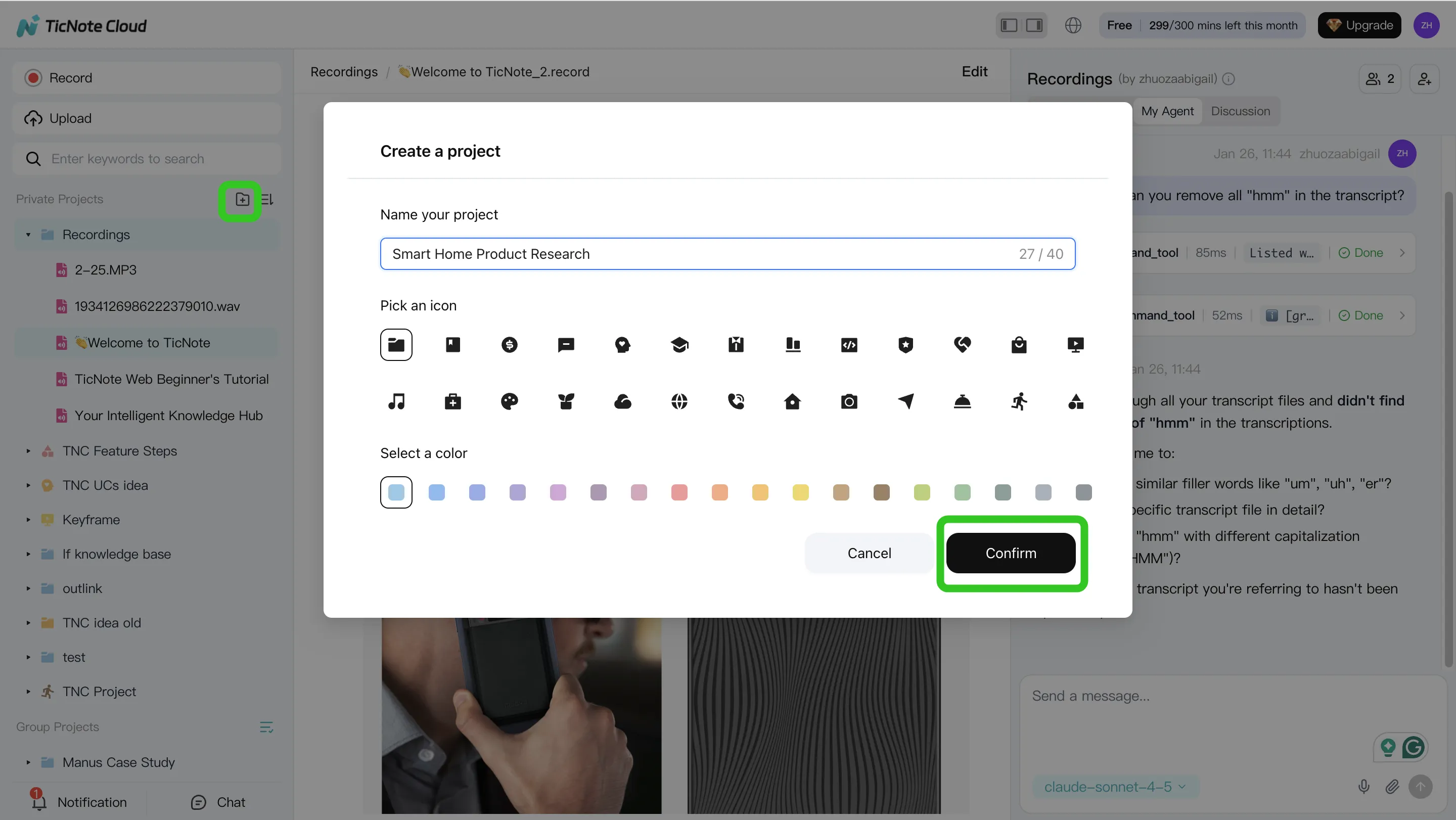
You can add files two ways: direct upload from the file area, or by using the attachment icon inside the Shadow AI chat panel to upload and save content into the right place. The practical win is simple: everything that matters lives in one Project, instead of being spread across pages, comments, and DMs.
Step 2: Use AI to search, analyze, edit, and organize (Web)
Once your content is inside the Project, Shadow AI works on the full set of files, not a single page. Ask for decision lists with citations, theme summaries across multiple interviews, or structured notes that follow your team's format. Then edit transcripts where needed so names, numbers, and key terms are correct.
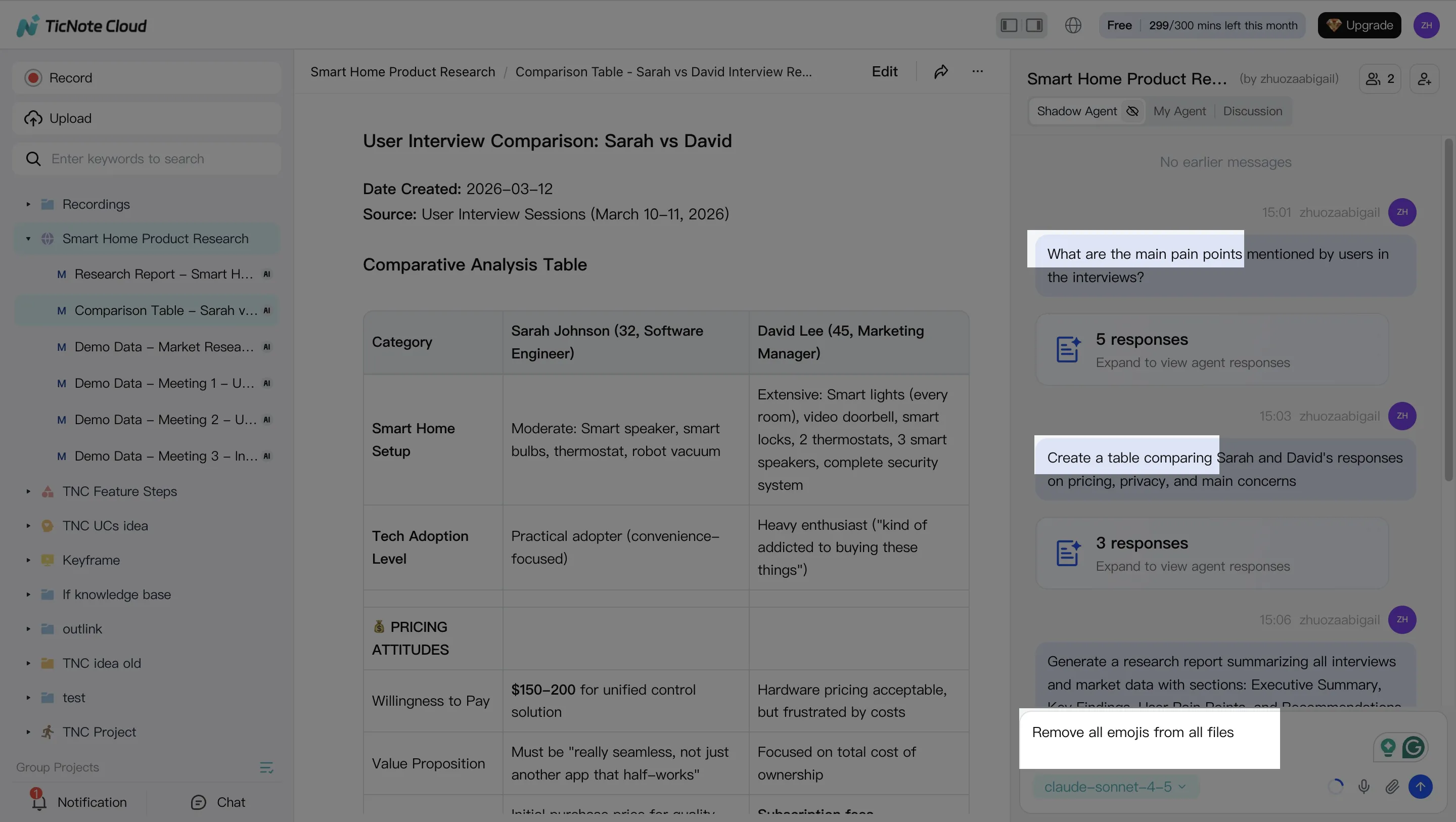
A fast test: ask "What did we decide?" and "What are the top 5 risks?" If the answers point back to specific parts of the Project content, you're building reliable project memory instead of "AI guesses."
Step 3: Generate deliverables (Web)
Notion-style tools usually stop at "write a page." A meeting-centered AI workspace goes further: generate a deliverable that matches how stakeholders want to consume it—report, web presentation, mind map, or a podcast-style summary—and then export it in common formats so it moves cleanly into the rest of your stack.
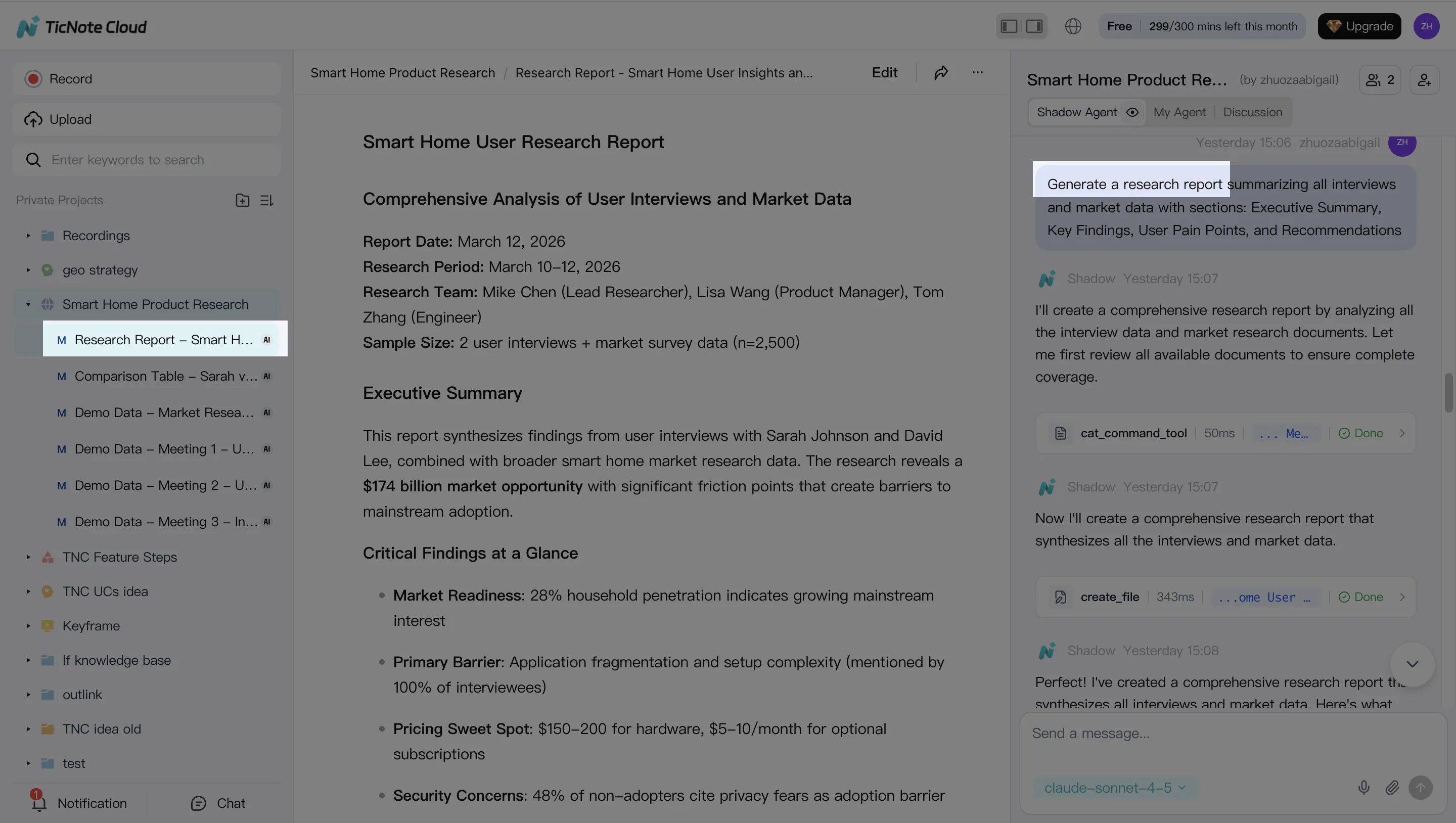
This is the core shift: you're not copy-pasting notes into a template. You're turning the Project's meeting corpus into an output with one consistent narrative.
Step 4: Review, refine, and collaborate (Web)
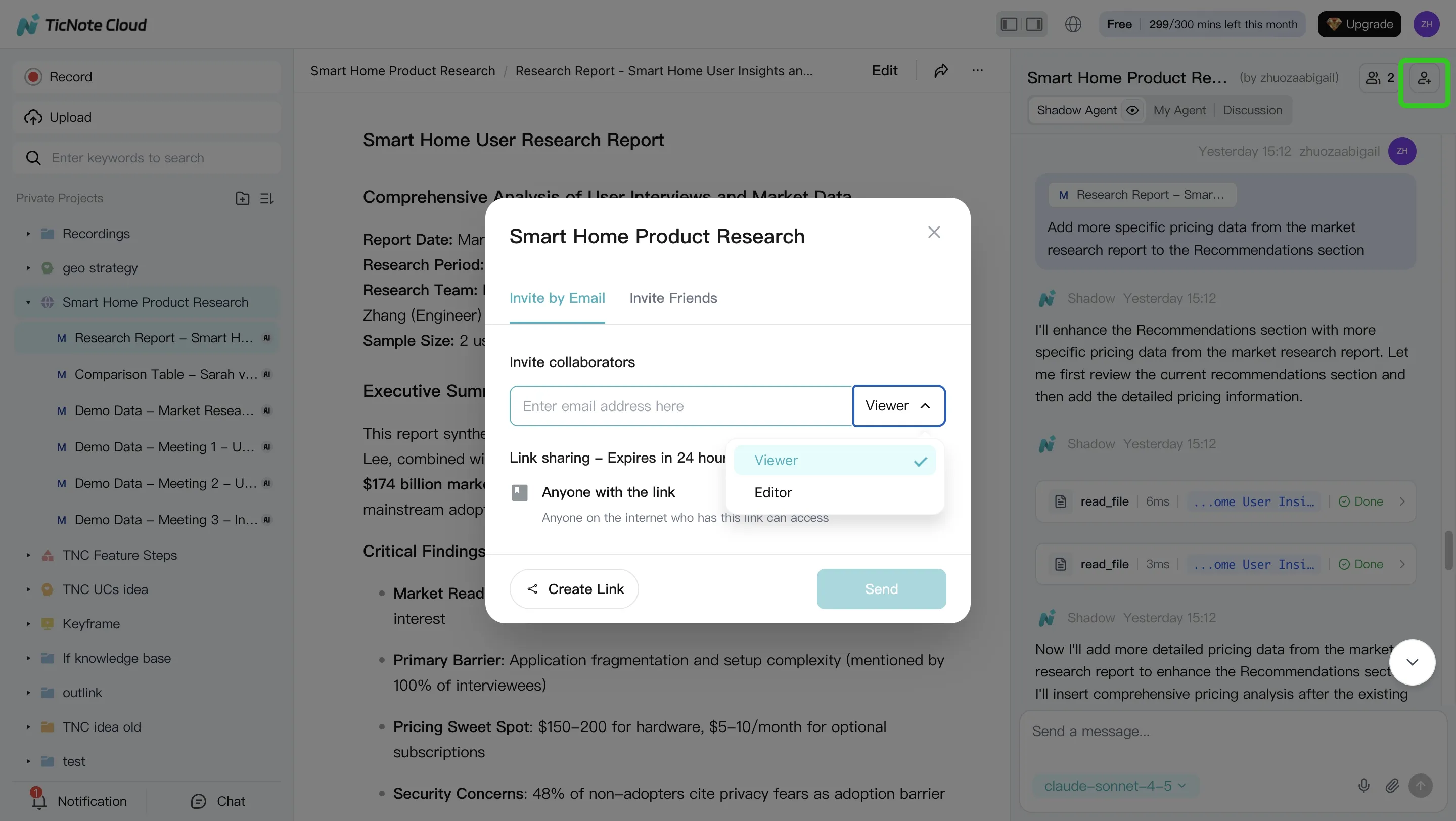
After a deliverable is generated, review it with the team, refine sections by asking Shadow to adjust specific parts, and verify claims by jumping back to the original source. Keep collaboration tight: edit transcripts together, leave comments, and assign owners for follow-ups. A key difference here is traceability—AI operations are tracked, so teams can audit what changed and why.
Quick mobile loop (App)
On mobile, the goal is speed: capture or upload audio/video, send it into the same Project, then run a quick query like "what did we decide?" Pin the answer so it's visible to everyone, and generate a short follow-up summary plus an action list for stakeholders. You can also approve edits and add quick annotations while you're between meetings.
Balanced fit: when to use meeting-centered AI vs Notion-style tools
Meeting-centered AI excels when your bottleneck is meetings turning into work: follow-ups, decisions, research synthesis, and reusable project memory. A Notion-style tool can still be the better fit for heavy relational databases, complex project management views, and deeply customized internal portals where the "page" is the main unit of work.
What's the ROI of switching (or adding) a Notion alternative for meeting-heavy teams?
If your week runs on calls, ROI comes from cutting the work that happens after meetings: cleaning notes, writing follow-ups, hunting for decisions, and fixing rework from missing context. A meeting-centered system can pay back fast because it turns each call into searchable, reusable project memory instead of more docs to maintain.
Simple ROI formula (use this before any pilot)
ROI per month = (hours saved × hourly cost) − tool cost
Count "hours saved" from the places teams leak time most:
- Note cleanup: turning messy notes into usable docs
- Follow-up writing: recaps, action items, emails, tickets
- Searching: "where did we decide that?" and digging through pages
- Rework: redo work because context got lost or decisions changed
Example: 10-person team (order-of-magnitude estimate)
Assume a 10-person team runs 3 meetings per person per week (30 total). If follow-up work averages 20 minutes per meeting (summary + tasks + sending), that's 30 × 20 min = 600 minutes, or 10 hours per week.
Now assume a meeting-to-deliverable workflow cuts that follow-up time by 50% (because summaries, action items, and searchable transcripts are generated and reused). That saves 5 hours per week, or ~20 hours per month.
If your blended loaded cost is 70/hour, value saved is 20 × 70 =1,400/month. Subtract tool costs for the users who need it (for example, 10 seats × 13 ≈ 130/month) and you're still around 1,270/month net. The point isn't precision—it's deciding if the upside is big enough to justify a 2–4 week pilot.
Metrics to track in weeks 1–4 (so ROI is real)
Track the same meeting type, same team, and same window before/after.
- Time-to-summary: minutes from meeting end to shareable recap
- Action item completion rate: % done on time
- "Where was that decided?" questions: count per week in Slack/email
- Rework cycles: number of times a task gets redone due to missing context
Conclusion: How to choose the right Notion alternative for your next 12 months
Pick your next workspace based on your real constraint, not a feature wish list. If you need fast adoption, choose a tool with simple docs, great search, and low setup. If governance is the blocker, prioritize SSO/SAML, audit logs, and tight roles. If you work in spotty Wi‑Fi, go local-first with true offline sync. If your work is database-heavy, pick the option with strong relations, views, and automation. And if meetings drive your work, a meeting-centered workspace will cut follow-up time and keep decisions searchable.
Use a short, repeatable evaluation recipe
Don't "decide." Test.
- Shortlist 2–3 tools that match your constraint.
- Run 2 real workflows (not toy samples):
- One database workflow (intake → status → handoff)
- One doc workflow (brief → feedback → publish)
- Operate for 2 weeks with your actual team.
- Score each tool 1–5 on: speed, permissions, offline, database power, automation/API, and AI quality.
Know when meeting-centered AI is a complement
In many teams, docs and wiki pages stay where they are. The meeting record and "project memory" lives elsewhere. That split works when you want meeting transcripts, decisions, and action items to roll up into one project space—and then turn into reports, plans, or briefs without copy-paste.
If your main pain is meeting-to-deliverable work, Try TicNote Cloud for Free to test the workflow end-to-end. You can also review pricing here: https://ticnote.com/en/home.


