


 Extension
TL;DR: The fastest way to get voicemail into text (and when to use each method)
To transcribe voicemail fast: use built-in voicemail text if you already see it, use a voicemail app if you need the same inbox on more than one device, or save and upload the audio if you need clean edits, exports, and long-term search.
Missed details are the real problem. Names, numbers, and addresses often come out wrong, and fixing them later takes time. If you need one place to polish, organize, and export transcripts, try TicNote Cloud for free and keep voicemail text with your notes.
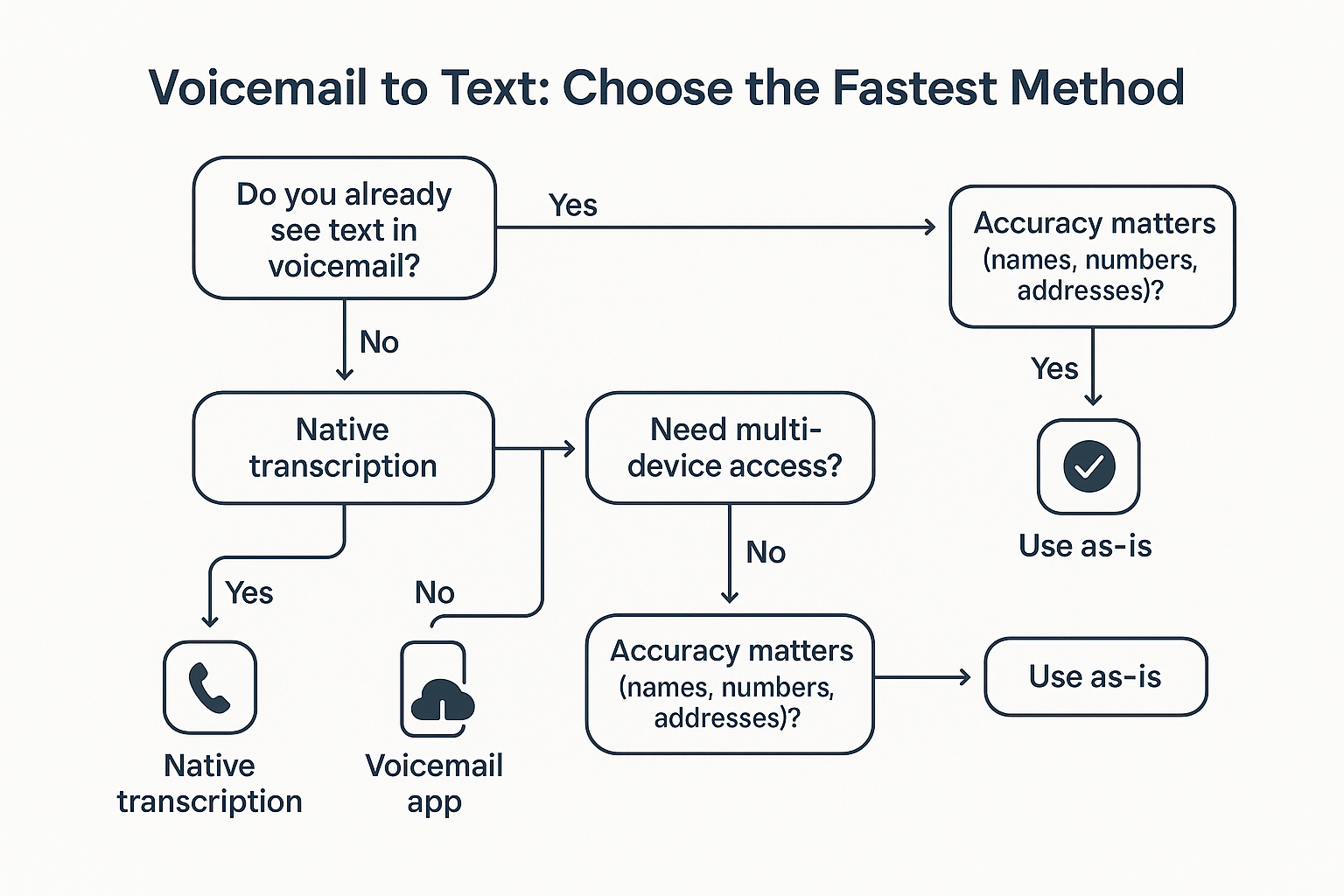
Decision tree:
- Do you already see text in your voicemail tab?
- Yes: use native transcription.
- No: use a voicemail app, or export the audio.
- Do you need team sharing or exports (TXT, DOCX, PDF)?
- Yes: upload and transcribe.
- Is it high-stakes (names, amounts, addresses)?
- Yes: plan to proofread and correct.
Next up: exact iPhone and Android steps, how to save or share voicemail audio, an accuracy checklist for proper nouns and numbers, a privacy checklist (carrier vs apps vs cloud), and a voicemail to action items workflow.
How to transcribe voicemail on iPhone, Android, and Samsung (native options first)
You can transcribe voicemail fastest with your phone’s built-in voicemail app. Start in the Phone app, open Voicemail, then look for text under each message. If you don’t see text, it’s usually a carrier setting or a toggle.
iPhone: use Visual Voicemail (and find the transcript)
- Open the Phone app.
- Tap Voicemail (bottom right).
- Tap a voicemail message.
- Look for the transcript text under the playback controls. If it’s there, you can copy it like normal text.
Before you expect transcripts, make sure these 3 basics are true:
- Your carrier and plan support Visual Voicemail transcription. Some plans include it, others don’t.
- Visual Voicemail is set up. In Phone > Voicemail, follow prompts to set a voicemail password and greeting.
- Your language and dictation settings match your voicemail language. Go to Settings > General > Keyboard, check Dictation is on, and ensure your iPhone language and Siri language match what callers speak.
Quick checks if iPhone voicemail text is missing:
- You’re viewing messages in the Phone > Voicemail list, not just listening by calling your voicemail number.
- You have a signal or Wi-Fi, and Airplane Mode is off.
- Try closing and reopening Phone, then wait 30 to 60 seconds after the message arrives.
Android (Pixel and many phones): Phone by Google voicemail transcription
- Open the Phone by Google app.
- Tap Voicemail (bottom bar).
- Tap a message.
- If transcription is available, you’ll see text below the audio controls.
To confirm transcription is enabled:
- In Phone by Google, tap the 3-dot menu.
- Tap Settings.
- Tap Voicemail.
- Find Voicemail transcription and turn it On (wording can vary).
Quick checks on Android:
- Update Phone by Google in the Play Store.
- In Settings > Apps > Phone, allow Phone, Microphone, and related permissions if prompted.
- Set the right device language, since transcription follows your language settings.
Samsung: Samsung Phone app vs carrier voicemail app (it depends)
Samsung phones may show voicemail in two places:
- Samsung Phone app: Some carriers allow voicemail and transcripts inside Samsung’s Phone app.
- Carrier Visual Voicemail app: Many carriers use their own app for Visual Voicemail, and any transcription toggle lives there.
Try this path first:
- Open Phone (Samsung).
- Tap Voicemail.
- Open a message and look for text or a Transcription option.
If you don’t see it, check for a carrier app:
- Search your apps for “Visual Voicemail” (carrier-branded).
- Open it, then look in Settings for Transcription (or “Voicemail to text”).
Why it varies: carriers control voicemail features on Samsung more often, so the toggle and even the feature can change by plan, region, and app.
The 5 most common reasons you don’t see voicemail text
- Carrier doesn’t support it on your plan or line.
- Visual Voicemail isn’t provisioned (not fully activated on your account yet).
- Transcription is turned off in Phone settings or the carrier voicemail app.
- The message is too short or the audio is messy (noise, muffled speaker, strong accent, overlapping voices).
- Outdated OS, phone app, or network issues, like old app versions, weak signal, or delayed voicemail sync.
If transcription is missing: how to save or share voicemail audio for transcription
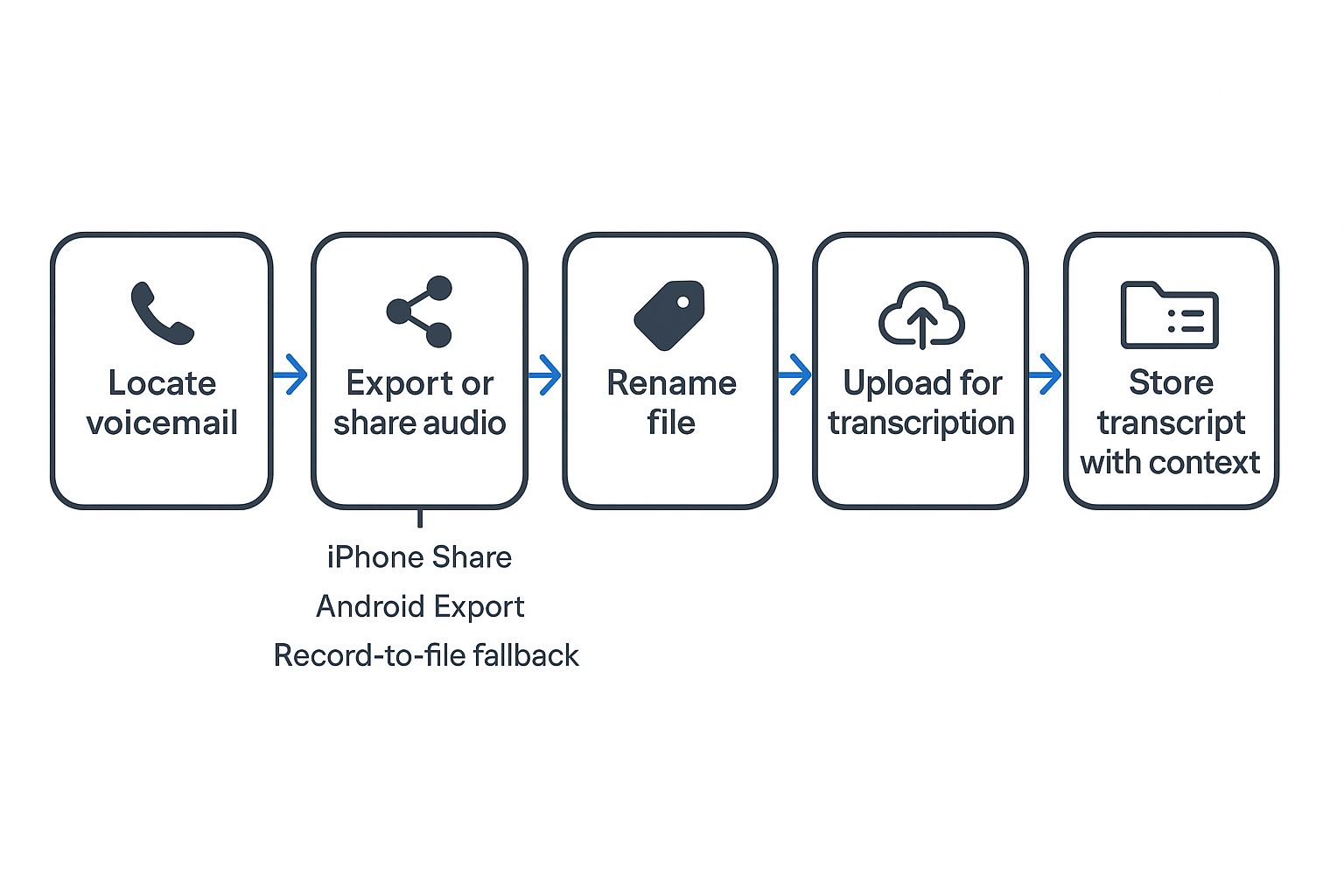
If your phone won’t show text, you can still transcribe voicemail by saving the audio first. Your goal is simple: get the message into a shareable audio file, rename it, then upload it to any transcription tool.
iPhone: export the voicemail audio (best to fallback)
- Try sharing from the Phone app
- Open Phone → Voicemail.
- Tap the message.
- Look for Share (or a share icon).
- Send it to Files, Mail, or a notes app.
- Forward it to email (if your carrier supports it)
- Some voicemail systems let you forward or “send” a message.
- If you see options like Forward, Send, or Email, use them.
- Fallback: record it to a file when sharing is blocked If Share isn’t available, use a “record to file” method.
- Put the call on speaker.
- Use a second device, or a recorder app, to capture the audio.
- Save as M4A or WAV if you can.
Android and Samsung: share, download, or record
- Try the built-in Phone or Voicemail app first
- Open Phone (or your carrier’s Voicemail app).
- Open the voicemail message.
- Look for Share, Save, Export, or Download.
- Send to Drive, Files, or Email.
- Fallback: record to a file if export is locked Some carrier Visual Voicemail apps block downloads.
- Play the voicemail on speaker.
- Record it with a voice recorder app.
- Save it, then upload the file for transcription.
Carrier roadblocks (and how to avoid them next time)
If your Visual Voicemail app won’t share audio, you have three options:
- Ask your carrier about voicemail-to-email or message forwarding.
- Switch to an inbox that supports transcripts and exports, like Google Voice, for future calls.
- Keep a simple “record to file” backup workflow for critical messages.
File hygiene: make transcripts easy to find later
Before you upload, do this quick cleanup:
- Rename files:
YYYY-MM-DD_Caller_Topic(example:2026-01-14_AlexRivera_InvoiceQuestion). - Add context in a simple log: client, job number, urgency, callback number.
- Trim silence at the start or end if your tool allows it.
Use TicNote Cloud to transcribe voicemail audio and turn it into searchable notes
If your phone can’t transcribe voicemail well, you can still get clean text fast. The basic idea is simple: save the voicemail audio, upload it to TicNote Cloud, then turn the transcript into a note you can search later. This workflow also helps when you need to transcribe voicemail that has names, numbers, or an address.
Step-by-step: voicemail audio to transcript (TicNote App, recommended)
This is the most flexible workflow, because the TicNote App lets you manually edit text and trim audio if needed.
Save the voicemail audio as a file
First, export or share the voicemail from your phone as an audio file (M4A, MP3, or similar).
- On iPhone, share the voicemail and save it to Files or share it directly to the TicNote App
- On Android, use Share or Export and save it to your device
Clear audio helps, but voicemail-quality recordings usually work fine.
Upload the voicemail into a project
Open the TicNote App and tap the add (+) button to upload the voicemail audio. You can create a new project (for example, a client or issue) or add the file to an existing one.
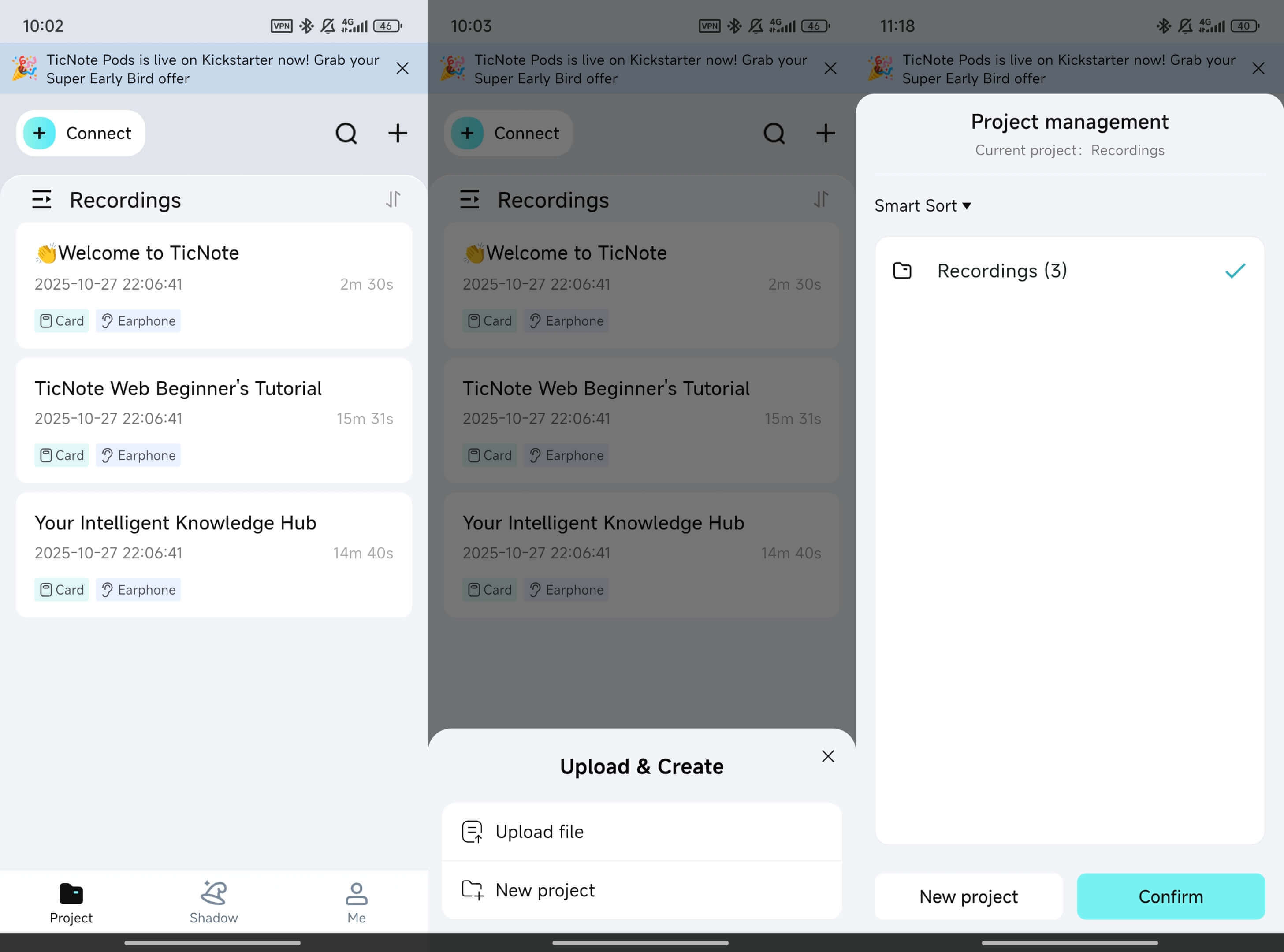
Projects act like folders with context, which makes voicemails much easier to find later.
Generate the transcript and set the right options
Select the uploaded voicemail and tap Transcript.
Before generating, choose:
- The spoken language
- The detail level
- Whether to distinguish speakers (useful if the voicemail includes more than one voice)
Then tap Generate now to create the first draft.
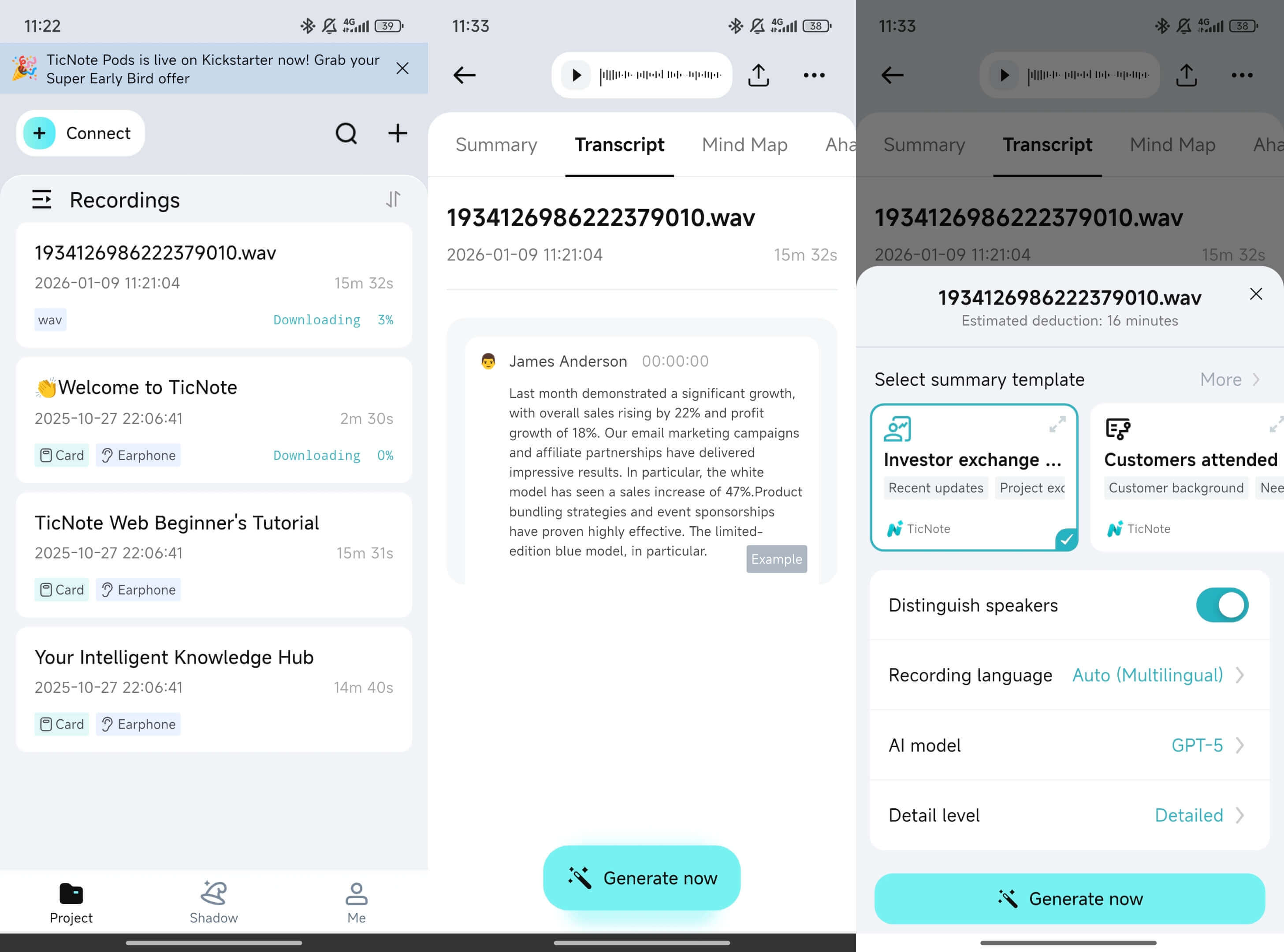
Clean up high-risk details (text + audio)
Once transcription finishes, do a short, focused cleanup pass in the app:
- Fix names, phone numbers, emails, and addresses
- Correct dates, times, and order numbers
- Add light punctuation so the text is readable
If the voicemail rambles or repeats itself, you can trim the audio directly in the app and then adjust the transcript to match. This is useful when you only want to keep the actionable part of a long message.
Export the transcript when you’re done
When the transcript looks right, tap the three-dots menu and choose Export transcript. Pick the format you need, then export.
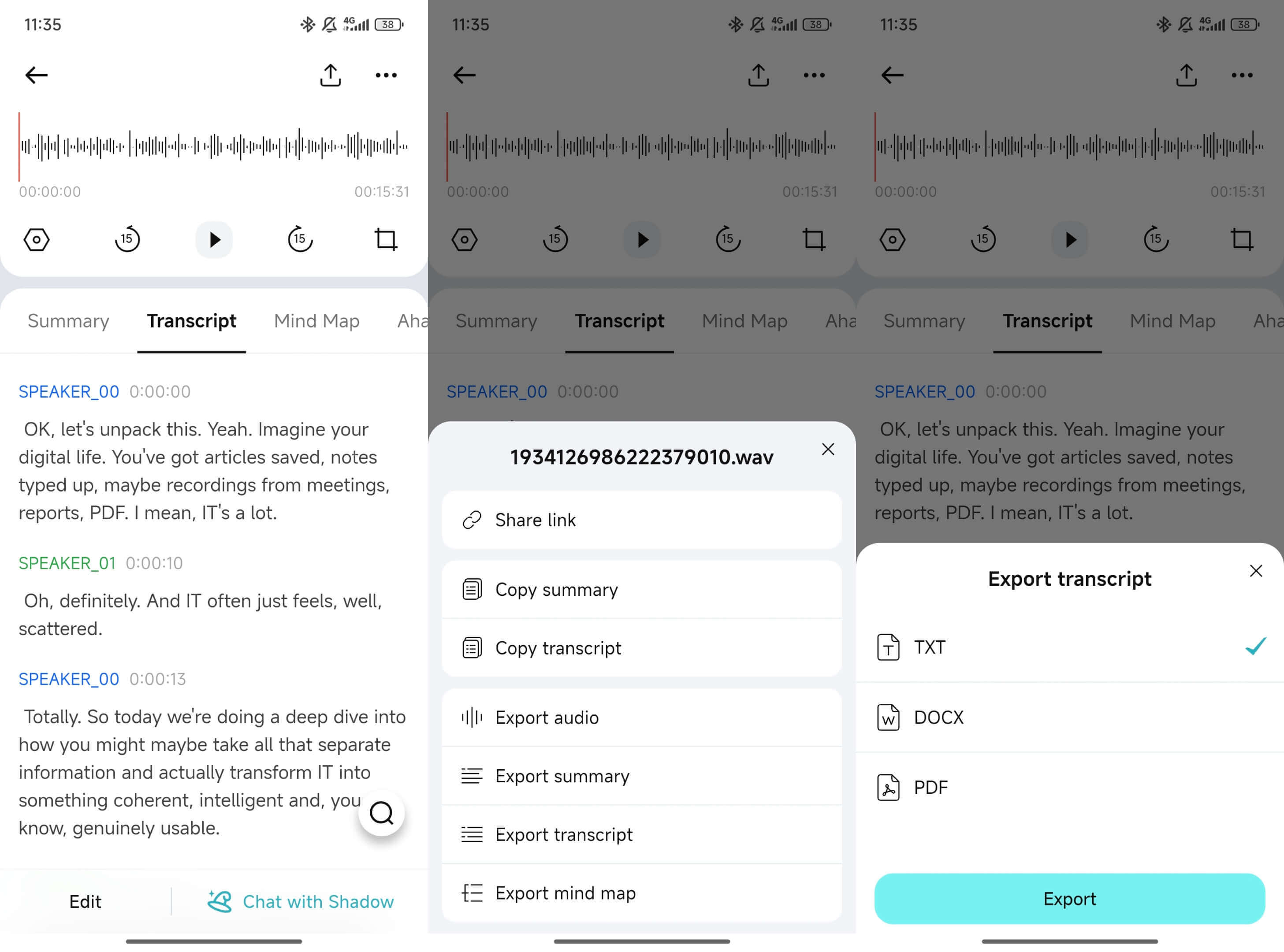
Common choices:
- TXT for raw records and archiving
- Markdown, DOCX, or PDF for sharing or follow-ups
Optional: upload and transcribe voicemail audio on the web
If you already have the voicemail file on your computer, you can use TicNote Cloud Web Studio for upload and transcription.
Click Upload to add the audio file to a project, select it from the left panel, open the Transcript tab, and generate the transcript. You can then use Shadow AI on the web to refine or rewrite the text, and export it in multiple formats.
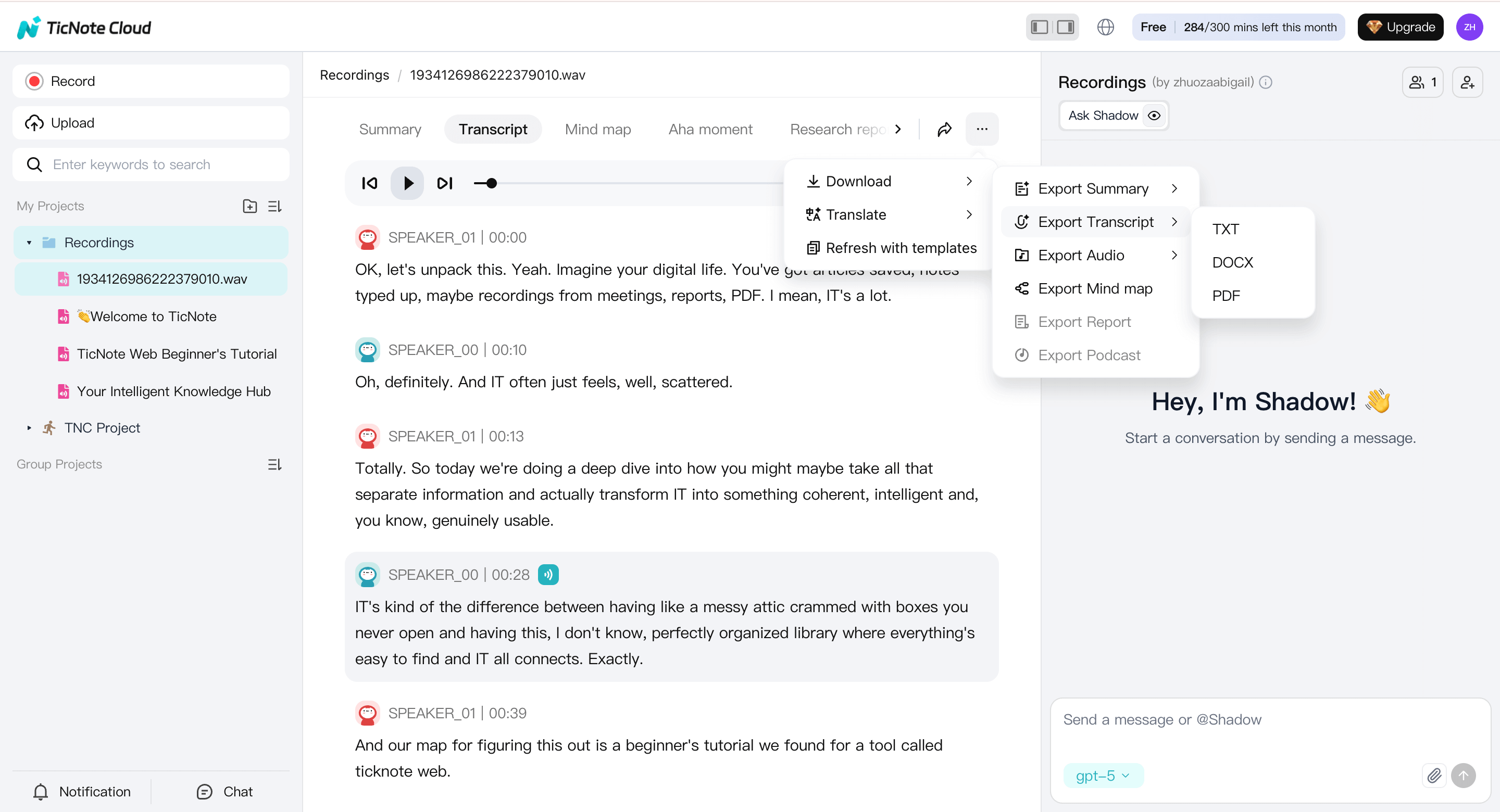
Many users upload and generate transcripts on the web, then switch to the app for hands-on text edits or audio trimming.
Quick edit checklist: fix what matters in 60 seconds
Voicemail transcripts are usually “good enough” until they hit tricky details. Edit in passes:
- Pass 1 (must-fix): callback number, date, time, address, order number
- Pass 2 (nice-to-fix): names, company names, model numbers, email spelling
- Pass 3 (optional): remove filler words, add punctuation
Tip: If the caller repeats a number twice, keep both versions until you confirm which one is correct.
Keep voicemails organized with projects (so they stay searchable)
Instead of losing voicemails in your phone app, projects help you group them by purpose.
For small businesses:
- Clients
- Jobs or work orders
- Vendors and deliveries
- Billing and scheduling
For everyday life:
- Family and caregivers
- Housing and repairs
- Medical and appointments
- School and childcare
Once voicemails live in projects, you can keep the transcript, a cleaned summary, and your follow-up steps together.
Ask Shadow questions across multiple voicemail transcripts
After you upload a few voicemails, you don’t have to reread them all. Use Shadow to ask across saved transcripts, such as:
- “Which caller mentioned Friday delivery?”
- “What was the callback number for the plumber?”
- “Who gave the gate code and what was it?”
Then turn the key points into a short summary and action list. That’s where voicemail becomes useful—not just stored.
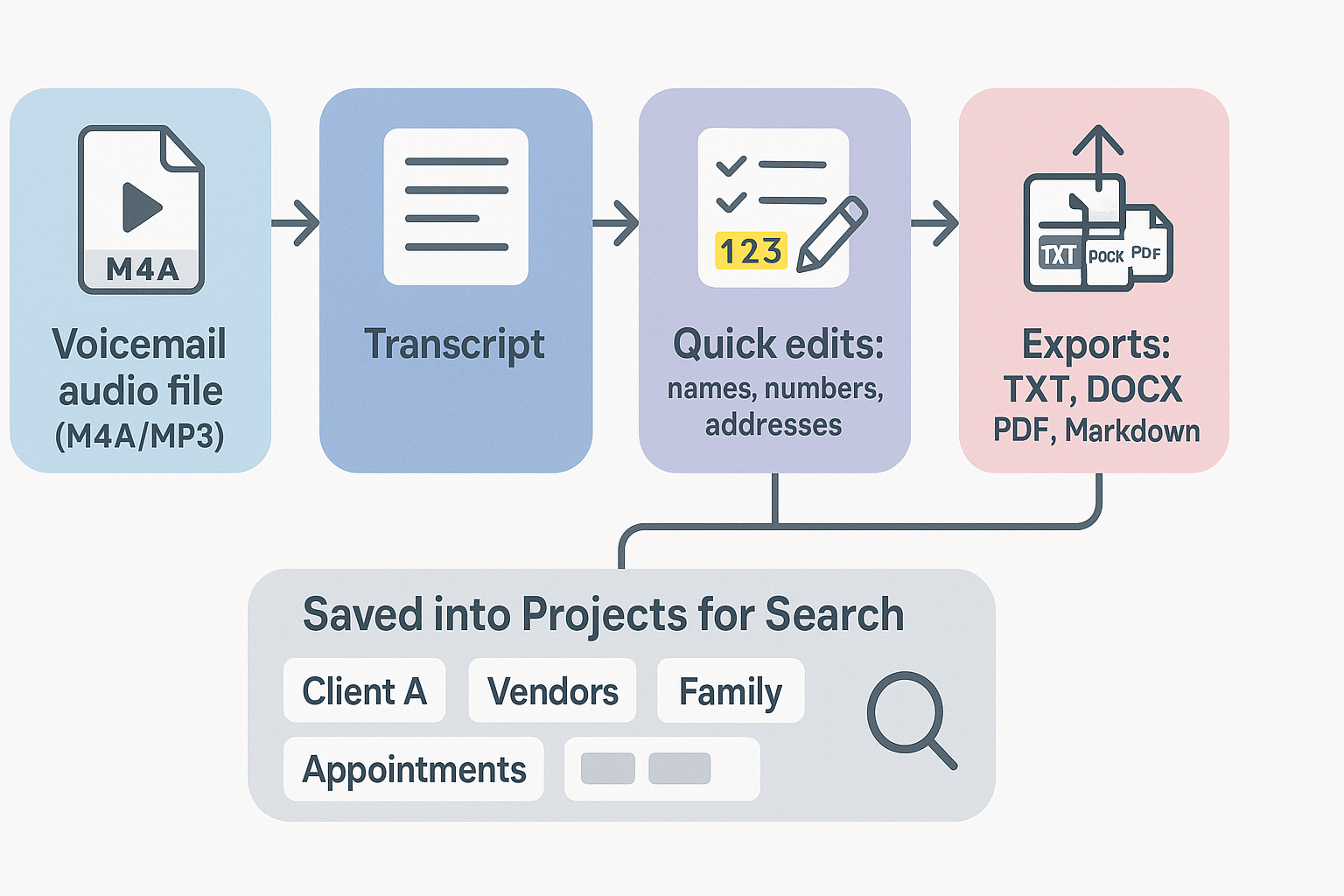
Export the transcript or a clean summary (pick the right format)
Use exports when you need to share or file the content:
- TXT: raw transcript, quick copy-paste, archiving
- Markdown: notes for tools like Notion or a wiki
- DOCX: editing and comments with a client or team
- PDF: locked, shareable records for vendors or disputes
Try TicNote Cloud for free when you want voicemail text you can search, clean up, and turn into action items.
Accuracy playbook: get cleaner voicemail transcripts (before and after transcription)
If you need to transcribe voicemail fast, focus on the parts that break most often: names, numbers, and addresses. Most errors come from poor audio, fast speech, or phone network compression. Use this checklist to get cleaner text you can trust.
Why voicemail transcripts go wrong
Voicemail audio is often low quality. Common causes include:
- Background noise, like traffic or a TV
- Speakerphone audio that sounds muffled
- Fast talking, especially at the end
- Accents or uncommon names
- Cellular compression, which blurs consonants
If the audio is unclear, the text will be too.
Before transcription: set the caller up for success
You can’t fix what you can’t hear. Do these first:
- Move to quiet. Step away from noise before you listen or re-save.
- If it’s urgent, call back once. Ask for the key details again.
- Ask for spelling. Names, streets, and company names need it.
- Ask for “slow, then repeat.” Especially for phone numbers.
If you run a business, update your greeting. Prompt callers to leave:
- Full name, spelled
- Call-back number, said twice
- Company and reason for calling
- Best time to call back
After transcription: a 2-minute cleanup that prevents mistakes
Don’t just skim. Verify the risky bits:
- Phone numbers: check digit by digit, then group as (XXX) XXX-XXXX.
- Dates and times: rewrite in one format (Tue, Jan 14 at 3:30 PM).
- Addresses: standardize street type (St, Ave, Blvd) and add unit numbers.
- Names: add a quick hint in parentheses, like “Kara (HR)”.
- Next step: add one line, like “Reply with quote by Friday.”
Want a cleaner workflow? If you also handle longer audio beyond voicemail, this guide on how to transcribe audio step by step can help you standardize edits, improve accuracy, and manage exports more consistently.
When to use human transcription instead
Choose human help when errors create real risk:
- Legal, medical, or HR issues
- Disputes, chargebacks, or compliance records
- High-value leads where one wrong digit costs money
- Any voicemail with heavy noise or unclear speech
Privacy, security, and compliance: carrier vs apps vs cloud transcription
When you transcribe voicemail, the big difference is where your audio and text go. Carrier or phone tools may process messages in carrier systems or OS services. Voicemail apps may store both in the vendor’s cloud. Upload-and-transcribe flows store files and transcripts in the workspace you pick, which can be great for search and sharing, but it adds a data-handling step.
What changes by method (in plain terms)
Here’s what to expect:
- Carrier or native visual voicemail: Audio may stay with your carrier, and transcription may run in carrier systems or phone services.
- App-based voicemail (third-party inbox): Audio and text often live in that app’s account and cloud.
- Upload to a cloud workspace: You choose where the file lives, who can see it, and how long it stays.
Use this security checklist before you pick a method
Ask these questions for any option that stores audio or text:
- Where is the data stored? On-device, carrier servers, or vendor cloud.
- Is it encrypted in transit and at rest? (In transit means while uploading. At rest means stored.)
- What are the retention controls? Auto-delete options, archive rules, and how backups work.
- Can you delete and export easily? Download the audio and transcript, then remove them.
- Who can access it? For teams, check roles, sharing links, and workspace permissions.
If you handle personal data, keep one rule in mind: European Commission - Principles of the GDPR says personal data must be processed in a lawful and transparent manner, ensuring fairness towards the individuals whose personal data is being processed.
Consent and recording laws (quick overview)
A voicemail is left by the caller on purpose. So the recording itself is usually expected. But sharing, forwarding, or using it for training can still feel sensitive. For businesses, set a clear policy: who can listen, who can read transcripts, and when messages get deleted.
“Ask before you upload” vendor questions (HIPAA and GDPR style)
If messages can include health info, payments, or client details, ask:
- Do you offer a data processing agreement (DPA)?
- Is customer data used to train models, or is it excluded?
- What storage region is used, and can you choose it?
- Do you provide audit logs (who accessed what, and when)?
- Can admins control sharing, exports, and deletions for a team?
Costs and limits: what “free” voicemail transcription really includes
“Free” voicemail to text can mean three things. Your phone may transcribe voicemail at no extra cost, but only if your carrier and language are supported. It can also cut off long messages or skip hard audio. Or “free” can mean a small monthly allowance in an app.
What usually gets capped (even when it’s “free”)
Here are the limits that matter most when you transcribe voicemail for work.
| Limit type | Built-in voicemail transcription | Voicemail apps | Upload-and-transcribe tools |
| Minutes per month | Often not shown, may be policy-based | Often capped on free tiers | Metered by minutes (plan-based) |
| Max message or file length | Can be short, varies by carrier | Varies, may cap per message | Clear max length per upload |
| Export formats | Often copy-paste only | Sometimes TXT, email export | TXT plus doc-style exports |
| Team access | Usually single device | Shared inbox may cost extra | Role-based sharing, project folders |
The hidden costs people forget
If you can’t export cleanly, you pay in time. You end up with storage sprawl (audio in one place, notes in another). And when a client asks for “the exact wording,” you may have to re-listen and retype.
Match a plan to your voicemail volume
- Light personal use and a few business messages: TicNote Cloud Free, 300 transcription minutes per month.
- Steady weekly volume and more cleanup: Professional, 1,500 minutes per month, longer files, and heavier editing.
- Teams with lots of messages: Business, 6,000 minutes per month and higher import limits.
Workflow ideas: share, translate, and automate what happens after transcription
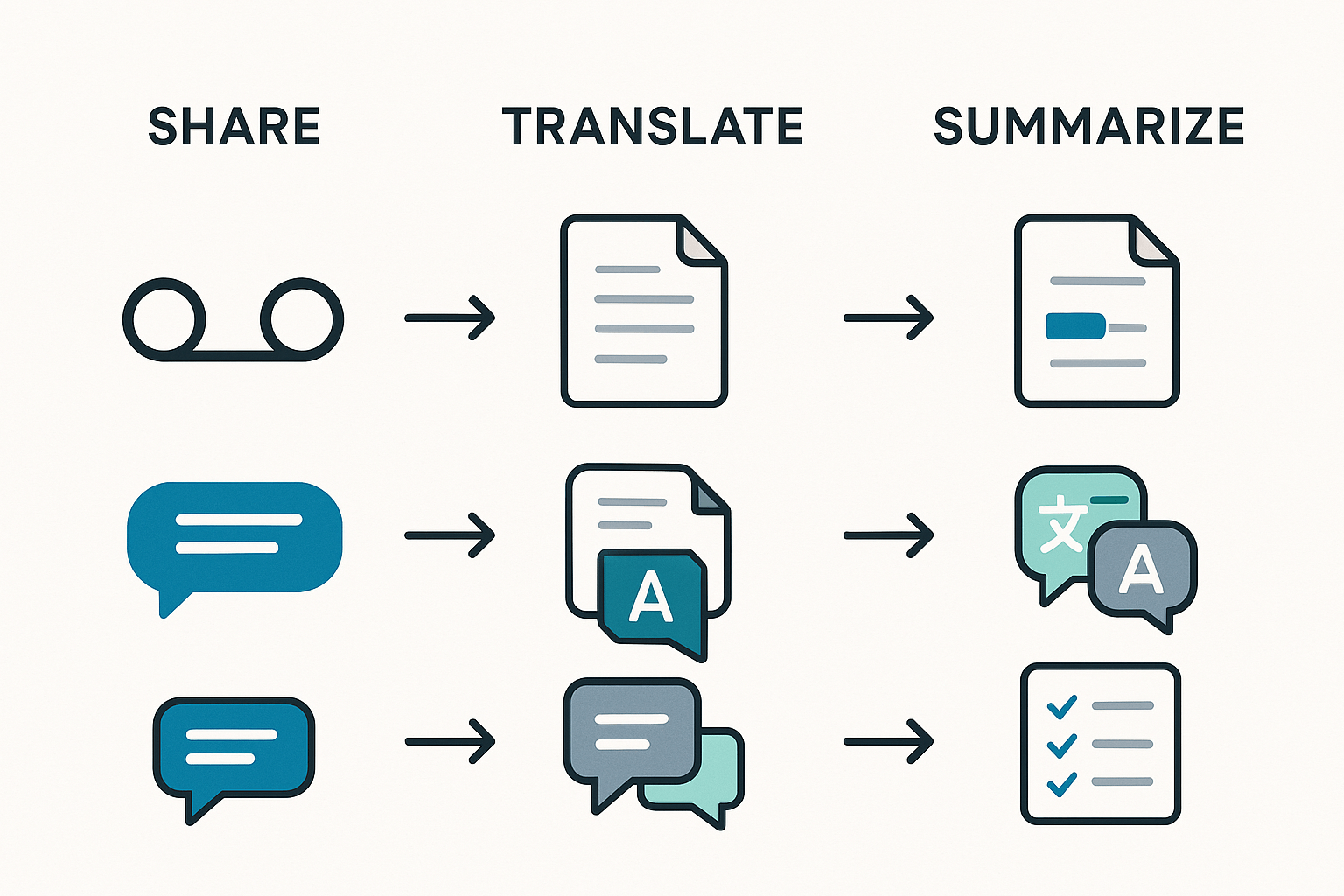
Once you transcribe voicemail, the real win is what you do next. A clean transcript can become a team update, a task list, or a searchable record. Use the workflows below to move from “heard it” to “handled it.”
1) Share it fast (Slack and Notion)
If a voicemail affects others, share the text right away.
- Paste the transcript into Slack, then @mention the owner and add the next step.
- Save the transcript to a Notion page (client or project), then add tags like “billing,” “support,” or “urgent.”
- Add a one-line header at the top: who called, why, and the deadline.
Tip: If you also reuse other short audio sources like recorded notes, this same “paste, tag, assign” flow works well for voice memo transcripts, not just voicemail.
2) Turn the message into tasks (action items and due dates)
Most voicemails contain hidden work. Pull it out while it’s fresh.
- Highlight names, numbers, and dates.
- Rewrite requests as tasks, starting with a verb (Call, Send, Confirm).
- Add a due date, even if it’s “today” or “this week.”
- Paste a short checklist under the transcript, so nothing gets missed.
3) Translate for multilingual teams
Transcribe first, then translate the text. Text is easier to review, fix, and share.
- Keep both versions together, so teammates can cross-check meaning.
- If the voicemail includes multiple languages, multilingual transcription can reduce guesswork.
- Always double-check names and addresses after translation.
4) Build a searchable archive (for disputes and callbacks)
When you need proof later, organization matters.
- File by client, project, or ticket number.
- Add a one-line summary at the top, like “Asked for refund, promised call back Friday.”
- If policy allows, keep the original audio linked in the same record.
Generate your first AI summary in minutes.
Troubleshooting: fixes for common voicemail transcription problems
If your phone won’t transcribe voicemail, don’t guess. Run this quick check in order. You’ll fix most issues in under 10 minutes.
1) No Voicemail tab or Visual Voicemail isn’t set up
This usually means Visual Voicemail (the inbox view) is not active.
- Confirm your carrier supports Visual Voicemail on your plan.
- Set up voicemail the basic way first: call your voicemail, create a PIN, and record a greeting.
- Open your Phone app, then check for a Voicemail tab again.
- Check permissions: Phone and Voicemail features may need Contacts, Microphone, and Cellular Data access.
- If you recently swapped phones or SIMs, ask your carrier to re-provision Visual Voicemail.
2) “Transcription not available” or it’s stuck loading
This is often a network or settings hiccup.
- Toggle Airplane Mode on for 10 seconds, then off.
- Restart your phone.
- Update your OS, then update the Phone/Dialer and Carrier Services apps (Android).
- Turn voicemail transcription off and back on (where available).
- Check language and region settings, then retry. If the voicemail is in a different language, set the device language to match and test again.
3) Transcripts are delayed or only partially show
Many native systems process transcripts on the network, so timing varies.
- Wait a few minutes, then reopen the voicemail.
- Switch networks: try Wi-Fi, then cellular (or the reverse).
- Play the voicemail once, then go back and reopen it. Sometimes that triggers processing.
4) The transcript is wrong (names, numbers, addresses)
First, do quick cleanup steps before you re-do anything.
- Increase playback volume and replay once at normal speed.
- Note key details as you listen: names, emails, street numbers, call back numbers.
- If your inbox allows it, edit the contact name so future voicemails match better.
If accuracy still isn’t usable, the most consistent fix is to save or share the voicemail audio and re-transcribe it in a dedicated tool. That route also makes it easier to edit, search, and export a clean version.
5) Storage problems: too many voicemails or not enough space
Voicemail inboxes fill up fast.
- Save only the voicemails you truly need.
- Move important ones out of the inbox: export the audio, keep the text in a project folder, then delete the original voicemail.
- Use exports (TXT, PDF, DOCX) so you can archive and search outside your phone.


