


 Extension
TL;DR: PDF-to-podcast workflow (fast, clean, and publish-ready)
Try it in minutes with TicNote Cloud: import your PDF, pull out clean text, turn it into a short script, then export listenable audio you can publish.
If you skip prep, your "episode" turns into a messy read-aloud. That hurts pacing, clarity, and trust. Use TicNote Cloud to extract and structure the content first, so the audio sounds like a real show.
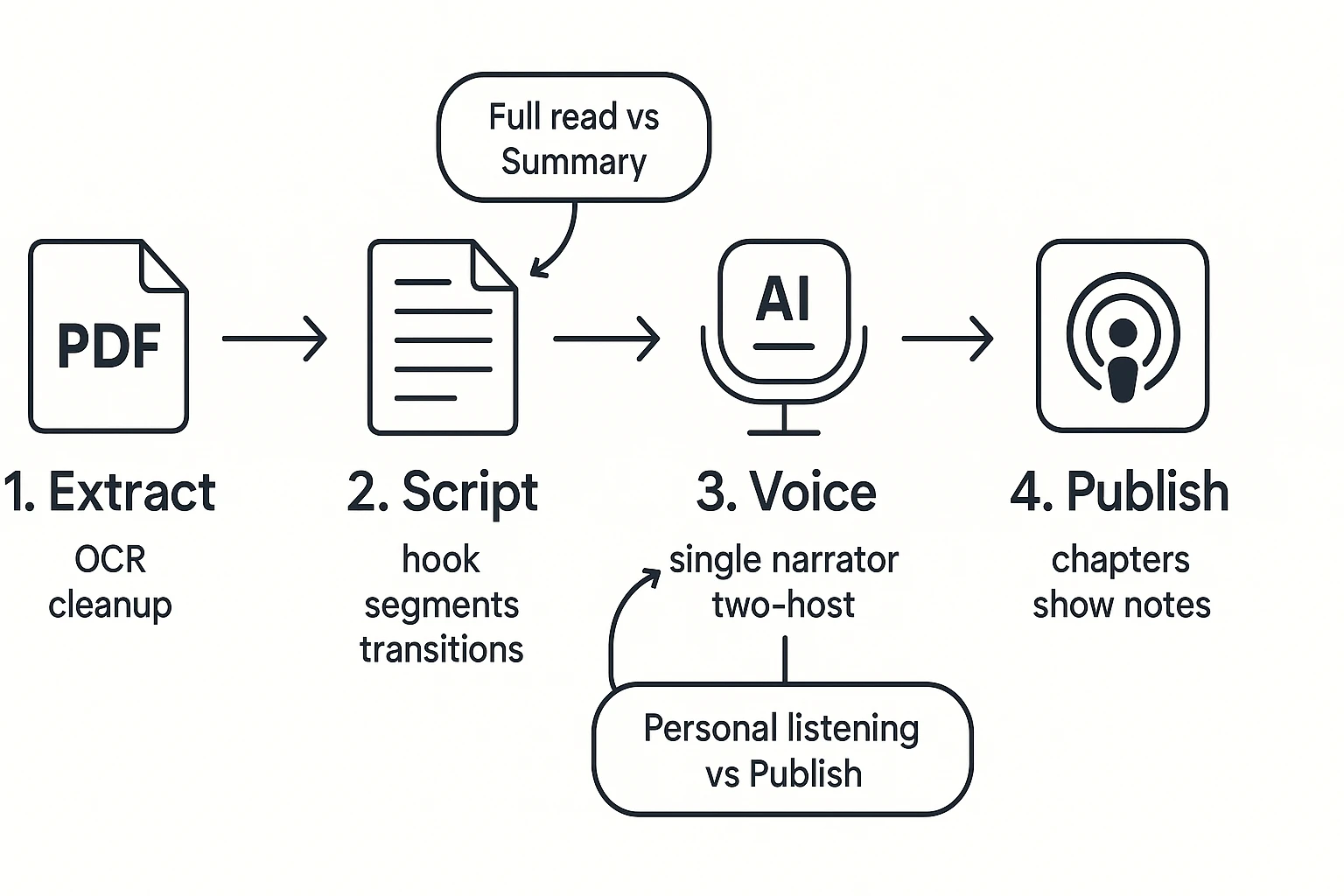
Quick flow:
- Extract: OCR if needed, fix headings, remove tables and footnotes noise.
- Shape: choose full read vs summary, add intro, sections, and simple transitions.
- Voice: pick a natural style, set pacing, export WAV, then do light cleanup.
- Publish: write show notes, add chapter timestamps, and cite sources.
Skip or rethink this for image-heavy PDFs, messy scans, or anything you can't share publicly. Personal listening is different from publishing.
How to Turn a PDF into a Podcast with AI (end-to-end steps)
Turning a PDF into listenable audio is easy. Turning it into a podcast people finish is a workflow. Below is a simple, end-to-end way to go from PDF to a script, then to clean audio and publish-ready assets.
Step 1: Pick the right goal (full narration vs summary episode)
Start by choosing what "done" looks like. A full narration is best when the PDF is short, or when listeners need every detail. A summary episode works best for long, dense, or technical PDFs where listeners need the key ideas fast.
Use this quick decision tree:
- Is the PDF under about 5 to 8 pages and meant to be read in order?
- Yes: do a full narration.
- No: make a summary episode.
- Is your audience trying to follow steps, rules, or exact wording?
- Yes: full narration, plus clear section breaks.
- No: summary episode with takeaways.
- Is this just for you or your team?
- Personal listening: TTS-style is fine (minimal editing).
- Publishable episode: you'll need a script, structure, and show notes.
Set success criteria before you touch any tools:
- Comprehension: what should a listener understand at the end?
- Time saved: what's the new "listen time" target?
- Action: what should they be able to do next (decide, implement, explain)?
Step 2: Set a target length and run-of-show (chapters that make sense)
A common trap is assuming 1 page equals 1 minute. It doesn't. Page density, charts, and citations change everything. Plan by ideas, not pages.
A simple mapping that works well:
- 1 segment equals 1 main idea
- 1 main idea equals 2 to 4 minutes
- Most episodes land at 3 to 5 segments
Default run-of-show you can reuse:
- Intro (20 to 40 seconds): what this PDF is and why it matters
- Segment 1 to 5 (2 to 4 minutes each): one idea per segment
- Quick recap (30 to 60 seconds): the "3 things to remember"
- Outro (10 to 20 seconds): next step or where to find the source
Podcast readiness checklist (quick preview):
- Hook in the first 15 seconds
- Clear chapter titles and smooth transitions
- Pacing that avoids long lists
- Citations and references kept accurate
- One clear next step for the listener
If you want a broader framework, this guide on a podcast-ready content workflow with quality and legal checks helps you standardize the process across PDFs, docs, and web pages.
Step 3: Generate a script that's written for the ear
A podcast script is not a PDF read-aloud. Writing for the ear means shorter sentences, fewer parentheticals, and more signposting like "Here's the point" and "Next, let's talk about…".
Use a repeatable prompt formula (fill in the blanks):
- Audience: Who is listening?
- Goal: What should they learn or decide?
- Length: Target minutes and number of segments
- Tone: Practical, friendly, expert, etc.
- Must-keep points: the 5 to 10 facts you can't lose
- Must-cut sections: tables, long footnotes, legal boilerplate, dense methodology
- Output format: intro, segments with headers, recap, outro, plus show notes
Add these guardrails so the AI doesn't hurt accuracy:
- Don't invent citations or sources.
- Keep quotes exact, or label them as paraphrases.
- If anything looks unclear, flag it for review instead of guessing.
Step 4: Create the audio and export what you'll need later
Now turn the script into audio. Pick a voice approach based on your use case:
- Single narrator: fastest and easiest for most "explainer" episodes.
- Two-host style: better for long content because it adds variety.
Avoid voice cloning unless you have clear permission from the voice owner. For many teams, a high-quality synthetic narrator is simpler and safer.
Before you hit export, decide what you're saving for editing and publishing:
- Audio master (best-quality file for editing)
- Transcript (helps with captions, corrections, and SEO show notes)
- Outline or run-of-show (chapters, titles, timestamps)
- Show notes (bullets, links to sections, and key takeaways)
Final checks before you publish:
- Pronunciation list (names, acronyms, product terms)
- Chapter breaks placed at topic changes, not page breaks
- Permissions confirmed for the PDF content and any quoted text
Try TicNote Cloud for Free to turn a PDF into structured audio, plus export-ready notes.
What should you do before converting a PDF to audio?
Before you convert a PDF to audio, fix the input. That one step decides if your episode sounds like a clean script or a messy robot read. In other words, good text in leads to good audio out, especially when you're learning how to turn a PDF into a podcast with AI.
Check the PDF type first (text-based vs scanned)
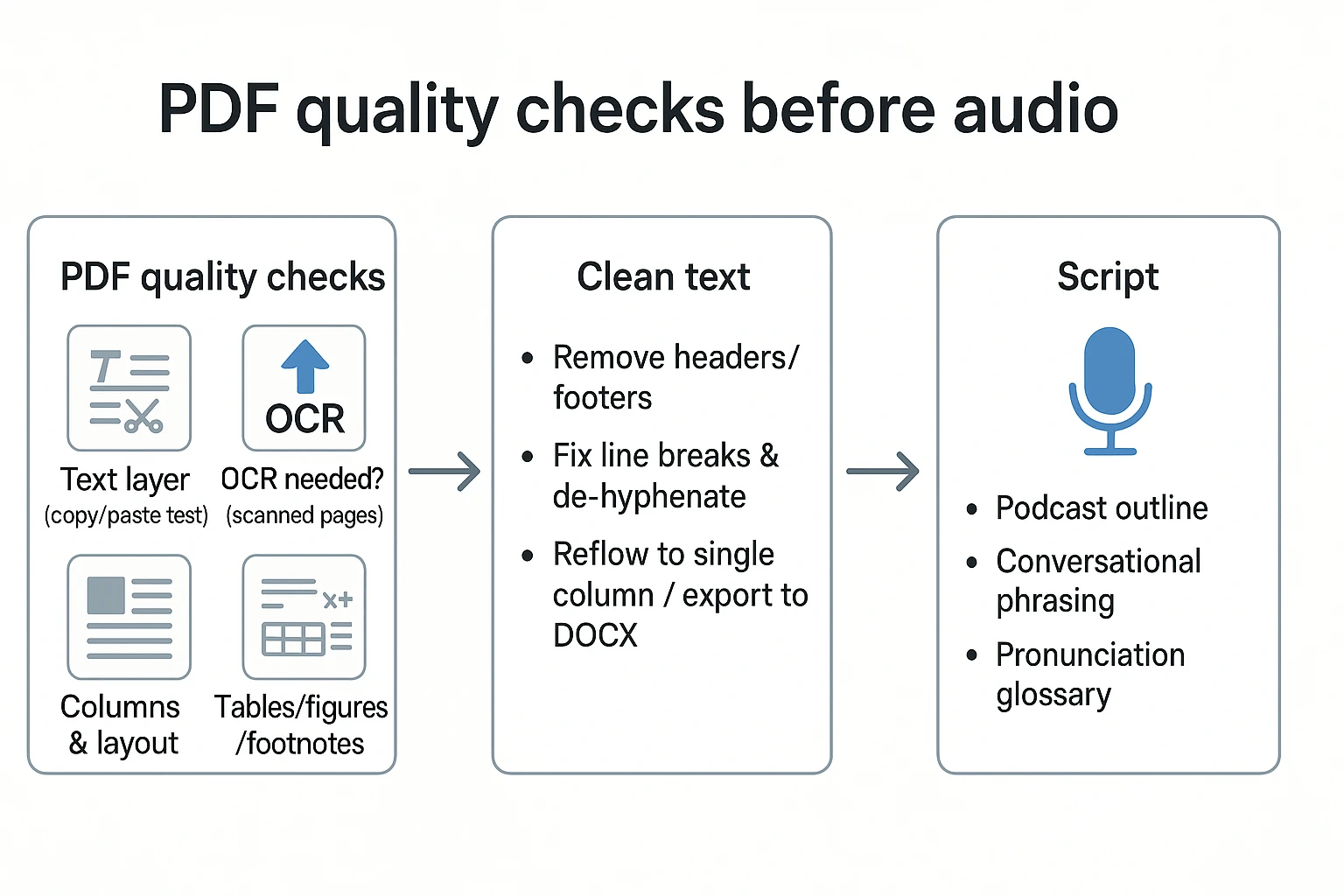
Start with a 10-second test: try to select and copy a paragraph. If you can, it's likely text-based and extraction will be clean. If you can't, it's probably a scan and you'll need OCR (optical character recognition).
Use this quick checklist:
- Can you highlight text in the PDF?
- When you paste into a doc, does it look normal or scrambled?
- Do pages look skewed or tilted?
- Are there faint letters, shadows, or low-resolution images?
If OCR is required, expect a few common errors:
- Ligatures and fancy fonts (like "fi" and "fl") become wrong letters.
- Math symbols and formulas get mangled.
- Low-res scans drop punctuation, which ruins pacing.
Clean the text so it reads like speech
PDF formatting is built for pages, not ears. So you want to remove anything that repeats or breaks sentences.
Text-cleaning checklist:
- Delete repeating headers and footers (titles, page numbers, disclaimers).
- Fix broken line wraps that cut sentences in half.
- De-hyphenate words split across lines (ex: "auto-\nmatic" to "automatic").
- If it's multi-column, reflow to one column or export to DOCX first.
Here's a mini troubleshooting table to diagnose what went wrong.
| PDF problem | Symptom in script or audio | Fix |
| Repeating headers/footers | Random phrases interrupt paragraphs | Find and delete repeated lines before scripting |
| Hard line breaks every line | Choppy cadence and odd pauses | Join lines into real paragraphs |
| Hyphenation at line ends | Mispronounced or split words | Remove hyphens and merge the word |
| Two-column layout | Sentences jump to the wrong topic | Reflow to single column or export to DOCX |
| Scanned pages with noise | Weird words and missing punctuation | Run OCR, then manually spot-check key sections |
Decide how to treat tables, figures, footnotes, and citations
Don't read tables row-by-row in a podcast. Turn them into takeaways.
Rules of thumb that keep listeners engaged:
- Tables become 2 to 5 "key takeaways" with the trend and what it means.
- Figures and charts become short descriptions (what it shows, why it matters).
- Footnotes become optional references, not main narration.
- For business or academic PDFs, save the original source titles and links for show notes.
One more thing: numbers and units are where AI audio can hurt trust. If a figure matters, verify it by eye before publishing.
Make a pronunciation list (it saves re-records)
Create a tiny glossary before generating audio:
- Term
- Phonetic hint (how it should sound)
- Preferred expansion (for acronyms)
Include names, brands, places, and technical terms. If there are multilingual words, write the intended language and pronunciation style.
Then run a 30-second test audio from a tricky paragraph. Catching one awkward name early is faster than fixing it across a whole episode.
How do you turn a PDF into an engaging podcast episode (not just a read-aloud)?
To turn a PDF into a real episode, don't convert it line by line. Treat it like source material. Your job is to add framing, pick a point of view, and guide the listener from problem to takeaway. That's the difference when you learn How to Turn a PDF into a Podcast with AI and make it sound human.
"Podcast episode" vs "TTS listening": pick the right output
A scripted episode adds context, transitions, and edits. It explains why the PDF matters and what to do next. A TTS (text-to-speech) read is best for private listening when you want every detail, including tables and footnotes.
If you're thinking about accessibility, aim for:
- A slightly slower pace
- Clear section breaks and verbal signposts ("Next up…")
- Short sentences, not wall-of-text paragraphs
Segment the PDF into a run-of-show listeners can follow
Start with the PDF headings, but don't stop there. Re-group them by the listener's questions, like "What is this?", "Why does it matter?", and "How do I use it?"
A simple segment template that works for most PDFs:
- Problem (set the stakes)
- Idea (the core concept)
- Example (make it concrete)
- Takeaway (one action)
Plan chapters and timestamps while you script. If you wait until editing, you'll force chapters onto a messy flow.
Fix pacing with trims, restates, and ear-friendly examples
PDFs are built for scanning. Audio needs breathing room. Cut or rewrite long quotes, dense citations, and repeated definitions. Define acronyms once, then use the short form.
Add "ear-friendly moves" every 30 to 60 seconds:
- Restate the key point in simpler words
- Add a quick example (one sentence)
- Preview what's coming next
Podcast editor tip: "If a sentence needs a comma, it usually needs a cut. Leave space between ideas so the listener can catch up."
Close with a recap, a next step, and references
End with a tight wrap:
- What you covered (3 bullets)
- Who it helps
- What to do next (one action)
Then add a references note in your show notes: link to the original PDF and any sources you cited. Also include the essentials you'll build later, like timestamps, key links, and a short summary.
How to go from PDF to podcast-ready assets (step-by-step example using TicNote Cloud)
If you want a real workflow (not just a PDF read-aloud), your goal is simple: turn one PDF into a clean script, editable audio, and publish-ready notes. Below is one practical example using TicNote Cloud, but the same steps map to most AI podcast tools.
Web Studio: upload the PDF and generate the podcast
Step 1: Upload your file into a project
Start in the web studio by creating a new project (or opening an existing one). Keep one project per episode so your PDF, audio, and notes don't get separated later.
Click Upload at the top and add your PDF. If you have supporting files, upload those too (like a DOCX summary, research notes, or a draft outline).
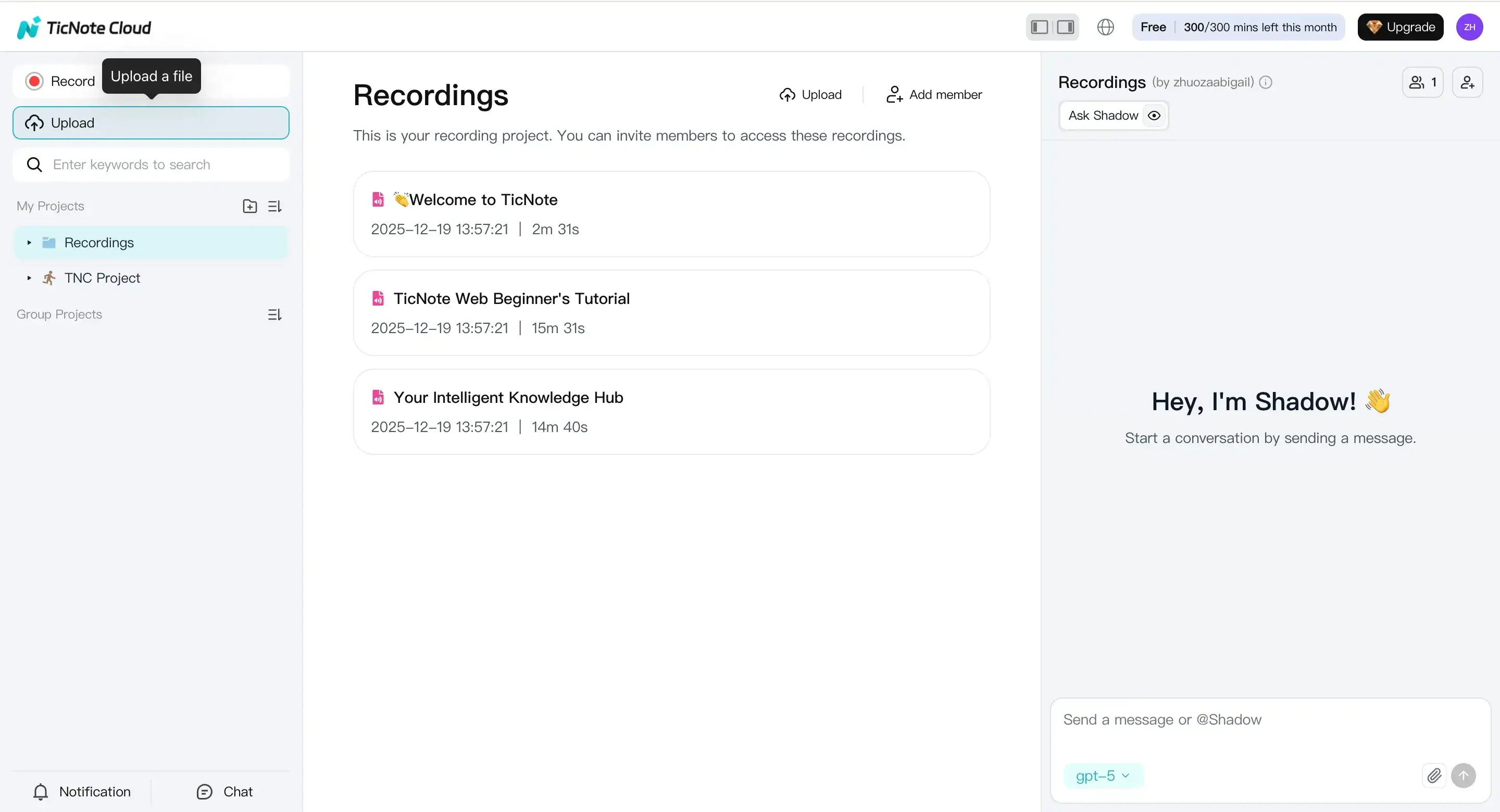
Before you generate audio, take 30 seconds to confirm the import looks right. Check headings, tables, and any footnotes. If a section looks messy, plan to summarize it instead of reading it word-for-word.
Step 2: Generate the podcast, then export what you need
Next, click the Podcast tab at the top. You'll see an AI-generated podcast audio plus a transcript based on the PDF.
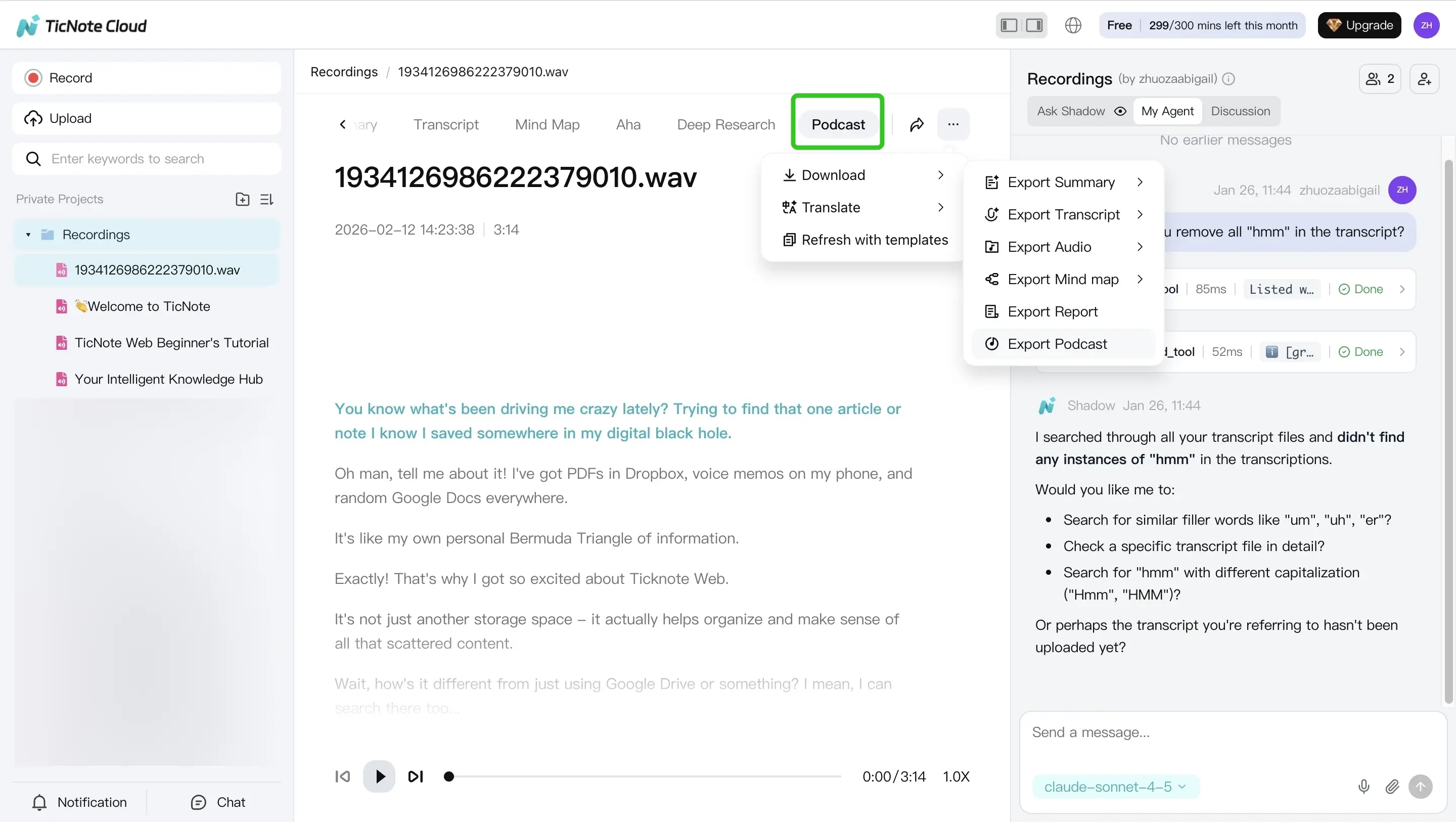
From here, review the structure fast. Look for awkward transitions, repeated lines, and sections that feel like "document language" instead of spoken language. When it's solid enough to edit, use the three-dots menu to export your assets.
What to save as "podcast-ready assets":
- WAV audio (best for editing and mastering)
- TXT transcript (fast fixes and easy show-note reuse)
- A working outline (episode flow, chapters, key points)
- A show notes draft (summary, key takeaways, any citations you'll mention)
App (iOS/Android): do the same on mobile when you're away from your desk
On mobile, open the TicNote app and tap the add button at the top. Create a new project or choose an existing one, then upload your PDF (and any other supported files you want to keep with it).
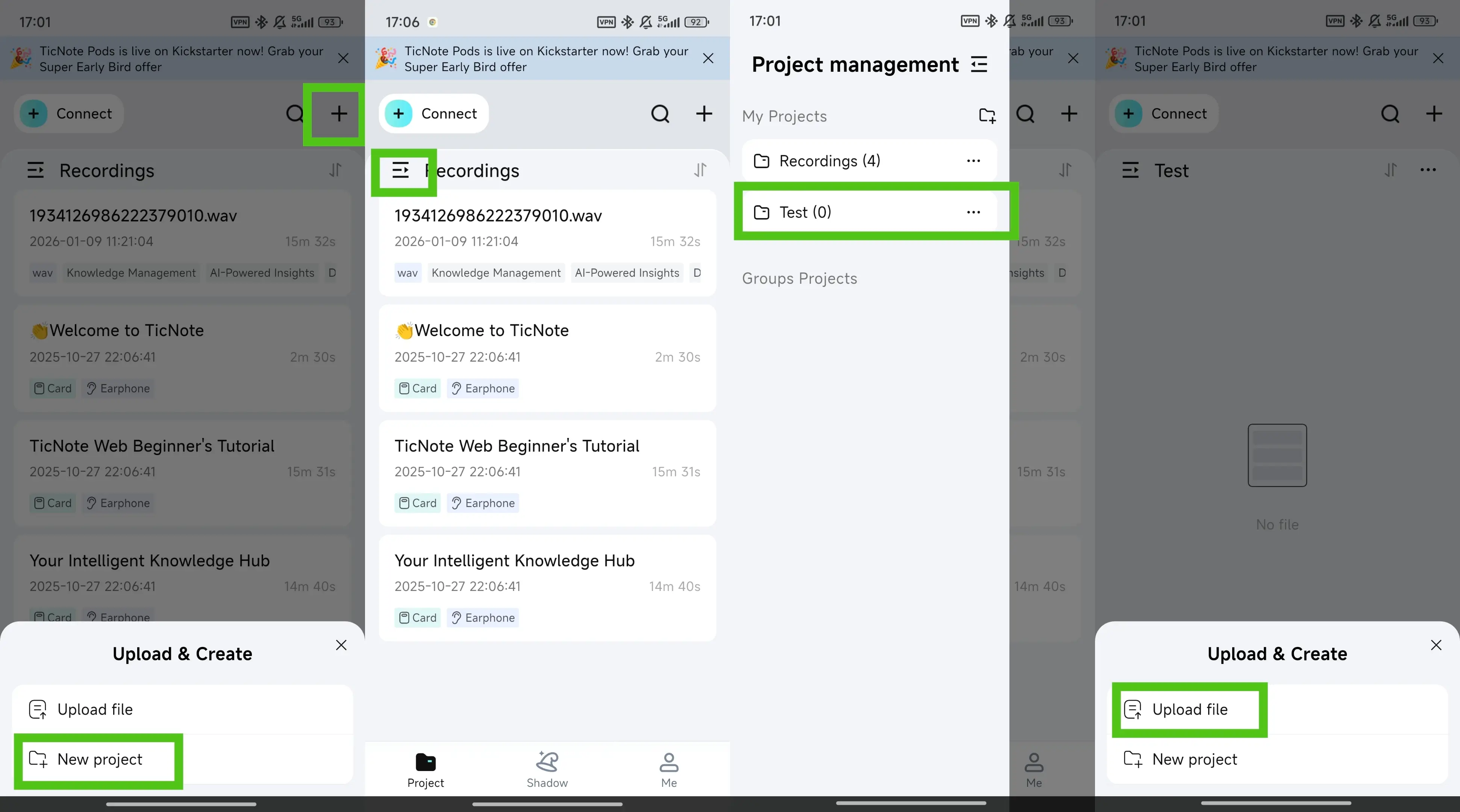
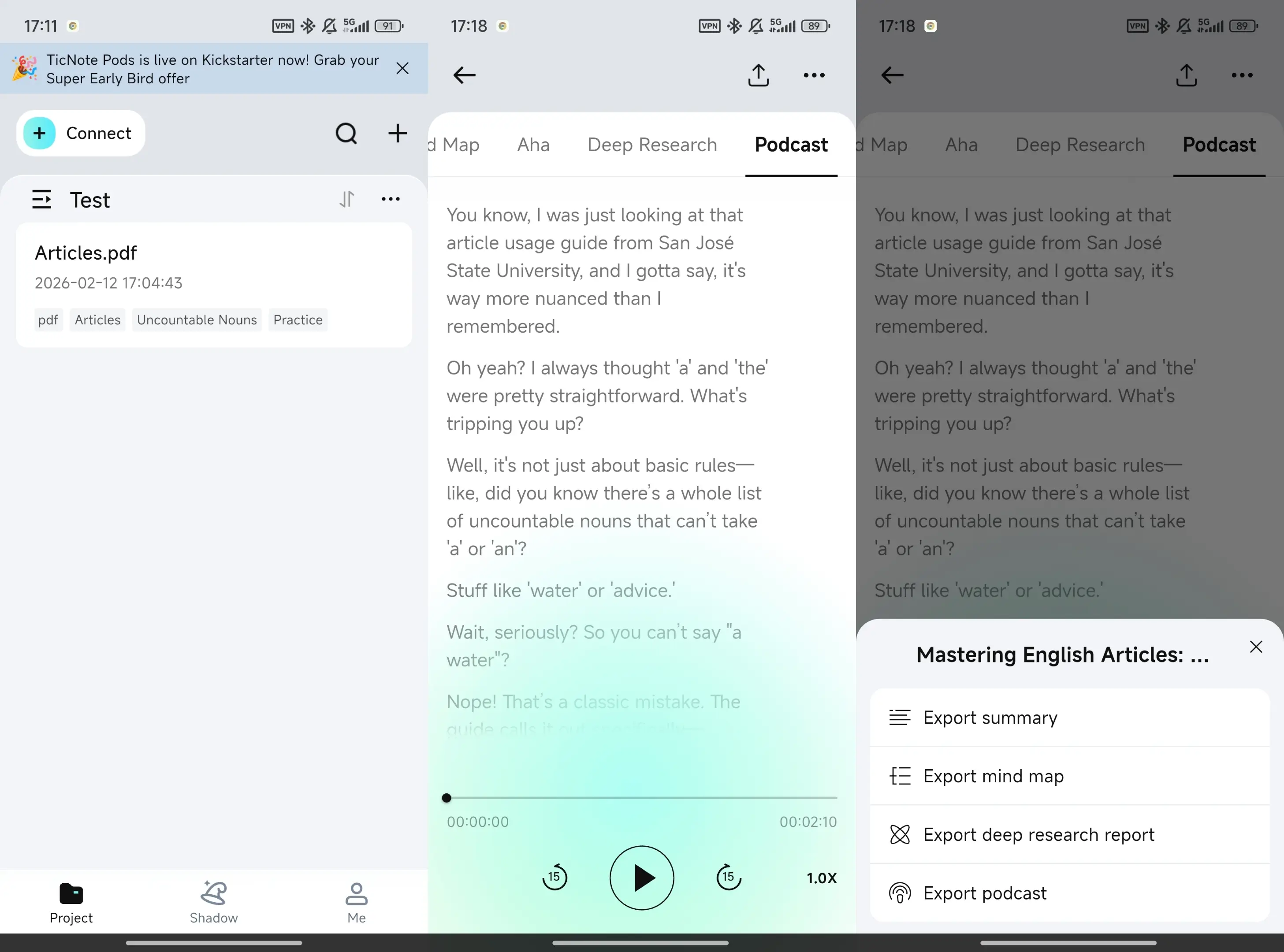
Then tap the Podcast tab. To export, use the three-dots menu, choose Export Podcast, pick the format, and export or share it to wherever your team edits.
Where TicNote Cloud fits beyond audio generation (optional but useful)
If you want a more "podcast-like" result, do a little planning before you hit generate. Use summaries and templates to shape an episode plan, then use Shadow chat to tighten the language and control length while staying grounded in the PDF.
If you serve a global audience, translation can help you create a second-language version from the same source. And for internal reviews, a mind map export is a quick way to get stakeholder sign-off on the flow before you publish.
Try TicNote Cloud for free to turn a PDF into editable podcast assets in one project.
What audio quality settings and editing steps make it sound professional?
Clean audio is mostly about smart defaults. When you turn a PDF into a podcast with AI, you'll get the best results if you export a solid "edit master," do a light cleanup pass, then publish a smaller file that's easy to stream.
Export formats that keep your edits clean (WAV vs MP3)
Use WAV for your master file. WAV keeps full quality, so edits don't stack up and sound crunchy.
Then export an MP3 for distribution. MP3 is smaller, so it loads fast on podcast apps.
Keep settings simple:
- Master: WAV at 44.1 kHz, 16-bit (great for most voice editing)
- Publish: MP3 at 128 to 192 kbps (mono is fine for voice)
Also, name versions so you don't lose track:
- EpisodeName_v1_edit.wav
- EpisodeName_v2_music.wav
- EpisodeName_final_192k.mp3
A beginner-safe edit chain that sounds "finished"
You don't need fancy plugins. A light, repeatable chain gets you 90 percent there:
- Trim long pauses and awkward gaps
- Normalize loudness so the whole episode feels even
- Add gentle noise reduction, only if needed (too much makes audio warbly)
Do three quick checks before you export:
- Volume jumps between sections or speakers
- Harsh "s" sounds (sibilance) that hurt on earbuds
- Loud breaths or mouth noise that distracts
Last step: listen on phone speakers and earbuds. If it works there, it'll work almost anywhere.
Show notes that make the episode easier to follow
Good show notes help listeners scan and come back later. Use this simple template:
- 2 to 3 sentence summary
- Key takeaways in bullets
- Links and sources mentioned
- Timestamps or chapter markers
For accessibility, include a transcript when you can and keep headings clear. Bonus: you can reuse the summary, bullets, and timestamps for email and social posts without rewriting from scratch. If you're also planning a launch, this minimal vs pro podcast launch plan will help you pick hosting and publishing steps that fit your time.
What are the legal and ethical rules for turning PDFs into podcasts?
Turning a PDF into audio can be quick. But rights and trust still matter. Before you publish, treat your PDF-to-podcast workflow like any other content reuse.
Check copyright and permissions before you publish
Private listening is usually lower risk. You're not distributing a copy to the public. Public publishing is different. If you upload the episode, you're making a new version of the work.
Use this quick checklist:
- Who owns the PDF (you, a client, a publisher)?
- What does the license allow (personal use, internal use, commercial use)?
- Is it an internal doc, client file, or paid report with strict limits?
- Are there tables, charts, or images with separate rights?
- Can you link to the source and quote only short excerpts?
When in doubt, ask for written permission. If quoting is allowed, keep quotes short, add context, and point listeners to the original source in show notes.
If you use a cloned voice, get clear consent
Voice cloning needs explicit consent from the voice owner. Avoid cloning public figures, even if samples are easy to find.
Set boundaries in writing:
- Where the voice can be used (which show, which channels)
- How long you can use it
- How the model and source audio are stored
- Who can access them (limit to the people who must)
Disclose AI audio and own accuracy
A simple disclosure builds trust. You can use one of these lines:
- "This episode was produced with AI-generated voice and human editing."
- "AI tools were used to draft and voice this episode; facts were reviewed by a human."
Even with AI, you're responsible for accuracy. Review names, numbers, and quotes. And don't upload sensitive PDFs unless you have approval and a clear data policy.
Example: a 10-page PDF turned into a 12-minute AI podcast episode
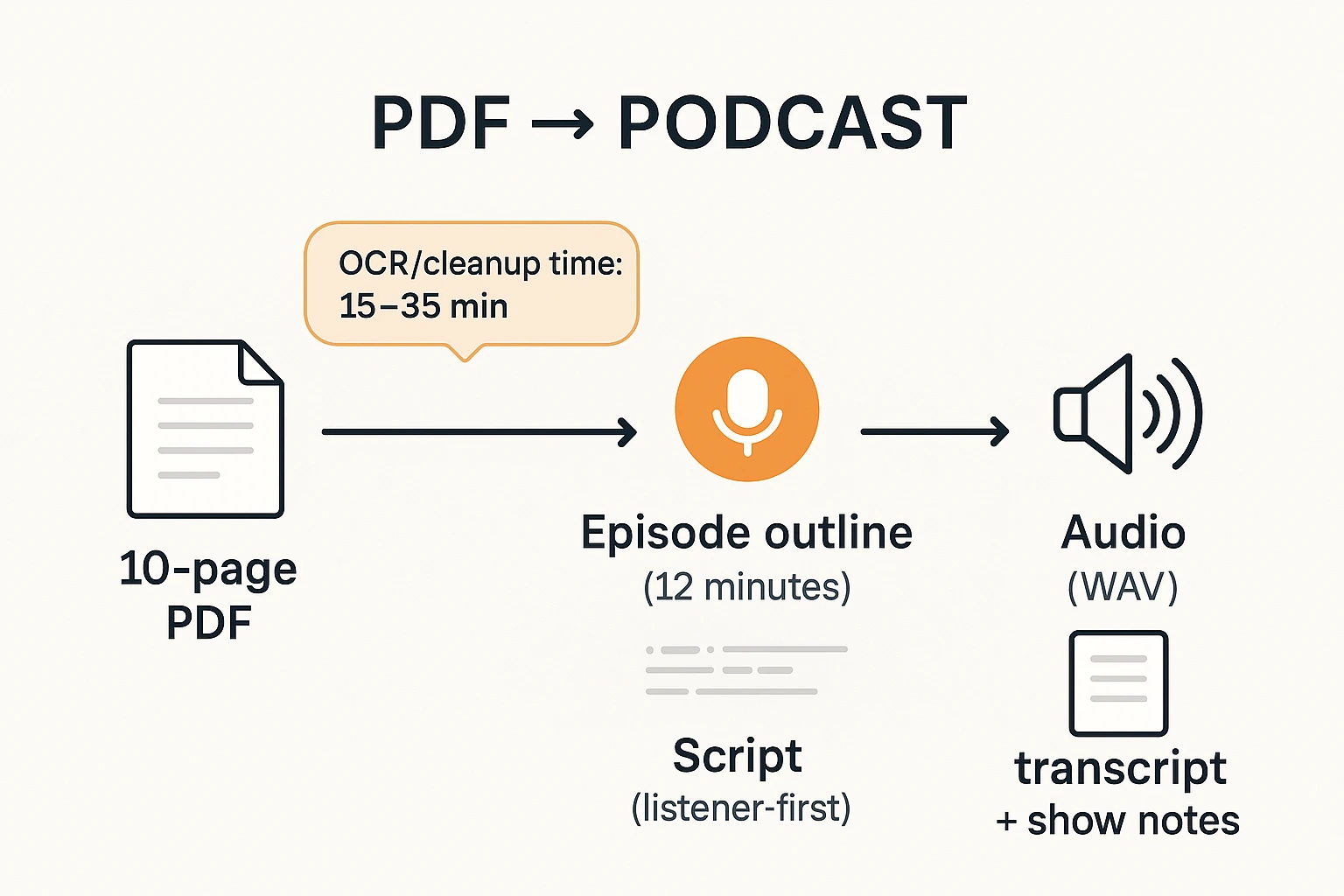
Here's a realistic mini case study you can copy. The input is a 10-page, text-heavy PDF report called "Q3 Content Performance Playbook," with two charts and one table. The audience is busy marketers and educators who want takeaways fast. The goal is a 12-minute episode that teaches the main findings and what to do next, while keeping any quotes and numbers faithful to the PDF. Also, you don't publish anything unless you have rights or written permission.
Input assumptions and constraints
- PDF type: mostly text, a few charts, one table, some footnotes
- Topic: content performance lessons and next actions
- Listener: time-poor, wants clear steps
- Constraints: verify quotes; say "according to the report" when citing; no public release without permission
Before and after: headings to listener-first segments
Before (PDF headings):
- Executive summary
- Methodology
- Channel results
- Top content themes
- Recommendations
After (podcast run-of-show):
- Intro (0:00) what you'll learn
- Segment 1 (0:45) the 3 biggest wins
- Segment 2 (3:30) what flopped and why
- Segment 3 (6:30) the simple playbook for next month
- Segment 4 (9:45) quick examples and common mistakes
- Recap + outro (11:15) next step and show notes
Chapter marks land at each segment start. Put any chart or table details in show notes, with the PDF page number.
Sample script excerpt (intro + one transition)
"Welcome back. Today we're turning a 10-page report into a plan you can use this week. According to the report, two channels drove most of the results, and one hidden theme explains why. I'll give you the three takeaways, then a simple checklist to try next.
Now, let's switch gears. Instead of reading the methodology, I'll tell you what it means in plain English, and what to watch out for. If you want the exact wording and chart notes, I've listed the page references in the show notes."
Time to produce (and what slowed it down)
A realistic timeline for a clean 12-minute episode:
- PDF prep and OCR cleanup: 15 to 35 minutes
- Outline and script rewrite: 30 to 60 minutes
- AI voice generation: 5 to 15 minutes
- Quick edit (pauses, misreads, music bed): 15 to 30 minutes
- Show notes, chapters, and citations: 15 to 25 minutes
Common slowdowns:
- Two-column layouts and tables that import out of order
- Bad OCR that merges words or drops footnotes
- Pronunciation fixes for brand names and acronyms
Next time, I'd build a short glossary first (names, acronyms, how to say them). It prevents rework during audio and editing.
TicNote Cloud as an alternative: how does it compare to TTS readers and manual workflows?
If you want a PDF to podcast workflow that's repeatable, compare tools by what they produce, not what they promise. A basic TTS (text-to-speech) reader can turn text into audio fast. But it won't give you a show structure, listener-friendly edits, or reusable episode assets.
Comparison table: outputs, control, and limits
| What you need | Generic TTS reader | TicNote Cloud style workflow | Manual scripting and editing |
| Outline and run of show | Usually no | Yes, via summaries and templates | Yes, but you write it |
| Editable script | Limited (often none) | Yes (generate, then revise) | Yes (full control) |
| Transcript | Sometimes | Yes (exportable) | Yes (if you create one) |
| Audio export options | Often MP3 only | WAV export | Any format, but you set it up |
| Show notes support | Minimal | Yes (summaries, key points, chapters) | Yes, but manual |
| Project organization | None | Project workspace for files and assets | Depends on your folders |
| Key constraints | Depends on clean extraction | Still needs review for accuracy and tone | Slowest, most effort |
| Rights and reuse | You still need rights | You still need rights | You still need rights |
When a simple TTS reader is enough
Use TTS when you need personal listening, a quick proofread, or full narration with near zero edits. It's also fine for internal drafts. Just don't confuse it with a podcast episode. A podcast needs an intro, pacing, transitions, and show notes.
When you want a "second brain" workflow (projects, Q&A, reuse)
If you publish often, or you work with a team, a "second brain" setup helps. You keep the PDF, your chats, summaries, and episode assets in one project. Then you can reuse the same source later for clips, follow-up episodes, or a newsletter.
TicNote Cloud's Shadow Q&A is useful when a PDF is dense. You can ask for plain-language explanations, define jargon, and turn key sections into listener-first talking points. If you want to move faster, generate your first AI summary in minutes and build the episode from that.


