


 Extension
TL;DR: What's the best Zoom alternative for your team in 2026?
Try TicNote Cloud for Free if you want any meeting platform to produce clean notes, editable transcripts, and ready-to-share outputs. For the meeting app itself, pick by scenario: internal meetings → match your suite; external calls → easiest guest join + host controls; webinars → registration, roles, and attendee limits; communities → channels plus moderation.
Problem: switching tools doesn't fix messy follow-ups. It often makes them worse (new links, new habits, same lost decisions). A practical fix is to use TicNote Cloud to capture meetings, edit the transcript, and reuse the content inside Projects.
Before you switch, verify 3 must-haves:
- Frictionless join (browser join, dial-in, low install friction)
- Admin controls (SSO/SCIM if needed, policies, retention)
- Recording + transcription path (where files live, who can access them)
No matter what you choose, treat meetings like assets: capture → edit → search → reuse across teams.
What should you look for in a Zoom alternative (beyond "video quality")?
A Zoom alternative isn't just a video app. It's a meeting system plus governance: how people join, how identity is managed, how data is kept, and how admins control risk. Start with shared definitions so buyers and IT stay aligned: SSO (single sign-on) lets users sign in with one company identity provider; SCIM (System for Cross-domain Identity Management) automates user provisioning and deprovisioning; GDPR (General Data Protection Regulation) is the EU privacy law that drives data handling requirements.
Meeting basics that matter (join flow, bandwidth, mobile, browser)
The biggest productivity killer is join friction. In most teams, you'll run 20–200 meetings per week, so small delays compound fast.
- Join friction: check if guests can join with a link, whether browser-only join works, and what defaults exist (lobby/waiting room, passcodes, authentication). Also note if users are forced into downloads for basic use.
- Reliability on real networks: test weak Wi‑Fi and mobile hotspots. Look for audio-first fallbacks, quick reconnect, and dial-in as a last resort.
- Device coverage: confirm feature parity across desktop and mobile. Browser versions often lag on advanced controls, so list what's missing.
- Meeting controls: validate host handoff, mute-on-entry, chat on/off, reaction controls, attendance list export, and whether these can be locked by policy.
Collaboration features (screen share, whiteboard, chat, breakout rooms)
Collaboration is where tools differ most, especially in workshops and client calls.
- Screen share modes: tab vs app vs full screen, multi-presenter handoffs, and remote control (important for IT support). If remote control is a requirement, verify it works on macOS and Windows with the same ease.
- Breakouts: look for pre-assignment, timers, a host "broadcast" message, and whether notes or links survive after rooms close.
- Whiteboards: decide if the built-in board replaces your current tool or is "good enough" for quick ideation. Pay attention to export formats and permission controls.
- Recording + notes: map where recordings, transcripts, and action items live after the call—and who can access them by default.
Admin and governance (roles, policies, retention)
Treat governance as a first-class feature, not a checkbox.
- Role model: confirm how owner/admin/host/co-host roles work, what guests can do, and whether meeting creation is limited to specific groups.
- Policy controls: verify admin-level settings for waiting room, recording permissions, external sharing, chat retention, and whether users can override policies.
- Retention and legal needs: ask for audit logs, export options, and whether eDiscovery/legal holds exist if you're in a regulated industry.
Integration fit (Google Workspace, Microsoft 365, Slack)
The best platform is often the one that fits your operating system for work.
- Calendar + email: ensure meeting links auto-insert into invites, room resources work, and join buttons behave consistently.
- Chat + docs: decide where follow-ups land (Slack, Teams, email, tasks) and whether the meeting tool supports that flow without copy-paste.
- CRM/help desk: for sales or support, check how meetings attach to customer records and how permissions are handled.
A practical decision rule: pick "ecosystem-first" when identity, compliance, and admin simplicity matter most; pick "best-of-breed" when meeting experience and collaboration features drive outcomes. Then document the trade-off so future audits—and future admins—don't have to guess.
How do top Zoom alternatives compare side-by-side?
Most "best of" lists fail because they compare different SKUs. One vendor lists meeting limits, another lists webinar limits, and pricing flips between per-host and per-user. The fix is simple: normalize the inputs, then compare. Use the table below as an apples-to-apples starting point, then verify the current caps in each vendor's docs because limits and bundles change often.
One hard number to anchor the process: Google Workspace Individual & Business editions — Google Meet (Google Workspace) lists "Up to 100 participants" for Business Starter, "Up to 150 participants" for Business Standard, and "Up to 500 participants" for Business Plus.
What each column means (plain-English definitions)
- Best for: the most common "wins" based on ecosystem and workflow.
- Max participants: the typical cap for interactive meetings (not webinars). This is often plan-based.
- Time limit: how long a single meeting can run before it ends.
- Breakout rooms: can you split into small groups and bring people back?
- Webinar mode: a separate "broadcast" style product (often a different SKU).
- Dial-in: PSTN phone numbers for audio (commonly an add-on).
- Recording: local and/or cloud recording for meetings.
- Transcription/captions: live captions, post-call transcripts, or both (often plan- or region-based).
- SSO/SAML: single sign-on for managed accounts (SAML is the common standard).
- SCIM: automated user provisioning (create/disable users via identity provider).
- Data residency signals: whether the vendor offers region selection or stated residency controls (still verify in your security review).
- Free plan: a usable free tier (not just a time-limited trial).
- Works well with a separate AI meeting notes layer: "yes" if teams commonly pair it with an external recording/transcript/deliverables tool.
Normalized comparison table (verify limits; features may vary by plan/region)
| Platform | Best for | Max participants | Time limit | Breakout rooms | Webinar mode | Dial-in | Recording | Transcription/captions | SSO/SAML | SCIM | Data residency signals | Free plan | Works well with a separate AI meeting notes layer |
| Google Meet | Google Workspace teams; fast guest joins | Varies by plan* | Varies by plan* | Yes* | Yes (separate SKU)* | Add-on/plan* | Yes* | Varies by plan/region* | Yes (Workspace tiers)* | Yes (admin tiers)* | Region controls available* | Yes | Yes |
| Microsoft Teams | Microsoft 365 shops; Teams-first collaboration | Varies by plan* | Varies by plan* | Yes* | Yes (Events/Webinars)* | Add-on/plan* | Yes* | Varies by license* | Yes* | Yes* | Tenant/region options* | Yes | Yes |
| Cisco Webex | IT-led rollouts; regulated orgs; mature admin | Varies by plan* | Varies by plan* | Yes* | Yes (Webex Webinars)* | Add-on/plan* | Yes* | Yes/varies* | Yes* | Yes* | Data residency options* | Yes (limited)* | Yes |
| GoTo Meeting | Standalone meetings; simple deployment | Varies by plan* | Varies by plan* | Yes* | Yes (webinar product)* | Often included/plan* | Yes* | Add-on/plan* | Yes (higher tiers)* | Varies* | Trust center guidance* | Limited/varies* | Yes |
| Slack Huddles | Quick internal calls; chat-first teams | Varies by plan* | Varies* | No | No | No | Limited/varies* | Varies/limited* | Yes (business tiers)* | Yes (business tiers)* | Enterprise controls* | Yes | Yes |
| Jitsi | Budget, lightweight calls; self-host options | Varies by deployment* | Varies* | Limited/varies* | No | Varies* | Varies* | Varies* | Varies* | Varies* | Depends on hosting* | Yes | Yes |
| Discord | Communities; always-on voice channels | Varies by feature* | Varies* | No | No | No | Limited/varies* | Limited/none* | Limited* | No* | Limited enterprise signals* | Yes | Yes |
| Webinar-first (examples) | Marketing webinars; registration + moderation | Often higher caps* | Varies by plan* | Sometimes* | Core product | Often add-on* | Yes* | Varies* | Yes (business tiers)* | Yes/varies* | Varies by vendor* | Rare* | Yes |
*Footnote: "Varies" usually means plan tier, paid add-on, region, or a separate SKU (especially for webinars, dial-in, and transcription).
How to read the table (what to prioritize first)
- Ecosystem fit comes first. If your org already runs Google Workspace or Microsoft 365, the best alternative is often the one that matches your identity, calendar, and files. Also test guest join in a browser. External calls are where friction shows up fastest.
- Governance is your gate. IT should confirm SSO/SAML, SCIM, retention controls, eDiscovery, and export options. If you can't automate user lifecycle, admin overhead jumps fast.
- Get real about recording and transcripts. Some tools include captions but charge for transcripts. Others record fine but restrict downloads. Decide who owns the recording, where it's stored, and how long it stays.
- Separate "meetings" from "webinars" and "communities." Webinar features usually mean registration, roles (host/panelist/attendee), Q&A, moderation, and post-event reporting. Community tools optimize for always-on chat and voice, not formal governance.
Common gotchas to watch for:
- Add-on costs for dial-in, cloud recording, or transcription.
- Attendee caps differ from organizer/host caps.
- Region differences: features and data controls can change by country.
- "Webinar mode" may require a different contract than meetings.
Which Zoom alternative is best for each use case?
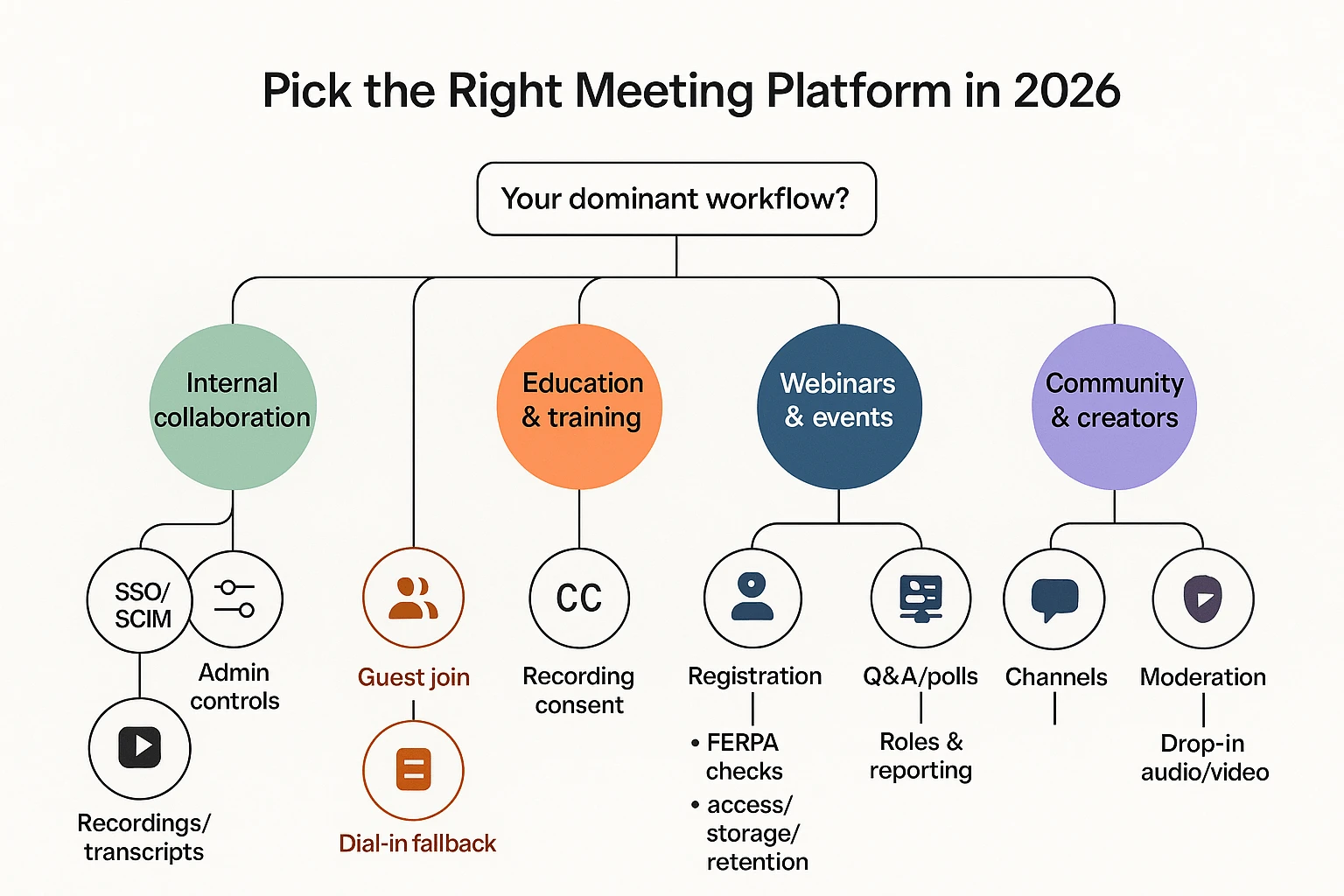
Use one rule to pick fast: choose the platform that matches your dominant workflow—internal teamwork, customer calls, teaching, events, or community. The "best" option isn't the one with the most features. It's the one that fits your join flow, admin rules, and how you prove what happened after the call.
Education and training (classes, office hours, FERPA checks)
If you teach, frictionless join matters more than fancy layouts. Optimize for: browser-only join, breakout rooms, live captions, and clear "who can record" controls.
What to prioritize:
- Student join flow: Can students join in one click on school devices?
- Breakouts + re-join: Fast room moves, clear host controls, easy return.
- Captions and accessibility: Captions that work reliably for long sessions.
- Recording clarity: Obvious indicators, simple start/stop, and host-only options.
FERPA buyer checks (keep it simple and auditable):
- Who can access recordings? Admins, teachers, students, guardians—spell it out.
- Where are recordings stored? Cloud location, ownership, and download rules.
- Retention controls: Can you set retention by class/term and delete on schedule?
Trade-off to expect: tools built for schools often win on join ease, but can be weaker on enterprise admin depth (SSO/SCIM and fine-grained policies).
Tip: separate the "teaching platform choice" from "learning asset creation." A meeting app runs the class. A transcript and summary system turns that class into reusable notes, study guides, and office-hour FAQs.
Sales demos and customer calls (external join + recording rules)
For sales, the best choice is usually the one that feels easiest for a guest. If a prospect struggles to join, you've already lost time and trust.
What to prioritize:
- Guest join: No account required, minimal downloads, mobile-friendly join.
- Dial-in fallback: A phone option when networks fail.
- Host controls: Waiting room/lobby, screen share limits, remove participant.
- Recording notice: Clear consent prompts and visible recording indicators.
Trade-offs:
- Platforms that maximize guest ease sometimes offer fewer governance toggles.
- Platforms that maximize IT control can add join friction for external calls.
Security review angle: expect client questionnaires. You'll want simple answers for external sharing rules (can you restrict recording links, disable downloads, and limit who can join by domain?).
Workflow win: pick a toolchain that turns calls into outcomes fast—follow-up emails, next-step lists, and customer-facing FAQs—without rewriting everything by hand.
Support and onboarding (screen control, shared notes)
Support calls fail when screen share fails. Prioritize stability over "nice to have" features.
What to prioritize:
- Stable screen share: Low lag, reliable audio share.
- Optional remote control: Helpful for guided fixes and onboarding.
- Fast handoffs: Easy to add another agent or transfer ownership.
Recommended process pairing (keeps tickets clean):
- Capture issue + environment (OS/app version).
- Log steps tried (in order).
- Confirm resolution + next actions (who owns what, by when).
Trade-off: some tools do remote control well but have weaker reporting or admin audit trails. Decide which pain costs you more: slower fixes or weaker governance.
Webinars and large events (registration, Q&A, attendee roles)
First, clarify what you're replacing:
- Meetings (interactive, everyone can talk)
- Webinars (one-to-many with controlled interaction)
- Events (webinar plus registration, reminders, reporting, and roles)
If webinars are core, you'll usually do best with a webinar-first product. If webinars are occasional, a meeting platform plus a webinar add-on can be enough.
What to prioritize:
- Registration + reminders: Built-in emails and calendar flows.
- Moderator tools: Q&A queue, chat moderation, and speaker controls.
- Attendee roles: Host, co-host, panelist, attendee permissions.
- Reporting: Attendance, engagement signals, exports for follow-up.
Trade-off: webinar systems can be less flexible for small team meetings and daily collaboration.
Community and creator groups (channels, moderation)
For communities, persistent spaces beat one-off meetings. Look for channels, roles, and lightweight drop-in audio/video.
What to prioritize:
- Persistent channels: Topics don't reset every meeting.
- Moderation: Roles, permissions, and anti-spam controls.
- Lightweight live: Quick audio rooms, casual video, easy invites.
Key trade-off: community-first tools can be weaker on corporate governance (SSO/SCIM, retention policies, audit logs). If you're in a regulated org, you may need stricter admin controls—even if the community feel is less "fun."
Pick-by-scenario: which comparison columns matter most?
Use this mapping to read the side-by-side matrix faster:
- Education/training: browser join, breakout rooms, captions, recording controls, retention/data location signals
- Sales/customer calls: guest join, dial-in, host controls, external sharing controls, recording notice options
- Support/onboarding: screen share stability, remote control (optional), quick handoff/co-hosting, recording/transcript availability
- Webinars/events: webinar mode, registration, Q&A/polls, roles, attendee reporting, capacity limits
- Community/creators: persistent channels, moderation/roles, drop-in audio/video, simple invites (then check governance gaps)
What security, privacy, and compliance checks should buyers run?
This is a buyer verification checklist, not legal advice. Bring IT and security in early, and write down the final answers you get from vendors. A "zoom alternative" can look great in a demo, but risk usually hides in defaults: who can join, who can record, where data sits, and how fast access is removed.
1) Start with meeting security basics (controls you can test in 10 minutes)
These controls reduce the two most common problems: unwanted guests and accidental data exposure.
- Encryption: confirm encryption in transit and at rest, and ask what cryptography is used.
- Join controls: meeting passwords, waiting room (lobby), and "lock meeting" once everyone is in.
- Anti-impersonation: require signed-in users, show verified domains, and restrict name changes.
- Screen-share limits: host-only by default, and set who can annotate.
Also check external sharing behavior:
- Domain controls: can you allow only your company domains, or approved partners?
- Link forwarding: does the invite link work for anyone, or only authenticated accounts?
- Guest experience: can guests join in browser without weakening controls?
2) Lock down recording and consent (where most sensitive data leaks)
Recording is often the highest-risk feature, because it captures audio, video, chat, and shared screens.
Use this quick recording checklist:
- Permissions: who can start/stop recording (host only vs all participants).
- Notice and consent: visible recording indicators, participant notifications, and join-time disclaimers.
- Content scope: does it record chat, captions, reactions, and shared files?
- Download rules: can end users download recordings, or is it admin-controlled?
If your team uses transcription or AI notes, confirm whether that data is treated like a recording (same retention, same access rules).
3) Verify identity and account lifecycle (SSO, SCIM, MFA)
Identity is the difference between "we think we're secure" and "we can prove it." In most orgs, access control failures come from unmanaged accounts.
Prioritize these three:
- SSO (SAML/OIDC): enforce central sign-in and conditional access (device, location, risk).
- SCIM (automated provisioning): add and remove users automatically to avoid orphan accounts.
- MFA (multi-factor authentication): require it for admins, and ideally for all users.
Ask one direct question: "How fast is deprovisioning?" Your target should be minutes, not days.
4) Inspect data handling: storage, retention, eDiscovery, and exports
Treat meetings as business records. Then check if the platform supports your policy.
Key questions to document:
- Storage location: vendor-hosted cloud vs your cloud, and what options exist.
- Retention: default retention (often 'forever' unless changed), custom policies, and deletion workflows.
- eDiscovery and audit: admin logs, access logs, legal hold, and who can run searches.
- Exports: supported formats for recordings and transcripts, plus limits and watermarking.
A simple rule: if you can't export or audit it, you can't govern it.
5) Data residency + GDPR signals (questions vendors should answer clearly)
You don't need a law degree here. You need clear vendor answers and a paper trail.
Ask for:
- Region options: where your data is stored and processed (and whether you can choose).
- Subprocessors: the list of third parties that touch your data.
- DPA (Data Processing Agreement): availability, and who is "processor" vs "controller."
- Breach notice terms: timelines, scope, and contact path.
GDPR basics to validate in plain language: can you support access requests, deletion, and cross-border transfer controls under your policy.
6) Regulated industries: HIPAA/BAA and FERPA (verification-first)
If you're in healthcare, don't assume "HIPAA-ready" claims mean you're covered. Confirm if the vendor offers a BAA, because the U.S. Department of Health & Human Services (HHS) — Business Associates states the HIPAA Privacy Rule requires covered entities to have contracts ("business associate contracts") in place with their business associates. Then ask what features must be enabled (like access logs, encryption settings, and retention) for the BAA to apply.
For education, verify FERPA alignment by checking:
- Role-based access: who can see student-related recordings and transcripts.
- Sharing rules: external guests, link forwarding, and downloads.
- "School official" access: map vendor support staff access to your policy.
Buyer-ready checklist (copy into your eval doc)
- Meeting access: authenticated-only, domain allowlist, waiting room, lock meeting
- Recording: host-only control, clear notice/consent, download and sharing restrictions
- Identity: SSO (SAML/OIDC), SCIM, MFA required for admins
- Governance: retention policies, deletion workflows, audit logs, legal hold/eDiscovery
- Data location: residency options, subprocessors list, DPA, breach notice terms
- Regulated needs: BAA availability (HIPAA), FERPA access controls and sharing rules
Document answers, note defaults, and record who approved the risk. That's how you avoid compliance surprises after rollout.
What does switching away from Zoom actually involve?
Switching off Zoom is less "flip a switch" and more a small project. You're changing three things at once: the tech (calendar links, rooms, recording), the people (how hosts run calls), and the rules (security, retention, guest access). If you plan those in order, the cutover is usually measured in days, not months.
Plan the technical migration (calendar, meeting links, rooms)
Start by mapping what you actually run today. Most teams are surprised by how many meetings are "set and forget" recurring series.
- Inventory what must keep working
- Recurring meetings (exec staff, standups, 1:1s)
- Webinar or event flows (registration, panelists, Q&A)
- Meeting rooms and shared devices (Windows/Mac mini PCs, Zoom Rooms, SIP/H.323)
- Dial-in numbers and any phone add-ons
- Update calendars and invite templates
- Set the new provider as the default in Google Calendar or Outlook add-ins
- Create 2–3 invite templates (internal, external, webinar/event)
- Define a "new link policy": do you replace links on existing series or only new meetings?
- Validate rooms and audio paths
- Test each room for camera, mic pickup, echo cancel, and screen share
- Run at least one "worst case" call: laptop + room join + external guest + dial-in
- Confirm captions and recording permissions behave as expected
- Decide what happens to recordings
- Choose what to keep in Zoom vs export (legal, HR, customer calls)
- Define the new system of record (drive, LMS, knowledge base)
- Set retention rules (example: 30/90/365 days by meeting type)
Run training and change management (hosts vs attendees)
Train hosts first. Hosts create most of the failure modes.
- Host training (45–60 minutes): scheduling, lobby/waiting room, screen share controls, recording, breakout rooms, and "what to do when audio fails."
- Attendee training (10–15 minutes): join flow, mute rules, chat, captions, and basic etiquette.
- Support plan: a "Day 1" channel for live help and a "Week 2" channel for cleanup issues. Add a short FAQ covering join problems, dial-in, and where recordings live.
Keep interoperability with Zoom users (guests, dial-in, backups)
You'll still meet with people who stay on Zoom.
- External guests: confirm they can join without an account, and from a browser if installs are blocked.
- Fallback plan: pick one standard backup (dial-in bridge, secondary meeting link, or "switch-to-phone" rule for exec calls).
- Browser-only join: test in a locked-down environment (no extensions, strict cookies) before rollout.
Avoid cost model traps (seats, add-ons, transition overlap)
Pricing can look cheap until you normalize who needs a paid license.
- Seat definition: is billing per organizer, per named user, or per presenter/attendee?
- Add-ons to price in: cloud recording storage, transcription, webinar mode, dial-in numbers, and international calling.
- Hidden costs: 2–4 weeks of duplicate tooling during transition, IT time for SSO/SCIM setup, and training time for hosts.
Zoom replacement checklist (copy into a ticket)
- List all recurring meetings and owners; flag "cannot fail" meetings
- Identify webinars/events and required features (registration, Q&A, panel roles)
- Confirm guest join options (account-free, browser-only)
- Confirm dial-in needs and countries; order numbers if required
- Validate SSO, SCIM provisioning, and admin roles
- Set recording policy: on/off by default, retention, storage location
- Test 3 rooms end-to-end (audio, share, captions, recording)
- Create invite templates and update calendar defaults
- Deliver host training; publish attendee quick steps and FAQ
- Define fallback policy and comms plan for cutover week
Go/no-go for pilot: you're ready when 10–20 users can run a week of meetings with (1) zero room failures, (2) predictable guest join, (3) recordings landing in the right place, and (4) admins able to support access without manual fixes.
How can you capture, transcribe, and turn meetings into deliverables (without bots)?
The steps below will be demonstrated using TicNote Cloud as an example, but the workflow is tool-agnostic: capture clean audio, keep the source, structure the notes, then ship a deliverable your team can reuse. This matters when you're moving off Zoom (or testing a zoom alternative) and you still need a reliable way to turn meetings into decisions, action items, and client-ready outputs.
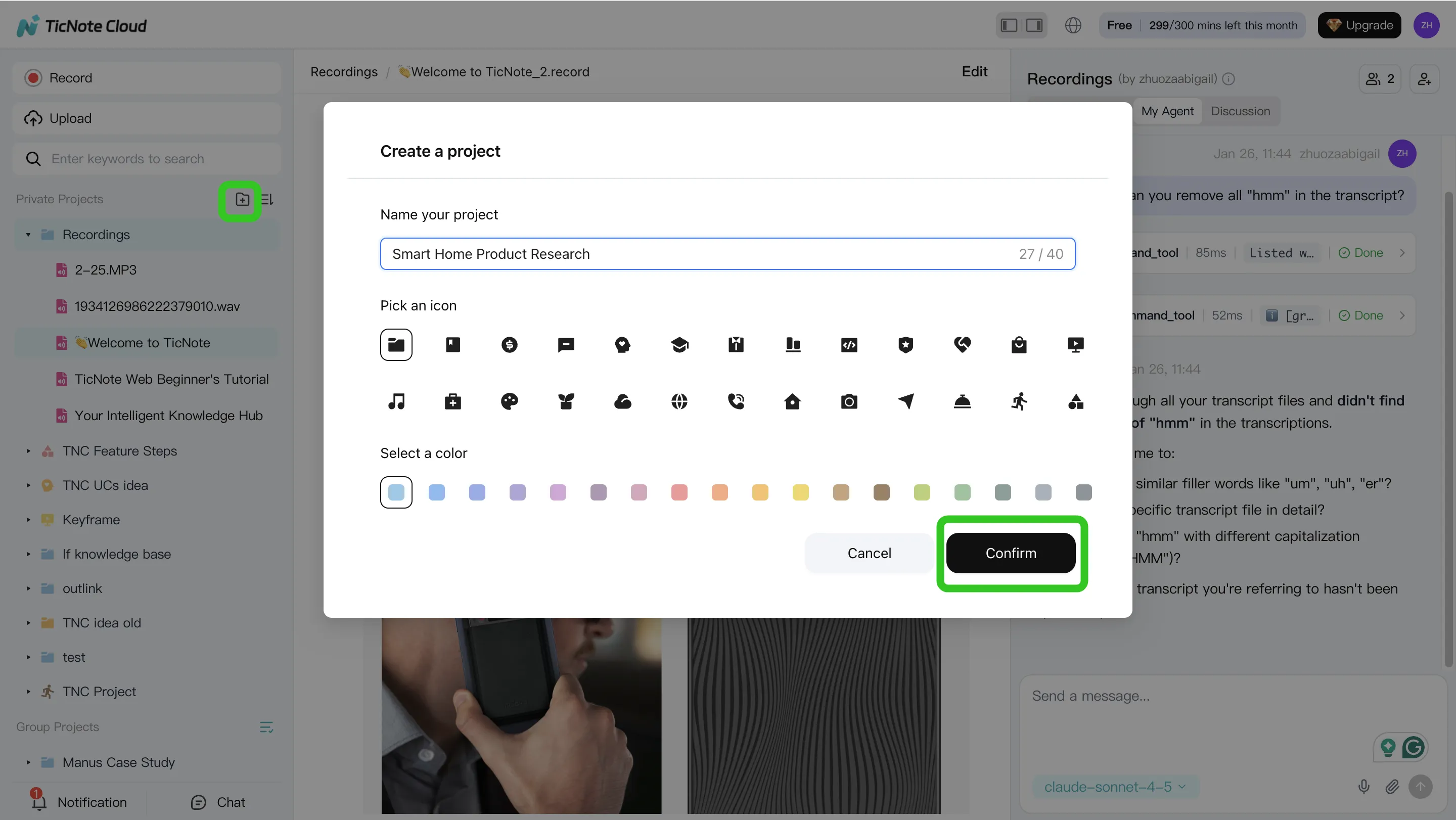
Step 1) Create a Project and add meeting content (plus context)
Start by creating a Project for a client, team, or topic. A Project is the container that keeps recordings, transcripts, and reference files together, so your outputs don't lose context.
In TicNote Cloud Web Studio, open an existing Project or create a new one. Then add the meeting and any supporting files (agenda, brief, deck, chat export, notes). The goal is simple: one place where everything related to the discussion lives.
You can add content two ways:
- Direct upload: use the upload control in the file area to add audio, video, and documents.
- Via Shadow AI attachment: use the attachment icon in the chat panel, upload files, and ask Shadow AI to file them into the right folder.
Capture options (bot-free) depend on the meeting platform:
- Google Meet or Microsoft Teams: use a browser extension for bot-free capture (no "meeting bot" joining the call).
- Zoom: use app capture or upload the Zoom recording after the meeting.
Step 2) Use Shadow AI to search, analyze, edit, and organize
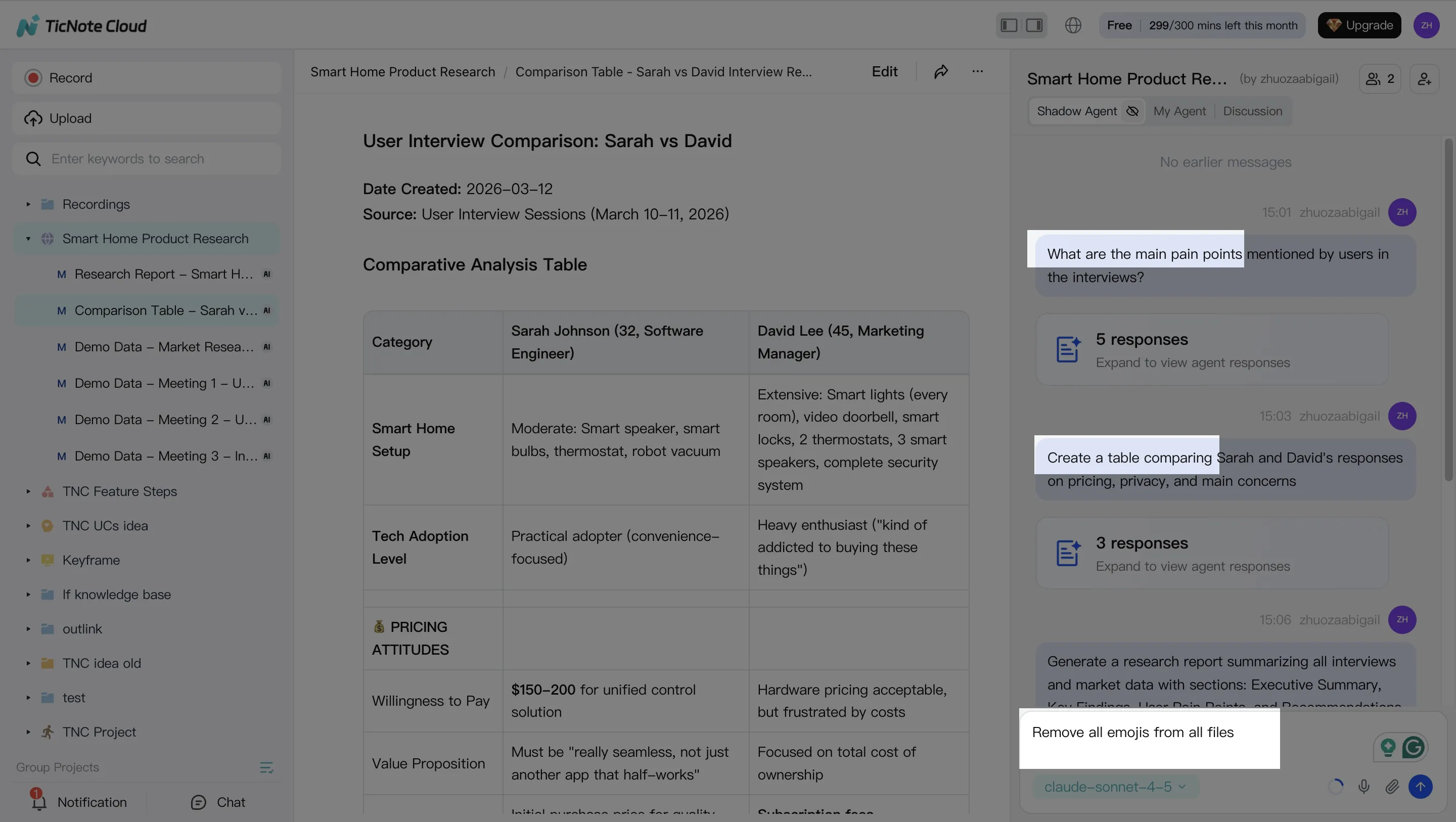
Once your Project has content, use Shadow AI to pull out what people actually need after the call: decisions, owners, risks, and next steps. Keep prompts short and specific.
A practical set of queries to run first:
- "What was decided?"
- "Who owns what, and by when?"
- "What are the open risks and blockers?"
Then clean and structure the transcript so it's usable later. This is where teams usually save time because you're turning a raw transcript into a working doc.
Common cleanup tasks:
- Fix names, product terms, and acronyms.
- Add section headings (so the transcript scans fast).
- Mark action items clearly.
- Create a reusable structure like: Decisions, Open questions, Follow-ups.
Step 3) Generate deliverables (and keep them traceable)
Next, generate outputs people will copy into real workflows. In TicNote Cloud, you can ask Shadow AI directly or use the Generate flow to create multi-format deliverables.
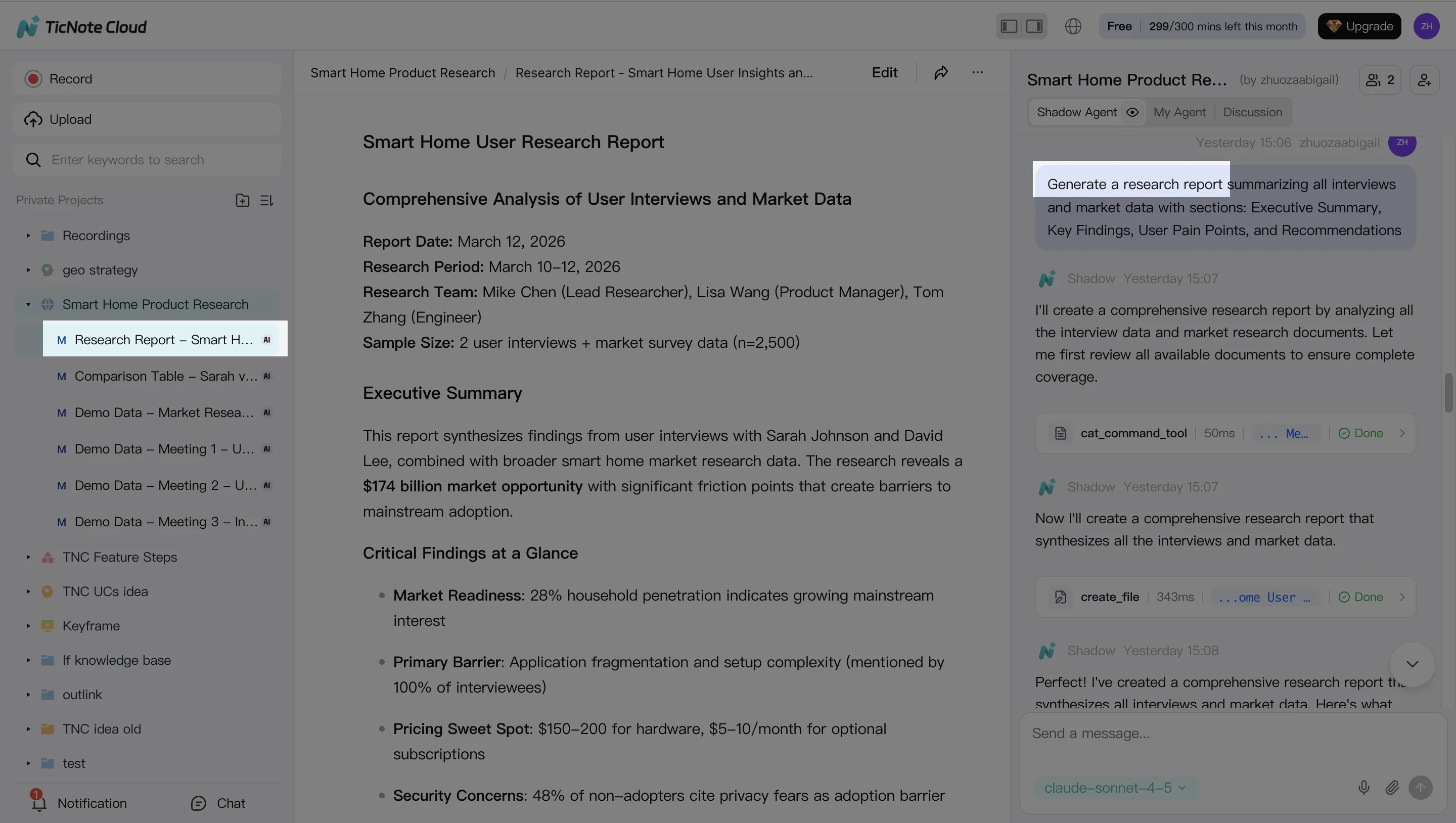
For most teams, start with these four deliverables:
- A tight meeting summary (for people who missed it)
- A decision log (what changed, and why)
- A follow-up email (owners + deadlines)
- A client-ready report (what you did, what you learned, what's next)
Traceability is the key control point. Don't accept "AI said so." Keep citations or links back to the exact transcript segments, so reviewers can verify each claim without rewatching the whole recording.
Step 4) Review, refine, and collaborate (with permissions)
Finally, treat outputs like shared work products. Assign roles, collect comments, and revise sections fast.
In TicNote Cloud, share the Project with Owners/Members/Guests, then collaborate in-place: comment on transcript sections, request revisions, and confirm that any external share matches your permissions policy.
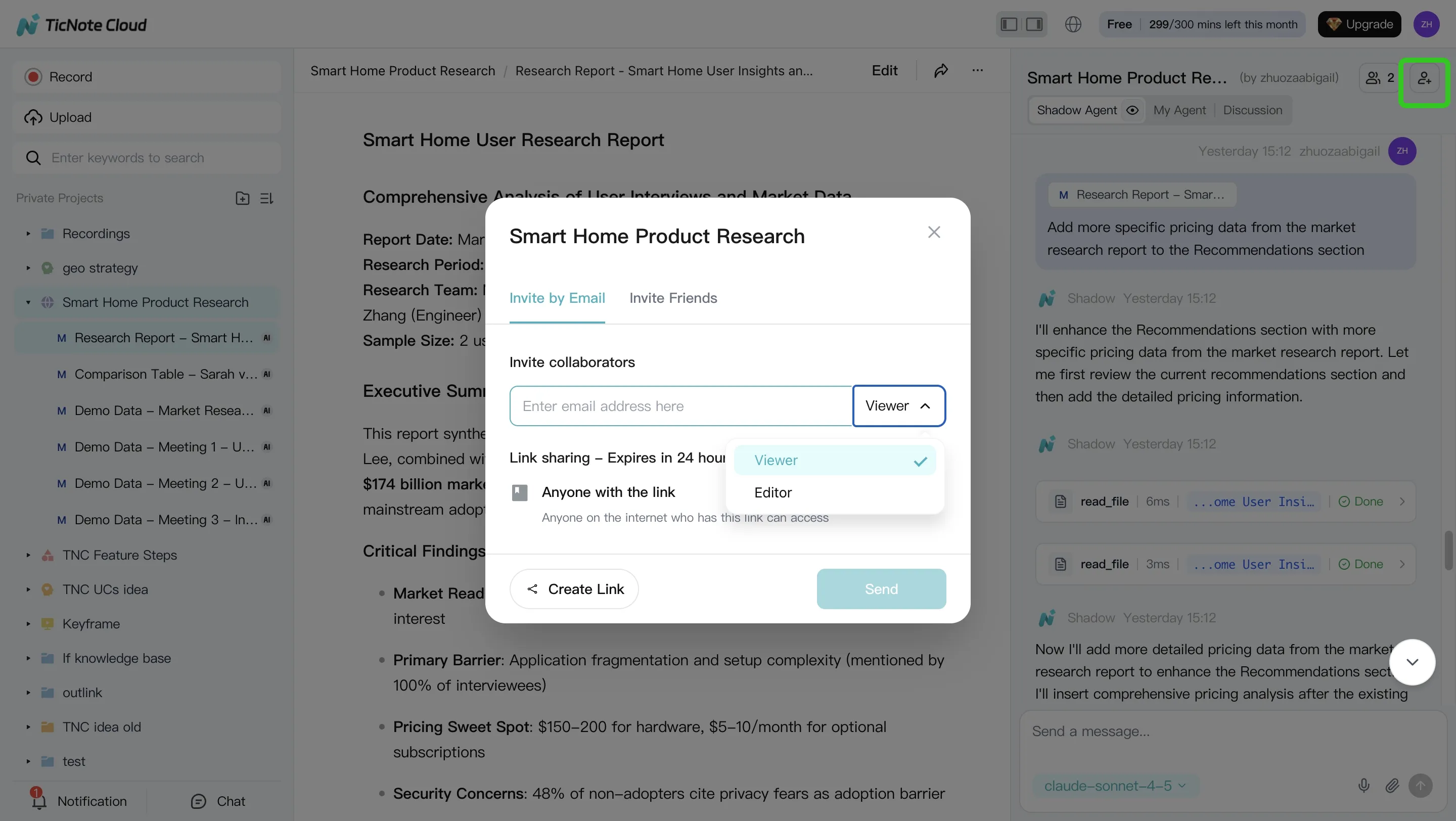
A simple review checklist before you send anything out:
- Are decisions and owners explicit (names + dates)?
- Are sensitive items removed or access-limited?
- Can every key claim be traced back to the source?
App workflow (quick summary)
On mobile, the flow stays short: create a Project, record or upload audio, run summaries and action items, then export or share the result for follow-up. It's the same outcome: one Project that holds the source and the deliverable together.
What can TicNote Cloud do that most meeting tools can't? (exclusive capabilities)
Most video platforms are built to host the call. TicNote Cloud is built for what happens after the call: turning messy conversation into clean, reusable work. So if you're choosing a zoom alternative in 2026, it helps to judge tools on "meeting outcomes," not just call quality.
Edit the transcript like a working doc (not a dead export)
Most meeting tools treat the transcript as a log: view it, download it, move on. TicNote Cloud treats it as a team artifact you can improve.
That matters in real life because transcripts are often wrong in the most expensive places: names, product jargon, acronyms, and numbers. With editable transcripts, you can:
- Fix terms and names so clients don't see confusion
- Add headings and structure so skimming is fast
- Collaborate with inline edits and comments instead of passing a doc around
This is the difference between "we recorded it" and "we can actually use it." It also reduces rework when someone asks, "What did we decide?" two weeks later.
Publish one-click deliverables in the format your team actually needs
Transcription is only step one. Teams still need outputs they can ship: status updates, research summaries, meeting minutes, and proposal notes. TicNote Cloud can generate deliverables from your meeting content in multiple formats, so you don't have to copy-paste notes into four different tools.
Common outputs and where they fit best:
- PDF or Word report: best for stakeholders, approvals, and client-ready summaries
- HTML presentation: best for fast sharing and async review without slide editing
- Mind map (PNG/Xmind): best for planning, themes, and "what connects to what"
- Podcast + notes: best for internal recap, onboarding, and review on the go
You can also export transcripts and summaries to practical formats (TXT/DOCX/PDF and Markdown/DOCX/PDF). This pairs well with any video stack because "AI meeting notes and summaries" should follow the work, not stay trapped in one meeting app.
Ask questions across many meetings and docs—with citations
Single-meeting summaries are easy. The harder job is cross-meeting memory: pulling answers from weeks of calls, plus documents, inside one workspace.
In TicNote Cloud, Projects act like containers for meetings and files. You can ask questions like:
- What changed since last week's customer calls?
- Which risks came up in the last three standups?
- What did we promise the client in kickoff vs the last review?
The key is citation behavior. Answers should point back to the source excerpts, so teammates can verify context and reduce misquotes.
If you also want a deeper comparison of "cited answers" vs generic chat, see this guide to work-focused ChatGPT alternatives for teams.
Keep work accountable with traceable operations and team permissions
When AI generates content, teams need to know what changed and who can see it. TicNote Cloud supports traceable operations (a record of what was generated or modified) and role-based sharing with Owner/Member/Guest permissions.
That's especially useful when you're sharing client-safe minutes, limiting access to sensitive interviews, or reviewing edits before a report goes out.
Light comparison note: TicNote Cloud complements Meet, Teams, and Zoom-style platforms rather than replacing your video meeting tool. It's the layer that turns recordings and notes into outcomes your team can reuse.
How do you estimate ROI from a Zoom alternative + AI meeting workspace?
ROI is simplest when you treat meetings like operations work: time in, outcomes out. The point of a Zoom alternative (plus an AI meeting workspace) isn't "better video." It's fewer hours spent rewriting recaps, chasing action items, and searching for past decisions.
Use a conservative ROI formula
Start with a baseline for one week. Then change one variable at a time.
ROI per week = (hours saved per week × loaded hourly cost) − tool costs
Where "loaded cost" means wages plus benefits and overhead. Many teams use 1.25× to 1.4× of base pay as a rough loaded rate.
Focus your baseline on three buckets:
- Notes + recap drafting time (before a recap is sent)
- Follow-up time (assignments, reminders, status pings)
- Search time (finding "what did we decide?" later)
A bot-free meeting recording workflow can also reduce soft costs. It lowers the risk of meeting disruption (no bot joins, no extra participant confusion) and can make adoption easier in stricter orgs. Don't count this as "savings" on day one, but do treat it as a risk reducer.
Example: 10-person team (easy to adjust)
Assume a 10-person team runs:
- 6 hours/week of meetings total (planning, standups, customer calls)
- 1 owner per meeting who sends recaps
- Loaded cost: $75/hour (replace with your number)
Here's a conservative way to model time saved:
- Recap drafting: 6 meetings × 15 min saved = 1.5 hours/week
- Action items: 6 meetings × 10 min saved = 1.0 hour/week
- Knowledge reuse: 10 people × 6 min saved/week = 1.0 hour/week
Total saved: 3.5 hours/week. Weekly value: 3.5 × $$75 =$$262.50. Then subtract tool costs for your meeting platform plus the AI workspace.
What to measure in week 1 (so the pilot is real)
Track three numbers for every meeting:
- Time to send a recap (minutes from meeting end to recap sent)
- Missed actions (count of tasks that weren't captured or assigned)
- Time to find a past decision (minutes to locate the source)
Set a clear success threshold for the pilot, like:
- 30% faster recap time, and
- 1 fewer "missed action" per week, and
- decision search under 2 minutes.
Before you buy, compare your current stack against the security and admin checklist in this guide so the ROI doesn't get erased by governance gaps.
Conclusion: How to pick the right Zoom alternative and avoid regret
A Zoom alternative is only "best" when it fits your stack, your admin rules, and how your team ships work after meetings. If you choose based on features alone, you'll pay twice: once in licenses, then again in lost adoption.
A 5-step decision path
- List your top 3 use cases. Examples: weekly team syncs, customer calls, training, interviews, webinars.
- Pick non-negotiables. Start with: easy guest join (no account), admin controls (roles, policies), and recording + transcripts (plus export and search).
- Run a security and compliance check. Confirm SSO/SCIM, encryption, retention controls, audit logs, and data residency options match your risk level.
- Pilot with success metrics. Run a 2–4 week test. Track: join success rate, support tickets, meeting drop-offs, and follow-up time per meeting.
- Roll out with training and a fallback plan. Update calendar defaults, share a 1-page "how to join" guide, and keep the old tool available for critical external calls until usage stabilizes.
When "best" is ecosystem fit
If you live inside Google Workspace or Microsoft 365, the native meeting tool often wins on cost, identity management, and day-one adoption. But if webinars or community events are your core job, pick the platform that makes registration, moderation, and attendee management simple—then optimize everything else around that.
The missing layer: meeting outcomes
No matter which platform you pick, the real ROI comes from what happens next: decisions captured, action items assigned, and knowledge reused. TicNote Cloud fits here as a cross-tool layer that records and transcribes meetings without bots, keeps transcripts editable, and turns calls into shareable deliverables inside Project workspaces.


