Extension
![[Hands-on Tested] Can Microsoft Copilot Transcribe Audio? (2026)](https://cdn-digitalhuman-pb.weta365.com/voice-recorder-prd/static/backend/2026/02/05/2019355669398876162.webp)
TL;DR: How to transcribe audio to text with Microsoft tools (and where Copilot fits)
If you're asking, can Microsoft Copilot transcribe audio to text, the practical answer is: use transcription in Microsoft 365 first (Teams, Word, or Clipchamp), then use Copilot on the transcript for recap and follow-ups. If you need a simple upload-and-transcribe path, you can try TicNote Cloud for free and then reuse the text anywhere.
You've got audio in different places, and it's easy to lose the transcript. Then you waste time re-listening and rebuilding notes. A cleaner fix is to run an upload-based transcript in TicNote Cloud, then chat with it and export clean text.
- Fast path 1 (Teams): Start the meeting, turn on Transcription (and Recording if your org requires it), use Copilot during the meeting, then open Recap after the meeting to review. When available, download the transcript (often DOCX or VTT) and reuse it.
- Fast path 2 (Files): For uploaded audio, use Word to dictate or transcribe supported audio into editable text (where available). Or use Clipchamp auto captions to generate SRT captions with timestamps, then copy that text into your doc or prompt.
What you can expect: Teams often gives speaker labels and timestamps; Clipchamp gives caption files (SRT/VTT). What you won't get: one universal "upload any audio to Copilot" button that transcribes everything by itself.
What do you need before you start (licenses, roles, and settings)?
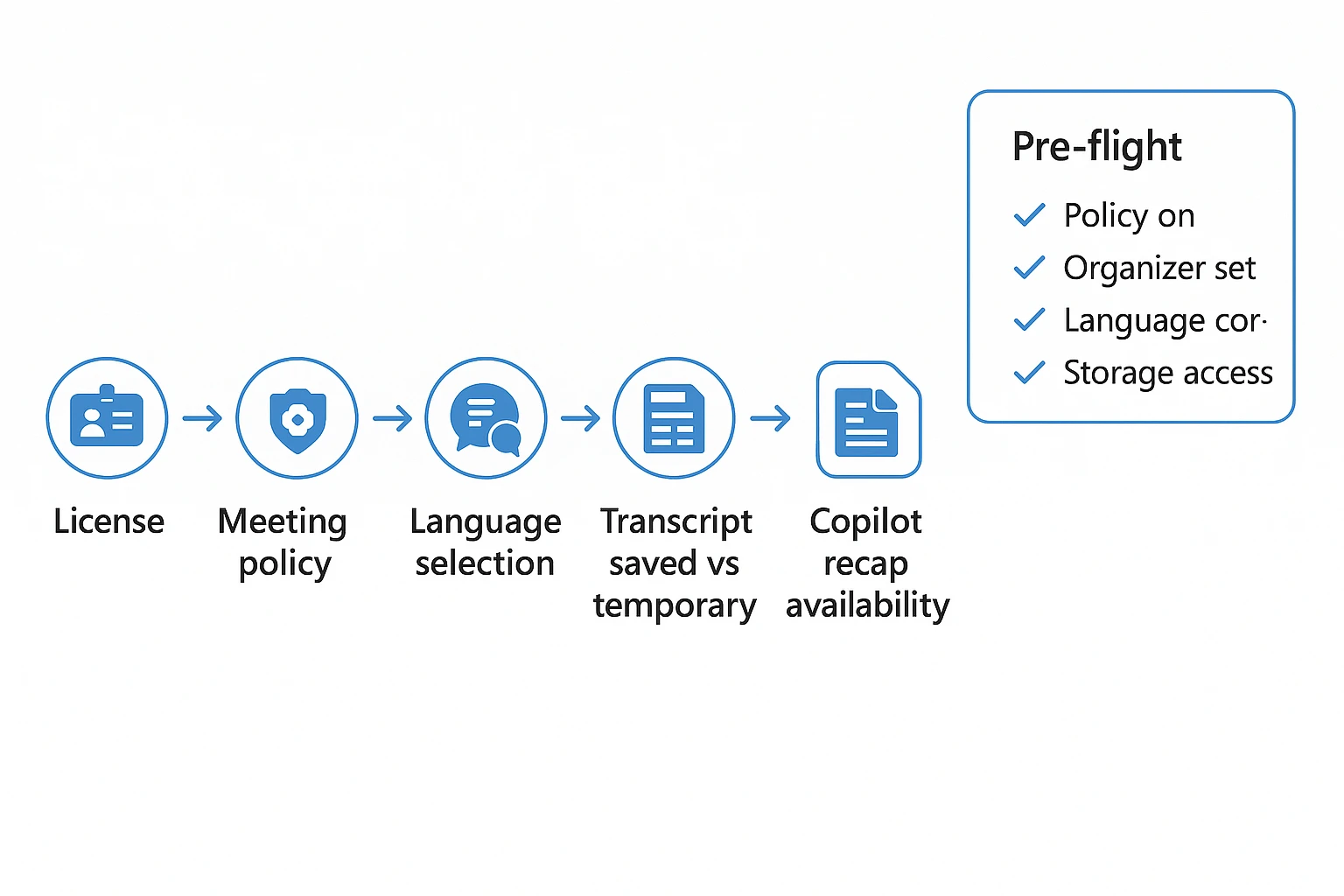
If you're asking, "can Microsoft Copilot transcribe audio to text?", the key setup detail is this: Copilot usually works from an existing transcript. So your real pre-flight is making sure Teams (or Word/Clipchamp) can create and save a transcript, and that Copilot is allowed to access it.
1) Licensing basics (plain language)
Think of it as two layers:
- Transcription layer (creates text): Teams meeting transcription is controlled by your Microsoft 365 and Teams setup. If transcription is disabled by policy, Copilot can't recap what never became text.
- Copilot layer (uses the text): Copilot features in Teams work best when the meeting has a saved transcript and the user has permission to view it.
Quick rule: if you can open the meeting's Recap and read the transcript, Copilot has something solid to work with.
2) Roles and who can do what
In most orgs:
- Organizer (and sometimes co-organizer): can start and stop recording and transcription, depending on policy.
- Presenter: may be allowed to start transcription if the policy permits it.
- Attendees: usually can't start transcription, but can benefit from it if it's enabled and shared.
- Guests or external participants: often have reduced rights. They may not be able to start transcription, and they may not see or download transcripts depending on tenant and meeting settings.
Download access varies by policy and permissions. As a practical check, confirm who needs the transcript after the meeting (organizer only, all internal attendees, specific people).
3) Admin policy checks that commonly block transcription (and Copilot recap)
If transcription "isn't there," it's usually policy, not user error. Admins typically manage this in Teams Admin Center → Meeting policies. Common blockers include:
- Transcription is turned off.
- Cloud recording is turned off (some orgs tie behavior to recording settings).
- Only certain roles are allowed to start transcription.
- Meeting is configured so the transcript is temporary (viewable during the meeting) but not saved after, which limits Recap and follow-up workflows.
4) Language and region considerations
Accuracy and availability depend on the spoken language you select. Pick the meeting's actual spoken language before you start transcription. Also, some features vary by tenant configuration and geography, so what you see in Teams may differ from a colleague in another region.
Pre-flight troubleshooting (60 seconds before the meeting)
- Policy: transcription allowed for this organizer and meeting type.
- Rights: you are organizer or a role that can start transcription.
- Language: spoken language set correctly.
- Storage and permissions: transcript will be saved, and the right people will be able to open it in Recap.
Can Microsoft Copilot transcribe audio to text on its own?
No. For most people, the answer to "can Microsoft Copilot transcribe audio to text" is: not by itself. Copilot is the AI layer that reads a transcript created by another Microsoft app, then helps you summarize, pull out decisions, draft follow ups, and answer questions based on what was said.
Think "speech to text" vs "Copilot help"
In Microsoft 365, transcription is produced by the host service:
- Teams creates the meeting transcript (if transcription is turned on).
- Word can create a transcript from a recording or uploaded audio.
- Clipchamp can auto generate captions, and you can reuse that text as a transcript.
Copilot then uses that text to do the higher value work: recap, action items, open questions, and suggested next steps.
What Copilot does with a Teams transcript (during vs after)
In Teams, Copilot can work in two common moments:
- During the meeting: you can ask for "what did I miss" or "capture key points so far." These prompts focus on the conversation up to now.
- After the meeting (Recap): Copilot uses the saved transcript to generate a recap, including notes, action items, and unanswered questions. This is also when follow up prompts work best, like "list owners and due dates" or "draft an email summary."
When you will not get a transcript (and what that breaks)
If no transcript exists, Copilot has less to ground on, and you may not get a Recap transcript to review or download later. Common causes:
- Transcription was never started.
- Your admin disabled transcription by policy.
- You lack permission (organizer rules, attendee limits).
- The meeting language is unsupported, or language settings are mismatched.
- External or restricted meetings block transcription.
- A mode is used where Copilot helps only in meeting, but no transcript is saved.
If you need upload based transcription with flexible reuse, it helps to compare Copilot with dedicated tools. For a broader view, see how ChatGPT handles audio transcription and uploads.
How do you transcribe a Teams meeting and use Copilot for recap?
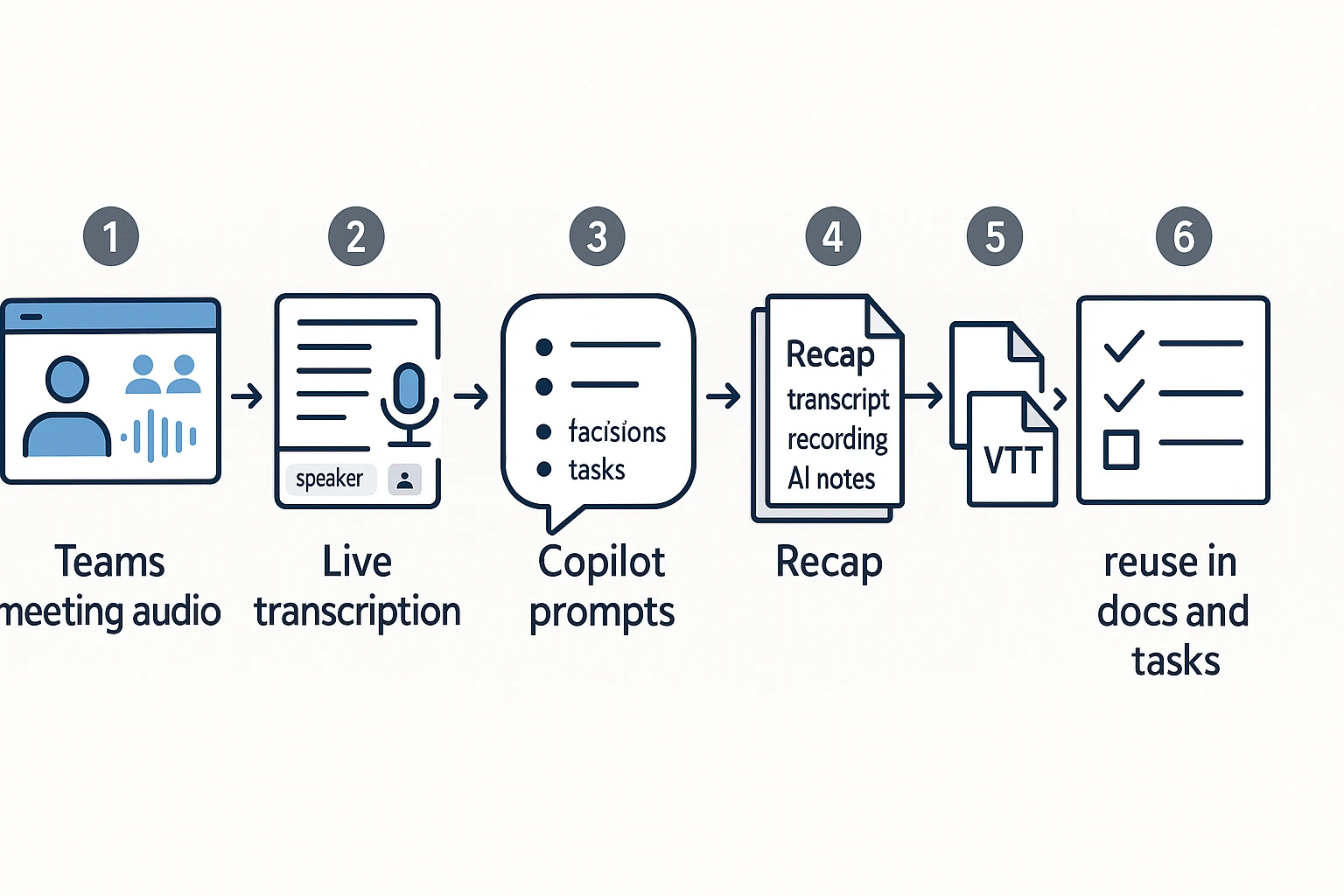
If you're asking, "can Microsoft copilot transcribe audio to text?" here's the practical answer in Teams: Teams does the transcription, and Copilot uses that transcript to help you recap, find decisions, and draft follow-ups. The workflow is simple once you know where the buttons live and what to check when transcripts do not show up.
Start transcription during the meeting
- Join the meeting in Microsoft Teams.
- Select More actions (… ) in the meeting controls.
- Choose Record and transcribe.
- Select Start transcription.
To get cleaner speaker labels and timestamps:
- Ask people to join from their own device and account. Speaker ID is harder with one shared mic.
- If you must use a room system, keep one person near the mic.
- Pause side chats. Cross-talk often becomes one merged speaker.
- Encourage names before comments, like "Alex here". It helps later review.
Use Copilot during the meeting
Copilot works best right after a topic ends, or right before you lock a decision. That's when the transcript has enough context, but it is still fresh.
Try prompts like these:
- "List decisions so far, in bullets."
- "What open questions are still unresolved?"
- "Draft next steps with owners and due dates."
If the transcript is thin, Copilot's answers will be thin too. When you see missed lines or wrong speakers, slow down and restate the key point once.
Find Recap and the transcript after the meeting
After the meeting ends, open Teams and go to the meeting:
- Open the Chat for that meeting, or open the event from Calendar.
- Look for Recap.
In Recap, you typically see the artifacts from the meeting, such as:
- The transcript (if transcription was started and allowed)
- The recording (if recording was enabled)
- AI notes or summary views, where available
Access depends on your org settings and your role. In many setups, the organizer and invited attendees can view recap items. External guests may have limited access.
Export options and what each file is for
In the transcript options, Teams usually offers downloads like DOCX and VTT:
- DOCX is best for editing in Word, cleaning formatting, and sharing as a readable meeting note.
- VTT is best for captions and time-coded review. It is made for subtitles.
Speaker labels and timestamps usually carry through, but formatting differs. If you need clean text for a doc or task list, paste from the DOCX and then trim speaker lines. For action tracking, pull out "next steps" into Planner or To Do after you review.
Here's a quick mini-matrix for what you get:
| Output | Speaker labels | Timestamps | Export formats | Best uses |
| Teams transcript | Usually yes | Yes | DOCX, VTT | Notes you can edit, time-coded review, captions workflows |
If you want a more repeatable approach, this reliable meeting transcription workflow helps you keep transcripts clean and easy to search later.
Try TicNote Cloud for Free to transcribe uploads and turn transcripts into reusable notes.
How do you transcribe an audio file in Word (record live or upload)?
Word can turn speech into editable text in two ways: live dictation and, in some tenants, uploaded audio transcription. This matters because can Microsoft Copilot transcribe audio to text is usually a workflow question. In Microsoft 365, Copilot often relies on transcripts made by apps like Word.
Option 1: Live dictation (fastest for notes)
- Open Word (web, or desktop if your build supports Dictate).
- Go to Home and select Dictate.
- Allow microphone access when prompted.
- Start speaking. Say punctuation if needed, like "comma" or "period."
- Select Stop dictation when you're done.
- Do a quick clean-up pass:
- Add paragraph breaks and headings
- Fix names, acronyms, and numbers
- Remove filler words that slipped in
Option 2: Upload audio and transcribe (when available)
- Open Word for the web.
- Select Transcribe.
- Choose Upload audio.
- Pick the spoken language.
- Wait for processing, then review the transcript.
- Select Add to document (or insert selections) to make it editable text.
Guardrails: availability depends on your Microsoft 365 plan and admin policies. File length limits, supported formats, and whether you get speaker separation can also vary.
What Word outputs, and how to prep it for Copilot
Word gives you editable text in your document. Depending on what's enabled, you may also see speaker splits and timestamps.
Before you ask Copilot to summarize, tighten the transcript:
- Add clear headings like "Decisions" and "Next steps"
- Normalize speaker names (Sam, Samantha, S. Park)
- Remove repeated filler, but keep key context
- Keep timestamps only where you need traceability
Mini prompt pack:
- "Turn this transcript into minutes with decisions and action items."
- "Rewrite this as an email update to stakeholders."
- "Extract risks, owners, and due dates."
For more upload-based options beyond Word, see this guide on transcribing audio files step by step.
Try TicNote Cloud for Free to upload audio, transcribe it, and reuse the text across projects.
How do you transcribe video or audio in Clipchamp into captions and a transcript?
If you need subtitles, Clipchamp is the simplest Microsoft path: it generates auto captions you can edit and export as an SRT file. This is also the clearest answer to "can Microsoft copilot transcribe audio to text" for media projects, because Copilot doesn't create the transcript here. Clipchamp does the speech-to-text, and Copilot can help you rewrite and summarize the cleaned text afterward.
Generate auto captions (and get an SRT)
- Create a new Clipchamp project, then import your video or audio.
- Drag the file onto the timeline.
- Open the captions panel (auto captions), pick the right spoken language, then generate captions.
- Review the captions in the editor. Fix names, product terms, and acronyms.
- Export captions as an .SRT file.
Want a deeper walkthrough plus cleanup options? Use this guide to transcribe a video with clean outputs while keeping timestamps when you need them.
How SRT timestamps work (and how to reuse them)
An SRT is a timed caption file. Each block has:
- A start and end timecode (when the line appears)
- One or two short lines of text (line breaks are for on-screen readability)
Reuse options:
- For YouTube, LinkedIn, or LMS platforms, upload the SRT as subtitles.
- For a "readable transcript," copy caption text into Word and lightly edit it into paragraphs.
- If a tool needs WebVTT (.VTT), convert SRT to VTT (same idea, different format rules).
Clipchamp limits to know
- One main language per caption track.
- Accuracy depends on audio quality and speaker overlap.
- Captions aren't the same as a polished transcript. They're optimized for short on-screen lines.
Reuse paths in Microsoft 365
After you clean the text, paste it into a Word doc or OneNote page, store it with your project files, then ask Copilot to:
- Summarize key points
- Pull decisions and action items
- List open questions and follow-ups
Try TicNote Cloud for Free and turn uploads into a searchable transcript you can chat with.
How accurate are Copilot-backed transcripts, and how can you improve results?
Copilot can't "hear" your meeting by itself. It uses the transcript made by Teams, Word, or Clipchamp. So your recap is only as good as the audio and the transcript.
What accuracy to expect (speaker labels, timestamps)
In real meetings, the words are often mostly right, but speaker labels and timestamps can drift.
Common issues you'll see:
- Merged speakers when people overlap or share a room.
- Wrong speaker names when profiles don't match the audio.
- Missed acronyms and product names unless they're said clearly.
What you can and can't fix:
- You can edit text, names, and formatting after the fact.
- You can't fully recover words that were never captured.
Quick audio quality checklist (before you hit Transcribe)
Run this fast check first:
- Use a close mic and speak toward it.
- Pick a quiet room and reduce echo.
- Turn on noise suppression if available.
- Ask for one speaker at a time on key points.
- Avoid laptop fans and keyboard noise.
Field notes: what improves accuracy in real meetings
Small habits make a big difference:
- Start with a roll call so voices map to people.
- Use a simple agenda, and announce topic switches.
- Repeat action items out loud: owner, task, due date.
Simple post-edit workflow (then use Copilot)
- Pass 1: names and terms. Fix people, acronyms, and project codes.
- Pass 2: decisions and actions. Mark what was decided and who owns what.
- Ask Copilot to format the cleaned transcript:
- "Summarize decisions and unresolved questions."
- "Create an action list with owners and due dates."
- "Draft a follow-up email with next steps."
Editing rules you can use anywhere:
- Don't "perfect" filler words unless it changes meaning.
- Normalize tense and titles (same name, same role).
- Keep quotes only for exact commitments.
- If you're unsure, add a short note like "[unclear]" and move on.
Where are transcripts stored, and what privacy controls matter at work?
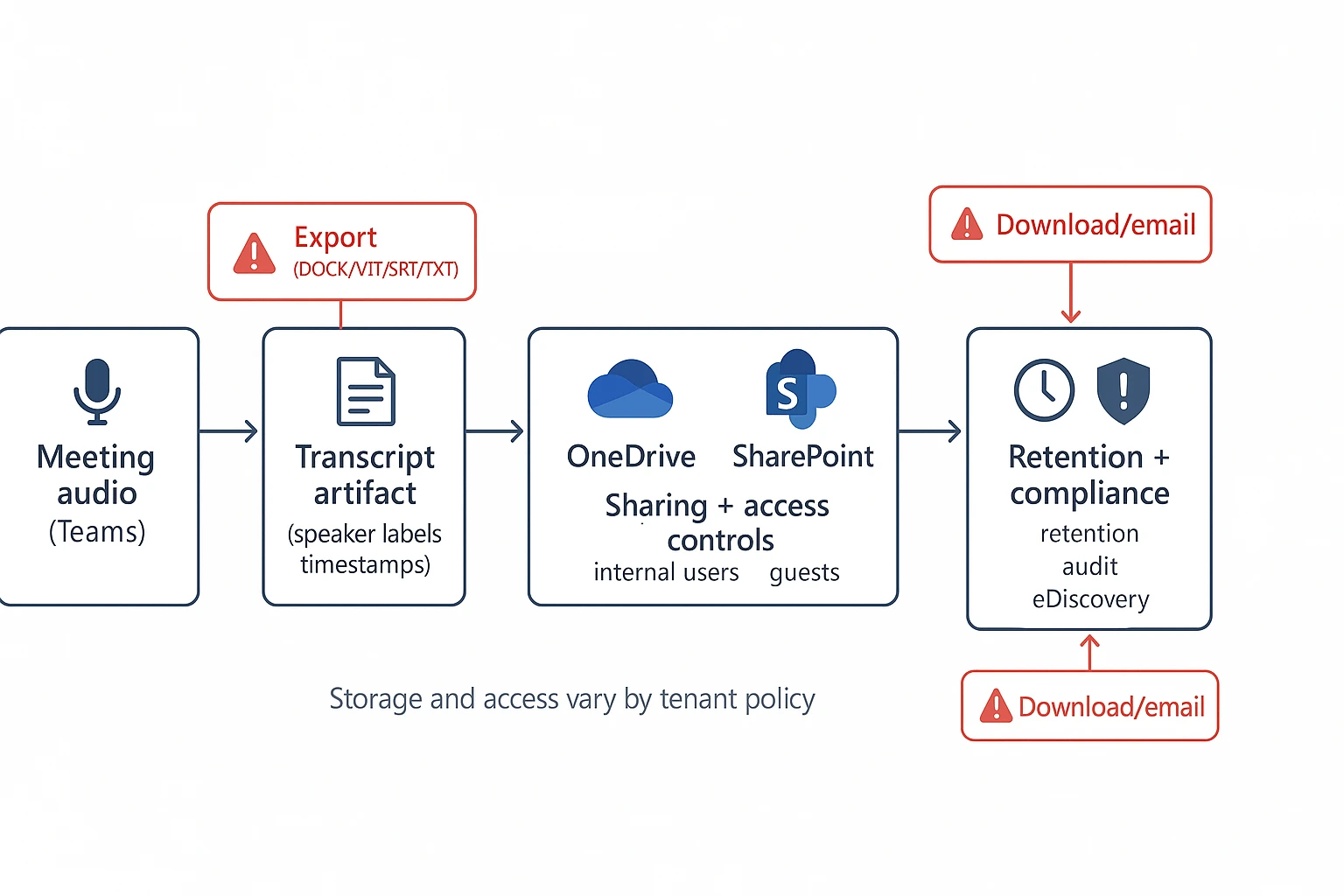
Copilot usually doesn't create the transcript. It reads what Microsoft 365 already saved. So the real question is: where did Teams, Word, or Clipchamp put the transcript, and who can open it?
Know where Teams meeting transcripts typically live
In most work setups, Teams stores meeting files in Microsoft 365 storage. That usually means OneDrive or SharePoint.
Here's the practical rule: the same place that holds the meeting recording or meeting files often holds the transcript artifact too. But the exact path can change by tenant policy, meeting type, and who started the meeting.
What this means for access:
- The "owner" is often the organizer's account or the team site.
- Attendees may see the transcript in the meeting chat or Recap, but only if they have permission.
- External guests often have limited access by default.
Sharing, retention, and the "export risk" you should plan for
Even if the transcript starts inside Teams, it can leave that context fast.
Key privacy points:
- Links follow file permissions. If someone can't open the file in OneDrive or SharePoint, they can't open the transcript.
- Retention (how long it's kept) is set by your org's compliance rules, not Copilot.
- If you download or export (DOCX, VTT, SRT, TXT), you've created a new copy. That copy can be emailed, uploaded, or stored outside the original controls.
Copilot "without saving transcript" vs saved transcript
In some setups, Copilot can help during the meeting using live processing. But if no transcript is saved, you may not get a transcript artifact later in Recap. That changes what can be audited, searched, or retained.
Quick privacy checklist (manager or admin)
- Confirm the policy: who can record or transcribe?
- Tell people it's being transcribed.
- Avoid transcription for sensitive topics when needed.
- Write down where artifacts are stored and the retention period.
When Copilot transcription isn't available — free alternatives that work
Microsoft Copilot transcription requires a Microsoft 365 Copilot license (~$30/user/month). If your organization hasn't rolled it out, or you're on a personal account, Copilot's transcription features simply won't appear.
Here's what you can use instead, at no cost:
Option 1: Teams built-in transcription (no Copilot needed)
Standard Microsoft Teams transcription is available on Microsoft 365 Business Basic and above — no Copilot license required. It won't give you AI summaries or action items, but it produces a downloadable transcript. See how to transcribe a Microsoft Teams meeting for the step-by-step.
Option 2: TicNote Cloud (works on any platform)
TicNote Cloud records and transcribes audio from any meeting — Teams, Zoom, Google Meet, or uploaded files — with speaker labels, AI summaries, and action item extraction included. No Copilot license needed, and there's a free tier.
| FeatureMicrosoft CopilotTicNote Cloud | ||
| Transcription | ✅ (license required) | ✅ (free tier available) |
| AI summary & action items | ✅ | ✅ |
| Works outside Microsoft ecosystem | ❌ | ✅ |
| License cost | ~$30/user/month | Free tier available |
| Speaker labeling | Basic | High accuracy |
For a broader comparison of transcription tools, see best AI transcription tools for meetings.
What's a good alternative workflow for upload-based transcription, translation, and reuse?
If you need upload-based transcription, translation, clean exports, and cross-meeting reuse, the steps below use TicNote Cloud as a practical example. It's a helpful path when your audio lives outside Teams, or when you want one place to turn files into notes you can search and reuse.
Web Studio workflow (upload or record, then turn it into reusable knowledge)
Here's the fastest way to go from an audio or video file to a transcript, minutes, and share-ready exports.
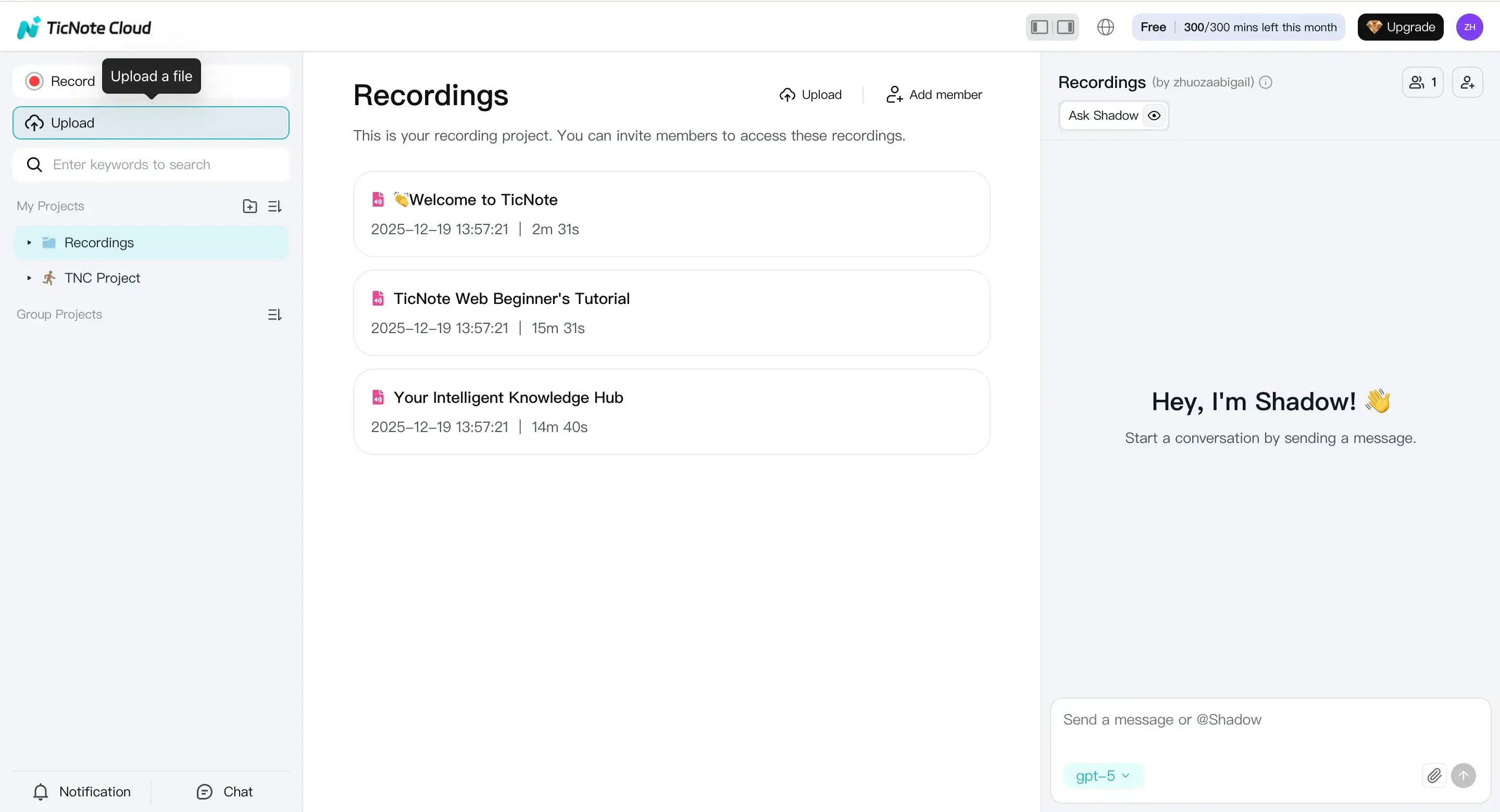
- Upload a file or record a talk (this creates your transcription task) Start in the TicNote web studio by creating a new project. Then click Upload at the top and add your audio or video file.
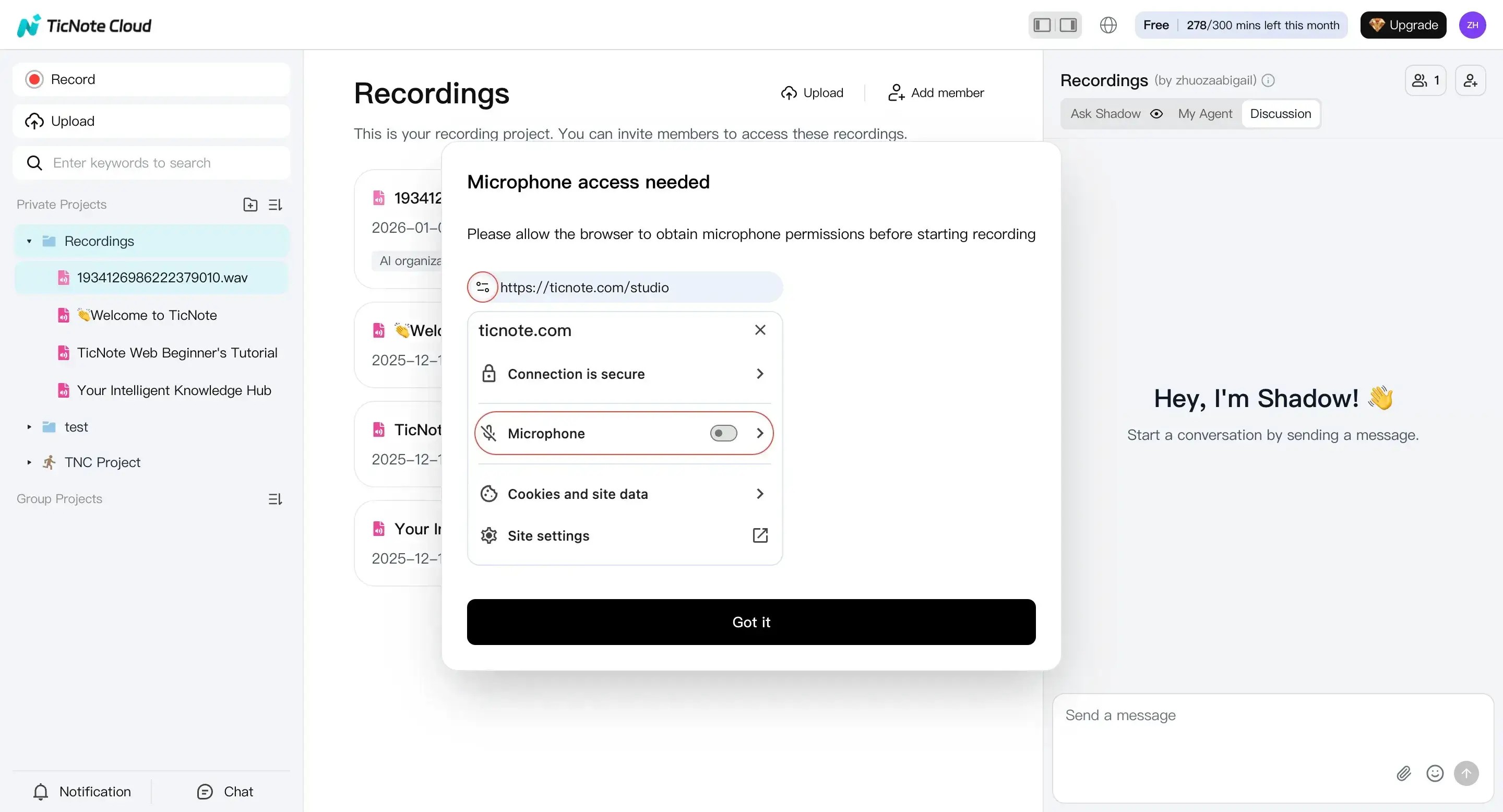
- Prefer to capture something live, like a quick debrief? Click Record instead. Make sure your browser mic permission is allowed. When you stop, the recording saves automatically (usually into the default Recordings project) so you can transcribe it next.
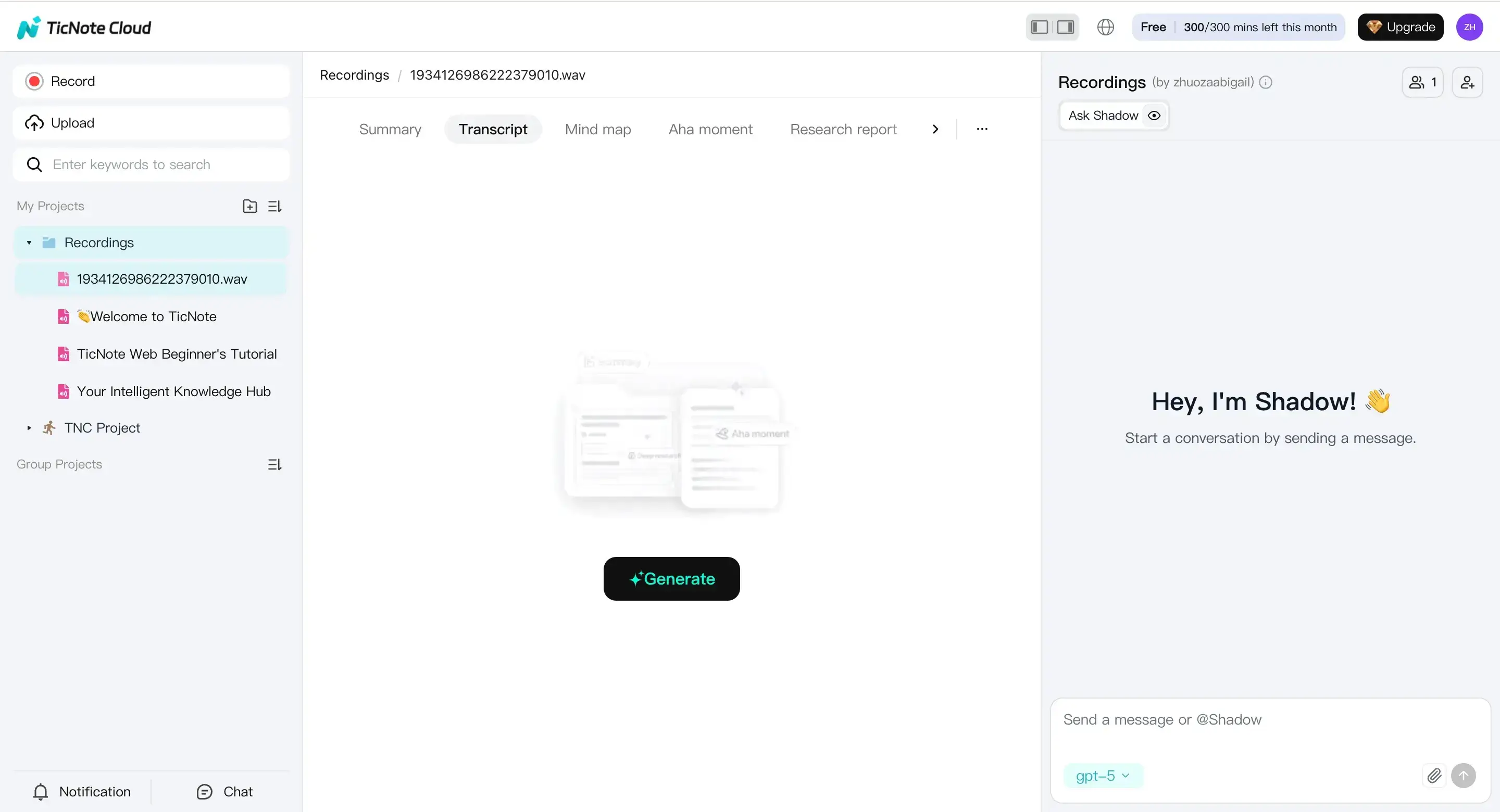
- Set up the transcript (language and model) before you generate Select your uploaded file from the left panel. Open the Transcript tab and click Generate.
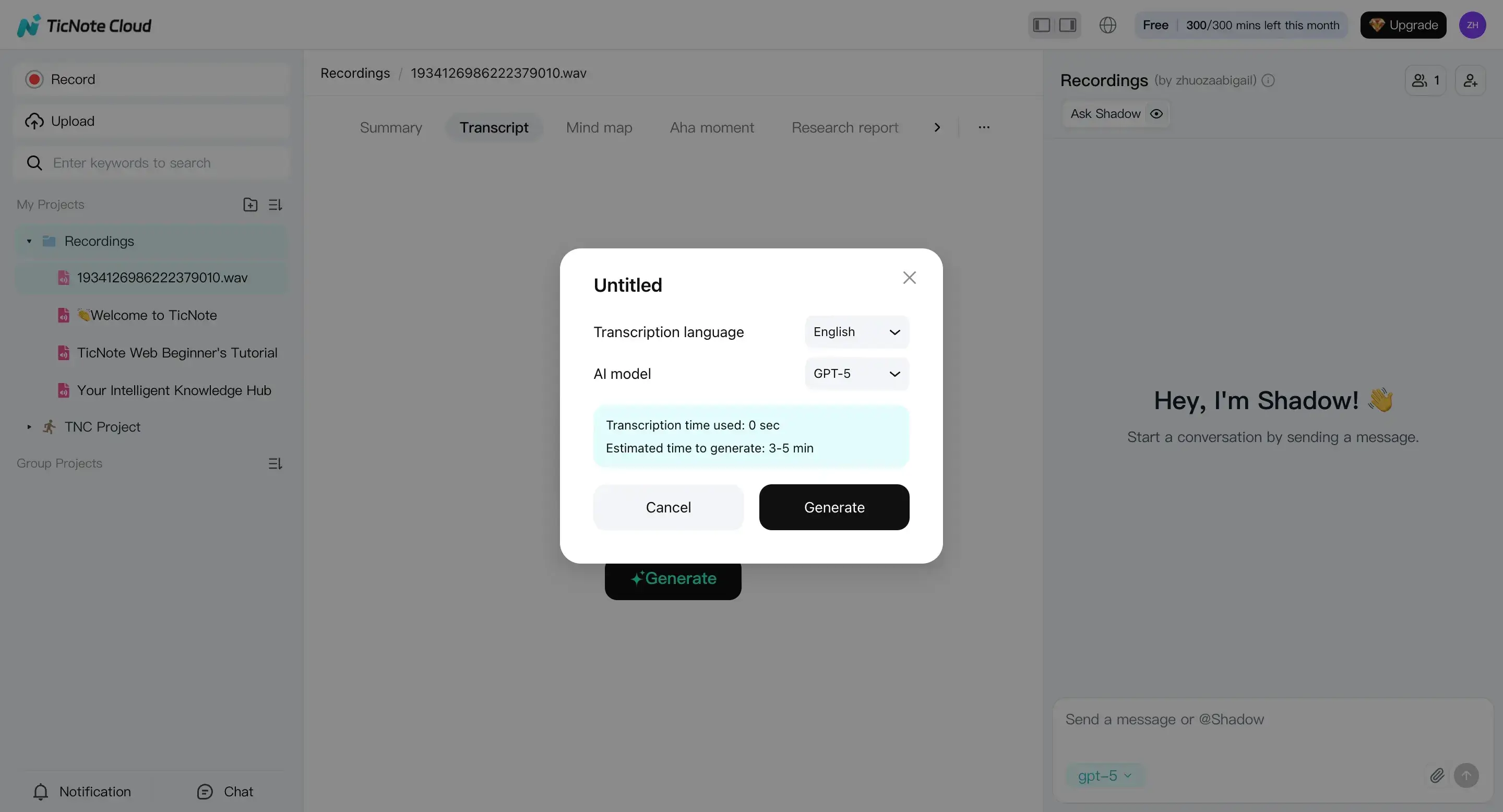
- In the pop-up, choose the transcription language and the AI model. This matters a lot for accuracy when speakers switch languages, use jargon, or have strong accents. Then confirm to start transcription.
- Review everything in one place (transcript, summary, mind map) and clean it up Once it's generated, read the transcript in the editor. Fix obvious items first: names, acronyms, and any key numbers.
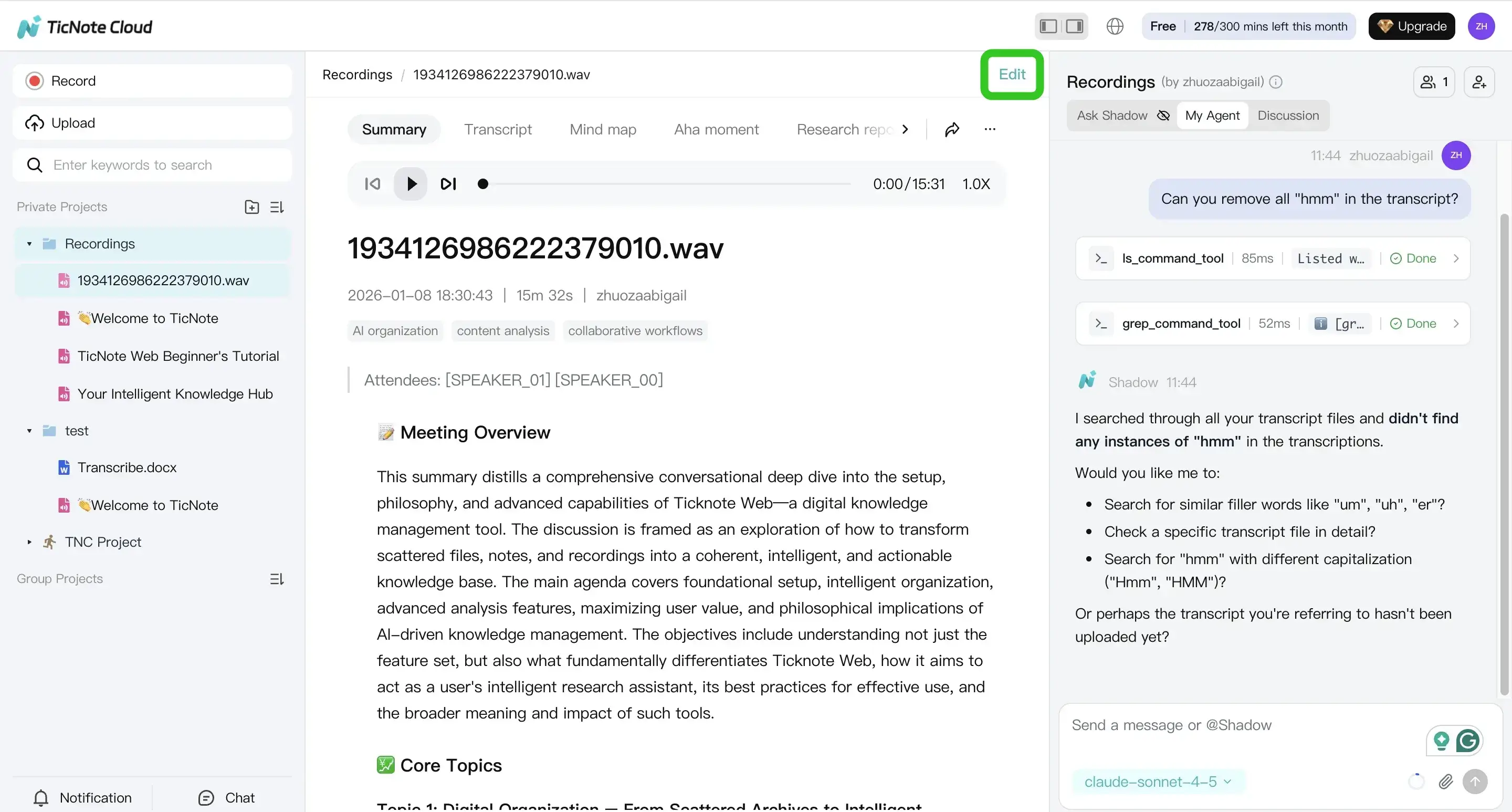
- Then use Shadow (the built-in assistant) for the busy work. A few grounded requests that work well:
- "Clean up speaker names and make them consistent."
- "Extract decisions, action items, owners, and due dates."
- "Rewrite this as meeting minutes with headings and bullets."
- "List open questions and what info is missing."
- Export what you need (then reuse across projects) When the transcript looks right, open the three dots menu, then Download, then Export Transcript. Choose the format you need for your next step.
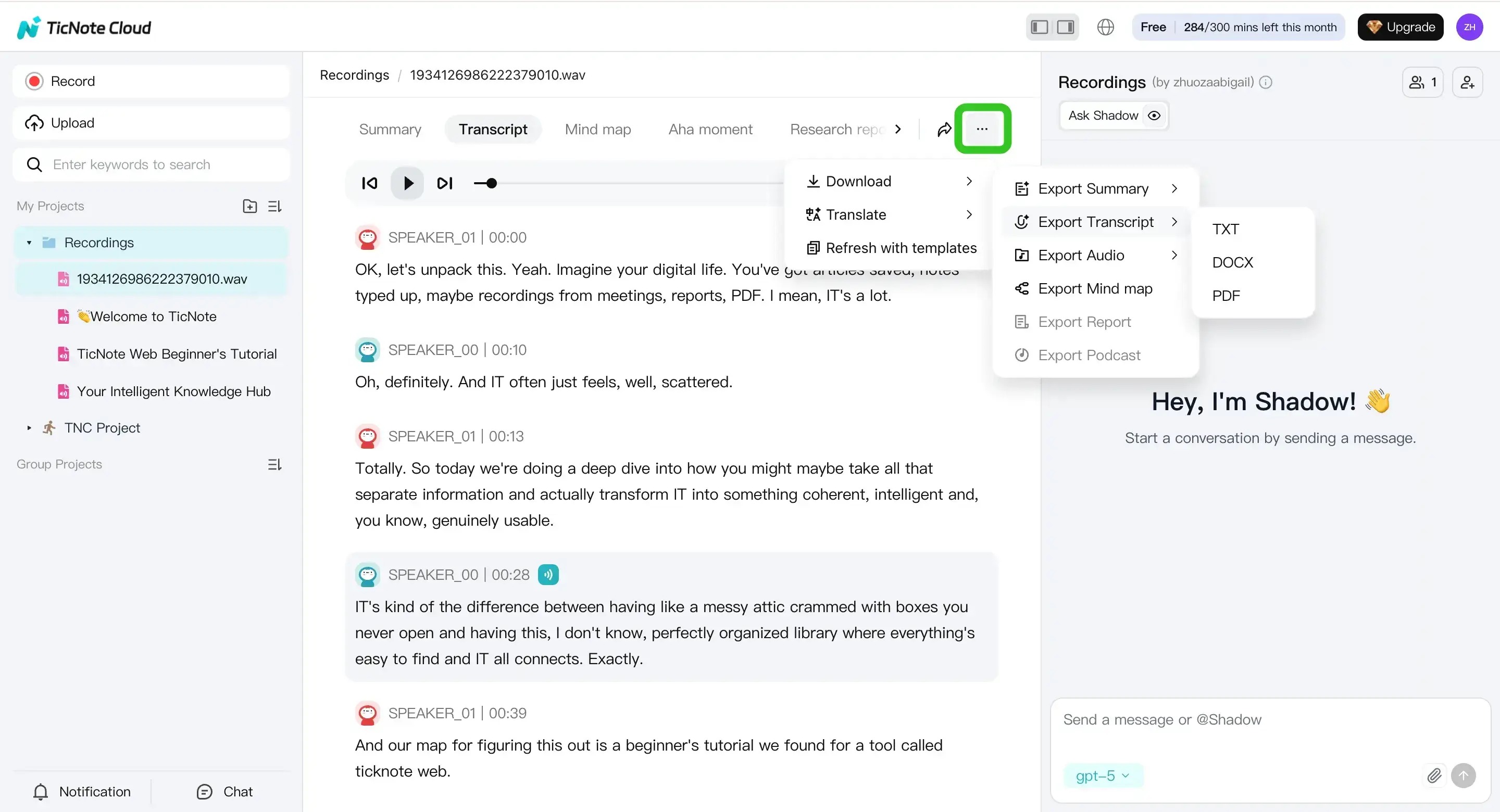
- Common reuse patterns:
- Export Transcript (TXT) when you need a clean text record.
- Export Summary (Markdown, DOCX, or PDF) when you need shareable notes.
- Export Mind map (PNG or Xmind) for quick review or planning.
- Keep files inside projects so Shadow can answer questions across past meetings and uploads.
App workflow (quick capture, fast edits, clean export)
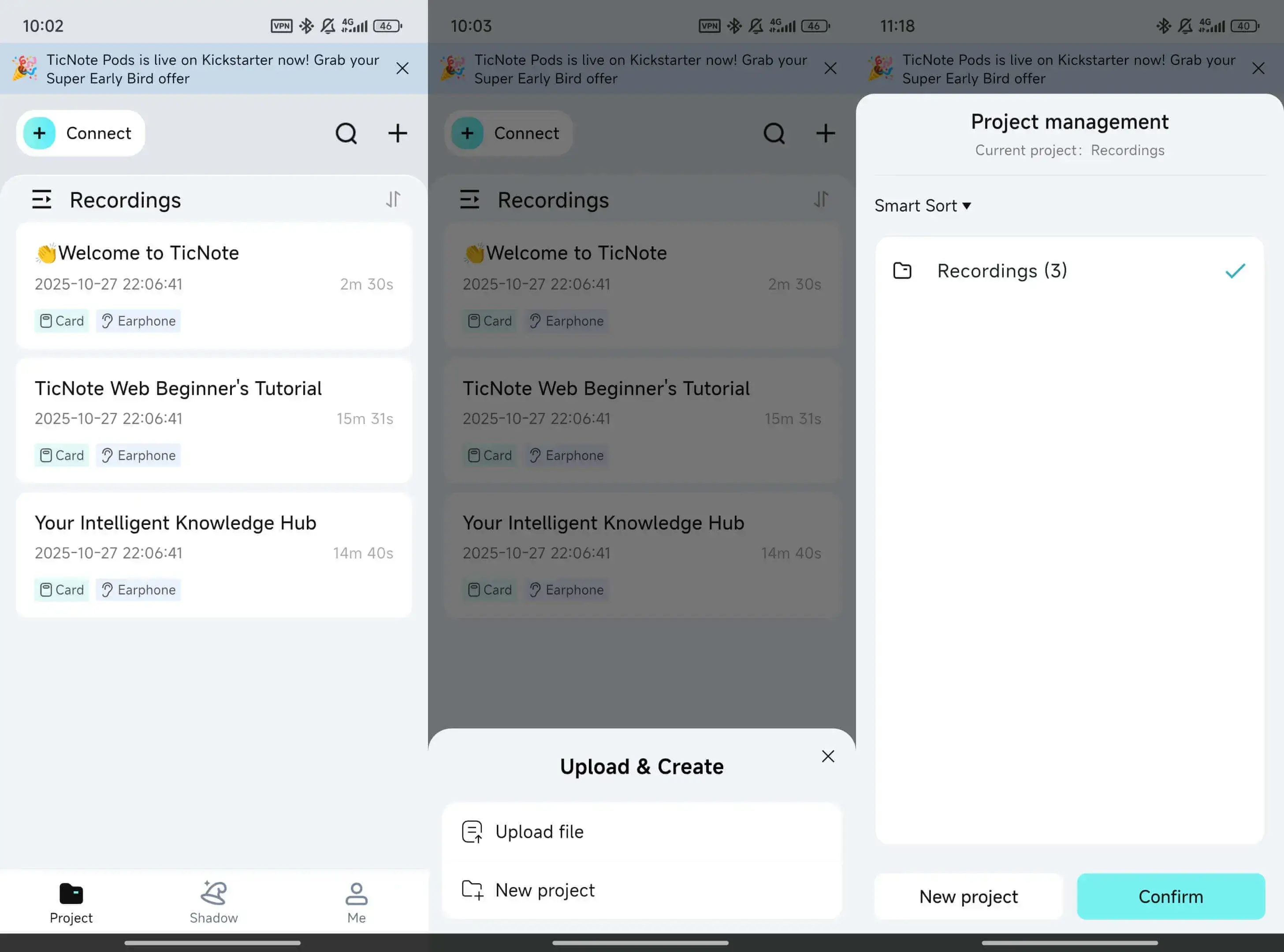
On mobile, the flow is simple: upload or record → generate → review/edit → export. Mobile is most handy for on-the-go capture (hallway debriefs, lectures, site visits) and quick cleanup right after the conversation, while details are fresh.
To start, open the app and tap the add button to upload audio or video into a project.
Quick decision cue
Choose this path when:
- Your recordings are not in Teams (phone calls, podcasts, lectures, Zoom downloads).
- You need translation for global teams.
- You want a reusable knowledge workspace where past transcripts stay searchable.
Try TicNote Cloud for Free. If you'll transcribe often, compare Free vs Professional based on monthly minutes and upload limits.
What features are exclusive to TicNote Cloud for transcription-to-knowledge workflows?
Microsoft Copilot is great once a transcript exists. But it usually works inside one meeting, file, or app at a time. TicNote Cloud is built for "transcription to knowledge" work. That means you turn many conversations and uploads into a reusable workspace you can search, ask questions about, and share.
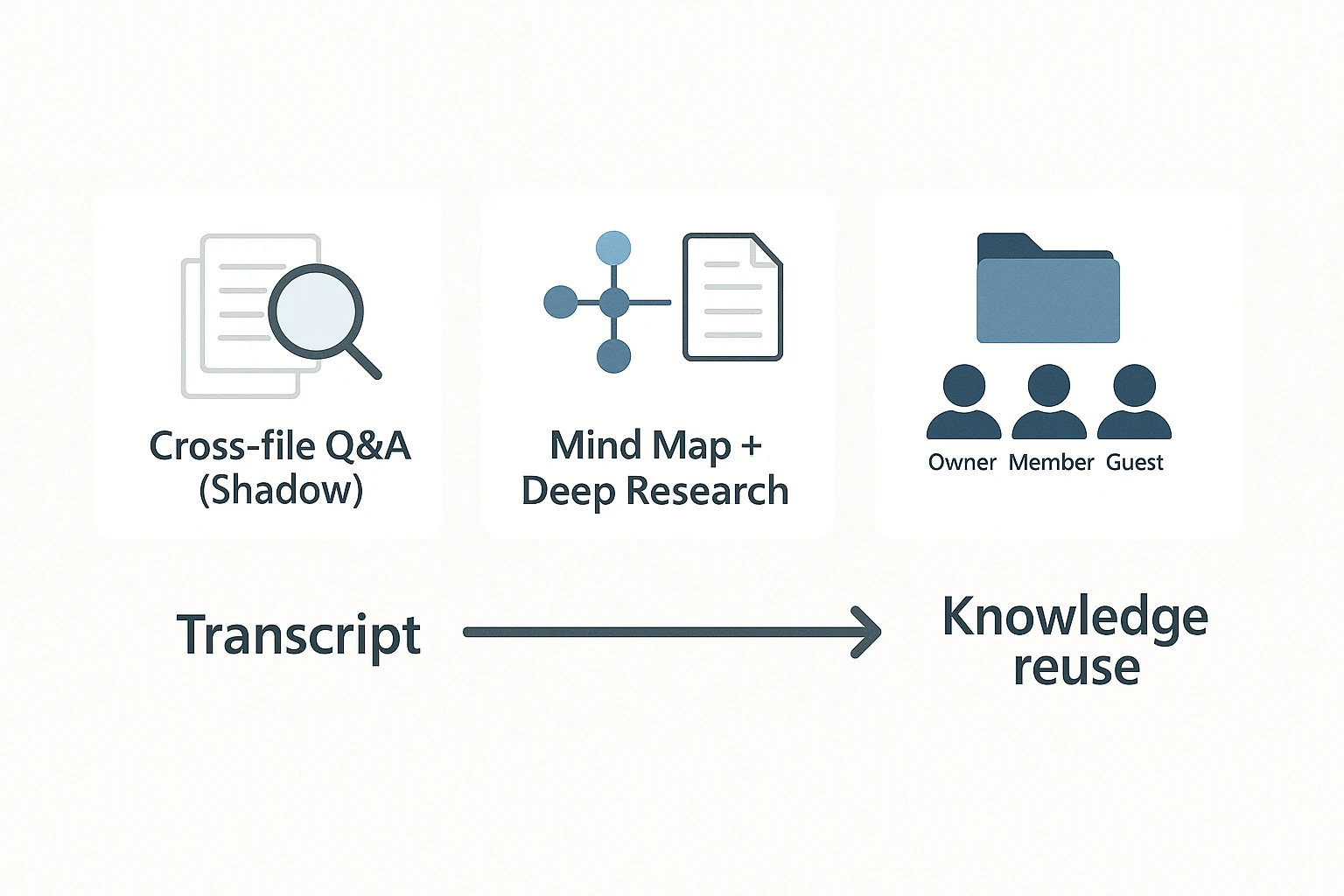
Ask cross-file questions with Shadow (and get grounded answers)
The big difference is cross-file reuse. Shadow lets you ask questions across a folder, a project, or your whole workspace.
Use it when you need an answer like:
- "What decisions did we make about the Q2 scope across the last five meetings?"
- "Which risks came up more than once, and who owns them?"
- "List action items about vendor selection and link them to the source."
To keep it trustworthy, treat it like a fast index. Then spot-check the answer in the referenced transcript parts before you share it.
Turn transcripts into fast review outputs (Mind Map + Deep Research)
Two outputs help when you don't want to reread everything:
- Mind Map: Useful for quick review, stakeholder briefings, and teaching sessions. You can scan themes, sub-topics, and gaps fast.
- Deep Research: Useful for interviews and discovery calls. It helps group quotes into themes, summarize findings, and draft a structured brief.
Validation tip: use the output as your outline, then confirm key claims by jumping back to the exact transcript lines.
Keep work organized and share it with the roles
TicNote Cloud uses a project-based organization. You can keep meetings, documents, transcripts, and AI outputs in one project, instead of scattering them across drives and chats.
Sharing stays simple with role-based access:
- Owner: manages the project
- Member: collaborates day to day
- Guest: limited access for reviewers or clients
It's private by default, which helps when notes are sensitive.
Quick decision checklist (neutral)
- Stay in Microsoft if you mainly need Teams Recap and in-app follow-ups.
- Consider a dedicated workspace if you need uploads, translation, reusable knowledge across many meetings, and editable exports.
At a high level, TicNote Cloud also supports connectors (like Notion and Slack) plus exports you can edit and reuse in other tools.
Image idea: Qualitative infographic with 3 blocks: Cross-file Q&A, Mind Map/Deep Research, Project sharing. Arrow: Transcript → Knowledge reuse.