Extension
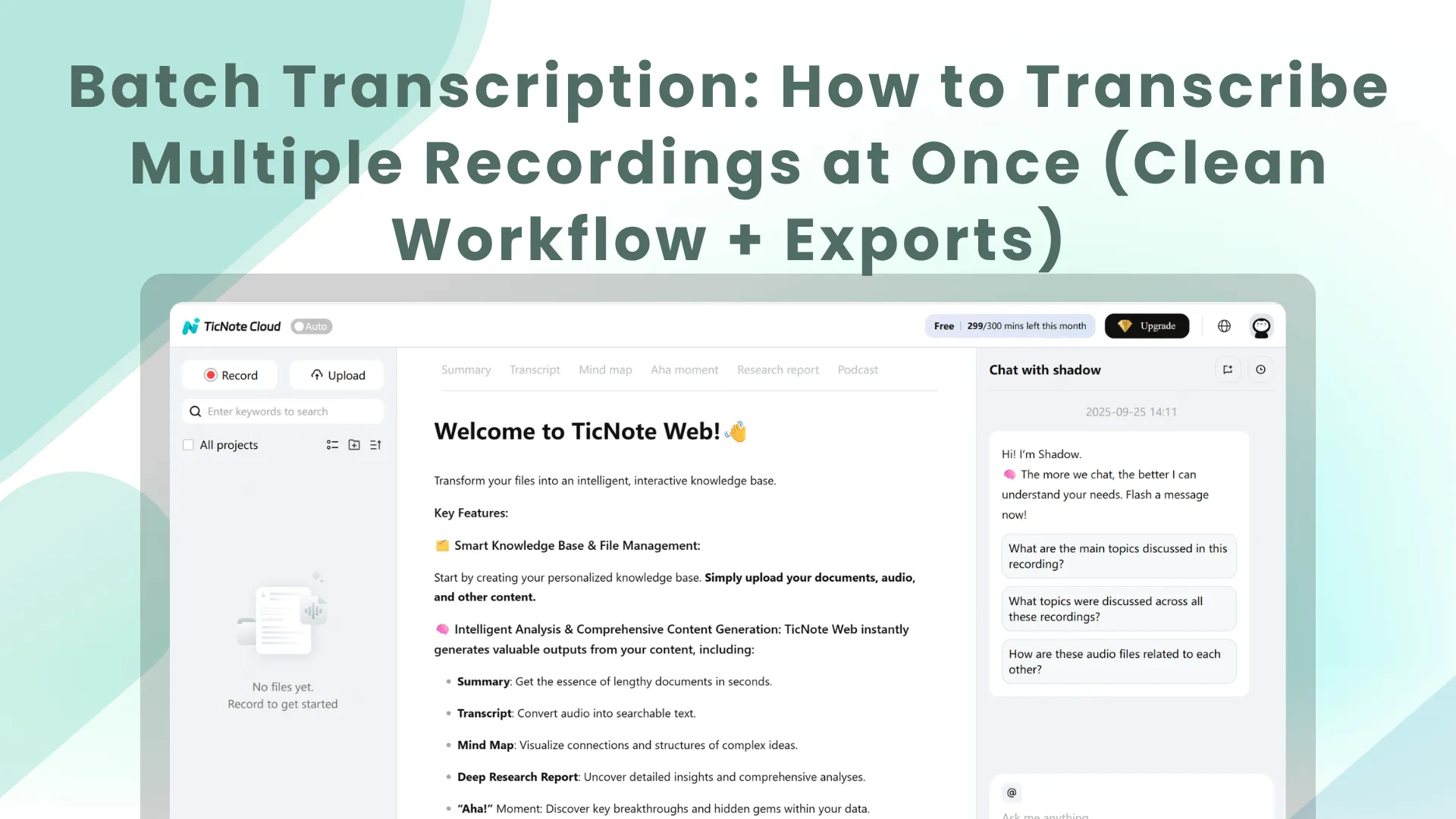
TL;DR: How to transcribe lots of recordings fast (and keep them searchable)
To do batch transcription fast, use a single workspace like TicNote Cloud and run it as a system: ingest, transcribe, organize, reuse, then export. Upload or record in bulk, start transcription, and sort results as each file finishes (don't wait for the whole batch). You'll end up with clean transcripts, consistent notes, and exports that won't clash in your drive.
Too many recordings turn into a messy folder fast. Then you lose decisions, owners, and next steps in file chaos. Use TicNote Cloud to group everything into projects so each transcript, summary, and key insight stays searchable.
Keep it simple:
- Ingest: collect files and name them once
- Transcribe: run the batch, then triage as outputs land
- Organize: store by project so search works later
- Reuse: pull decisions and action items across files
- Export: TXT, Markdown/DOCX/PDF summaries, mind maps, or audio
What is batch transcription, and when should you use it?
Batch transcription means you process many recordings in one go, using a queue (a list of files waiting their turn). Instead of repeating the same clicks file by file, you upload a group, start transcription, then come back to review results. The payoff is less context switching, more consistent notes, and a clear view of what's done vs still pending.
Batch vs one-at-a-time transcription
One-at-a-time works when you have a single call and need text fast. But it breaks down when you have a backlog. You waste time on setup steps, you name files differently each time, and your outputs end up scattered.
Batch workflows fix that by standardizing how you:
- Name files and group them by project
- Apply the same note structure across recordings
- Track completion (uploaded, transcribed, reviewed, exported)
Best-fit scenarios for batch audio transcription
Batching is a good fit when you have volume and you want repeatable outputs:
- Clearing a meeting backlog after travel or a launch
- Research interviews (many files, same questions)
- Weekly recurring meetings (team syncs, standups, QBRs)
- Sales call libraries for coaching and enablement
- Multi-team project updates that need shared visibility
Quick test: if you have 5+ files and you want the same note template and exports each time, batching usually wins.
Define "done" as transcript + reusable notes
A raw transcript isn't the finish line. "Done" means the text is reviewed, key decisions and action items are pulled out, and owners and dates are clear. Then you store everything in the right project so it's searchable later and ready to reuse in follow-ups, docs, or a team knowledge base.
If you also need the basics, start with this audio transcription workflow guide before you batch a whole backlog.
What do you need before starting (file types, length limits, and workspace setup)?
Batch Transcription goes smoothly when you prep two things first: clean inputs and a clear folder plan. Gather your recordings, add any supporting docs, and set simple limits so your batch doesn't stall halfway through.
Collect your sources (audio, video, and helpful text)
Start by pulling everything you'll want to search later:
- Audio or video recordings: calls, interviews, webinars, workshops.
- Supporting text: agenda, slide deck, prep notes, or a list of attendees.
In TicNote Cloud, this "multi-source uploads" approach matters because extra context makes the workspace more useful later. When you search for a decision, a feature name, or a client request, those supporting docs help you confirm what a vague line in the transcript really meant.
Plan recording length and monthly minutes before you upload
Before you start, estimate your total batch minutes. Then add a buffer for cleanup, re-uploads, and a second pass.
Checklist:
- Total minutes in the batch (sum of all recordings)
- Add 10 to 20 percent extra time for retries and fixes
- Flag any single files that exceed your per-recording limit (split long recordings)
Here's a quick limits-and-planning view by plan.
| Plan | Monthly transcription minutes | Max per web recording |
| Free | 300 mins/month | 30 mins |
| Professional | 1,500 mins/month | 3 hours |
| Business | 6,000 mins/month | 8 hours |
| Enterprise | Customized usage | Customized |
If a recording is longer than your plan allows, split it into parts (for example, Part-01 and Part-02) and keep the same naming rule so it still sorts correctly.
Use one naming rule (and stick to it)
A simple convention prevents mix-ups when you transcribe many files at once:
- Copy this:
Client_Project_YYYY-MM-DD_MeetingType_SpeakerOrTeam
Rules that prevent duplicates:
- Use ISO dates (
2026-02-11) so sorting is reliable. - Don't use "final-final." Add rerun tags like
v1,v2, orrerun-2026-02-11. - Keep meeting types consistent (for example,
Demo,WeeklySync,Interview).
When every file name carries the same clues, your transcripts stay searchable and your exports don't turn into a guessing game.
How do you run a batch transcription workflow step by step?
A good batch transcription workflow is simple: collect files into one place, set consistent options, run transcription, then standardize the outputs so they stay searchable. Below is a repeatable system using TicNote Cloud as the example, but you can reuse the same logic in any tool.
Web Studio workflow: upload, transcribe, clean, export
1) Upload recordings (or record talks) into one project
Start by creating a project for this batch (for example, "Customer calls Feb" or "Research interviews Wk 6"). Then upload all your audio and video files so they sit in one queue.
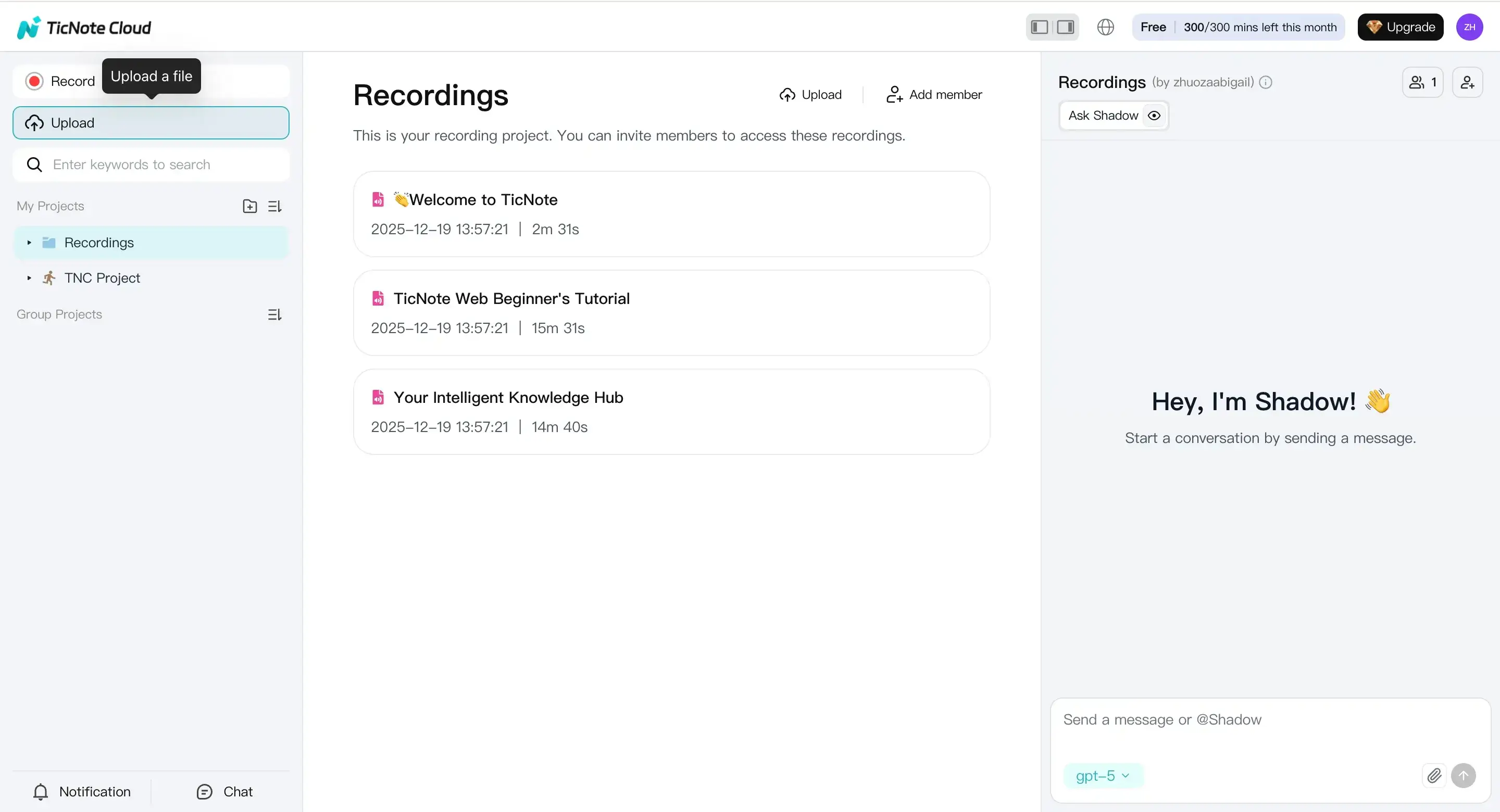
Practical tip: use a naming pattern before you upload. Example: YYYY-MM-DD_client_topic_speaker.
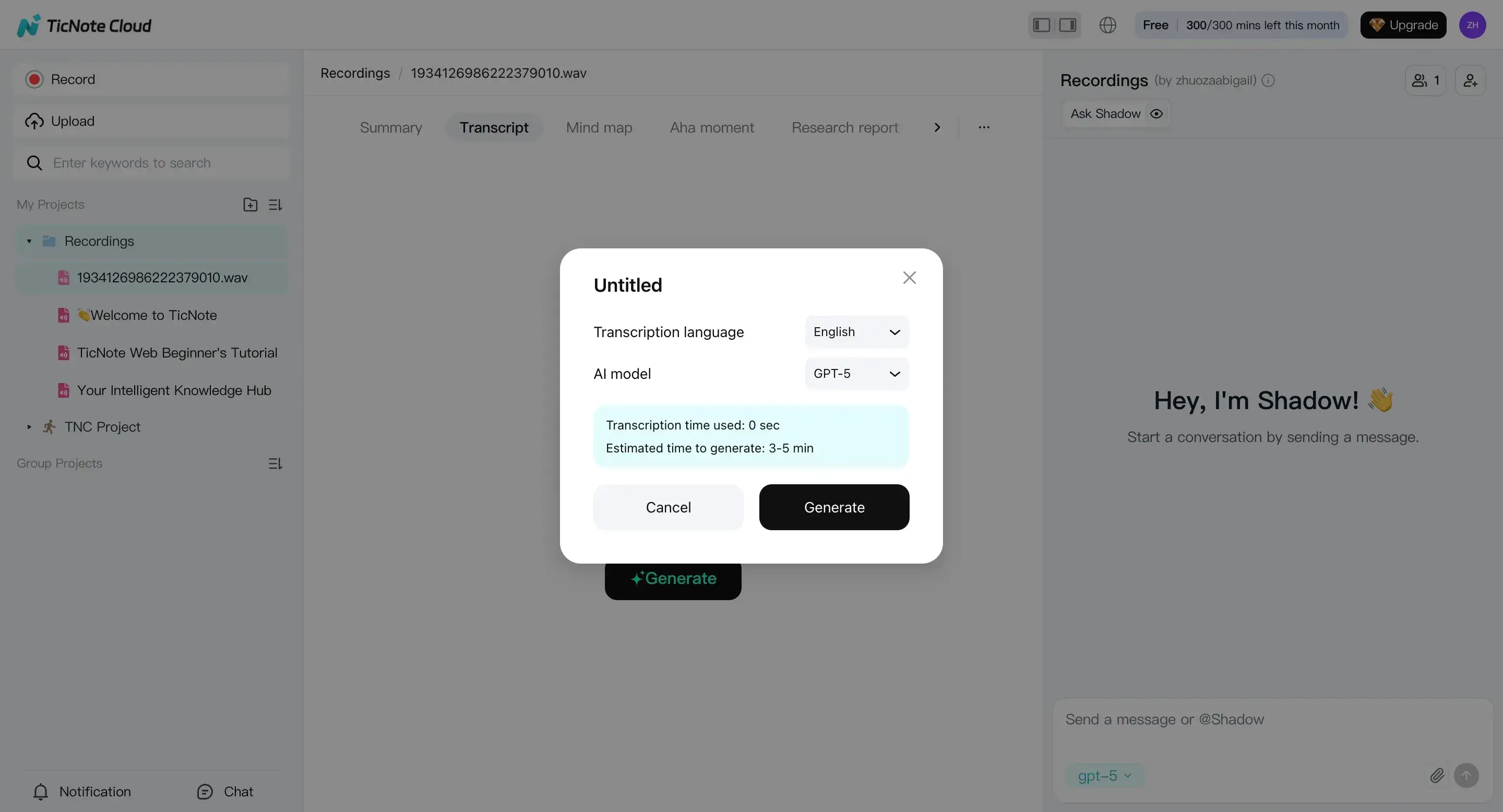
2) Prepare settings before you generate transcripts
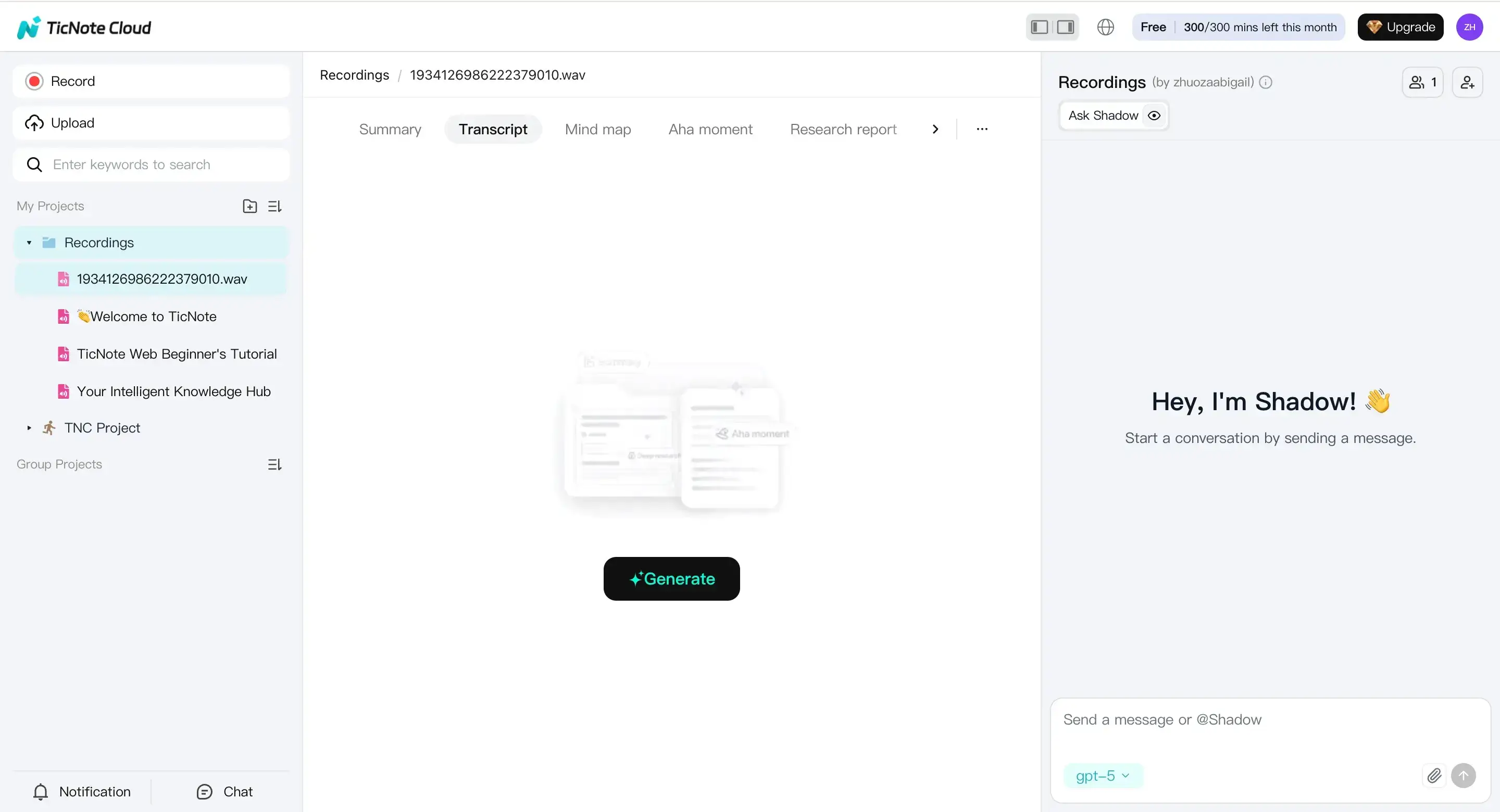
If your batch mixes languages, group files by language and process them in smaller runs. That keeps settings consistent.
3) Review outputs and tighten them up
Once transcripts are ready, do a quick pass for the parts that usually break search later:
- Fix obvious names, company terms, and acronyms
- Check the first 2 minutes for audio issues
- Scan for decisions, action items, and dates
- Generate or refine the summary and mind map for quicker review
You can edit directly in the transcript editor, and you can use Shadow AI to help with grounded cleanup (meaning it works from what's in the transcript, not guesses).
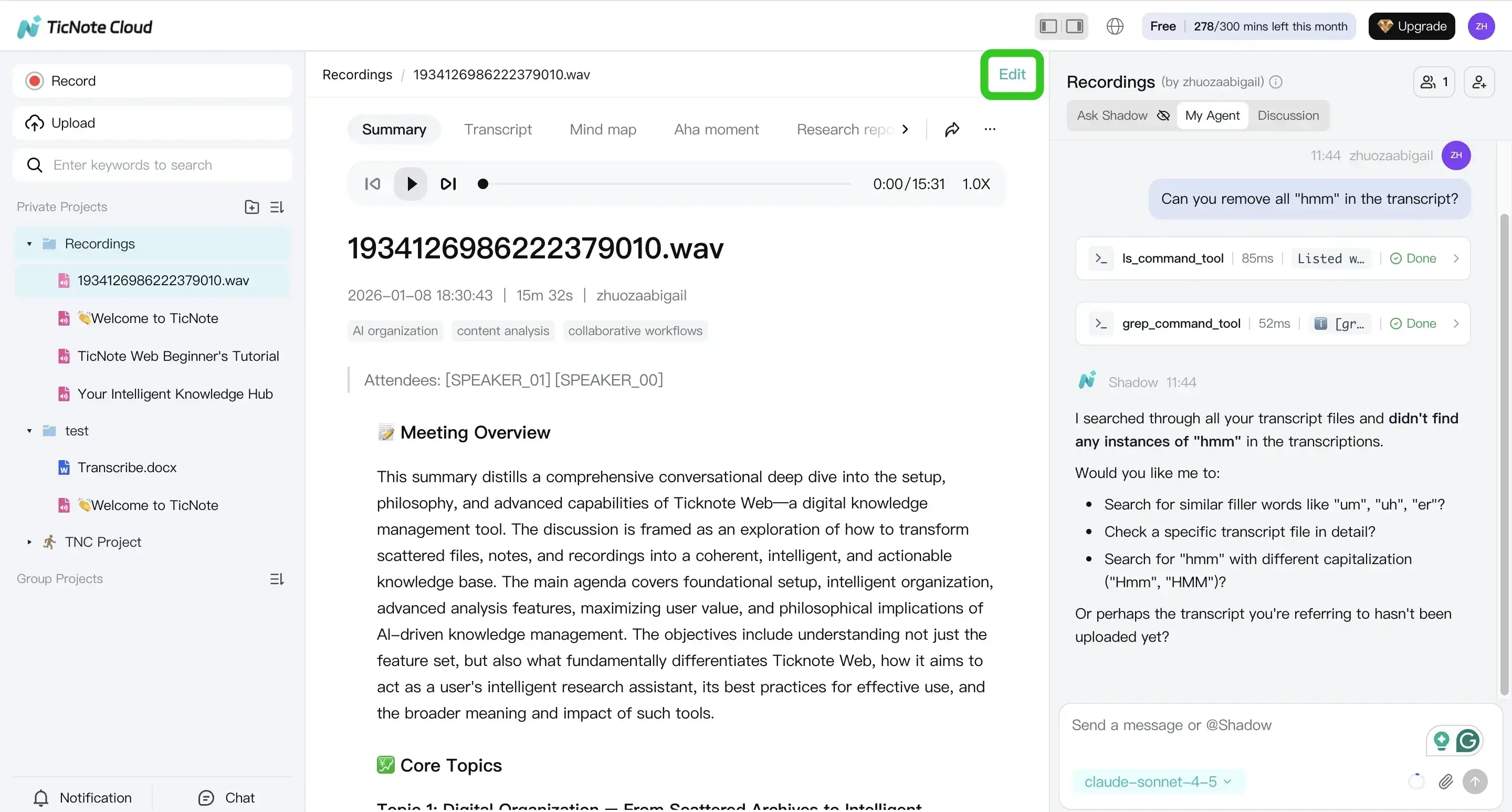
Helpful Shadow prompts for batch cleanup:
- "List action items with owners and due dates."
- "Normalize speaker names to: Alex, Priya, Sam."
- "Rewrite this as meeting notes with sections: Decisions, Risks, Next steps."
Keep one rule: if something isn't in the transcript, don't add it. Flag it instead.
4) Export what you need (and only what you need)
When outputs look right, export per file, or in the format your team expects. In Web Studio, use three dots > Download > Export Transcript.
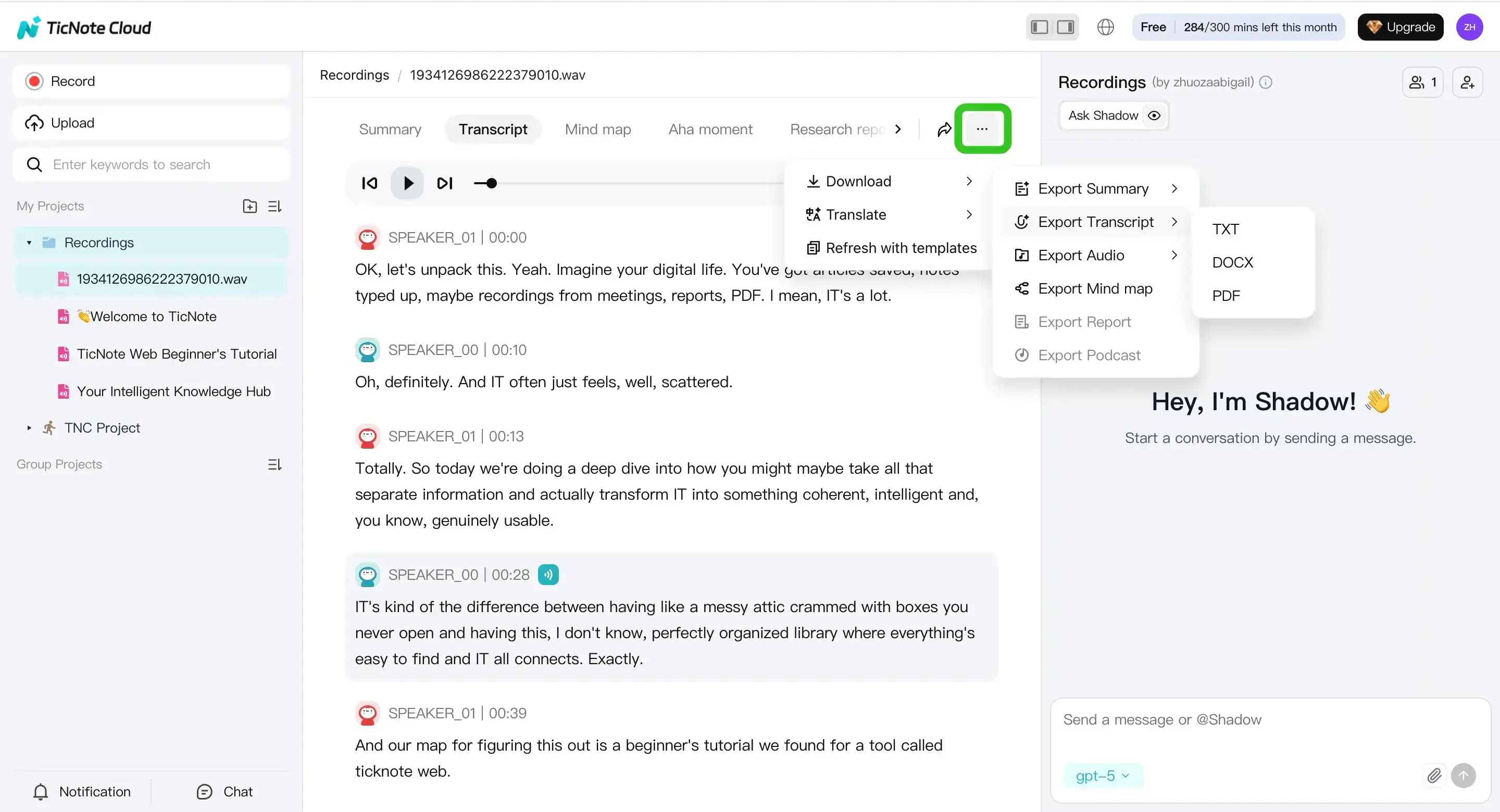
Common batch export set:
- Transcript as TXT for search, indexing, and quick sharing
- Summary as Markdown/DOCX/PDF for stakeholders
- Mind map as PNG/Xmind for reviews and workshops
- Audio as WAV for archival or QA
Operational checklists (use these every batch)
Batch run checklist (before you click Generate)
- Project is created and named for the batch
- File names follow one pattern (date, client, topic)
- Correct language is selected for each batch group
- You know the outputs you need (transcript only vs summary plus mind map)
- Files are in the right project so Shadow can search across them later
Progress tracking checklist (while processing)
- Mark "Pending" vs "Done" in your own tracker (sheet, task list, or project notes)
- While transcription runs, draft your note template (Decisions, Actions, Risks)
- Spot-check one early transcript for quality before you run the full batch
- If one file fails, re-upload just that file and rerun only that item
- After export, verify a sample file opens in the target tool (Docs, Word, PDF viewer)
Mobile app workflow (quick capture and quick review)
On mobile, the flow is the same, but it's best for fast capture and on-the-go edits. Tap add to upload a file to a project or to start capturing quickly, then generate the transcript, review, and export.
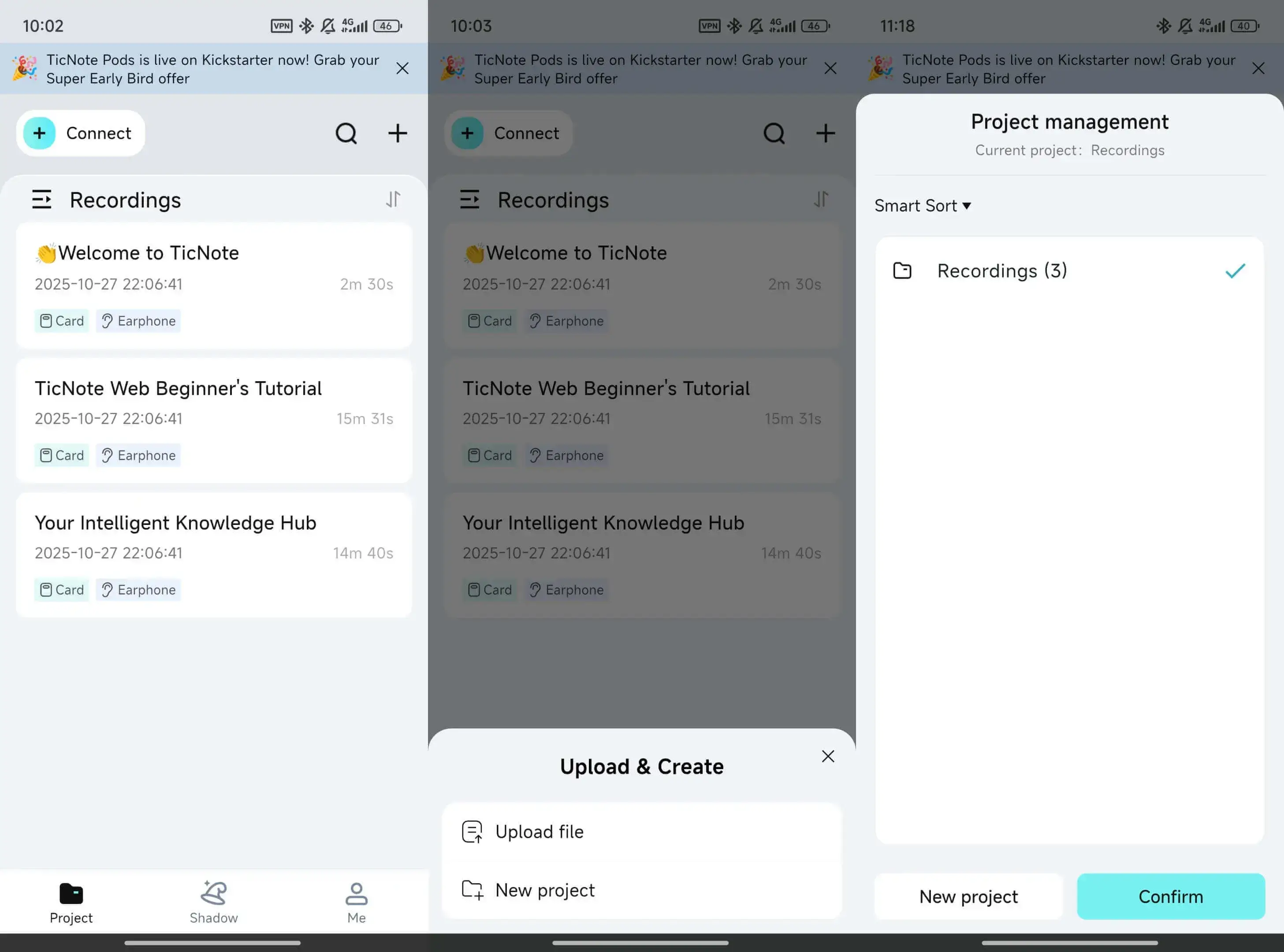
Use Web Studio when you want heavier batch organization and deeper reuse across the full set.
How do you organize batch transcripts so you can find decisions and action items later?
Batch transcription only pays off if you can pull a decision in seconds later. The goal isn't "a pile of text." It's a repeatable system that keeps every meeting searchable, consistent, and easy to turn into follow-ups.
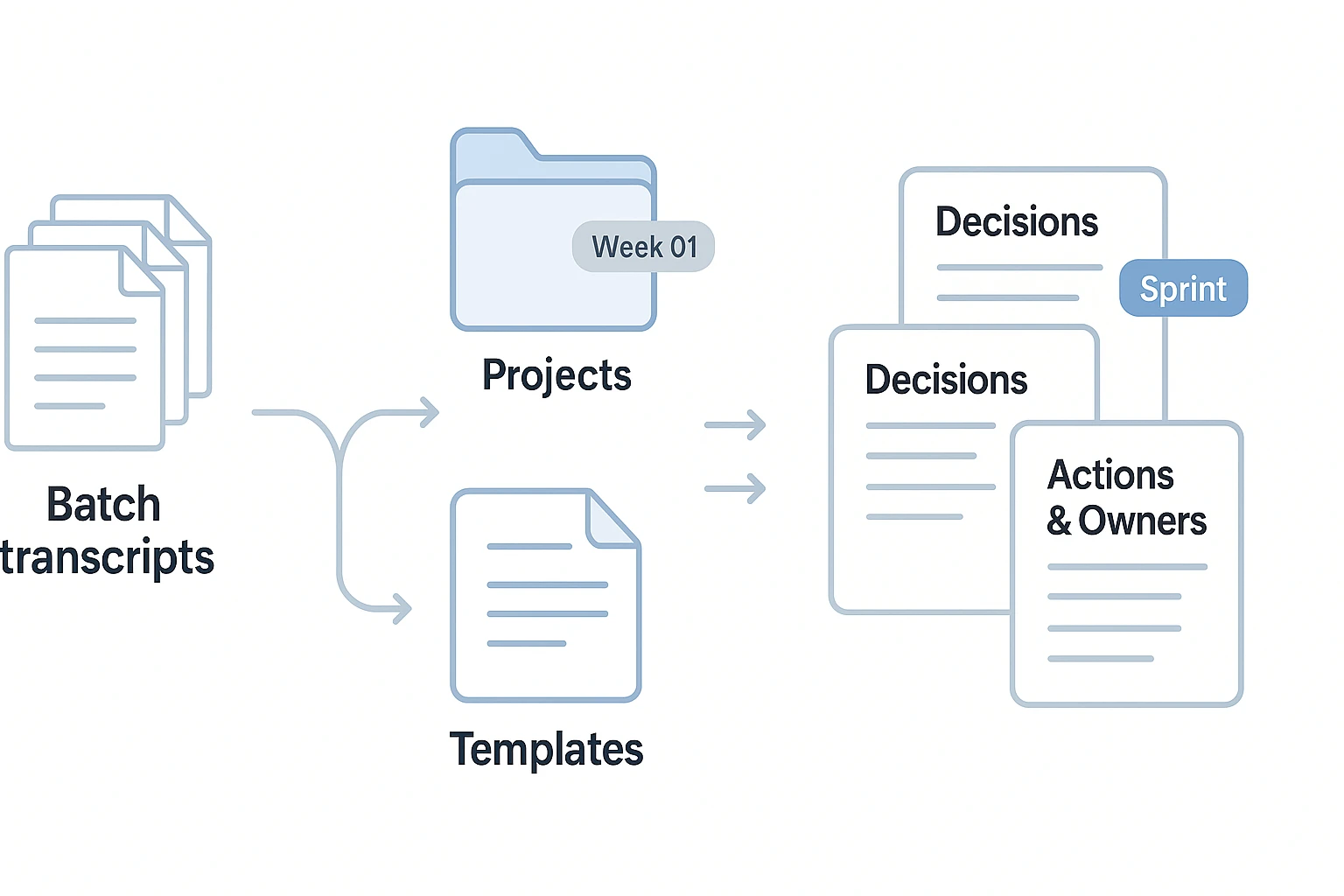
Use project spaces (then group by week or sprint)
Start simple: create one project per client, team, or initiative. Then group files by time so a batch stays navigable.
A practical structure looks like this:
- Project: Client A (or "Product Launch Q2")
- Week 01 (or Sprint 12)
- Week 02
- Week 03
This is where most meeting batch transcription workflows break: people optimize for upload speed, then can't retrieve anything later. If you're also cleaning up your capture process, use this guide on a reliable meeting transcription workflow to keep records consistent from day one.
Apply templates so every file has the same "shape"
Templates are what make a knowledge base searchable. Use the same headings across every meeting so key info always lands in the same place.
A strong default template:
- Context (why this meeting happened)
- Decisions
- Actions (owner + due date)
- Risks / Blockers
- Next Steps
Mini-quote (expert tip): "Standardize your headings first; you can always edit content later, but consistent structure is what makes a knowledge base searchable."
Secondary CTA: Generate your first AI summary in minutes.
Do a quick "actions & owners" pass (use a 2-pass method)
Don't try to perfect the transcript first. Do this instead:
- Pass 1: quick skim (2 to 5 minutes). Capture big decisions, top actions, and any dates.
- Pass 2: targeted search. Scan for phrases like "we decided", "next step", "I'll", "can you", and "by Friday".
As you find items, rewrite them into a clean line: Action + Owner + Due date. Then confirm any decision wording so it's unambiguous.
Try TicNote Cloud for Free to organize transcripts into a searchable project system.
How can Shadow help you review and reuse content across a whole batch?
When you finish batch transcription, the real work is finding what matters. Shadow helps you ask one question across many files, pull out consistent answers, and turn them into clean docs your team can reuse.
Ask the same question across many meetings
Instead of reopening 20 transcripts, ask Shadow across a project or folder. Useful prompts include:
- What did we decide about pricing for Q2?
- List every risk mentioned, and where it came up.
- Which customers asked for feature Y?
- Summarize objections across sales calls.
This makes your batch searchable by meaning, not just keywords. It also cuts re listening when you only need decisions, blockers, and next steps.
Turn answers into structured files (CRUD workflow)
Chat answers are easy to lose. Shadow Agent CRUD (create, read, update, delete) helps you move outputs into project files.
A simple pattern is:
- Ask across the batch for decisions and actions.
- Create a decision log and an action tracker file.
- Update those files as new recordings arrive.
That way, your batch becomes a living system, not a pile of transcripts.
Translate key parts for global teams (120+ languages)
For multilingual teams, translate in layers:
- Translate summaries first for fast sharing.
- Then translate only the key transcript parts you need.
- Do a quick meaning check for names, numbers, and dates.
This keeps handoffs clear across time zones and reduces avoidable errors.
How do you export batch transcription outputs (and which format should you choose)?
Exports are where a batch workflow pays off. Once your transcripts and notes are ready in TicNote Cloud, you can export them in consistent formats, with clean names, so your team can scan, share, and search fast.
Export options in TicNote Cloud (and when to use each)
Most teams export in batches too. The trick is to pick one "default" format per audience, then stick to a naming pattern.
In Web Studio, open the file you want to export.
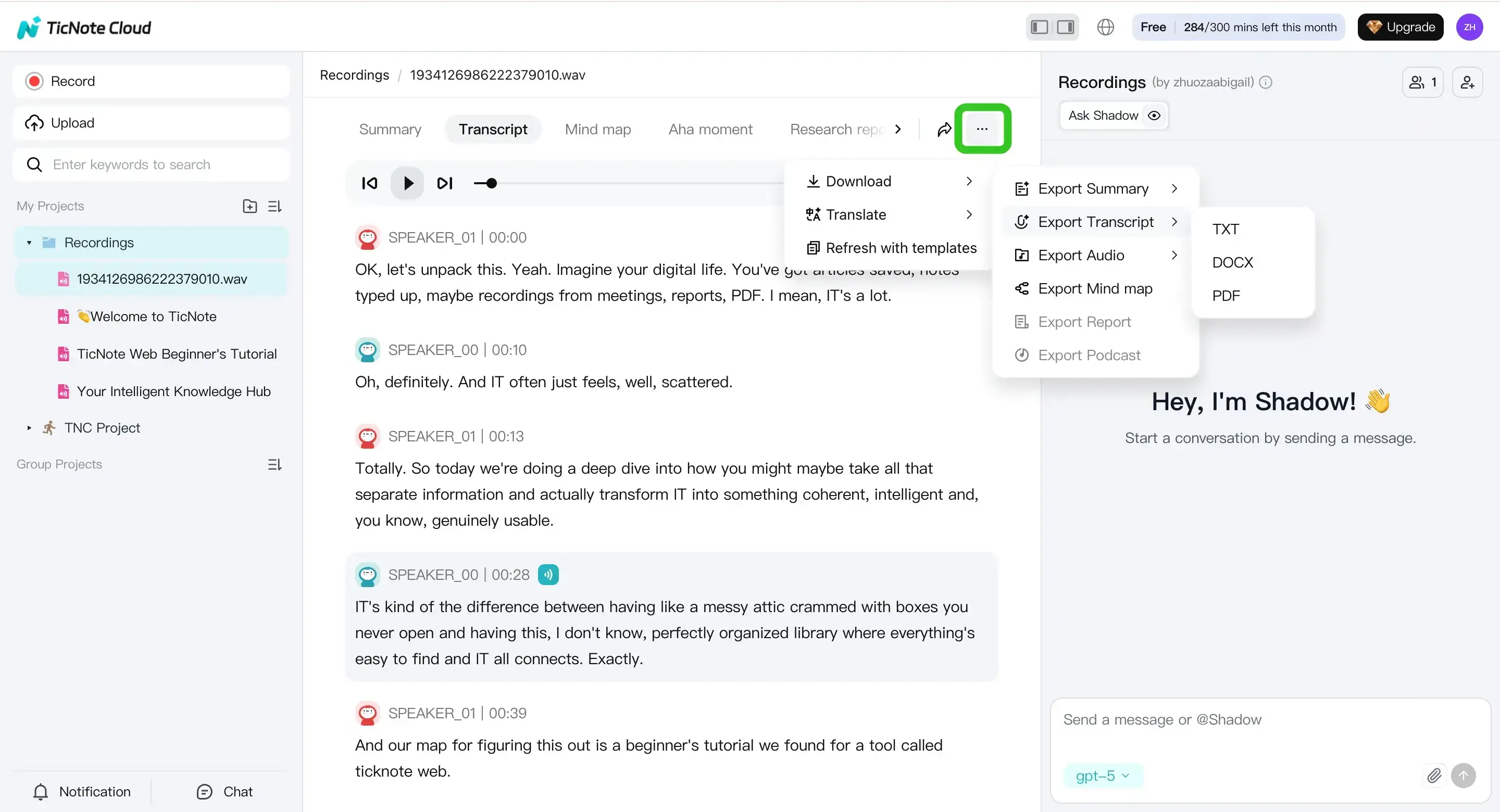
Here's how teams usually choose:
- TXT: raw transcript for search, QA, and quick sharing.
- Markdown, DOCX, PDF: polished meeting notes and summaries for stakeholders.
- PNG, Xmind: fast review, workshops, and slide-friendly visuals.
- WAV: archiving, compliance, or reprocessing later.
If you often deal with phone recordings, this pairs well with a guide on transcribing M4A files into clean text.
A quick format picker
| Format | Best for | What it preserves | What to watch out for |
| TXT | Search, backups, raw review | Full verbatim text | No formatting and easy to mix versions |
| Markdown | Notes in docs, wikis, PRDs | Headings, bullets, links | Some tools render Markdown differently |
| DOCX | Stakeholder-ready handoffs | Formatting and layout | Can drift if many people edit |
| Final, shareable record | Fixed layout | Harder to reuse content | |
| PNG / Xmind | Review and presentation | Visual structure | Not full-text searchable everywhere |
| WAV | Archive or rerun processing | Source audio | Large files, needs storage rules |
Avoid naming collisions and keep versions clean
Use one pattern across the whole batch:
{Project}_{YYYY-MM-DD}_{MeetingID}_{Type}_v1(example:Onboarding_2026-02-11_M042_Summary_v1)- Add
v2only when you rerun or heavily edit. - Keep exports grouped by project, with two subfolders:
01_source-audioand02_final-notes. - If you re-upload, keep the same MeetingID so links and search stay stable.
What are the most common batch transcription problems, and how do you fix them?
Batch transcription breaks for three reasons: bad inputs, oversized files, or messy reruns. The fix is simple: triage fast, repair what you can, and rerun only what failed so your batch stays clean and searchable.
Imports fail or quality is poor (audio hygiene checklist)
Start with the basics. If the upload fails, don't tweak settings yet. Confirm the file is usable.
- File checks: supported type, file opens locally, not zero bytes, not password protected
- Upload checks: stable connection, try a smaller file to confirm it's not your network
- Audio checks: speaker close to mic, steady volume, low background noise
- Conversation checks: reduce overlap (two people talking at once) when you can
Fast triage rule: if you can fix audio, do that first (it improves everything). If you can't, accept lower accuracy and lean on summaries plus targeted edits for key lines like decisions and tasks.
Long recordings and timeouts (split strategy)
In a batch, one long file can slow the whole queue. Quality swings and language switching also raise error rates.
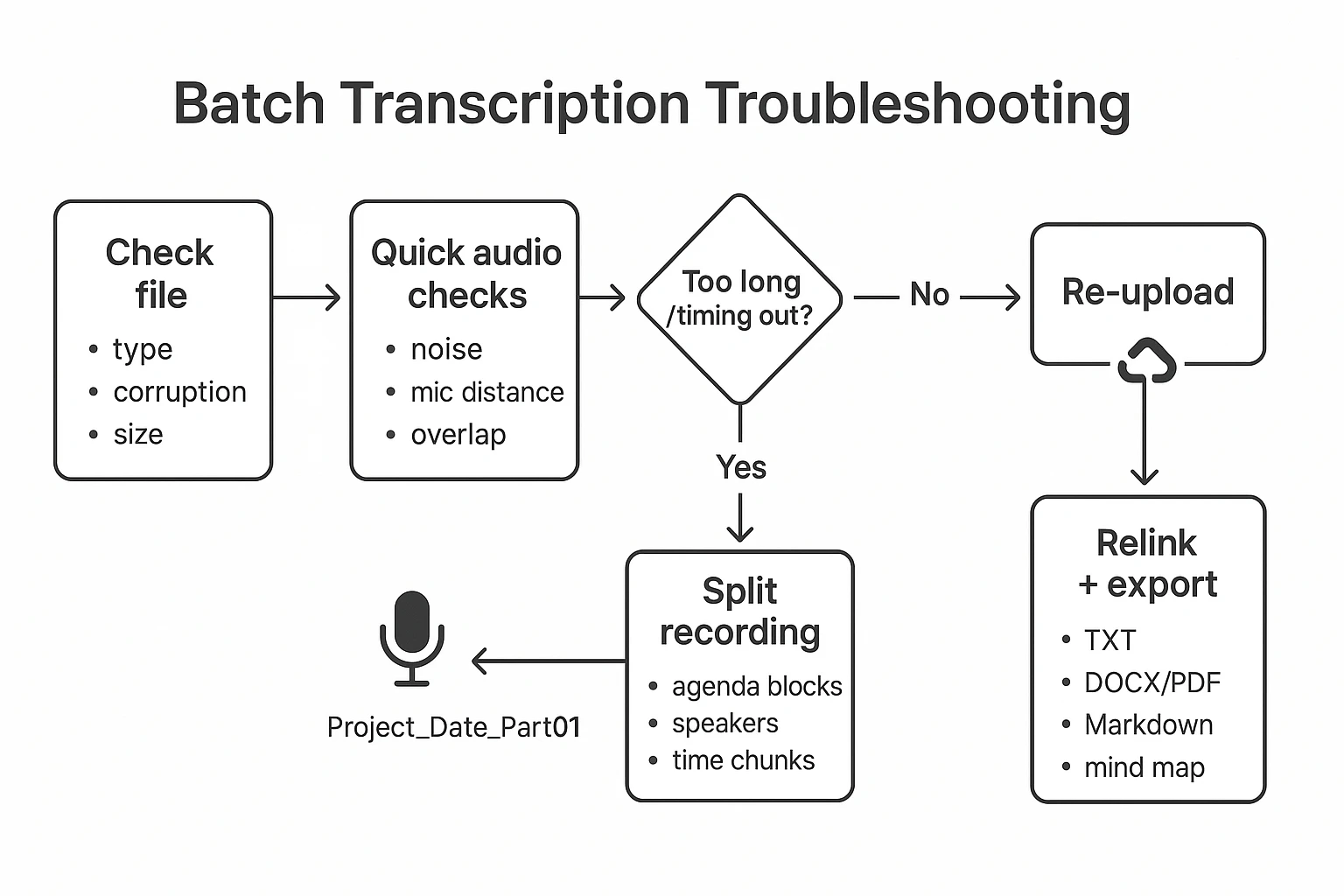
Split long recordings into parts that match how you'll search later:
- By agenda blocks (Intro, Metrics, Roadmap, Risks)
- By speaker segments (Presenter, Q&A)
- By time chunks (every 20 to 40 minutes)
Use names that reassemble cleanly: ProjectA_2026-02-11_QBR_Part01, Part02, Part03.
Duplicates, reruns, and safe reprocessing
Bulk runs create clutter unless you treat reruns like versions.
- Detect duplicates: same filename, same duration, same meeting date, same source folder
- Rerun only failed items: isolate the problem file, re-upload it, and generate the transcript again for that item
- Mark superseded safely: append
v2orrevised, and tag the old one assupersededso you keep an audit trail
If you need a quick flow, use: Check file → quick audio checks → split if needed → re-upload → rerun only that item → relink exports.
Why use TicNote Cloud for batch transcription as a meeting-notes alternative to basic transcript tools?
If you're doing batch transcription every week, the hard part isn't the text. It's keeping 20 to 200 recordings usable later. TicNote Cloud is built for that full workflow, so your transcripts don't turn into a pile of files.
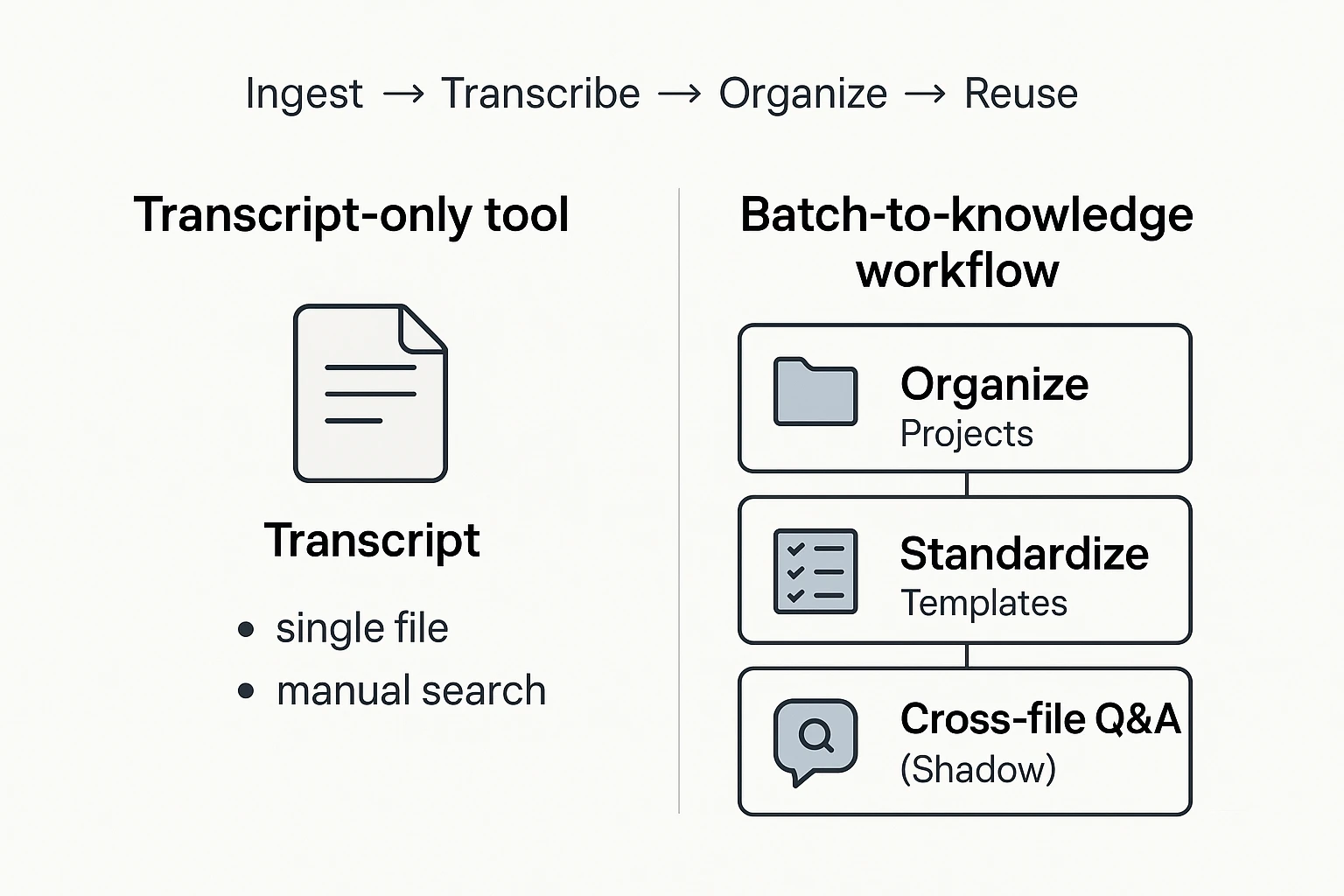
From transcript to knowledge base (what's different)
Basic transcript tools often stop at "here's the text." TicNote Cloud goes further by helping you turn each recording into a consistent, searchable asset inside a workspace.
- Organize with projects: group recordings by client, sprint, quarter, or study.
- Standardize with templates: keep the same headings for decisions, risks, and next steps.
- Reuse with Shadow: ask one question across many files to pull out action items, owners, or recurring issues.
If you're also weighing general AI options, this ties into what you'd expect from ChatGPT transcription limits and alternatives, but in a system designed for repeat use.
No-bot recording fit for policy-sensitive teams
Some teams can't invite meeting bots, or they prefer not to. TicNote Cloud supports recording without a bot joining the call, which can be easier for client work and internal etiquette. (You should still confirm your policy and consent rules.)
When a "just captions" tool is enough
If you only need quick captions, a one-off transcript, or something to copy once, a simpler tool may be fine. TicNote Cloud is a better match when you need repeatable batch work, shared projects for teams, and fast retrieval months later.