


 Extension
TL;DR: How to transcribe lots of files fast (and keep them searchable)
To batch-transcribe fast, use a project-based tool like TicNote Cloud so you can upload a folder's worth of recordings once, generate transcripts in one run, and then search across every file later with cited quotes.
You're stuck in the same loop: upload → wait → download → rename → file it away. Do that 50 times and you lose hours, plus you can't find anything later. The fix is to use TicNote Cloud to keep the batch in one Project, so transcripts stay organized and searchable from day one.
- 30-second workflow: put all recordings in one folder → quick format/size check → batch transcribe → spot-QC 10–15% → apply consistent names + metadata → reuse via cross-file search and cited quotes.
- Best pick by constraint: fastest end-to-end (transcribe + answer questions later) = TicNote Cloud; most private (no upload) = local Whisper batch; most scalable for engineering = API batch with scripted QC.
- What breaks most batches (fast fixes): size limits (WAV→MP3), mixed languages (split by language), noise/crosstalk (light cleanup + mic rules), diarization errors (cap speakers, add names, spot-check).
What is Batch Transcription and when is it worth setting up?
Batch transcription is processing many recordings in one queue (a folder, Project, or API job) instead of uploading and exporting one file at a time. The big win isn't just speed—it's consistency: the same settings, the same naming rules, and the same output structure across the whole set.
Batch vs. single-file transcription (what changes)
Single-file work is "one-off." You upload, pick settings, export, repeat. In a batch workflow, you standardize the parts that usually drift:
- Consistent naming (so files sort, search, and cite cleanly later)
- Repeatable settings like language, timestamps, and speaker labeling
- QA sampling (spot-check a subset instead of reading everything)
- Organized outputs (one place to store transcripts, summaries, and key quotes)
A few terms matter when you scale:
- Timestamps = time markers (like 00:12:34) that help you jump back to the audio fast.
- Speaker diarization = "who spoke when" labeling (Speaker 1, Speaker 2, or named speakers).
- WER (word error rate) = how many words are wrong. It usually goes up with noise, accents, and—most of all—people talking over each other.
The "50 files" scenario and the hidden workflow tax
A common batch is 30–80 recordings that are 20–60 minutes each. Many come in with default names (like Zoom exports or recorder IDs), mixed microphones, and uneven volume. The transcription itself might be automated, but the time sink shows up around it.
What usually costs you time:
- Babysitting uploads and re-trying failures
- Manual renaming and sorting into folders
- Tracking what's done vs. what's pending
- Later: hunting for one quote across dozens of files
A simple ROI thought-starter: if a batch workflow saves 3–10 minutes per file on handling (rename, sort, status tracking, quote hunting), then 50 files saves 150–500 minutes (2.5–8.3 hours). That's often more time than the transcription run itself.
If you also need a refresher on the basics before you scale, this guide on end-to-end audio transcription workflows pairs well with batching.
When you should not batch (yet)
Batching works best when you can apply the same rules repeatedly. Hold off if:
- You only have 1–2 recordings. The setup overhead isn't worth it.
- You need legal-grade verbatim accuracy but don't have a QC plan (sampling + clear correction rules).
- The files are highly sensitive and you don't have approved storage, retention, and deletion rules—start with a quick privacy mini-audit or local processing.
- Languages and speaker mixes vary a lot and you can't label files reliably. Do a 10-file pilot first, then lock your rules.
How to batch transcribe multiple audio files at once: a step-by-step workflow
Batch transcription works best when you treat it like a production line: ingest a folder, run consistent settings, spot-check quality fast, then export in the formats your team uses. Below is a repeatable workflow using TicNote Cloud, so you can see the full "upload → transcribe → QC → deliver" loop in one place.
Web Studio: run a clean batch from upload to export
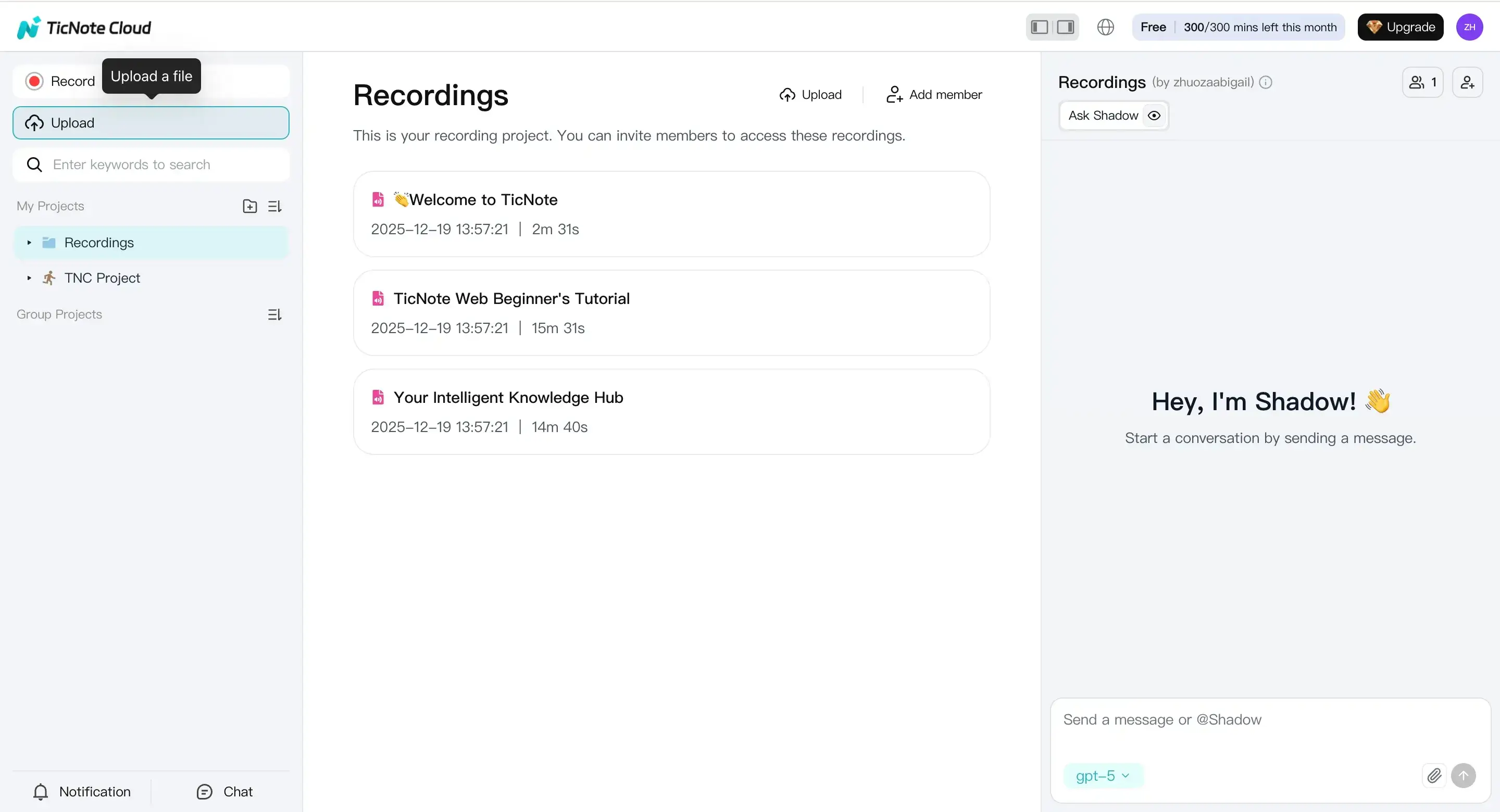
1) Upload files (or record) into a Project
Start by creating a new Project. Think of a Project as the container for one batch (like "Client Interviews — Week 14"). This keeps search, exports, and follow-up work in one place.
In Web Studio, hit Upload and add your files in one go. A simple habit: upload a whole folder at once instead of file-by-file.
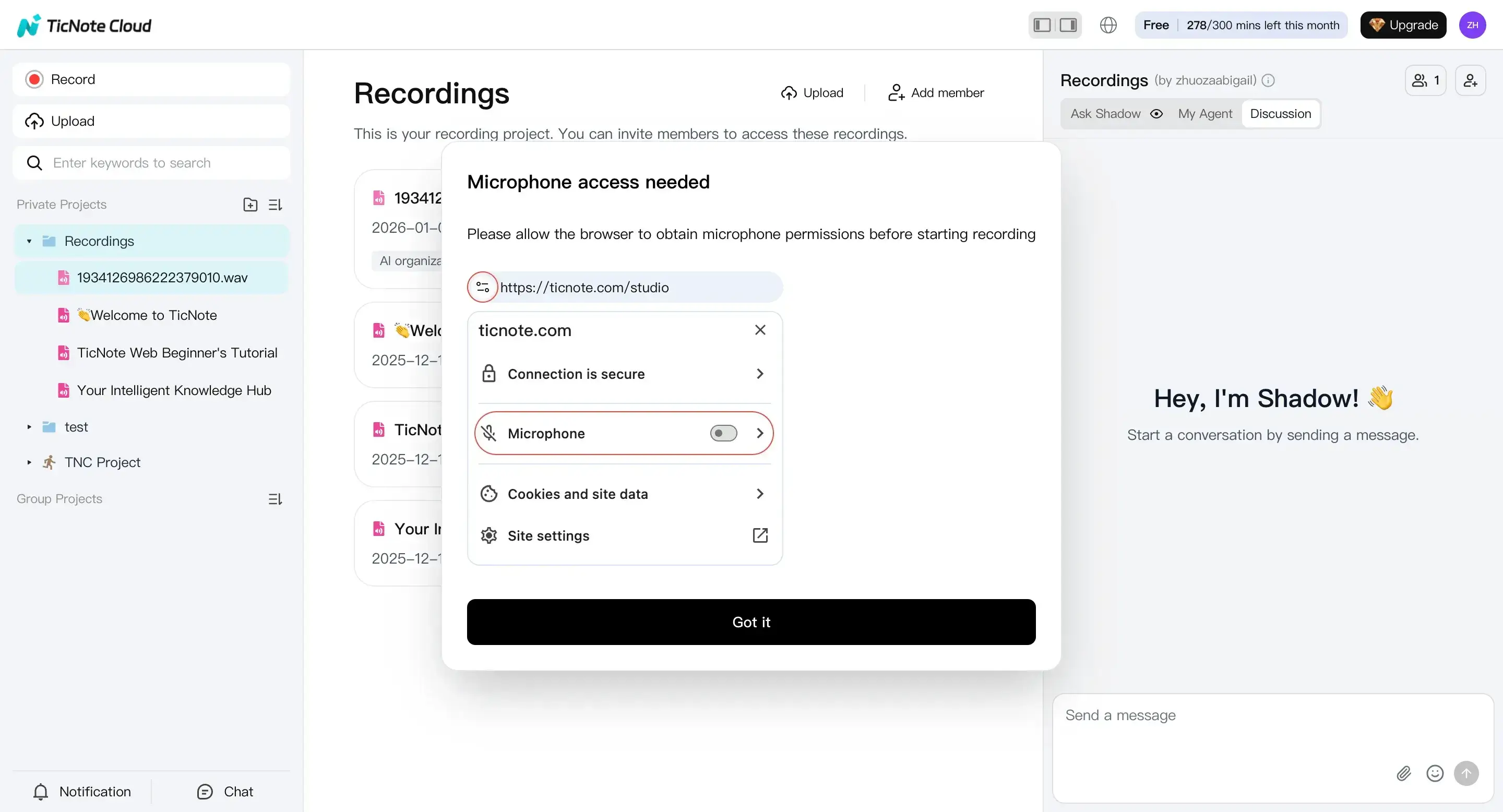
If you're capturing new audio, you can also record right inside the same workflow. Click Record, enable your mic, and finish the recording. It saves automatically, so you can transcribe it like any other item.
Practical batching rule: keep each batch "similar." If you mix call audio, lectures, and street interviews, QC gets harder and your error rate rises.
2) Set transcription options before you run the batch
After upload (or recording), select a file from the left panel. Go to the Transcript tab and click Generate.
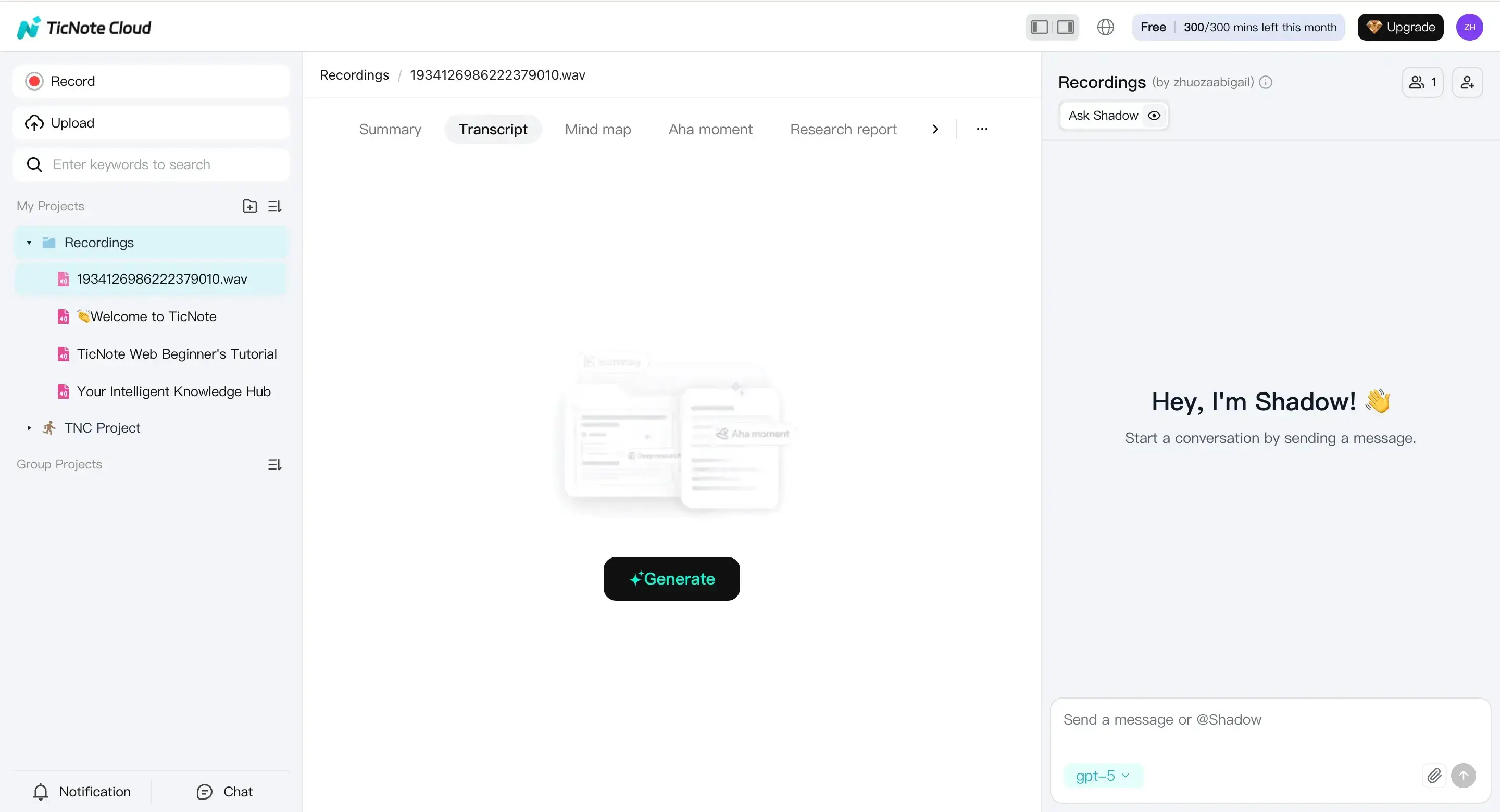
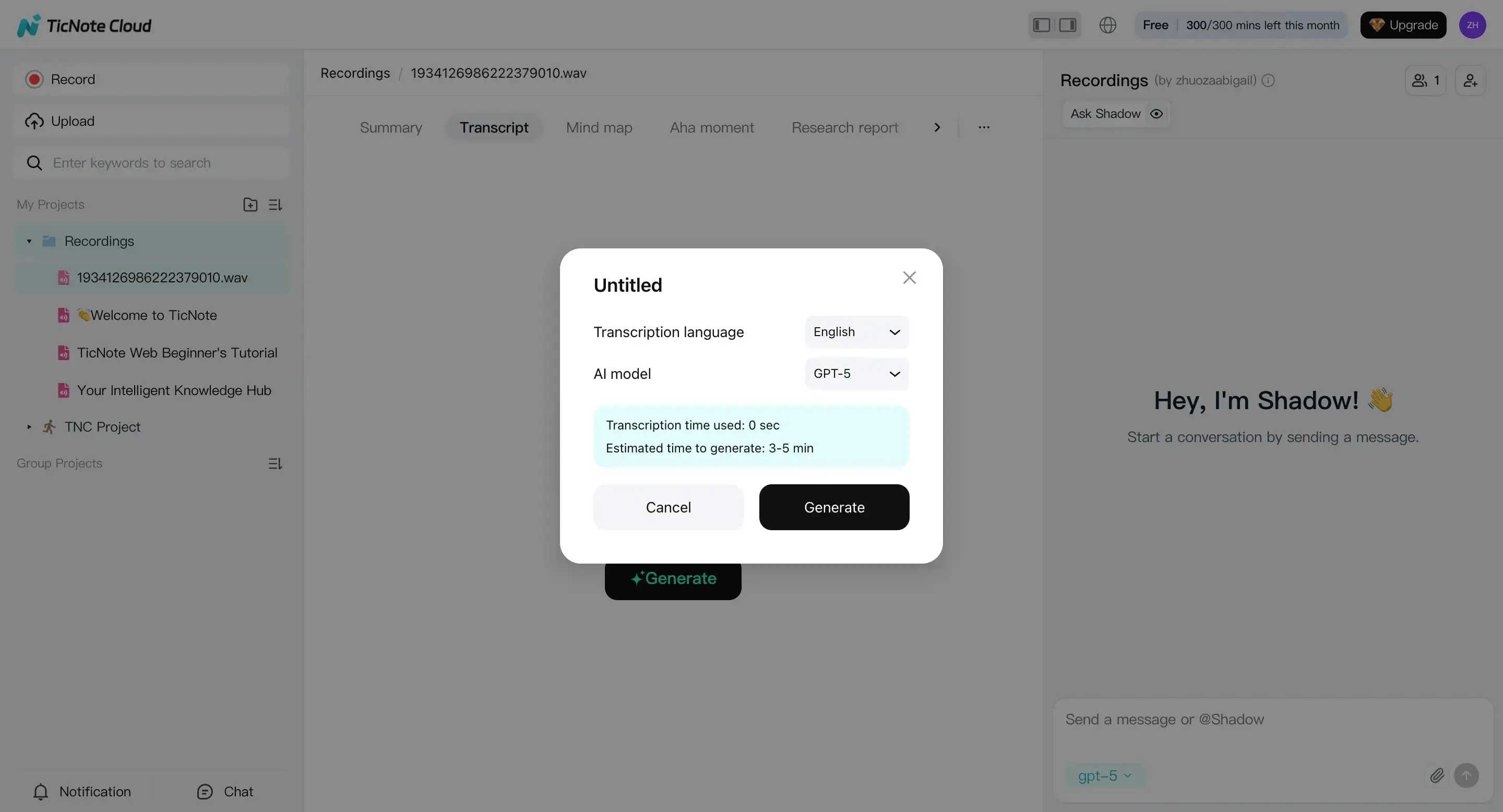
In the dialog, set options that should stay consistent across the batch:
- Language: confirm the spoken language. If your folder has mixed languages, split it into sub-batches so QC is apples-to-apples.
- AI model: pick one model setting and keep it stable for the whole batch.
- Downstream helpers: turn on timestamps and speaker handling when available. Timestamps make later QA faster because you can jump straight to the problem spot.
Then confirm to start transcription.
A simple QC metric that scales: sample 2 minutes per file (start, middle, end). If 80% of your samples look good, the batch is usually workable without heavy editing.
3) Review outputs and do fast QC (don't edit everything)
Once the transcript generates, scan for "batch killers" first:
- Wrong language (you'll see lots of nonsense words)
- Missing sections (big gaps or abrupt endings)
- Heavy noise (many [inaudible]-style errors)
- Speaker confusion (one person labeled as many, or everyone merged)
You can edit directly in the transcript editor. Or use Shadow AI to clean structure while keeping the work traceable (for example: add headings, pull action items, and surface key quotes).
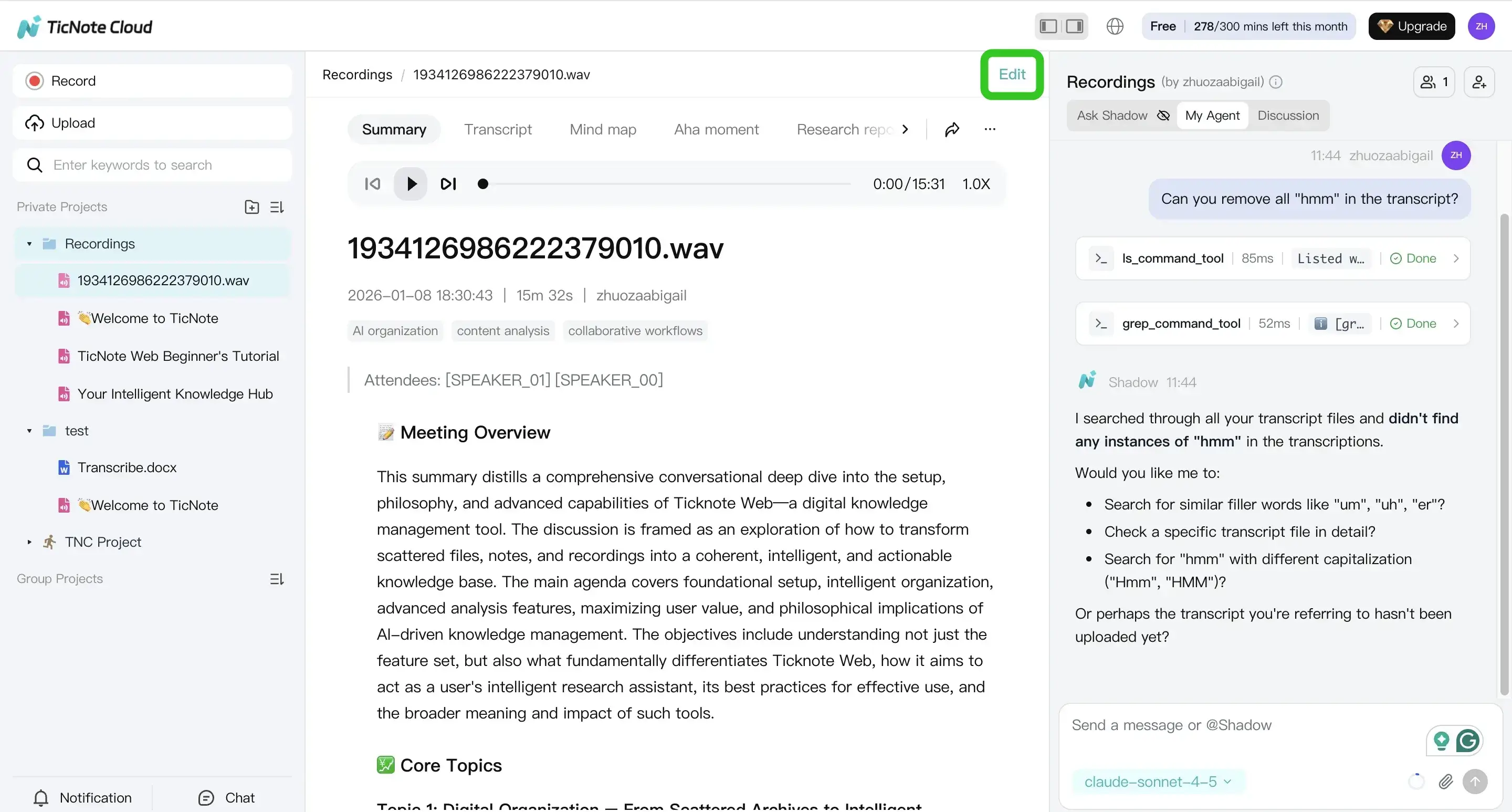
Also use the summary and mind map as sanity checks. If those outputs miss the main themes, the transcript likely needs a settings fix (language/model) or audio prep before you trust it.
4) Export transcripts and summaries in the formats people actually use
When the file looks good, export it with a consistent routine. In Web Studio, open the three dots menu, choose Download, then Export Transcript.
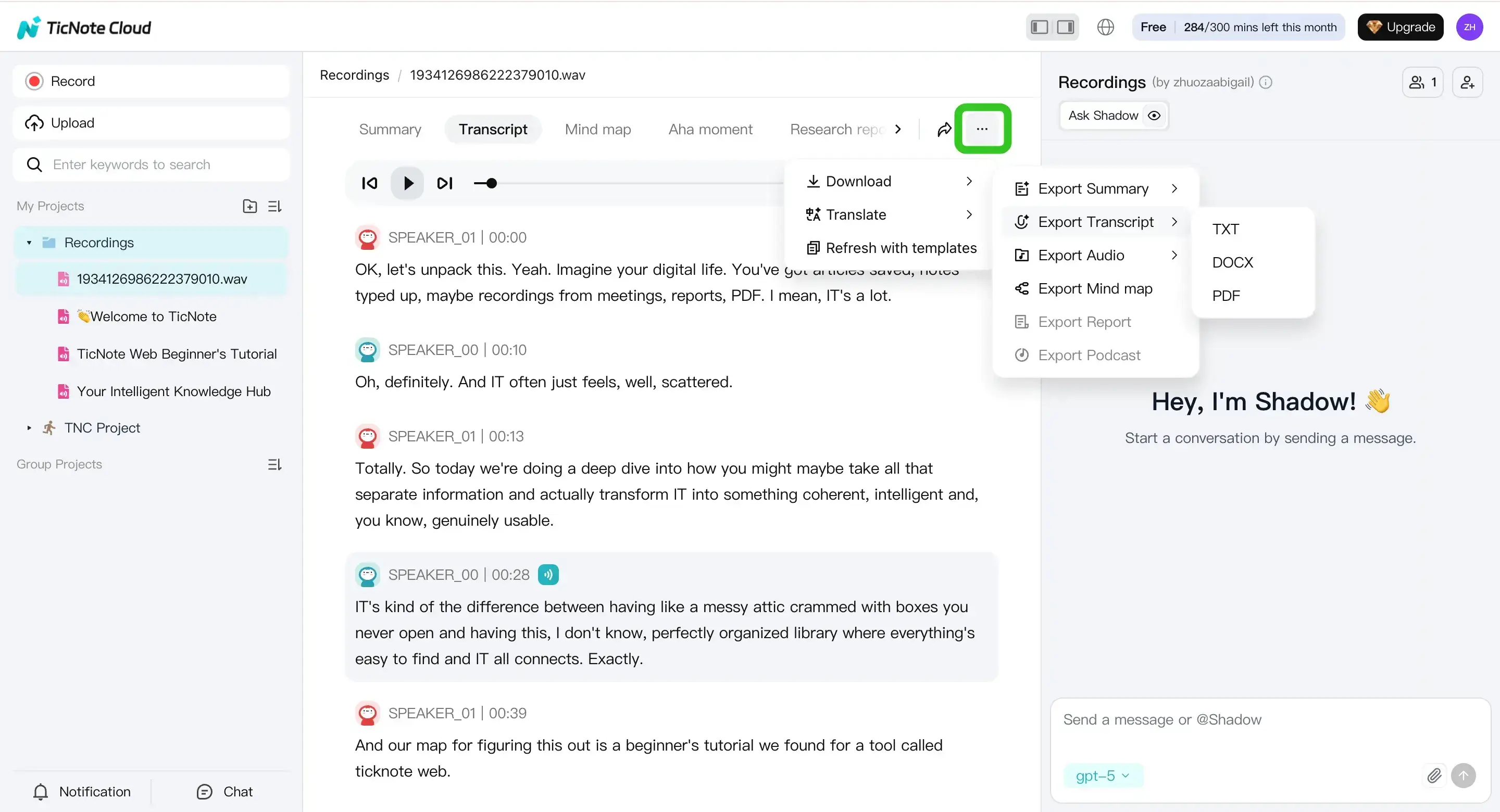
Pick formats based on the consumer:
- TXT for simple search and pipelines
- DOCX for reviewers who will comment
- PDF for "final" sharing and archiving
Do the same for summaries (Markdown/DOCX/PDF) when you need a shorter artifact.
Use a naming rule that stays sortable across weeks, like:
Project - Date - Source - SpeakerCount
Example: Sprint Interviews - 2026-04-17 - Zoom_01 - 3spk.
Optional: generate deliverables from the same batch
If you need more than a transcript, you can keep everything in the same Project and generate additional outputs from the same sources:
- Summary for quick skim and handoff
- Podcast-style output when you want a narrative recap plus show-notes structure
- Deep Research report when you need a structured synthesis across files
This is where batch work pays off: you avoid re-opening files and re-copying text across tools.
App (mobile) workflow: capture, transcribe, export
On mobile, the flow is the same: upload or record into a Project, generate the transcript, then export or share what you need. Tap the add button to upload a file to a Project (or start with a new Project).
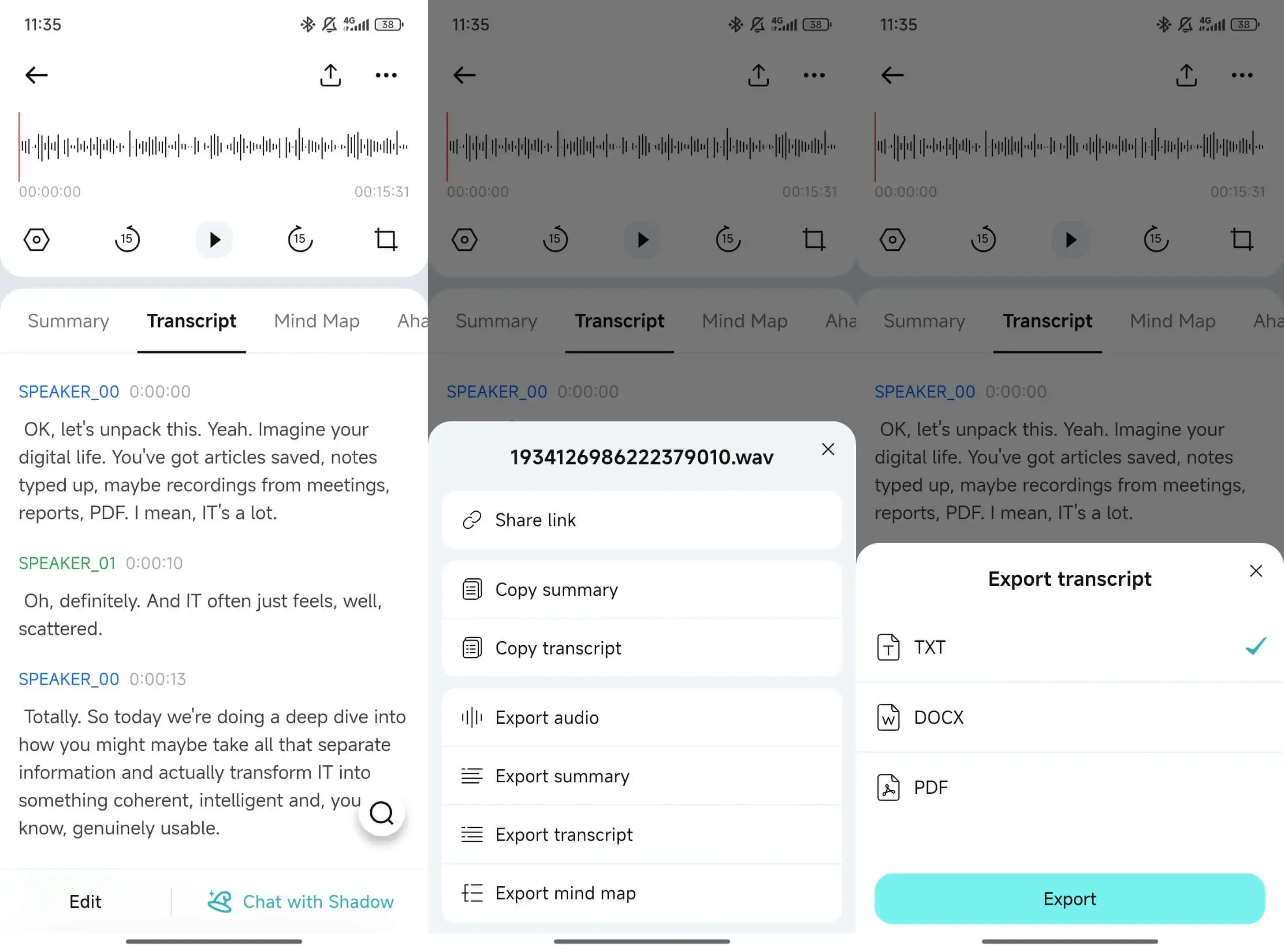
After you generate the transcript, you can edit and export it from the menu. The key is consistency: keep the same naming rule and the same QC sampling method, even on phone.
Create a Project in TicNote Cloud and run your next batch in one searchable workspace.
How should you prep audio so batch transcriptions come out accurate?
Good prep is what makes a batch run predictable. The goal is simple: keep speech clear, keep files consistent, and avoid "fixes" that damage voices. Do that, and you'll get higher accuracy with less rework—especially when you're processing dozens of recordings at once.
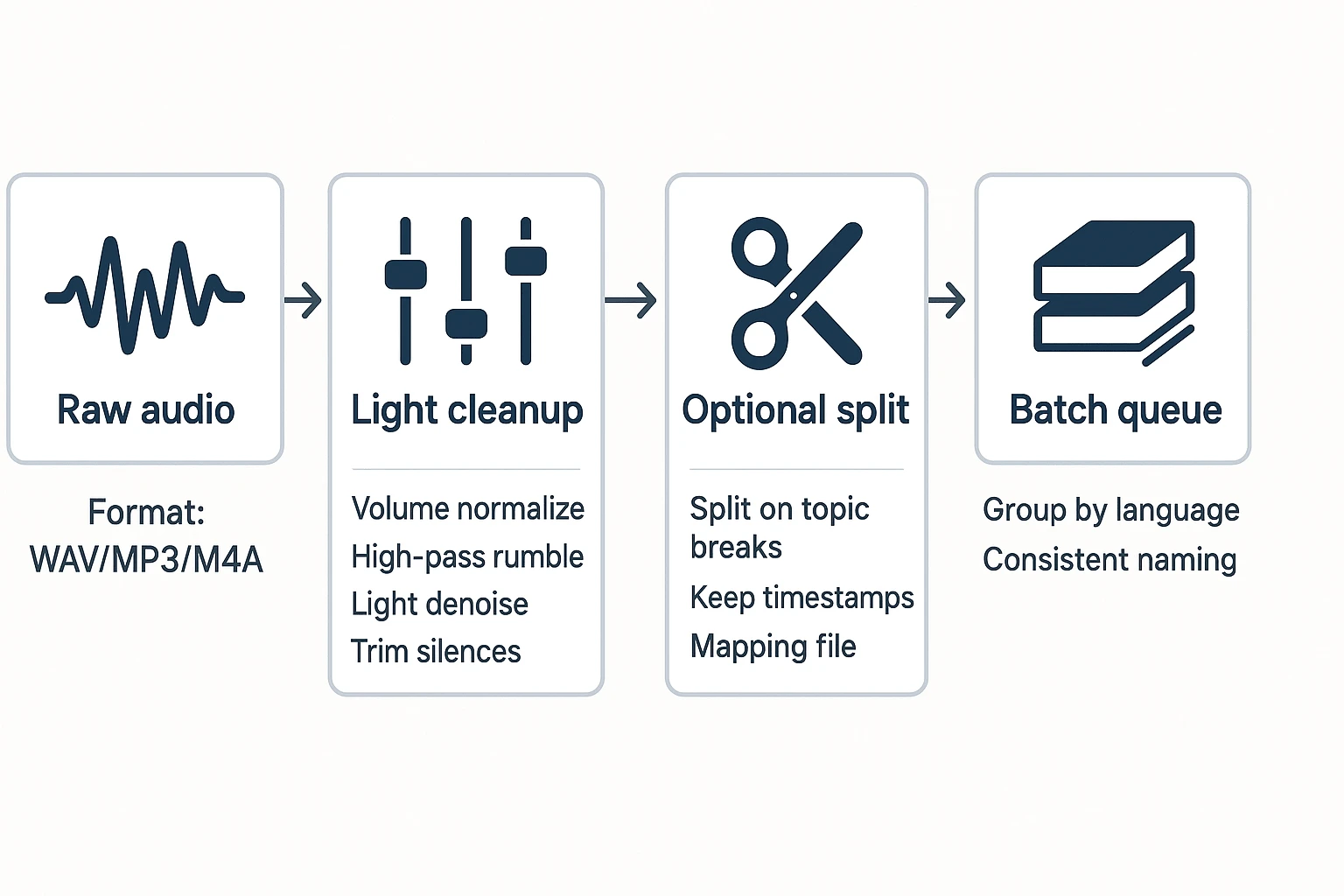
Pick a format you can repeat (and don't chase studio settings)
Here's a clean rule: if your files are huge, convert once; if they're already manageable, don't over-process. Each conversion can add artifacts, and artifacts show up as wrong words.
- WAV: big files, but clean audio. Use it when you control recording settings or need the best possible input.
- MP3/M4A: much smaller and usually accurate for speech. They're often the fastest path for a batch.
- Keep one format per batch when you can. Mixed formats often mean mixed levels and mixed results.
Sample rate basics, in plain words: speech transcribes well at common defaults. 44.1 kHz or 48 kHz is fine, and 16 kHz can also work for voice. Don't waste time "upgrading" audio to higher rates—upsampling doesn't add detail the mic never captured.
If you're starting with M4A and need a clean, repeatable path, use this guide on converting and transcribing M4A files reliably so your batch settings stay consistent.
Do light cleanup that helps ASR (and skip what hurts)
A little cleanup can raise accuracy fast. But heavy processing can make voices sound "watery," which increases errors.
What helps most batches:
- Normalize low volume (bring quiet speech up, gently).
- Remove long silences (cuts cost and speeds review).
- Light noise reduction (steady fan/hum only).
- High-pass filter to reduce rumble (low-end HVAC, handling noise).
What hurts accuracy:
- Aggressive denoise that warbles consonants.
- Over-compression that pumps background noise.
- Clipping (flat-topped peaks from recording too loud).
- "AI enhancement" that invents artifacts and changes timbre.
Quick checkpoint before you run 50 files: put on headphones and spot-check the worst 60 seconds (most noise, most overlap, quietest speaker). If that minute is readable, the batch usually is too.
Split long recordings without losing context
Split only when you need to: very long meetings, hard tool limits, or long dead air that wastes time.
To split safely:
- Split on natural breaks (topic change, agenda section, speaker handoff).
- Keep timestamps (or write down the start time of each segment).
- Maintain a simple mapping file so you can re-stitch later.
Example mapping row: ClientA_Interview03_Part2 = 00:45:12–01:22:40
Naming convention that stays sortable:
ClientA_Interview03_Part1ClientA_Interview03_Part2ClientA_Interview03_Part3
Multi-language batches: label, separate, or translate?
Language handling is where many batches quietly fail. Fix it upfront.
- One language per file (you know it): label files and batch by language. You'll get better recognition and fewer "near-miss" words.
- Language switches inside one file: keep it as one file so context stays intact, but flag the switch early during QC.
- Need bilingual output: transcribe first, then translate the transcript. Don't translate audio directly unless you must; it's harder to QA and easier to mis-hear names.
How do you get better speaker diarization in multi-speaker batches?
Speaker diarization is the part of batch transcription that labels "who spoke when." It's useful, but it's not mind-reading. It works best when people take turns, voices sound different, and the room is quiet.
Set expectations: what diarization can (and can't) do
Diarization groups audio into speaker segments. It doesn't truly "know" names unless you add them later. Expect it to struggle when two people talk at once, when voices are similar, or when the mic is far away.
Batch runs often make diarization look worse. Why? Your files don't match. One call has a headset mic, another is a room recording, and a third is a screen capture with echo. The model has to relearn the "sound" of each file, over and over.
Use this diarization improvement checklist
If you want cleaner labels across dozens of files, focus on inputs you can control:
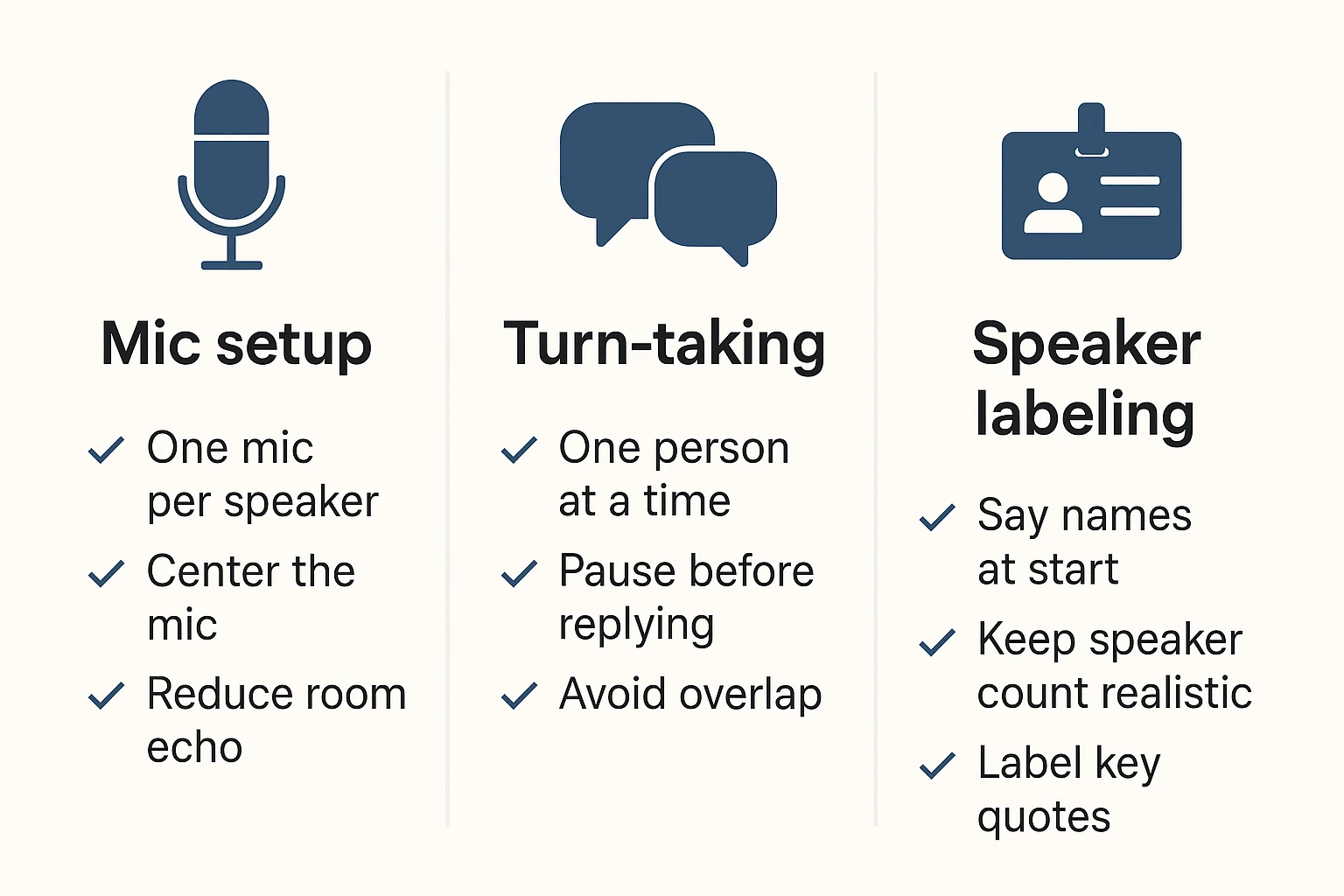
- Mic setup
- Use one mic per speaker when you can.
- If you must use one mic, place it centered and within ~0.5–1 meter of the group.
- Avoid laptop mics in large rooms; they amplify reverb.
- Turn-taking
- Agree on "one person at a time" for key sections (decisions, action items, quotes).
- Pause for 1 second before jumping in. That tiny gap helps segmentation.
- Speaker labeling
- Have everyone say their name up front: "This is Alex…".
- Keep the speaker count realistic. If it's 3 people, don't force 10 labels.
If you're doing interviews, this pairs well with a tighter intake routine for audio quality and naming—see this guide on proper interview transcription workflows.
Switch strategies when diarization keeps failing
Don't burn hours chasing perfect speaker labels.
- If diarization fails repeatedly, do manual labels only for the important parts: decisions, direct quotes, and objections. You can leave small talk as "Speaker 1/2."
- If you recorded separate tracks per speaker (common in podcast rigs), transcribe each track, then merge. You'll get cleaner attribution.
- If your end goal is searchable knowledge, diarization perfection matters less than good timestamps and clear topic structure. You can still find answers fast even if a few labels are off.
Spot-check speaker errors without rereading everything
Quality check by sampling, not by scrolling line-by-line:
- Check the first 2 minutes (intros and voice IDs).
- Check one middle segment where people debate.
- Check the last 2 minutes (decisions and next steps).
Then do two quick searches: look for "I think / I recommend" and for decision phrases like "let's do / we'll." Confirm the speaker on those lines. Any file that fails these checks is a candidate for a re-run with better settings—or a small manual fix.
What are the best batch transcription tools (and how do they compare)?
The best tool depends on what happens after the text shows up. Some tools only give you exports. Others help you store, search, edit, and reuse a whole batch as a single knowledge set.
Below is a candid shortlist, then a normalized table you can scan in under a minute.
TicNote Cloud (best for most teams: batch + organization + reuse)
TicNote Cloud fits teams that need more than "audio in, text out." You can keep dozens of recordings together in Projects, edit transcripts (not just download them), and search across files with citations so answers stay traceable.
It also covers practical batch needs most teams hit fast:
- Timestamped transcripts for review and quote finding
- Multi-language transcription and translation (useful when your batch spans regions)
- Collaboration and permissions so edits don't live on one laptop
- Downstream outputs (reports, presentations, podcasts, mind maps) so the batch becomes a deliverable, not a folder
If your goal is fast processing and faster reuse later, start with the free plan and validate your workflow on a real week of files.
Buzz (Whisper desktop) (best when nothing can leave your device)
Buzz is a strong option when uploads are not allowed. You get local processing and a batch queue, but speed depends on your hardware and model choice (bigger models usually mean better accuracy but slower runs).
The trade-off is operational: you often end up with a "folder of text files." That means you still own naming, indexing, search, and any cross-file QA.
MacWhisper (best local option for Mac users who want polish)
MacWhisper is the most polished local workflow on macOS for Whisper-based transcription, and it supports batch mode.
Watch plan gating. In many apps in this category, the batch workflow, diarization, or export options are tied to paid tiers, so confirm what's included before you standardize on it.
TurboScribe (best for fast web-based bulk transcription + exports)
TurboScribe works well when you mainly want quick transcripts and common export formats. It's simple for bulk uploads and is often faster than local runs on a typical laptop.
The main drawback is "download gravity." If your workflow ends with exporting dozens of files, you can lose time to manual file handling, version control, and re-uploading into whatever system your team actually uses.
AssemblyAI (API) (best for developers who need programmatic scale)
AssemblyAI is a developer-first choice. You can batch via API, add diarization, and layer in enrichment features.
But you must build the surrounding system: storage, naming rules, retries, QA checks, permissions, and a review UI. If you don't want to own that surface area, a Project-based tool will usually be faster end-to-end.
Normalized comparison table (scan this first)
| Tool | Typical pricing model (range) | Batch method (UI/API/local) | Practical limits (file length/queue) | Diarization | Timestamps | Inputs/outputs | Storage/retention controls | Best for |
| TicNote Cloud | Freemium + paid monthly (roughly $$0$$30/mo tiers) | Web UI + Project workspace | Plan-based minutes and max length per recording (check current docs) | Yes (speaker recognition) | Yes | Inputs: common audio/video + docs; Outputs: TXT/DOCX/PDF/Markdown + more | Cloud storage; delete/export options vary by plan (check current docs) | Teams that need cross-file search, editing, and deliverables |
| Buzz (Whisper desktop) | Free/open-source (plus your compute cost) | Local app (batch queue) | Hardware-bound; long files can be slow; queue is local | Limited/varies by setup | Yes/varies | Inputs: audio; Outputs: text/subtitles (varies) | Local-only; you control retention | Strict no-upload environments |
| MacWhisper | Free + paid tiers (one-time or subscription depending on tier) | Local Mac app (batch mode) | Hardware-bound; some features paywalled (check current docs) | Often paid/limited | Yes | Inputs: audio/video; Outputs: common transcript formats (varies) | Local-only; you control retention | Mac users wanting an easy local workflow |
| TurboScribe | Web plans (typically subscription or credits) | Web UI bulk upload | Plan-based file size/length and queue limits (check current docs) | Sometimes/plan-based | Yes | Inputs: audio/video; Outputs: common transcript exports | Cloud retention rules vary by plan (check current docs) | Fast bulk transcripts with minimal setup |
| AssemblyAI | Usage-based API (per minute) | API batch jobs | Scales with your pipeline; rate limits apply (check current docs) | Yes | Yes | Inputs: audio; Outputs: JSON + structured fields | You control storage; vendor retention settings vary (check current docs) | Developers building custom products or pipelines |
Decision rule (pick in 10 seconds)
- If you need search and deliverables across many files: choose TicNote Cloud.
- If you can't upload anything: choose Buzz or MacWhisper.
- If you need programmatic scale inside your stack: choose AssemblyAI.
The big idea: batch transcription isn't the hard part. Naming, QA, and reuse are. Pick the tool that removes the most post-transcription work for your team.
Privacy, security, and compliance: what should you verify before uploading a batch?
Batch transcription gets risky when "dozens of files" includes personal or client data. Before you upload anything, decide where the risk sits: on your device (local) or with a vendor (cloud). Either can be safe. The difference is who must prove it.
Cloud vs local: the real tradeoff
Local transcription gives you full file control. But you also own the hard parts: disk encryption, patching, secure backups, and safe sharing.
Cloud tools are faster for teams. They also make it easier to search and reuse transcripts. But you must confirm how data is protected, stored, and removed.
Do a quick privacy mini-audit before any batch upload
Use this checklist and get plain answers in writing:
- Encryption: encryption in transit and at rest. Look for clear statements, not vague "secure" claims.
- Retention defaults: how long files and transcripts are kept. Under Regulation (EU) 2016/679 (General Data Protection Regulation), Article 5 (2016), personal data must be kept "for no longer than is necessary for the purposes for which the personal data are processed."
- Delete controls: can you delete permanently, and does deletion cover audio, transcripts, and derived summaries?
- Export and clean exit: can you export transcripts in common formats, then remove the cloud copy cleanly?
- Model training use: you want a clear "not used to train AI models" or a real opt-out.
- Access controls: roles, permissions, and audit trails for who opened or edited what.
(For example, TicNote Cloud states it's private by default, uses encryption, doesn't use your data to train AI models, and makes operations traceable—but still validate those points in your procurement review.)
GDPR-aligned workflows (and when to trigger review)
Keep it simple: define a lawful basis, collect only what you need, and set a deletion schedule. Also plan for access and deletion requests.
Trigger a formal security or legal review when you handle regulated data, sign client DPAs, move data across borders, or do employee monitoring.
Handling sensitive calls (health, legal, HR)
For sensitive recordings, reduce what's exposed after transcription. Redact names and IDs in the transcript when you can, and store any re-ID mapping in a separate secure file.
Also prefer project-based access control and traceability. When 5–10 people touch the same batch, "who saw what" matters as much as accuracy.
Troubleshooting batch transcription: common failures and fixes
Batch transcription breaks for the same few reasons: upload limits, messy audio, wrong language, or a stuck queue. Fixing them is less about "tweaking everything" and more about using a tight test-and-rerun loop. Use the checks below to get clean, searchable transcripts without redoing a whole batch.
Upload fails, file too large, or format isn't supported
Most failures happen before transcription starts. The fastest path is: confirm the tool's limits, convert once, then re-queue only the failures.
- Run a 3-file test batch first (small, medium, worst-quality). If it passes, then upload the remaining 47.
- Prefer MP3 or M4A for batches. They're smaller than WAV, so they hit fewer size caps.
- Keep file names boring: short, consistent, and ASCII only (letters, numbers, dashes). Avoid emojis, slashes, and very long names.
- Convert to one "house format" before uploading (example: MP3, 48 kHz or 44.1 kHz). Re-encoding multiple times increases drift risk later.
Timestamps drift or don't match the audio
If timestamps slide over time, it's usually a technical mismatch, not the model.
Common causes:
- Variable frame rate video (VFR) that doesn't map cleanly to audio time
- Edits or splits that weren't cut on exact boundaries
- Sample-rate mismatches between the source and the exported file
Fix path:
- Start from the original file whenever you can.
- If you must split, split on exact boundaries and keep a simple log (file name → start time → end time).
- Don't "optimize" the same file repeatedly. One clean convert beats three "almost identical" renders.
Noisy audio, crosstalk, or low volume
Noise and overlap (two people talking) can tank accuracy fast. A light cleanup and rerun often beats hours of manual editing.
Try this in order:
- Normalize volume so speech is consistent.
- Apply light noise reduction (don't overdo it; harsh cleanup can distort words).
- If overlap is heavy, switch your goal: capture key decisions, action items, and quote-worthy lines instead of perfect verbatim.
Minimum acceptable audio checklist (use it next time):
- Speaker is within 30–60 cm of the mic
- Room noise is low (no loud HVAC, cafes, or keyboards)
- One person speaks at a time for critical parts (decisions, numbers, names)
- A 10-second test recording is reviewed before the real session
Wrong language detection or mixed languages
Auto-detect can fail in short clips, proper nouns, or bilingual calls.
Fix path:
- Force the language per batch when possible.
- Separate batches by language (even if it means two queues).
- For code-switching (mixed languages), accept a mixed transcript first, then use selective translation on the sections that need it. If you're comparing options, see the practical limits in this guide to ChatGPT audio transcription options and constraints before you commit a big batch.
Queue stalls: a retry strategy that doesn't waste time
When a queue stalls, the worst move is restarting everything and losing track.
Operational approach:
- Stagger uploads (for example, 10–20 files at a time) instead of dumping 50 at once.
- Avoid peak hours if your team notices slowdowns.
- Keep a simple retry log: file name, status, error message, last attempt time.
- Re-run only failed files, not the whole batch.
QC gating rule:
- Don't start deep edits until the entire batch finishes and you've confirmed the right settings (language, speaker labels, timestamps). Early editing often gets thrown away after a rerun.
Exclusive to TicNote Cloud: turning batch transcripts into deliverables inside a Project
Batch transcription is only step one. The real win is turning dozens of transcripts into a single, searchable source of truth you can reuse. In TicNote Cloud, you place related meetings, interviews, and uploads into one Project, so the knowledge builds over time instead of living in 50 separate files.
Build Project-level memory you can search in seconds
A Project acts like a shared folder with long-term memory. Once your batch is inside it, you can search by client, theme, decision, or keyword across all recordings at once. That means you can answer questions like "What did we agree on for pricing?" without opening every transcript.
If you want the repeatable end-to-end method first, start with this clean batch-transcribe workflow and then bring the outputs into a Project for reuse.
Fix once: editable transcripts + calm collaboration
Most tools treat transcripts like exports. TicNote Cloud treats them like working docs.
Because transcripts are editable, you can correct names, acronyms, and key terms once, and your next summaries and outputs improve right away. And teams can review without chaos:
- Add comments where a quote needs a check
- Use roles (Owner/Member/Guest) to control who can edit
- Share only the Project that matters, not your whole workspace
Generate the deliverable you need (without reformatting)
Once your batch lives in a Project, Shadow AI can generate outputs that match the job:
- Client update → structured report (easy to skim, ready to send)
- Team brief → web presentation (fast to share, clear storyline)
- Learning asset → podcast-style recap (good for onboarding)
- Fast structure → mind map (instant themes and subtopics)
Trust outputs with citations you can verify
Citations keep work reviewable. In plain terms: each key claim links back to the exact file and moment it came from. For researchers, consultants, and ops teams, that cuts misquotes, speeds reviews, and makes reuse safer.
Secondary takeaway: choose TicNote Cloud when your goal is search + reuse—not just bulk transcripts.
Conclusion: a repeatable batch transcribe workflow you can reuse every week
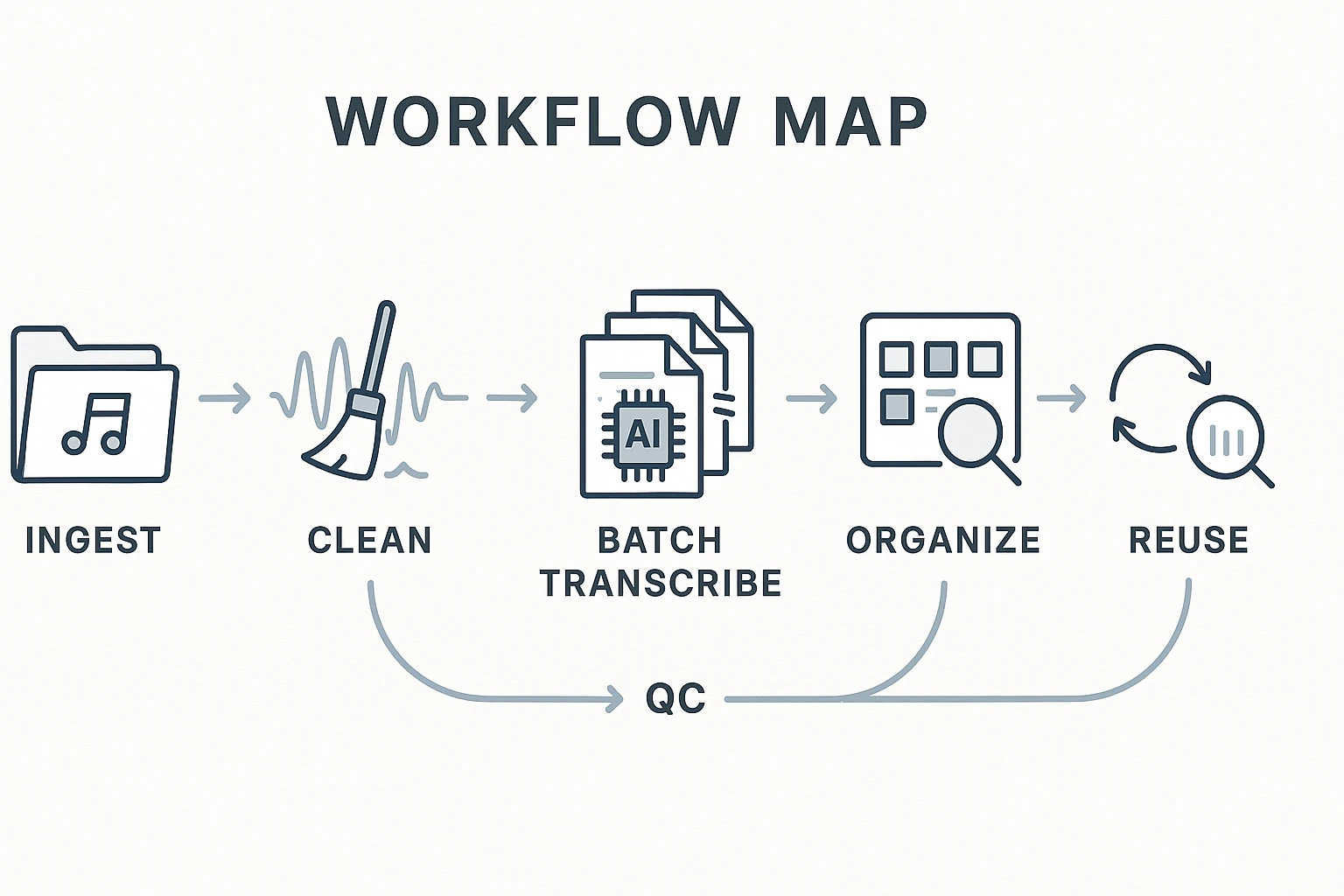
Batch transcription works best when you run it like a loop: ingest → clean → batch transcribe → QC → organize → reuse. The goal isn't perfect transcripts. It's searchable text you can trust.
Do less manual work by sampling for QC (quality control). Spot-check 10–20% of files, then fix only what blocks search: names, key terms, and speaker labels. If 2 out of 10 samples fail, don't edit harder—re-prep the audio and re-run the batch.
Here's a simple weekly cadence: on Friday, upload and queue your recordings. On Monday, do a fast QC pass, then pull summaries, decisions, and action items into a client or team doc. By midweek, your library becomes a reference you can query, not a folder you avoid.
Pick one tool, run a 10-file pilot, write down the rules that worked, then scale.
Try TicNote Cloud for Free if you want batch transcription that stays searchable inside Projects.


