

 Extension
TL;DR — Quick answers and what to do next
Transcription for accessibility turns audio and video into readable, searchable text students can use to study and follow lectures. Choose workflows that combine automated transcripts with human review to meet accuracy and usability needs.
Quick checklist: capture clean audio, run automated transcription, then do a human edit pass. Add speaker labels, timestamps, and simple formatting for easy scanning.
Use web-friendly embeds and a downloadable plain text file so assistive tech can read transcripts. Test with actual users and document versions so updates and translations stay accurate.
Pilot one course, measure accuracy and user satisfaction, then scale the workflow across programs. Keep the process simple, repeatable, and tied to your accessibility policy.
Why accessible transcripts matter for students with disabilities
Accessible transcripts remove everyday barriers for students with disabilities. When schools use transcription for accessibility, students who are deaf, hard of hearing, neurodivergent, or learning another language can follow lectures and study at their own pace. Transcripts also make spoken content searchable and easier to cite for assignments.
Who benefits
Several groups gain clear advantages from accessible transcripts. Students who are deaf or hard of hearing get full access to spoken material. Neurodivergent students can re-read and break content into smaller parts to reduce overload.
- Searchable study material for quick review
- Accurate notes for study and citation
- Language support for nonnative speakers
- Compatibility with screen readers and assistive tools
- Option to create easy read (simplified) versions
Learning outcomes enabled
Transcripts boost comprehension, recall, and task completion. Students find facts faster and make better summaries and notes. Instructors can grade equitably and design accessible assessments, giving all students equal access to instructional content.
Legal landscape & WCAG: What institutions must know
Colleges and schools must treat accessible transcripts as a civil rights issue, not an add-on. Clear, usable transcripts support students who are Deaf or hard of hearing, have learning disabilities, or need text alternatives. This section explains key rules and gives a practical checklist for compliance with transcription for accessibility.
Federal and international law requires equal access to programs and materials. Courts and regulators cite the Americans with Disabilities Act and Section 504 for education. For pre-recorded audio-only content, providing a transcript is sufficient to meet all relevant WCAG 2.1 Level A and AA Success Criteria under Guideline 1.2 Time-based Media, according to the W3C Multimedia Accessibility FAQ. Relevant WCAG items to note: SC 1.2.1 (Audio-only and Video-only (Prerecorded)), SC 1.2.2 (Captions for prerecorded), and SC 1.2.3 (Audio Description or Media Alternative).
Quick compliance checklist
- Use time-stamped, verbatim transcripts for lectures and recordings.
- Provide captions for video and transcripts for audio-only files.
- Label versions and dates, and keep an edit log.
- Offer translated and easy-read variants when needed.
- Train staff on WCAG SC 1.2.x and local rules.
- Keep remediation timelines and user request procedures documented.
Following these steps lowers legal risk and improves learning outcomes for all students.
Types of transcripts and multilingual considerations
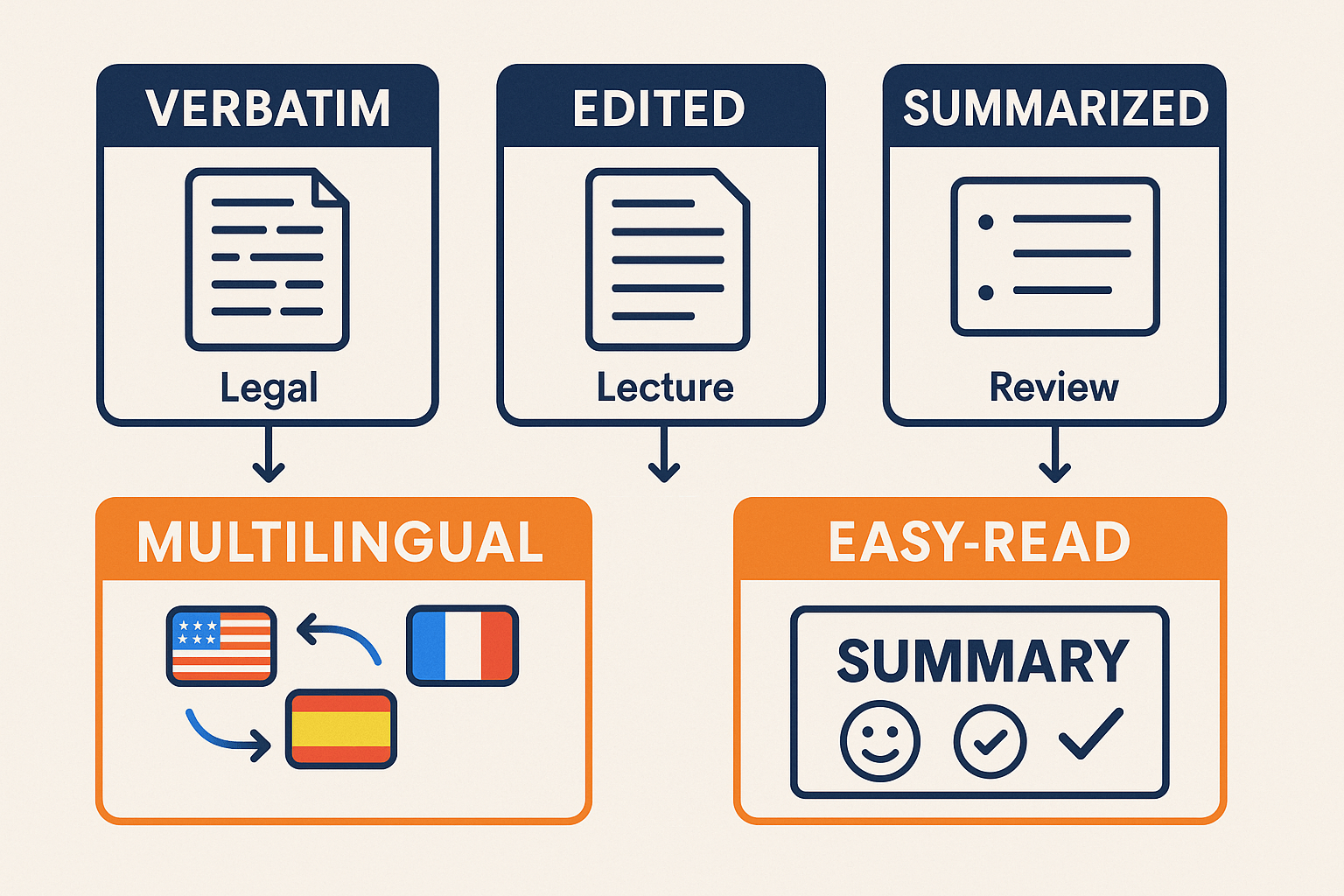
Transcription for accessibility starts with choosing the right transcript type for the learner. Pick a style that matches the task: deep study, quick review, or assistive needs. Clear labels and simple structure help every student.
Which transcript to use
- Verbatim: every utterance, filler, and overlap. Use for legal notes, linguistics, or detailed study. Include timestamps and speaker labels.
- Edited: removes fillers and false starts, keeps meaning intact. Use for lecture notes and study guides.
- Summarized: short, iterative recaps. Use for review, quick prep, or study cards.
Synchronized vs plain text, and accessible translations
Synchronized transcripts include timecodes for captions and syncing to media. Plain text is fastest to search and export. For easy‑read versions, use short sentences, clear headings, and bullet lists. For multilingual classrooms, machine translation plus human review works best. Also add simple glossaries for domain terms. TicNote Cloud’s live transcription and translation features map well to these needs without extra tooling.
Step-by-step workflow: From recording to accessible transcript (AI + human review)
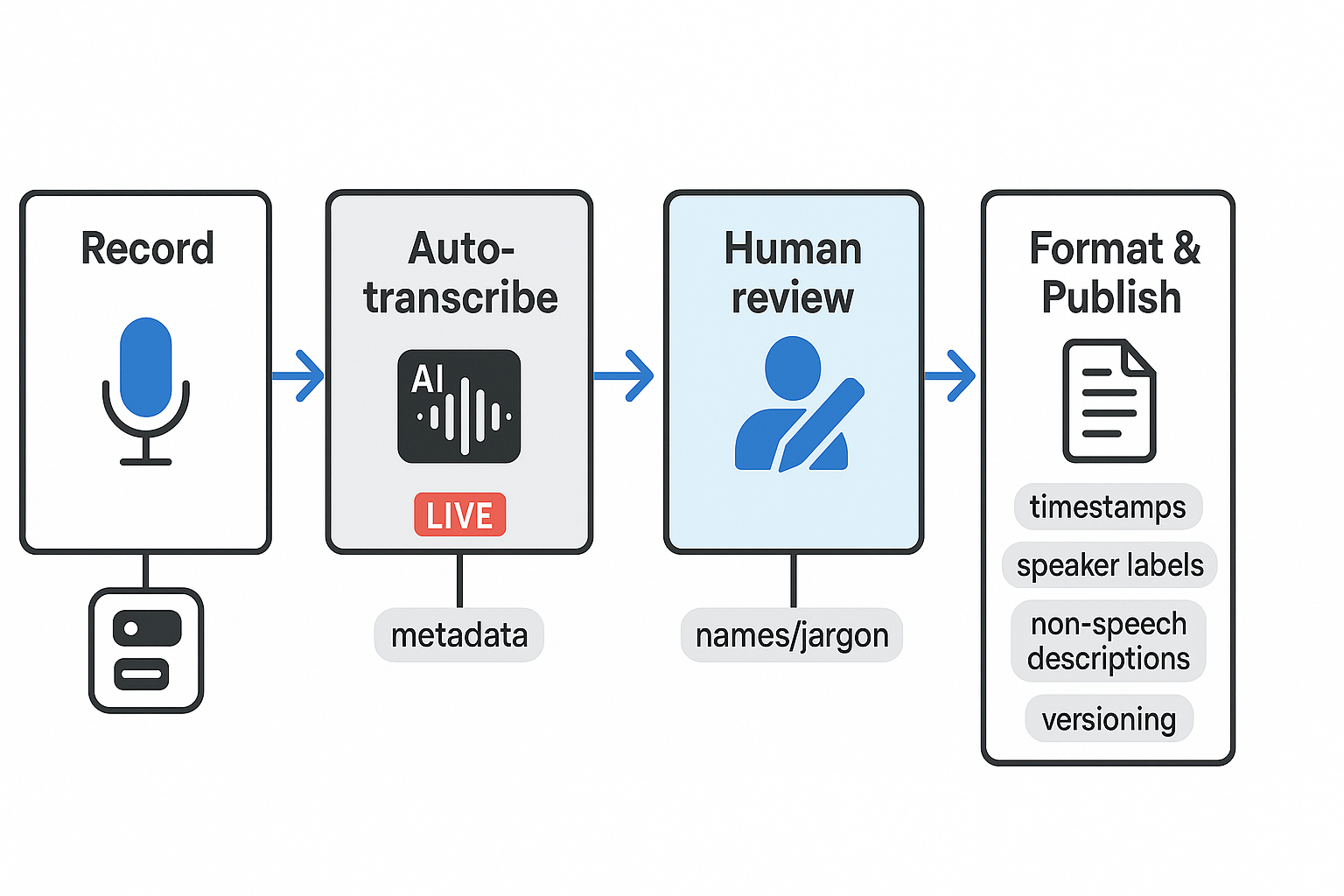
Start with a reliable process to turn audio into usable, accessible text. Good transcription for accessibility needs automation plus human judgment. Follow clear steps: record, auto-transcribe, human edit, format, and publish, with short checks at each stage to meet WCAG needs.
Steps to follow
- Record: capture clean audio and note speakers. Use a wired mic when possible. Save metadata: date, course, and participants.
- Auto-transcribe: run an AI pass to get a first draft. TicNote Cloud’s live transcription can capture text in real time, and its post-meeting AI speeds up draft generation and summaries.
- Human edit: fix names, jargon, and errors. Add non-speech descriptions for sounds (e.g., "[laughter]"), and correct speaker labels.
- Format: add timestamps every 30–60 seconds, clear speaker labels, paragraph breaks, and simple markup (bold headings). Include an accessible plain-text version and, if needed, an easy-read summary.
- Publish: attach the transcript to the media, add versioning notes, and surface the file in the LMS or library.
Quick checklist:
- Timestamps, speaker labels, non-speech descriptions
- Identify edits and version number
- Language and translation flags
Live events and real-time transcription: Best practices and limitations
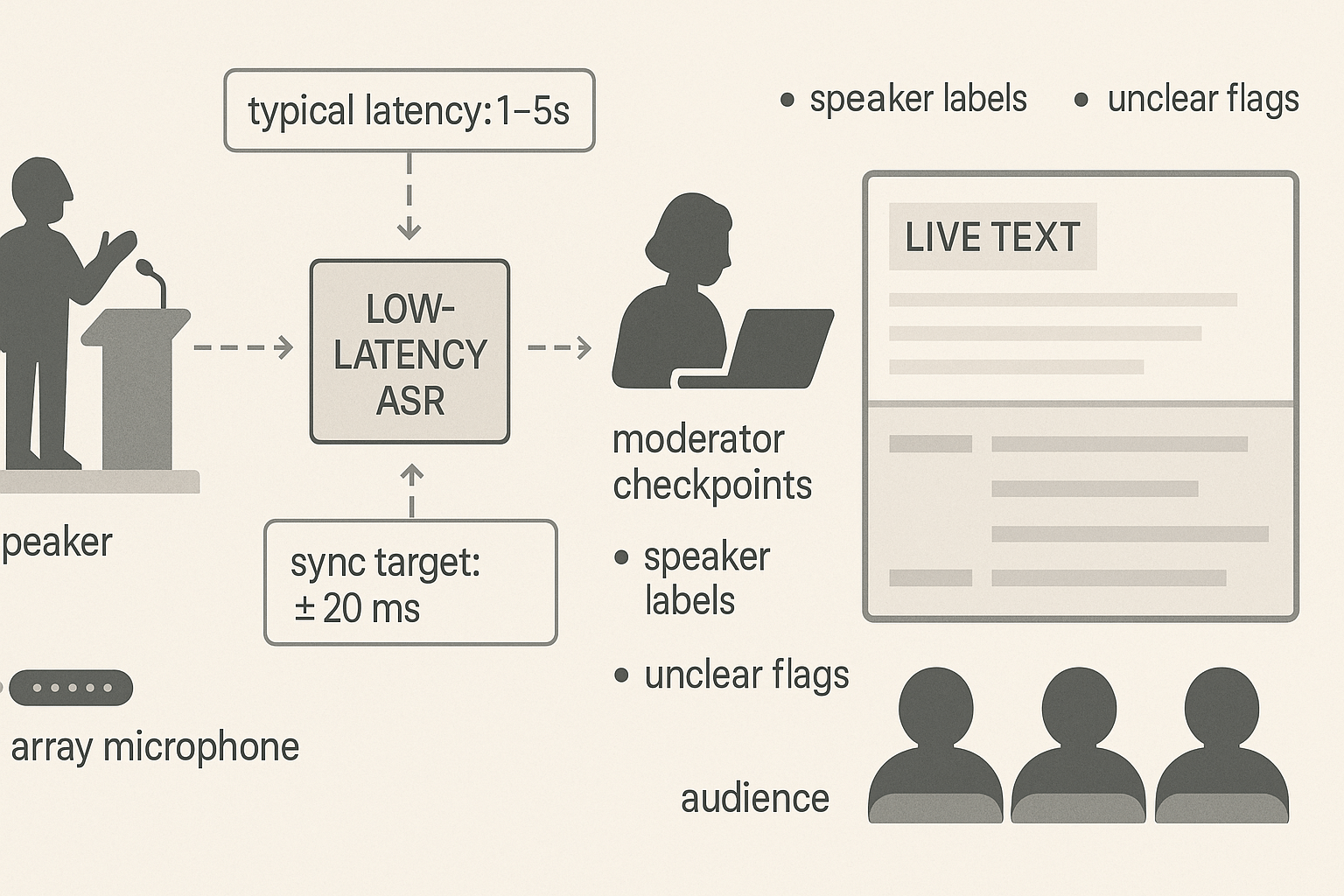
Live transcription helps students in-class and in hybrid sessions, but planners must manage delay and errors. For transcription for accessibility, tell stakeholders what to expect before the event. According to Synchronization Accessibility User Requirements (2022), user agents should present subtitles within ±20 milliseconds of the authored time to ensure proper synchronization, a useful technical benchmark when planning captions.
Latency and accuracy expectations
Expect about 1 to 5 seconds of delay for low-latency automatic speech recognition (ASR). Accuracy drops when audio is noisy or speakers overlap. Run a tech check with the room mic and planned speakers.
Captioning versus transcripts
Live captioning is near-real-time text shown during the event for immediate access. Transcripts are edited, time-stamped records produced after the event for study and search. Use captions for access and transcripts for review.
Moderator workflows and when to use human captioners
A human moderator reduces errors and improves clarity in live feeds. Typical moderator tasks:
- Monitor the live stream and correct key errors in real time.
- Add speaker labels and domain terms on the fly.
- Flag unclear segments for post-event editing.
Choose CART or certified human captioners instead of AI when accuracy must be near perfect, for fast Q&A, or to meet strict legal or institutional requirements. Always plan a dry run and a human backup for high-stakes events.
Keeping transcripts accurate: updates, versioning, and multilingual maintenance
Transcription for accessibility is ongoing work, not a one-off. Keep transcripts current after edits, corrections, or content changes so students can rely on the text and its timestamps.
When to re-transcribe
Re-transcribe when the audio changes, slides or captions are updated, or when accuracy drops below usable levels. Common triggers:
- New recording or major edit to the audio
- Speaker list or technical terms added
- Student or instructor reports accuracy problems
Edit log and versioning
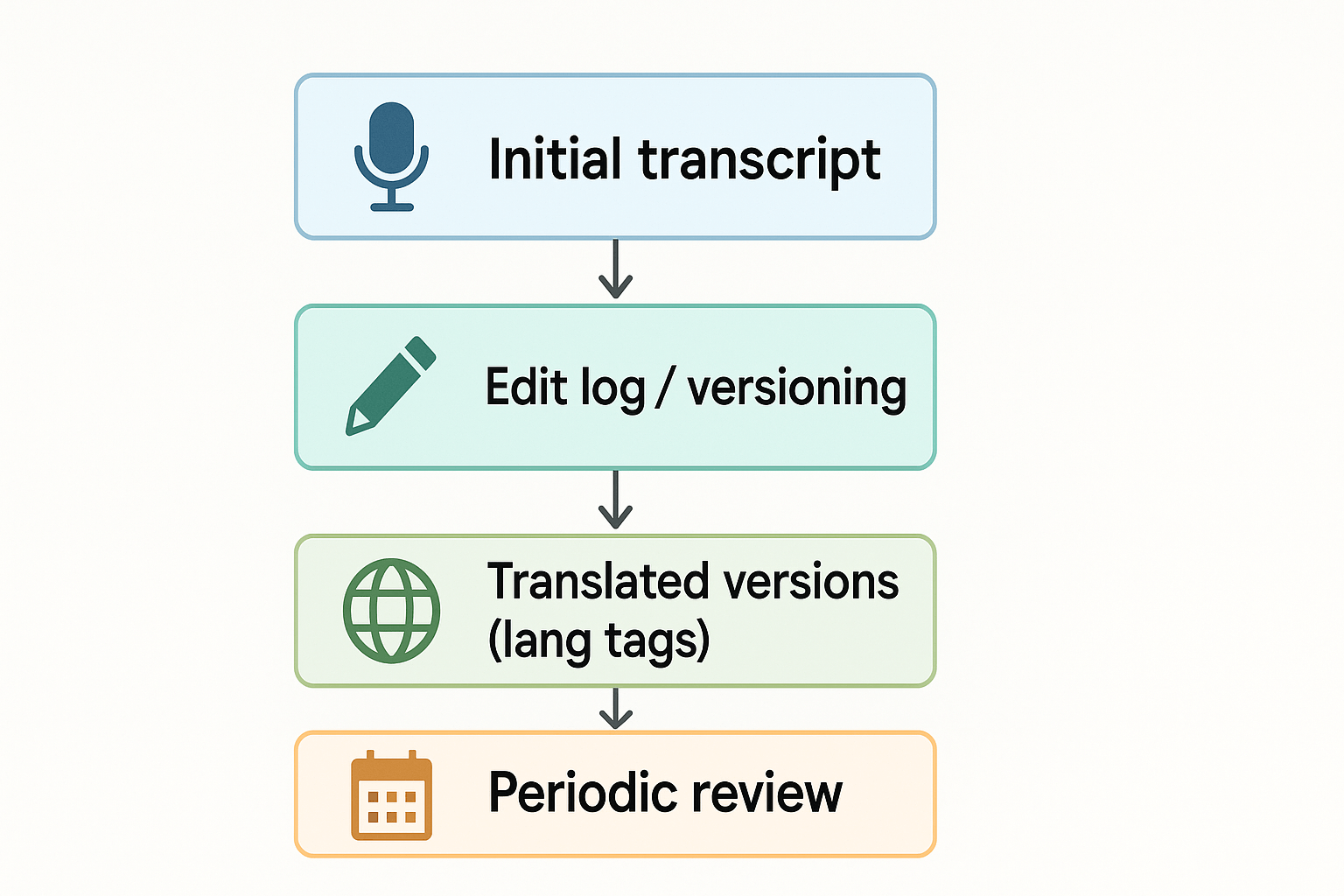
Embed a simple edit log at the top of each transcript: date, editor, brief note, and version number. Keep the original file and a changelog entry for each revision, so reviewers can restore prior versions if needed.
Translate and preserve meaning for easy-read audiences
Translate with a human reviewer who checks nuance and accessibility. "Easy read" means short sentences, clear vocabulary, and helpful formatting. Tag each language version with its source version, so translations are updated when the master transcript changes.
Review transcripts on a regular cadence, for example each term or after major content updates, to keep everything synchronized.
How TicNote Cloud maps to accessibility needs (features ↔ requirements)
TicNote Cloud maps core accessibility requirements to practical features teams can use right away. This section shows a plain feature to requirement mapping and a short vignette so you can judge fit for transcription for accessibility needs in education.
Quick feature to requirement mapping
| Accessibility requirement | TicNote Cloud feature (how it helps) |
| Captions and transcripts (WCAG 1.2.1, 1.2.2) | Time‑aligned transcripts and exportable TXT captions for video and audio files |
| Live captioning for events (WCAG 1.2.4 preference) | Live transcription during meetings with low latency and speaker labeling |
| Accurate verbatim transcripts (WCAG 1.2.3) | High-accuracy AI transcription plus human review workflow for edits |
| Multilingual access | AI translation into 120+ languages, plus translated transcript exports |
| Searchable, navigable text | Full-text search, topic summaries, and timestamped exports for navigation |
| Privacy and data control | Private-by-default storage and export controls for FERPA-friendly workflows |
Student vignette: hearing loss, translated notes
Maya uses TicNote in class. Live transcription runs during lectures so she reads along in real time. After class she exports a translated transcript into her preferred language and a clean TXT file she can import into her study tools. If needed, an instructor or note-taker fixes any errors and uploads the revised version.
Try TicNote Cloud for free today