


 Extension
Apple Watch Series 12 and Ultra 4 powered by Apple Intelligence are now in stores, and you might be wondering how to use them to record audio. The watch offers two recording modes — Live Rewind and Siri Recap — each designed for different situations.
This guide teaches you how to use both features, when they work best, and what limitations to keep in mind.
Full disclosure: we're TicNote. We make AI recording devices, including the TicNote Watch — a smartwatch that records full conversations with transcription and speaker identification. We're writing this guide because Apple Watch's recording features are genuinely useful for quick capture, and we think you should know how to use them well. But if you need complete records rather than 15-second snippets, stick around to the end — we'll explain where Apple Watch falls short and what a dedicated recorder can do instead.
TL;DR
- Apple Watch has two recording modes: Live Rewind (15-second snippets) and Siri Recap (daily summaries)
- Both require Series 12 / Ultra 4 + iPhone 16 or later
- Live Rewind: Double-press Digital Crown for instant text snippet
- Siri Recap: Wear all day, check Siri app in evening
- Best for quick recall, not complete records
Before You Start: Requirements Checklist
Before you can use either recording feature, you need to make sure your devices meet the requirements. This is more restrictive than you might expect.
Hardware Requirements
You need an Apple Watch Series 12 (from $399) or Apple Watch Ultra 4 (from $799). Both features depend on the S11 chip and its Secure Exclave architecture, which earlier watches don't have.
You also need an iPhone 16 or later, with Apple Intelligence enabled. The iPhone 16e is explicitly excluded — even though it's part of the iPhone 16 lineup, it doesn't support these features.
Software Requirements
Your watch needs watchOS 27 or later. Your iPhone needs the latest iOS version with Apple Intelligence enabled.
Regional & Language Requirements
Live Rewind and Siri Recap are not available in the EU at launch. Apple has not announced a timeline for EU availability.
Both features are English only at launch. Apple has not published a timeline for additional languages.
How to Use Live Rewind
What Live Rewind Does
Live Rewind addresses a specific moment we've all experienced: someone says something important, you nod along, and then thirty seconds later you realize you didn't quite catch it. Maybe it was a phone number, a meeting time, or a name. You know it was said, but it's already gone.
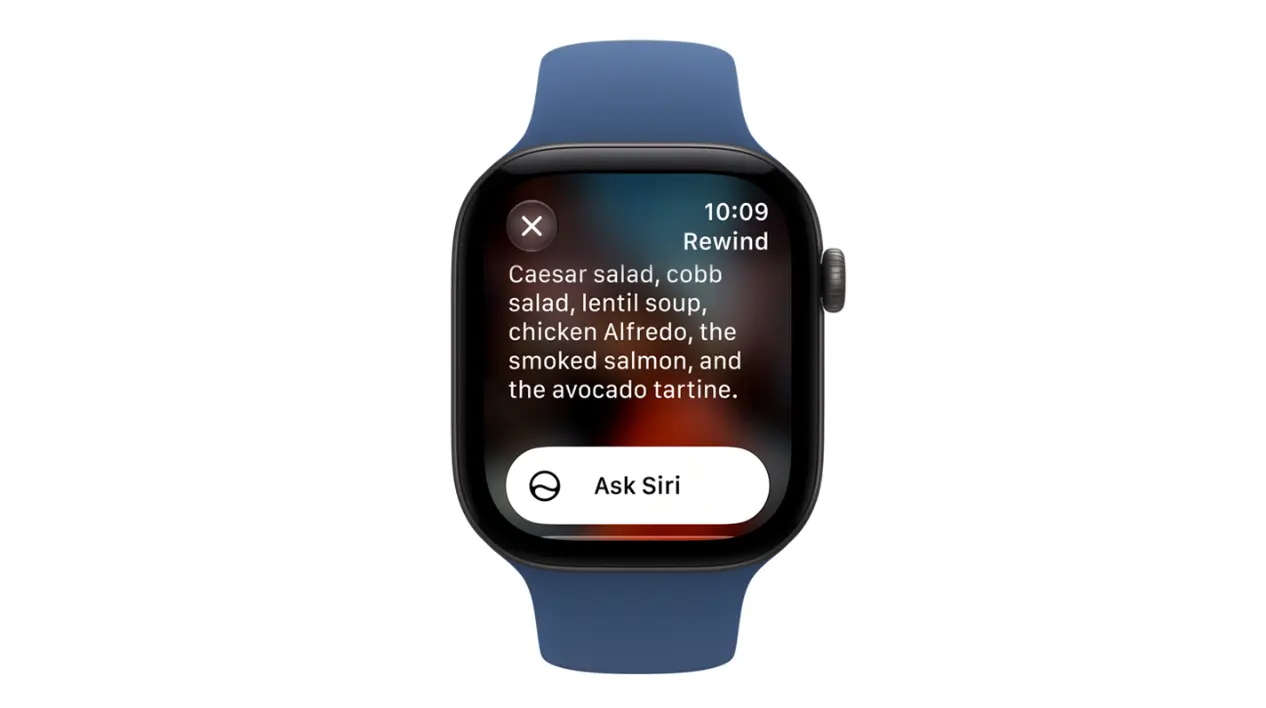
Live Rewind gives you a safety net for those moments. Double-press the Digital Crown, and the last 15 seconds of speech appear on your wrist as a text snippet. You can read what was said, ask Siri a question about it, or save it to the Siri app for later reference.
Step-by-Step Guide
Step 1: Enable the feature
Go to Settings → Audio Intelligence → Live Rewind and turn it on. The feature is opt-in, so it won't work until you explicitly enable it. This is a privacy choice — Apple wants you to make an active decision to use it.
Step 2: Trigger it at the right moment
Double-press the Digital Crown when you realize you missed something. The key word is "realize" — you need to notice the gap within 15 seconds, or the content is already gone.
This creates a strange pressure: you need to constantly monitor whether you're missing something, which is the opposite of being present in a conversation.
Step 3: Review the snippet
The text appears on your wrist immediately. You can read it, process it, and decide what to do next.
Step 4: Take action
You can ask Siri a question about the snippet ("What was that address?") or save it to the Siri app for later. If you do nothing, the snippet disappears.
Tips for Best Results
Trigger within 15 seconds. This sounds obvious, but it's harder than it seems. In a real conversation, you're focused on listening, not on monitoring whether you're missing something. By the time you realize you missed something, it's often already too late.
Remember the chime. When you trigger Live Rewind, the watch plays an audible chime and displays a microphone indicator — even in silent mode. The people around you will know that the last 15 seconds were just captured. This is a deliberate privacy feature, but it means you can't use Live Rewind discreetly.
Save important snippets immediately. If you don't save a snippet, it disappears. There's no automatic saving, no "recent snippets" folder, no way to go back later. The 15-second window is also a 15-second decision window.
Best Use Cases
Live Rewind works best for quick, specific details:
- You missed one sentence in a hallway conversation. A colleague mentions a meeting time as you pass each other. You catch the gist but not the specific time. Live Rewind lets you grab it.
- A client mentioned a number and you want to confirm it. You're in a meeting, and the client says a price or a date. You want to verify you heard it correctly. Live Rewind gives you the exact words.
- You want to remember a name or detail someone just mentioned. Someone introduces themselves or mentions a reference. You want to capture it before you forget.
How to Use Siri Recap
What Siri Recap Does
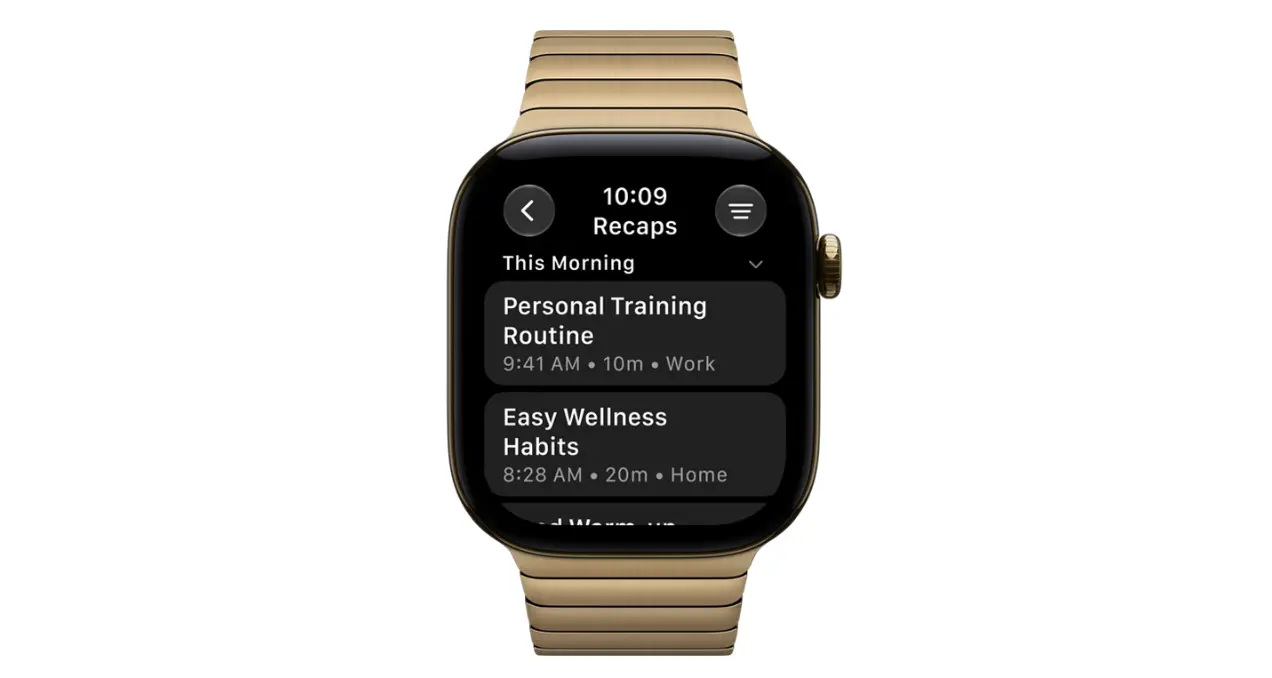
Siri Recap takes a different approach. Instead of capturing specific moments, it listens to your environment throughout the day and generates a summary each evening. Think of it as a daily digest of your conversations — a way to recall what happened without taking notes.
The summary appears in the new Siri app and includes a title, key points, and action items. It's designed to answer the question: "What did I talk about today?"
Step-by-Step Guide
Step 1: Enable the feature
Go to Settings → Audio Intelligence → Siri Recap and turn it on. Like Live Rewind, this is opt-in.
Step 2: Wear your watch throughout the day
Siri Recap only works when the watch is on your wrist and listening. If you take it off, it stops capturing.
Step 3: Have conversations as normal
You don't need to do anything special. Siri Recap listens in the background. There's no indication to the people around you that it's running — no chime, no indicator, no notification.
Step 4: Check the summary in the evening
Open the Siri app to see your daily summary. Review it, save what matters, and let the rest auto-delete.
Step 5: Save important summaries
Unsaved summaries disappear after 7 days. If something matters, save it immediately. There's no way to extend the retention period.
Tips for Best Results
Wear the watch consistently. Siri Recap only works when the watch is on your wrist. If you take it off for part of the day, you'll have gaps in your summary.
Check the Siri app each evening. The summary is generated once per day. If you don't check it, you might miss something important before it auto-deletes.
Save important summaries immediately. The 7-day auto-delete is absolute. Once a summary is deleted, it's gone forever. There's no recovery, no archive, no way to get it back.
Best Use Cases
Siri Recap works best for general recall:
- You want to recall the key points from today's conversations. You had several meetings and want a quick reminder of what was discussed.
- You need a reminder of what you discussed with someone. You talked to a colleague earlier and want to remember the main points.
- You want a general sense of your day's interactions. You're trying to remember who you talked to and what about.
Benefits of Using Apple Watch
Convenient. The watch is already on your wrist. You don't need to remember to bring anything, charge anything extra, or wear anything new.
Private. Apple respects your privacy. No audio files are stored. Raw audio is processed and discarded immediately. Apple can't access your conversations, and neither can anyone else.
Instant. Live Rewind gives you immediate access to recent speech. You don't need to wait for processing or syncing.
Automatic. Siri Recap works without any manual input. You don't need to remember to start or stop recording.
When you should consider TicNote Watch (when Apple Watch isn't enough)
Apple Watch is not a dedicated recorder, I's recording features are well-designed for quick capture. But they're not built for complete records — a 15-second snippet won't help you revisit a client conversation from last quarter.
The TicNote Watch records full conversations with word-for-word transcripts and speaker identification. Like Siri Recap, it generates a daily AI Journal connecting meetings with health data — but you can go back to the actual recording behind any summary, and recording only happens when you press the button, not all day. It also supports 120+ languages, works globally, and pairs with Android.
If you're already wearing a smartwatch and want it to handle real recording work, the TicNote Watch is worth a look.
Conclusion
Apple Watch's Live Rewind and Siri Recap are ready to use right now. If you have the right hardware, enable both features and try them for a week. Use Live Rewind for moments you need to grab in real time, and check your Siri Recap summary each evening to see what it captures.
The most common mistake is forgetting to save. Live Rewind snippets disappear if you don't act on them, and Siri Recap summaries auto-delete after 7 days. Build the habit of saving anything important the moment you see it.
That's it. You're set up.