


 Extension
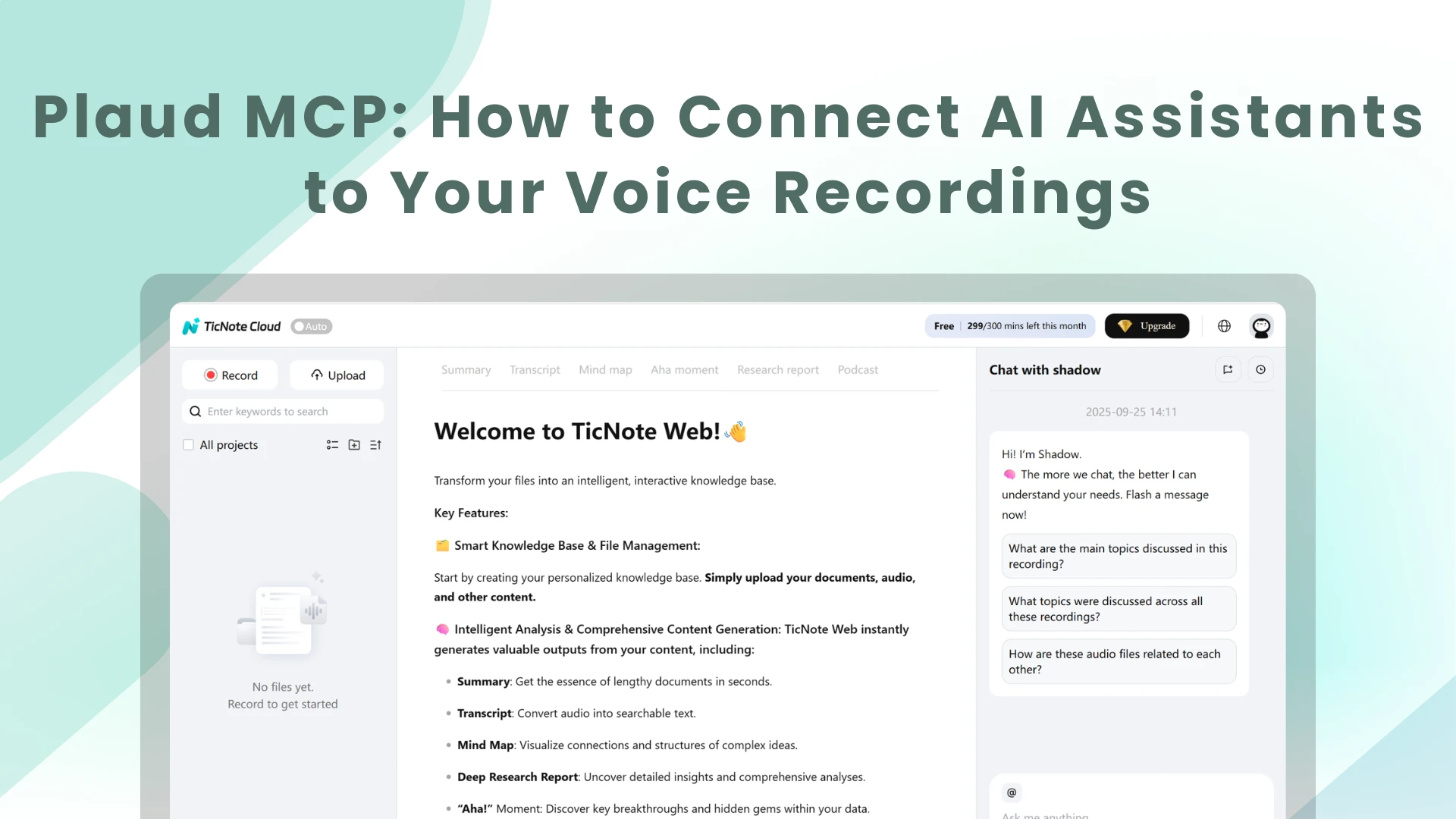
You've been recording meetings, interviews, and brainstorms — but your AI assistant can't see any of it. Plaud MCP fixes that by letting your AI query your recordings directly, no copy-pasting required.
This article will show you how to install Plaud MPC and what Plaud MCP can do and can't do. For professional users, we also provide a more fiexible option.
What is Plaud MCP, and how does it work?
MCP stands for Model Context Protocol — a universal standard that allows AI tools to connect to external data sources without needing custom, one-off integrations. Think of it as a common language that lets your AI assistant ask an external system for data and receive a structured response.
For Plaud, MCP means your recordings become queryable in real time. Once you've connected Plaud MCP to your AI client, the assistant gains four core abilities:
None of this requires you to open the Plaud app. You don't copy-paste a transcript. You don't export anything manually. The AI queries Plaud directly, retrieves what it needs, and gives you a coherent answer — all within the same conversation thread where you're already working.
How does MCP work technically?
When your AI client sends a query, it routes the request to the Plaud MCP server at https://mcp.plaud.ai/mcp. The server authenticates via OAuth and responds with structured data from your Plaud cloud account. The AI then interprets that data as context and incorporates it into its response. From your perspective, it just looks like your assistant suddenly knows what happened in every meeting.
How to install Plaud MCP: 3 options
Getting Plaud MCP running is faster than most developer tools — in many cases, it's a single click. Here are the three installation paths, depending on which AI client you're using.
Option A — One-click (Claude Web, Claude Desktop, ChatGPT)
This is the easiest route if you're using a supported hosted assistant:
- Open the Connectors settings in Claude or ChatGPT
- Find Plaud Web MCP → click Connect
- Authorize with your Plaud account
- ✅ Done — the connection applies automatically across all surfaces of that assistant

No terminal required. No configuration files. Just authorize and start asking questions.
Option B — Add via URL (other MCP-compatible web apps)
For other MCP-compatible web applications that support manual connector configuration:
- Open the connector or integration settings → look for "Add via URL"
- Fill in the following:
- Name:
Plaud - Server URL:
https://mcp.plaud.ai/mcp - Auth: OAuth
- Name:
- Click Authorize
This approach works for any web-based AI client that supports the MCP standard but doesn't have a curated connector marketplace.
Option C — Terminal install (Cursor, Windsurf, Zed, Gemini CLI)
For local AI coding tools, a single command handles everything:
Prerequisites: Node.js version 20 or higher must be installed on your machine.
Steps:
- Run the command above in your terminal
- A browser window opens automatically — click Authorize
- Restart your AI client
- Plaud MCP is now active
Pro tip for Claude Code users: If you're upgrading an existing installation, first runnpx -y @plaud-ai/mcp clean-pluginto remove the old version. Then reinstall by running/plugin install plaudinside Claude Code.
Is Plaud MCP free? Plaud MCP is available for active Plaud accounts with Cloud Sync (PCS) enabled. Access to MCP itself has no separate fee, but you need a Plaud device and an active account.
What can you ask your AI once Plaud MCP is connected?
The honest answer: a lot more than you'd expect. Once Plaud MCP is live, your AI can treat your entire recording history as searchable context. Here are some prompts that work directly from Plaud's official documentation:
- "Summarize Tuesday's standup."
- "Find the meeting where we discussed the Q2 budget."
- "Draft a follow-up email from this meeting's action items."
- "What action items came out of all my calls this week?"
Behind the scenes, Plaud MCP organizes these interactions using a set of built-in skills that map different query types to the right tool calls:
The routing happens automatically. You don't need to know which skill is being called — you just ask your question in plain language, and the MCP server figures out how to fetch the right data.
Plaud MCP vs Plaud CLI: MCP is for asking your AI questions about recordings in a conversational interface. CLI is for running commands in the terminal (e.g., batch downloading transcripts). Many power users install both — they serve different purposes.
What Plaud MCP can't do (yet)
Plaud MCP is genuinely useful, but being honest about its limits helps you use it correctly — and helps you decide whether it's the right fit for your workflow.
- ❌ Cannot record audio — that's the hardware device's job; MCP only reads what's already been captured
- ❌ Cannot edit recordings or transcripts — all access is read-only
- ❌ No way to upload new content — you can't push files into Plaud via MCP
- ❌ Tied to the Plaud hardware ecosystem — only works with recordings captured by Plaud devices
- ❌ Knowledge base is Plaud-only — can't manage multi-source documents, PDFs, videos, or files from other platforms
These aren't criticisms — they reflect the intentional scope of the product. Plaud MCP is purpose-built for one thing: giving your AI seamless read access to your Plaud recordings. It does that well.
But if you need an AI integration that goes beyond read-only access to recordings — one that can manage your entire knowledge base — there's a newer approach worth knowing about.
How to trigger recording, edit your transcribe, and do more with your AI assistant
If you've used Plaud MCP, you already know the workflow: record → sync → ask your AI. But what if you want your AI to do things — trigger a transcription, edit a summary, upload a file, or organize your library? That's where a read-write API approach comes in.
TicNote offers an API Skill that can read and write your meeting transcriptions and summaries — a skill bundle your AI assistant installs directly, giving it full programmatic control over your knowledge base. Unlike MCP's read-only protocol, the API Skill lets your AI upload, organize, delete, transcribe, and analyze, all within a conversation. It is developed by Mobvoi — the company behind TicWatch smartwatches and a long-time partner of Google on voice AI technology.
Here's how the two compare:
What Plaud MCP actually costs
The pricing row above shows the subscription fee, but there's one more factor worth understanding before you sign up.
Plaud MCP requires a Pro plan or higher to access. Although Plaud claims the Starter plan includes Plaud MCP, it is said that at least Pro users can use MCP:

If so, the subscription starts at $8.99/month — reasonable on its own. The catch is that Plaud's individual subscription plans are tied to hardware: you need to purchase a Plaud device before the subscription can be activated. There's no software-only option for individual users.
That means the real cost of getting started with Plaud MCP is the subscription fee plus the upfront cost of the hardware. If you're already a Plaud device owner, this doesn't change anything. If you're evaluating from scratch, it's a meaningful difference from what the monthly price suggests.
TicNote API Skill also requires a Pro plan or above (compare Plaud and TicNote price), starting at $9.92/month. The key difference: TicNote's plans — including Pro — work as pure software subscriptions. No hardware purchase is required to activate or use the service. You can upload audio files directly, or use TicNote hardware if you want one, but it's optional. The subscription stands on its own.
Plaud MCP strengths
- Frictionless setup — one command or one click, and you're connected
- Deeply hardware-native — built around the Plaud device workflow, so everything stays in sync
- Official MCP protocol — broad client support out of the box, with no proprietary plugin format to worry about
- Perfect for the basics — if you just want to ask your AI about your recordings, this is the easiest path there
TicNote API Skill strengths
- Full read-write access — your AI can actually do things: upload a file, trigger transcription, rename a folder, run a batch delete
- Multi-format knowledge base — recordings are just one input type; you can also work with PDFs, spreadsheets, videos, and more
- Deep Research and document summarization — go beyond transcript retrieval to structured analysis across multiple files
- Scheduled automation — set up recurring tasks like weekly summaries without doing anything manually
- Better value for heavy users — more monthly minutes at a comparable or lower cost
When to choose which
Choose Plaud MCP if you're already in the Plaud ecosystem and want zero-friction AI access to your recordings. The setup takes minutes, the workflow is natural, and it doesn't require you to think about integration architecture at all.
Choose TicNote API Skill if you want your AI to manage your knowledge base — not just read from it. If you're uploading files from multiple sources, running research across documents, want automation that goes beyond "summarize this meeting," or if you have frequent meetings and need more affordable minutes, TicNote's API approach gives you substantially more control.
How to install the TicNote API Skill
Setup is conversational — you're essentially telling your AI assistant how to install itself.
Copy the following prompt and send it to your AI assistant:
Your AI will handle the installation. Then:
- Log in to TicNote at
https://ticnote.com - Open your profile menu and copy your API Key from TicNote Key
- Paste the API Key into the conversation — setup is complete
Once installed, your AI can upload files, trigger transcription with custom settings, run deep research across your knowledge base, and manage your entire library of recordings and documents — all without leaving the chat.
The bottom line
Plaud MCP gives your AI read access to your recordings — fast setup, zero friction. TicNote's API Skill gives your AI full read-write control over your entire knowledge base. Pick the one that matches how you work.
Try Plaud MCP: plaud.ai
Try TicNote API Skill: TicNote API