


 Extension
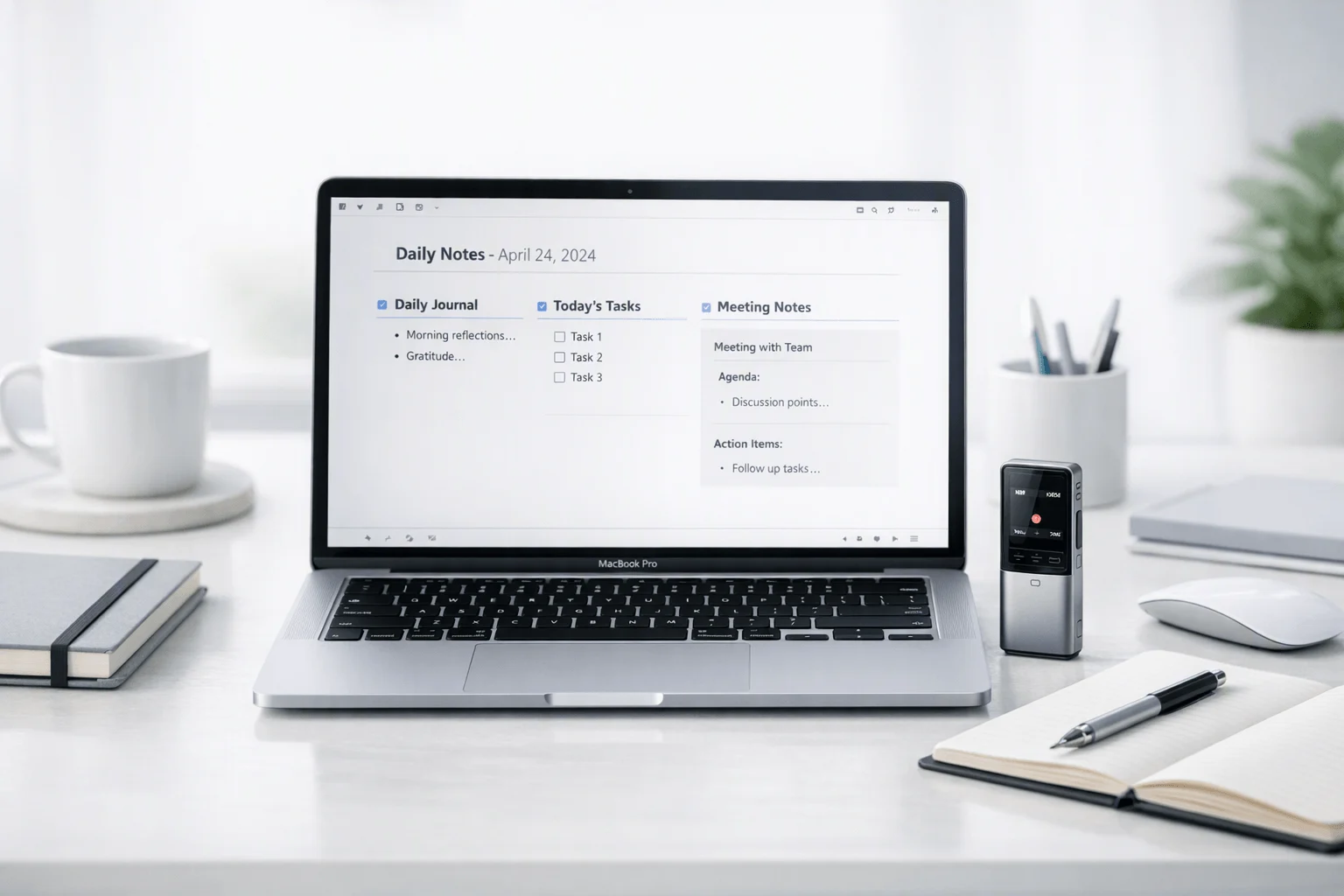
TL;DR: AI Note Taker + Obsidian daily workflow overview
If your current note system looks clever but still drops tasks and meeting details, see the device because the real problem usually isn't formatting—it's capture. For most people, the best obsidian daily note template is a simple Daily Notes setup with a few fixed blocks for plan, journal, and meetings, plus light automation from Templater or Dataview only where it saves time.
- Best overall setup: core Daily Notes first, then small template upgrades.
- Biggest failure point: too much manual cleanup before notes become useful.
- Best companion for meeting-heavy days: an AI note taker that records, transcribes, summarizes, and surfaces action items before they reach your vault.
- Where TicNote fits: it handles meeting capture well, then you move the clean summary into a meeting note or the day's page in Obsidian.
What makes a strong obsidian daily note template?
A strong obsidian daily note template does one job first: it makes capture fast enough that you actually use it. Structure matters, but only after the page removes friction. In practice, the best setup gives you one place for quick thoughts, priorities, tasks, and meeting notes without forcing you to think about formatting every time you open today's file.
Start with low-friction building blocks
A practical daily note usually includes:
- a date-based title
- a quick capture area
- top priorities
- a short journal prompt
- a tasks block
- a meeting notes block
- an optional end-of-day review
This is enough for most people. Simple bullets beat complex dashboards because they lower resistance. If your template asks for too much, you'll skip it by day three. One useful extra is a short section for notes created or modified that day. It adds context and helps you retrace work without turning the note into clutter.
Know what Obsidian does out of the box
Obsidian's core Daily Notes plugin already covers the basics well. It can open or create today's note, use date-based naming by default, let you choose a folder, and point to a template file location. For many users, that's all you need.
Community plugins add power, but they also add upkeep:
| Setup | Best for | Trade-off |
| Core Daily Notes only | Beginners and simple journaling | Less automation |
| Daily Notes + Templater | Reusable dynamic fields and smarter inserts | More setup and syntax to maintain |
| Daily Notes + Templater + Dataview | Advanced dashboards and note tracking | Highest maintenance overhead |
Templater helps when you want dynamic dates, repeated sections, or automated text. Dataview helps when you want notes, tasks, or meetings surfaced from across the vault. But both can create brittle workflows if your system depends on scripts, queries, and plugin updates just to start the day.
Use clear review criteria
For this review, I judge each setup on six points:
- speed to create a note
- ease of capture during the day
- support for journaling
- support for meeting notes
- maintainability over time
- ability to turn raw inputs into linked notes
That last point matters most. A daily note should not become a dead-end text dump. It should help move ideas, tasks, and decisions into your wider system. That's also where an AI note taker can improve the workflow before anything reaches Obsidian, by turning live conversations into usable summaries and action items first.
How do you set up the Daily Notes system without friction?
The fastest way to make an obsidian daily note template useful is to keep setup boring and predictable. Turn on the Daily Notes core plugin, create one template note, and point Daily Notes to that file so every new day starts with the same structure instead of a blank page.
Start with the default flow
In Obsidian, go to Settings → Core plugins and enable Daily Notes. Then create a template note such as Templates/Daily Note.md. After that, open Settings → Daily Notes and set the template file location to that note.
By default, Daily Notes creates an empty file named with today's date. You can open today's note in three ways:
- Click the ribbon icon
- Run the command from the command palette
- Assign and press a hotkey
That default works, but small settings changes save time fast. A custom folder keeps your vault clean, and a template path makes sure journaling, planning, and meeting sections appear automatically.
Use these settings first
| Setting | Recommended default | Why it helps |
| Folder | Daily/ | Keeps daily files separate from projects |
| Date format | YYYY/YYYY-MM/YYYY-MM-DD | Creates year and month subfolders automatically |
| Template file | Templates/Daily Note.md | Applies the same structure every day |
| Hotkey | Ctrl/Cmd + Shift + D | Opens today's note in one step |
For larger vaults, nested folders make a real difference. A pattern with slashes builds folders automatically, while a simple format like YYYY-MM-DD works better for beginners who want one flat daily notes folder. Obsidian uses moment-style date formatting here, which is just the naming logic behind patterns like year, month, and day.
One useful detail: according to Obsidian Help — Properties, date and datetime fields in frontmatter support date-based linking in Live Preview; if a date matches the format specified in your Daily notes plugin settings, it is displayed as a link to the corresponding daily note. That makes review and navigation much faster.
Avoid the mistakes that slow people down
Most setup problems come from five errors:
- Using the wrong template path
- Mixing up the core Templates plugin with Templater syntax
- Forgetting to trigger Templater on new file creation
- Changing file naming rules halfway through
- Building a complex system before the basic workflow works
If you mainly capture classes, client calls, or meetings before they reach Obsidian, it also helps to review AI note-taking hardware options so your daily note starts with better raw material.
Which template structure works best for journaling, planning, and meetings?
The best starter layout for an obsidian daily note template is simple enough to use on day one, but structured enough to support real work. In practice, that means one note that helps you think, plan, capture, and review without forcing advanced plugins or complex syntax before the system proves itself.
Start with one clean daily layout
A beginner-friendly structure usually works best in this order:
- Date header
- Previous/next navigation
- Top 1–3 goals
- Quick journal prompt
- Notes block
- Meeting capture block
- End-of-day review
That layout covers the three jobs most people actually need from a daily note: reflect, act, and record. It also keeps context in one place, which matters when your day includes personal thoughts, task planning, and meeting follow-up.
Here is a practical template shape:
- Date: Tuesday, March 12, 2026
- Navigation: Yesterday | Tomorrow
- Top goals: 1–3 outcomes for the day
- Journal prompt: "What would make today feel useful?"
- Notes: one blank bullet waiting for quick capture
- Meetings: space for agenda, transcript summary, decisions, and action items
- Review: wins, unfinished tasks, and next-step notes
Use small blocks that reduce friction
Previous and next links make browsing fast. Instead of searching for a note, you move through your week like a timeline. Morning prompts also help more than most people expect. A single question lowers the blank-page problem and gives your journaling some direction.
The notes block should stay plain. One empty bullet is often enough. That small detail makes fast capture easier during calls, deep work, or random ideas between tasks.
Keep tasks simple at first:
- One must-do task
- One should-do task
- One optional task
Later, you can add habit tracking, weekly goal visibility, or timeboxing. You can also carry unfinished tasks forward, but do it carefully. If every incomplete item rolls over forever, the note stops being actionable and turns into clutter.
Add Templater and Dataview only where they help
Templater is useful when it removes repeated work. It can insert readable dates, create automatic yesterday/tomorrow links, place your cursor in the right block, and generate dynamic sections without manual typing.
Dataview helps when you want the note to show context, not just text. For example, it can surface:
- notes created today
- notes modified today
- linked meeting pages
- related project pages
More advanced systems can build meeting tables and note lists tied to daily metadata. That's powerful, but only if you will maintain it.
Avoid the automation trap
Here's the tradeoff: elegant automation can save minutes, but plugin-heavy systems often cost hours when they break. Beginners get confused by syntax, and even experienced users end up with templates that feel smart but are hard to edit.
A better path is gradual. Start with a stable skeleton. Add Templater for date and navigation. Add Dataview when you need summaries across notes. Stop when the system saves effort consistently.
If your workflow includes many meetings, a simple capture-to-summary flow is usually better than dumping raw notes into the page. In that setup, AI-generated recaps from tools like TicNote fit neatly into the meeting or quick-capture block, and a simple AI note taker comparison can help you see where manual capture starts to break down.
Workflow diagram callout: Capture -> summarize -> paste into meeting block -> link decisions and tasks -> review at end of day.
The best template is the one you will still trust after 90 days. Clean structure beats clever automation almost every time.
Where does TicNote fit into an Obsidian daily note workflow?
TicNote fits before your vault. An obsidian daily note template is great for organizing tasks, decisions, and links, but Obsidian itself doesn't capture live meetings, lectures, or field conversations. That's the real gap: capture happens in the moment, while Obsidian works best after the signal has been cleaned up.
Use TicNote as the capture layer
In practice, the workflow is simple:
- Record the meeting, class, or site visit with TicNote.
- Let it create a transcript, summary, speaker-aware notes, and to-do items.
- Move the cleaned output into your daily note or a project note in Obsidian.
- Link it to tasks, people, and ongoing work.
That matters because most note loss happens before information reaches your vault. If you rely on memory, quick scraps, or half-finished meeting notes, your daily page becomes cleanup work. With an AI note taker, Obsidian becomes the place where thinking happens, not where raw audio gets reconstructed.
Cut manual note cleanup
The most useful TicNote features for Obsidian users are the ones that remove friction:
- Real-time transcription for searchable meeting records
- Summaries and to-do lists right after recording ends
- Highlight and annotation during live transcription
- Ask-AI over recordings to find decisions, quotes, or next steps
- Timeline and schedule views for reviewing a busy day
- Document generation for reports, notes, or formatted outputs
This reduces a common problem: rewriting messy notes from memory 30 minutes later. Instead of pasting raw text into Obsidian and fixing it line by line, you start with structured content that is already close to final. Buy TicNote Device
Match the device to the workflow
Here is the practical fit:
- TicNote AI Voice Recorder: best for most professionals who want a premium card-style recorder that is easy to carry into meetings.
- TicNote Lite AI Voice Recorder: best low-cost choice for simple capture with one-button use.
- TicNote Pods 4G: best for consultants, field teams, and road warriors who need live summaries and phone-free upload.
- TicNote Pods Wi-Fi: best for global travelers who want sync-based workflows and no region lock.
For meeting-heavy managers, the card-style recorder is the cleanest default. For students, Lite keeps capture simple and affordable. For consultants and field-note workflows, Pods 4G adds speed when you're moving all day. For international use, Pods Wi-Fi is the safer pick.
Once the recording is processed, the output drops neatly into your day note, meeting note, or project page. That's where TicNote adds the most value: it reduces capture friction before Obsidian takes over.
How does this approach compare with other daily note setups?
The best setup depends on where your friction shows up. If your day is mostly reflection and light planning, a simple obsidian daily note template is often enough. But if meetings drive your work, the gap between capture and clean notes gets expensive fast.
Use manual Daily Notes for simplicity
Manual Daily Notes only is the easiest system to trust. It takes minutes to set up, rarely breaks, and works well for journaling, daily planning, and a short task log.
The trade-off is clear: meeting notes stay as good as your typing speed and attention. You still have to capture decisions, rewrite rough notes, and clean up action items later.
Use Templater and Dataview for power
Daily Notes plus Templater and Dataview gives Obsidian much more structure. Templater can insert dynamic sections automatically. Dataview can surface created notes, modified files, open tasks, and meeting logs in one dashboard.
This route is powerful, but it adds setup friction. Plugin logic can fail, queries need maintenance, and small syntax errors can break parts of the workflow. It's best for users who enjoy building systems, not just using them.
Add TicNote when meetings are the bottleneck
The hybrid option is the most practical for meeting-heavy work. Obsidian stays your long-term knowledge base, while TicNote handles raw capture, transcript, summary, and action items before anything reaches the vault.
That matters because reconstruction is the real cost. According to NBER Working Paper 33556 (2024), access to AI-generated meeting summaries increased the number of meetings attended by nearly 8%, while reducing the average duration of meetings by 20%.
Quick comparison
| Setup | Setup time | Capture quality | Maintenance | Retrieval | Best-fit user |
| Manual Daily Notes | Low | Low for meetings, solid for journaling | Low | Medium | Writers, students, planners |
| Daily Notes + Templater + Dataview | High | Medium | High | High | Obsidian power users |
| Daily Notes + TicNote-assisted capture | Medium | High | Medium | High | Managers, consultants, meeting-heavy teams |
Verdict: for most readers, the best choice is a simple daily note template with selective plugin help. If meetings are central to your day, add TicNote as the practical companion because it improves capture quality before your notes ever reach Obsidian.
What problems come up most often, and how do you fix them?
Most Obsidian daily note template problems come from a few small mismatches, not a broken system. In practice, the fastest fix is to check file paths, naming rules, and plugin triggers before you touch anything more advanced.
Fix template failures first
If your template doesn't apply, check these in order:
- the template file still sits in the folder your settings point to
- the note wasn't renamed or moved after setup
- you're not mixing core Templates syntax with Templater syntax
- Templater is set to run on new file creation if your workflow depends on it
This is the most common issue. A template can exist and still fail if Obsidian or Templater is looking in the wrong place.
Match dates to your naming rule
Date properties only create clean links when the format matches your daily note filename exactly. If your note is named 2026-09-10 but your property outputs September 10, 2026, the link logic may fail or create the wrong target.
Check:
- your Daily Notes date format
- property date display versus actual stored value
- Live Preview behavior versus Reading view
- whether links point to the exact note title
Clean up path and naming conflicts
Folder and filename errors also cause silent problems. Watch for mismatched folder names, nested formats like YYYY/MM/DD that don't match your file rule, duplicate naming logic from two plugins, or notes being created outside the Daily Notes folder.
Troubleshoot Dataview and Templater safely
With Dataview or Templater, install and trust the plugin properly first. Then test in both Editing and Reading view, because rendering can differ. If cursor placement fails, the command may not support that field. If advanced code breaks, escaping, nested templates, or extra brackets are usually the cause.
If your meeting capture is the real bottleneck, this guide to Zoom note-taking workflows can help. Keep the system small. A stable template you trust every day beats a clever one you have to debug every week.
Final thoughts
The best obsidian daily note template is the one you trust every day, not the one with the most moving parts. In practice, a simple setup wins: core Daily Notes first, then Templater and Dataview only when they remove repeat work. Once meetings start flooding your vault with raw input, an AI note taker becomes the practical upgrade.
That's the real value of this workflow: capture, summarize, then link. You spend less time cleaning notes and more time using them. If your day includes lots of calls, workshops, or voice memos, TicNote fits well before Obsidian by turning recordings into usable summaries and action items. You can also read more about AI note taking for Teams workflows.